Proton Brings a CLI to Proton Drive
- Paul Thurrott
- Jun 09, 2026
-
2
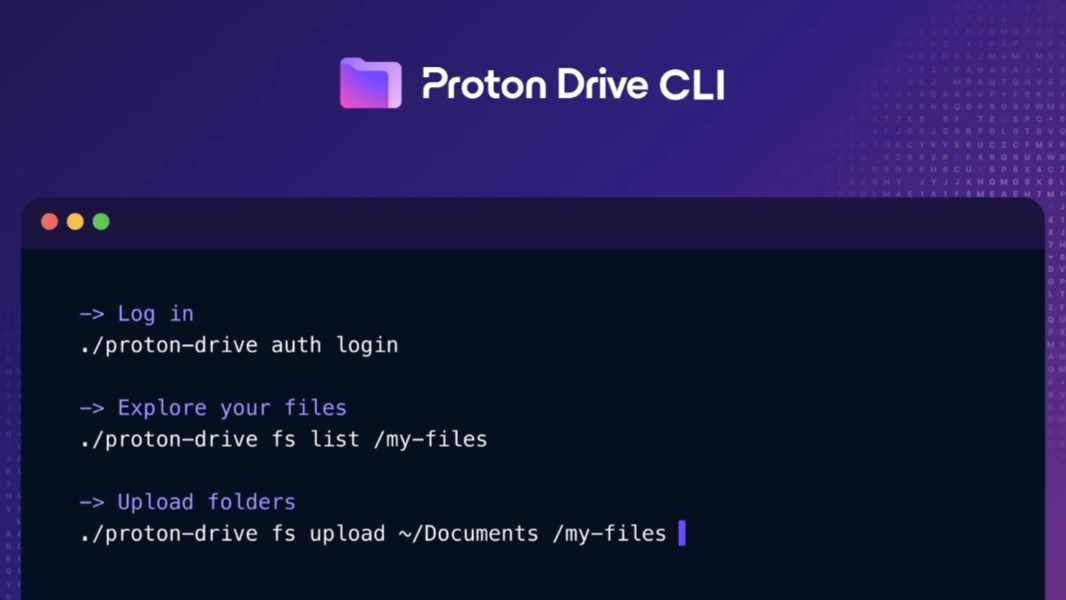
Proton Drive now has a command line interface (CLI) on Windows, Mac, and Linux that’s built on the new Proton Drive SDK.
“The Proton Drive CLI brings the power of our cloud storage and end-to-end encryption to scripts, backups, and deployment pipelines without the hassle of writing code,” Proton’s Michal Hořejšek writes. “It’s built on the same Proton Drive SDK that powers our official Proton Drive client applications, and is fully interoperable with them.”
As Proton said last week, it’s working on a full-featured Proton Drive client app for Linux, and you might view this as an intriguing peek at that future. The Drive CLI isn’t a full replacement for the app; among other things it’s lacking the full synchronization engine that runs in the background. But you can use it script many of Proton Drive’s key features on Linux today.
The Proton Drive CLI works like other CLIs, meaning it’s a single executable (proton-drive) with multiple commands and sub-commands (filesystem copy, filesystem delete, sharing invite, and so on), so it can be used to automate Proton Drive backups, better integrate Proton Drive with your workflows, manage files and sharing, and more.
“The CLI can, for example, upload files after a build finishes, back up a folder on a schedule, invite a reviewer, or check what’s been shared,” Hořejšek notes. “This is especially useful when you need a specific action to happen at a specific time, rather than keeping folders continuously in sync, such as publishing files after a release, taking a snapshot of a shared folder before an audit, or revoking access when someone offboards. The CLI runs the operation, tells you if it worked, and exits. It’s a natural fit for anyone who already works in the terminal and for teams who want their Drive workflows written down as repeatable commands rather than a series of clicks to remember.”
The Proton Drive CLI is a separate download from the full Drive client, but it’s available from the same download page. Once it’s installed, you access the CLI from the Command Prompt and will need to sign-in to Proton (via proton-drive auth login). You can find documentation for getting started on the Proton support website and a command reference in the readme on GitHub.
Exciting stuff. And this suggests the full Linux client isn’t that far off.