Raspberry Pi Modernizes Its Desktop OS
- Paul Thurrott
- Sep 15, 2026
-
0
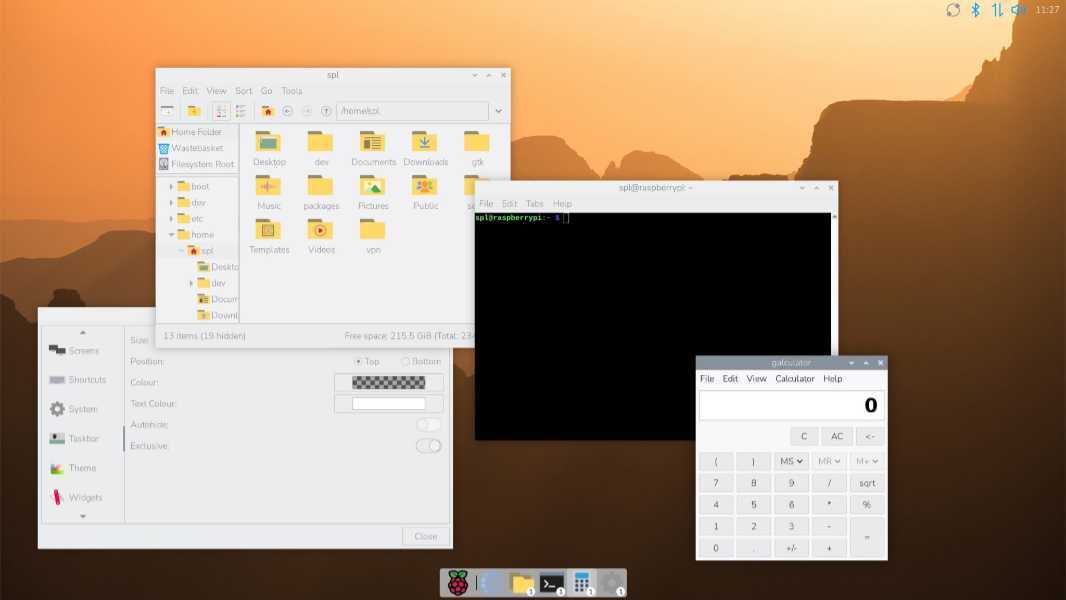
The Raspberry Pi Desktop is a Linux-based environment for the organization’s board-based mini computers, and it hasn’t changed a lot from a user experience perspective since it first launched over a decade ago. But that just changed, and unlike the previous UX refreshes, this one significantly modernizes the overall look and feel of the system.
“The overall feel of the Raspberry Pi Desktop, with its taskbar, status icons and main menu launcher, is very reminiscent of the state of the art in desktop design from 30 years or so ago, with Windows 95 and Apple System 7,” Raspberry Pi’s Simon Long explains. “Desktop designs have continued to evolve in that time, and last year, I started to think that some of the features which are now commonplace in other desktops might be beneficial in ours. Since then, I have been working on a few ideas for how we might add these features to the desktop [while] not losing the fundamental simplicity of it, and not forcing change for the sake of change on users who are happy with the way it is, but just providing some more options.”
Given this, the new updates are all optional and if you have a Raspberry Pi computer and don’t enable them, the Desktop will continue to look and feel the same as it has for the past decade or more. But if you are interested in a more modern Raspberry Pi Desktop, the following new features are now available:
Icon dock. This new UI can be used alongside the existing taskbar or it can replace it. It features a Raspberry icon that opens the launcher screen when clicked, plus two widgets, a graphical application launcher and an icon-based quick launcher and task list. Basically, it looks a lot like the macOS dock or similar UIs one sees in Linux.
Launcher. The full screen launcher shows icons for all the applications on the system. It’s sorted alphabetically by default, but you can drag and drop individual icons to reorder them. You open an app by clicking it once and can see a context menu of relevant options by right-clicking an app icon. There’s also a search bar.
Quick launcher and task list. This new UI in the icon dock looks a bit like the Quick settings interfaces in Windows 11 and Chrome OS, though it’s also tied to app shortcut pinning like other taskbars and docks.
There are other, smaller changes. If you’re not going to use icons on the Desktop, you can disable an Active Desktop feature to lower system resource usage. There’s a new Shortcuts page in Control Center for viewing and configuring keyboard shortcuts. And tapping the Print Screen key now opens a Snipping Tool-like dialog with screenshot-related options and a “Remember my choice” checkbox.
The new Raspberry Pi Desktop is available now, but you have to install the latest OS image to get it. This is accomplished with the following two command lines commands:
sudo apt update
sudo apt full-upgrade