HP OmniBook 5 16 Review: It’s a Snapdragon Miracle
- Paul Thurrott
- Oct 12, 2025
-
6
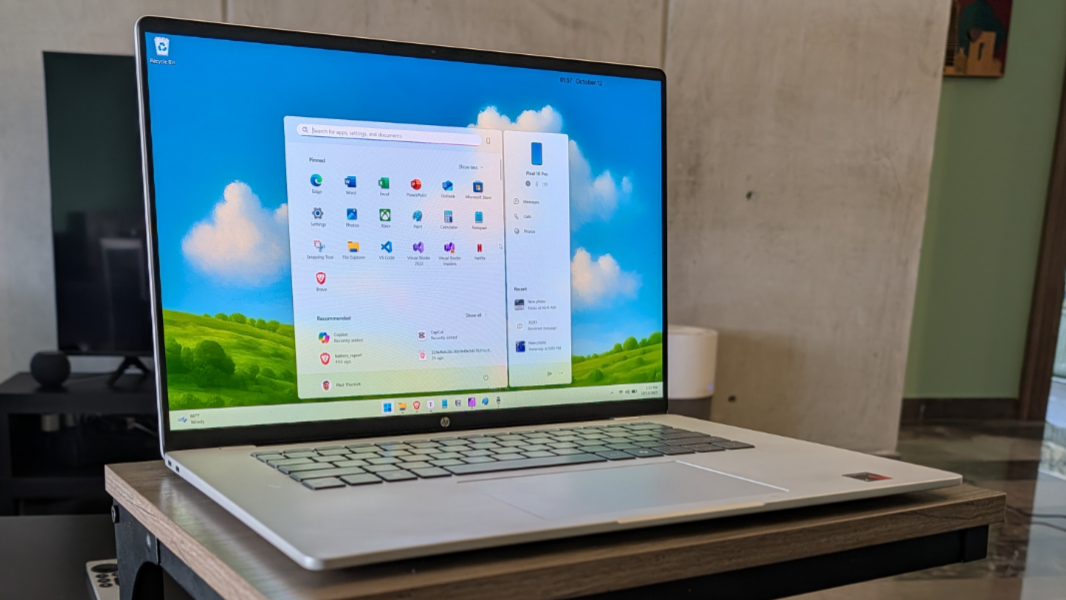
When HP announced the Snapdragon X-powered OmniBook 5 16 this past May, I knew I was going to buy one as soon as I could. The laptop finally shipped in July, but we were in Mexico City at the time. And so I ordered one when we returned home in early August.
I’ve had a hard time putting it down ever since: Despite its affordable pricing and pedestrian components, the OmniBook 5 is one of the best laptops I’ve ever used. Its efficiency, battery life, and reliability put x86 laptops to shame, and its day-to-day performance is terrific. The only thing holding it back is the entry-level storage in the base configuration I ordered.
How good is this laptop? I miss it when I’m not using it. In early September, my wife and I spent the better part of a week in Berlin, Germany, and I brought two premium and much more expensive x86-based laptops with me because they were the next ones I had to review. That was an incredibly frustrating experience because of the rampant reliability and performance issues I experienced with one of those laptops. And I couldn’t wait to get home, when I could finally go back to using the far less expensive OmniBook 5. Snapdragon for the win.
I review dozens of laptops every year. Most of them are many times more expensive than the OmniBook 5. But few of them are this good.
Design
The OmniBook 5 features a familiar high-quality design similar to what we see on HP’s more premium, business-class offerings. The body is aluminum in a Glacier Silver color, just like the EliteBook 8 G1a 16 I just reviewed, and it, too, can look light gray or almost white depending on the lighting. The keyboard, however, is a more traditional and familiar island-style design, and the dark gray keycaps provide a nice visual contrast with the minimalist look of the PC’s body.
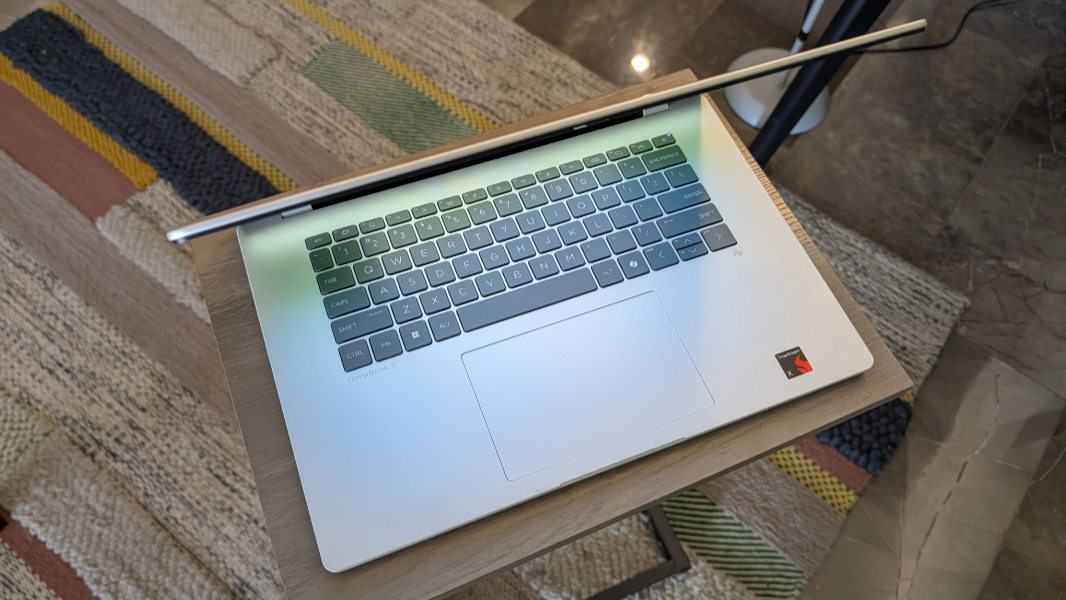
As with HP’s more premium laptops, there are curves everywhere—well, except for the display corners, which I assume to be a cost-saving measure—which is visually pleasant but also provides for softer edges and corners that don’t irritate the wrists while typing.
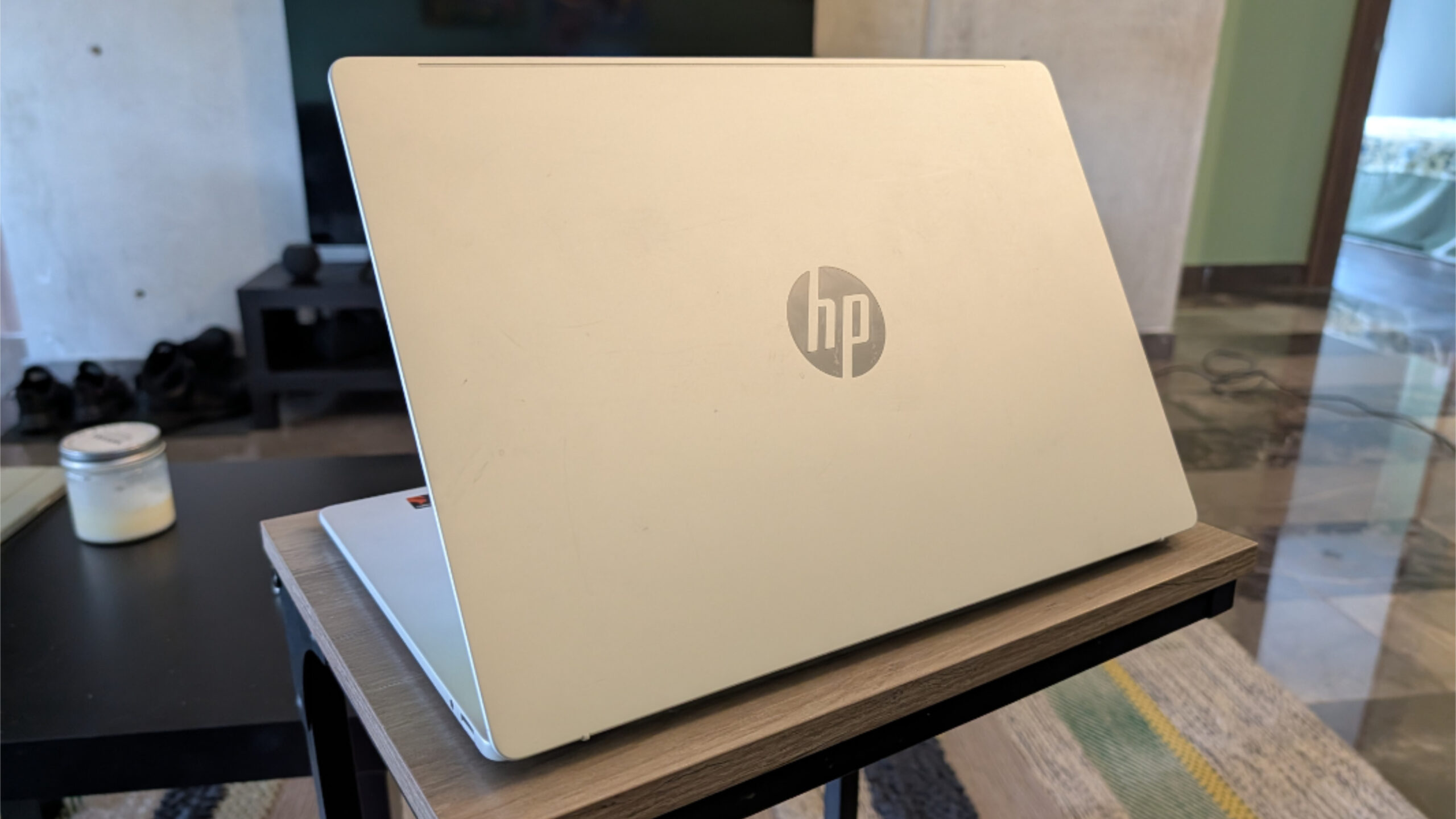
There is more cost-cutting here, as there must be at this price point, which I describe throughout this review. But he only overt clue you’re using a lower-end PC is the use of HP’s old, non-premium logo.
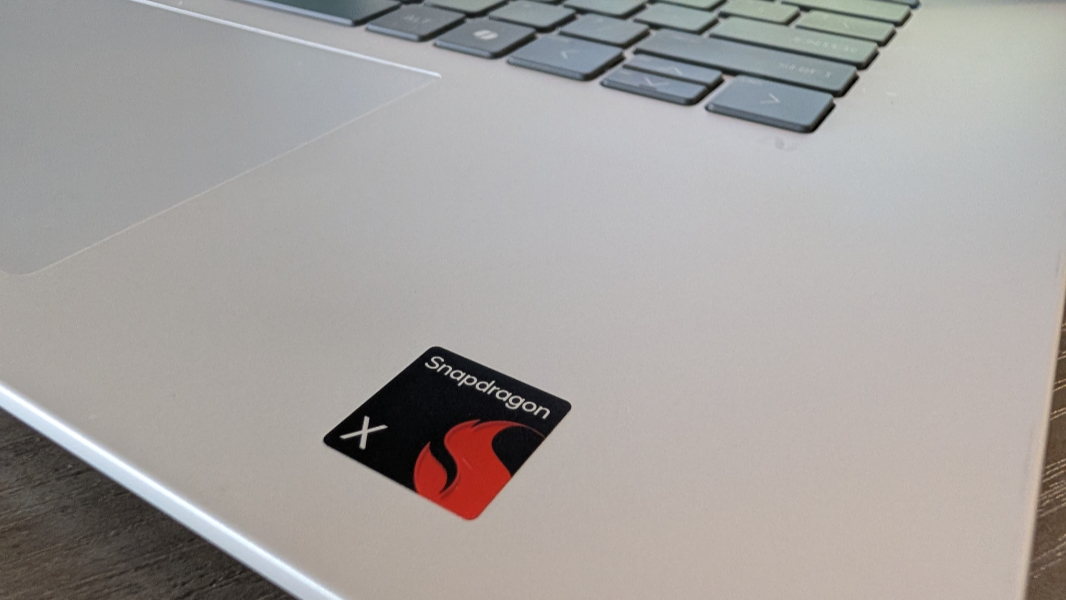
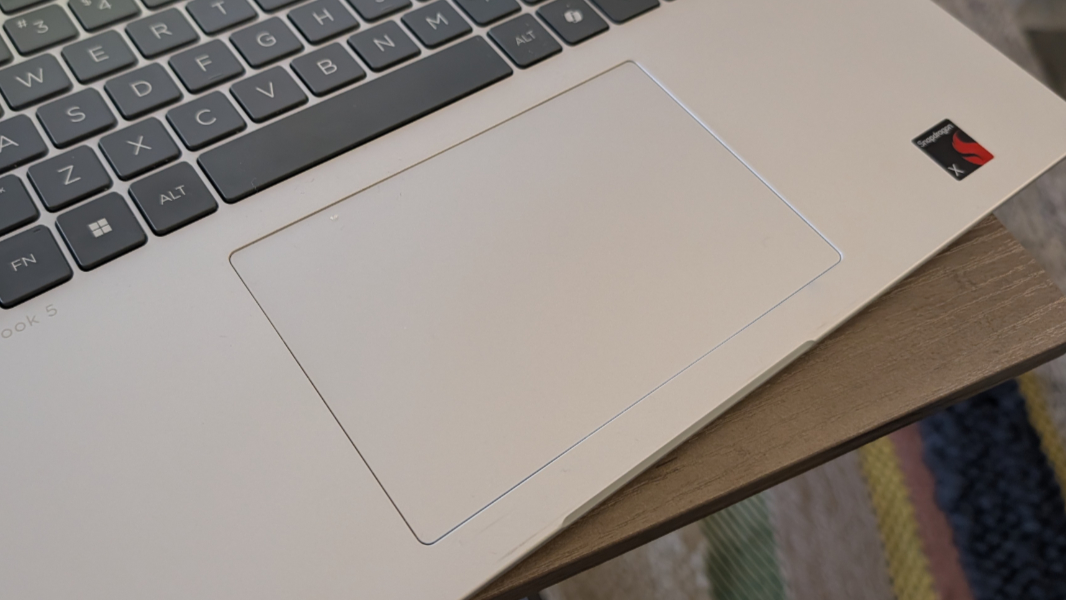
That said, the branding overall is delightfully subtle, and while there is a Snapdragon X sticker on the wrist rest, it’s just the one.
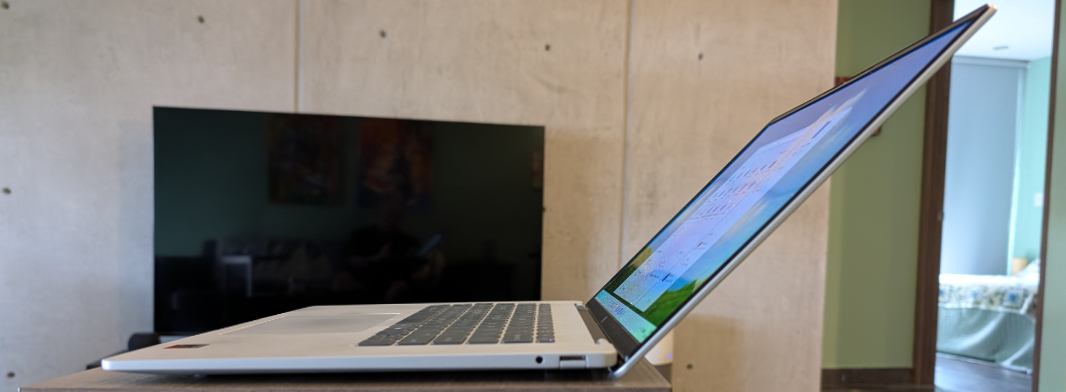
Most laptop displays lay flat or come close these days, but not the OmniBook 5. This isn’t a big deal in practical terms, but that’s a nice feature to have if you’re stuck on a cramped flight in coach and want to just watch a video.
Display
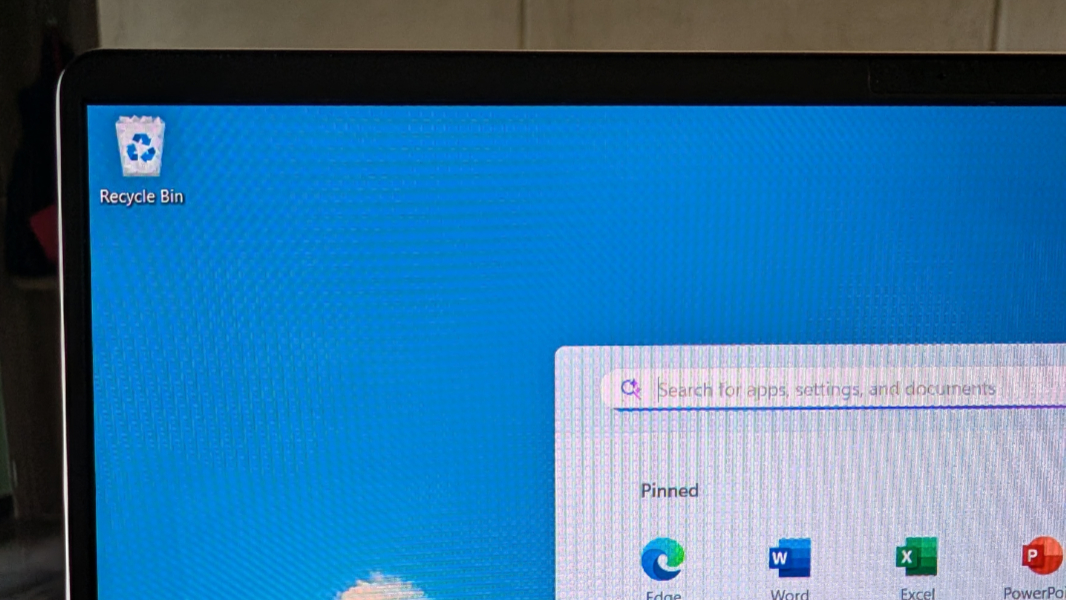
HP provides two display choices to OmniBook 5 16-inch customers. Both are OLED panels with a 2K/Full HD+ (1920 x 1200) resolution, a 16:10 aspect ratio, a standard 60 Hz refresh rate, TUV+Eyesafe Low Blue Light capabilities, and 95 percent PCI-P3 color gamut coverage, and both emit 300 nits of brightness.
The only meaningful difference between the two that I can see is multi-touch capabilities: The panel that came with the laptop I bought is non-touch, which I prefer.
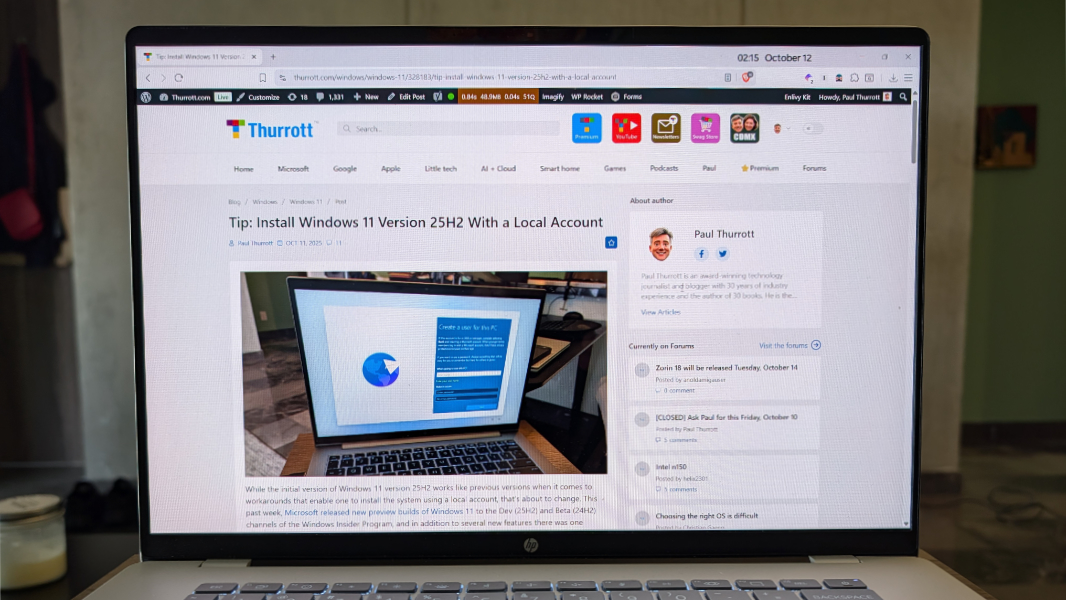
I was a little worried about the relatively low resolution on such a big display panel. But after two solid months of use, I can see that it looks and works well. It’s probably the right choice for battery life as well.
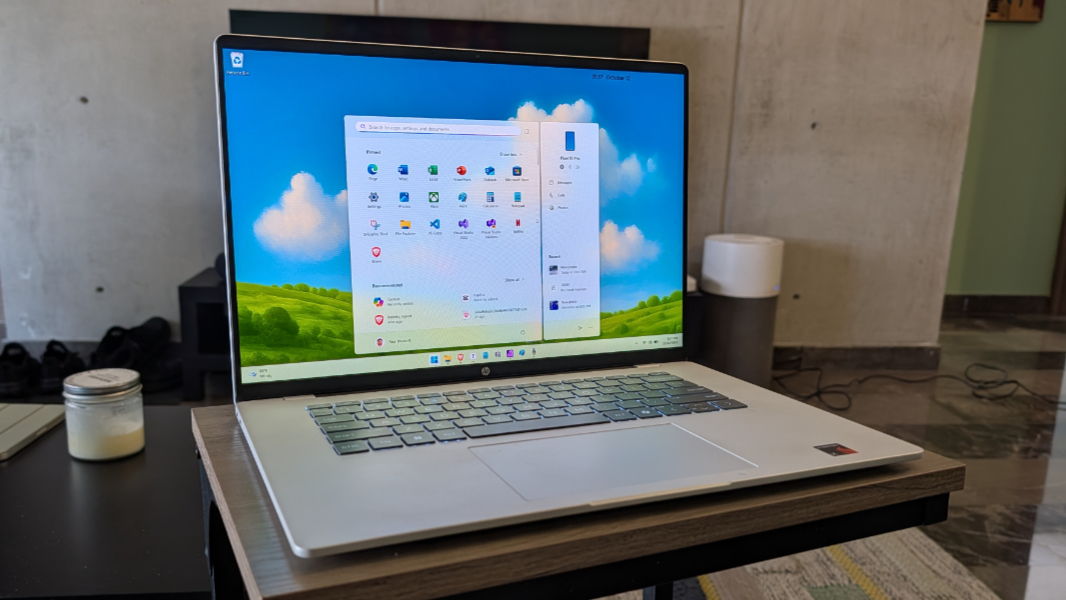
The bezels are notably small on the left and right size and they give the laptop an overall screen-to-body ratio of 91.4 percent, which is quite good (the higher the better), especially in this price class.
Internal components
You can order the OmniBook 5 16-inch with a Snapdragon X Plus X1P-42-100 or Snapdragon X X1-26-100 processor, the two lowest-end PC chips that Qualcomm makes. Both include the same Adreno GPU and Hexagon NPU as all Snapdragon X-series chips, the latter of which provides 45 TOPS of hardware-accelerated AI performance.
The laptop can also be configured with 16 or 32 GB of LPDDR5x-8448 RAM and 256 GB, 512 GB, or 1 TB of PCIe Gen4 NVMe M.2 SSD storage. My only major regret is choosing the 256 GB option, as I ran out of space almost immediately, and this continued to be an issue over the past months of usage. And so I ordered a 1 TB Crucial SSD as I was finalizing this review and will swap that out as soon as possible.
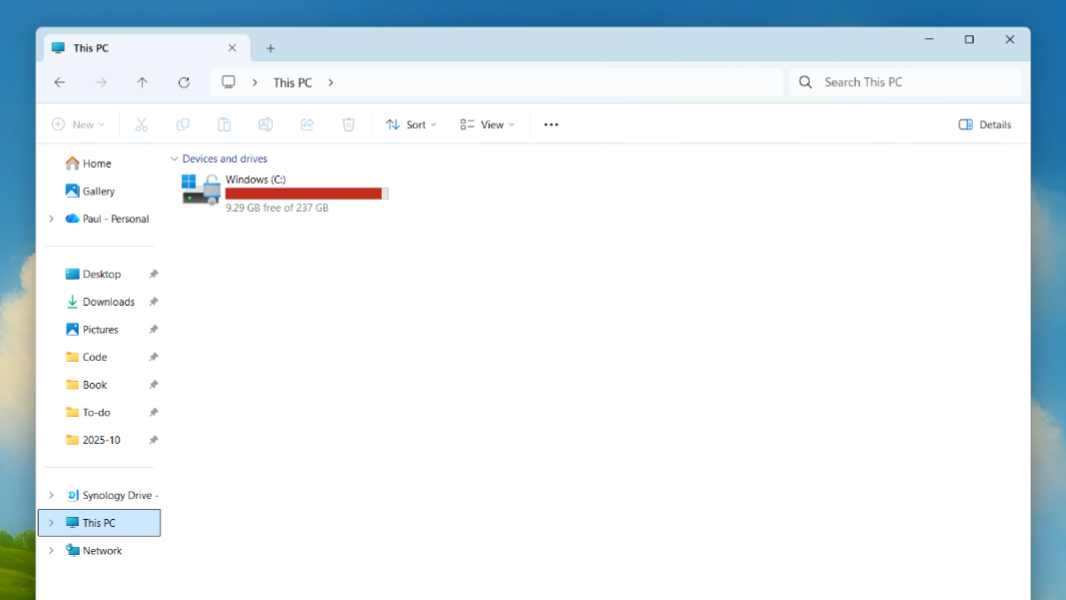
Day-to-day performance has been fantastic, the only notable—and this was quite noticeable—exception being Microsoft Edge with dozens of tabs. Even with sleeping tabs enabled, and that’s a feature I used to disable, performance would slow to a crawl and almost a complete stop. Eventually, I switched to my preferred browser, Brave, and that has worked fine.
The other issue I noticed, and this is not fair to the laptop given the target audience, is when I ran multiple instances of Visual Studio while working on my software development projects. The screen is perfect for Visual Studio, but I need 32 GB of RAM for that type of work.
I can’t play Call of Duty: Black Ops 6 on this laptop, of course, and a full install of that game would more than consume the 256 GB of storage anyway. But I did experiment with older (and smaller) games like Heretic + Hexen and Half-Life 2, and they played just fine.
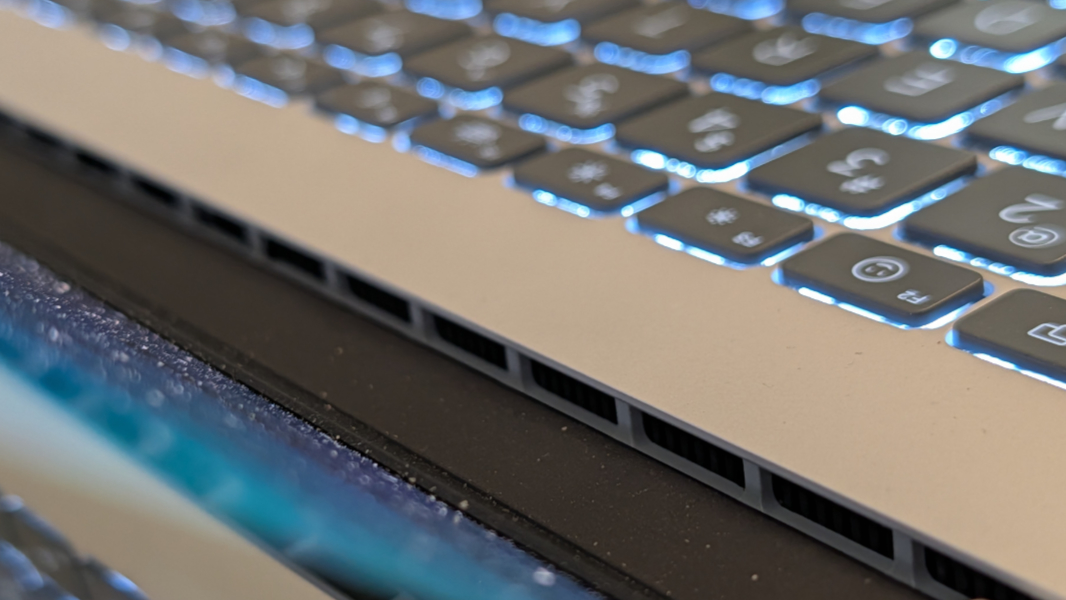
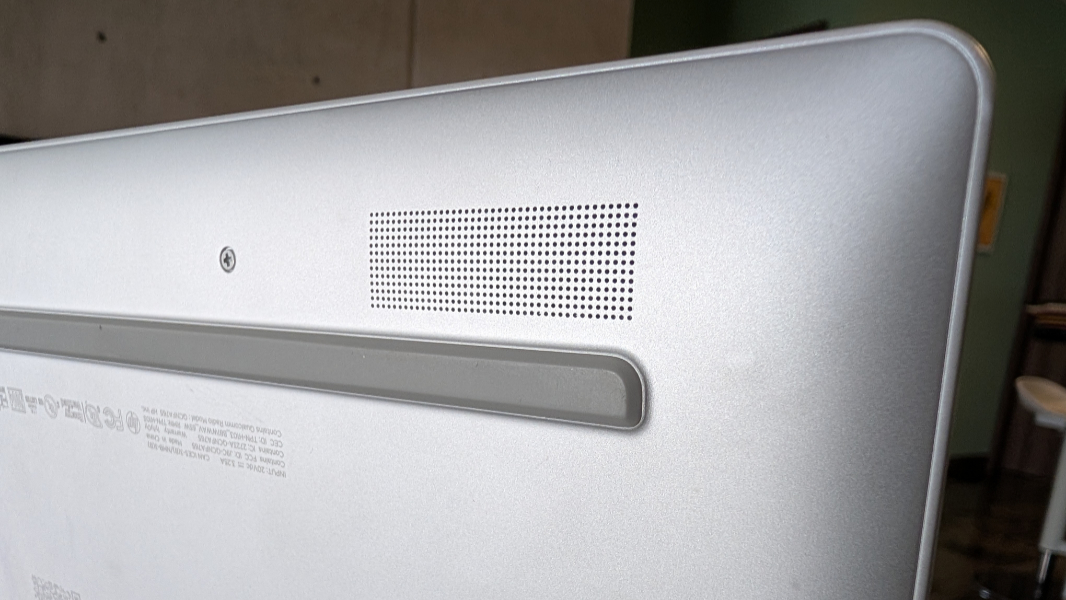
Heat and fan noise were never an issue. There is a large air vent on the bottom of the laptop for pulling in cool air, and then a larger still exhaust area on the back of the bottom deck that blows out hot air. But I almost never registered this happening. Keeping the laptop on a hard, flat surface helps to keep the laptop compeletely silent.
Connectivity
Connectivity is solid but not top-of-the-line, with Wi-Fi 6E and Bluetooth 5.3. I never had issues with either, and my two Wi-Fi networks are 6 and 6E, respectively, so not having Wi-Fi 7 was never an issue.
Ports and expansion
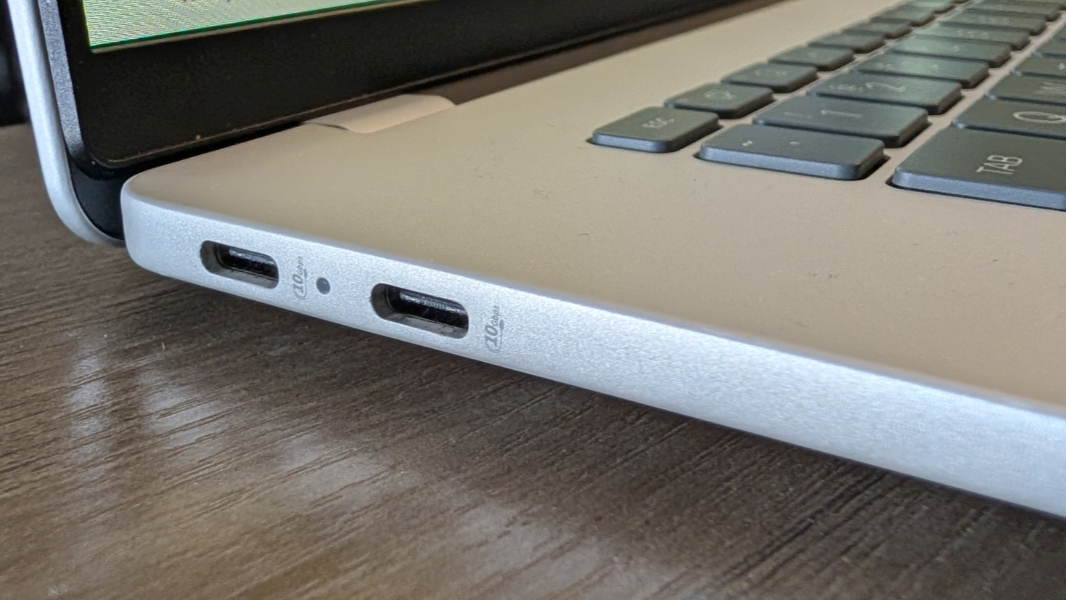
Expansion is, in a word, limited and in keeping with the low-end nature of this PC, HP provides just the basics. There are at least two USB-C ports, but they’re both on the same side of the PC, which isn’t ideal.
That side would be the left, where you will find two 10 Gbps USB Type-C ports with USB Power Delivery, DisplayPort 1.4a, and HP Sleep and Charge capabilities. I only used external portable USB-C displays with the laptop, but it does support a single external display at up to 5K and 60 Hz.
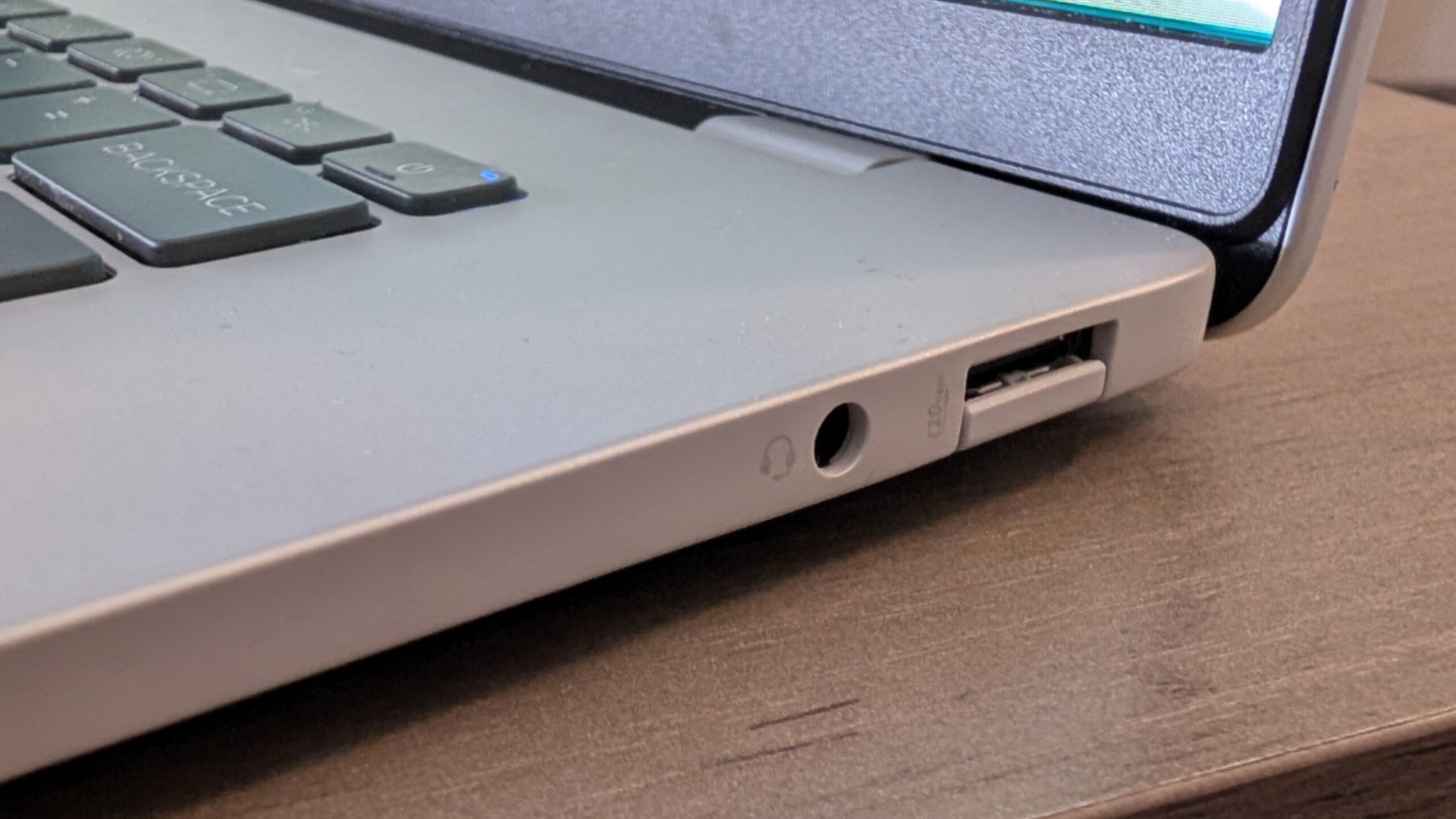
The right side is just as minimalist, with a single 10 Gbps USB Type-A port and an analog audio-out port for headphones or speakers. Right, it’s not a combo port that supports a microphone or other audio-in source.
Audio and video
With its OLED display and two bottom-firing speakers, the multimedia experience is solid but not next-level. Those speakers, which are located at the front of the PC, below the wrist rests, crank up to 100 percent without any distortion, and they get loud. But I would seldom want it that loud, and the sound quality at 80 percent is clearer and still quite loud.

There are no video or audio enhancing technologies like Dolby Vision and Dolby Atmos. But the laptop supports HDR video streaming, at least, and I found the picture quality to be solid.
Hybrid work
HP delivers the basics for hybrid work with a Full HD (1080p) webcam and dual array digital microphones, each of which is in the middle of the top display bezel along with the IR sensor for Windows Hello.
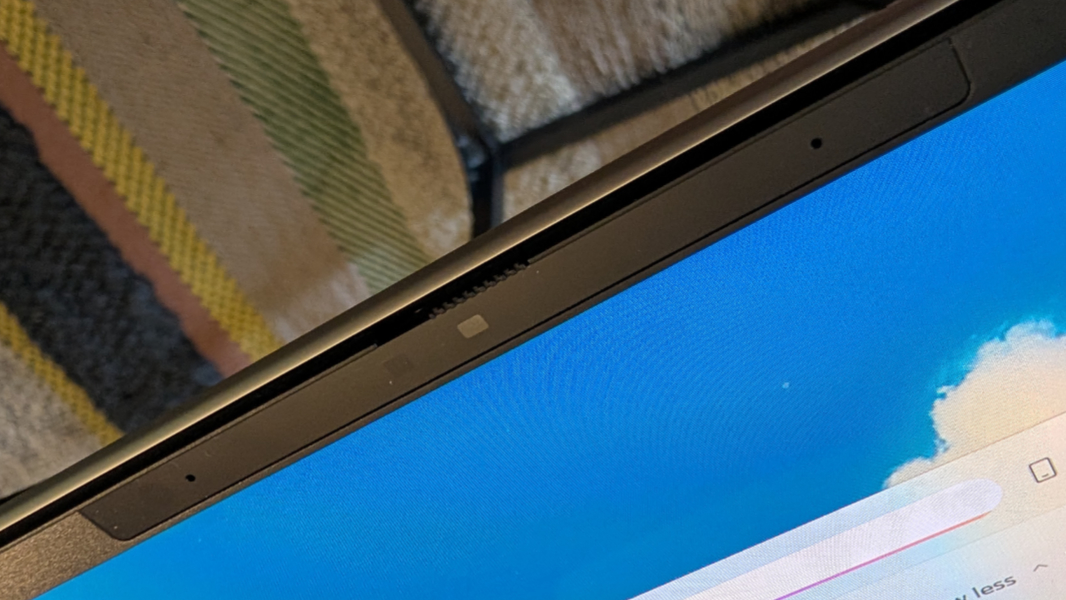
Both are on the utilitarian side, though the webcam offers temporal noise reduction and offers a colorful if grainy picture with a full range of Windows Studio Effects.
The microphones are likewise OK, with a bit of distortion, as expected, in the default settings. But you can enable Windows Studio Effects Voice Focus, the sole audio capability in that suite, and that improves matters nicely.
Keyboard and touchpad
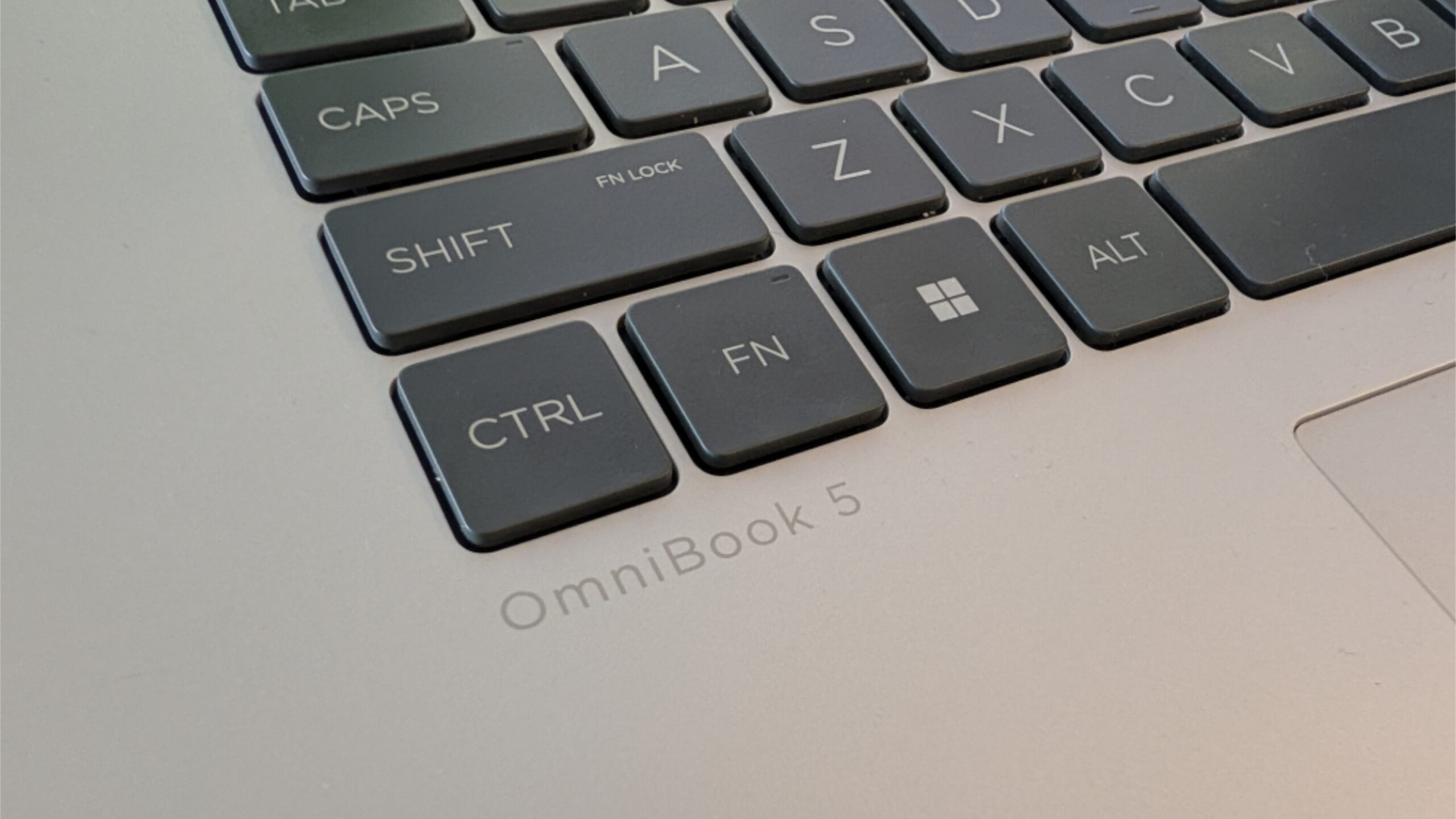
After my frustrating experiences with a few other HP laptops this past year, the OmniBook 5 won me back with a near-perfect typing experience. All the Fn-based keyboard shortcuts work like God intended to and the keyboard isn’t burdened by a numeric keyboard that shifts everything over to the left and introduces typing mistakes.
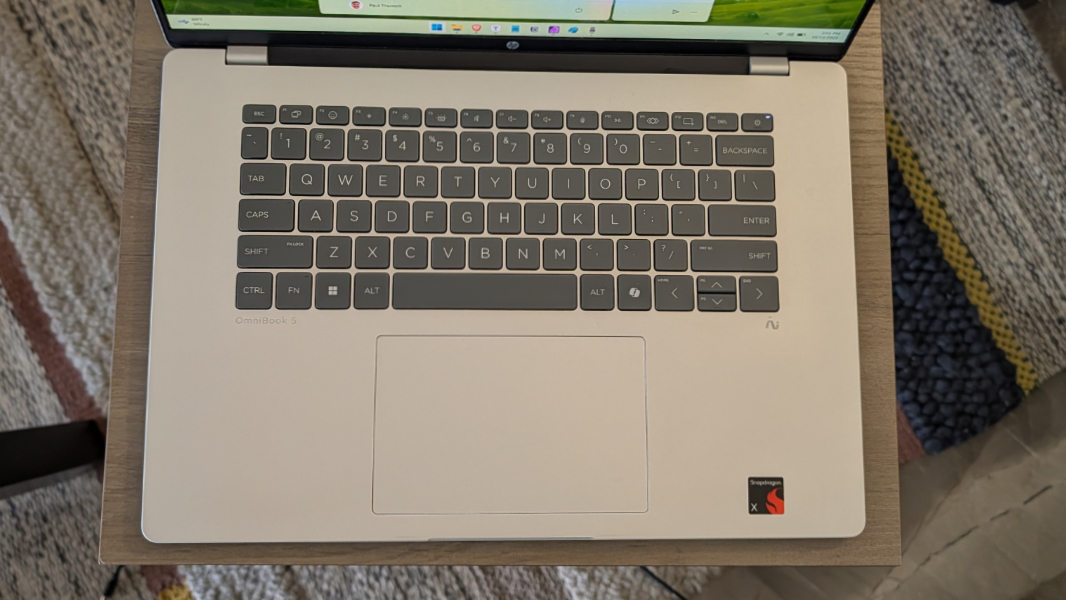
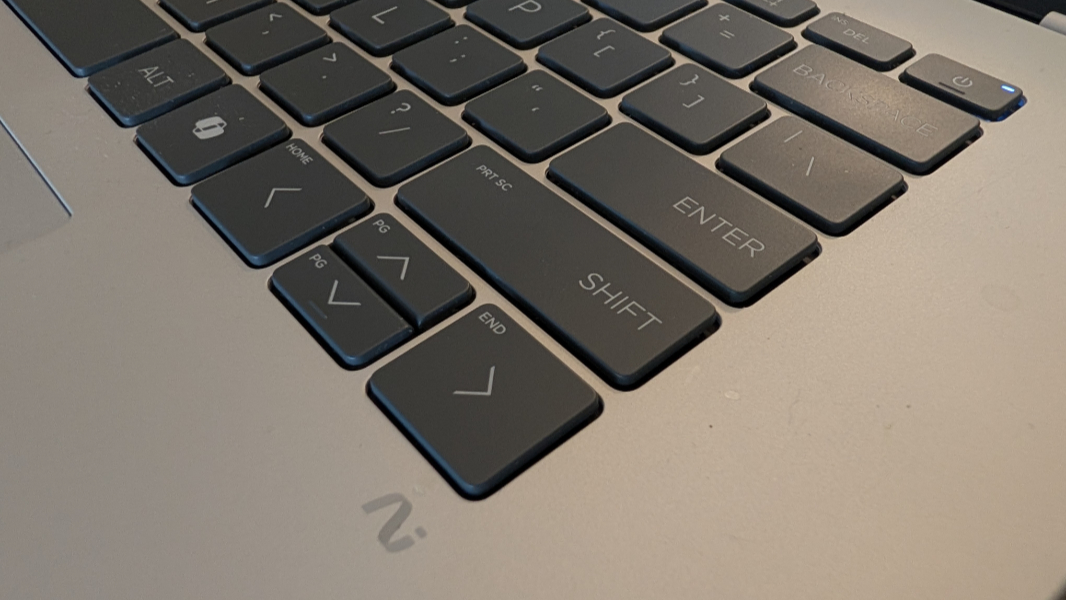
Indeed, there are no oddities here at all. The power button is implemented as a key at the top right of the keyboard, there’s a single programmable key I never used, the Ctrl and Fn keys are in the right places, and the overall typing experience is excellent, with solid, clacky key strokes and good key travel.
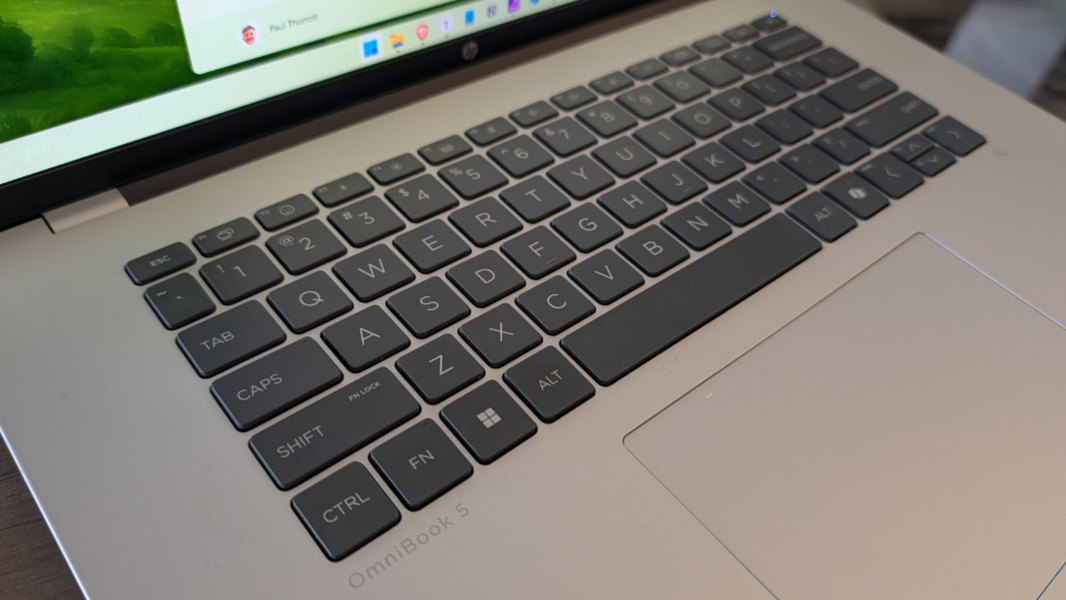
The small Up and Down arrow keys aren’t ideal, but I can forgive that since the Fn keyboard shortcuts all work. And the Copilot key is never ideal, but that’s not HP’s fault. There are two levels of backlighting, but no auto mode.
The large glass touchpad has always worked reliably, at least after disabling three-finger gestures. And I wish there was better touchpad customization in Windows 11, as larger touchpads sometimes make it more difficult to accurately (right) click without stretching a bit to the left. No biggie.
Security
As a Copilot+ PC, the OmniBook 5 delivers on all the security goodness of that platform, with Windows Hello Enhanced Sign-In Security (ESS), a TPM 2.0-compatible security chip, and all the rest. There’s a fast, accurate, and reliable Windows Hello ESS-compatible IR webcam, but no fingerprint reader. And you can mute the microphone with a dedicated key and disable the webcam using a manual camera privacy shutter, which is pretty standard.
Sustainability
You can remove the bottom cover of the laptop using four exposed Philips head screws, though you’ll also need a flat plastic pry tool to undo a single latch in the middle-back. With that open, the customer can replace the battery, but HP recommends that you engage with a service provider to replace other parts like the SSD, WLAN (Wi-Fi/Bluetooth) module, and so on.
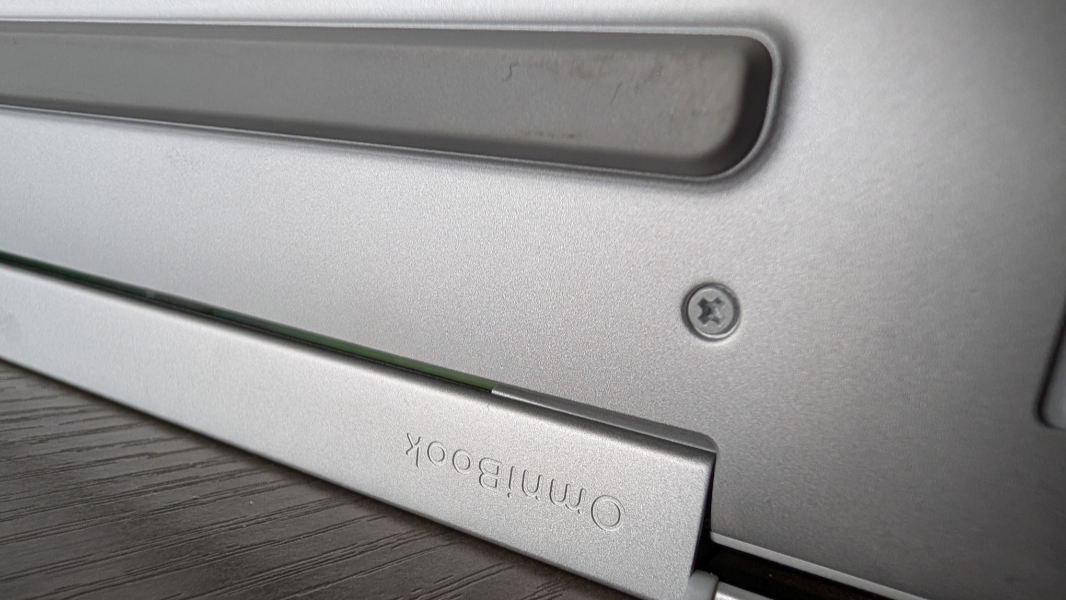
I see no reason why anyone who could replace the battery couldn’t replace those two parts, and SSD replacement is particularly simple, with just a few screws to deal with. So simple I’ll be doing it myself soon so I can get more storage capacity.
Efficiency and portability
I traveled with the OmniBook 5 16-inch twice, on the way to Mexico and then to and from Maui, Hawaii, a nearly week-long trip during which this was my only laptop. It was as delightful as always, with snappy performance on or off power, flawless instant-on reliability, and top-notch efficiency.
The battery life experience has been interesting. It was always well over 8 hours on a charge, but I noticed that the uptime was improving over time and so I started paying even closer attention than usual. By the time I got past the one-month mark, it was averaging just under 10 hours of real-world usage. That’s impressive, and inline with what I’ve seen on other laptops with more powerful Snapdragon X Elite processors. But at this point, it’s closer to 9.5 hours on average overall. Still excellent.
You might not consider any 16-inch laptop to be particularly portable, but the OmniBook begs to differ with its light weight of 3.48 pounds and thin 13.98 x 9.65 x 0.52 dimensions. It fit easily into each of the laptop bags I use and was the ideal road companion.
HP bundles a small 65-watt USB-C power supply with the OmniBook, but I’ve pretty much never used it as I have dozens of higher-quality power supplies everywhere. At 65 watts or better, the laptop supports fast charging its 3-cell 59 watt-hour battery to a 50 percent charge in about 30 minutes.
Software
The OmniBook 5 16-inch comes with Windows 11 Home and a too-long list of HP utilities. I don’t typically do this with review laptops, but I bought this PC, and I decided to uninstall a lot of them: The HP app, HP AI Assistant, HP Documentation, HP Energy Star (a pointless non-app), HP One Agent, HP Privacy Settings, HP System Event Utility, and Web Advisor by McAfee all got the axe.
Pricing and configurations
The 16-inch OmniBook 5 configuration I purchased retails for $699, though it was on sale for $579 at the time of purchase. A model with 512 GB of storage is $749, while a 32 GB/512 GB configuration with a touch screen is $899, though that one is on sale as I write this for $759. Now that is tempting.
14-inch versions of the Snapdragon X-powered OmniBook 5 are even less expensive. A model with 16 GB of RAM and 256 GB of storage retails for just $549, and a Snapdragon X Plus, 32 GB, and 1 TB configuration is $899, though it’s on sale for just $719 at the time of this review.
Recommendations and conclusions
There is no such thing as a good Windows laptop that costs $500 or less. But this $700 Windows laptop is nearly perfect, and superior to x86 laptops that cost two, three, or even four times as much. The performance is consistently excellent, as is its reliability and efficiency. You get almost 10 hours of battery life, Windows Hello ESS security, and all the goodness that comes with every Copilot+ PC. Those with more extreme needs than a mainstream consumer should consider upgrading the RAM and storage, and that’s something I would have benefitted from despite the additional cost. But this is a terrific laptop regardless. Highly recommended.
At-a-glance
Pros
✔️ Excellent performance
✔️ Almost 10 hours of real-world battery life
✔️ Incredibly reliable
✔️ Windows Hello ESS and other Copilot+ PC advantages
✔️ Thin and light for its size
Cons
❌ 256 GB of storage is not enough for almost anyone
➖ No fingerprint reader