Windows 11 Field Guide: A Way Forward for Screenshots
- Paul Thurrott
- Jun 05, 2024
-
2
Thanks to the continuous innovation noted above, Microsoft has made it difficult to keep the Windows 11 Field Guide up-to-date: It adds new features to Windows regularly, and it makes visual changes that make it difficult for us when it comes to screenshots. Because user interfaces now change so often, what you see on your screen may not match what you see in the screenshots.
We’re sorry. Not because it’s our fault, but because we feel your pain. Here’s one example.
When Microsoft introduced Copilot to Windows 11 in late 2023, it was originally implemented as a sidebar pane, and a Copilot Taskbar item replaced the old Microsoft Teams item. Because the Taskbar is onscreen most of the time, we had to take many new screenshots to accommodate this change so that it looked like this.

But then Microsoft decided that it wanted to visually differentiate Copilot. And so it moved its Taskbar icon to the far right of the Taskbar, to the right of the Notifications icon, and hid the “Show desktop” button by default. At this point, Copilot was still implemented by a pane, but this Taskbar change required us to retake several hundreds of screenshots, many of which were just a few months old. It looks like so:

Well, it’s changing again. With Windows 11 version 24H2, Microsoft is changing Copilot from a pane to a regular app. A Copilot shortcut will be pinned by default to the Taskbar, along with File Explorer, Microsoft Edge, and Microsoft Store, and so its Taskbar icon is moving again. To its third location since October 2023. And the “Show desktop” Taskbar button is back too.
This would normally require us to retake those same several hundred screenshots, an arduous and time-consuming process that keeps us away from writing new content. And so we have decided to decline: We are not retaking all the screenshots for a third time. Instead, we will simply use the same stripped-down Taskbar for screenshots and use this note as our explanation (which will be added to the book) of why what you see in the book may not match what you see onscreen.
The default Windows 11 version 24H2 looks like so. Well, it looks something like so: Because Windows Spotlight is the new default background, the Desktop wallpaper, color scheme, and other items you see may look differently too. This is another byproduct of continuous innovation. And other pain in the butt for us.
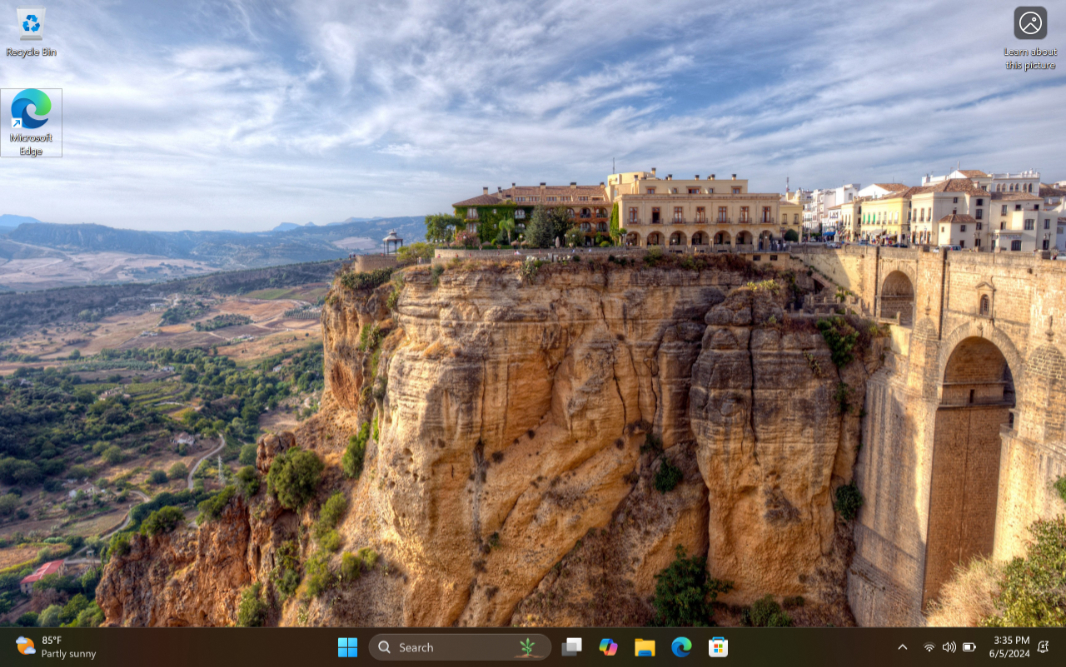
Our goal is to minimize distractions and, more selfishly, not have to keep retaking screenshots every few months. So our screenshots will use the original default theme and not Windows Spotlight. That means we go from this:

To this:

Then, we remove superfluous icons from the Taskbar: Widgets and Copilot, except in the chapters directly related to those features. And because the default Search box displays a little image related to some theme each day, we configure Search on the Taskbar as a basic icon that will never change.
With those changes, the Taskbar now looks like so:

It’s cleaner, simpler, and hopefully that won’t require further screenshot changes in the future. And all the new content we add to the book going forward will utilize this layout when the Taskbar is included in a screenshot.
Hopefully, this works. We have more important things to do than retaking all our screenshots every few months.
Thanks, and thanks for understanding.