HP EliteBook 1040 G11 Review
- Paul Thurrott
- Aug 15, 2024
-
0
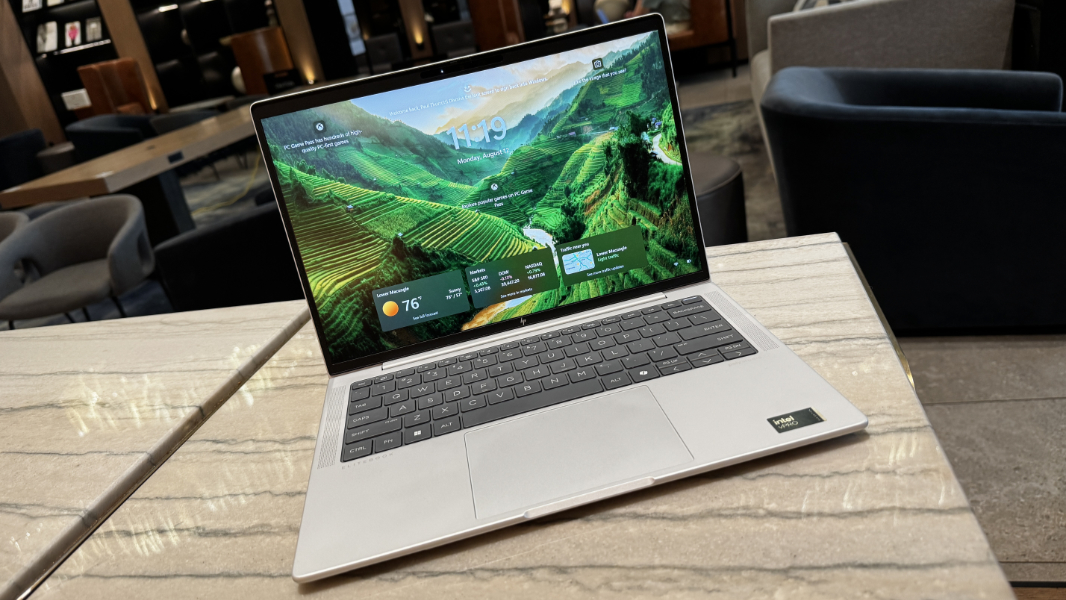
The HP EliteBook 1040 G11 is a surprisingly lightweight and elegant update to an iconic classic with terrific battery life, expansion, and connectivity capabilities. That said, there are a few minor hiccups, including some curious issues with what is otherwise an excellent keyboard.
Design
Coincidental to the broader PC branding changes that will see the firm consolidate on the Elite and Omni prefixes for its commercial and consumer products, the team responsible for EliteBook set out to modernize the product line’s look and feel. What it came up with couldn’t have been more successful: The G11 is a gorgeous reimagining of my favorite business-class laptop, familiar and yet unique, and full of thoughtful details that put it over the top.

You don’t have to be overly familiar with EliteBook to immediately notice the switch from the pedestrian silver colors of the past to a new Glacier Silver that’s almost pure matte white from certain angles. I wish I could do a better job of capturing this color in photos, but in person, it’s an airy, lighter tone that I immediately fell in love with, and the color was formulated for fingerprint resistance. The overall effect is a perfect example of how this product is both familiar and unique, as the G11 is instantly recognizable as an EliteBook 1040 while being more handsome and differentiated as well.

It has all the expected premium design points, from HP’s stylized premium logo on the display lid to the subtle EliteBook and Poly Studio logos on the wrist rest. The corners of the display lid, chassis, keyboard surround, and touchpad–but not, curiously, the display–are all nicely rounded. The keyboard is newly redesigned in a dark gray that contrasts nicely with the rest of the hardware. As does the black of the display bezels. Overall, it’s gorgeous.

But the real magic happens when you pick up the EliteBook 1040. Thanks to its magnesium build, it’s ethereally light, almost impossibly light for its size. It’s a joy to pick up and transport to a new location, and a constant reminder that the other laptops I’m using are comparatively heavy and dense, almost brick-like. And while I can’t really test this, HP claims this featherweight PC is durable enough to survive the rigors of business travel over time, having passed 19 MIL-STD 810H tests and over 120,000 hours of internal stress tests.

From a design standpoint, this is peak EliteBook 1040.
Display
HP offers EliteBook 1040 customers five display choices. Each is a 14-inch panel with a 16:10 aspect ratio, and four are Full HD+ (1920 x 1200) anti-glare WLED panels, while the fifth is a 2.8K (2880 x 1800) OLED BrightView panel.

The review unit came with the base display, a 60 Hz, low-power, non-touch panel with low blue light capabilities that emits 400 nits of brightness. In some ways, it’s nothing special, the type of display a business would likely configure for a fleet of knowledge workers. But it’s ideal for my type of work, and I prefer matte and anti-glare displays over glossier alternatives.

If that’s too pedestrian for you, you can upgrade to an otherwise identical panel with multitouch or a Sure View Gen 5-equipped privacy panel with 800 nits of brightness (in non-touch and multitouch versions). And then there’s that OLED Bright View display, which is only available in non-touch, as God intended.

The display lid almost lays flat–it’s close enough–and the bezels are average on the top and bottom, to accommodate the webcam and sensors, and hinge, respectively, and quite thin on the sides.

Internal components
HP outfits the EliteBook 1040 with Intel Core Ultra (“Meteor Lake”) 5 and 7 processors, with both U-series and H-series choices. Fortunately, there’s only one U-series configuration, with an underpowered Intel Core Ultra 5 135U that I feel everyone should avoid. But there are multiple H-series choices in vPro and non-vPro configurations, including the Intel Core Ultra 5 125H, 5 135H, 7 155H, and 7 165H. Each can be configured with 16 or 32 GB of soldered LPDDR5X-7467 RAM and 256 GB, 512 GB, 1 TB, or 2 TB of PCIe NVMe SSD storage of various types.
The review unit came with the highest-end Intel Core Ultra 7 165H processor, plus 16 GB of RAM and 512 GB of storage. It proved adequate for my standard productivity workloads–Chrome, Notion, Typora, Affinity Photo, Slack, and so on–though I also did a lot of coding with multiple Visual Studio instances and would have benefitted from more RAM.

For the most part, the EliteBook 1040 went about this work with no drama: The fans run fairly steadily, but I had to hold the PC up to my ear to determine that: The fan sound isn’t noise, even white noise, it’s just a very soft whisper that I never really noticed. HP tells me that it achieved this near-silence via a new thermal design with high-density turbo fans (meaning bigger fans with more and thinner blades) that improved the airflow. This design is 40 percent quieter than its predecessor, according to the company. I believe it: I’m sensitive to PC fan noise, and I only rarely heard the fans.
A Performance Control setting in the myHP app lets you configure how the PC juggles performance, fan noise, and cooling. It’s set to Smart Sense by default, an AI-based system that optimizes these characteristics on the fly based not just on which apps you’re using, but also on the battery status and even the surface the laptop is on. (Hard surfaces provide better airflow, which leads to better performance with less need for active cooling.) Interestingly, that includes sensing when the PC is being used on your lap, not just a bed, couch, or other non-flat or soft surface.
If you like micromanaging things or just need a speed boost, you can use a Performance mode instead that opens up the processing power to its full potential at the expense of fan noise and battery life. I left this on Smart Sense.
Connectivity
Every EliteBook 1040 G11 provides modern Wi-Fi 6E and Bluetooth 5.3 wireless connectivity, but you can optionally configure 4G LTE or 5G as well, with both eSIM and nano-SIM capabilities. The review unit was configured with 5G, though this is an expensive upgrade I’d personally skip.
Ports and expansion
The EliteBook 1040 is a business-class laptop, and it delivers the mix of modern and legacy expansion ports its audience demands. Even better, it has USB-C ports on both sides, which is ideal.

On the left is a full-sized HDMI 2.1 video-out port, two Thunderbolt 4 Type-PC ports (with Power Delivery, DisplayPort 1.4, and 40 Gbps data transfer), and a 3.5-mm headphone/microphone jack.

On the right, you’ll find a full-sized USB 3.2 Gen 1 Type-A port (5 Gbps), a SuperSpeed USB Type-C port (10 Gbps, with Power Delivery and DisplayPort 1.4), and a nano lock slot. If you configure the EliteBook with cellular data, a nano-SIM card slot is there as well.
Audio and video
Given its focus, I wasn’t expecting much in the way of entertainment, and the EliteBook 1040 doesn’t provide Dolby Vision or Dolby Atmos capabilities as expected. There’s HDR for video streaming, at least, and you can always get basic immersive audio capabilities via headphones and Windows Sonic.
But it’s not all bad. The EliteBook 1040 features quad speakers, two upward-firing on the sides of the keyboard, and two downward-firing below the front of the wrist rest area. Each is powered by a discrete amplifier, and tuned by Poly Studio, whatever that means. The sound is stereo and not particularly immersive, but it’s surprisingly good, and loud, with almost no distortion at 100 percent volume. It works particularly well on a hard surface, of course.

There’s not much to configure here. The display features are basic from a video playback perspective, and the HP Audio Control app supports a 10-band equalizer and Music, Movie, and Voice presets, but I just left that on Auto.
Hybrid work
The hybrid work capabilities are much more impressive.
The speakers can likewise be configured with AI-backed noise reduction to help minimize background sounds coming from the other participants in a meeting. And in a first for HP, the EliteBook 1040 sports dual high SNR (signal-to-noise ratio) microphones, one on either side of the webcam and sensors in the top display bezel, that better differentiate between wanted sounds–your voice–and background noise than more pedestrian microphones. These microphones are backed by AI noise reduction capabilities with three mode choices (Intelligent, Standard, and Studio, the latter of which is optimized for podcast or video recording), dynamic voice leveling, and your choice of Conference and Personal microphone modes. In Conference mode, the microphones will capture voices coming from any direction, while Personal mode limits voice capture to the front.
It works incredibly well: The audio quality is surprisingly good for built-in microphones, and the microphone modes are real. When I tested Conference mode, it captured my voice when I was on the sides of the display as well as when I was in the front. But when I switched to Personal mode, it didn’t even pick up my voice at all when I was off-center. You can also configure the system to let you choose between these modes each time you use the microphone, a terrific idea. (These configuration options are in the myHP app.)

The EliteBook 1040 also includes a high-quality 5 MP webcam (which is based on the MIPI standard for small size, high performance, and low power consumption). It supports Dynamic Color Tuning to autocorrect picture quality in different lighting conditions And thanks to the PC’s NPU, it offers basic Windows Studio Effects functionality, with background effects (standard and portrait), eye contact, and automatic framing.

But the big deal here is the inclusion of Poly Camera Pro, a new AI-powered configuration utility that provides an incredible level of control over the camera for those who wish to fully take advantage of the hardware’s capabilities. It’s a bit intimidating, but you can configure the output resolution and frame rate, create and edit scenes and watermarks (complete with keyboard shortcut toggles), control zoom and pan, and configure wide ranges of image enhancements (background blur/replacement) and image adjustments (backlight compensation, brightness, and so on). It’s pretty impressive.
Keyboard and touchpad
Previous EliteBook 1040s featured some of the very best portable PC keyboards I’ve ever used, and so I approached the G11 with a bit of suspicion, given how different this keyboard looks. And it isn’t just looks: The key caps, like the touchpad, are 16 percent bigger than before, and they’ve been engineered to reduce the wobble that can happen if you tap them off-center.

For the most part, I was happily surprised: In keeping with the product line’s history, this EliteBook 1040 delivers a confident typing experience, with a solid key feel, perfect feedback, and minimal noise. It’s up there with the best of the best.

Or it would be, if it weren’t for two perplexing issues.
First, the tiny Pg Up and Pg Dn keys are too easy to mistype, sending the insertion cursor flying up or down a page as I type. And worse, the Home key doesn’t work properly: Just typing Home works fine, but keyboard shortcuts that use Home (like Ctrl + Home to go to the top of a document) do nothing or trigger the wrong action. This is clearly caused by HP doubling up the F12 and Home keys into a single key, but I never did figure out a fix for this problem, and instead had to adjust the way I select text and navigate in documents. Given my decades of experience with these shortcuts, I found this issue maddening. (So maddening that I wrote an entire article about it.)

I realize the Home key issue won’t impact many people. Not everyone relies as much on this key and its shortcuts as I do. And the rest of the keyboard experience is terrific. There are no misplaced keys and no other weird issues. And though I would prefer for the power button, which is implemented as a key, to not occupy the Delete key’s position in the top right of the keyboard, that, at least, is a change I could get used to.

The touchpad is a glass mechanical clickpad that’s reliable enough that I never felt the need to disable three- and four-finger gestures, as I often do. The only nit here is minor: Thanks, no doubt, to the thin and lightweight frame that surrounds it, the touchpad sounds a bit tinny and cheap when clicked.

Security
The HP EliteBook 1040 supports Windows Hello facial and fingerprint recognition capabilities, the ideal configuration. Facial recognition wasn’t always reliable–tied, I think, to the work HP did to improve power management, as noted below–but the fingerprint reader, which is built-in to the power button key in the upper right of the keyboard, was always fast and reliable. There’s a manual privacy switch above the webcam, and the standard microphone mute key in the function row.

HP provides its effective Wolf Security suite with all its commercial PCs, but this software is aimed at managed businesses, not consumers, consumes additional resources, and can impact battery life, I uninstall it immediately.
Sustainability
HP has been a leader in PC sustainability for years, and the EliteBook 1040 is one of its most impressive entries in this regard. Over 70 percent of the major parts in the PC contain recycled materials, and this PC is HP’s first to use plastic from recycled fishnets in its keyboard. The cover is 90 percent recycled magnesium, the speaker boxes are 30 percent ocean-bound plastic, there’s 21 percent recycled cooking oil in the display bezels, and the PC’s packaging is 100 percent sustainably sourced.

The EliteBook 1040 is also easily serviced and repaired. There’s one less Philips screw (4, vs. 5 before) on the bottom cover, all of which are exposed, and the battery can be replaced without tools. Aside from the RAM, which is soldered to the system board, basically any component in the system can be replaced or upgraded, with the battery, SSD, WWAN (4G/5G) module, and WLAN (Wi-Fi/Bluetooth) module being particularly accessible.
Efficiency and portability
Thanks to Qualcomm’s Snapdragon X hardware platform, the Intel Core Ultra-based EliteBook 1040 is being held to a higher standard when it comes to portability than its predecessors: This is the first laptop review in which I’m formally evaluating the efficiency of the product, meaning its instant-on performance and reliability, and its power management prowess, in addition to its battery life.
This is a high bar. Snapdragon X-based PCs consistently deliver reliable instant-on, efficient power management, and excellent real-world battery life, usually more than 10 hours worth. But HP knows this: It specifically engineered the EliteBook 1040 to overcome the Intel Core Ultra efficiency issues I highlighted in previous reviews.

I’m fascinated by this effort. HP increased the EliteBook’s battery size from 51 to 68 watt-hours. Then, in addition to using presence sensors to determine when a user approaches or leaves the laptop, it added other sensors to detect, among other things, when the laptop is being put in, or taken out of, a bag. HP then employed its new MotionAI, a set of PC contextual awareness technologies, to detect various states on the fly. The idea is to provide instant-on capabilities when possible, and to use this awareness, as opposed to a scheduler, to put the PC into a deeper sleep mode called Intelligent Hibernate that kicks in when appropriate and prevents the battery from draining overnight.
If HP were successful, the EliteBook would come on instantly as you used it throughout the day, turning off the display when you left and turning it on as you approached. It would go into a normal sleep mode when you closed the lid and come right back on when you opened it back up. Then, it would go into Intelligent Hibernate after a few hours of inactivity, or when placed in a bag. And it would come out of this deep sleep when you approached it (if the display lid were open), took it out of a bag, or opened the lid.
Put another way, if HP were successful, the EliteBook would emulate the Snapdragon X instant-on, power management, and battery life experiences using a bit of AI trickery and sensor-based workarounds. Which, whatever. That’s fine: All anyone wants is for this functionality to just work.

The good news is that HP was mostly successful. When actively using the EliteBook 1040 throughout the day, it senses me approaching and immediately fires up the display. And then Windows Hello facial recognition kicks in, authenticating me and displaying the Windows 11 desktop. This all happens quickly and without drama.
It works similarly if I close the lid and return to work within minutes or a few hours: In this case, the screen comes right on, and it authenticates me quickly as well.
When I return to the laptop each morning after being away for 6 or 8 hours and open the lid, things move a bit more slowly: The keyboard backlight flashes on, the display powers on, and then the HP boot logo appears. Then, after 3 to 7 seconds, the Windows 11 lock screen appears, Windows Hello facial recognition detects me, and I’m at the desktop. This isn’t the Snapdragon next-day instant-on experience, obviously. But it’s an acceptable compromise.
The only issue–and I can’t say this is HP’s fault, though that’s unclear–is that Windows Hello facial recognition sometimes takes a few to several seconds to work correctly. It sometimes displays a “waiting” message before the sensor finally comes on, and in rarer cases, it simply fails, forcing me to use the fingerprint reader.
I feel like HP has done what it can to bypass the inherent reliability issues with the underlying Intel hardware, which isn’t as efficient and reliable as Snapdragon X. Perhaps further refinements can be made over time: HP did a terrific job of fixing the efficiency and reliability issues I was experiencing with the very similar (also Core Ultra-based) ZBook Firefly 14 G11. But it wasn’t able to fix the battery life, at least during my review period.
Fortunately, battery life isn’t an issue with the EliteBook 1040: I consistently observed about 7.5 hours of real-world battery life, sometimes a bit more. That’s terrific uptime for an x64 laptop. And with its incredibly light weight and svelte size–just 2.6 pounds and 12.36 x 8.66 x 0.41 inches, respectively–the EliteBook 1040 is an ideal travel companion. It disappears into a bag and is barely felt when moving around with it.
On that note, I wasn’t able to fly with the EliteBook 1040 during the testing period. But I did bring it on a long weekend trip (by car) to Washington D.C., which ended up being a 4.5-hour slog through the remains of Hurricane Debby. To test the power management work HP had done, I threw caution to the wind and just closed up the laptop before tossing it in the bag, instead of powering it down as I always do with x64-based laptops. After we checked into the hotel and got up to the room several hours later, I took it out of the bag and opened the display lid, and it came right on, authenticating me with Windows Hello immediately.
Would I do the same for a cross-country or cross-Atlantic flight? Probably not, but that’s just me reacting to a decade-plus of bad experiences. Intel and its PC maker partners still have work to do if they ever hope to match the reliable efficiency of Snapdragon X. But this represents an interesting step forward for now.
Software
The EliteBook 1040 comes with Windows 11 Pro, of course, plus 11 HP utilities, four Intel utilities, and two curious examples of pointless Start menu detritus–Miro Offers and TCO Certified–that were at least easy to remove. So there’s no serious crapware, as expected from a business-class laptop. As noted earlier, I did remove the HP Wolf Pro Security software, which is probably useful for those in managed business environments but is superfluous for individuals.
Pricing and configurations
The HP EliteBook 1040 is a premium business-class laptop, and though that’s reflected in the pricing to some degree, the entry-level configurations are reasonable in both specifications and price: You can get a pre-built model with an Intel Core Ultra 5 125H processor, 16 GB of RAM, 512 GB of SSD storage, and a Full HD+ non-touch display for about $1500.
The review configuration–Core Ultra 7 165H, 16 GB/512 GB, with the same display and the optional 5G included–is about $2100. And a configuration with a Core Ultra 5, 32 GB of RAM, 512 GB of storage, and a 2.8K OLED display (but no 5G) costs about $2040.
You can also customize the PC to your needs, with many processor/RAM, SSD, display, connectivity, and other options. You could spend between $3000 and $4000 on one if you really wanted to.
Recommendations and conclusions
Despite its Intel Core Ultra underpinnings, the HP EliteBook 1040 G11 is a terrific upgrade for those using a previous model. It’s a surprisingly light and handsome laptop with terrific battery life and reasonably reliable power management capabilities, diverse expansion capabilities with USB Type-C ports on both sides, and impressive hybrid work smarts. HP has done what it can to overcome the efficiency limitations inherent to Meteor Lake, though it may have impacted the facial recognition functionality a bit. And, as noted, there were a few keyboard issues that were maddening to me but might not impact others.
I can’t say I’m surprised that I like it so much: The EliteBook 1040 has been my favorite business-class laptop for years, after all. But having just spent so much time with a MacBook Air M3 and several Snapdragon X-based Copilot+ PCs recently, I wasn’t sure whether a traditional x64 laptop could entice me anymore.
It can: The EliteBook 1040 G11 is a timely reminder that there’s plenty of life left in this platform, especially when the PC maker goes the distance to deliver a great experience. I have no problem recommending the EliteBook 1040 G11, assuming you can live with the few small issues I experienced.
At-a-glance
Pros
- Elegant update to an iconic design
- Incredibly lightweight
- Excellent battery life, especially for an x64 laptop
- USB Type-C ports on both sides of the PC
- Cellular data is available as an option
- Impressive hybrid work functionality
Cons
- A few maddening keyboard issues
- Facial recognition could be unreliable