Lenovo ThinkPad X12 Detachable (Gen 2) Review
- Paul Thurrott
- Sep 26, 2024
-
4
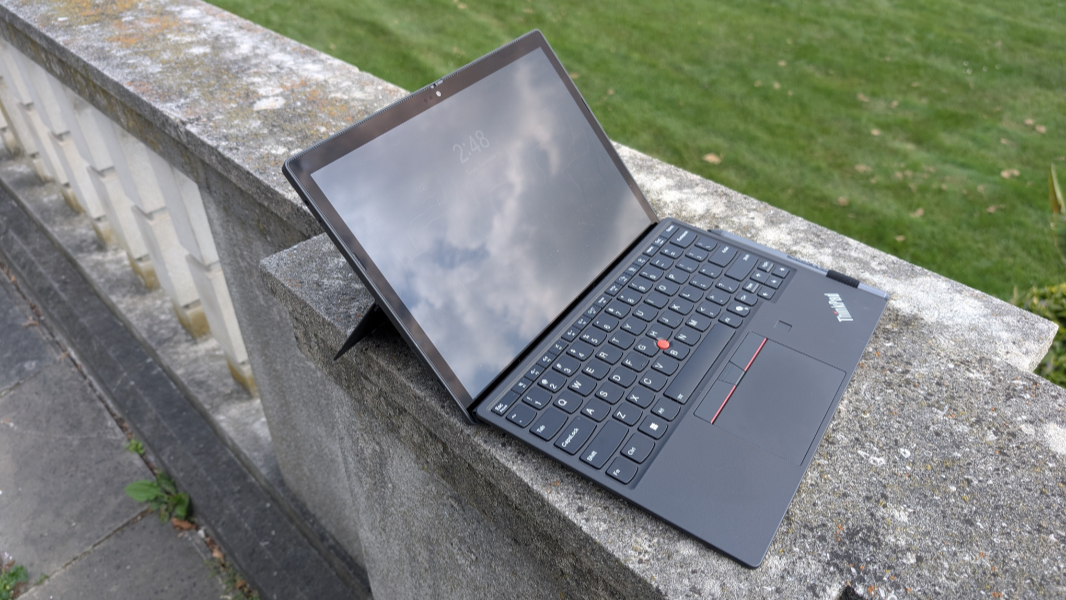
The Lenovo ThinkPad X12 Detachable is a 2-in-1 tablet for ThinkPad fans, but it’s let down by its small screen and lackluster Intel Core Ultra U-series processor.
Design
The ThinkPad X12 delivers on the classic ThinkPad look and feel but in the compact 2-in-1 tablet PC design that was popularized by Microsoft’s Surface Pro. Sadly, Lenovo stuck with a small 12.3-inch display in the X12 where Microsoft has pushed forward to a more reasonably sized 13-inch display in roughly the same form factor. And you can really see it in the bezels, which are almost comically large on the X12.

All the standard ThinkPad design cues are there, from the black magnesium/aluminum construction with red accents to the angled ThinkPad logos on the device’s rear and wrist rest and the iconic TrackPoint dual-pointing system. And yes, the dot on the “i” on the rear lights up read when the PC’s in use. Thomas Watson would no doubt approve.

But there are also some archaic design touches that are less welcome. In addition to the old-school bezels, the X12’s folio keyboard has an old-fashioned square fingerprint reader on its wrist rest, the Fn and Ctrl keys are reversed, and while the keyboard supports two levels of backlighting, there’s no automatic setting. Most modern ThinkPads have evolved past these weirdisms, but the X12 remains stuck in the past.

Worse, the X12 suffers from an issue that dogs all 2-in-1 tablets: It can’t be positioned so that the display is upright and must instead be inclined backward to a degree I don’t like. That is, the integrated kickstand is wonderful, it’s a feature all tablets need. But when used like a laptop, the viewing angle isn’t great. I’m surprised no one has figured out a way to address this, but when I try to bring the display forward as I want it, it can’t support its own weight and it topples over.

The X12 also offers a feature that is largely unique to 2-in-1 tablets: In addition to the usual front-facing webcam, it has a second camera on the rear. This isn’t useful to me in the slightest, and I have never once seen any person use the rear camera on a tablet PC out in the world. But it would likely be useful in some vertical uses cases that this machine targets, such as a field technician who needs to document the work they’re doing. So I can see the sense of including such a thing.

Like other ThinkPads, the X12 should be durable in use. It’s been tested against 12 military-grade MIL-STD 810H certification methods and over 20 internal Lenovo procedures. So there are no worries there, whether you’re a road warrior or that field technician I just conjured up.

Display
You have but a single display choice with the ThinkPad X12, a too-small 12.3-inch Full HD+ (1920 x 1280) multitouch IPS panel with an unusual but desirable 3:2 aspect ratio. It sports an anti-reflection and anti-smudge coating and Gorilla Glass protection, and it provides 100 percent coverage of the sRGB color gamut. It outputs 400 nits of brightness, which is adequate for indoor use but will not satisfy the needs of that field technician I suddenly can’t stop mentioning, not if the work is outdoors.

Have I mentioned that the display is too small? Well, it is. I was forced to scrunch myself up right in front of the X12 to use the thing, and between the tiny display and its less-than-desirable viewing angles, I quickly found myself getting uncomfortable despite the full-sized keyboard and its generally excellent typing experience.

Of course, the point of the PC is that it can be used as a multitouch tablet or as a note-taking tool with the bundled Lenovo Digital Pen, both sans folio keyboard. And in these use cases, the X12 shines. The kickstand that disappoints me so much allows one to angle the display back until it’s almost completely flat, a nearly ideal position for those who do wish to use the pen.

Internal components
The ThinkPad X12 can be configured with one of two U-series Intel Core Ultra processors–a Core Ultra 5 134U or a Core Ultra 7 164U–both of which are underpowered and further saddled with old-school Intel integrated graphics and not the more powerful Arc graphics seen in higher-end Meteor Lake chips. I had previously given up trying to review a laptop with one of these processors because the performance was so problematic, and I sadly had similar experiences with the X12. The U-series Core Ultra processor is this PC’s Achilles Heel.
Here’s the thing. When I hear U-series, I think 15 watts and Ultrabook-class, and in the bizarro world that has been Intel until about six seconds ago, that’s about as efficient as it gets. But that’s not what these processors are: The U-series processors used in the X12 are lowly 9-watt parts, and even basic day-to-day tasks–copying files, signing in with facial recognition, or using standard productivity apps–can be painfully slow with noticeable delays on launch, pauses and hitches in use, and even hangs.

What I found was that it was best to truly single-task, close the apps I wasn’t using at the time, and minimize the number of processes that ran in the background at startup. And that worked OK: Microsoft Edge and Chrome were fine on their own, as were Microsoft Word and Typora. But once I got into creation apps like Affinity Photo, or running even two to three lesser desktop apps simultaneously, the issues were immediate and obvious. Using Visual Studio to open one of my typical projects and then compile and then run it was like watching bread toast. Dialogs appeared slowly, editor windows filled in with text as I sat there and waited and watched, and it was literally minutes before the running app appeared. No bueno.
If you can get past all that, you have a choice of 16 or 32 GB of soldered, non-upgradeable LPDDRx-7500 RAM that only runs at LPDDRx-6400 speeds because the processor is so slow. The storage choices, at least, are interesting: 256 GB, 512 GB, or 1 TB of modern PCIe NVMe Opal 2.0 2242 SSD storage. The review unit straddles the low end of the configuration possibilities, with a Core Ultra 5 processor, 16 GB of RAM, and 512 GB of storage, and it was borderline unusable, as noted.
Heat was minimal, but the fans emitted a low whirring sound most of the time during use. It wasn’t annoying, but it was ever-present.
Connectivity
The X12’s connectivity capabilities are reasonable but not leading edge: You get Wi-Fi 6E and Bluetooth 5.3, and you can optionally add 4G LTE cellular data with eSIM and nano SIM options, but not 5G. NFC is also on hand, though I’ve never found a real-world use case for this radio in a personal computer. I didn’t experience any issues with Wi-Fi or Bluetooth, but OneDrive file downloads seem to have been impacted by the slow system performance: Each time I tried to open a cloud-only file, a dialog would display for minutes at a time while I waited for it to download. This was true of even small files, which I found worrying.

Ports and expansion
Thanks to its small size and tablet form factor, the ThinkPad X12 understandably provides minimal expansion capabilities. There are only two USB Type-C ports, which is fine, but both are on the PC’s left side: A Thunderbolt 4/USB4 port with 40 Gbps of data transfer performance, Power Delivery, and DisplayPort 2.1 that’s far too high on the chassis, and located just under a combo headphone/microphone jack, and a 10 Gbps USB 3.2 port with Power Delivery and DisplayPort 2.1 capabilities that’s closer to the bottom. And thus ideal for a power connection.

And that’s it. On the right side of the device, you’ll find the Volume up and down buttons above a Kensington nano security slot.

The power button is on the top, and there is a Pogo connector on the bottom for the bundled folio keyboard.

Audio and video
The ThinkPad X12 has two small 1-watt speakers, and they’re backed by Dolby Atmos immersive sound capabilities. Unfortunately, their position high on either side of the display (when used normally with the kickstand) means they can’t benefit from the bass-enhancing effect laptops with bottom-firing speakers get when used on a solid surface. So they’re a bit tinny sounding with a hollow echo, and they don’t offer a truly deep sound stage. They get reasonably loud for a single listener in front of the PC, but couldn’t fill a room with sound. But there was no noticeable distortion, at least, even at full volume.

No one is going to purchase a small 2-in-1 tablet for its entertainment capabilities. Which will work out fine, as it just delivers the basics.
Hybrid work
The ThinkPad X12’s hybrid work capabilities are similarly decent at best. The PC features a front-facing 5 MP fixed focus webcam, an 8 MP rear-facing camera with auto focus, and dual-array microphones backed with Dolby Voice capabilities.

That all seems like it would be pretty great but it’s just adequate. The webcam offers decent quality but gets grainy in lower light environments. The issue is the angle of the display/body: It leans back so far that it was difficult to be in frame without contorting myself or trying to prop up the PC on something.

There are some configuration settings related to background removal, auto-framing, and more in the Lenovo View app, and thanks to the X12’s Meteor Lake innards, it supports based video-based Windows Studio Effects.

The microphones don’t support Voice focus, the only audio entry in Windows Studio Effects, but you can configure the Dolby Voice background noise removal capabilities in the Dolby Access app, and they’re pretty decent. I made several test recordings and can easily hear the difference when this is toggled. But the quality isn’t great, and noise reduction can garble speech.

I didn’t really test the rear camera adequately, as I have no use for it. But it suffers from the same angled view issue as the front webcam, and would make most sense if the user was holding the device like a giant smartphone. Which I suppose is the point.
Keyboard and touchpad
If the ThinkPad X12 has an upside, it’s the detachable folio keyboard cover, which includes a high quality, full-sized, and backlit keyboard, a classic TrackPoint dual pointing system, and even a match on chip fingerprint reader. Plus there’s a fun pen loop for keeping the bundled Lenovo Digital Pen secure in transit.

From a typing perspective, everything is great: The folio keyboard provides that familiar ThinkPad key feel, with solid, non-clacky key presses and a minimum of flex, given that it’s built-into a protective cover. As with Surface Pro, you can angle the keyboard up against the bottom of the PC’s body using built-in magnets, or lay it flat on the table. I preferred the former and found the keyboard to be comfortable and accurate. I also like that Lenovo didn’t try to jam tiny PgUp and PgDn keys into the arrow key layout.

There are problems, of course. The X12 folio keyboard has a Copilot key, which I’m growing to loathe. The Fn and Ctrl keys are reversed, as noted. And it’s tied to an otherwise cramped PC, making the overall experience less good.

The TrackPoint nubbin and dedicated left, middle, and right buttons are present and work normally, and the touchpad is delightfully small for 2024 and worked accurately and reliably.

Lenovo also bundles its Digital Pen with the X12, which is a nice touch for those who need such a thing. But you can also upgrade to a Lenovo Precision Pen, which adds tilt detection, one more configurable button, and magnetic attachment capabilities. I’m a fan of the pen loop, however, and feel that’s the safer choice, no matter which pen you get.

Security
The ThinkPad X12 delivers all the expected user security features, including Windows Hello fingerprint and facial recognition capabilities. The webcam has a manual privacy switch, as is common these days, and you can toggle the microphone using a dedicated function key.

Sustainability
The X12 is quite sustainable, with 90 percent recycled magnesium in the body, 30 percent PCC recycled plastic in the folio keyboard cover, 30 percent PCC recycled plastic in the speaker enclosures, 50 percent recycled aluminum in the kickstand, 25 percent PCC recycled plastic in the battery enclosure, and up to 90 percent PCC recycled plastic in the AC adaptor. Plus, the packaging uses 85 percent recycled plastic and/or sustainable materials.

Unfortunately, it doesn’t support any self-service options at all. There are exposed screws, but the case can’t be separated by the customer without violating the warranty, and even basic components like the M.2-based SSD storage and WWAN module will require a professional technician.

Efficiency and portability
Given its tiny size–11.15 x 8.01 x 0.35 inches by itself or 11.15 x 8.19 x 0.57 inches with the folio keyboard attached–and light weight–1.67/2.42 pounds–the ThinkPad X12 is, of course, incredibly portable. But the instant-on capabilities were a mixed bag, and battery life was lackluster: I saw an average of just 4 hours of real-world battery life.

Part of the problem, I suspect, is the PC’s small 42 Wh battery. But you can at least Rapid Charge it to 80 percent in one hour using the bundled 65-watt USB-C power supply.
Software
Lenovo treats its ThinkPad customers right when it comes to crapware: The X12 ships with nothing untoward, though there are several utilities, most tied to hardware components, like Glance (for presence-related privacy alerts), Lenovo Commercial Vantage, Lenovo Pen Settings, Lenovo View, Realtek Audio Console, Synaptics Fingerprint Reader Preboot Manager, User Guide, and three Intel utilities.
Pricing and configurations
The ThinkPad X12 typically starts at $2200 for a configuration with an Intel Core Ultra 5 134U vPro processor, 16 GB of RAM, and 256 GB of SSD storage. Obviously, that’s expensive: A comparable Surface Pro 10 for Business with a Surface Pro Keyboard with Slim Pen for Business undercuts that price by about $400, and it includes a more elegant system for storing and charging its bundled smart pen. But Lenovo products are often on sale, and you can currently buy that base configuration for about $1560.
As noted above, however, few people would be satisfied with the performance provided by Intel’s weakest current-generation processor architecture, and Qualcomm Snapdragon X would make for a dramatic improvement in performance and battery life. And on that note, a comparable Surface Pro 11 for Business, with a Snapdragon X Elite processor, 512 GB of SSD storage, and the same Surface Pro Keyboard with Slim Pen for Business comes in at about $1900, still $300 less expensive than the Lenovo on paper. (Consumers could get the same PC, but with the superior Surface Pro Flex Keyboard with Slim Pen for about $1950 as well.)
But you want to stick with ThinkPad. I get it. An upgrade to the Intel Core Ultra 7 164U vPro will add over $280 to the price. Moving to 32 GB adds $149. Storage upgrades to 512 GB ($134) and 1 TB ($357) are available. As is 4G/LTE cellular broadband, at $134. Toss in Windows 11 Pro–a reasonable $60 upgrade–and you’re looking at an astonishing $3200 for a fully decked out X12, assuming you pay full price. Regardless, it’s still saddled by an Intel Core Ultra U-series processor.
Recommendations and conclusions
It’s difficult to recommend the ThinkPad X12, and not just because the Surface Pro 11 exists and is superior in every way imaginable. Saddled by underpowered Intel Core Ultra U-series processors, the X12 just doesn’t deliver the day-to-day performance any potential customer would want, and its small display, underwhelming battery life, and expense serve to further undercut its few positive attributes, most notably the ThinkPad looks and build quality and the decent folio keyboard.
I would love to see a reimagined version of this product with Qualcomm Snapdragon processor choices, a thinner body, and much smaller bezels.
At-a-glance
Pros
- Decent typing experience aside from the Fn/Ctrl reversal
- ThinkPad looks and build quality
- Windows Hello fingerprint and facial recognition capabilities
- Includes smart pen and folio keyboard with pen loop
Cons
- Unacceptable performance
- Tiny display with ridiculously large bezels
- Display can’t stand upright
- Minimal expansion capabilities with both USB-C ports on the same side
- Lackluster battery life and efficiency