Hands-On: Coding to the Windows Copilot Runtime (Premium)
- Paul Thurrott
- Feb 11, 2025
-
2
9 long months after it announced the Windows Copilot Runtime, Microsoft finally made some preview APIs available to developers. Here’s a brief look at the experience and how to get started with these new capabilities.
I wrote about the history of this project earlier today in No (Local) AI Developer Left Behind? (Premium), mostly because I had hoped to experiment with these capabilities long before now. But with the release of the Windows App SDK 1.7 Experimental 3 last week, it’s finally possible.
Requirements
The Windows Copilot Runtime (WCR) APIs require a Copilot+ PC. It’s not clear from the documentation whether this works only on Snapdragon X-based Copilot+ PCs for now, or if you can use an Intel Lunar Lake or AMD Zen 5-based PC as well. (The documentation is inconsistent and makes both claims in different places.) But if it’s limited to Snapdragon X, that will change eventually.
Either way, the PC you code on must be enrolled in the Windows 11 Insider Preview Program and running the latest Dev channel build (26120.3073 at the time of this writing). Technically, this build is available in the Build channel now as well. The reason? The APIs access four of the small language models (SMLs) that come preinstalled on these PCs, and you can only get the latest versions–and related user features like Recall and Click to Do–via the Insider Program. This, too, will change in time.
(If you attempt to access an AI for which the underlying model is not present, Windows will prompt you to check Windows Update and it will then download that for you.)
Available APIs
While the APIs available in Windows App SDK 1.7 Experimental 3 are incomplete, it’s a pretty solid list. They include:
- Microsoft.Graphics.Imaging. Image APIs related to image extraction, object selection in images, image scaling, and the like.
- Microsoft.Windows.AI.ContentModeration. As part of Microsoft’s Responsible AI initiative, these APIs will attempt to filter out potentially harmful content from being prompted to or created.
- Microsoft.Windows.AI.Generative. These are the core on-device generative AI APIs for both text and image creation.
- Microsoft.Windows.SemanticSearch. These APIs provide the same semantic search capabilities that Microsoft is starting to test now in Windows 11 Search and File Explorer in the Dev channel. It pattern matches document and image files.
- Microsoft.Windows.Vision. These APIs provide text and image object recognition capabilities in images.
- Microsoft.Windows.Workloads. The on-device AI functions provided here run within a new Workloads container that I think is conceptually similar to the Windows Services host process (svhost).
I will focus on the generative text APIs since that’s something I’m interested in providing one day in .NETpad.
The dev environment
You can use the current, stable version of Visual Studio 2022. But you will need to add Windows App SDK 1.7 Experimental 3 support to your project (and run it all on a Copilot+ PC). To test this, I created a new WinUI app solution in Visual Studio. Then, I opened the NuGet package manager for that solution (Tools > NuGet Package Manager > Manage NuGet Packages for Solution). After selecting the “Include pre-release” option, I searched for windowsappsdk and selected “Microsoft.WindowsAppSDK” from the search results. Then, I selected “Latest pre-release 1.7.250127003-experimental3” under “Version” and clicked “Install.”
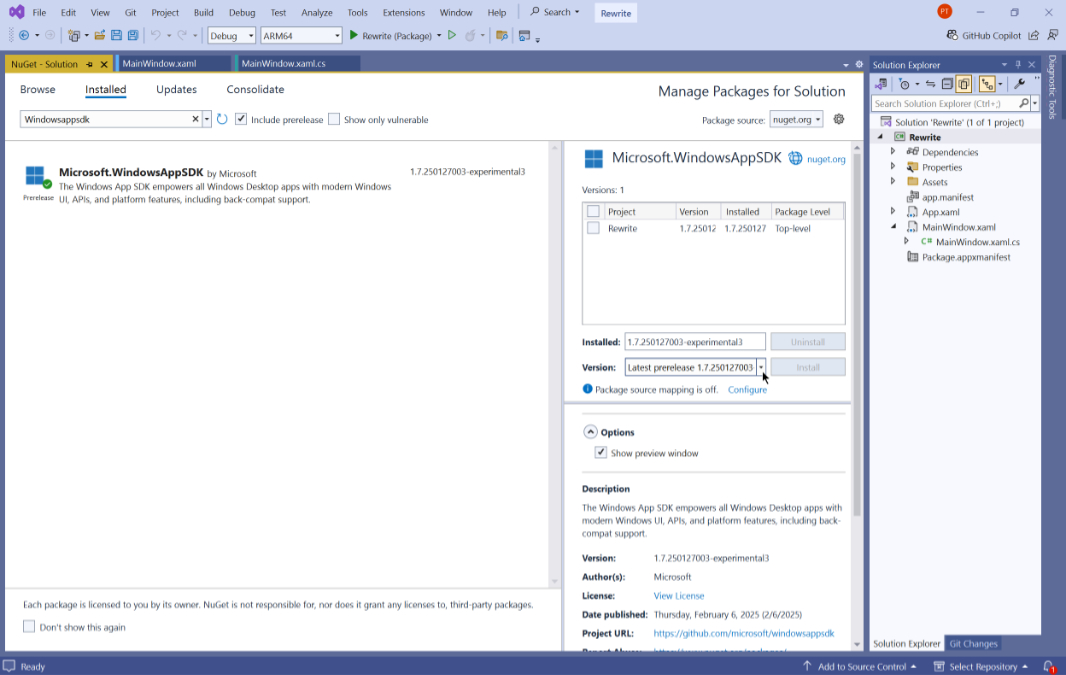
With that done, I could write some (basic) code. I’m not a Windows App SDK expert, so I had a few other hurdles to clear, too.
Test app design
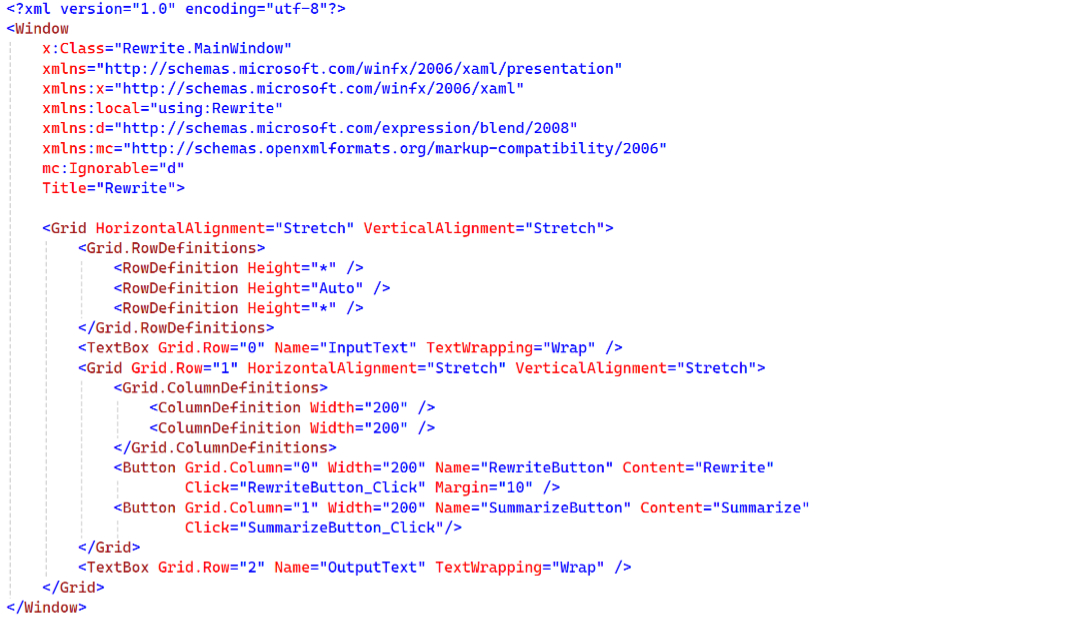
The test I created couldn’t be simpler: It’s two text boxes, one for text entry and one for output, with two buttons–Rewrite and Summarize–between them.
Here’s the XAML
Getting over a few conceptual hurdles
Using the sometimes vague instructions and examples on this Microsoft Learn page, I attempt to add some AI code to one of the button event handlers. But I quickly ran into a problem.
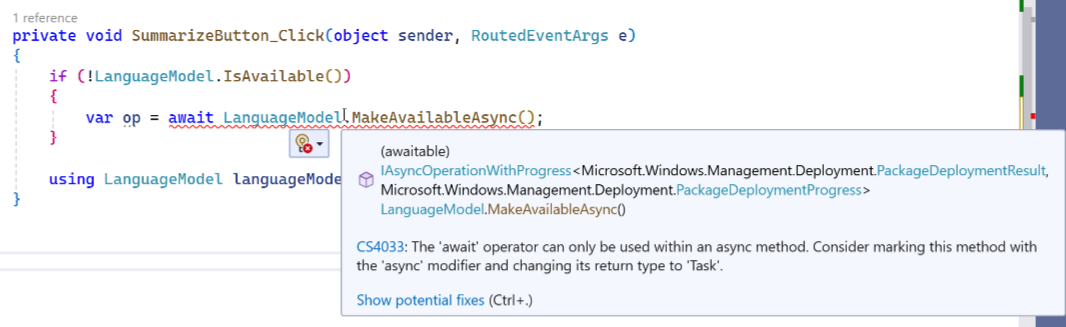
As explained by the IntelliSense, you can only the await operator within an async method, and the Click() event handler is not an async method. It’s been a while since I’ve even thought about asynchronous code–tellingly, I first ran into this issue with UWP, the predecessor to the Windows App SDK–but I’m sure there are several ways around this. But my thought was to simply create an async method called Rewrite(), followed by a second called Summarize(), that would contain this code.
Here, too, there are many ways to accomplish this, but I went with a simple method structure that returns a string.

Then, I applied the code in Microsoft’s example. And came up with the following.
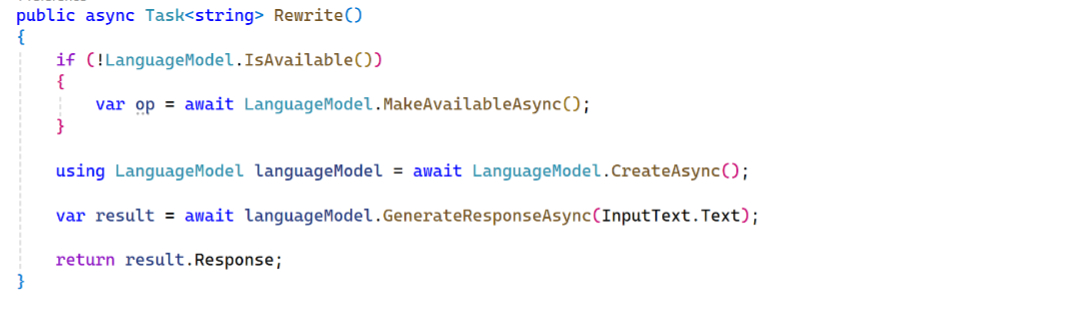
This isn’t particularly sophisticated (and that’s Microsoft’s code, not mine). There’s a test for whether the language model is available, but there’s no “else” clause. And all the code that follows it should be in the “if” clause, not after it. And the way this should work is that the app tests for the language model at first run and then only exposes the AI features if the model is present (it wouldn’t be on a non-Copilot+ PC, for example.)
OK. But we just want to see the damn thing work. So let’s move on.
Rewrite
Next, I needed to call Rewrite() from the Rewrite button’s Click() event handler. That was simple enough.

I felt like that was going to work, and when I ran the app, it appeared normally.
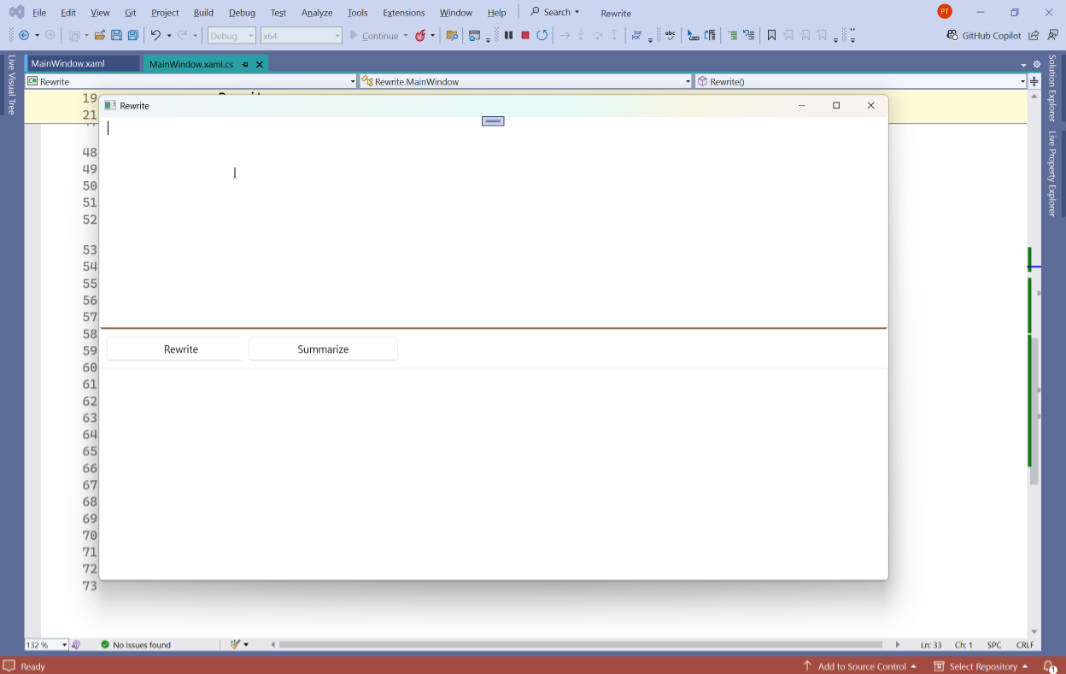
But when I pasted some text into the top TextBox (InputText) and clicked “Rewrite,” the app threw an exception on the code that creates the language model instance.
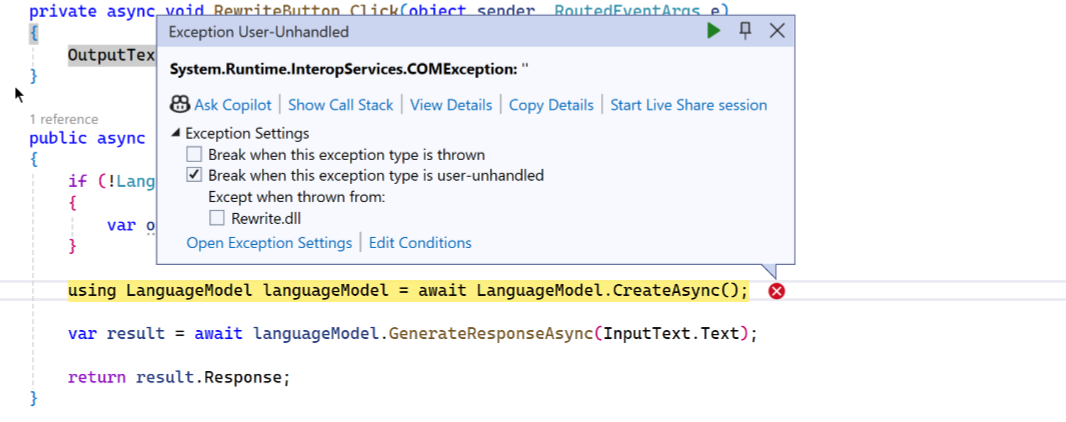
I wasted some time on this. Finally, Raphael came to my aid, as he does so often. And he literally said, “I know exactly what it is.” I had forgotten to change the “solution platform” from x64 to ARM64. When I made that change and ran the app, it worked, with no exception.

I also worked, literally. It generated a rewritten version of the text I pasted in! (You can also see below that it’s hitting the NPU to do its magic.)
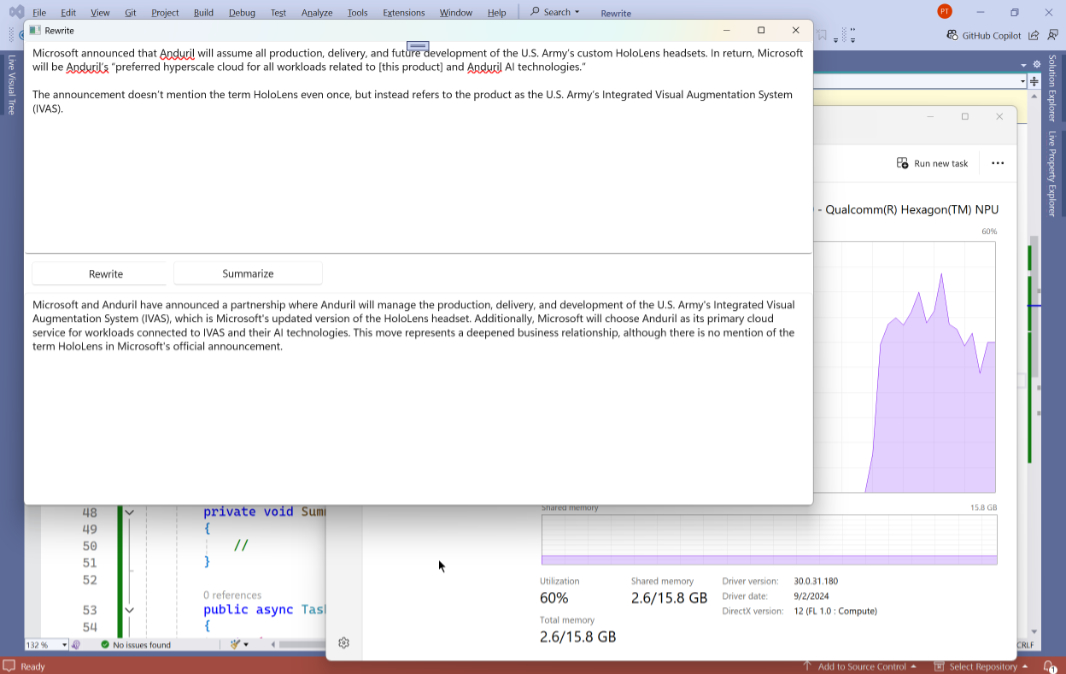
Nice.
Really nice.
Summarize
With that working, getting Summarize to work was easy. I again used the the Microsoft sample as a guide, and I again created an async helper method, this time called Summarize(). It looks like so.
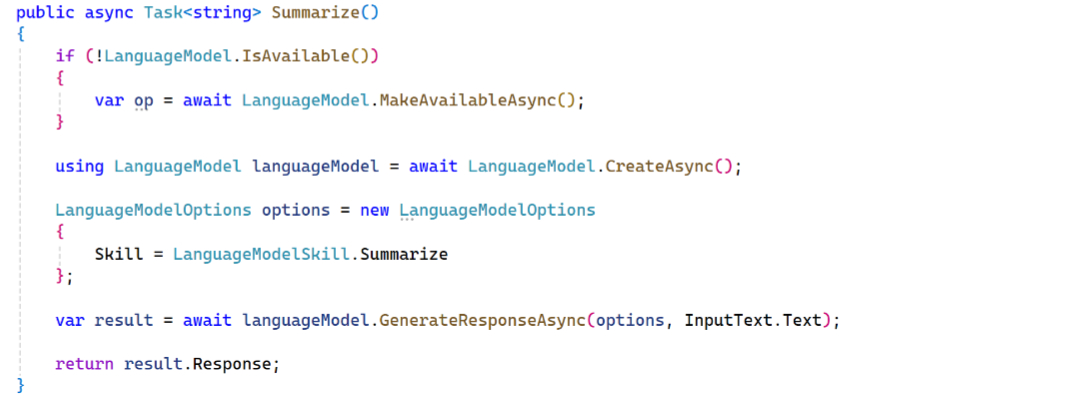
Looking past the issues I noted above, I then added a single line of code to the Summarize button’s Click() event handler to call Summarize() and put the returned text in the second TextBox (OutputText).

It took several seconds the first time, but it worked properly.
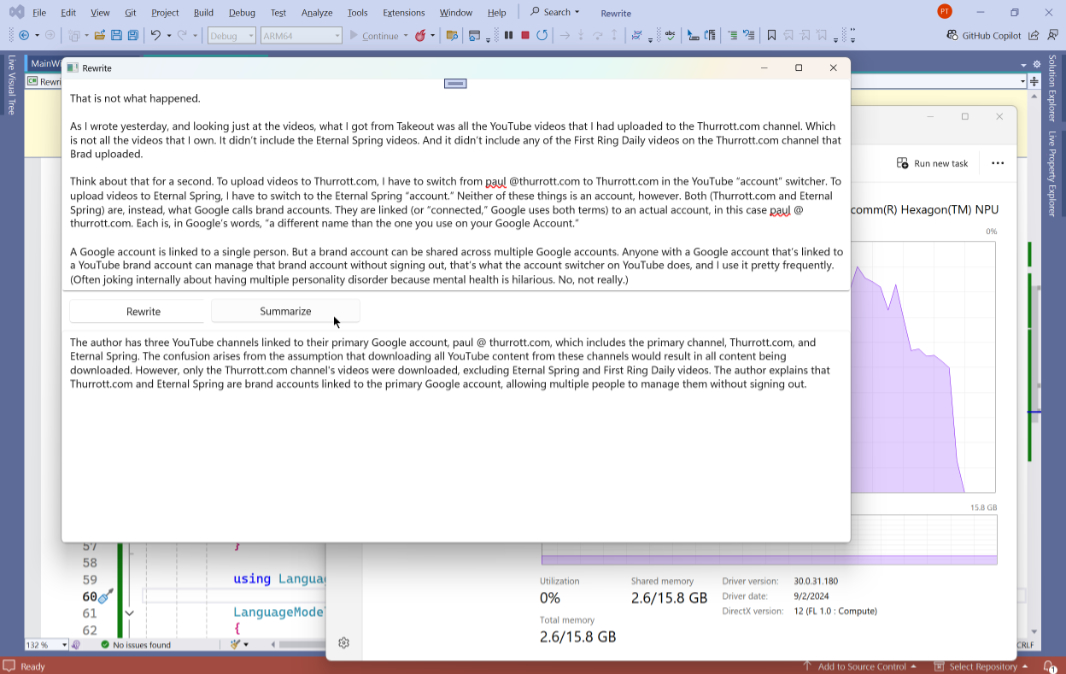
Also nice!
A few thoughts
This is impressive stuff. Despite the few hurdles noted, and those issues that still make me vaguely queasy, this functionality–text rewriting and text summarization–takes a shockingly small amount of code. There are some unfamiliar bits in there, to be sure. I had never used the C# using statement, for example, and find it odd that it’s needed to free up memory given that one of the main points of this language is garbage collection. But whatever. This is readily understood, and easily reused. And now I want to do more with it.
I also want it to work on more PCs. Maybe we’ll learn more about that possibility at Build 2025 this May. Maybe not. But for now, this is a neat set of capabilities, despite the limited audience. I was happy to get it working.

Gain unlimited access to Premium articles.
With technology shaping our everyday lives, how could we not dig deeper?
Thurrott Premium delivers an honest and thorough perspective about the technologies we use and rely on everyday. Discover deeper content as a Premium member.