Tip: Use Wintoys to Customize Windows 11
- Paul Thurrott
- Apr 01, 2025
-
8
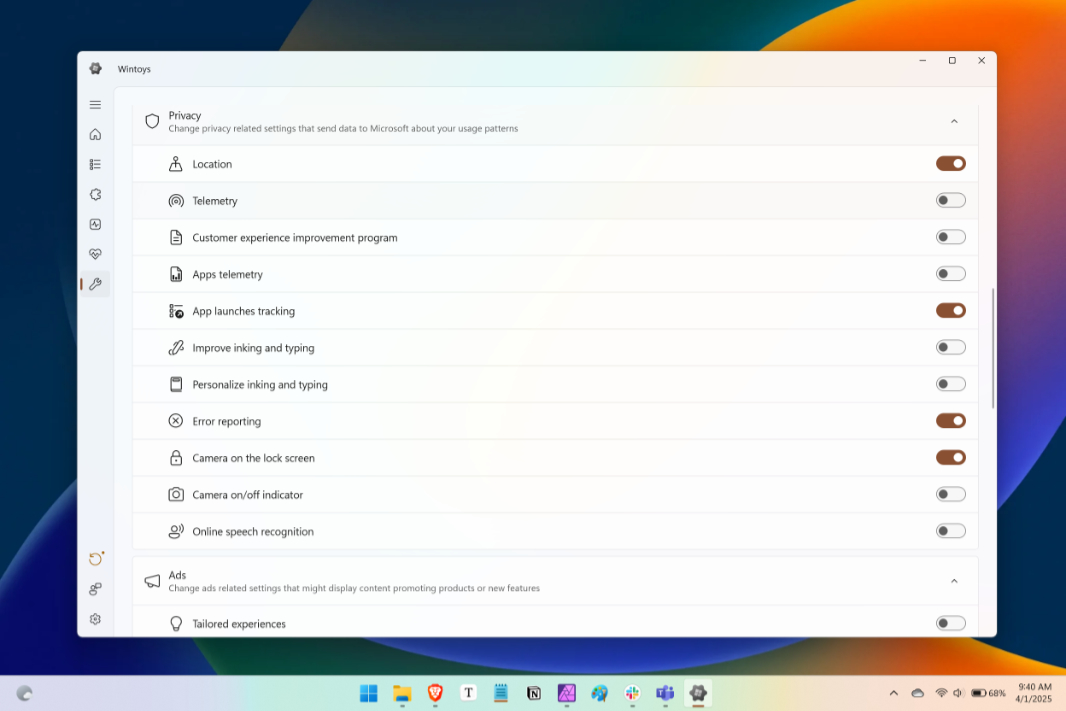
There are an almost uncountable number of Windows 11 “tweak”-type utilities out there. But Wintoys is one of the better ones, thanks to its comprehensive feature-set and modern user interface.
As the utility’s website notes, you can use Wintoys to access hidden settings, free up disk space, access advanced repair tools without using the command line, configure Windows 11’s privacy and advertising features, and more. Some of this is readily available in Windows 11 itself, of course, but the settings are spread out all over the place. But some of it is much less accessible, and it’s nice to have it all in a single place.
Wintoys is free and available from the Microsoft Store. It’s a bit busy because of all the settings you can configure, and I find most of the views superfluous or skippable. But the real action is in the last view, Tweaks.
Some of the features I recommend at least considering there include:
- Desktop > Wallpaper quality
- Start menu. Disable all settings there.
- File Explorer > Enable Classic interface for a faster, more stable, and WinUI 3-free version of File Explorer
- Privacy > Telemetry – Disable this
- Ads. Disable all settings there (I left “Home page in Settings” enabled).
- System > End task. Enable this to add an “End task” item to the context menu on Taskbar shortcuts.
- Digital Markets Act. Enable the DMA changes that are only available in the EEA normally.
Note that some of these require you to restart processes (like Explorer.exe) or reboot the system. It’s definitely worth checking this one out.