Visual Studio Code Now Includes a Full Markdown Editor
- Paul Thurrott
- Aug 27, 2026
-
5
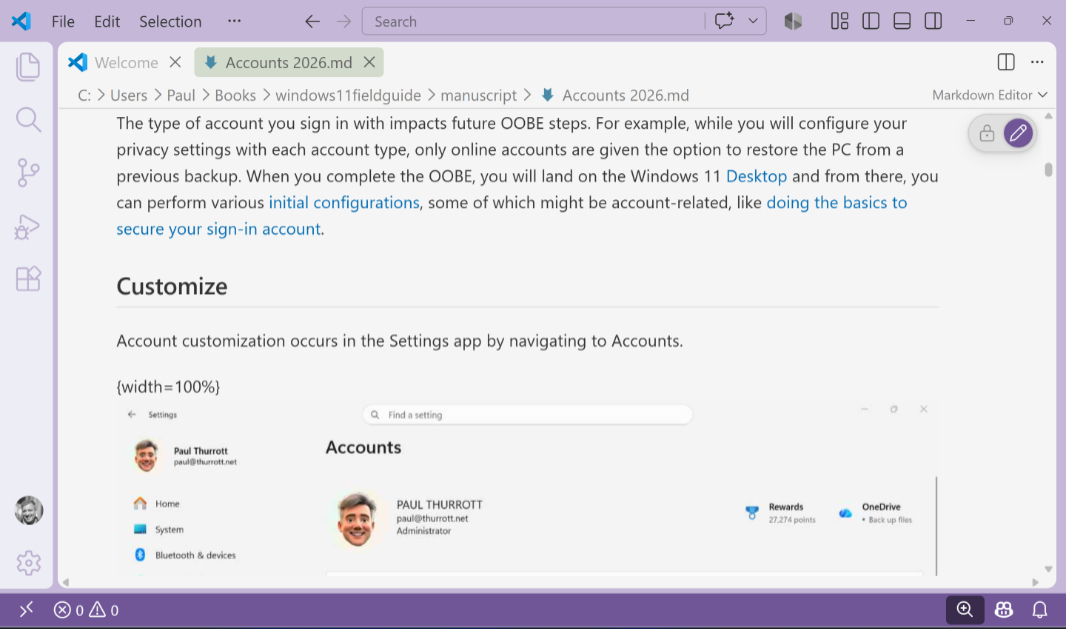
Visual Studio Code has long supported Markdown natively in its code editor and with an HTML preview that can optionally appear side-by-side with that editor. But the latest version of Visual Studio Code now includes a full Markdown Editor mode that provides word processor-like WYSIWYG editing capabilities similar to those provided by apps like Typora.
I’ve often considered switching to Visual Studio Code for writing, and I did use this code editor for my book work on and off for a few years. It’s free, infinitely extensible, and it has some very useful features, like the ability to open a folder and then block search and replace text within all the files it contains. But it never offered a true WYSIWYG editing mode, and I find the side-by-side editing style to be tedious. And so it just wasn’t a good fit for daily writing.
Now, perhaps, it is. Oddly, the release notes for the latest Visual Studio Code version, 1.135, don’t mention the new Markdown Editor feature. But Microsoft’s Kayla Cinnamon discusses it in a new video, and having now tried it, I could see making the switch, assuming Microsoft fixes a few usability issues.
By default, Visual Studio Code handles Markdown files as before: When you open a Markdown file, it appears using the Text Editor mode, which is basically a source code editor that understands Markdown syntax. And as before, you can type Ctrl + Shift + V to toggle into (and then out of) the Preview display, or you can type Ctrl + K, V to display the Text Editor and Preview views side-by-side.
But now, there’s a new drop-down option in the top-right of the editor area, just below the “Open Preview to the Side,” “Open as Preview,” “Split Editor Right/Down,” and “More Actions” (“…”) buttons. It has three view options, for “Text Editor” (the default), “Markdown Preview,” and “Markdown Editor,” the latter of which enables the new Markdown Editor mode. And there’s a “Set default for .md” option so you can configure Visual Studio Code to always open Markdown files in any of the modes.
Markdown Editor mode is a bit quirky in my initial tests. It keeps shifting text around, displays line endings incorrectly, and is oddly jittery, with the text insertion cursor hopping back up into previously written text. But there’s no reason this won’t work correctly in time, and there is an interesting combination of Markdown syntax as you type and then a switch into WYSIWYG formatting occurring in real time as you move on to the next word or sentence.
And, as noted, Visual Studio Code is free and infinitely extensible. There are already numerous useful Markdown-related extensions, including some that provide a similar WYSIWYG editing experience), plus spell checkers and whatever else.
Interesting.