Google Releases Gemini App for Windows
- Paul Thurrott
- Sep 10, 2026
-
4
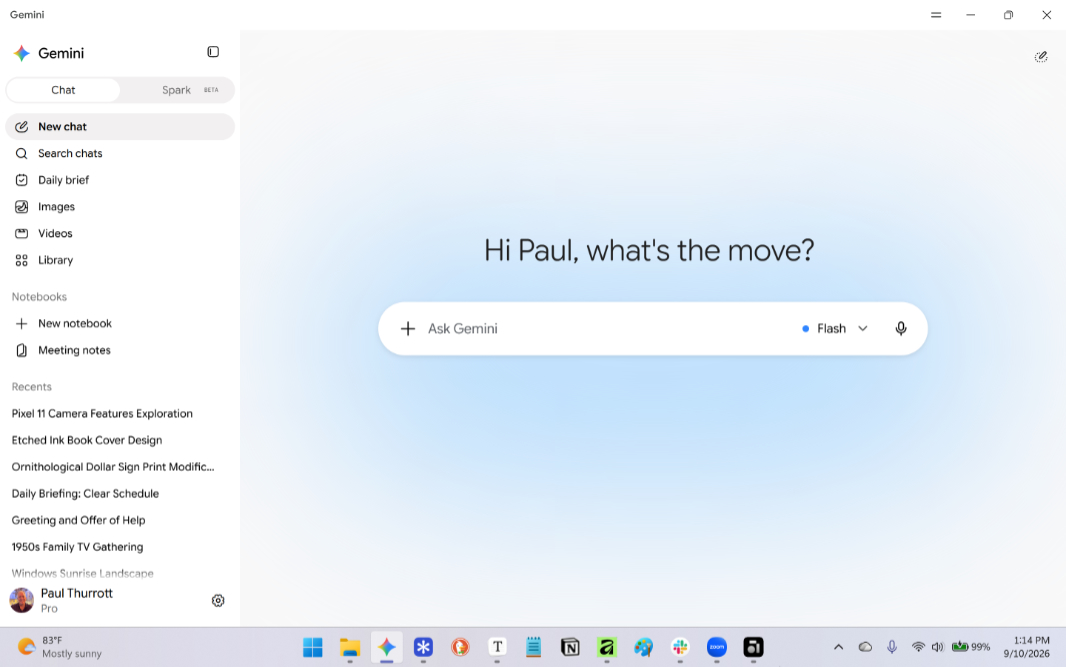
Five months after its release on the Mac, Google has brought a desktop version of its Gemini app to Windows 11.
“The new Gemini app for Windows lets you access AI help with a simple keyboard shortcut, directly from your desktop,” Google director of product management Erin Pettigrew writes. “Designed to work seamlessly alongside your favorite tools and daily applications, the new desktop app gives you instant assistance without breaking your flow.”
Google notes that the Gemini app for Windows is lightweight and quiet and won’t slow down your PC, and while there are more “native desktop capabilities rolling out over time,” today, you can do the following:
- Access Gemini quickly with a keyboard shortcut. Gemini for Windows uses the (overused) Alt + Space keyboard shortcut for easy access. But looking at the app, I can see that you can also choose between other preset keyboard shortcuts or create your own custom keyboard shortcut.
- Full Gemini experience. The app appears to offer the full Gemini experience, with a sidebar that lets you access your chat history, Daily brief, image and video creation capabilities, your document and media libraries, notebooks, and recent creations. If you have a Google AI subscription, you can also access the Gemini Spark personal AI agent.
- Create images and videos. As referenced above, the Gemini app for Windows includes Nano Banana (image)- and Gemini Omni (video)-based image and video creation capabilities, the latter of which requires a Google AI subscription.