Hands-On with iPadOS 26: They Finally Really Did It
- Paul Thurrott
- Jun 10, 2025
-
22
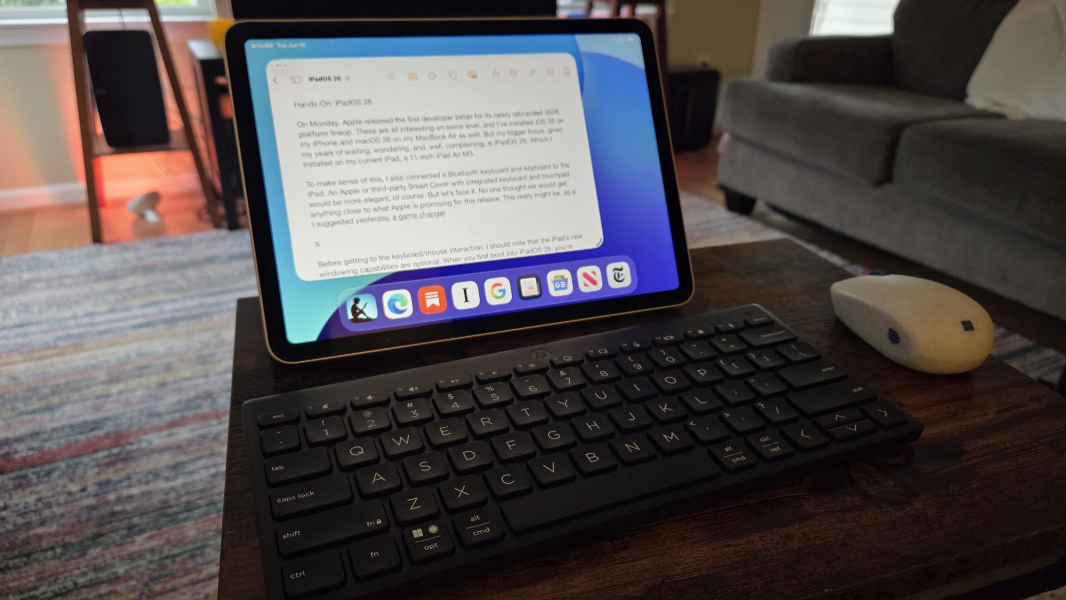
On Monday, Apple released the first developer betas for its newly rebranded 2026 platform lineup. These are all interesting on some level, and I’ve installed iOS 26 on my iPhone and macOS 26 on my MacBook Air as well. But my bigger focus, given my years of waiting, wondering, and, well, complaining, is iPadOS 26. Which I installed on my current iPad, a 11-inch iPad Air M3.
To make sense of this, I also connected a Bluetooth keyboard and mouse to the iPad. An Apple or third-party Smart Cover with integrated keyboard and touchpad would be more elegant, of course. But let’s face it. No one thought we would get anything close to what Apple is promising for this release. This really might be, as I suggested yesterday, a game changer.
Before getting to the keyboard/mouse interaction, I should note that the iPad’s new windowing capabilities are optional. When you first boot into iPadOS 26, you’re given the option of allowing windowing or simply sticking with the traditional full-screen app experience. So those with an iPad Mini, or anyone who knows they will simply continue using their device for reading, light games, and other consumption-type tasks, can go forward as before.
If you do choose to enable windowing, as I did, the change is subtle at first. Apps run full-screen by default, as before, and the only difference is that you’ll see a small curved line in the lower-right corner of each app window, like a crooked smile. (If the window is later snapped to the left side of the screen, this appears in the lower-left corner instead.)
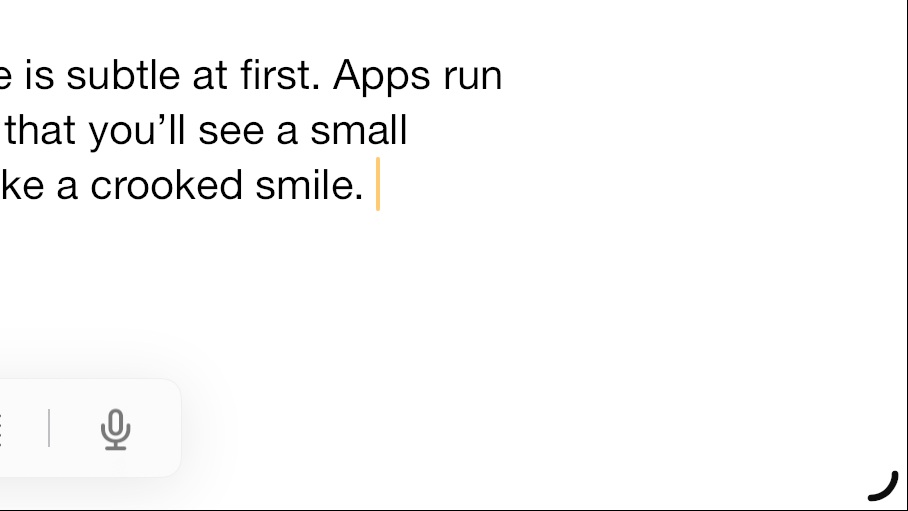
You can tap and drag this corner with your finger to resize the window. Or, you can use a mouse or touchpad (or, presumably, an Apple Pencil).
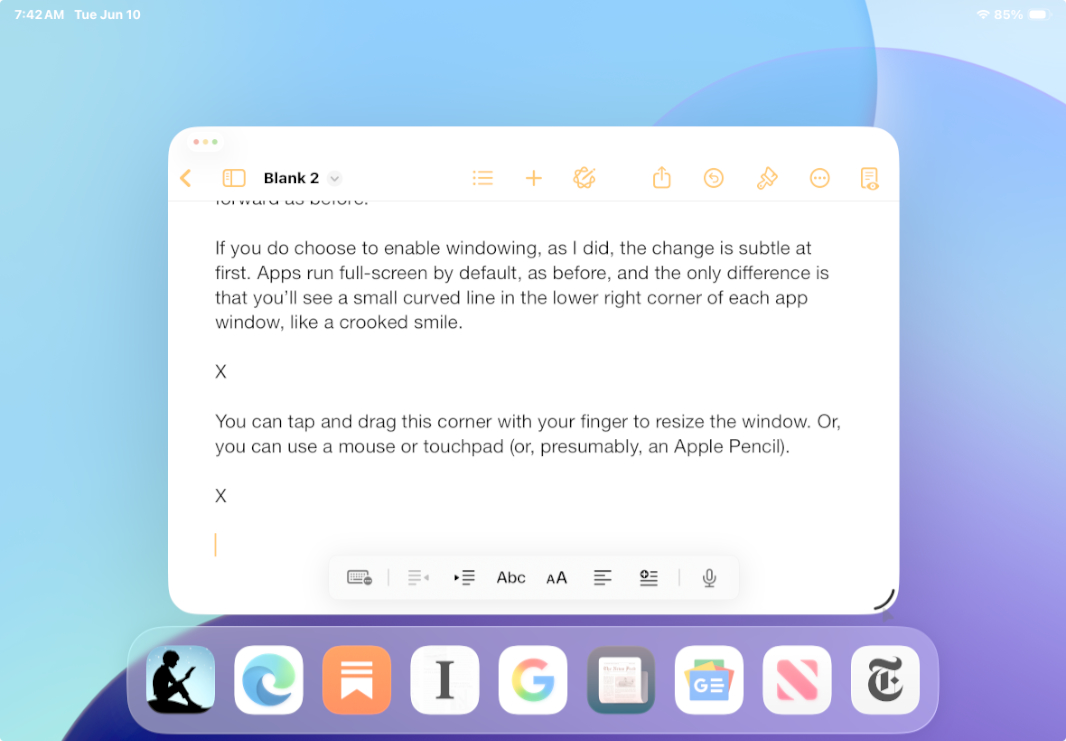
This works even better than I expected. It’s fluid and natural, and … normal. As with any desktop system, you can arbitrarily resize any window in any direction. But the granularity is better than that of Chrome OS, which has a weird way of forcing you into step changes when you resize windows. This is seamless.
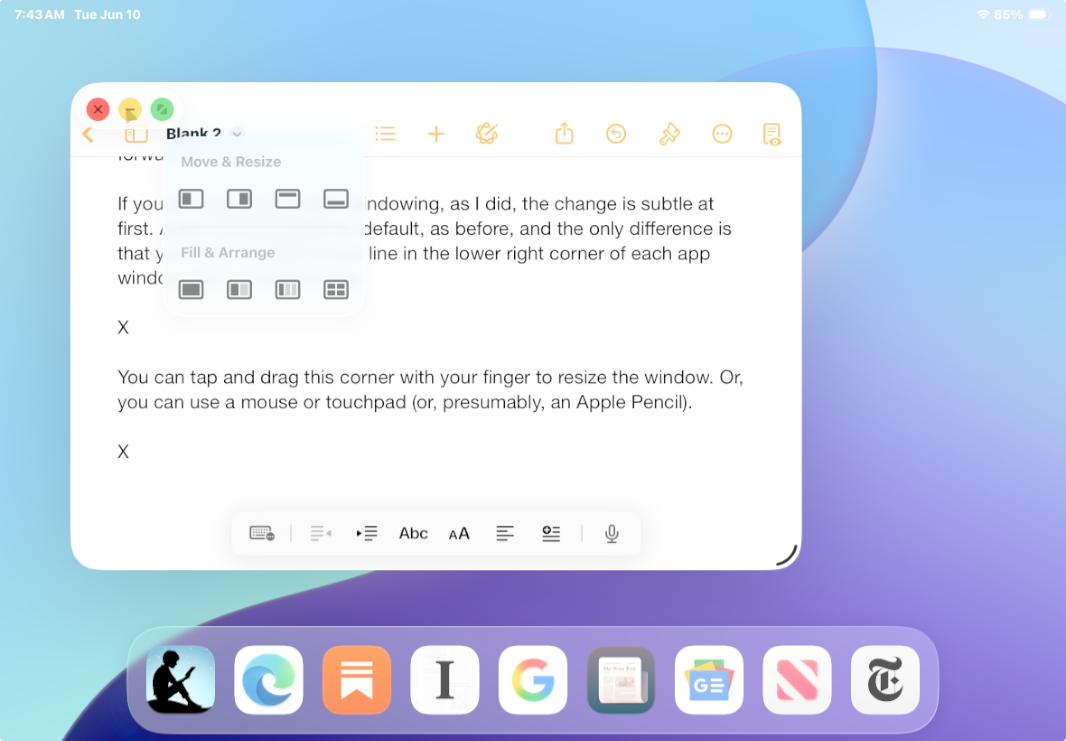
Apple being Apple, some of this is subtle. The traditional traffic light-style window buttons (for Close, Minimize, and Full Screen) are combined into a single smaller button by default, but you can expand the view to show all three by clicking/tapping that. You can also long-press/touch to show a pop-up menu for Snap-like window layout options, which is handy.
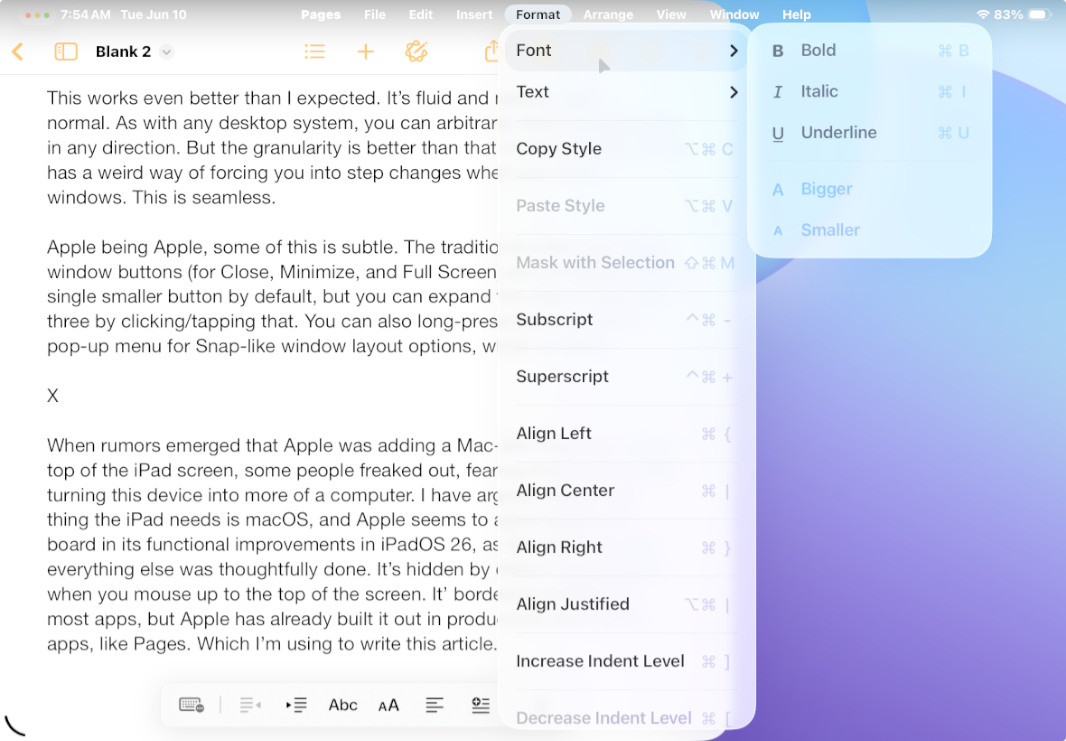
When rumors emerged that Apple was adding a Mac-like menu bar to the top of the iPad screen, some people freaked out, fearing that it was simply turning this device into more of a computer. I have argued that the last thing the iPad needs is macOS, and Apple seems to agree across the board in its functional improvements in iPadOS 26, as the menu bar and everything else was thoughtfully done. It’s hidden by default and appears when you mouse up to the top of the screen. It’ borderline pointless in most apps, but Apple has already built it out in productivity and creator apps, like Pages. Which I’m using to write this article.
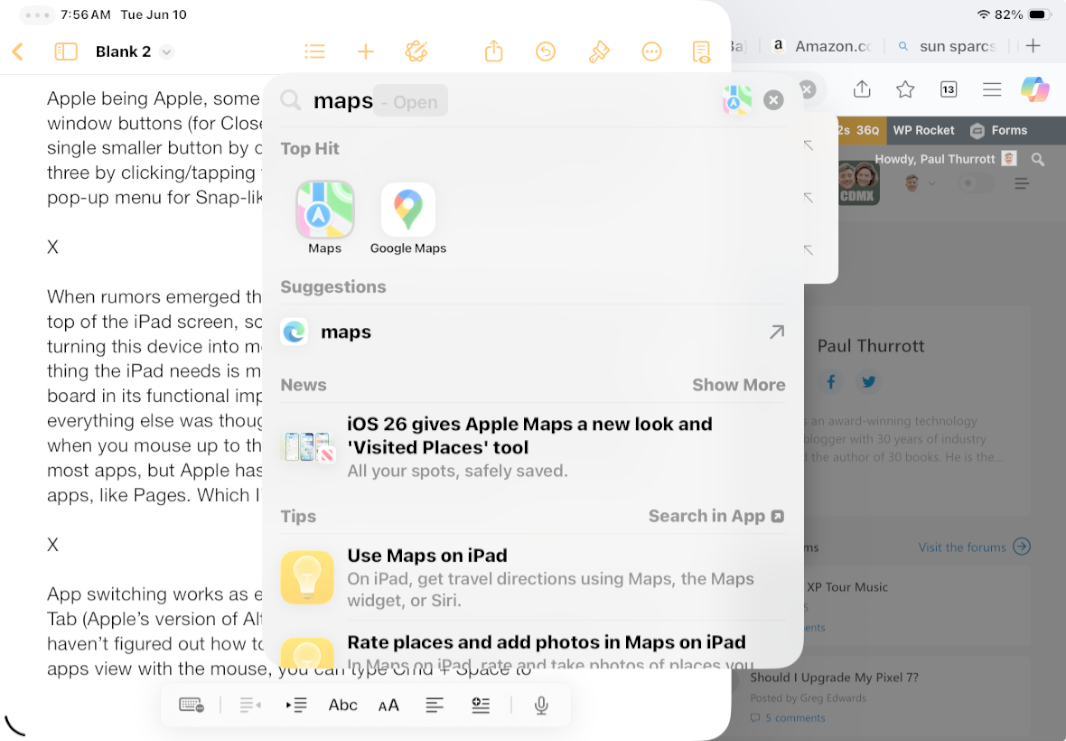
App switching works as expected for the most part. You can type Cmd + Tab (Apple’s version of Alt + Tab) to switch between open apps. And while I haven’t figured out how to access the App Library and its integrated all apps view with the mouse, you can type Cmd + Space to open Spotlight and type the name of an app that’s not currently running. (This is as close to a Start menu as Apple goes, and I actually prefer it to Start.)
There are little Apple/iPad weirdisms here and there. And using Touch ID to authenticate is awkward because of where it is (on the left top side) when I use my iPad Air in landscape mode. But that’s beside the point. There are some nice gesture-based use cases I can’t experience without a touchpad (unless I want to use touch on the display). As with anything new and slightly different, it feels a bit off at first. Anyone could get used to that.
What is important is that they did it. After years of stonewalling, Apple finally delivered a viable productivity experience on the iPad. And it did so without compromising what it is that makes the iPad great for those who don’t need it. That’s impressive. It’s rarely done well.
I do wonder why it’s happening now. Apple could have done this years ago, arguably should have done it when it released the first iPad Pro. Perhaps this is a way to distract customers—and, as important, Wall Street—from its Apple Intelligence failings, though I feel those are more imagined than real. Perhaps. But I don’t really care why. I care that it’s real.
And it is real. All of it. Literally, every missing feature I’ve complained about for years was implemented all at once. I never saw that coming. If anything, given Apple’s past, I thought we would just get one or two features a year until it was all there. And, yes, critics will find the one little thing they need that makes this unworkable for them.
But that, too, is beside the point. As it is now, this system works well and addresses the big needs. Most will be quite happy with this, and it opens up the iPad to be used for more traditional tasks that are/were better done on a laptop. The dream has become a reality.
I may need to get a Smart Cover. Or whatever it’s called. This changes everything.