Backbone Pro Review
- Paul Thurrott
- May 13, 2025
-
2
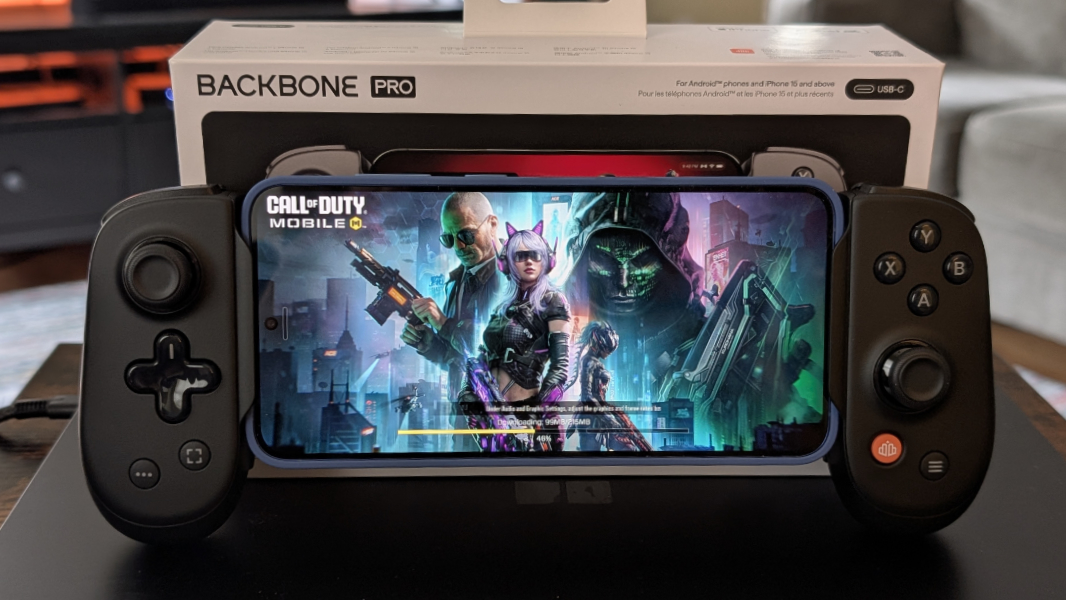
The Backbone Pro takes the proven Backbone controller design for phones and expands it to include just about any device imaginable. Part of that magic is the three types of connections it supports. If it can play games–whether it’s a PC, videogame console, iPad or other tablet, or smart TV–the Backbone Pro almost certainly has you covered.
I’ve always been curious about Backbone controllers for iPhones and Android phones, but I was already well outside the typical demographic for these devices thanks to my age and eyesight: I prefer to play on a bigger screen, and I prefer an Xbox controller over keyboard/mouse on a PC and over touch on a mobile device.
That said, gaming has evolved in recent years, too. In addition to the escalating cross-platform play capabilities that first bridged different consoles and then consoles and PCs, mainstream laptop processors have brought high-end gaming to a much wider audience. And while mobile gaming has been a thing since mobile has been a thing, those were mostly casual games until fair recently. That started changing when Apple and Qualcomm raised the bar on mobile performance with their respective processors, and then developers responded by releasing AAA-quality games on mobile. For example, last year, I discussed how games like Call of Duty: Mobile have improved to the point where they look as good as the console/PC versions and now even play similarly, with full support for Xbox and PlayStation-type controllers.
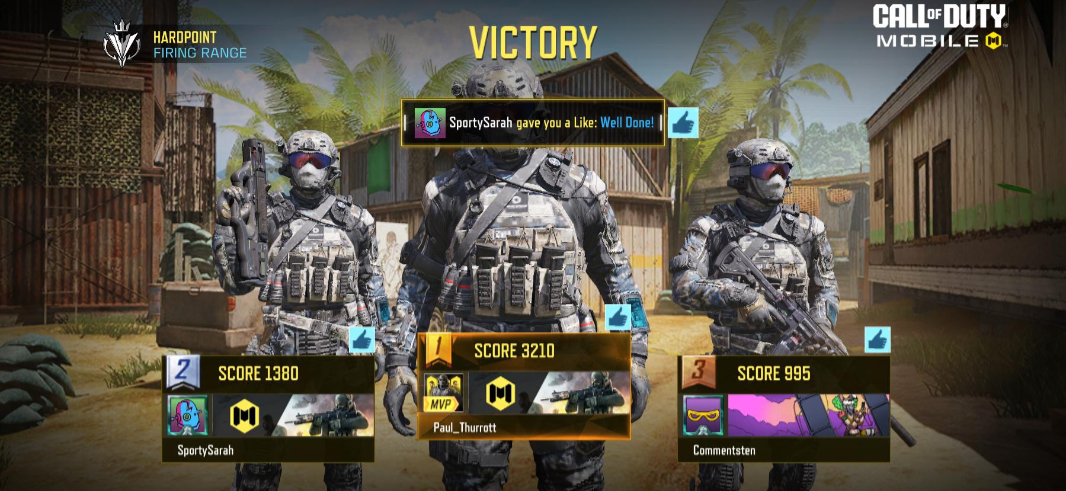
And that’s how I’ve been playing games for the past 20 years, literally. Mostly on Xbox consoles–from the Xbox 360 through the Xbox One family and then the Xbox Series X and S–and most recently on laptops. Mostly. As noted, I’ve also been playing Call of Duty: Mobile on devices, mostly various iPads. Devices that, to date, have been too big too use with a Backbone controller. So I’ve stuck to the latest Xbox Wireless Controller for this entire time.
This works OK. You can use an Xbox Wireless Controller wirelessly, usually over Bluetooth (the consoles support a better wireless connection type), or via a USB cable, which provides the lowest latency. And with the aforementioned advances in both PC mobile chips and mobile device games, it means that it’s possible to play high-quality AAA games on the go. Assuming you don’t mind carrying around the controller and USB cable.
I’ve not really done that on trips. But I do, of course, play games when we’re in Mexico, so I keep a few laptops there, each of which is capable of playing modern games well enough, plus an Xbox Wireless Controller.
The Backbone Pro promises a more seamless experience using a single controller that crosses almost effortlessly between these worlds. It’s an interesting idea.
Like previous Backbone controllers, you pull it open and connect it directly to any modern smartphone–iPhone or Android–using the built-in USB-C connector, and the controller halves will snap in tightly on either side, giving you an all-in-one handheld gaming device with a screen and a full-sized controller, half on each side of that screen. This traditional configuration is now called Handheld mode, and it offers the lowest latency connection possible.
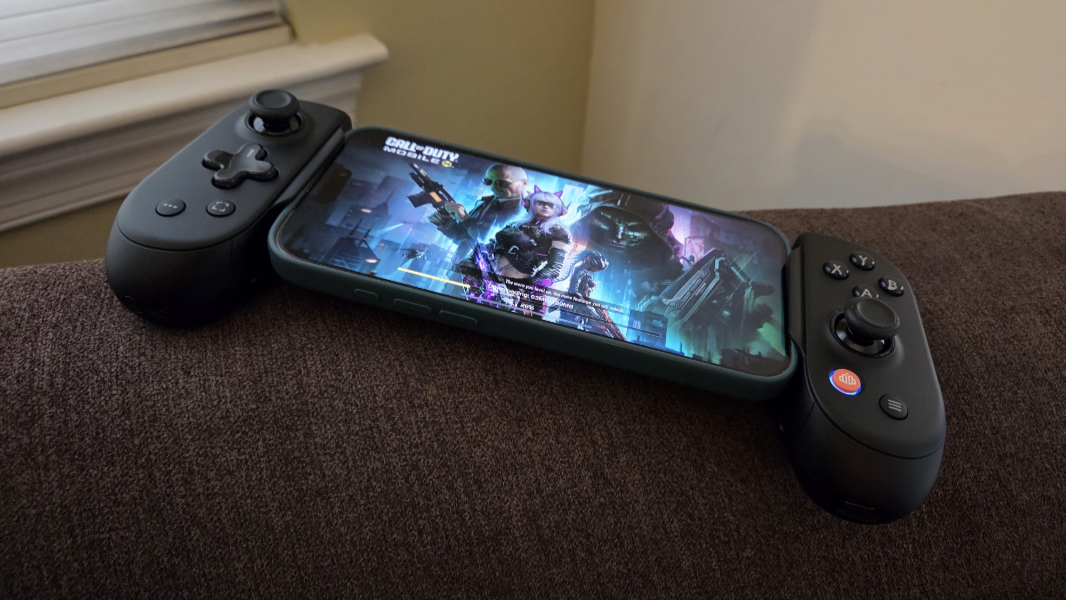
You can also connect the Backbone Pro to any Bluetooth-compatible device wirelessly. This Wireless mode provides up to 40 hours of battery life, Backbone says.
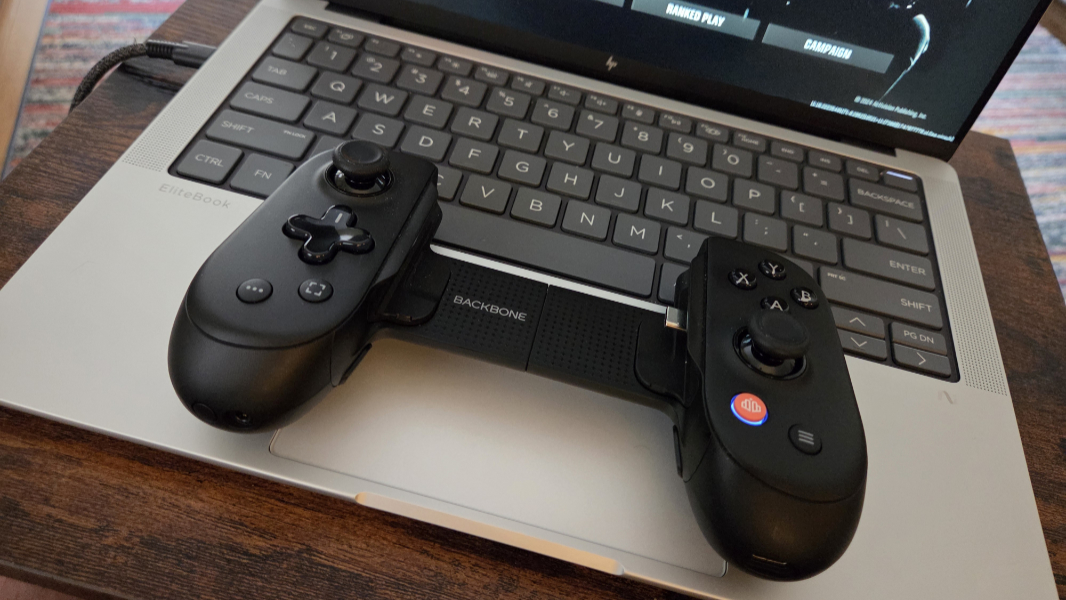
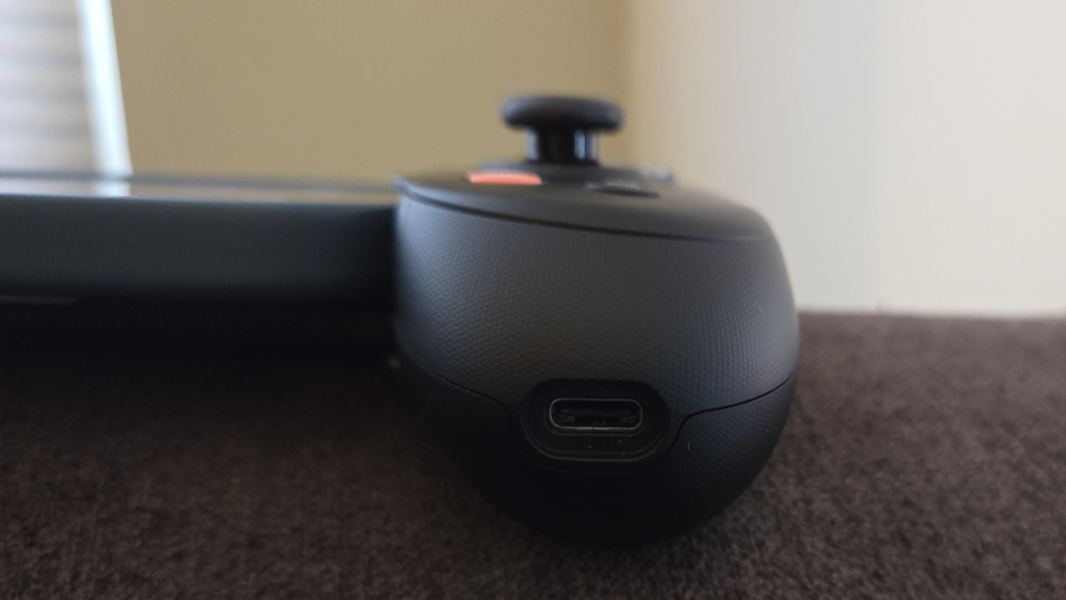
Less obviously, you can also connect Backbone Pro using a wired USB connection: There’s a USB-C port on the bottom of the right side of the controller that’s otherwise used to charge it. But in this Wired mode, the Backbone Pro works like a wired Xbox or other controller.
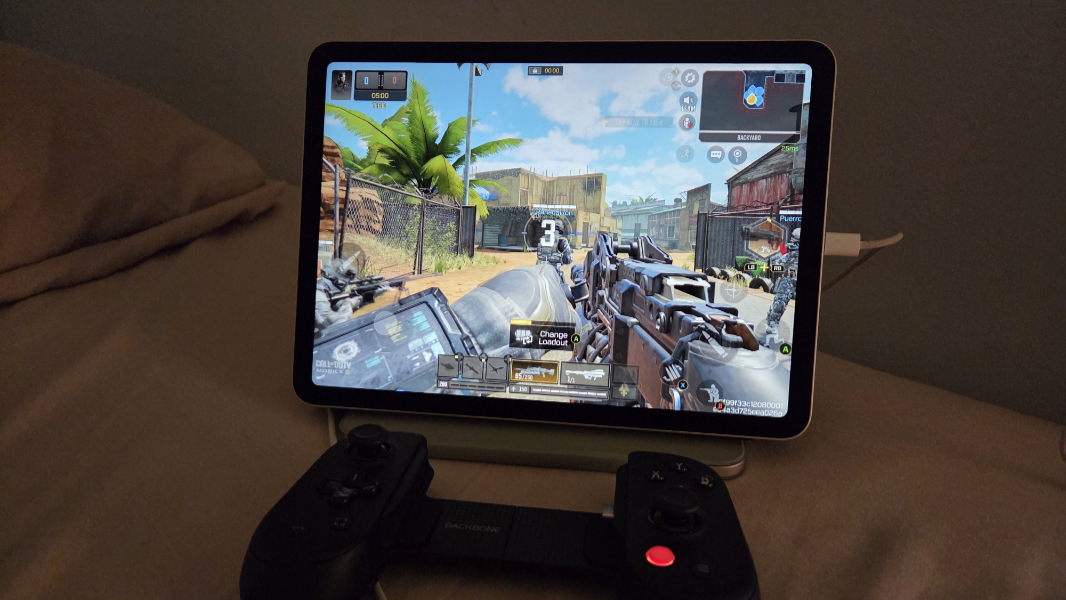
I’ve used the Backbone Pro in all three modes. I used it in Handheld mode with my iPhone 16 Pro Max and Samsung Galaxy S25+, in both cases playing Call of Duty: Mobile multiplayer. I’ve used it in Wireless mode with my iPad Air M3, again with Call of Duty: Mobile multiplayer, and with a laptop playing Call of Duty Black Ops 6 multiplayer. And I’ve used it in Wired mode with the iPad Air and a few laptops.
In each case, the controller worked flawlessly, with little to no observed latency issues. To be clear, this is important to me: Each of those games relies on fast reflexes, and each has lots happening on-screen at any given time, and I never once felt like the connection quality was holding me back.
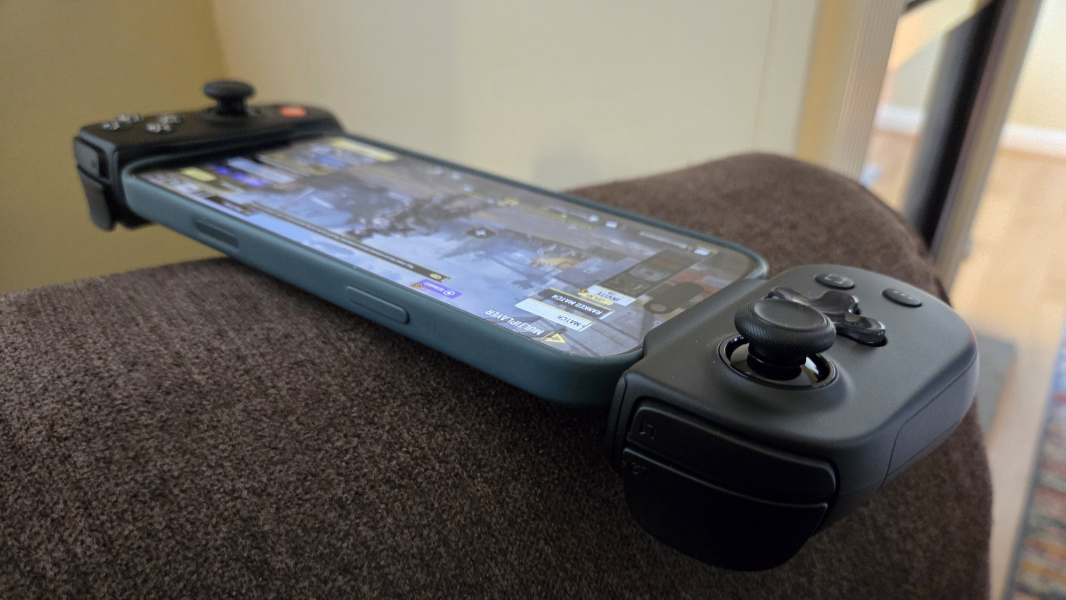
The only issue I did notice was that the shape of the controller can be a bit awkward if you’re used to a particular videogame controller. At first, I was confused by this, and I wondered if the layout of the buttons on the controller was perhaps different from that used by an Xbox controller. But that’s not the case, at least not with the main buttons–the two sticks, the d-pad, the A, B, X, and Y buttons, and the two sets of rear triggers. (The secondary buttons are in different places, but more on that in a bit.) Instead, the issue is tied to the width of the Backbone Pro: Because it’s designed to hold a typical smartphone and cannot be resized to be less wide, the two sides of the controller are further apart than is the case with a traditional game controller.
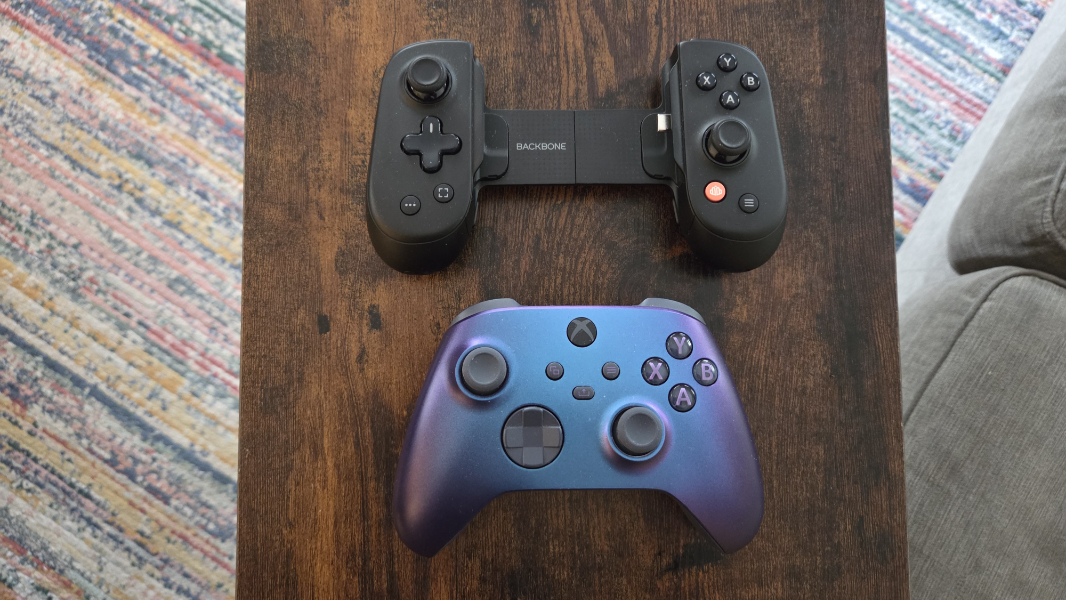
This is the type of thing one gets used to. In fact, I’ve been specifically sticking with the Backbone Pro for that reason. And sure enough, it does get less awkward–or perhaps more natural–the more you use it. But using the Backbone Pro also served as an interesting reminder or heads-up about how often I press two secondary buttons on the Xbox controller–the View and Menu buttons that straddle the Xbox button–because the equivalent buttons are in completely different places. That makes sense: They’re in the center of the Xbox controller, but can’t be in similar locations on the Backbone Pro because of the empty space in the middle reserved for a phone.
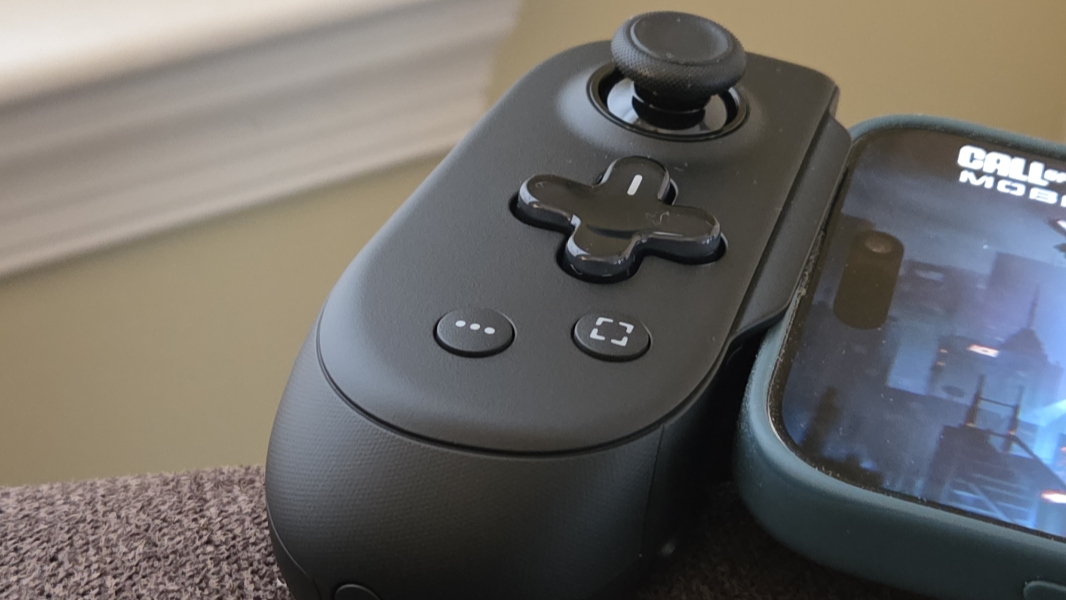
As with all things, I’ll get used to that. But Backbone also provides an insane level of customization with this controller, and it provides a profiles system so you can tailor it to specific devices or games. There are also two unique rear buttons, located on the bottom insides of the controller, right where the tip of my middle fingers sit, which are fully customizable and can be mapped to different functions. This all happens in the Backbone app, which is only available on mobile. But once you create custom profiles, they’re available on-screen, regardless of which device you’re using, or you can tap the Backbone and Menu 2 buttons simultaneously.
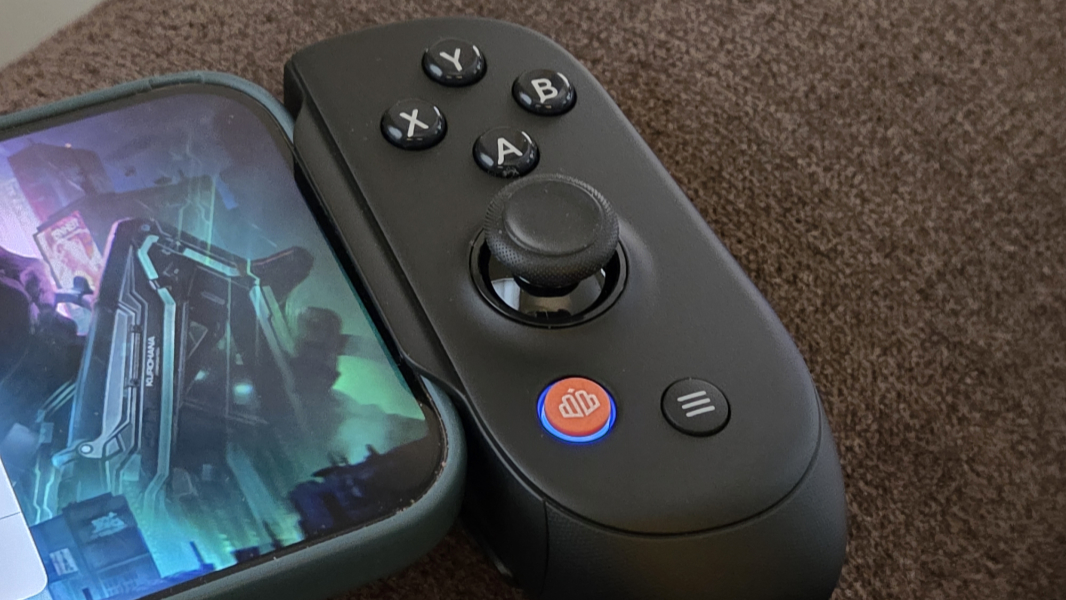
I never used a previous generation Backbone controller, but the company tells me there are numerous improvements in the Backbone Pro that upgraders will appreciate. The sticks are now full-sized, meaning more like traditional game controller sticks. The grips on each side were reshaped to be more comfortable and now sport a familiar textured feel. The A, B, X, and Y buttons are quieter when pressed (though they do emit a light plastic click sound, unlike that of the d-pad).
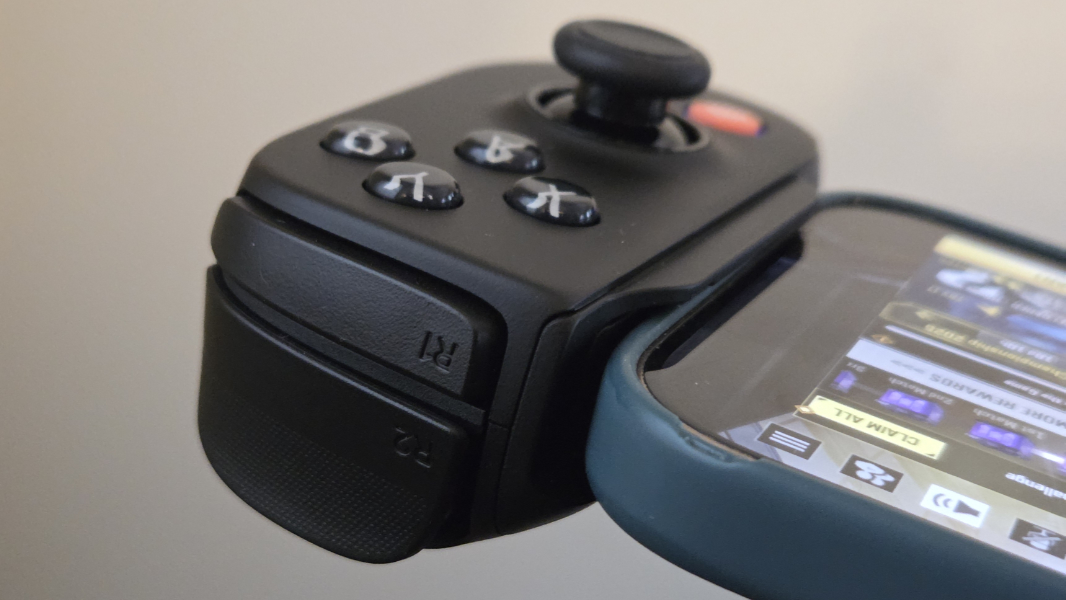
Beyond all that, there’s a headphone jack and Bluetooth connection button on the left side of the controller. And that USB port on the right side for charging and/or Wired mode play.
I should also mention that Backbone has a subscription service called Backbone+ that provides additional features not described above. But Backbone isn’t heavy-handed about this–indeed, I had to Google it to find out more–and nothing central to the gameplay experience requires a subscription. I did not try Backbone+.
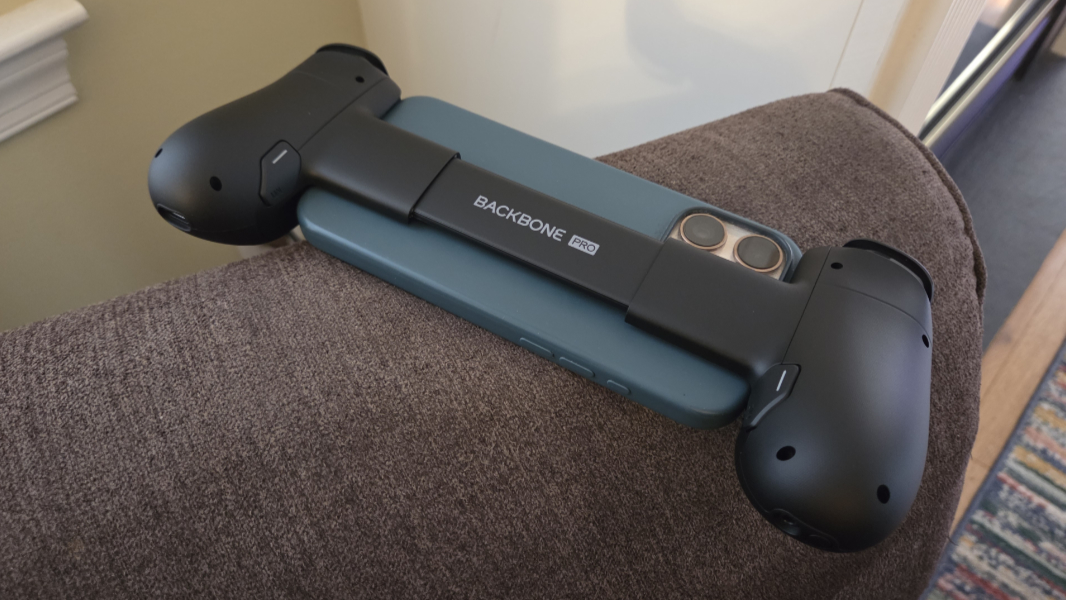
Overall, I’m impressed. The Backbone Pro isn’t much smaller, overall, than a standard Xbox Wireless Controller–it’s wider, of course, but also less bulky–but it is a lot more versatile. At $169.99, it’s also quite expensive. But if you want to play games on your phone and on at least one other device, and want a consistent, customizable experience everywhere, it’s an impressive choice. I just wish I could make it less wide when using the controller in Wired or Wireless modes. But … yeah. I’ll get used to that.
Highly recommended.