Windows 11 on Arm + Snapdragon X: Gaming, the Final Frontier ⭐
- Paul Thurrott
- Dec 16, 2025
-
1
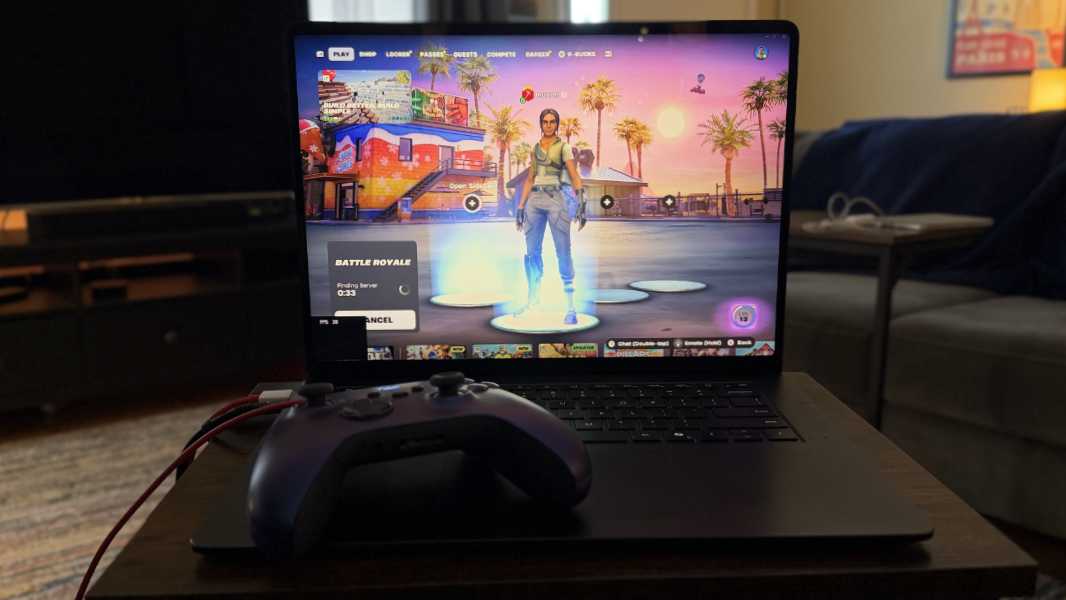
Over 18 months ago, I walked into a meeting room in One World Trade in New York City, nervous that what I was about to see would in some way expose the inevitable lies: Windows 11 on Arm running on Qualcomm’s yet-to-be-released Snapdragon X Elite chipset was just like all the failed attempts to make sense of this platform before it.
That is not what happened. At that meeting, I got my first hands-on experience with Windows 11 on Arm on Snapdragon X Elite wasn’t just a major leap forward, it was a miracle. It wasn’t just better than expected, it was—and still is—better than the unreliable x64-based chipsets foisted on the world by Intel (especially) and AMD. Within a few months, Microsoft had launched the Copilot+ PC platform and I had gotten my first Snapdragon X Elite-based PCs, including a Surface Laptop 7 that is still one of my favorite laptops. Microsoft and Qualcomm had done the impossible. They really did it.
Snapdragon X, even the lowest-end versions, can handle any traditional Windows productivity workload with ease. But as good as this platform is, it’s not perfect. And while the change averse are always quick to jump on any problems with Snapdragon X, real or imagined, there was only one concern, which lingered and continued over the previous 18 months, that I still struggle with. The good news? It only impacts a tiny percentage of people and doesn’t compromise the experience for those who want a PC that just works.
But what about the games?
I am referring, of course, to games. Even on that first day in early 2024, during my first hands-on experience with Snapdragon X Elite, I was surprised to see that Qualcomm was pushing gaming at all, let alone so hard. Microsoft’s Prism emulator has no trouble emulating x64 code, but PC games are unique in that they’re optimized for very specific Nvidia and and Radeon dedicated graphics chipsets. Furthermore, many of the world’s most popular games, like the titles in the Call of Duty series, Fortnite, and many others, require anti-cheat software. Neither of these crucial pieces of the gaming puzzle worked with Arm, and though the processor, GPU, and NPU in Snapdragon X are all notably good, they’re not that good: Even Apple struggles to attract games on the Mac, which has a similar architecture to Snapdragon X, and it’s generations more mature.
And yet there they were, showing off several x64 games, all running in emulation on Snapdragon X Elite prototype laptops. I briefly played Baldur’s Gate, Control, and Redout that day, and each ran normally and without any glitches. This wasn’t staged, in that I and others who showed up for meetings that day were free to play these games, interact with all kinds of other software, and probe these PCs to our hearts’ content without intervention. But I had assumed that Qualcomm (and Microsoft) would focus on the fundamentals, just making Windows 11 on Arm and Snapdragon X—what we would later call Copilot+ PCs—viable for thin and light premium laptops aimed at the aforementioned productivity use cases. You know, the sweet spot of the market.
Granted, the market for gaming on PC has changed a lot over the past few years, thanks to various market factors. Intel and (especially) AMD were improving their PC processors with integrated graphics that were good enough to play even modern AAA games reasonably well. (Concurrently, they were and are working to dull the Snapdragon X chips by trying to make x64 more efficient and reliable, albeit with mixed success.) Microsoft was starting to transition its Xbox platform from something console-centric to something that is device agnostic, with the best experience happening on PCs and PC-like devices like the Xbox Ally gaming handhelds (and, we believe, future Xbox console-like devices). And Microsoft and Qualcomm were collectively trying to make Windows 11 on Arm better through improvements to that Prism emulator and other in-box features like Auto SR, and better compatibility with games over time via the addition of more and more x64-exclusive technologies.
Windows 11 on Arm + Snapdragon X gaming in 2024
My initial experiences playing games on real Snapdragon X-based Copilot+ PCs were not positive. To my mind, Qualcomm, especially, had committed that most confounding of technological sins by introducing uncertainty and then promoting it like it just worked. That is, sometimes one could get certain games to work, but more often they would not. And even those that did work required a lot of handholding and luck. It was better than gaming on the Mac, I guess. But it wasn’t a good experience.
I’m also not a fan of the Windows on Arm Ready Software site that we have to reference to see whether certain games work on this platform. This is something Microsoft and/or Qualcomm should maintain, but it’s a third-party site and it’s never up-to-date. This is one of those “better than nothing” situations. But it’s not that much better.
A late 2025 update
Since then, things have evolved further. And even without the inevitable hardware improvements in the second-generation Snapdragon X2 that we now expect in the first half of 2026, we have seen meaningful changes to this experience.
Fortnite is here
Qualcomm partnered with Epic Games to bring Fortnite to Windows 11 on Arm on Snapdragon X, which is huge. But also on porting Easy Anti-Cheat, and as we later learned, other crucial anti-cheat platforms as well.
Xbox Game Pass and Cloud Gaming improvements
Microsoft updated the Xbox app so that it would actually display all the games in your game library and, if you’re a subscriber, in your Game Pass and Cloud Gaming (streaming) libraries. This is a big deal: When Snapdragon X first launched, the Xbox app would only show the Cloud Gaming titles. But it’s also kind of a letdown, in the sense that it doesn’t differentiate between games that will play on Snapdragon X and those that will not. So you can go ahead and download all 300 GB of the latest Call of Duty title—as I did, for the heck of it—but that bad boy is never going to run on Snapdragon X, let alone run well.
Snapdragon Control Panel, Adreno GPU driver updates, AVX support
But Qualcomm also released something called the Snapdragon Control Panel for Windows 11 on Arm on Snapdragon X, and I had hoped that it would sort of solve the problems that the Xbox app does not. This app is essentially a rebranded version of the Qualcomm Adreno Control Panel aimed at consumers that wish to play games. It arrived with new GPU drivers and AVX (X86 Advanced Vector Extensions) emulation support, which is crucial for some games. From what I can tell, it’s best used to make sure you have the very latest Adreno GPU driver, but its primary use is to automatically detect whatever games you have installed on your PC so you can optimize the quality and performance of each.
It’s … OK. As with the Xbox app, I had hoped that it would differentiate between compatible and non-compatible apps, which it does not. And I had further hoped that it would do the obvious and automatically optimize games to run best on whatever Snapdragon X-based PC you have, similar to Nvidia and AMD utilities (and those from companies like HP that make gaming PCs). But it does not.
At a high level, this means that we’re still experiencing the same basic cardinal sin here, meaning uncertainty. But it’s also fair to reiterate that gaming on Windows 11 on Arm is still in a better place now than it was 3, 6, 9, or 12 months ago.
In my experience, the Snapdragon Control Panel rarely detects all the games I’ve installed. As I write this, for example, I have Control, Fortnite, PUBG: BATTLEGROUNDS, and The Callisto Project installed on my Surface Laptop 7, which I recently reset and then cleaned up with Win11Debloat. The Snapdragon Control Panel only detected Fortnite, which is less than ideal. I was able to add the other three manually, but that can be tedious, and it was only possible because I installed each through the Epic Game Store and the file path to each is consistent. Even still, I’m not sure that I chose the right EXE for PUBG. Not that it matters, as explained below.
So what is possible today?
Look, a Snapdragon X Elite laptop will never really be used for gaming, per se, of course. But what the heck, I did a clean install and the Surface Laptop 7 has a lot of free disk space. Plus, I wanted to reexamine Windows 11 on Arm gaming on the best and most powerful Snapdragon X laptop I have. So here we are.
Fortnite
The experience varies just as it did in mid-2024, with the caveat, again, that it is obviously better overall. The release of Fortnite was in some ways the catalyst for this update, and it is perhaps coincidental, or not, that this is where I’ve had the best results. Indeed, this one is so good it’s the asterisk to my comment about the Surface Laptop 7 never being used for gaming. Fortnite doesn’t just run, it looks and plays fantastically, and with little to no difference when compared to a high-end Intel Core Ultra Series 2 (“Lunar Lake” or “Panther Lake”) or AMD Zen 5-based laptop. This is about as seamless as it gets.
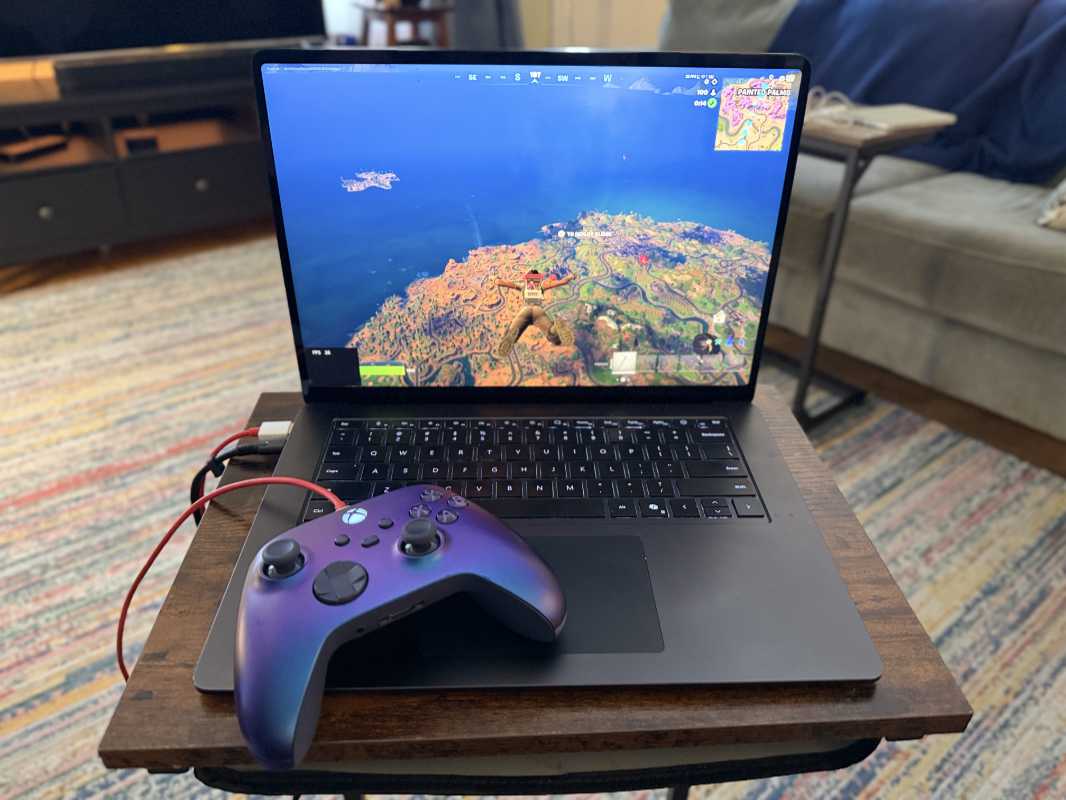
That said, the Snapdragon Control Panel didn’t play a role in that success, at least not that I can tell. When I first ran Fortnite, I was prompted to enable Automatic super resolution (Auto SR), which surprised me, but I guess it wasn’t enabled at the system level (in Settings > Display > Graphics, which is oddly not linked from Settings > Gaming), so I corrected that oversight. That interface provides a bit of customization on a per game/app basis, but I only look at it later. For example, the GPU preference option is (still) set to “Let Windows decide,” but I could choose “Power Saving Qualcomm Adreno X1-85 GPU” or “High Performance Qualcomm Adreno X1-85 GPU.”

Which is part of why I don’t get what the point is of the Snapdragon Control Panel. When I look at the settings for Fortnite, all I really see are things I could manually configure, not anything auto-optimized for this exact PC. And that’s a problem. I don’t know what options like “Anisotropic Filtering,” “MipMap Level of Detail Bias,” and several others should be set for. I don’t know what half of them mean. What most will need is an automatic configuration.
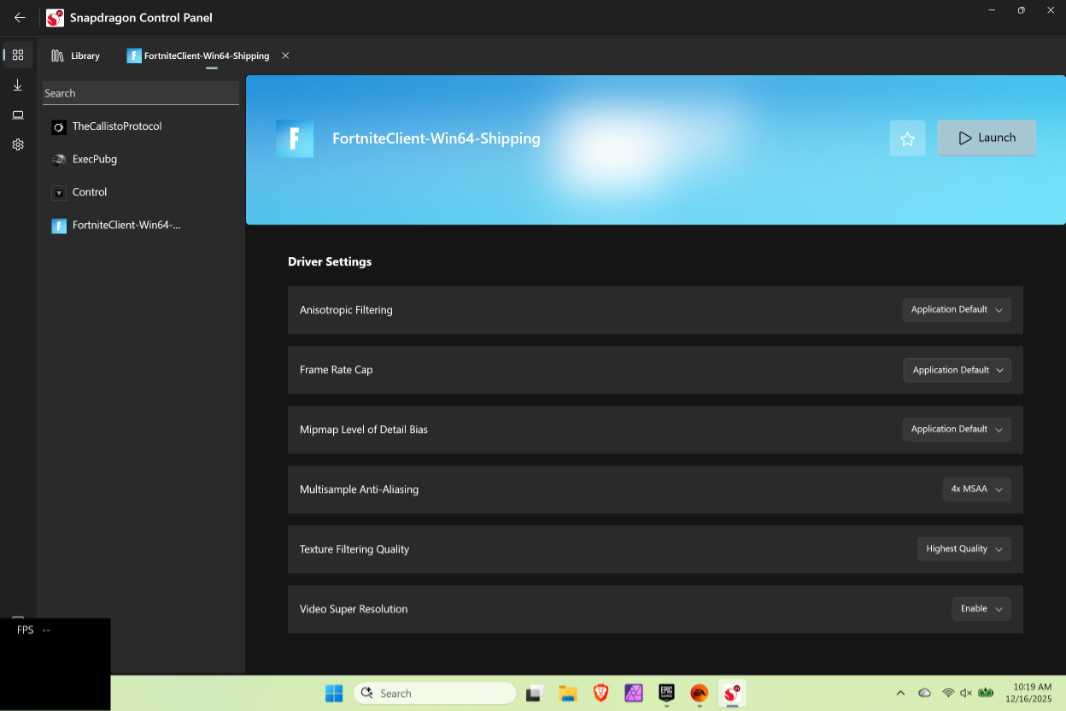
This thing is dumb in other ways, too. There’s a big, handy “Launch” button on each game page in the Snapdragon Control Panel, but when I made some configuration changes and clicked it, I got a “Please launch from the Epic Games launcher” dialog. For the love of God.
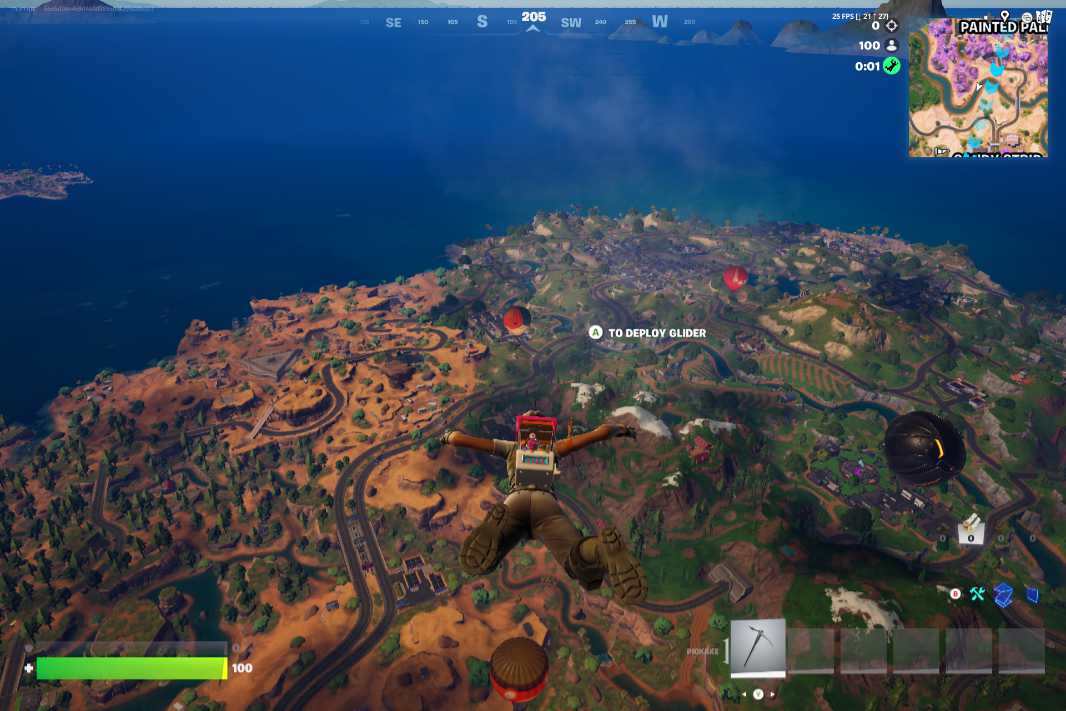
Anyway, Fortnite does run well on this laptop, at a consistent 30 FPS. Whether that’s because of its cartoon-like graphics is unclear but also perhaps unimportant, as this is a fast-action real-time shooter, too. But it’s like a peek at some future in which we will no longer have to worry about whether a game will work, work well, or not work at all in Windows 11 on Arm. And also the exception. A very popular exception, which makes this more exciting and newsworthy. But still the exception.
(Notably, the Windows on Arm Ready Software site still reports that Fortnite is “unplayable.” Not so.)
Control
Control was oone ofthe games that Qualcomm showed off at that hands-on meeting in early 2024, so it’s no surprise that it continues to work on Windows 11 on Arm on Snapdragon X as well. As with Fortnite, I originally just ran it and started a new game, and it seemed to work OK, and little different from my initial experiences last year. Control is a single player title, a third person action adventure title, I guess. And it too ran at about 30 FPS with no prodding, which is fine.

Looking at the settings, it was running at full resolution (2496 x 1664) with most graphics settings at Low and a few at Medium. This suggested that some tweaking might improve matters, so I llookedat the options in Graphics settings (in the Settings app) and the Snapdragon Control Panel to see whether I could improve the performance while letting Auto SR deal with improving the look of the game while running at a lower resolution.

In Graphics settings, I changed the maximum resolution (under Automatic super resolution) to 1152 x 768. And in the Snapdragon Control Panel, I enabled Video Super Resolution. Maybe they could fight it out. Or not: Though I had also configured the game resolution to 1920 x 1200 in the game itself, that setting wouldn’t stick, and when I manually reapplied it, the game wouldn’t take up the entire screen display being set to Full Screen mode. And the FPS stayed at its original levels.

So, it works. It just works in the sense that the game just starts and runs normally, and you can even launch it from the Snapdragon Control Panel. And it plays. But I would need to spend more time, and go in and out of the game multiple times, to try and squeeze a little more performance out of it, all while wondering whether the Settings app and Snapdragon Control Panel were fighting each other. This game is perhaps the best example of why an automatic optimization would be so good. It’s good right now. Could it be great? I don’t know.
The Callisto Protocol
I had experimented with The Callisto Protocol on Snapdragon X last year and found that it just ran too slow to be playable: Once some action sequence kicked in, the frame rates sunk so low that no amount of configuration could save it. So yeah, I tried it again.
Out of the box, it was actually pretty good: The in-game benchmarking tool reported that it was delivering just 18 FPS at the medium graphics preset, and it recommended setting that to low. I did so, but the frame rate benchmark was identical. So I just ran the game and was getting 30 to 35 FPS in use. Like Control, The Callisto Protocol is a realistic looking third person adventure shooter. But it’s also a better looking game.

Could it be better?
In Graphics settings, I could see that Auto SR was on and the GPU preference option was set, to “Let Windows decide (high performance” (as opposed to just “Let Windows decide” as with Fortnite). (I also noticed Control was likewise configured.) In Snapdragon Control Panel, Video Super Resolution was enabled, but the rest were on “Application Default.” So. Hm.
When I launch this game, I get an Auto SR pop-up tied to the Game Bar, so I re-launched it and then turned on Game Bar. There is an Auto SR (Preview) widget I’m not sure that I’d seen before. It was configured to always use Auto SR with this game, which is good, and I enabled a “Show in-game status indicator” option. But it also noted, “Resolution adjustment needed.”
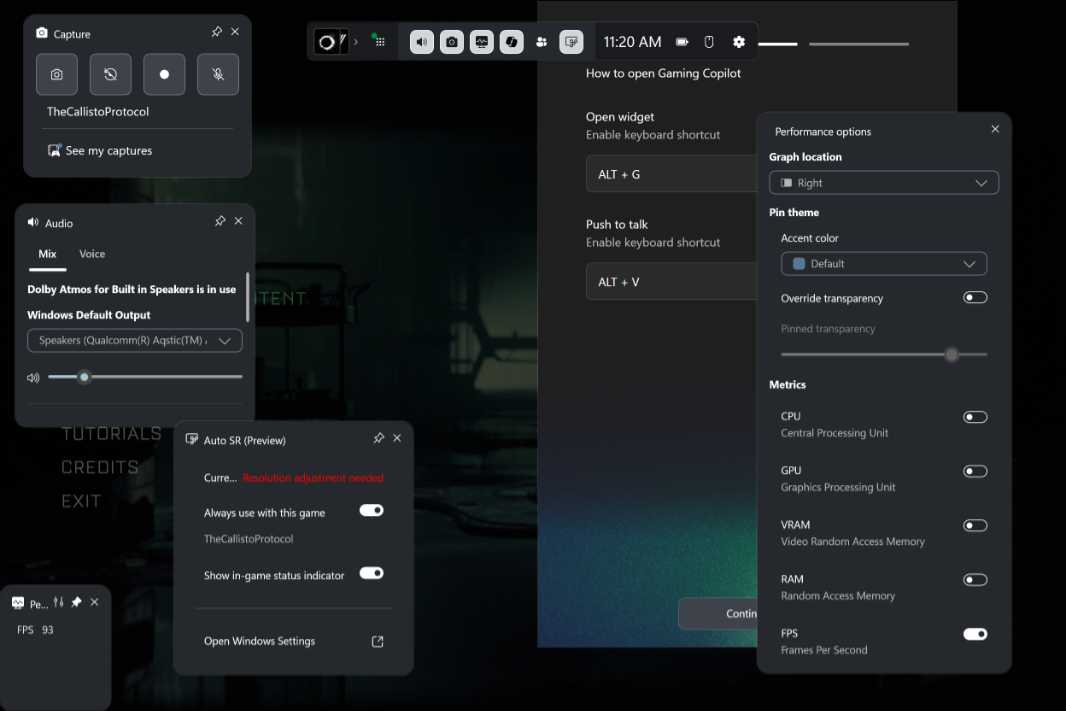
So I launched the game, switched from Fullscreen Borderless to Fullscreen, and then changed the resolution from 2496 x 1664 to a more reasonable 1920 x 1280. Running the performance benchmark again, I saw a slight improvement to 26 FPS. But that made me wonder: How low (resolution wise) could I go? So I tried 1366 x 768, which still looks surprisingly good, and re-ran the benchmark. 31 FPS. OK, but the in-game performance, oddly, didn’t seem to change as much. It was playing at about 35 to 40 FPS, an improvement but not dramatic.

That a game like this can work at all is perhaps notable. But per my overreaching issue here, one could spend a lot of time just frigging with various settings, and it multiple places. I wish this was automatic.
PUBG
I had previously installed PUBG on a recent laptop that I’m reviewing and I was surprised by the quality of the graphics. This game is often compared to Fortnite, but it looks more like a Call of Duty of Battlefield title in that the graphics are realistic and not cartoonish. And so I was curious if there is any way this thing work on Snapdragon X.
It doesn’t. I can’t even get the game to launch.
Battlefield 6
The Call of Duty/Battlefield battle has always been one-sided in COD’s favor. But this year, everything is different: Where Call of Duty: Black Ops 7 is universally underwhelming, Battlefield 6 looks terrific, much more realistic, and it plays aamazinglywell (on x64 PCs) despite the visual superiority. It’s kind of magic, frankly. The only thing holding it back is that it doesn’t “feel” like COD, a long-time problem for this game series and why it’s never triggered a mass wave of switchers.
I had little doubt that Battlefield 6, like any modern Call of Duty game, would never run on Snapdragon X. But I had to give it a shot. And so I downloaded and installed it through the Epic Game Store—I had purchased it on sale for $49.99 recently, as it’s one of those expensive new titles with a $69.99 list price–held my breath, and braced for the inevitable disappointment.
Before diving in, I had to install an EA launcher because this is the problem with PC games. And I added the game manually to the Snapdragon Control Panel and enabled Video Super Resolution. Ever the optimist. And then I looked at Graphics settings, though Battlefield 6 wasn’t listed. So I added it, noted that Automatic super resolution was on, and configured GPU preference to “High Performance Qualcomm Adreno X1-85 GPU” with that same optimism.
And then I launched the game. Or, I should write, failed to launch the game. Obviously, this was never going to work. Ah well.
Final thoughts for now
Depending on how you look at this, I guess the success rate was three out of five, which isn’t horrible. But one of those games is Fortnite, which is a big deal. And The Callisto Protocol runs better than I’d expected, given its graphical quality. So there is some element of hope here, but also the point I made earlier, that things have clearly improved.
That said, the central problem remains: Even with reasonable expectations, the experience you get trying to game on Windows 11 on Arm + Snapdragon X Elite is uncertain. It will vary by game. Many games will not work. Many will, to whatever degree. You could make a career out of trying to configure settings to make a single game work a little bit better. Overall, it’s not worth it. The obvious caveat being Fortnite. Which again, is a good experience.
I have little doubt that Snapdragon X2 combined with whatever other improvements Microsoft and Qualcomm bring to the underlying platform will be another major step forward. I have no idea whether this will be when gaming on Windows 11 on Arm finally makes sense broadly, of course. But I feel like that will require commitments from major game makers, and that that might require Microsoft making requirements tied to Xbox on Windows. We’ll see.
For now, all I can say with certainty is that gaming on this platform has improved, but your success rate will vary depending on the games you want to play. You will need to experiment a lot, sadly.

Gain unlimited access to Premium articles.
With technology shaping our everyday lives, how could we not dig deeper?
Thurrott Premium delivers an honest and thorough perspective about the technologies we use and rely on everyday. Discover deeper content as a Premium member.