Microsoft Surface Laptop 7th Generation 15-Inch Review
- Paul Thurrott
- Jul 22, 2024
-
0
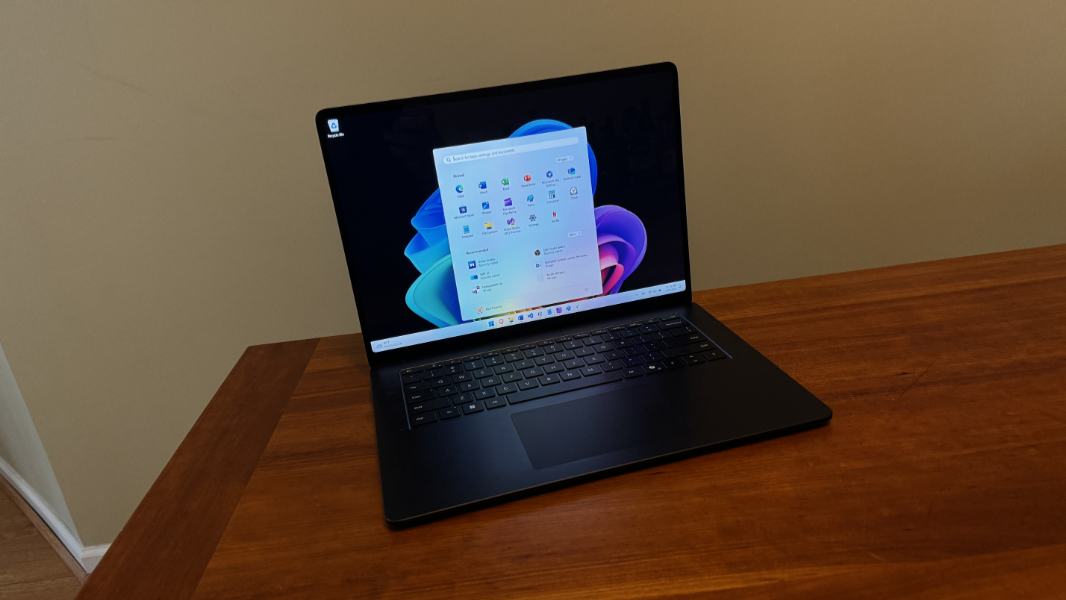
After years of waiting, months of anticipation, and several weeks of use, I am excited to report that the Qualcomm Snapdragon X-powered Surface Laptop 7 is the cure for the MacBook Air envy that Windows fans have long wanted. The 15-inch model I purchased is expensive and a bit heavy, but the capacious display, effortless performance, epic battery life, reliable instant-on, and hardware and software compatibility it delivers is collectively a dream come true.
I didn’t think we’d ever get here.
Design
Surface Laptop has always been about delivering a MacBook Air look and feel for Windows users, and though Apple moved past its iconic design starting with the M2-based models in mid-2022, Surface Laptop 7 soldiers forward with the same basic look and feel it’s had since its own debut in 2017. I’ve loved Surface Laptop from the beginning, and much of that was more emotional than logical. And while I haven’t reviewed one since Surface Laptop 2 in 2018, I’ve very closely followed its progress over subsequent revisions, calling out Microsoft for its strange slowness in adopting modern technologies like Thunderbolt and Type-C ports, and wondering when or if it would ever let Surface Laptop reach its full potential.
Much has changed over the years: Microsoft de-emphasized its weird affectation for Alcantara and then quietly walked away from this silly material entirely. It added a 15-inch model to the original 13.5-inch Surface Laptop form factor, and it took half-steps and then full steps in addressing its technical lapses. AMD variants joined the original Intel variants, and Microsoft produced various offshoots like Surface Book, Surface Laptop Go, and Surface Laptop Studio, with little success. But the one missing piece, to date, was Arm: Where Microsoft experimented with Qualcomm and in-house Arm architectures with Surface Pro, Surface Laptop remained firmly in the x64 world.
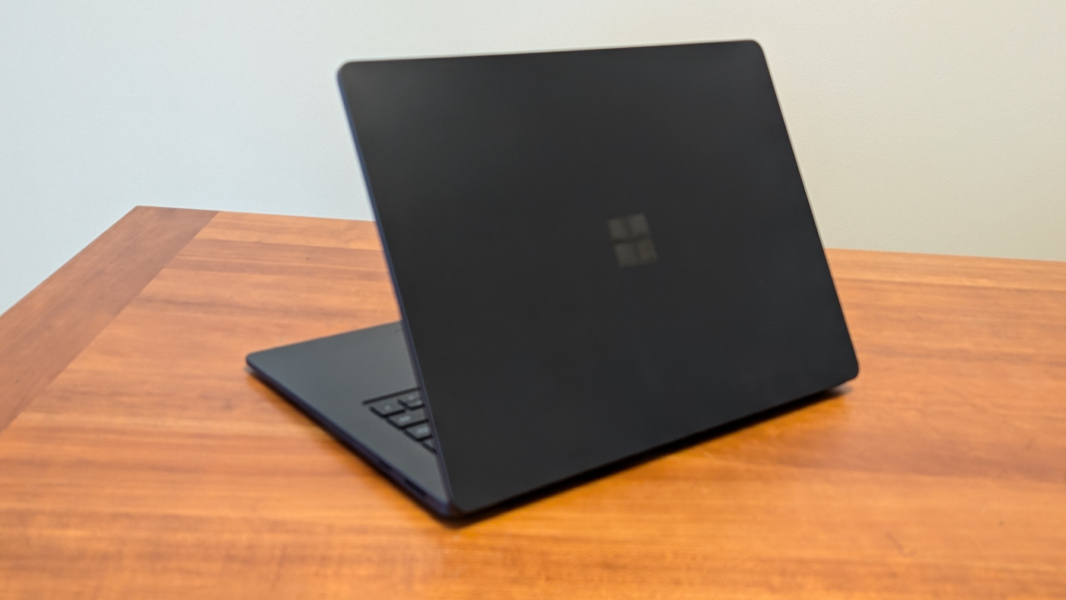
That’s finally changed with Surface Laptop 7. Indeed, this product is available only in Arm-based Snapdragon X guise, a sure sign that Microsoft is confident that Windows 11 on Arm is finally ready for the mainstream. That said, the somewhat similar Surface Laptop 6 for Business, based on Intel Core Ultra (Meteor Lake) chips, also launched early in 2024, to little fanfare. It’s interesting to compare these two siblings, as they look very similar, and offer the same basic expansion ports, displays, and feature sets with just a few differences. But Surface Laptop 7, at 12.96 x 9.41 x 0.72 inches, is smaller than Surface Laptop 6, at 13.4 x 9.6 x 0.67 inches. It’s also a tad lighter, 3.67 pounds vs. 3.7 pounds. (As I note below, it’s not particularly thin or light.)
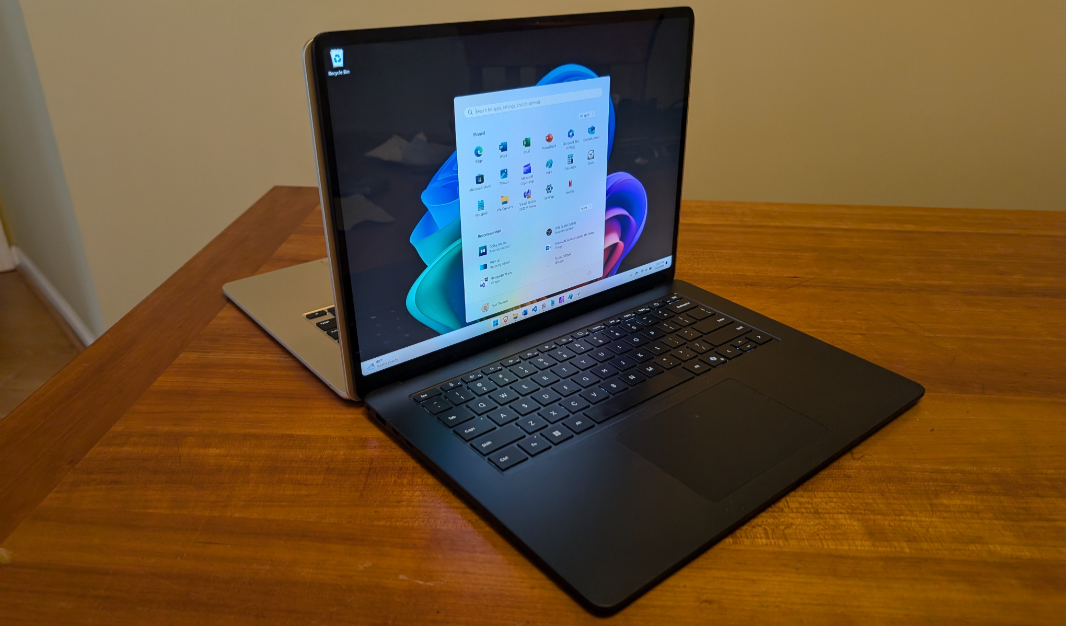
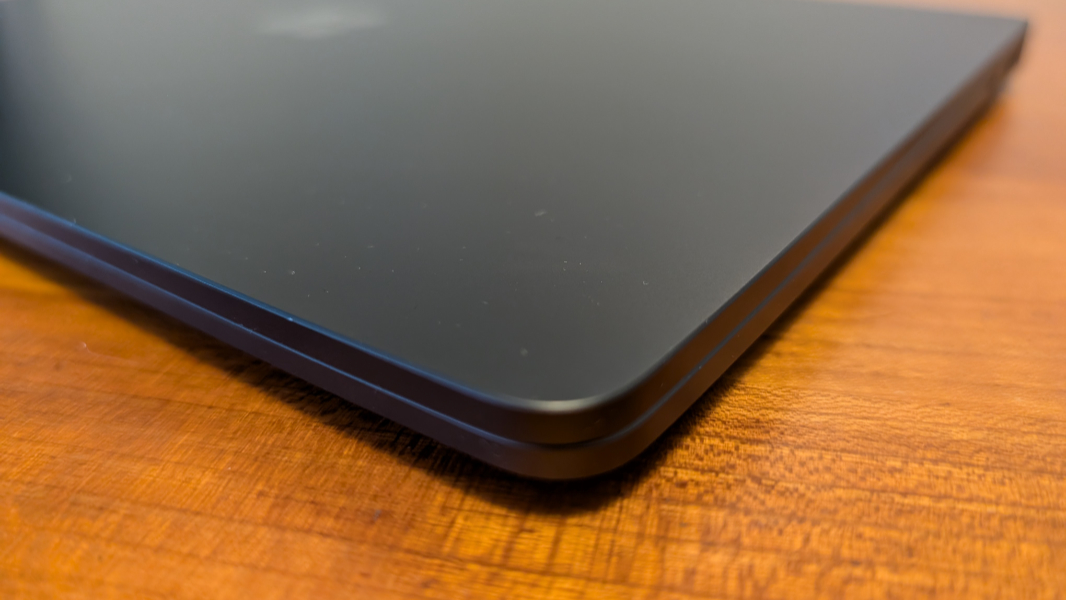
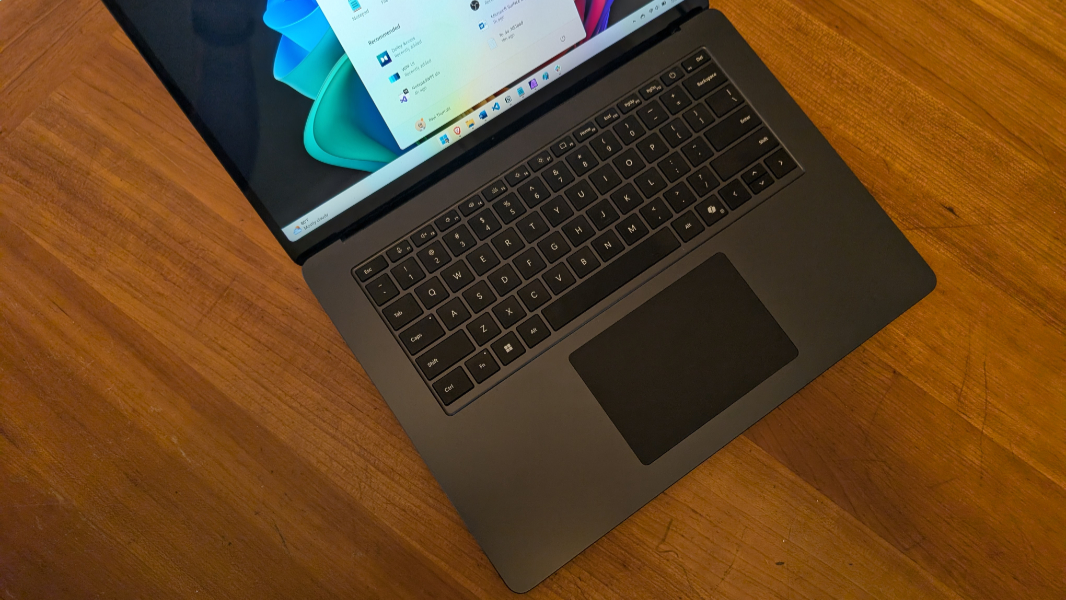
Aesthetically, Microsoft has held true to the Surface Laptop vision since its inception. This is a minimalist laptop with a proven and iconic design, and the visual updates to this generation are minimal. Compared to Surface Laptop 6, there are more curves—nicely done around the keyboard and touchpad, less so at the display corners—in a nod to the naturalistic Windows 11 design style. There are also much smaller screen bezels, which helps explain this PC’s smaller size relative to its stablemate.
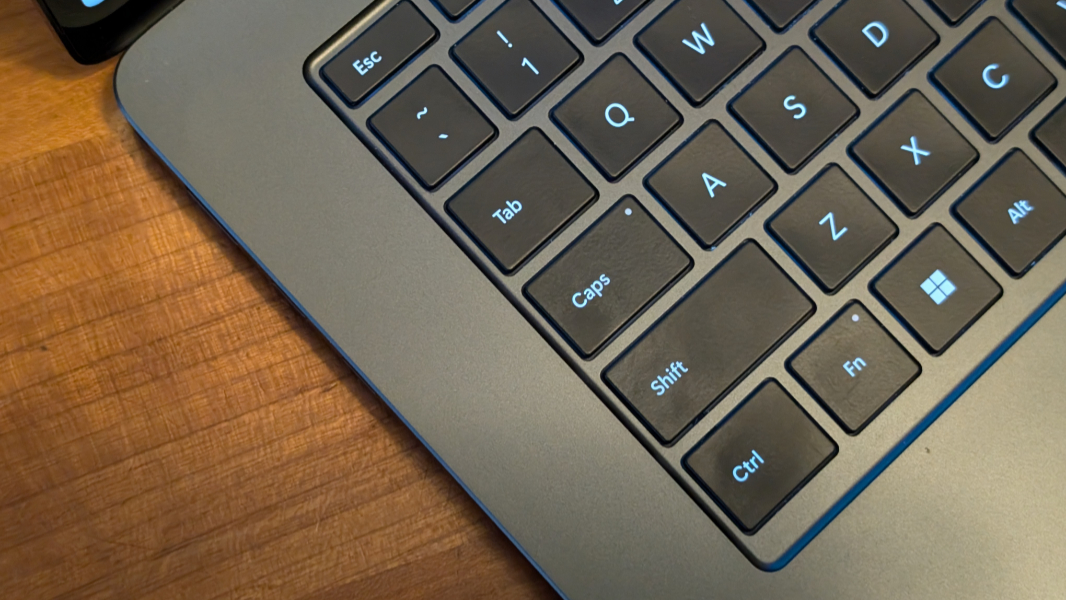
Microsoft made one minor concession to those who’d like a laptop with a bit more flair: In addition to traditional Platinum and Black colors, it can be had in a gorgeous Sapphire blue and a weird Dune that’s more orange than beige in person. Sadly, those two colors can only be configured with the smaller (now 13.8-inch) form factor: Those who want the larger 15-inch display, like me, are stuck with Platinum and Black.
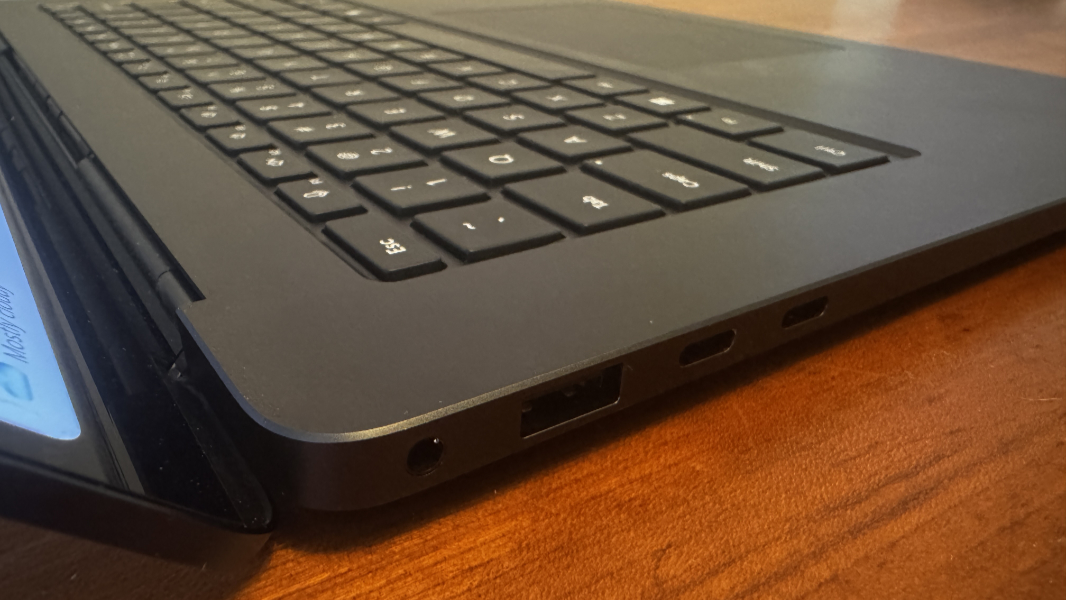
But it’s gorgeous, and the anodized aluminum body delivers a MacBook-like premium build quality that helps explain the Surface Laptop’s high price. Indeed, one would be forgiven for mistaking this PC for a Mac. There are no stickers at all on the PC, top or bottom, in sharp contrast with other PCs, Snapdragon X-based or not. And it’s not a fingerprint or skin oil magnet like many other premium laptops.
And, yes, I love it, just as I loved the original several years ago. Surface Laptop is precisely what I was looking for, and it’s satisfying just opening the lid each day and getting to work.
Display
The display is a key part of Surface Laptop’s appeal, and that’s especially true of the 15-inch version I purchased. As with the MacBook Air it so obviously emulates, the Surface Laptop utilizes a standard IPS display panel—which it calls a PixelSense Flow in a bout of Apple-like naming diarrhea—instead of a glossier, brighter, and more colorful OLED display like the optional panel it’s now offering with Surface Pro 11 in a first for the product line.
As with the MacBook Air, this was a reasonable choice. The Surface Laptop 7 display can get reflective in bright, natural lighting conditions, when it’s almost distracting as OLED. I compute indoors for the most part, like a normal person, so the glossy reflectiveness I noticed on day one has thankfully been largely a non-issue over the past month of use. But I noticed it a lot when I had to photograph it for this review too.
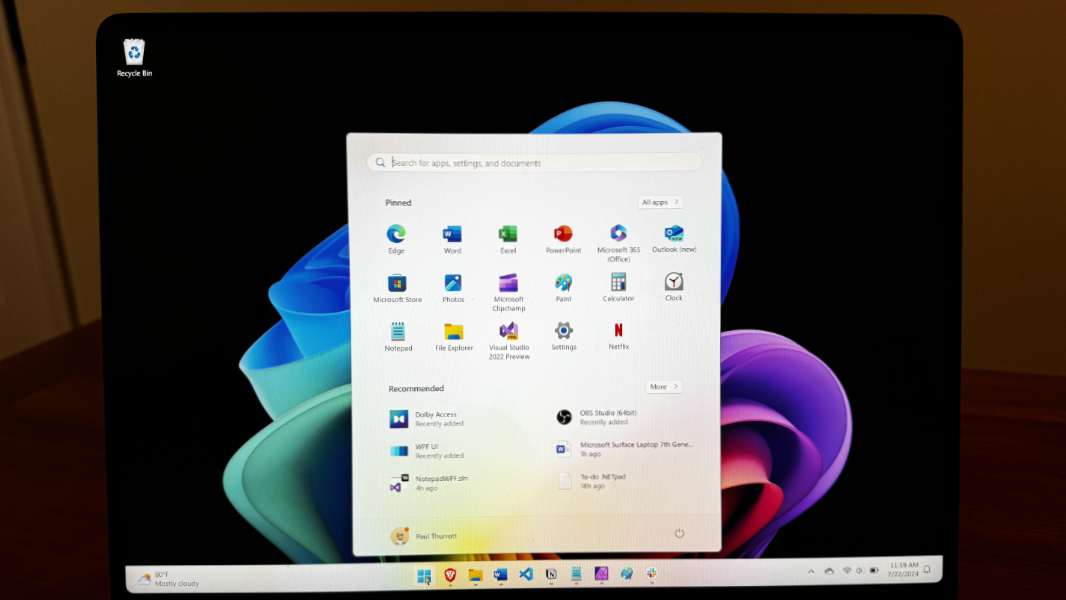
There are other differences, of course. Microsoft has used 3:2 aspect ratio display panels on almost every Surface model it’s made since Surface Pro 3 in 2014 when it belatedly discovered this key differentiator. And Surface Pro 7 continues that tradition despite the rest of the industry transitioning their laptops from wide 16:9 displays to taller, more productivity-focused 16:10 display panels. This is interesting to me, as I assumed that using apps side-by-side would be less viable on the taller display. But I like 3:2, even on a laptop, and I quickly adapted to this unique shape.
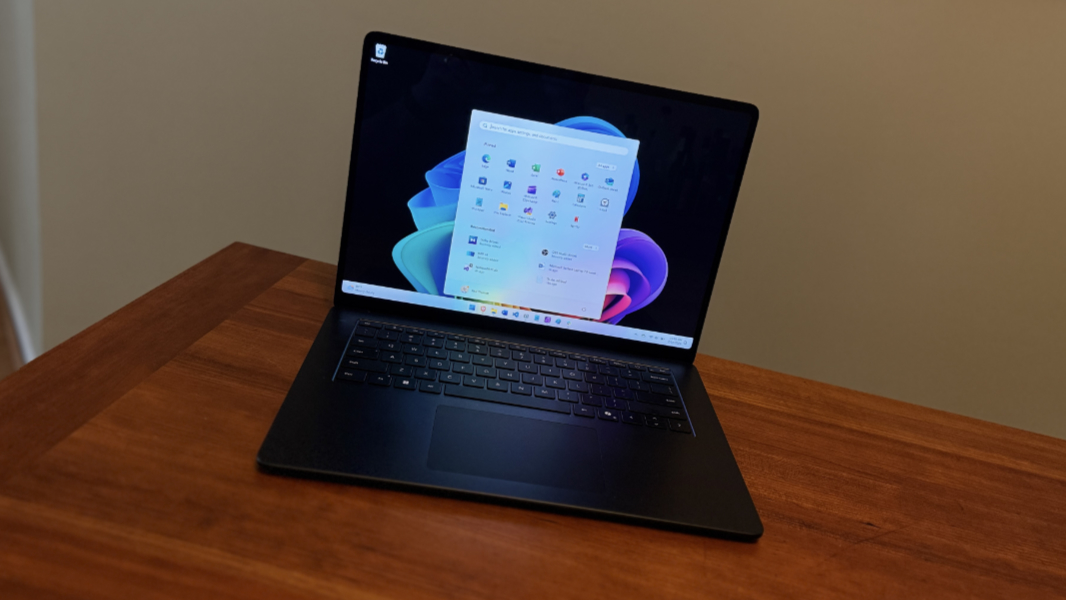
This PixelSense Flow (ugh) display provides a native resolution of 2496 x 1664 with a high 201 PPI pixel density, and it throws off 600 nits of brightness with both HDR and SDR content. It supports 10-point multitouch, which is inessential to me, and is protected with Gorilla Glass 5. And it provides a long list of desirable display attributes, including Dolby Vision IQ/HDR, a 120 Hz refresh rate with dynamic refresh rate capabilities, support for the sRGB color space (in addition to a Vivid color profile), and Adaptive color, Adaptive contrast, and Auto color management support.
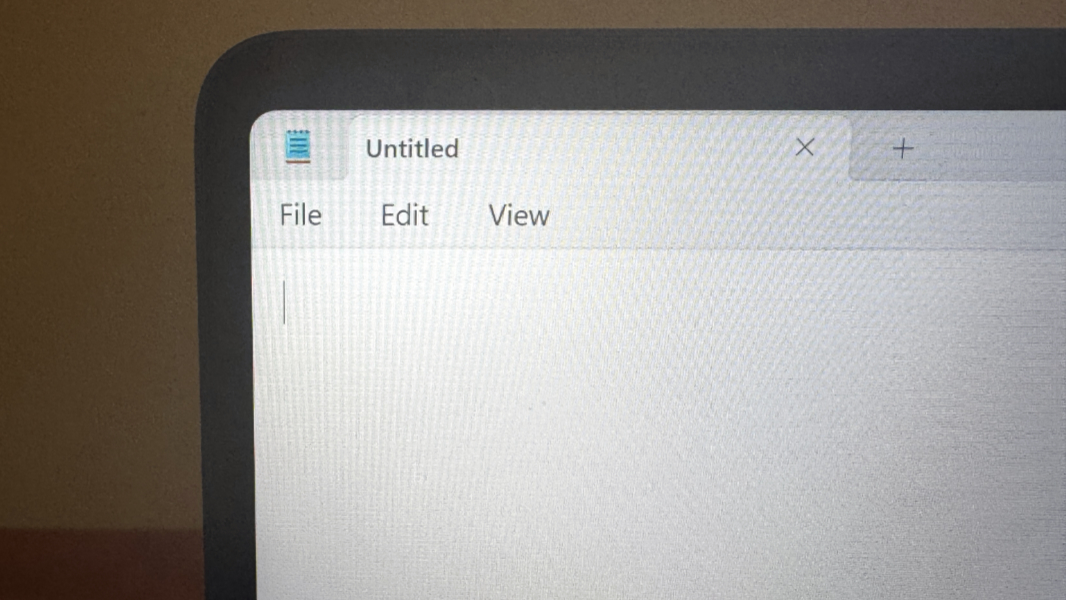
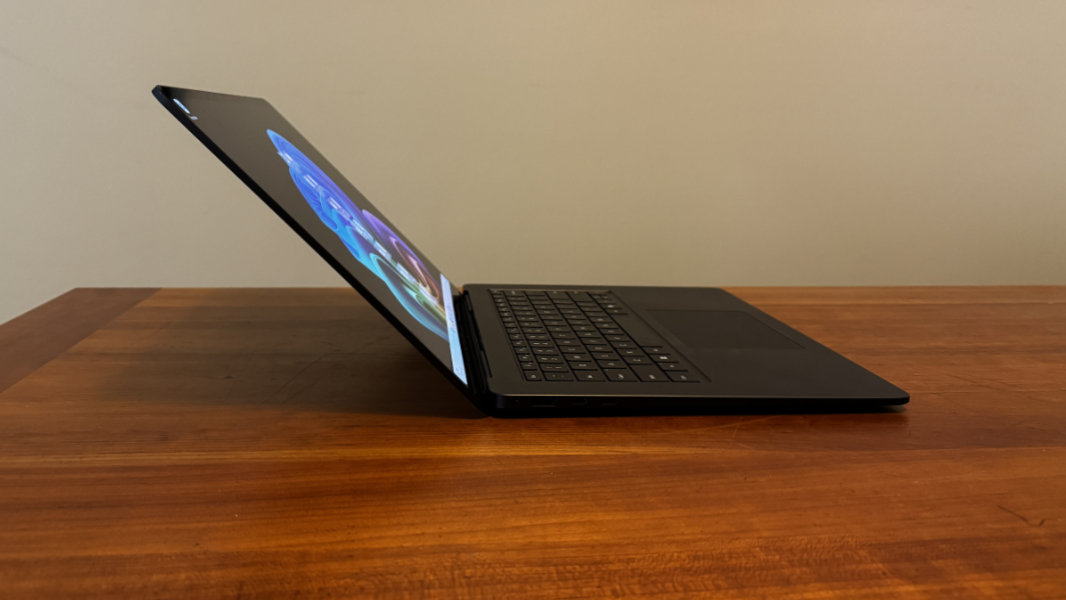
It’s a terrific display. Because it supports a battery-saving dynamic refresh rate, I’ve left it configured for 120 Hz, and over time, I enabled features like HDR and Auto HDR (which helps bump SDR content up to HDR-like color quality). But it doesn’t lay flat, which is a bit of a bummer.
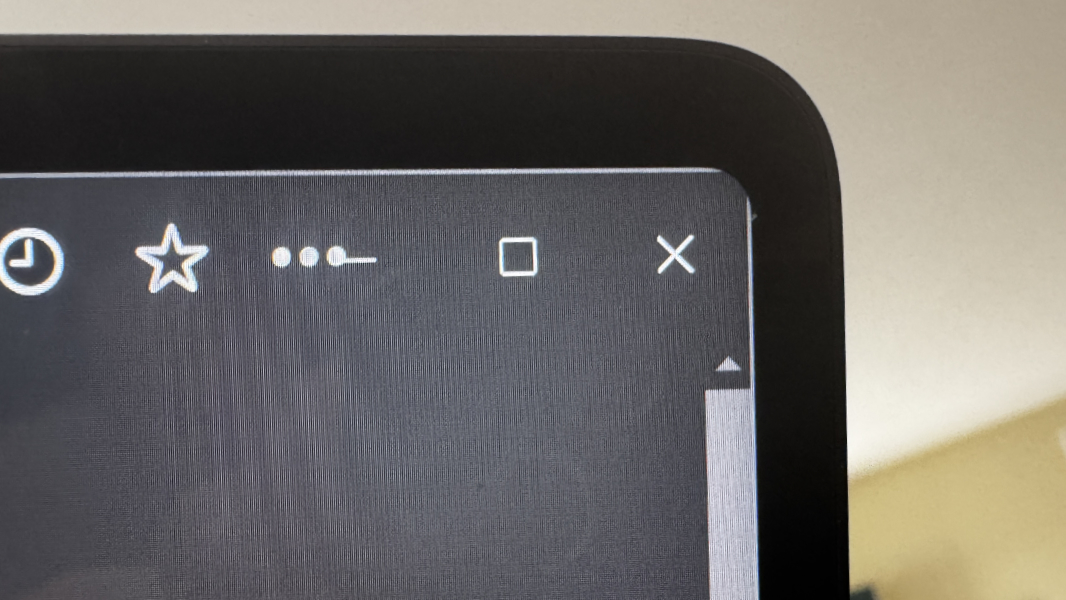
This is perhaps a minor issue, but Microsoft curved the corners of the Surface Laptop display, which is to say the bezels around the display are curved at the display’s corners. And it’s not a great look. Not only do the curves not match the curved corners of the display lid—a detail Apple gets right with the MacBook Air—but you can see when app windows intrude into that space, only to be covered up by the bezel corner. It’s not a big deal, but I expect better attention to detail in a premium product like this.
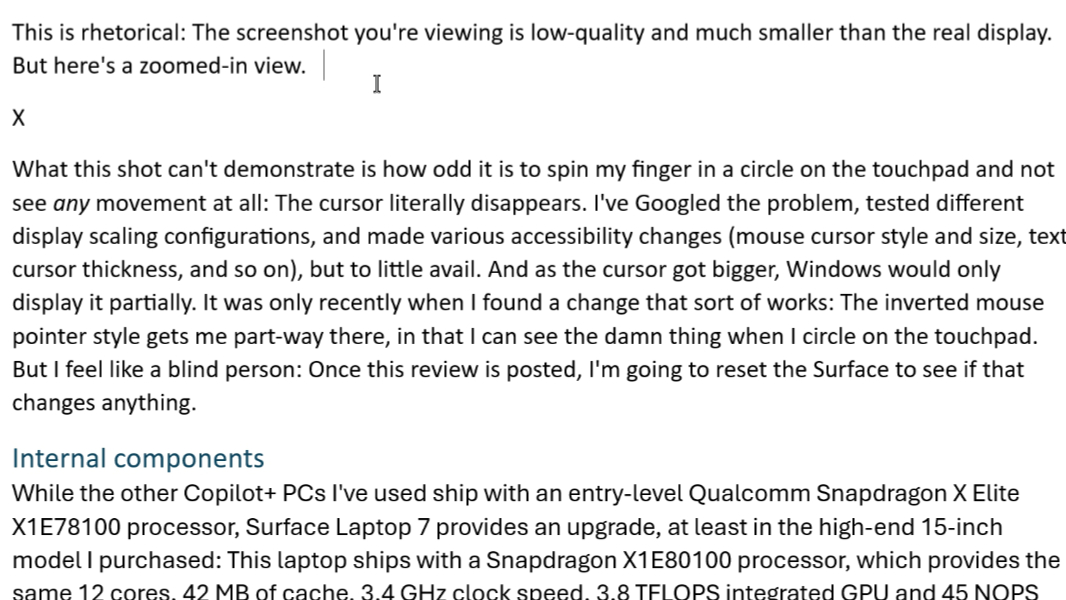
I also experienced a strange display-related issue that is, I think unique (to me) and mostly unfixable: The mouse cursor disappears when I’m typing in any text-based app (Microsoft Word, Notepad, Visual Studio, whatever) and the “shake the mouse to find the cursor” game I usually play is ineffective: For some reason, the mouse cursor, which turns into an “I-beam” shape in these apps, becomes so small and thin that it’s essentially unseeable. It’s there. But it’s like it’s one pixel wide.
To help demonstrate this issue, I took a screenshot of Word while I was writing this review. Can you see this mouse cursor?
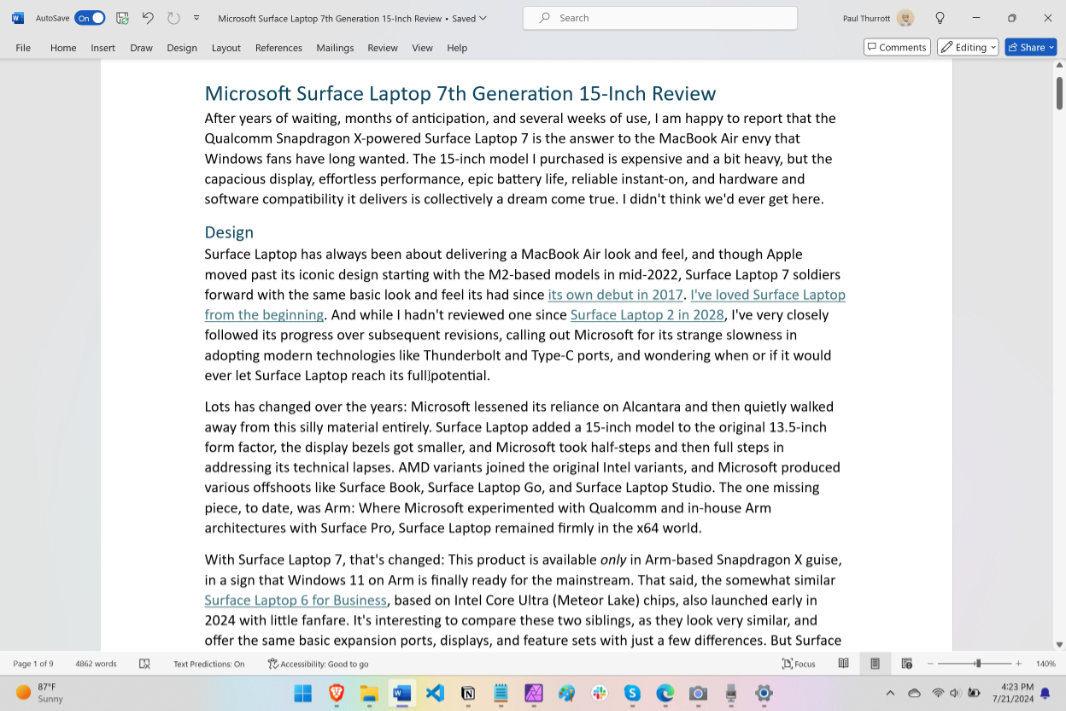
This is rhetorical: The screenshot you’re viewing is low-quality and much smaller than the real display. But here’s a zoomed-in view. The cursor is between “full” and “potential” if you still can’t see it.
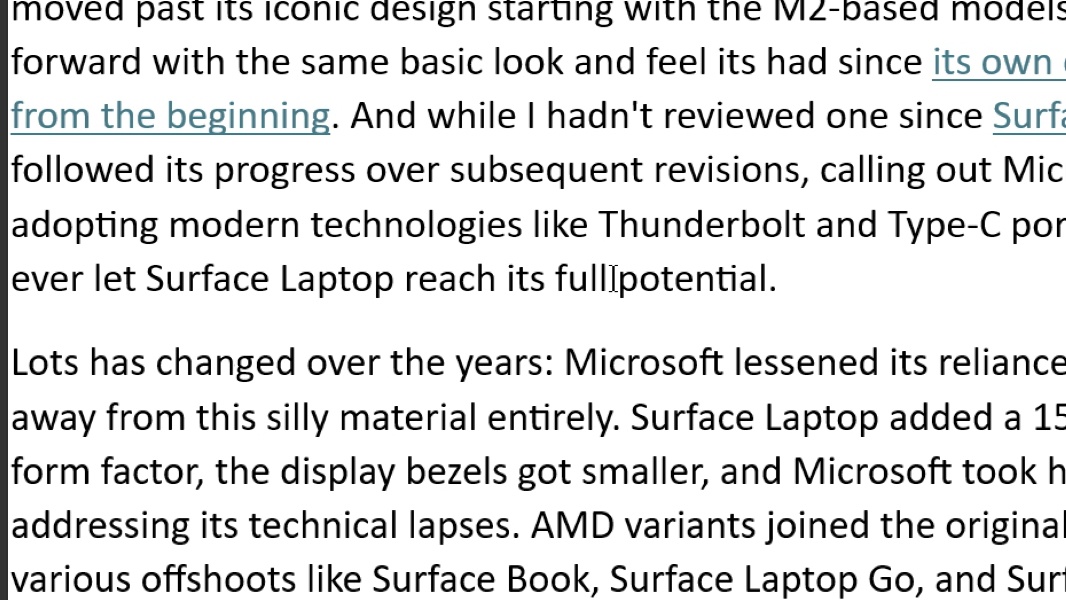
But that’s just a screenshot. What this shot can’t demonstrate is how odd it is to spin my finger in a circle on the touchpad and not see any movement at all: The cursor literally disappears. I’ve Googled the problem, tested different display scaling configurations, and made various accessibility changes (mouse cursor style and size, text cursor thickness, and so on), but to little avail. And as the cursor got bigger, Windows would only display it partially. It was only recently when I found a change that sort of works: The inverted mouse pointer style gets me part-way there, in that I can see the damn thing when I circle on the touchpad. But this problem makes me feel like a blind person: Once this review is posted, I’m going to reset the Surface to see if that changes anything.
Internal components
While the other Copilot+ PCs I’ve used ship with an entry-level Qualcomm Snapdragon X Elite X1E78100 processor, Surface Laptop 7 provides a small upgrade, at least in the high-end 15-inch model I purchased: This laptop ships with a Snapdragon X1E80100 processor, which provides the same 12 cores, 42 MB of cache, 3.4 GHz clock speed, 3.8 TFLOPS integrated GPU and 45 TOPS integrated NPU as the lower-end chip while adding a 4.0 GHz dual-core boost mode the X1E78100 lacks.
I suspect dual-core boost is the type of thing that will help with certain benchmarks, as this “turbo” capability enables two of the chip’s 12 processor cores to ramp up beyond the performance capabilities of the other cores. It’s not clear if there’s any real-world benefit to this upgrade. In my admittedly non-scientific video encoding tests, for example, Surface Laptop 7 delivered a nearly identical rendering time as the X1E78100-based Yoga Slim 7x 14 on power, though it finished its battery-powered run in 14 percent less time than the Yoga. But that’s not a typical workload for a productivity-focused mainstream laptop. In my real-world usage, I never noticed any benefit from this additional headroom.
Beyond the processor, Microsoft lets customers configure Surface Laptop with 16, 32, or 64 GB of integrated LPDDR5x RAM and 256 GB, 512 GB, or 1 TB of removable Gen 4 SSD storage. Unfortunately, these options are tied to limited color and screen size configurations, and in my case, when I ordered a 32 GB/1 TB 15-inch Surface Laptop 7, my only color choice was black.
As with the Yoga, my day-to-day experience using Surface Laptop 7 has been nothing short of phenomenal: Every single time I open its lid, the display fires on immediately. As noted below, the battery life always lasted a full day. And during all that uptime, Surface Laptop handled everything I threw at, from the traditional productivity apps I use to Visual Studio 2022 Preview—which I’m using for my Modernizing .NETpad 2024 project—with effortless, silent, and consistent performance.
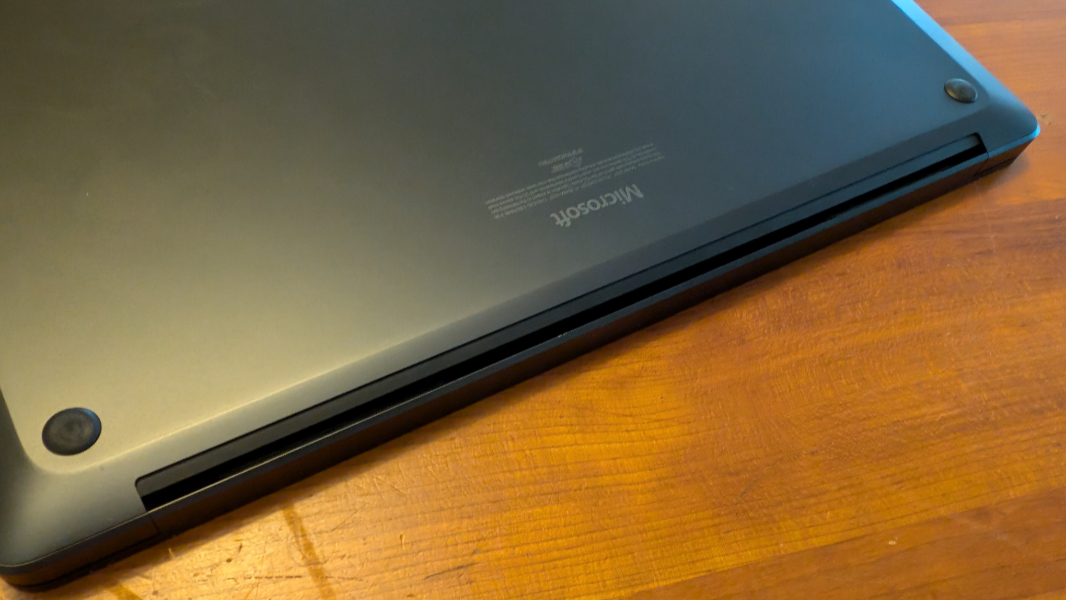
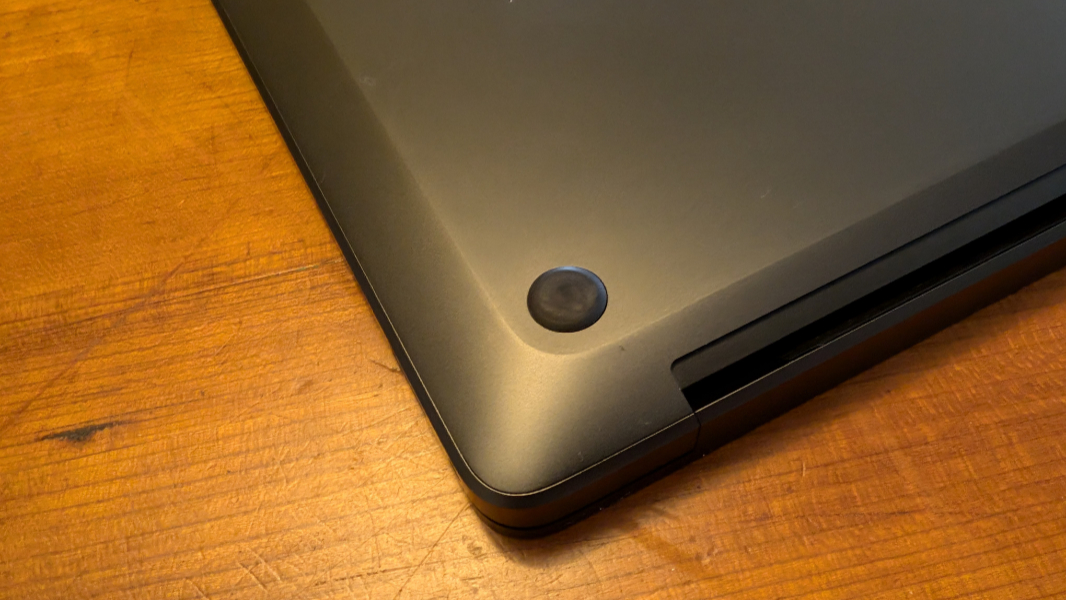
Part of this success is likely related to thermal management: Unlike some PC makers, Microsoft doesn’t use vents on the bottom of the PC for air intake or outtake. Instead, there’s a laptop-wide vent on the rear of the device, under the hinge. And it clearly vents some hot air out the left side, which never became problematic.
The one thing I haven’t spent too much time on is gaming: I did install Doom Eternal for some light testing, but after my previous inconsistent and frustrating experiences across many games, I’m going to take a break and check-in later if Qualcomm or Microsoft make some notable improvements. Or, who knows, if a major Arm64-native game title emerges.
Most wouldn’t expect to play games on this type of laptop, but as my time and experience with Snapdragon X-based PCs grows, I get frustrated by the commentary that typically accompanies any mention of this hardware. It almost seems like reviewers are seeking out esoteric edge-case apps and hardware devices in an effort to undermine the platform. The implication is that anyone foolhardy enough to buy such a computer will be punished accordingly with all kinds of compatibility issues.
That’s not been my experience: After extensively testing all the hardware and software I own, including those I rarely if ever use, I’ve only identified a single hardware peripheral that refuses to work at all with this platform and one incompatible app.
On the hardware side, the Focusrite USB audio interface I use for the podcasting microphone in my home office is incompatible with Windows 11 on Arm. This hardware is problematic as-is, however, and because I routinely run into issues with crackly audio, I unplug it and re-plug it before every single podcast I record, and during Windows Weekly, which often runs over 2.5 hours, I still sometimes have to reset this way mid-recording. So, yes, it doesn’t work on Arm but it’s not a particularly reliable device to begin with.
Thanks to a reader question, I also confirmed that while Surface Laptop 7 and other Snapdragon X-based PCs work normally with all the USB-C hubs and Thunderbolt 3 and 4 docks I own, the Ethernet port on my previous-generation CalDigit TS3 dock doesn’t work. The Dock works fine otherwise, and CalDigit says it’s waiting on a driver update from the component maker.
As for software, I discovered early on that Google Drive is incompatible with Windows 11 on Arm and that Google has shown little enthusiasm for making that happen. For this reason, I’ve switched back to OneDrive, which obviously works fine. (I pay for both products via subscriptions, so making this change wasn’t difficult.)
I previously had an issue with OBS Studio, the free screen recording software I use to record Hands-On Windows, as well. Because OBS Studio is open source, enthusiasts made Arm64 ports of the app in the past, so this one will likely be resolved quickly. In the meantime, I discovered that TechSmith Camtasia, which is admittedly expensive, works just fine with Windows 11 on Arm despite having to run in emulation. But for this review, I installed OBS Studio on Surface Laptop 7 and, to my surprise, it worked just fine. Granted, the 3:2 aspect ratio isn’t ideal for the videos I need to record, but I can switch to 16:9 as needed. I will experiment with this.
During all this, Surface Laptop went about its business quietly and without drama. It’s silent in most cases, but on the few occasions when the fan kicked on, it only emitted a low, often imperceptible hum. Snapdragon X continues to impress, and I’ve had consistent experiences across the four Copilot+ PCs I’ve tested so far.
Connectivity
Surface Pro 7 connectivity is as modern as can be, with Wi-Fi 7 and Bluetooth 5.4, and I’ve not had a single issue here in Pennsylvania on Wi-Fi 6E or during a recent overnight work trip to New York. There’s no cellular data option, however. (Surface Pro 11 will get that option later in 2024, but Microsoft has never said that Surface Laptop 7 will.)
Ports and expansion
Surface has long suffered from expansion problems, with some models offering too few choices, out-of-date components, or both. But with the 15-inch Surface Laptop, Microsoft has mostly landed in the right place.
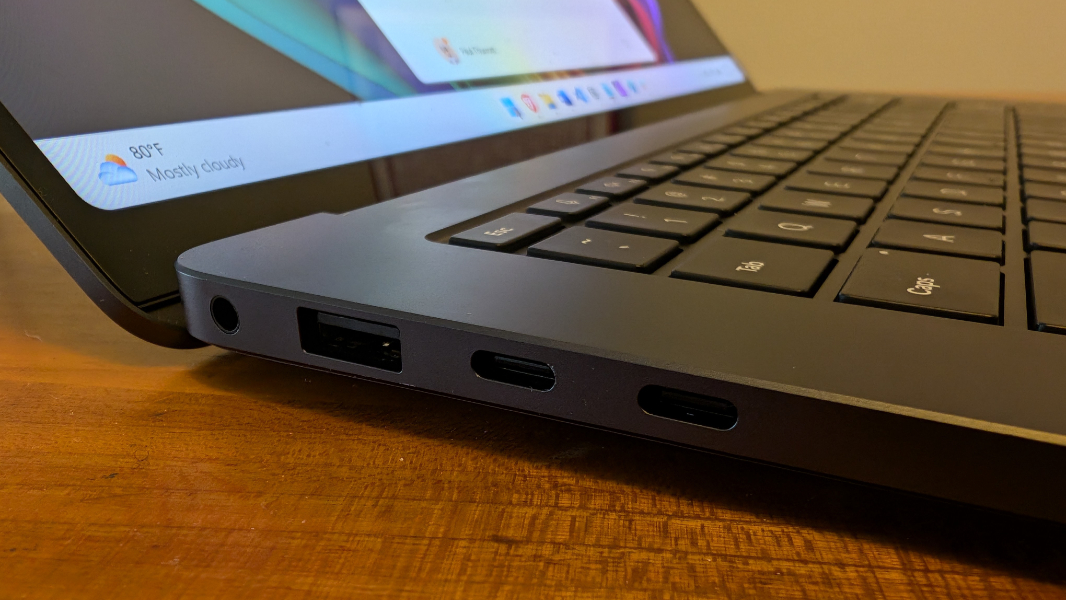
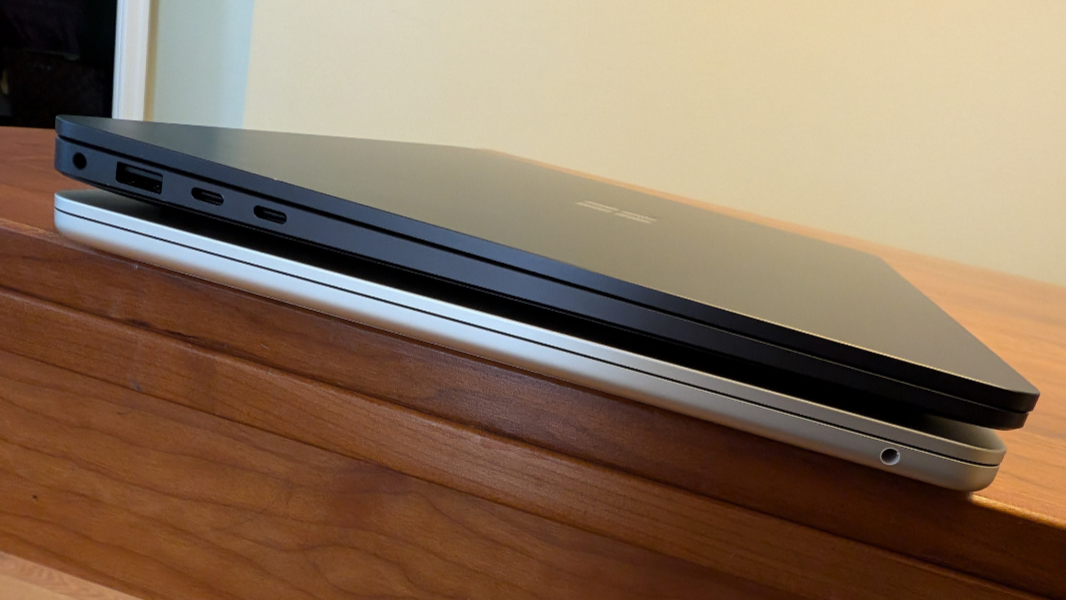
On the left, you will find two USB4 Type-C ports (with 40 Gbps data transfer speeds and DisplayPort and Power Delivery capabilities) plus a backward-compatible USB 3.1 Type-A port (5 Gbps). Previous generation 15-inch Surface Laptop models provided one Type-C port and one Type-A port, so this is a nice step-up.
On the right, Microsoft provides its proprietary Surface Connect port and, curiously, a tiny microSDXC memory card slot that’s backward compatible with previous-generation microSD card formats. (The 13.8-inch Surface Laptop 7 features just one USB4 Type-C port and no microSDXC card slot.)
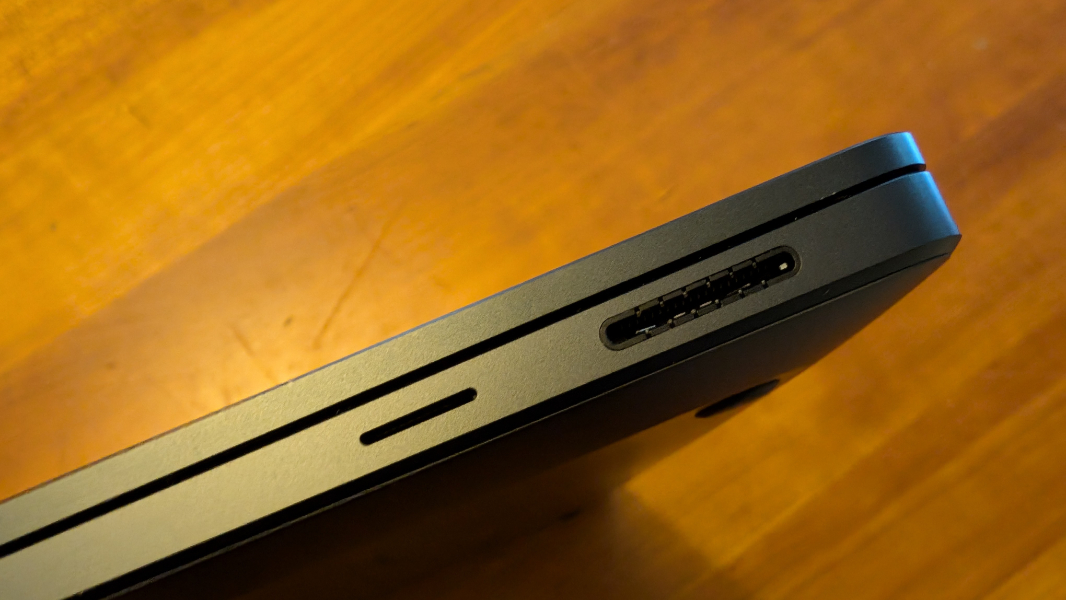
Surface Connect is Microsoft’s answer to Apple’s MagSafe, a power connector with magnets that helps keep the PC safe if you or anyone else trips on the power cord. But Surface Connect is a double-edged sword. As with MagSafe, this proprietary connector—which works with an otherwise standard 65-watt power supply—frees up a Type-C port on the computer, which is nice.
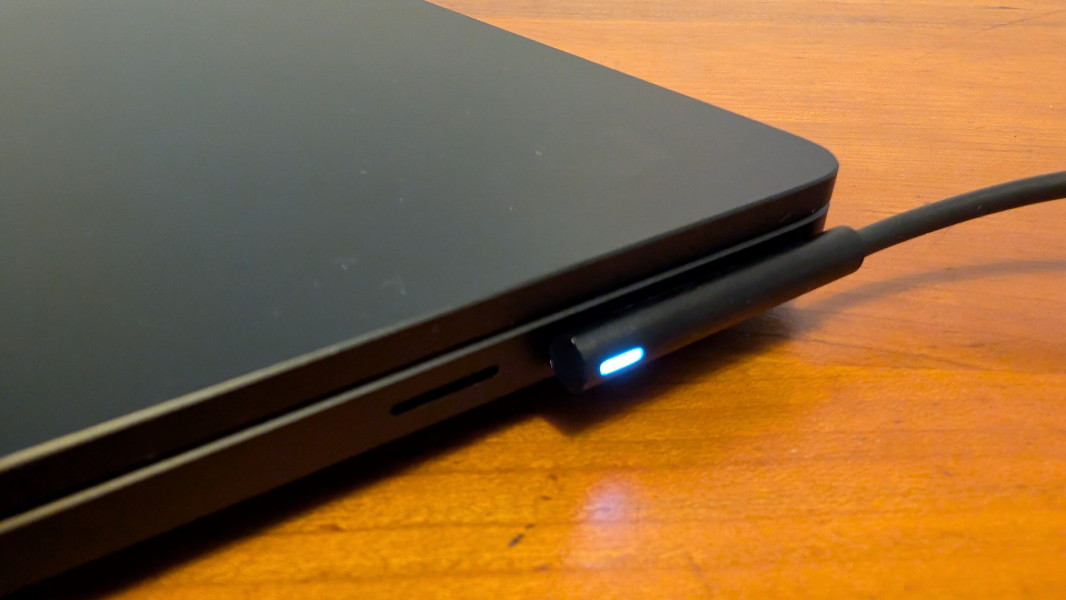
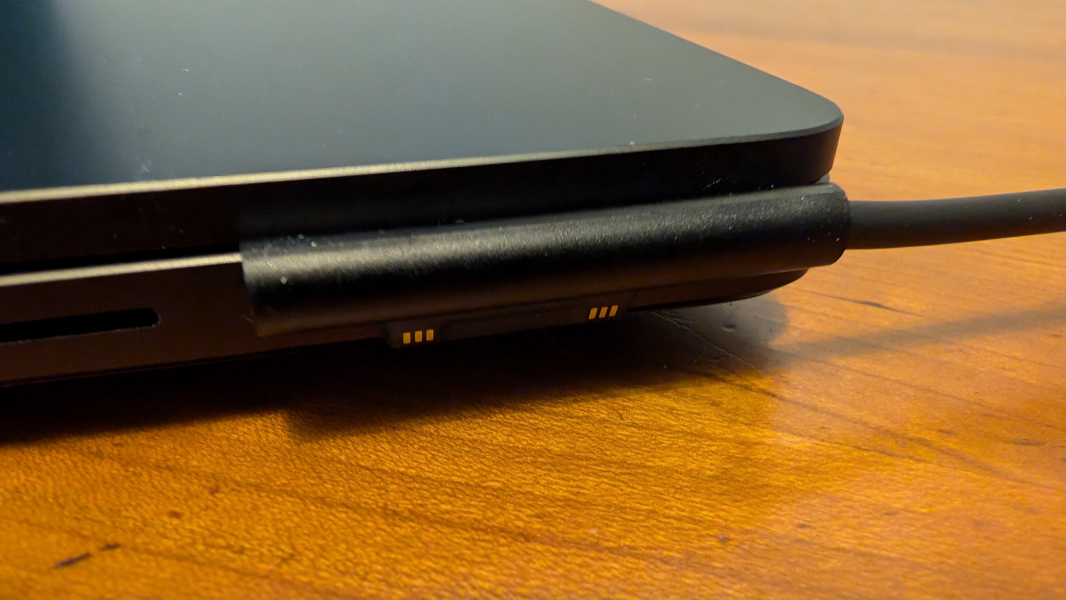
But unlike MagSafe, it’s far too easy to misconnect the power adapter’s blade-like connector to the PC: It often magnetizes to the outside of the port instead of making the correct connection and delivering power. I quickly started using one of the many Type-C chargers I have instead, and those always worked fine.
The microSDXC card slot is also interesting. This can be useful for the few people who have digital cameras and wish to transfer their files to the PC as quickly as possible. But there’s a second use case that has more potential: microSDXC cards are available with capacities up to 2 TB, and they can be as fast as some SSD storage devices, and that means they are theoretically viable as a second drive for day-to-day use.
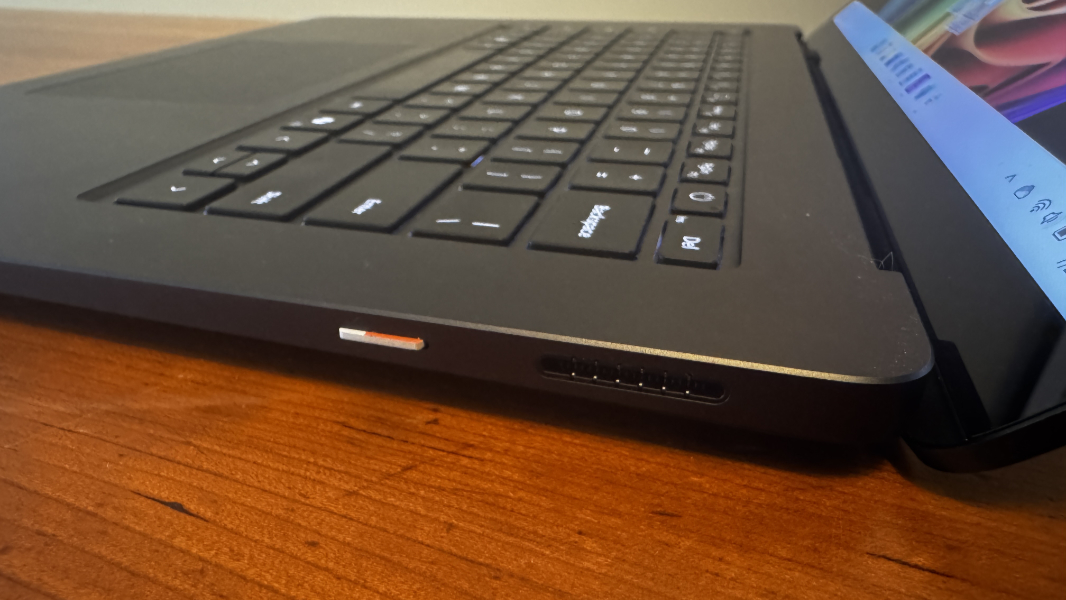
I didn’t try this—my Surface Laptop has an ample 1 TB of storage, more than I typically need—and I don’t have any speedy, modern microSDXC cards to test with. The microSDXC cards I tested stick out a bit so you can eject them as needed, which could be problematic when traveling. And since the Surface Laptop’s internal storage is so readily upgradeable, that’s probably the better option for most. But it’s nice to have the choice, and a fast, modern, and inexpensive microSDXC card would likely do in a pinch. (The fastest 200 MB/s Samsung microSDXC card with 512 GB of storage costs less than $65.)
Audio and video
Though its 3:2 aspect ratio display is optimal for productivity work, Surface Laptop 7 delivers a surprisingly good multimedia experience thanks to its support for Dolby Vision IQ/HDR and Dolby Atmos immersive sound, the latter via a pair of upward-firing OmniSonic speakers, whatever that means, hidden under the keyboard. With the right content—the audio/video experience is superlative. The issue, as always, is finding that content.
My only real source of 4K, Dolby Vision/HDR, and Dolby Atmos videos on Windows is Netflix, and I pay a premium for this level of service. Surface Laptop 7 does a terrific job presenting the Netflix content that lands in that holy trinity of video and audio quality: Movies like 6 Underground and The Equalizer 3 deliver wide, positional sound and, in the former case, a richly saturated and almost hyper-modern image. (That these movies are both terrible is beside the point.) But most Dolby Vision content—movies, TV shows, documentaries—was more realistic looking, and lacking in that hyper-contrasty look delivered by glossy OLED panels.
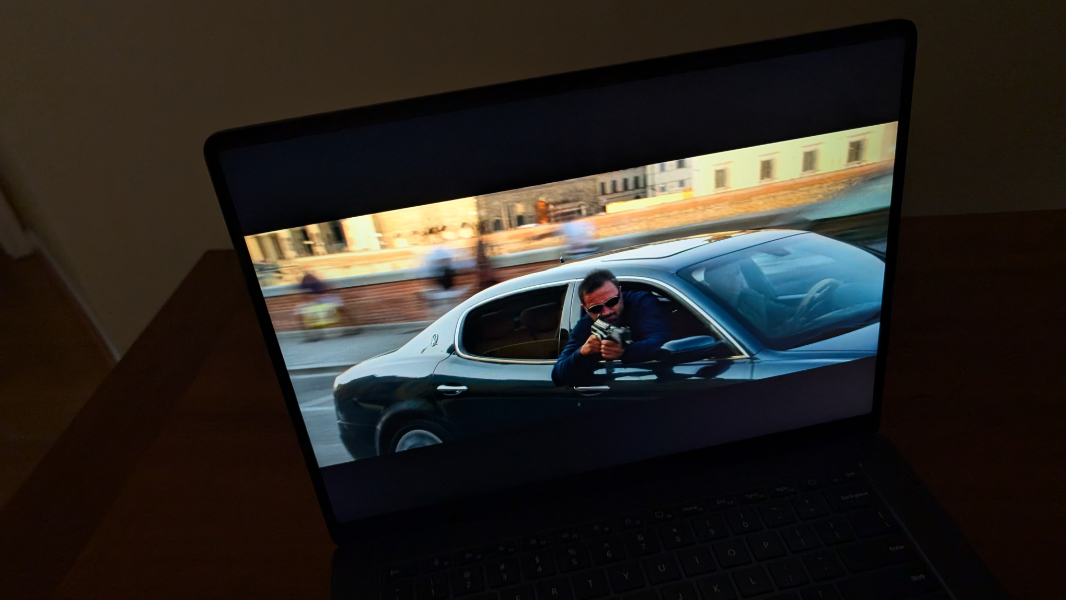
I’m fine with that: The display looks fantastic. But I did investigate the system configuration, at which point I enabled HDR and Auto HDR, both of which are off by default, and noted that the speakers were correctly configured for Dolby Atmos for Speakers. Then I downloaded the Dolby Access app, which Microsoft doesn’t bundle with the PC. But the defaults were mostly fine. Dolby Atmos was configured for the movie preset, so I changed that to dynamic. And Dolby Vision was correctly configured to IQ, which optimizes the display based on the surrounding environment. After experimenting with Vivid and some other modes, I put it back to the default and never looked back.
Testing Dolby Atmos music was less successful: Apple Music supports Dolby Atmos and Lossless Audio, but its Windows app only supplies the latter. So I slummed it with some Dolby Atmos and other immersive music on YouTube (this playlist, for example). Given the limitations inherent in having just two small speakers, the results were impressive. Even at 100 percent volume, there was no warble or distortion, just clear, loud sound with a wide, deep, and rich sound stage.
Hybrid work
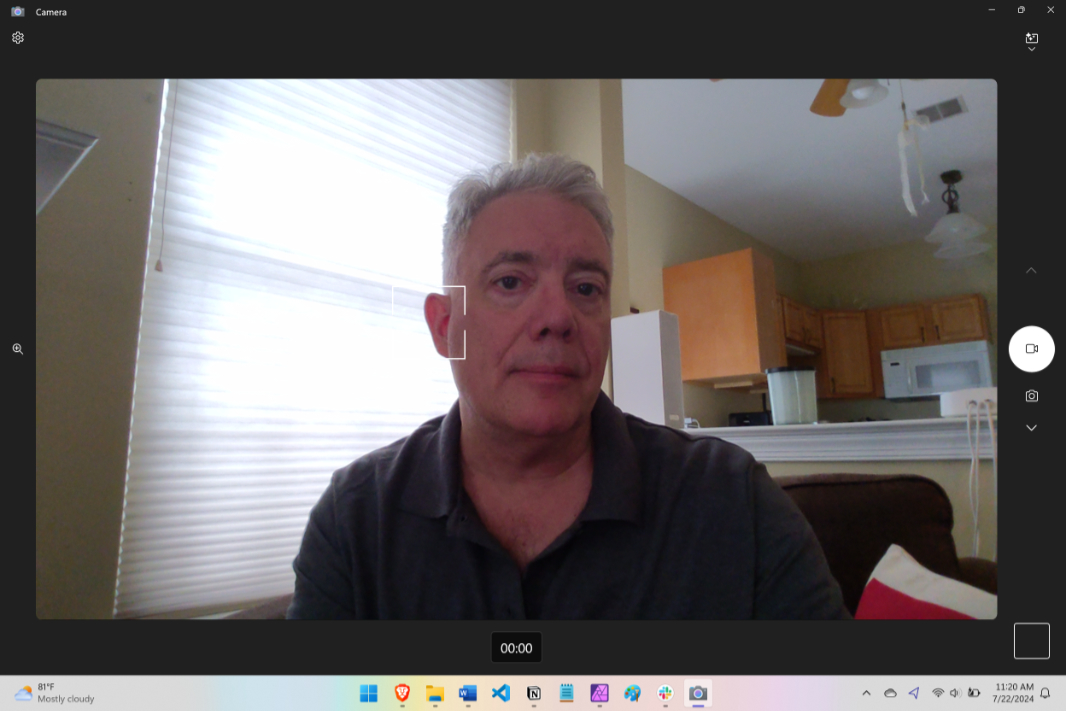
Surface Laptop 7 provides solid hybrid work experiences, with a Full HD (1080p) Surface Studio Camera webcam and dual studio microphones.
HP and other PC makers provide higher quality webcams with 5 MP or more of resolution and, in some cases, advanced camera configuration capabilities. But the Surface Laptop 7 offers solid video quality overall, with some graininess in low-light conditions. The camera interface in the Settings app claims you can configure the webcam further in the bundled Surface app, but that’s not the case, leaving you with zoom and brightness configuration only.
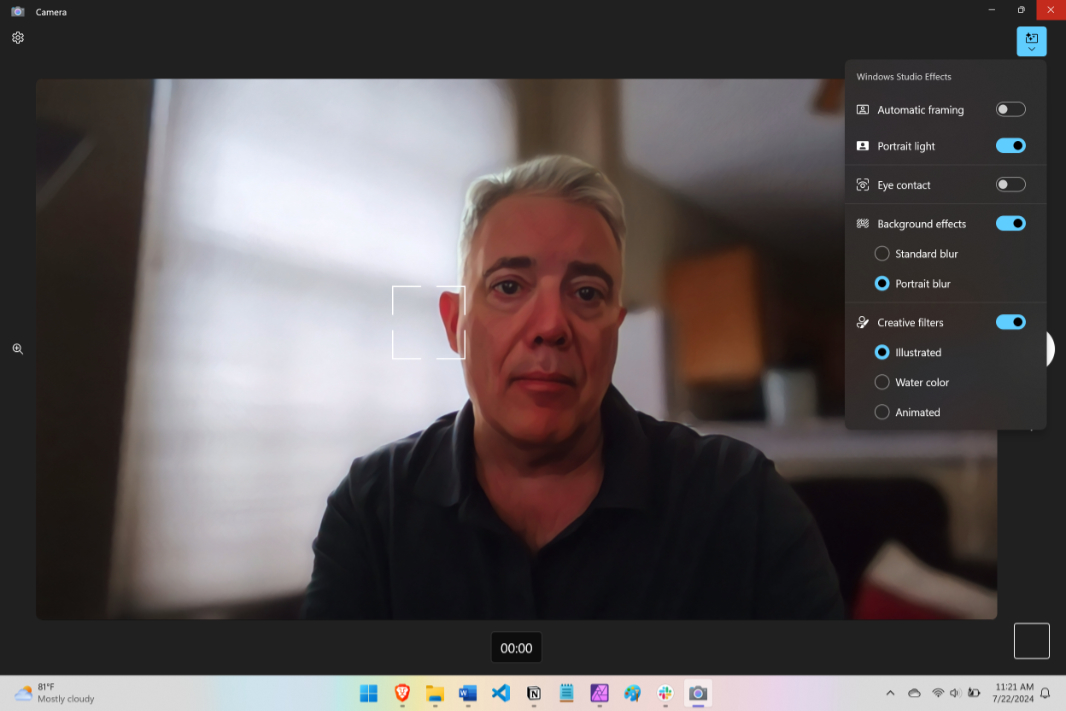
The camera does at least support Windows Studio Effects, and because of the PC’s powerful NPU, you get access to the whole suite of video effects, including the cool creative filters.
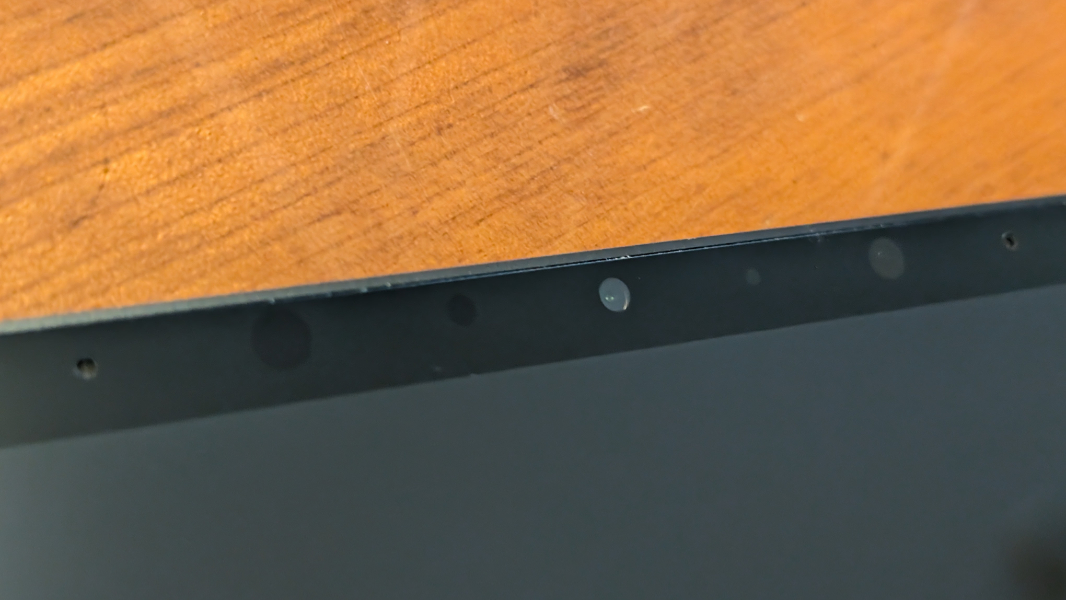
Oddly, the webcam lacks a privacy shutter of any kind. Instead, a little white light appears in the bezel when the camera is being accessed. That’s not enough: The other Copilot+ PCs I’m reviewing all have privacy shutters and at least one, the HP EliteBook Ultra, also has a little white activity light, like the Surface.
Moving on.
Laptop microphones are rarely impressive in any way, but the Surface Laptop setup is near the top of this admittedly unimpressive range of capabilities, based on my audio recording tests with Sound Recorder. It supports audio enhancements, in this case, Microsoft Windows Studio Voice Focus. As the sole audio effect in Windows Studio Effects, Voice Focus uses AI to remove background noise during video calls. You just need to enable and activate it first in the Settings app.
Keyboard, touchpad, and pen
It had been a while, but Surface Laptop 7 provided a nice reminder of how much I’ve loved the typing experience on previous Surface PCs. This is one of the best portable keyboards I’ve ever used, up there with the keyboards on HP’s EliteBook and Lenovo’s ThinkPad lines. It’s full-sized and backlit, of course, and it’s not bogged down by a superfluous numeric keypad or any errant key placement weirdnesses. And the typing experience is snappy and accurate, with nice key feel and feedback.
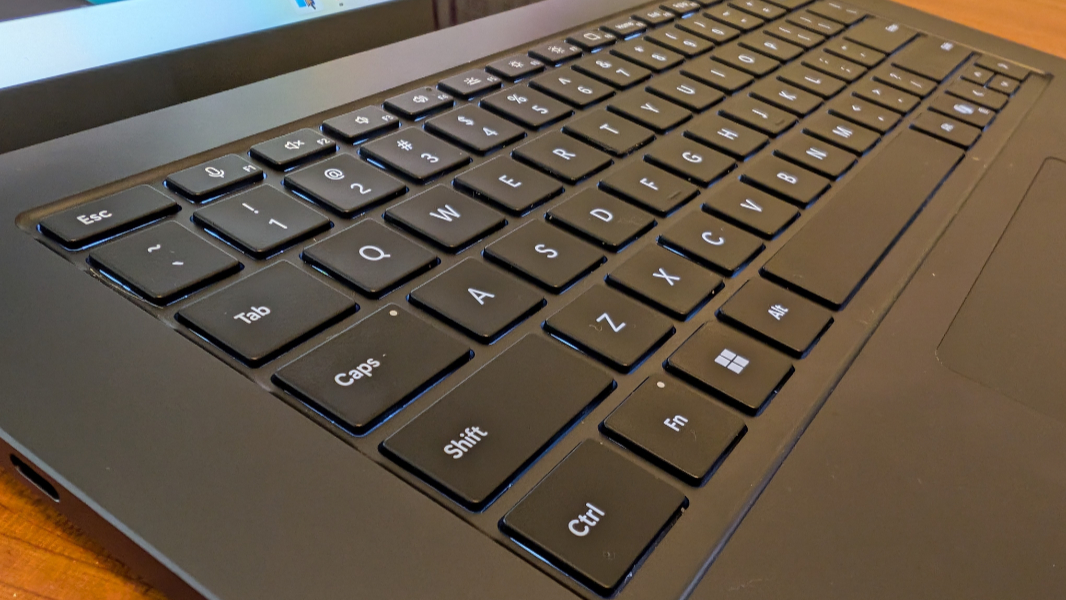
Picking nits, it is a bit loud—when I’m in the zone, my typing must sound like a machine gun to others—and the Copilot key to the left of the left arrow key is an endless source of mistakes in which I launch Copilot in error and then kill it immediately. (Fortunately, this is easier now that it’s just an app, and I find myself typing Ctrl + w to close it without thinking.) This problem is common to Copilot+ and AI PCs, but since it’s a Microsoft invention and unnecessary, it’s worth pointing out here.
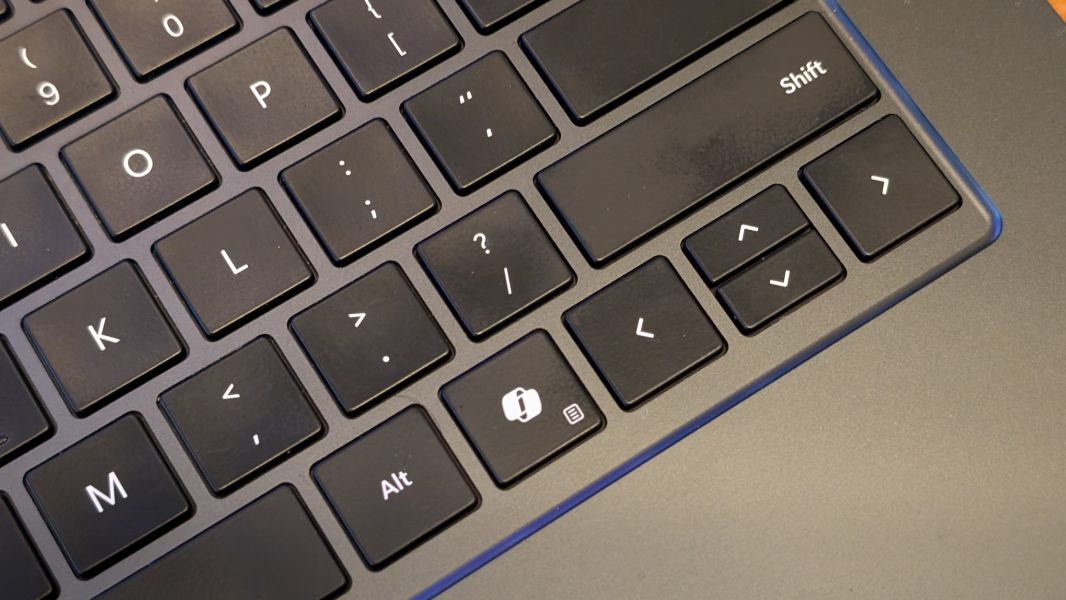
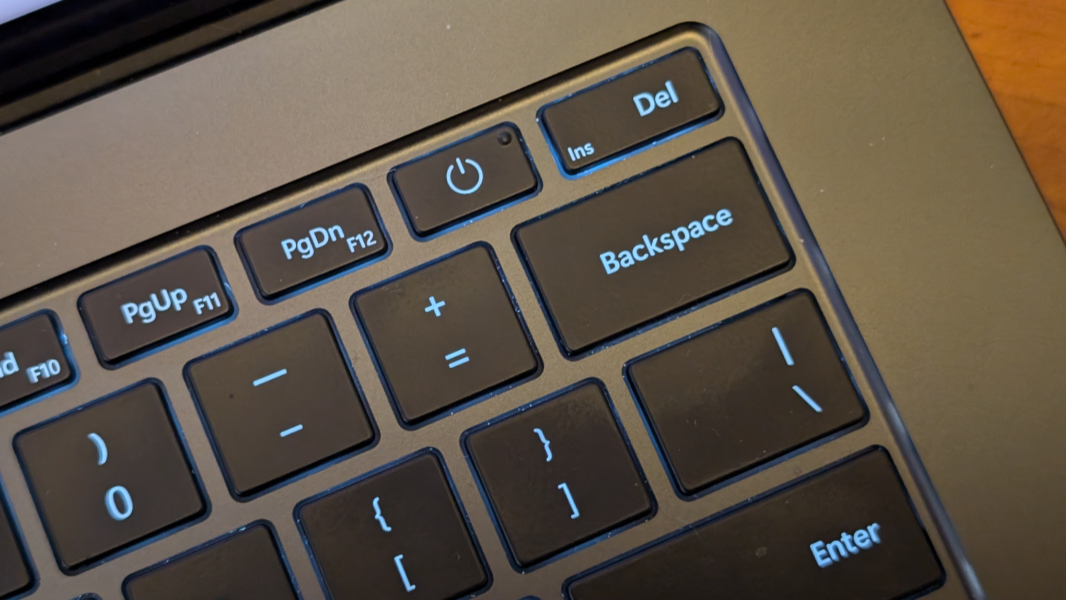
Beyond that, there are no surprises. The keyboard supports two levels of backlighting, but nothing automatic. There are no weird extra keys in the function row or elsewhere, and I love that clean, minimalist vibe. The power button is implemented as a key, and it’s in the correct location, to the left of the Del key, which is in the exact right place, as God intended. Nicely done all around, Microsoft.
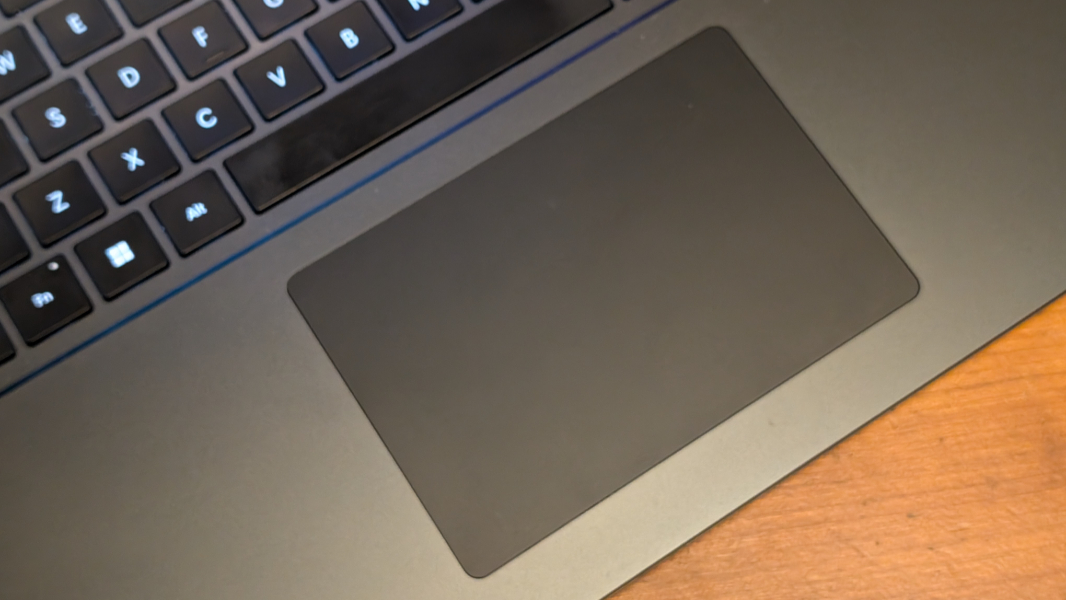
Windows PCs aren’t known for having reliable touchpads, but the medium-sized Precision Haptic touchpad in the Surface Pro 7 is one of the better versions I’ve used. It supports adjustable click sensitivity and an adaptive touch mode. And I never needed to disable three- and four-finger gestures, as I do so often. After four weeks of use, that tells me that the touchpad is mostly reliable and error-free, and I never experienced the mis-taps that I saw with the Lenovo Yoga Slim 7x recently.
Security
Like other Copilot+ PCs, Surface Laptop 7 is dramatically more secure than other, non-Copilot+ PCs thanks to it Microsoft Proton security processor and other Secured-Core PC underpinnings, and the incredible set of stringently secured components required by Windows Hello Enhanced Security Sign-In Security (ESS). These technologies were originally created for corporate PC environments, and specifically for high-risk industries like financial services, governments, and healthcare. Having them as the baseline for a consumer product like this is thus rather incredible and a major step forward for Windows.
Equally incredible, these additional protections won’t inconvenience customers. From the user’s perspective, the user experience is unchanged: You sign in with your 2FA-protected Microsoft account using more secure Windows Hello ESS authentication that’s indistinguishable from the normal experience. To this end, Surface Laptop 7 only supports Windows Hello facial recognition, however: Inexplicably, this expensive premium PC doesn’t include a fingerprint reader as well. Having both options is the ideal configuration.
Facial recognition is, at least, lightning-quick and reliable, and thanks to the PC’s magical instant-on capabilities, I was up and running immediately every time I opened the display lid. That said, Surface Laptop 7 also lacks the hardware proximity sensors required for Windows 11’s useful Presence Sensing capabilities, so it can’t sense you coming and turn on the display instantly. Nor can it lock the PC and turn off the display when you walk away. This is a curious omission for a PC that is built around such impressive security functionality. As with the missing fingerprint reader and webcam privacy shutter, I expect such a thing in an expensive premium PC like this, and the other Copilot+ PCs I’ve used all include presence sensing.
Sustainability
Microsoft has finally gotten the recycling and right-to-repair memos, and Surface Laptop is much more sustainable than the Surface PCs of old as a result. Its enclosure is built with a minimum of 67.2 percent recycled content, including 100 percent recycled aluminum alloy and 100 percent recycled rare earth materials. And its packaging is made of 76 percent recycled wood-based fiber packaging, with 100 percent responsibly sourced virgin paper and minimal plastics.
And as iFixIt recently discovered, Surface Laptop 7 is “astonishingly repairable,” thanks to its easily removed bottom (though the four Torx screws are hidden under the laptop’s rubber feet, which isn’t ideal), easily accessible and clearly labeled system components (with both QR codes and so-called Wayfinders that indicate which tools you’ll need), and wide range of consumer-available replacement parts and self-service repair guides. The one exception here is the RAM, which is integrated with the processor and non-upgradeable. But this is common to all Snapdragon X-based PCs.
Portability
At 12.96 x 9.41 x 0.72 inches and 3.67 pounds Surface Laptop 7 is bigger, thicker, and heavier than the MacBook Air (13.4 x 9.35 x 0.45 and 3.3 pounds) it emulates, something I’m reminded of every time I pick it up. It’s not an outrageous problem—this is a 15-inch laptop, after all—but where the MacBook Air offers an oddly magical combination of lightness and thinness, Surface Laptop is comparatively a more pedestrian brick.
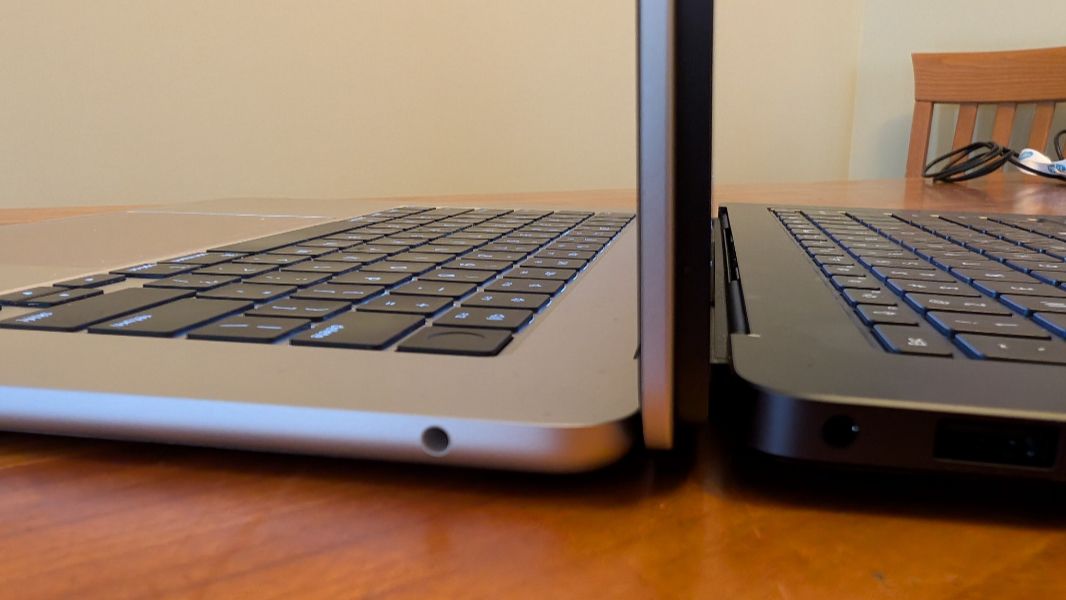
That doesn’t bother me: I’m a big guy using a big laptop, and when it’s sitting in front of me, it delivers the MacBook Air look and feel that I wanted in the 15-inch form factor I wanted. What I also wanted, and got, was terrific battery life: As with the Lenovo Yoga Slim 7x 14, I saw a consistent 10.5 hours of battery life on a charge in real-world usage. That’s below the 15 hours I see with the MacBook Air, but it’s also a realistic all-day result that meets my “in the ballpark” needs for this platform and for this laptop specifically.
Instead of offering a standard USB-C charger, Microsoft bundles a 65-watt Surface Connect power supply with Surface Laptop. It connects magnetically to the PC’s Surface Connect slot, freeing up the USB Type-C ports for peripherals. You can also use a standard USB-C laptop charger if you’d like. I routinely did so, and any 65-watt or better power supply provides fast charging support, just like the bundled charger.
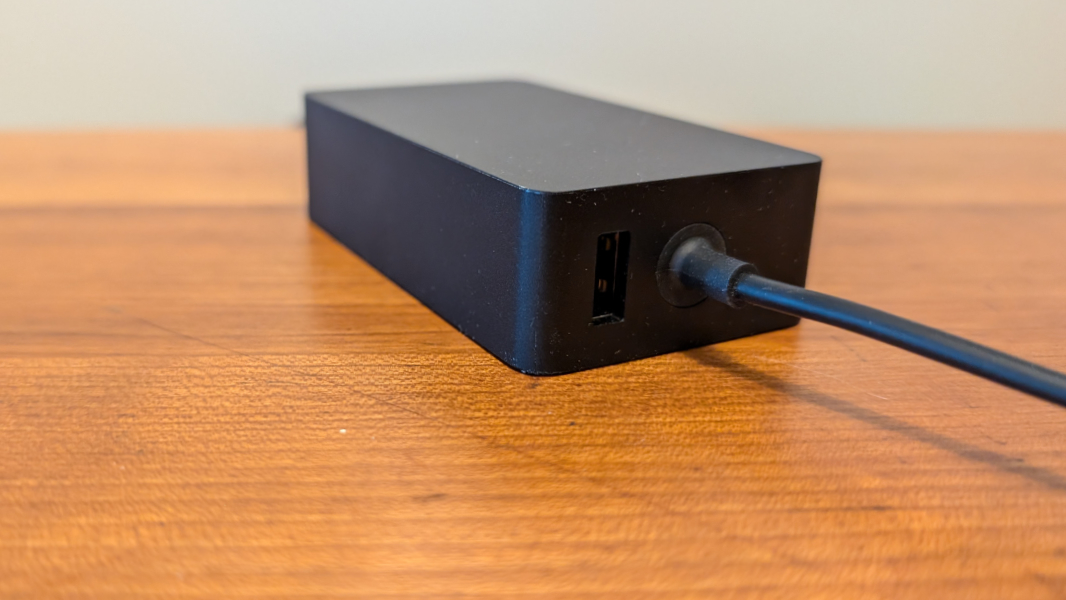
And, yes, that power supply still includes the 5 Gbps USB Type-A port for device charging. As always, there’s no data pass-through to the PC, but this remains a thoughtful and often overlooked detail that dates back to the beginning of Surface.
Software
Individuals who buy a Surface Laptop get Windows 11 Home, naturally, but I’m surprised Microsoft doesn’t offer Pro as an upgrade at purchase time, given how expensive it is to upgrade later. This is the Arm version of Windows 11 version 24H2, which offers a handful of small but useful user experience updates. It also comes with the much-hyped but underwhelming Copilot+ PC on-device AI features, only two of which—Image Restyle in Photos and live language translations in Live Captions—are worth a damn. This situation will change when Microsoft finally releases Recall in preview later in 2024. But as it stands now, these features are no reason to choose Surface Laptop or any other Copilot+ PC.
Kudos to Microsoft for the clean, crapware-free software image it provides with Surface Laptop It’s as minimalist as the hardware on which it runs, and it should serve as a model for other PC makers to follow. There’s only a single additional app installed on the system, a support-oriented Surface app, and while there’s a bit of light advertising for the Microsoft Complete extended warranty and various Surface peripherals, that’s the end of the up-sells.
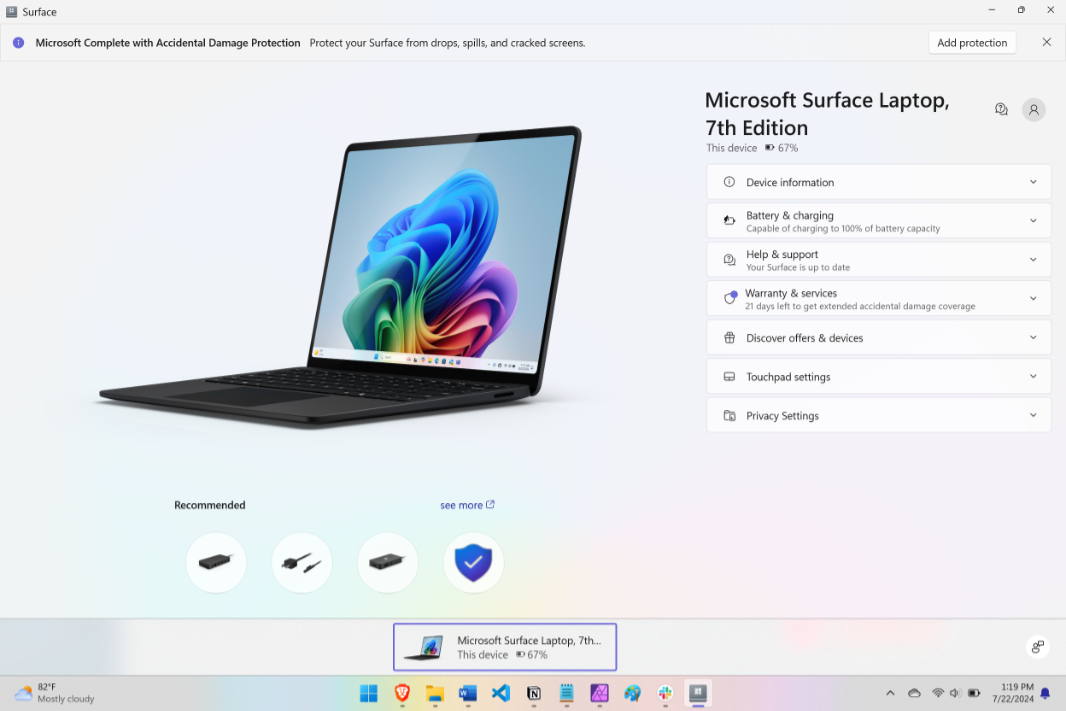
I know that Windows 11 on Arm remains controversial in some circles, despite the massive performance and compatibility advances we see now thanks to the Snapdragon X processors and Microsoft’s Prism emulator. If you’re technical enough to worry about this, you can do the research. But the more I use this system, the more obvious it is to me that most people will never run into problems.
This is barely worth mentioning, but where most new PCs come with a three-month Xbox Game Pass Ultimate offer, Surface Laptop 7 came with a measly one-month offer. This is doubly weird because these are both Microsoft products. And triply weird because Game Pass isn’t even compatible with Windows 11 on Arm! So in addition to getting one-third the time, Surface Laptop 7 buyers will only be able to access the subscription’s cloud-streaming functionality on the device.
Pricing and configurations
Surface Laptop is expensive, but it at least undercuts the MacBook Air. In 15-inch form, prices start at $1299 for a version with a Snapdragon X Elite processor, 16 GB of RAM, and 256 GB of SSD storage, the same price as a base MacBook Air with an M3 processor, 8 GB of RAM, and 256 GB of storage; an identical MacBook Air costs $1499. Configuration choice is another issue: While Surface Laptop technically comes in four color choices—the terrific Sapphire (blue), Dune (beige), Platinum, and Black—only the latter two colors are available to those who want a 15-inch version.
And then the prices escalate from there, with each RAM (32 GB, 64 GB) and storage (512 GB, 1 TB) upgrade tacking another $200 onto the price tag. This is similar to how Apple prices these upgrades, but there are fewer options, too: You can’t just arbitrarily add RAM or storage, but must instead choose from specific configurations and ever-more limited color choices: You can get 16 GB/512 GB for $1499 and 16 GB/1 TB for $1699 in Platinum or Black, but the 32 GB/1 TB ($2099) and 64 GB/1 TB ($2499) configurations are available in Black only.
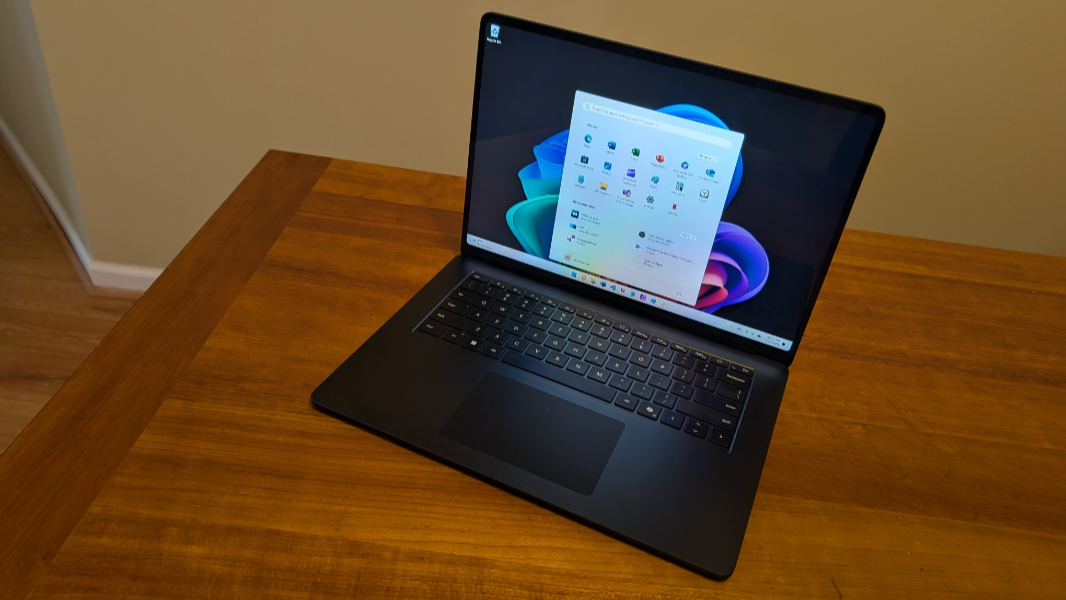
After initially choosing a 16 GB/256 GB configuration in the Platinum color I prefer, I ended up getting the 32 GB/1 TB configuration in Black, my only option. But given my experiences with all the Snapdragon X-based Copilot+ PCs I’ve tested, 16 GB should be fine for most mainstream use cases. (And I recommend 512 GB as a base storage configuration for most.)
Recommendations and conclusions
I wasn’t happy paying well over $2000 for my Surface Laptop 7, but I couldn’t be happier with the product itself. It delivers all the important advantages I enjoy with the MacBook Air—effortless, silent performance, terrific battery life, reliable instant-on and power management, and a clean, minimalist look and feel that I love—but running Windows 11, which I very much prefer to macOS. There are some other downsides, of course, most notably, it’s lack of presence sensing capabilities and a fingerprint reader, two features I expect in such a premium, expensive PC.
But as a total package, as a MacBook Air-alike that runs Windows, Surface Laptop 7 is exactly what I wanted. I’m glad I bought it, and I recommend it very highly to anyone looking for that clean, silent, powerful, and reliable experience that eludes so many x64 PCs these days.
At-a-glance
Pros
- Excellent battery life, flawless power management and instant-on
- Incredible performance with native and emulated apps
- Terrific full-sized keyboard and touchpad
- Clean and crapware-free
- Software and hardware compatibility
- Minimalist, iconic design
Cons
- Expensive
- Big and heavy
- No webcam privacy shutter or presence sensing capabilities
- No fingerprint reader
- Weird mouse cursor issues
- On-device AI features aren’t as compelling as the marketing