Lenovo Yoga Pro 9i 16 Gen 9 Review
- Paul Thurrott
- May 30, 2024
-
17
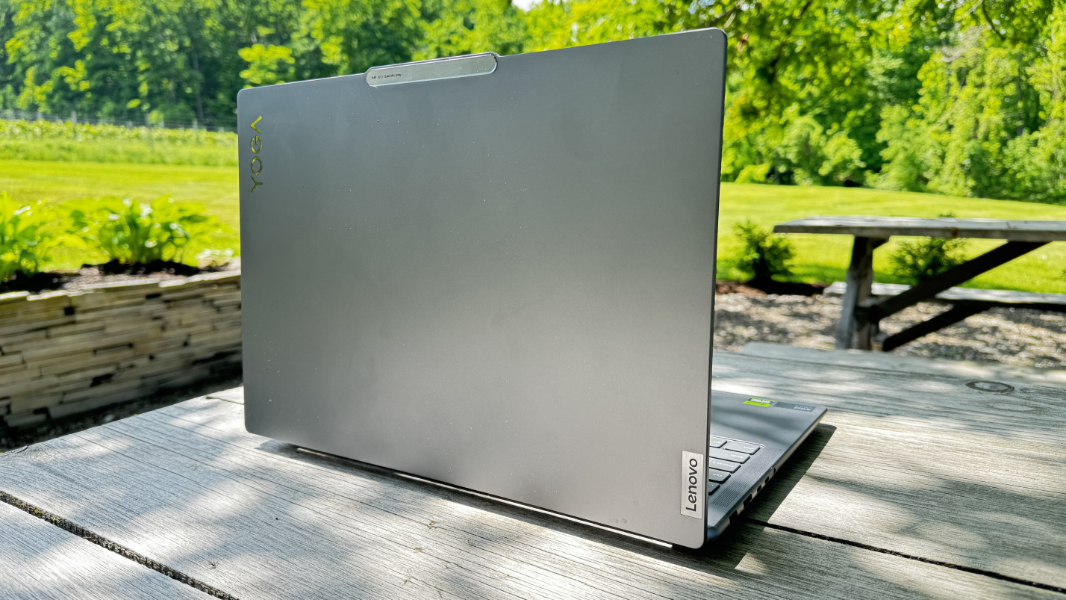
Aimed at creators, developers, and power users of every kind, the Lenovo Yoga Pro 9i 16 Gen 9 provides almost limitless power at a reasonable price. It’s the most powerful AI PC I’ve used so far, with a brawny Intel Core Ultra 9 185H processor, a gorgeous 16-inch Dolby Vision display panel, and killer six-speaker Dolby Atmos sound.
Design
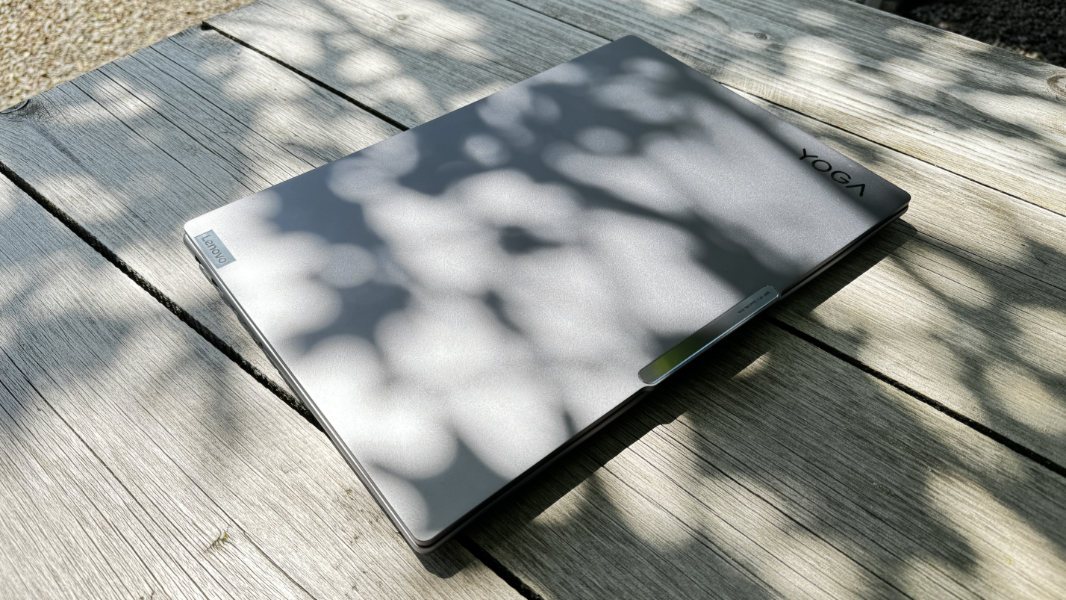
As a workhorse, near-workstation-class laptop, the Yoga Pro 9i won’t turn any heads. It comes in one color, Luna Grey, and it sports all the requisite Yoga design touches, from the stylized Lenovo and Yoga logos to the subtly curved chassis edges and the communications car “reverse notch.”
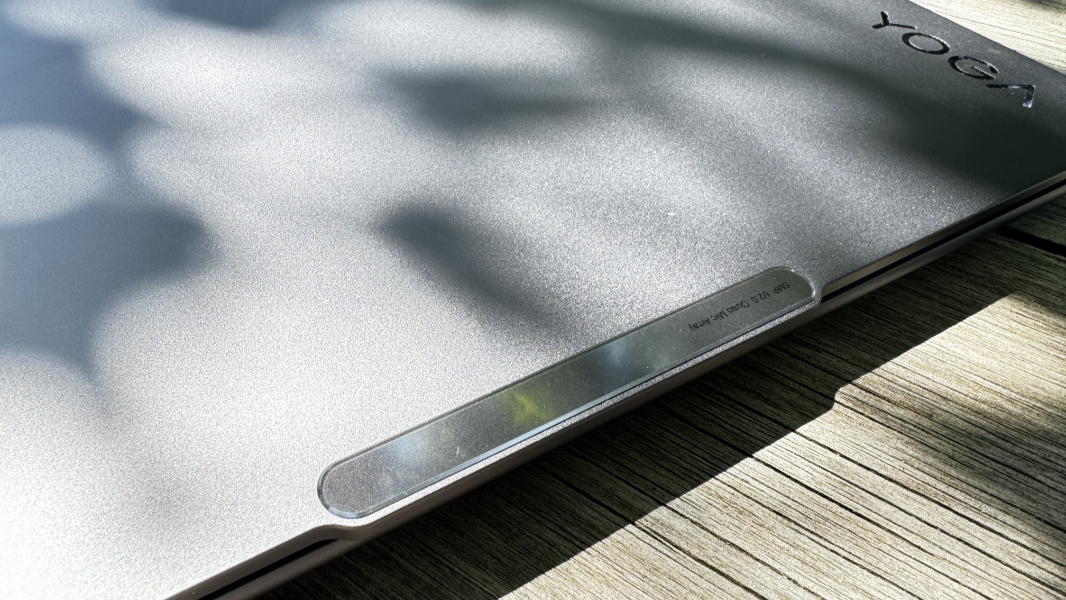
It’s understated and business-like, a Terminator robot that will cut through any task you throw at it in record time. But it’s also clearly a premium PC, with its aluminum lid and chassis, flat lid edges, and surprisingly thin design (given its size and its cooling needs).
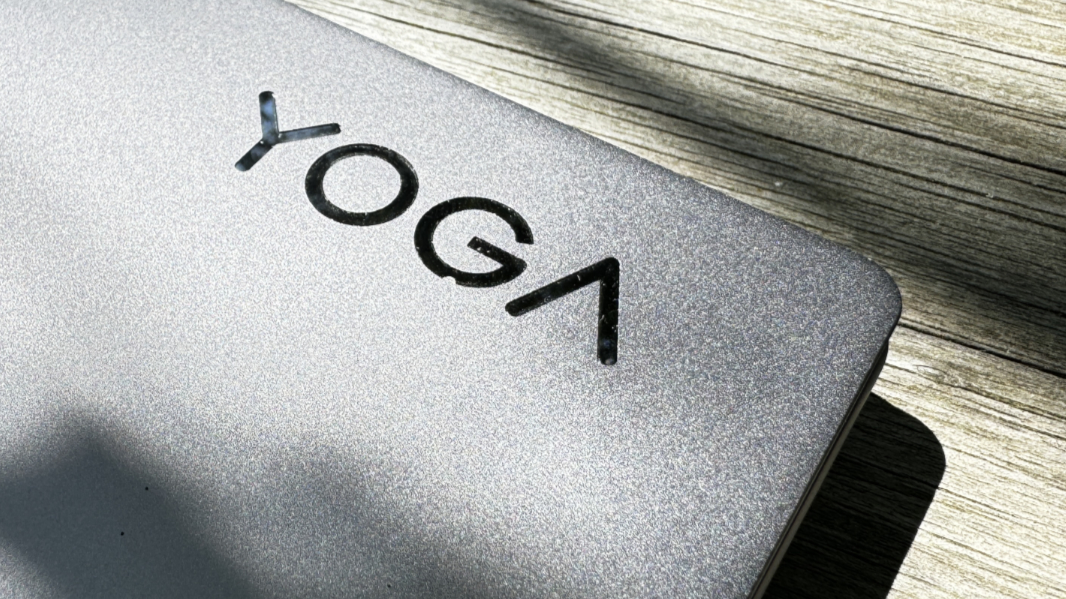
The Yoga is also quite durable. The lid and chassis are both nicely rigid, with only a slight flex in the very middle of the keyboard when you press down hard on it. I’m not aware of any MIL-SPEC certifications, but this thing is built like a tank, albeit without all the weight.
Display
With the long-overdue move to 16:10 display panels, laptop makers are also bumping up the respective screen sizes, and I’m a big fan of the move from 15-inch displays to 16-inches on this larger class of PC.
The options on the Yoga Pro are particularly good. Lenovo offers customers three display choices, each of which is a 16-inch 16:10 panel with a native resolution of 3200 x 2000, a high 165 Hz refresh rate, and TÜV Low Blue Light and Eyesafe certifications. The first two options are both IPS displays, one matte and one glossy/touch, with 400 nits of brightness, 100 percent sRGB and P3 color gamut coverage, and Dolby Vision HDR. The top-of-the-line panel is mini-LED with a very bright 1200 nits of brightness, 100 percent Adobe RGB, sRGB, and P3 color gamut coverage, and Dolby Vision HDR.
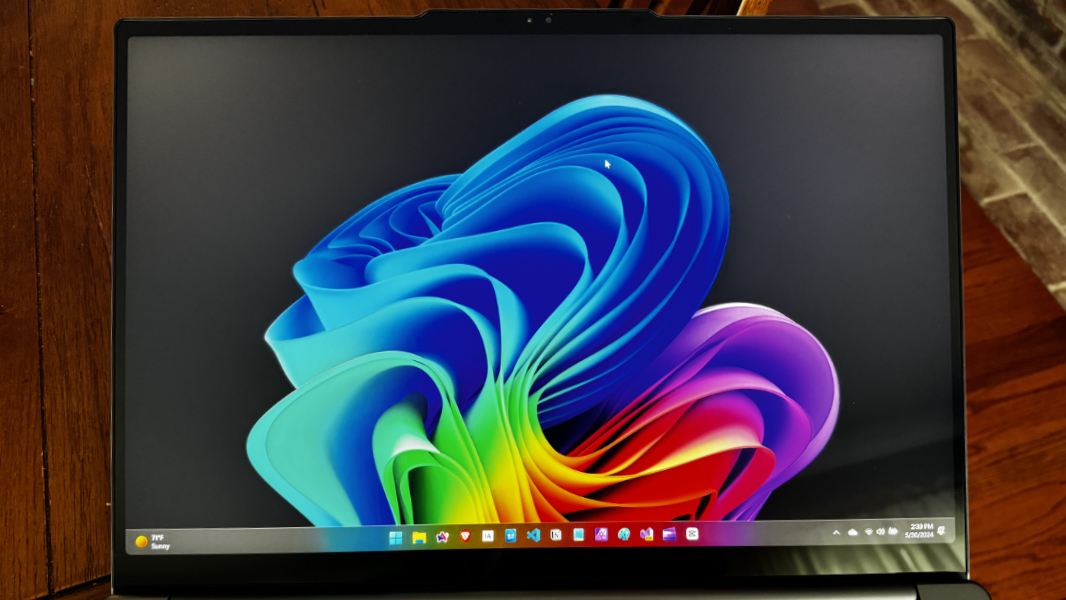
I received the middle option with the review unit. It’s a glossy panel with multitouch and numerous reflections if you’re near natural light or, God help you, outside. But it was a joy to use, for productivity, programming, video editing, and gaming, and plenty bright in normal use.
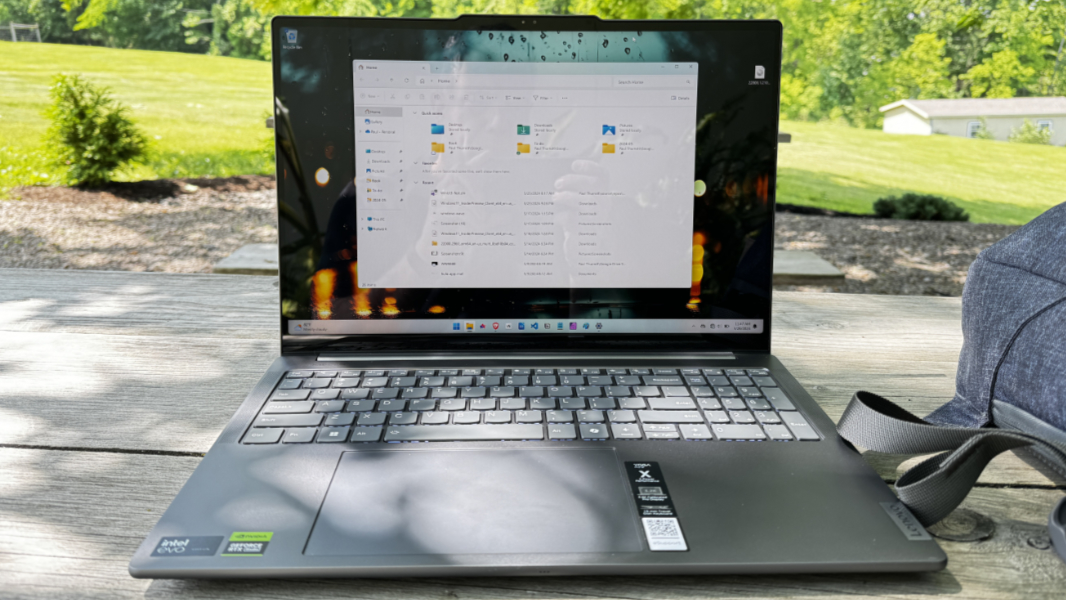
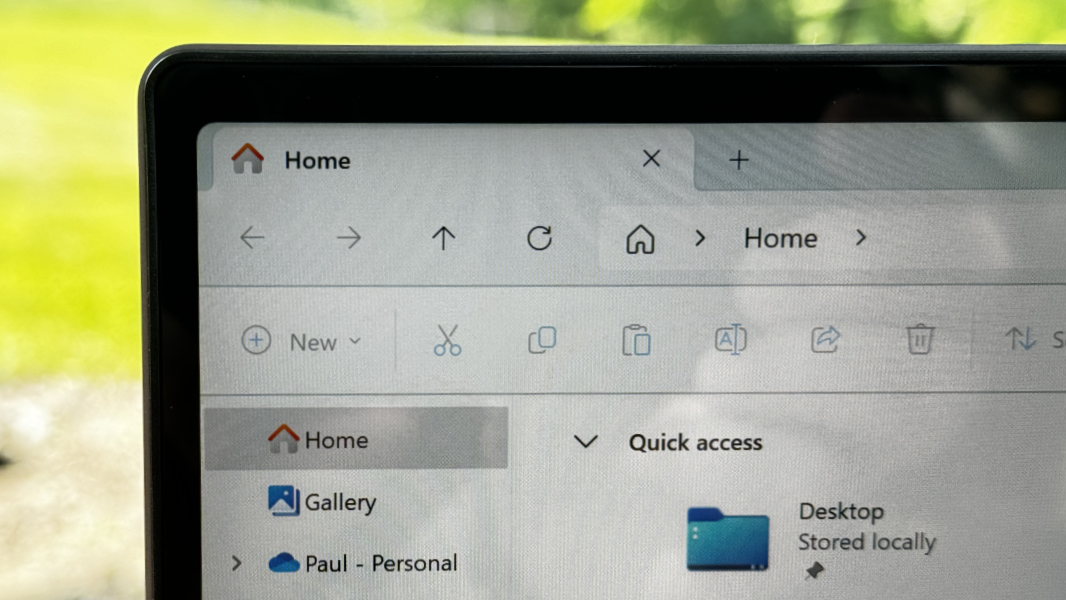
It features small bezels all around, delightfully curved screen corners—a fit and finish nicety that’s starting to become more common in the Windows 11 era—and a surprising range of configuration options.
In its Vantage app, Lenovo offers an Eye care mode on top of the Night light feature in Windows, plus a Super resolution feature that upscales video in Chromium-based web browsers. And you can use the Dolby Access app to optimize the display for bright or dark environments, or with a more vivid look. I’d like to see an automatic choice as well, but the display quality is so good I stopped worrying about it.
I do have one small complaint: While the panel supports a very high refresh rate, it’s not dynamic, so you can only set it to 60 Hz or 165 Hz, and the system won’t do anything to automatically configure that on the fly.
Internal components
The Lenovo Yoga Pro 9i 16 Gen 9 can be configured with your choice of two beefy, high-end and modern Intel processors, a Core Ultra 7 155H or a Core Ultra 9 185H. The review unit came with the latter, and it was my first experience with the best that the Meteor Lake family of AI processors has to offer. This 45-watt part is new to 2024, though it was announced in late 2023, and it provides 8 performance cores, 6 efficiency cores, and 2 high-efficiency cores, plus the vastly improved Arc Graphics with 8 Xe cores and Intel’s AI Boost 2x Gen NPU. (The other H-series Core Ultra chips are 28 watts.) The base frequency is 3.8 GHz, but it can hit 5.1 GHz in max turbo mode.
Yoga Pro buyers also get a choice of two NVIDIA GeForce Laptop GPUs–an RTX 4060 with 8 GB of GDDR6 RAM or an RTX 4050 with 6 GB of GDDR6 RAM–and 512 GB or 1 TB of PCIe Gen 4 TLC M.2 SSD storage. The RAM you get depends on which processor you choose: The Core Ultra 7 155H is tied to 16 GB of LPDDR5X RAM while the Core Ultra 9 185H gets 32 GB, and it runs at a swift 7467 MHz.
This machine is a beast even in its default configuration, but if you fish around in the Lenovo Vantage app, you’ll discover that you can crank a few dials even further to enjoy even more impressive performance. Looking past the paid subscription offerings, Lenovo offers modes, power modes, and an X-Power dashboard for overclocking the GPU and its dedicated RAM.
The “modes” can be configured for workloads like gaming, media, creative, meeting, and learning. You can configure each to your liking if needed, or use an AI-based automatic setting that processes everything locally using scene detection. I used it in the default “common” mode during most of my testing, but later switched to automatic, which seems to ratchet up the performance and fan noise.
The separate power modes—Adaptive, Battery saver, and Performance–override the Windows settings, and I left that mostly alone. I did enable GPU overlocking to test a few games–Doom Eternal, Senua’s Saga: Hellblade II, and Microsoft Flight Simulator–but normally left that alone.
On that note, Doom Eternal was probably the least demanding of the three from a graphical perspective, and I figured I’d be running this title at native resolution (3200 x 2000) at well over 60 FPS with effects on high. But Doom Eternal offers ray tracking support, and I just had to try that. Doing so bumped the resolution down to 1920 x 1080, which I’m fine with, but the other default settings were decidedly high-end, with triple-buffering vertical sync enabled and high quality across the board. The performance and quality were excellent, with frame rates consistently in the low 40s.
The recently released and more modern Senua’s Saga: Hellblade II was configured by default to run at 1843 x 1152 with dynamic resolution on, a target frame rate of 30 FPS, global quality set to low, and no vertical sync. After experimenting with a few settings, I just enabled vertical sync and allowed the Nvidia Reflex option (for optimizing GPU performance and lowering latency) to increase the GPU clock speed. Performance and display quality were both quite good, and the frame rate was generally around 45 FPS other than the tough action sequences and some detailed wide-open spaces. It’s unclear if this was helped or hurt by the game’s movie-like letterboxing, but I would have preferred a truly full-screen experience, as is possible with most games.
And then there is the visual splendor that is Microsoft Flight Simulator. Which I had to wait for: After the initial install, it required another 175 GB of updates, including three related to Paris, so I could do a discovery flight over my favorite city. Obviously, this is a slower, more pleasant experience than an adventure fighter like Senua’s Saga: Hellblade II. And so the default settings were higher, with a resolution of 3200 x 2000 (native), Temporal Anti-Aliasing (TAA) and vertical sync enabled, and high detail across the board. I didn’t feel the need to mess with the settings after reviewing them, and the game’s visual quality and performance were both excellent.
Is the Yoga Pro a gaming PC? No, not technically. But even without the higher-end graphics option, I was quite pleased with the game playing experience. As you would expect, the fan noise during gameplay is notable, but also blocked out by the incredible audio experience (more below) that, in games, provides an incredible, wide sound stage with excellent directional cues. Headphones would help too, of course.
The Yoga Pro is really designed for creators, and to address that need, I looked at two related workloads: Video editing and video encoding.
I normally edit videos with Clipchamp, of course, and while that app doesn’t typically stress the underlying PC all that much, I did have to make the simple videos linked above, and I used a combination of Clipchamp and CapCut, a video editor Microsoft showed off at its recent Copilot+ PC event to edit the raw footage I had created in three games and add a logo overlay, a few transitions, and the like. Obviously, the Yoga Pro didn’t break a sweat, and though the videos were all exported in 4K each did so in less than two minutes (they’re each 2 to 4 minutes long, approximately).
For the video encoding test, I took a 720p video of the Copilot+ PC event and encoded it to Full HD with Handbrake using the Fast1080p30 preset while on battery power. This process took 5 minutes and 19 seconds on the Yoga Pro, compared to 8 minutes and 22 seconds on the M3-based MacBook Air. Granted, it accomplished this feat with quite a bit of fan noise, while the Mac was silent.
In any event, that’s about as close to a benchmark as I’m going to get, but I wanted to get a rough idea on what this PC would be like under a bit of duress. If it experienced any, the fan was the only clue. Obviously, the Yoga Pro is up to any standard productivity task you care to throw at it, and I used it with Visual Studio 2022 Preview to do my recent .NETpad WPF modernizing work. There were no issues at any time.
Connectivity
Connectivity is modern, with Wi-Fi 6E and Bluetooth 5.3 capabilities. But there’s no cellular data option.
Ports and expansion
As you should expect of a workhorse like this, the Yoga Pro comes with a wide range of modern and legacy ports. It’s unlikely you’ll need a USB hub or Thunderbolt Dock for this PC, but the mix of USB port types is bewildering.
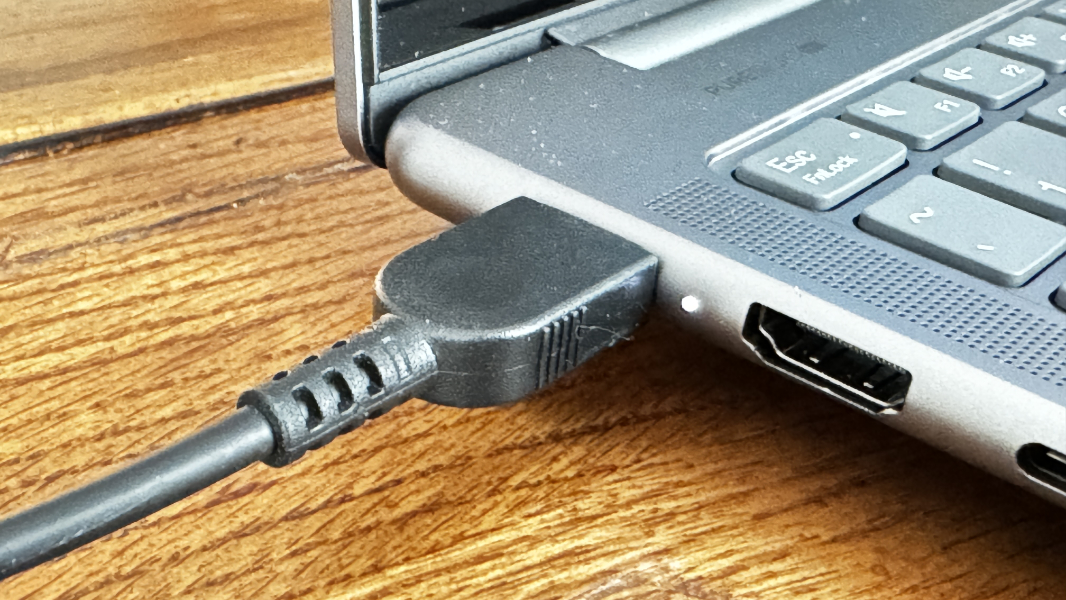
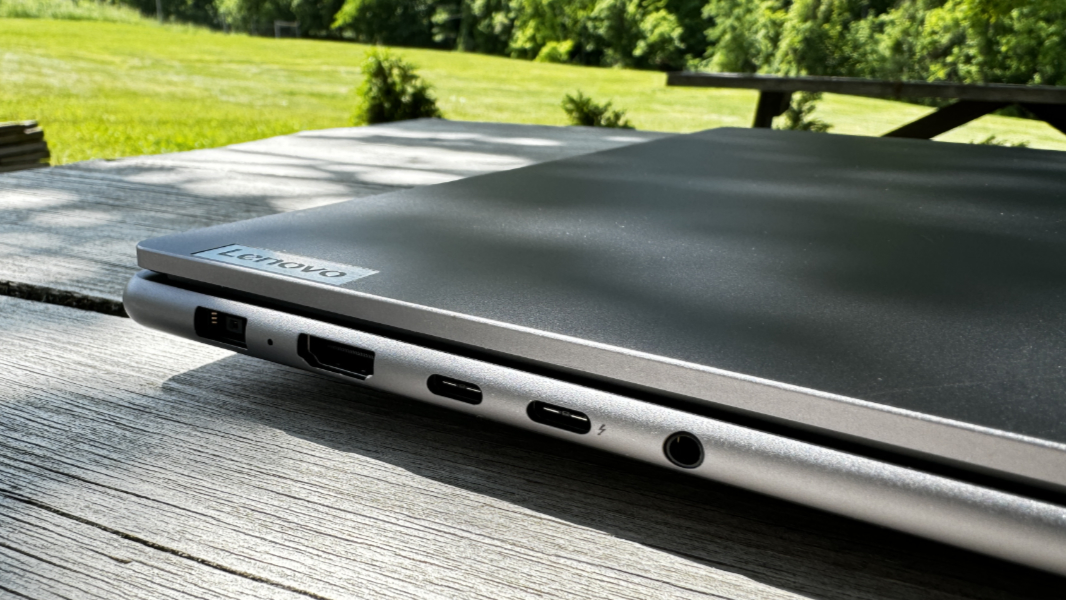
On the left, you’ll find the proprietary Lenovo power port, a full-sized HDMI 2.1 port for 4K/60 Hz video-out, two USB-C ports–one Thunderbolt 4/USB4, and one USB 3.2 Gen 2–and a combo headphone/microphone port.
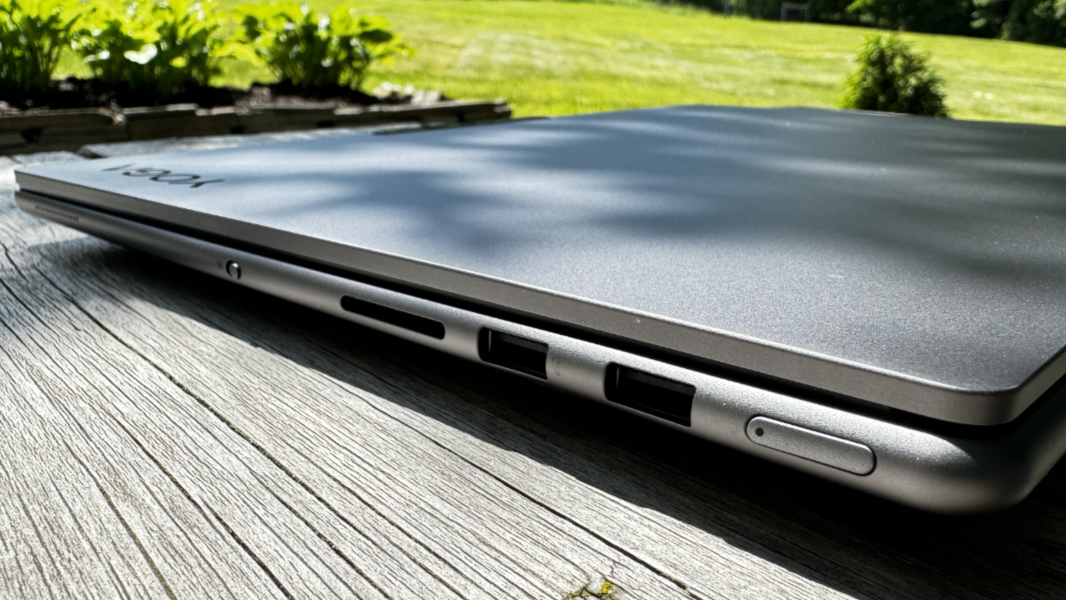
And on the right, there are two full-sized USB-A 3.2 Gen 1 ports, one with always-on capabilities for charging a phone, and a full-sized SD card reader. Oddly, the power button is also found on this side of the device.
I hate to see Lenovo cutting costs on a PC that’s otherwise so impressive: This should have two Thunderbolt 4 ports, not one, and each USB port should be of the most powerful variety available.
Audio and video
The Yoga Pro provides six speakers–four 2-watt woofers and two 2-watt tweeters–with support for Dolby Atmos spatial sound. This is all configurable through the Lenovo Vantage app, but the requisite Dolby Access app is available as well if you prefer that. I like that Dolby Atmos can be set to a dynamic mode that changes the sound field according to usage, but as noted, the Dolby Vision controls are manual, with Bright, Dark, and Vivid settings only, and no automatic/dynamic option.

This PC is nearly ideal for enjoying video content. Atomic Blond, my go-to for video tests, displayed in 4K/UHD display with Dolby Audio via Microsoft’s woeful Movies & TV app, and while it lacked the HDR pop of some Netflix titles, the sound stage was notable broad, with terrific stereo separation.
6 Underground only displayed in Full HD via the native Netflix app in Windows, but its highly saturated colors help show off the quality of the Yoga display and made it seem higher resolution.
As noted, the Vantage app offers a Super resolution feature that enhances the perceived resolution of web-based videos. To test that—it’s enabled in Vantage, of course—I viewed about 5 minutes of 6 Underground in Netflix in Microsoft Edge. It was displaying in HD as per the native app, but the quality seemed about the same, so I tried some YouTube videos as well. It’s hard to say on quality—the 240p videos I tried were still terrible—but it certainly doesn’t seem to hurt, and I suspect there are web-based video conferencing solutions (Google Meet, etc.) that would benefit. Speaking of which.
Hybrid work
For those working from home, the Yoga Pro provides a 5 MP webcam and an array of four microphones, but the noise-canceling functionality in Vantage was unavailable. The speaker system supports noise-canceling as well—that, at least, was available—so I enabled it.
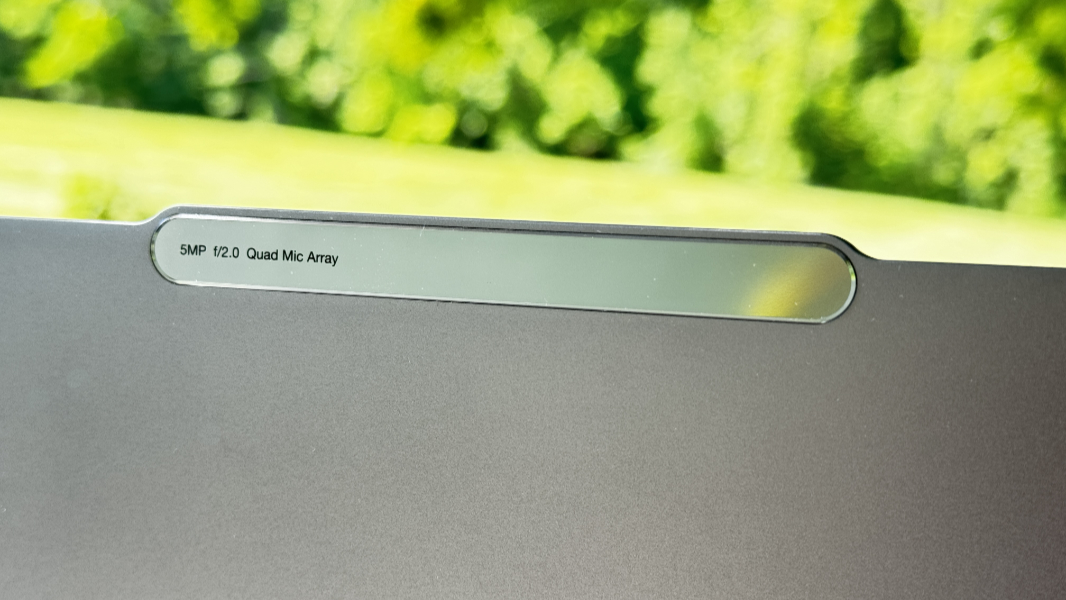
Eventually, I figured out that the bundled Nvidia Broadcast app can handle these duties: It provides configurable AI-based noise reduction and room echo removal on the microphones and speakers, and some nice webcam configuration features, with all the AI features one could want—background blur, background removal, eye contact, and more—resolution choices, and performance and quality presets. The video quality is terrific, ideal for work calls.
That said, the Yoga Pro 9i 16 is an AI PC and should support Windows Studio Effects, but I never did see it working. Not sure why.
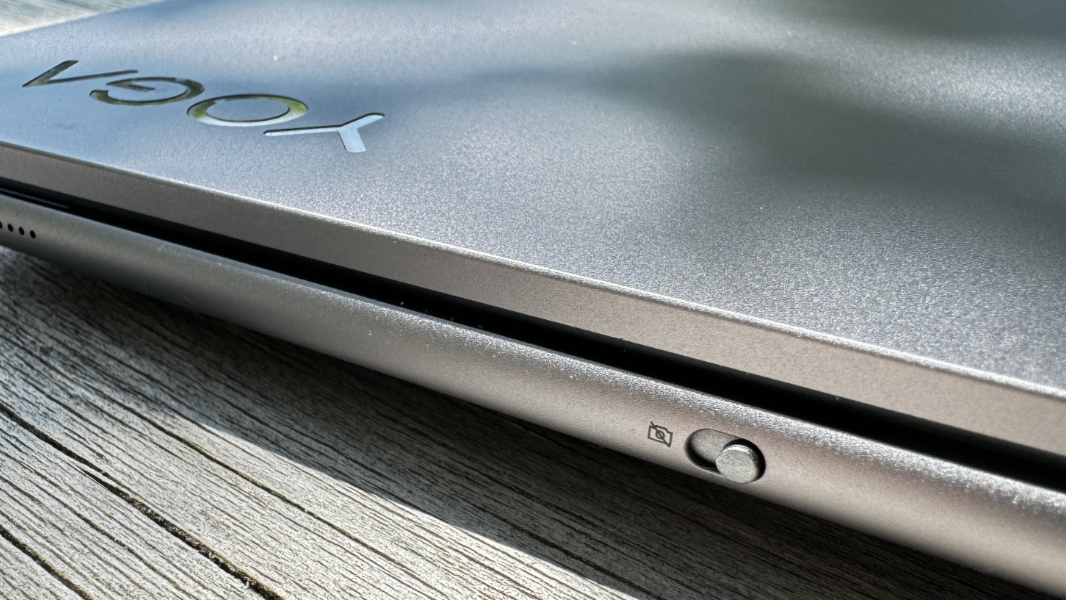
But it does have a nice hardware switch for the webcam on the right side of the device, and a dedicate function row key to toggle the microphone availability. Both are very welcome additions.
Keyboard and touchpad
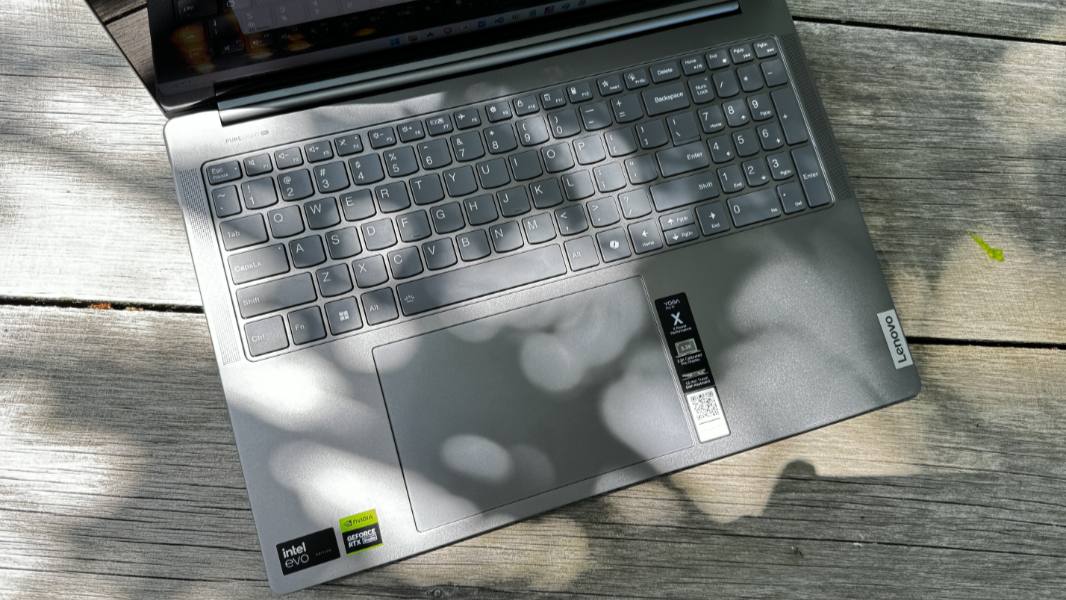
Lenovo’s keyboards are well regarded for good reason, and the Yoga Pro delivers a solid typing experience with soft key presses, nearly ideal 1.5 mm key travel, and that familiar scalloped key shape.
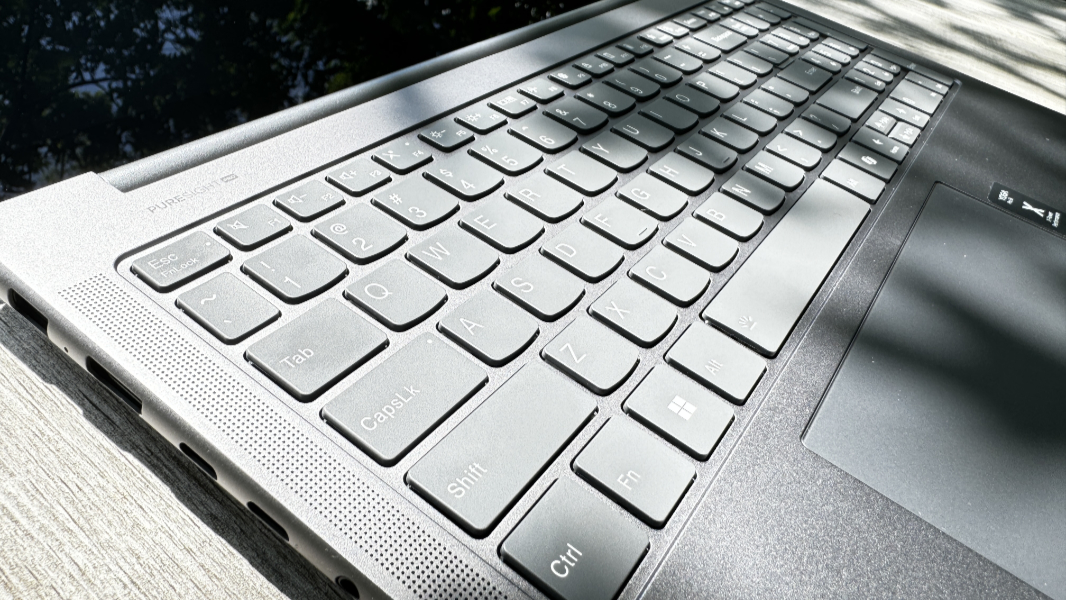
I’m not a fan of numeric keypads, of course, and that got in the way many times, as is always the case with me. But I adapted to the offset keyboard (and touchpad) for the most part and got a lot of writing done with it, including most of this review.

From a layout perspective, the Ctrl/Fn keys are in the correct places, always appreciated. There is a dedicated Copilot key to the right of the right Alt key, indicating the Yoga Pro’s AI PC status. And a Lenovo Smart Key in the function row that support single- and double-press front-ends to specific apps.

The keyboard supports two levels of backlighting brightness, but also a nice Auto setting that handles it for you.
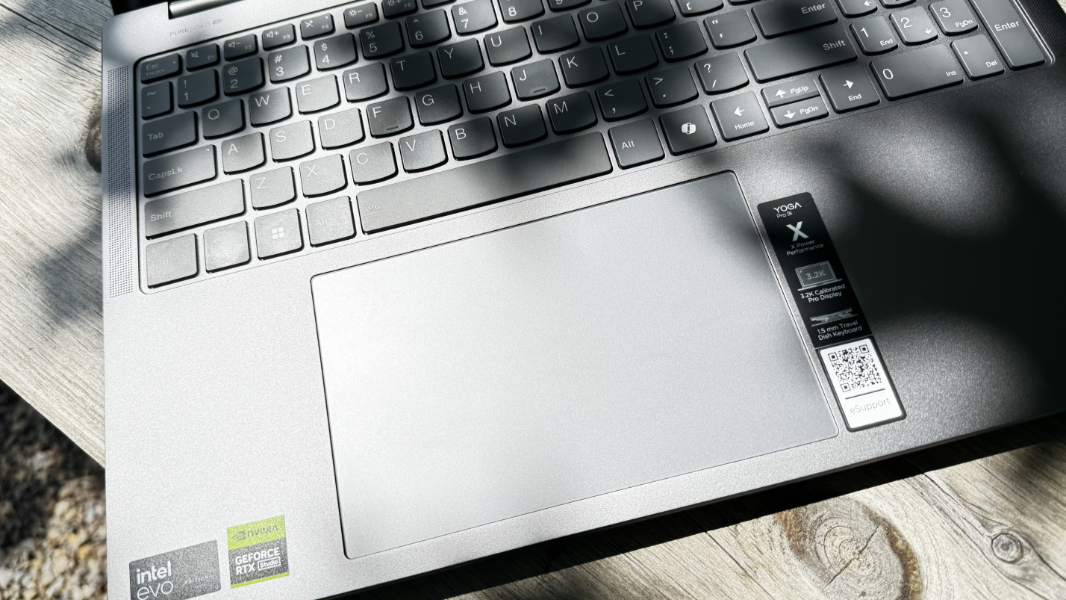
The glass mechanical touchpad is enormous and pretty average. (Somewhat humorously, Lenovo describes it as an “enlarged touchpad.” It is notably big, almost 6 inches from corner to corner.) I had to disable three- and four-finger swipes due to mistaken gestures, typical for PC touchpads. But it mostly worked just fine.
Security
The 5 MP webcam supports Windows Hello facial recognition, and Lenovo adds its own presence detection functionality—configured in Vantage—for what it calls Zero touch logins. You can also optionally enable Zero touch lock—where the display dims and the PC locks and goes into Modern Standby—when you walk away. And Zero touch video playback, which pauses some videos when you move away from the PC. That latter feature is limited to VLC Player and a handful of less well-known apps, so I never experienced it.
What’s missing here, sadly, is a Windows Hello fingerprint reader. I’m confused that a PC with this much physical space couldn’t accommodate this necessary feature.
Sustainability
The Yoga Pro 9i 16 is Carbon Neutral Certified, EPEAT Gold-registered, and ENERGY STAR rated, whatever that means. It arrives in plastic-free packaging with paper pulp cushioning and a system bag made of 100 percent bio-based bamboo fiber. The PC itself is made with 50 percent post-consumer recycled plastic in the keyboard and 50 percent recycled aluminum in the bottom cover.
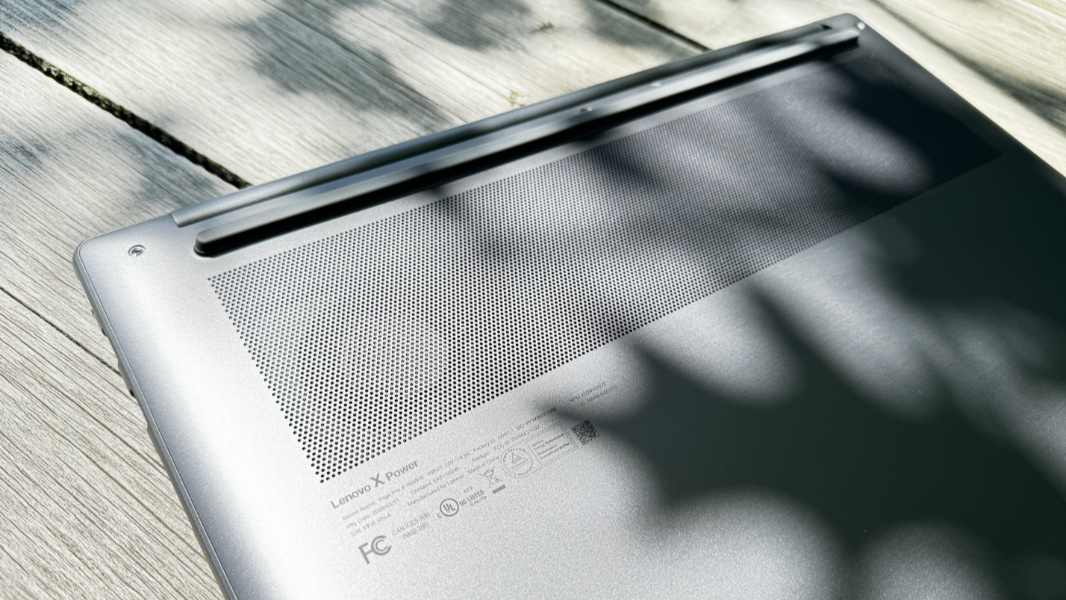
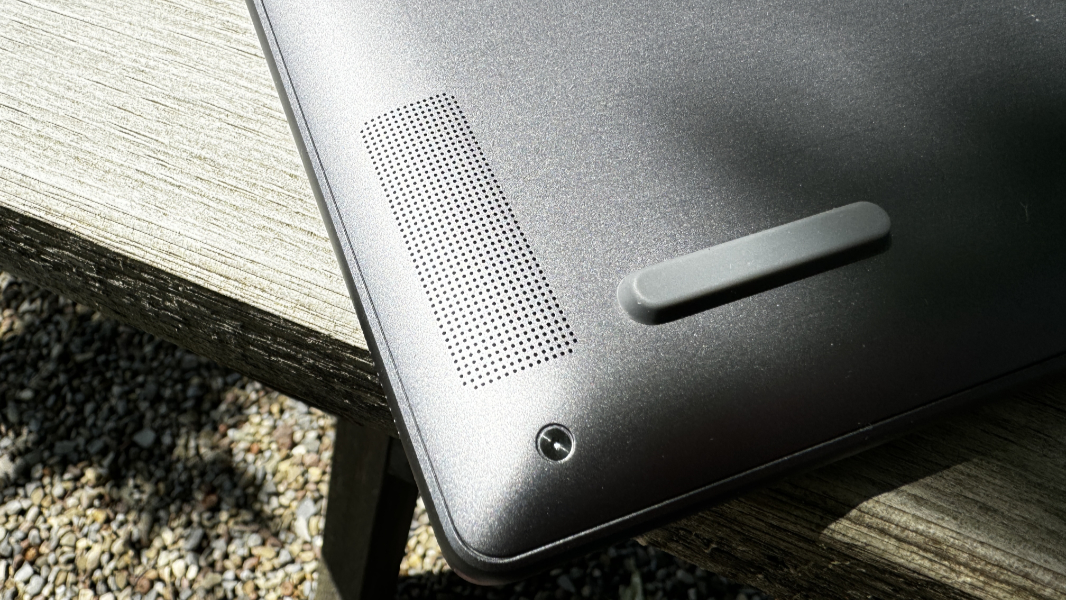
Upgraders can open the bottom of the chassis using 8 Torx screws and a bit of clip work—I did not try this myself, sorry—and replace the battery and primary M.2-based SSD. Interestingly, there’s a second M.2 slot for those that wish to add a second SSD drive on a card. But the RAM is soldered and non-expandable, as is the networking card.
Portability
The Yoga Pro 9i 16 isn’t exactly a featherweight at 4.95 pounds, and its 0.71 x 14.28 x 9.98-inch dimensions make it big and a bit unwieldy. But I didn’t have a problem fitting it in either of my laptop bags during recent trips to Seattle and upstate New York, and let’s get real here: No one is buying this PC for its portability.
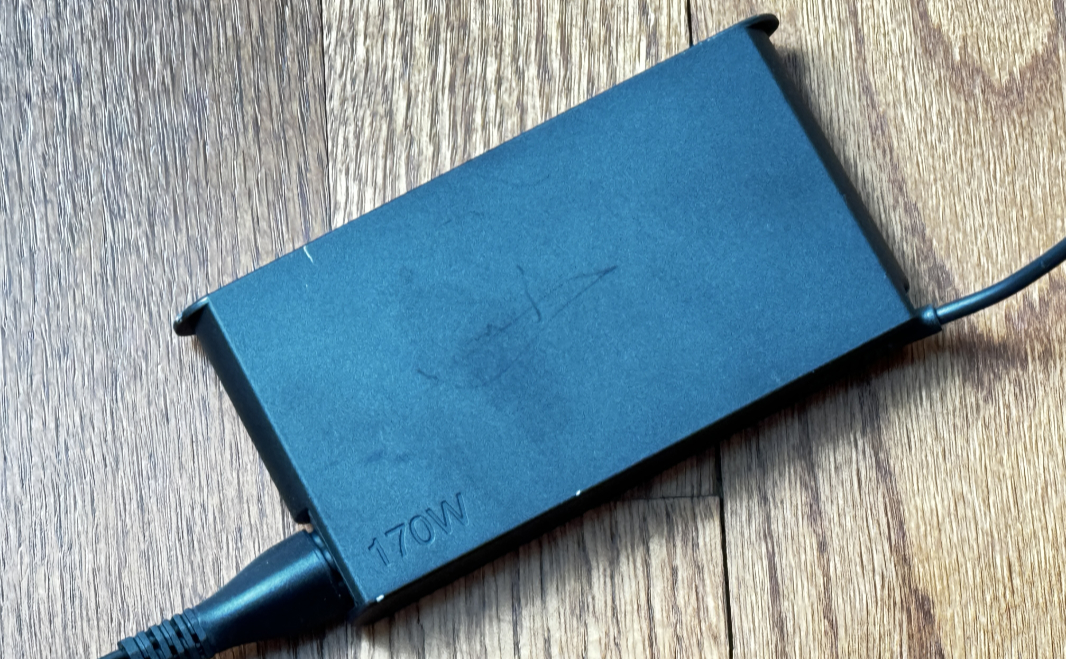
And thank goodness for that: The Yoga Pro 9i averaged just over 4 hours of battery life in real-world usage, mostly with standard productivity apps. I don’t see this as an issue, frankly. Creators and developers will want to stay connected to power whenever possible to take full advantage of the powerful processors, graphics card, and other components. And it does support Lenovo Rapid Charge via its large and proprietary 170-watt power supply.
Software
The Lenovo Yoga 9i 16 can be configured with Windows 11 Home or Pro—the review unit came with Home—and what feels like a metric ton of crapware, first- and third-party utilities, and other junk. The most egregious entry, as usual, is McAfee, which I removed immediately. But there is also a Dropbox promotion and those Lenovo pop-ups for extra-cost services.
On the utility front, the Yoga provides Lenovo Hotkeys (keyboard configuration), Lenovo Now (ads for paid Lenovo services), Lenovo Vantage (the central configuration utility), and User Guide, which just links to a basic page about this device on the Lenovo website.
Third party utilities include Dolby Access, Intel Connectivity Performance Suite, Intel Graphics Command Center, Intel Unison (for phone integration), Nvidia Control Panel, GeForce Experience (game and video player optimization), Nvidia Broadcast (microphone, speaker, and webcam configuration), and Nvidia Omniverse Launcher (for 3D creators).
Pricing and configurations
The Lenovo Yoga Pro 9i 16 Gen 9 comes in a single color, Luna Grey. A base configuration with a Core Ultra 7 155H processor, Nvidia GeForce RTX 4050 graphics, 16 GB of RAM, a 512 GB SSD, and the entry-level IPS display panel costs a bit under $1500. But if you max out the processor/RAM, graphics card, and SSD, and opt for the mini-LED display, the price shoots up to a bit over $2000. These are reasonable prices for this type of system, but I still recommend babysitting the Lenovo website for the inevitable sale if you’re interested.
Recommendations and conclusions
The Lenovo Yoga Pro 9i 16 is a timely reminder of the need for powerful Intel and Nvidia chipsets: Sure, Arm-based Macs–and, soon, PCs–offer useful efficiency and uptime advantages for the mobile set. But you can’t beat old-fashioned horsepower when it comes to more demanding creator workloads and gaming. And the Yoga Pro delivers for those audiences with aplomb, thanks to its incredibly powerful internal components and its gorgeous 16-inch display. Even the pricing is reasonable given what you get in return.
The fan noise can be thunderous under load and the battery life is, as expected, not worth bragging about. And I have a few minor quibbles regarding the single Thunderbolt port and its lack of a fingerprint reader. But the Yoga Pro 9i is an impressive workhorse, and I can very comfortably recommend it to those who need this level of performance.
At-a-glance
Pros
- Gorgeous 16-inch display is perfect for creators, gamers
- More power than most will ever need, even with a base configuration
- Lots of modern and legacy expansion ports
- Reasonable pricing for this much horsepower makes it a great value
- Terrific AV experience
- Excellent hybrid work experience
Cons
- A bit of cost-cutting with the USB port selection, only one is Thunderbolt
- Fan noise
- No Windows Hello fingerprint reader