Microsoft Previews Improved Link to Windows App for Android
- Paul Thurrott
- Jul 24, 2025
-
6
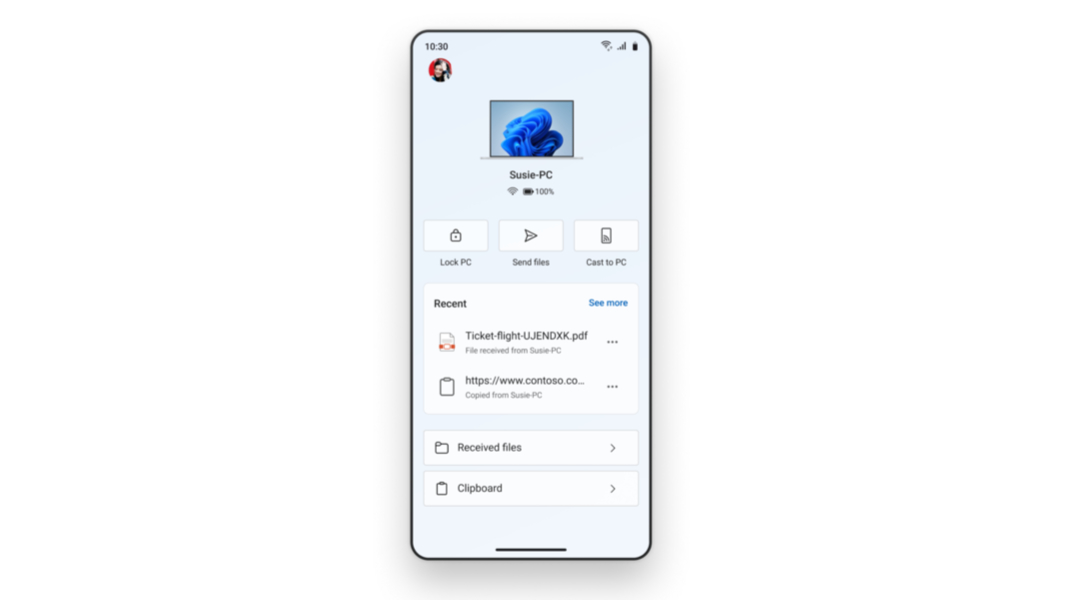
Microsoft’s Link to Windows app is how you connect your Android smartphone to your Windows 11 PCs, and it’s about to get a big upgrade. And if you have a PC enrolled in the Windows Insider Program and use the Phone Link app in Windows 11 to interact with an Android phone, you should get a preview version of the new Link to Windows soon, Microsoft says.
“We’re excited to begin rolling out an update for the Link to Windows app that includes a refreshed experience for Windows Insiders,” a new post by Microsoft’s Phone Link & Cross-Device Experiences team notes. “This update brings a modernized design, smarter onboarding, and new ways to access content and remotely control your PC, including the ability to lock your PC, all from your Android phone. Please note that this experience is rolling out, so not all Insiders will see it right away.”
Microsoft says it has “reimagined the Link to Windows app as a connected PC experience hub” where you can access, share, and control content between your Android phone and your Windows 11 PC. If you’re familiar with the new Phone Link companion for Start in Windows 11, the new app will look familiar: It offers some status information; Lock PC, Send files, and Cast to PC buttons; and dedicated sections for Recent (activity), Received files, and Clipboard.
Microsoft is also overhauling the onboarding experience, which will be welcome news for anyone who’s struggled with the current byzantine experience. Going forward, you won’t need to use a PC to get set up anymore. Well, aside from the Bluetooth pairing bit, that is.
To test the refreshed Link to Windows app now, make sure you’ve got a PC enrolled in the Insider Program with the latest build for whatever channel you’re testing, make sure Phone Link is updated (to at least version 1.25062.83.0) opt-in to the Link to Windows Beta from the Google Play Store *, update the Link to Windows app (to at least version 1.25071.155), pair your phone and PC via Bluetooth, and then make sure your phone is listed in the Mobile devices setup interface in Windows (Setting app > Bluetooth & devices > Mobile devices > Manage devices).
* To opt-in to the Link to Windows Beta, open Google Play Store on your phone, navigate to the Link to Windows app listing, and scroll down to the “Join the beta” box under App support. Then, tap the “Join” link.