TCL NXTPAPER 14 Review
- Paul Thurrott
- Sep 30, 2026
-
0
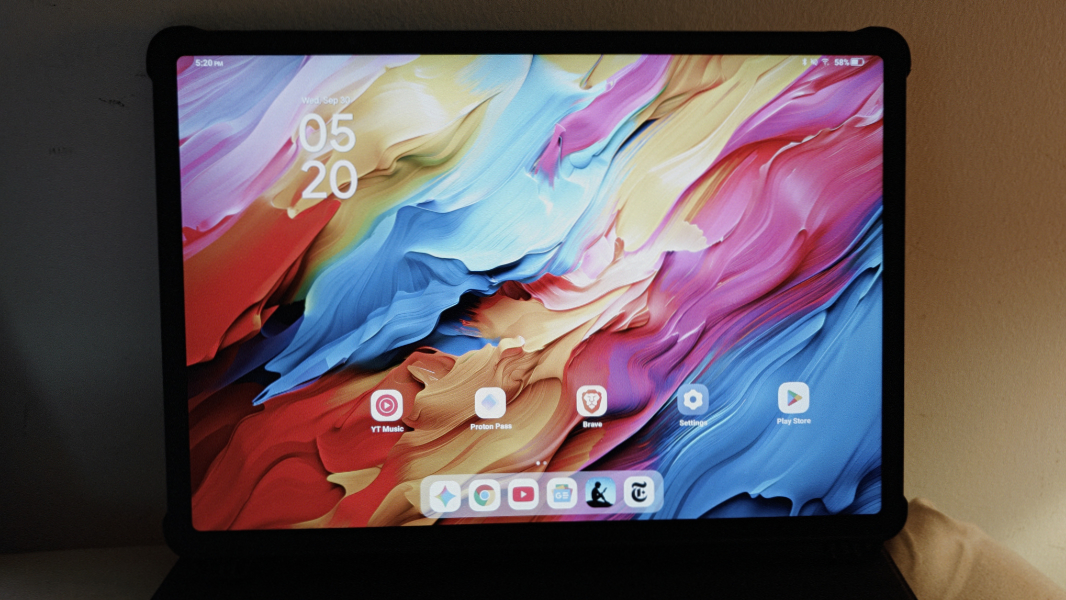
TCL makes a nice variety of mid-market Android tablets in different sizes, but I’m particularly interested in its NXTPAPER-branded products because they appear to offer the benefits of color e-ink screens without any of the downsides. And so I was delighted to be provided with the opportunity to review one of these tablets, and I chose the 14.3-inch TCL NXTPAPER 14 to see if the NXTPAPER display technology was real.
It is: Through a combination of hardware-based blue light reduction, a nano-matrix anti-glare matte coating, adaptive color temperature, and other proprietary tweaks to what is otherwise a standard IPS display panel, the NXTPAPER 14 delivered exactly what I had hoped for. And it can even switch between three display modes–the traditional IPS experience, a Kindle-like Ink paper experience, and a Kindle Color-like Color paper experience with muted colors.
Design
The NXTPAPER 14 is big, of course, but it’s curious how much bigger this tablet is than my 13-inch iPad Pro. Propped open with the bundled Flip case, it looks more like a laptop than a tablet even though the case doesn’t include a keyboard.
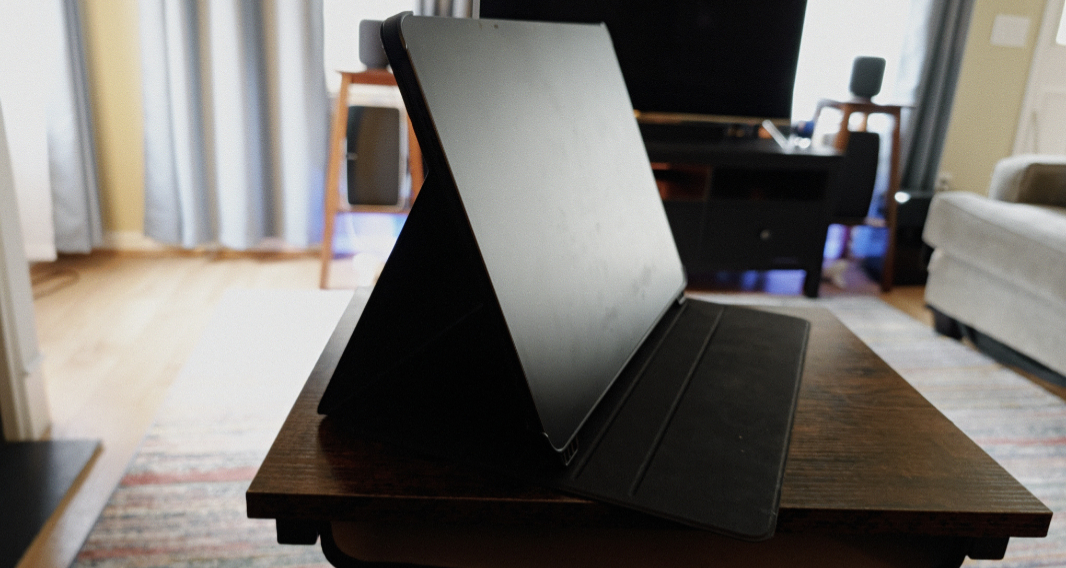
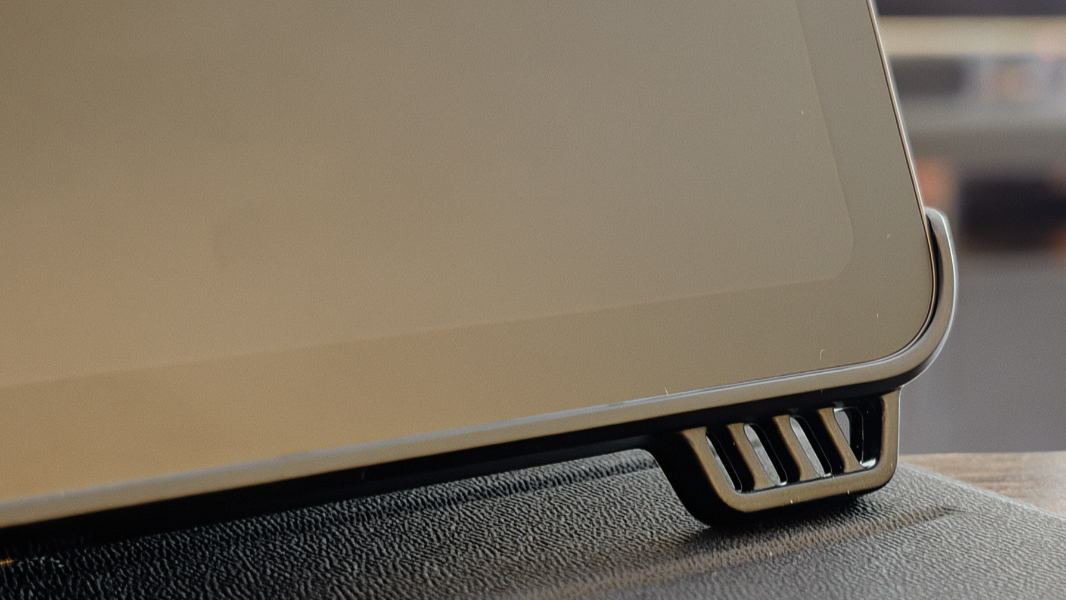
To be fair, some of its relative bigness comes from that Flip case, which includes a pair of plastic feet on the part that clips onto the tablet and elevates it by over half an inch over whatever surface it’s resting on.
The other curiosity is the aspect ratio, which, yes is tied to the display panel but also impacts the form factor of the tablet too. It’s 3:2, a square-ish shape made famous by Surface, but it’s curiously different from the also squarish-ish 4:3 shape used by iPads and the 16:10 aspect ratio common in modern laptops. One of the nice things about 3:2 is that it works well in portrait mode–16:10 is too skinny in portrait, by comparison–but when the NXTPAPER is resting normally on its Flip case feet (in landscape orientation), it looks 16:10 to my eyes.
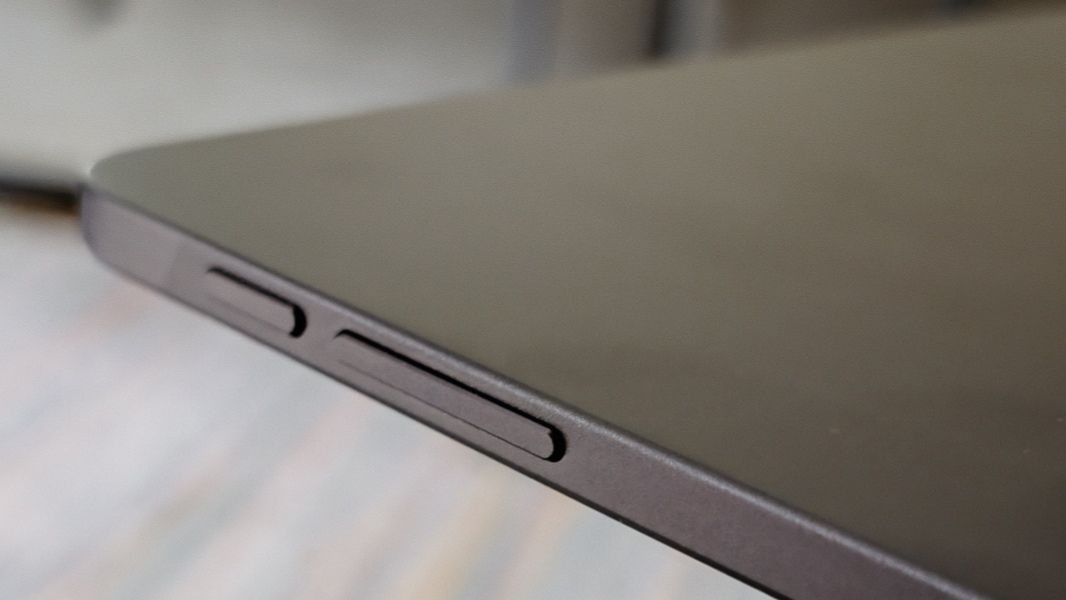
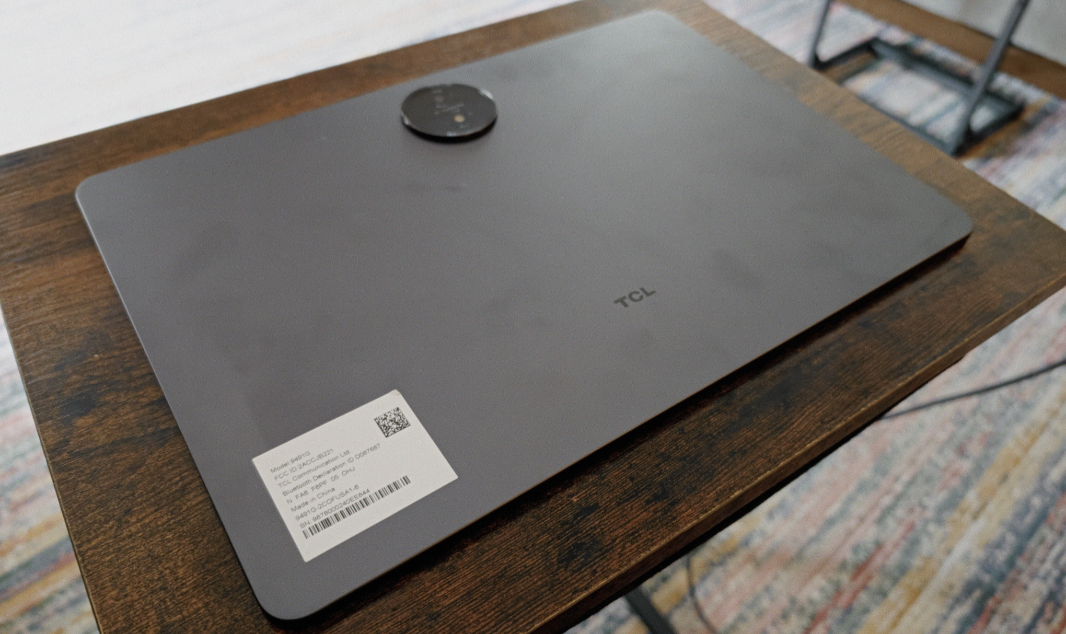
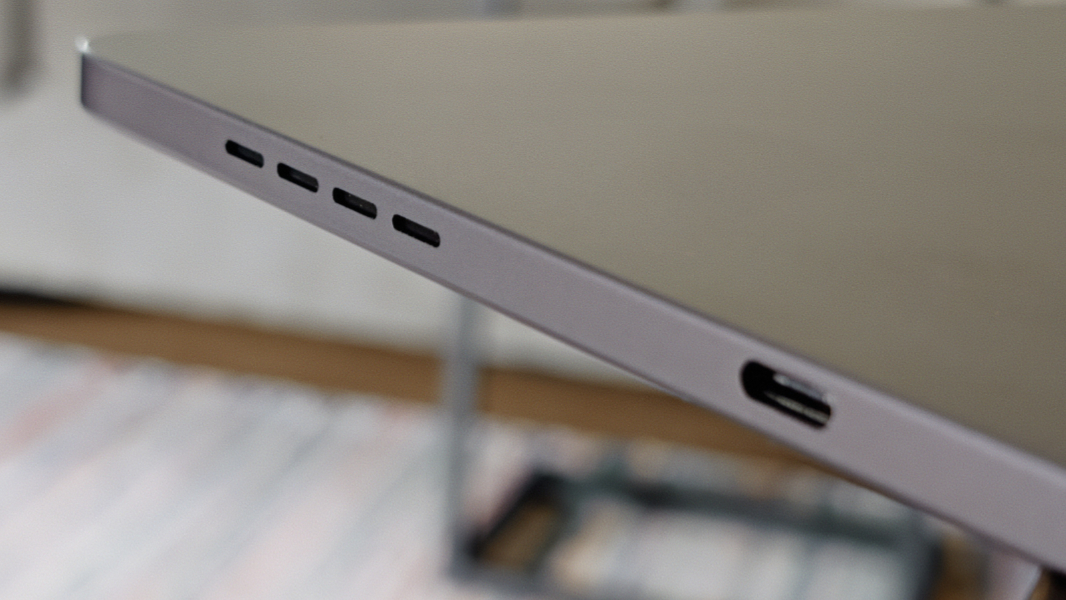
The tablet itself is metallic with a matte gray finish and well-made, and it resembles the design of modern iPads, as you might expect, with flat sides, thin hardware buttons on the top, four sets of speaker hole slots on the sides, and a single USB Type-C port, which is located on the middle right side when the device is in landscape orientation. (As is the case with iPads.) It often seems black to me, though you can see it’s a medium gray color in the right light.
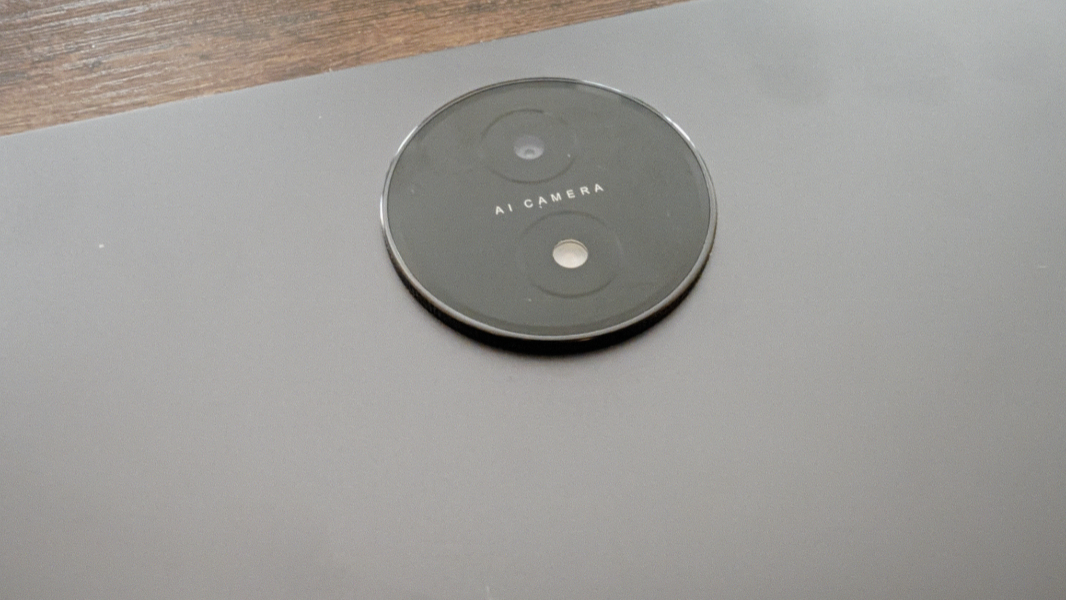
The only notable physical component is the large and round camera housing that sticks out of the back middle top of the tablet. It’s unclear why this is so large, since it only contains a single camera lens and an LED flash, but I guess you might argue it’s a statement piece of sorts. Regardless, I rarely see it and would never use it in day-to-day use anyway.
TCL ships the Flip case–plus a power brick, USB-C cable, and a TPEN smart pen–with its NXTPAPER 14 tablet, and all I can say here is that it’s better than nothing. It’s flimsy, and it attaches to the tablet using four curved and hard plastic corner pieces that I’m not a fan of.
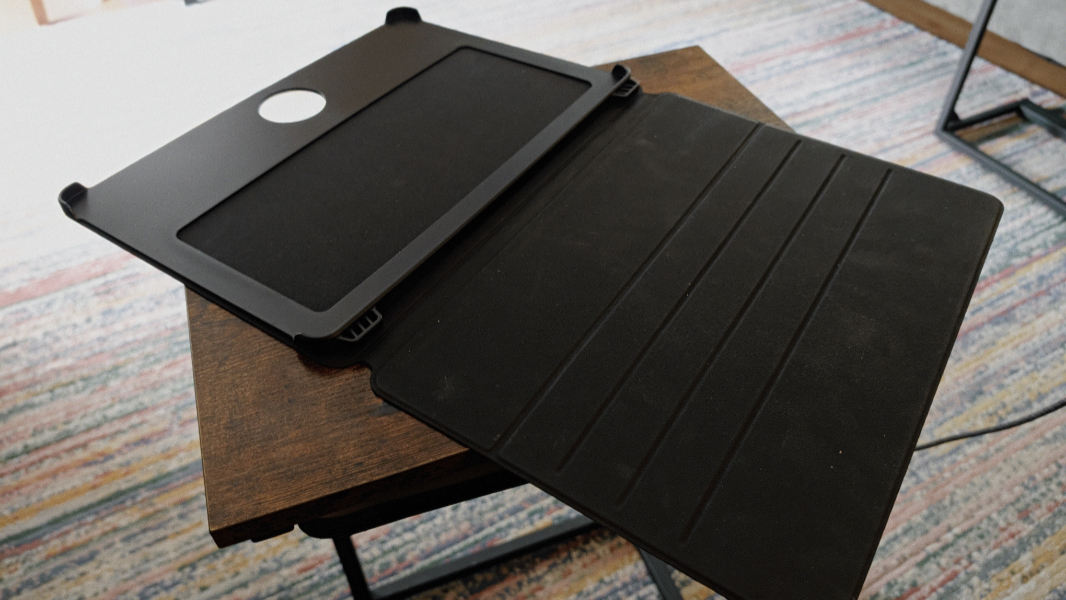
Once it’s on, you can use the Flip case to prop up the NXTPAPER 14 in three different ways, only one of which is obvious: When you pull the flap that is the front of the Flip case down, it lies flat in front of the tablet, and you can then orient the angle of the device as you prefer, using the two feet as a guide.
That’s pretty much how I’ve used the NXTPAPER for the past few months, but you can also origami your way to an orientation in which the flap is folded behind the tablet. This feels less stable to me and, as important, you can’t adjust the angle. And you can also flip the entire thing upside down so that the feet are at the top and the tablet is much closer to the surface it’s on and provides a more obvious sketching and note-taking form factor for use with the bundled T-Pen.
TCL also sells a small stand that lets you position the NXTPAPER tablet in portrait or landscape orientations, which could be useful, plus a wireless keyboard. Any Bluetooth keyboard would work, too, of course, but I’d like to see a Surface-like keyboard cover. In the normal display mode, I keep putting my hands on the flap on the table in front of the tablet, expecting to find a keyboard there.
Display
The display is why you choose a NXTPAPER device. And this is the biggest rendition of that display, a 14.3-inch wonder with a 2K (2400 x 1600) resolution, a 3:2 aspect ratio, and a 60 Hz refresh rate that emits 400 nits of brightness. At its heart, the NXTPAPER display is a standard IPS LCD panel, but as noted above, it has an anti-glare matte layer that’s applied using nano-matrix lithography and also helps prevent fingerprints, DC dimming to reduce flicker, and hardware-based blue light filters.
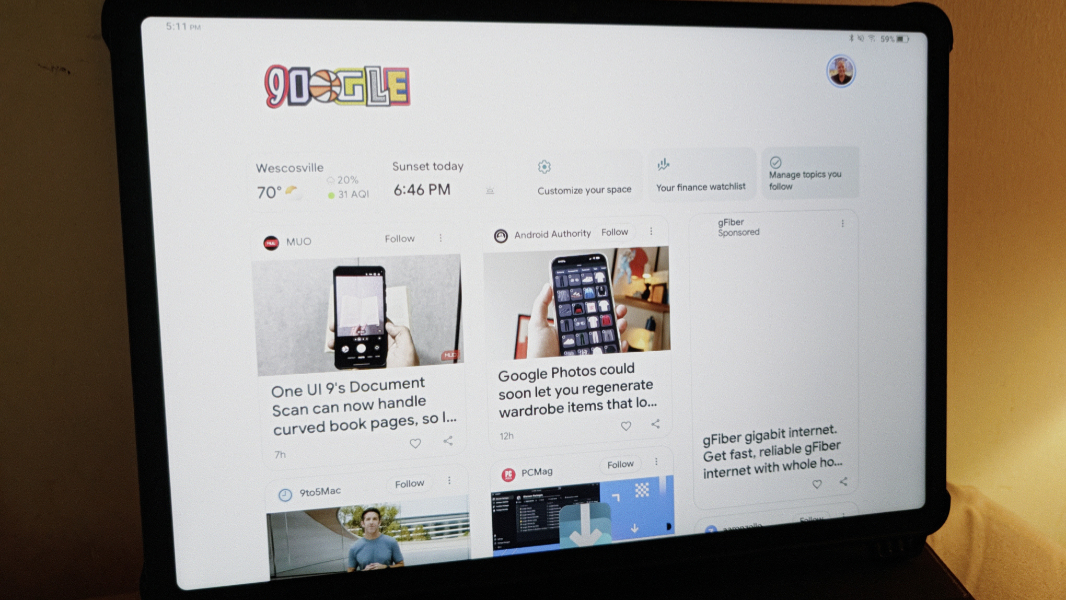
The magic here is that NXTPAPER provides three different display modes, and you can switch between them on the fly using a dedicated NXTPAPER button on the top-right of the tablet. When you press this button normally, an on-screen menu of the three choices–Regular mode, Color Paper mode, and Ink Paper mode–appears, and when you select a mode, there’s a nice on-screen ripple animation that accompanies the transition.
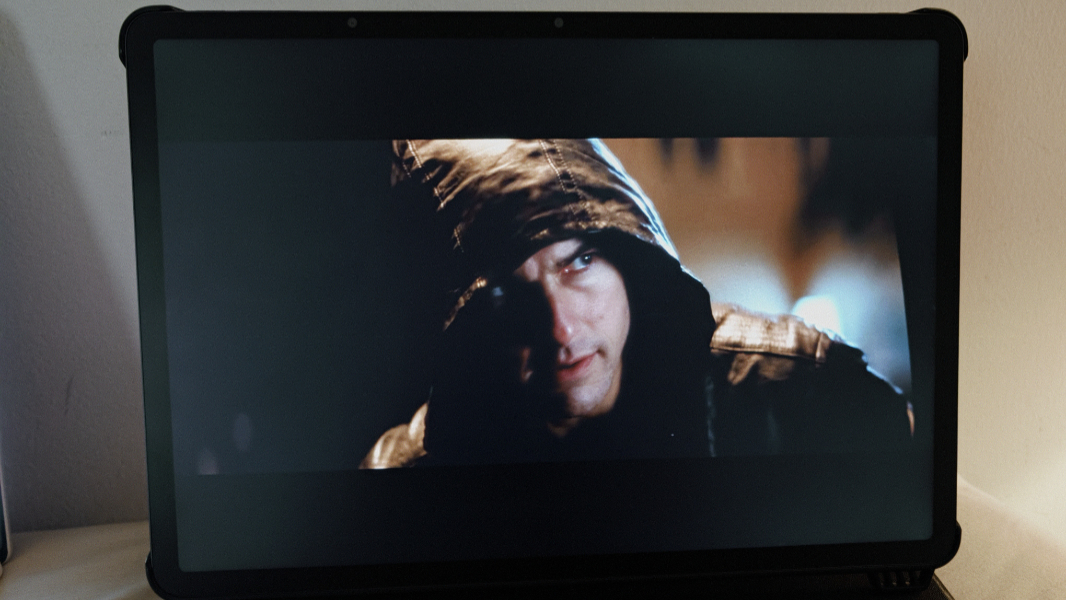
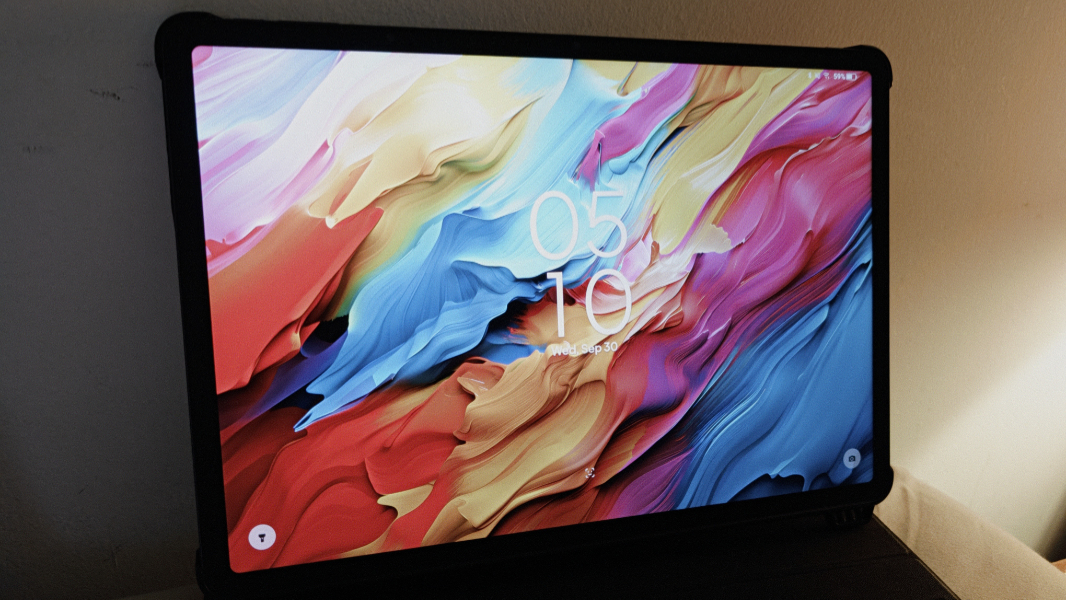
And it is magic. In Regular mode, the NXTPAPER 14 is a normal Android tablet, albeit it one with a huge display. Colors are vibrant, the display quality is crisp, and videos and other content display exactly as you’d expect.
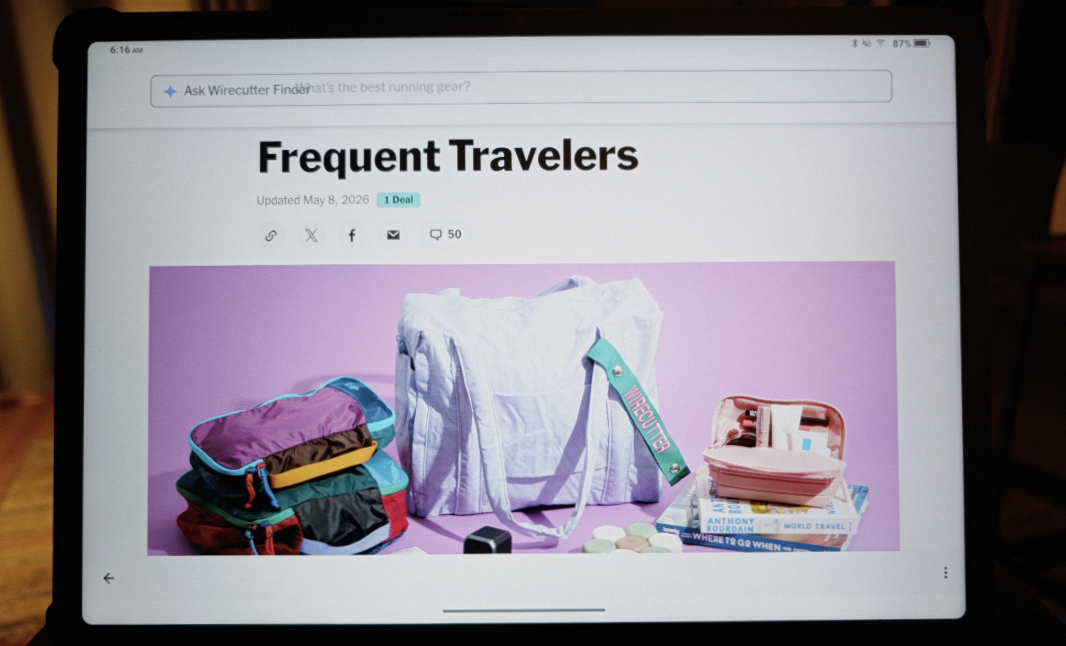
If that’s all there was, this would still be an excellent display. But what drew me to the NXTPAPER line was its other display modes, both of which emulate e-ink displays and provide the same benefits but with none of the downsides. The first of these is Color Paper mode, and this is the one I’ve used the most. In this mode, the NXTPAPER 14 display resembles a color e-ink display with muted colors.
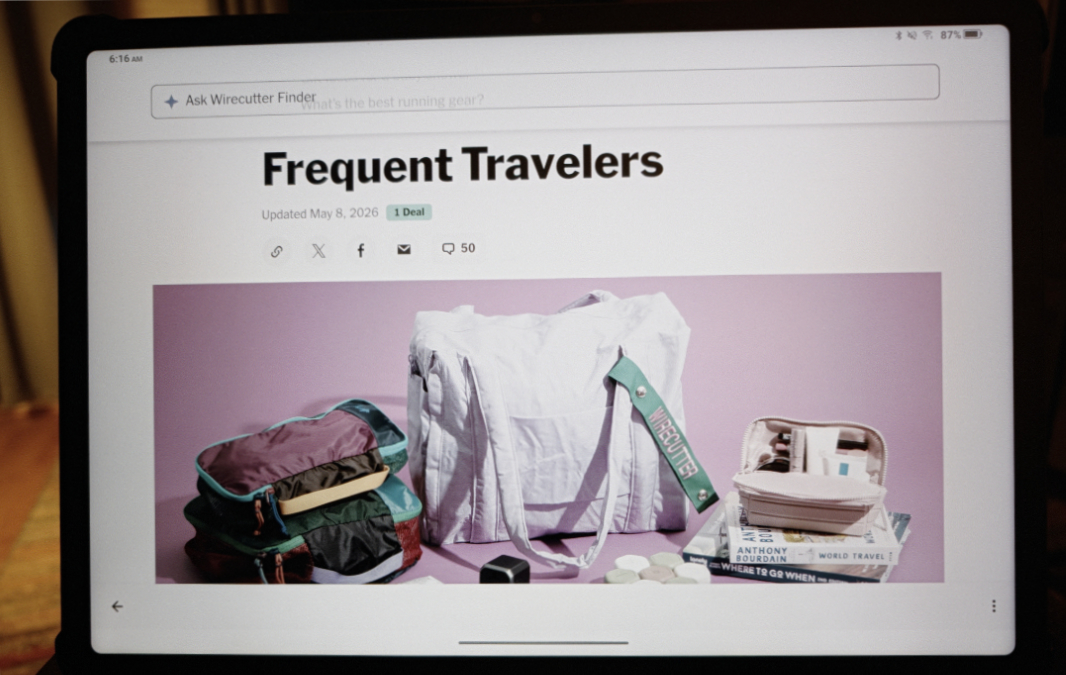
This is obviously optimized for reading, especially content that includes some color and/or images, like comic books and graphic novels. But here’s the thing. Depending on how you use a tablet, Color Paper might make sense all the time, or at least most of the time. In my case, I use tablets mostly for reading, using apps like Kindle, Google News, and so on, but also in web browsers. And though Color Paper is optimized for this use case–I really, really like the look–it’s also just fine when viewing videos, assuming they’re not full-length movies where you’re one hundred percent engaged in that content and won’t be doing anything else. In that case, Regular mode is there for you.
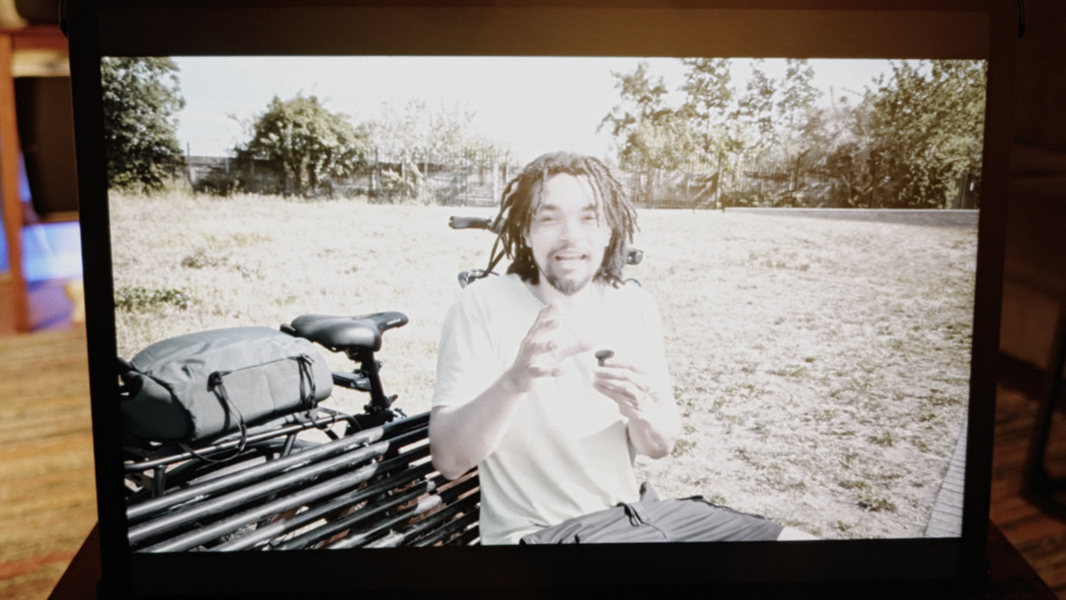
The third mode, Ink Paper mode, emulates a traditional grayscale e-ink screen, like those found on most Kindle e-readers. This works much like Color Paper mode but without even muted colors, and I suspect it may pull in others in the same way that I love Color Paper. It’s especially compelling for text-only books and newspaper apps like The New York Times, which looks thrillingly old-school in this mode.
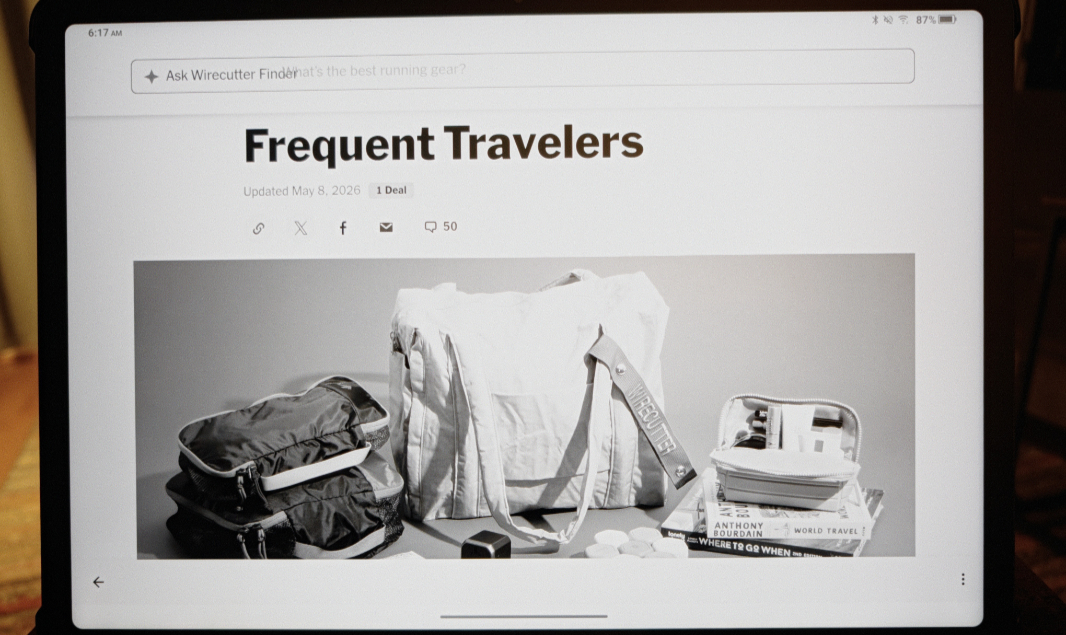
Obviously, IPS is not e-ink. And that means two things. One, it doesn’t have any of the limitations of e-ink, most notably its slow refresh times and on-screen ghosting of previous content. And two, it can’t possibly provide all the benefits of e-ink, most notably the calming effect it has on our eyes. Here, however, we see more magic: Despite being built on a standard IPS LED display panel, the NXTPAPER display does appear to come pretty close to e-ink from an eye comfort perspective thanks to its unique combination of hardware and software advances.
In fact, I like this display so much that I immediately started thinking about how I might use the NXTPAPER tablet as a secondary display for my laptops, similar to a USB portable display. And I’m embarrassed to say that I researched and tested several third-party apps that provide this functionality–Spacedesk being perhaps the best free example–before I discovered that this functionality is built-in (using Miracast): There’s an “Extend mode” button in Quick Settings that lets you wirelessly duplicate or extend your PC’s display. This is wonderful, and if you enable the right option in the Windows 11 “Cast” pop-up, you can control the NXTPAPER display by touching it normally.
The only downsides are latency, typical with wireless displays, and that I can’t get Windows 11 to configure the display with its native resolution. This works normally over a USB cable with Spacedesk.
Internal components
Coming into this review, I vaguely expected that I would mostly use the NXTPAPER 14 as I do my iPad Pro, mostly for consumption tasks and mostly then for reading. And that has been the case. But the iPad Pro has one of the most powerful mobile processors ever created, and it can transform into a full-featured productivity laptop when combined with a Magic Keyboard or similar keyboard case. So I was curious if the NXTPAPER 14 might also support this use case.
After using it for a while, it became obvious that this is no iPad Pro alternative, however. Yes, you can pair a Bluetooth keyboard and mouse if desired, and there’s even a “PC mode”–accessible via Quick settings–in which the UI transforms into a more traditional desktop with a taskbar and floating app windows, similar to Samsung DeX. But you’re best off sticking to less demanding tasks–basic word processing, note-taking, and so on–than, say, video editing or gaming. Which is a shame, given the quality of the display.
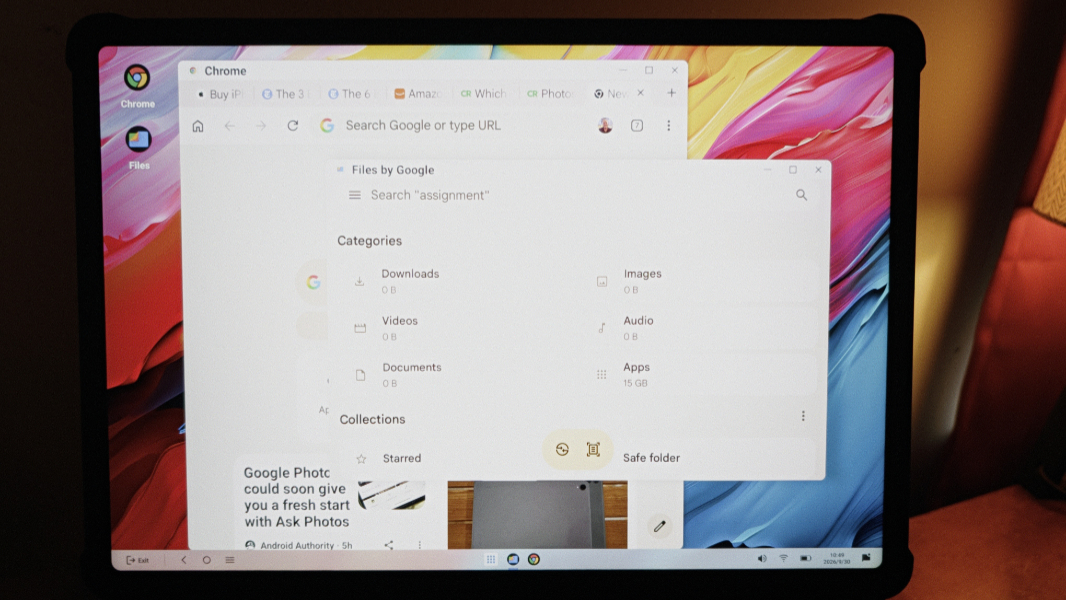
At issue here are the aging, mid-level components at the heart of the NXTPAPER 14, which include a 6 nm MTK Helio G99 (MT8781) processor, Mali-G57 MC2 graphics, 8 GB of RAM, and 256 GB of eMMC storage. Collectively, this is a far cry from the powerful innards in the iPad Pro or any flagship Android tablet. They’re fine for day-to-day tasks, but I quickly settled into a consumption-only routine and it is ideal for that.
One oddity here. The TCL specifications sheet for the NXTPAPER 14 notes the RAM as being “8 GB + 8 GB.” The tablet only has 8 GB of RAM, but my understanding is that it can steal up to another 8 GB of virtual RAM from the storage. That’s better than not having it, but eMMC is notably slow as it is, so I feel like this is mostly about accommodating those times when whatever combination of apps–or, perhaps, one very resource-intensive app–requires more than 8 GB of RAM or would otherwise strain the mid-market processor. That said, this can’t be too common, as 8 GB is a fairly standard RAM configuration for Android devices.
More problematic, perhaps, is the lack of storage expansion via microSD, SD, or some other internal solution. But used as intended, the NXTPAPER 14 performed just fine, and I never noticed any heat. It was always silent.
Connectivity
In keeping with its aging processor, the NXTPAPER 14 is limited to Wi-Fi 5, but it does have a more modern Bluetooth 5.0 for device pairing, and I never experienced any connectivity issues either way. Testing my Internet connection here in Pennsylvania, I do see slower download speeds (250 Mbps-ish vs. a more typical 500 to 600 Mbps), but identical 25 Mbps upload speeds, the maximum allowed by my (terrible) cable provider.
Ports and expansion
Expansion is limited and slow, thanks to a single 480 Mbps USB 2.0 Type-C port, and there’s no combination microphone/headphone jack. In practical terms, this has never been an issue, and many modern phones and tablets are similarly hobbled. But a 5 or 10 Mbps connection would be appreciated, as would compatibility with an exFAT-formatted USB hard drive that works just fine with my PCs and iPad but doesn’t do a thing on the NXTPAPER 14.
Audio and video
The NXTPAPER 14 has four speakers located on the top and bottom right sides of the tablet in landscape mode. It’s just stereo sound with no immersive capabilities, but the quality is excellent with no distortion all the way up to 100 percent volume. TCL actually lets you exceed that using a software-based sound booster that lets you choose 150 and 200 percent volume, too, but that sounds weird and is notably distorted at 200 percent. It’s also not necessary: The speakers sound great without that addition.
Hybrid work
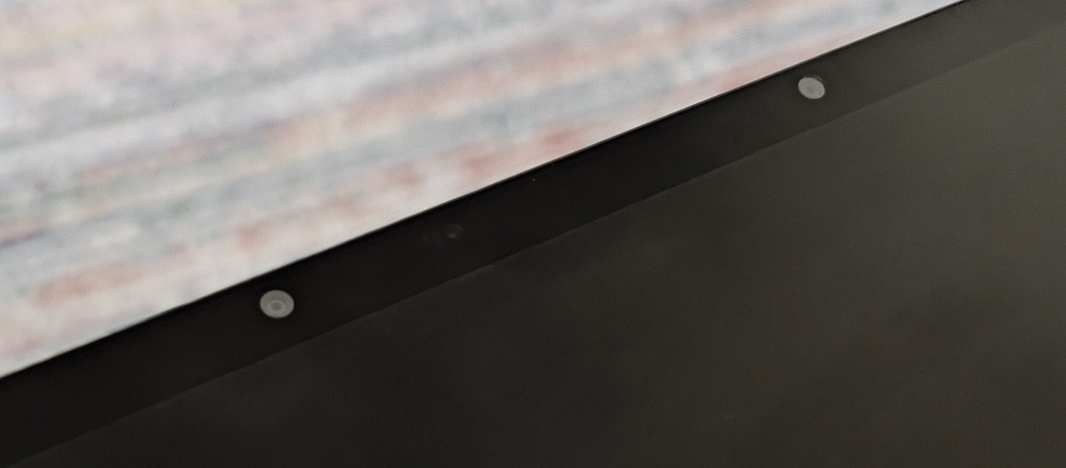
The NXTPAPER 14 features two cameras on the front–13 MP and 5 MP, both fixed focus–and an 8 MP auto-focus camera on the back with an LED flash. The cameras can capture video at up to 2K (16:9) at 30 FPS, but even lower resolution captures are limited to 30 FPS. And from what I can tell, the front cameras aren’t individually selectable, at least not using the stock camera app and Zoom, the two apps I tested.
There are two microphones, TCL says, and while built-in microphones are usually pretty lackluster, the quality here was quite good without any configuration on my part. Which is handy, as I never found any way to configure the microphones.
T-Pen
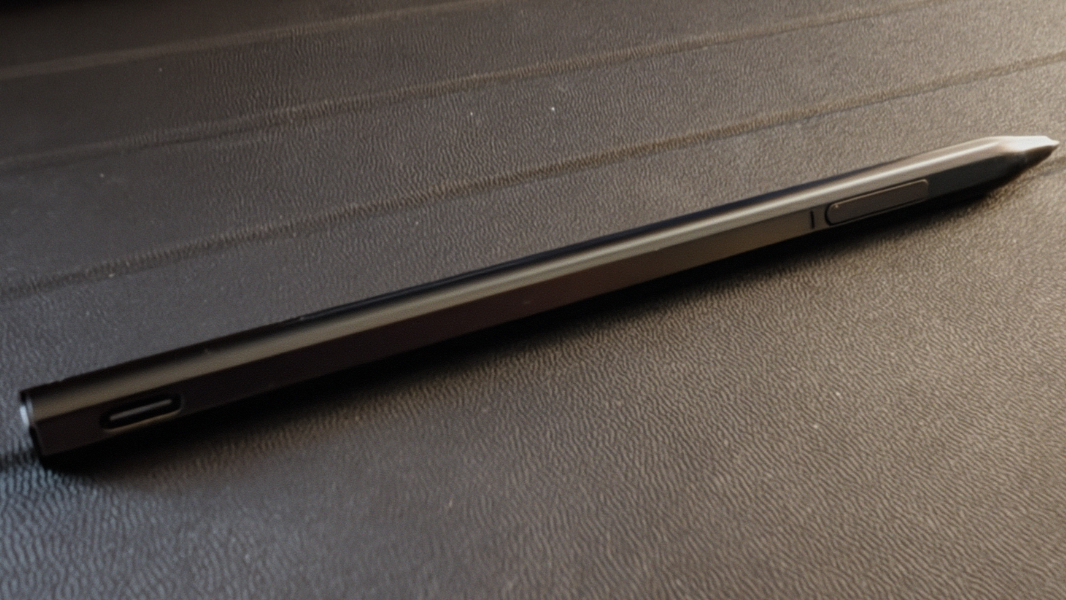
There’s no keyboard or pointing device, but TCL bundles a T-Pen smart pen with the NXTPAPER. This is a full-sized stylus, so it actually works fine with my large hands, and offers 4096 levels of pressure sensitivity for you digital artists. Its battery allegedly lasts up to 100 hours, though I’ve not used it enough to verify that, and it charges via an exposed USB-port high on its barrel.
From a design perspective, the T-Pen is nicely done with a flat surface that prevents it from rolling off the table and a on-off button. There’s no pairing nonsense, you just turn it on and it works. And you can use the pen to navigate around the UI, as with a Surface Pro or similar Windows tablet.
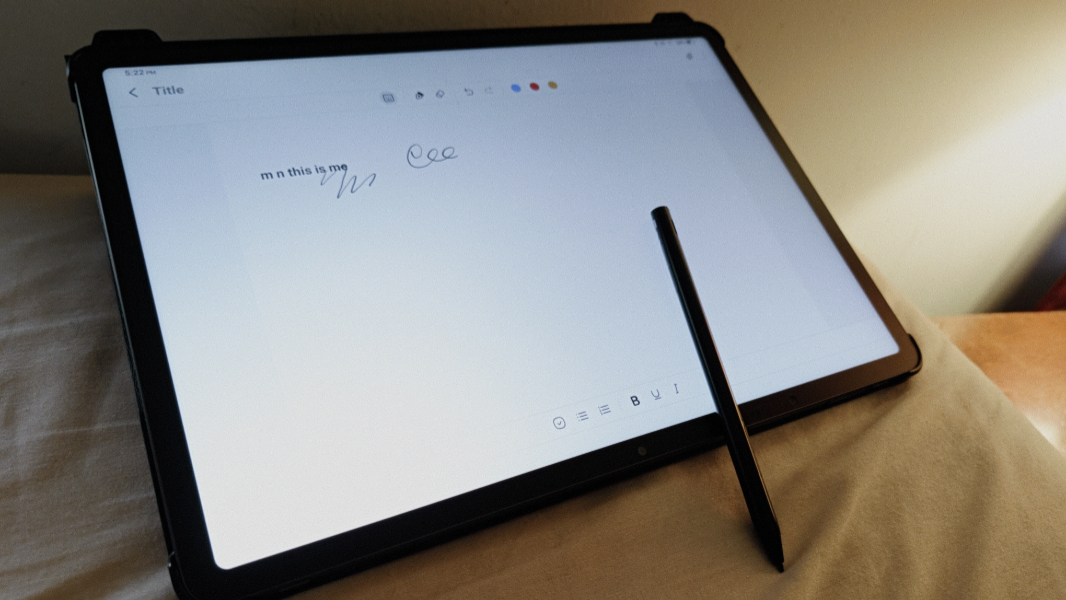
I don’t take notes or draw/sketch with smart pens, but I did test the T-Pen using the bundled Notes app and the quality is excellent. The pen glides naturally on the display surface, the ink effect is responsive, and the pressure sensitivity works as expected. And that Notes app supports a handwriting-to-text functionality that works quite well, too.
Overall, this is a terrific option for anyone who does like to take notes or sketch on a tablet.
Security
As a fairly stock Android device, the NXTPAPER 14 supports PIN unlocking, but I was surprised to see it also offers Face Unlock facial recognition and further surprised by how fast and accurate it seems to be. It also offers all the standard Google security integrations tied to your Google account, of course.
And TCL says it will support the device with quarterly security updates through Q3 2031. That’s great, but monthly updates would be better: One oddity of this tablet is that I think I’ve only seen a single system update the entire time I’ve used it.
Efficiency and portability
At about 12.7 x 8.74 x 0.27 inches and 1.67 pounds, the NXTPAPER is large for a tablet, thanks to its big 14.3-inch display. But it’s not egregious and is no bigger or heavier than a typical USB portable display. My iPad Pro is 11.09 x 8.48 x 0.20 inches, for example, and weighs 1.28 pounds, and that’s with a 13-inch display.
I don’t have a definitive assessment of the battery life, but I find myself needing to charge it every day when I use it regularly. Anecdotally, I feel like it’s perhaps 50 to 75 percent of the uptime I see with the iPad Pro, so possibly 5 to 7 hours maximum, depending on how you use it.
Fortunately, the huge 10,000 mAh battery can be charged to full in about two hours using the bundled 33-watt USB Type-C fast charger and USB cable. (By comparison, the iPad Pro has a 8150~ mAh battery.) And it even supports reverse charging over USB-C.
Software
The TCL NXTPAPER 14 originally shipped with Android 14, but it’s now running Android 15 as I write this, and I think that’s it for the version upgrades. As noted above, it will get quarterly upgrades through late 2031, however.
It’s mostly a stock Android install, but there are some useful TCL additions, like its support for floating windows, split screen, the aforementioned PC mode with its desktop, and a Samsung-like Edge Bar you can display by swiping and holding from the left or right side of the display; this Edge Bar is fully customizable and in addition to the obvious apps, it also has icons for split screen, screenshots, and other tools.
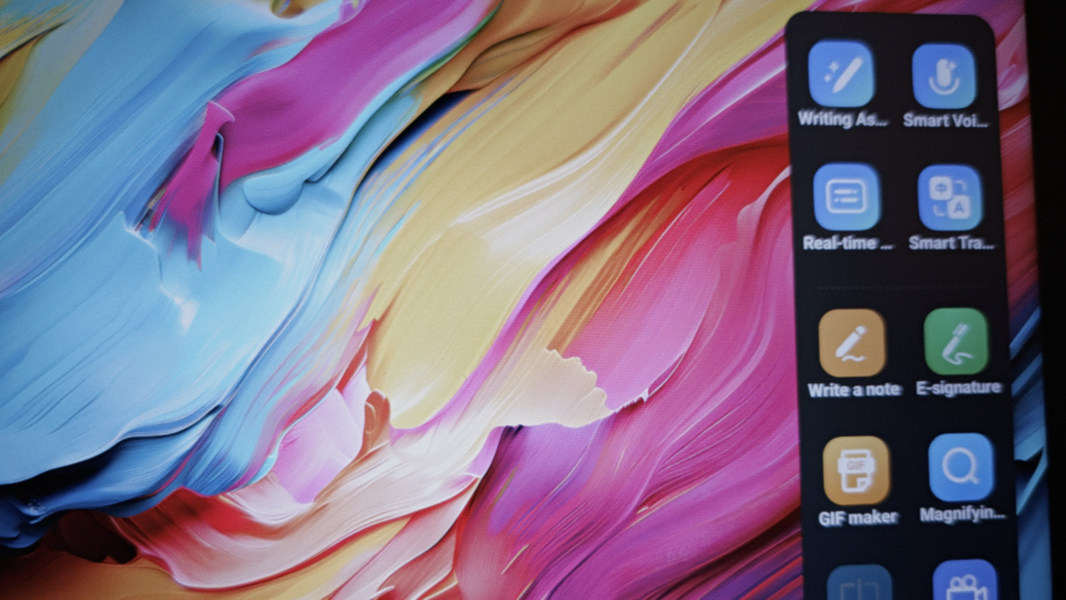
Beyond all the Google basics, TCL also provides the T-Pen-compatible Notes app, a Radio app that uses connected headphones for an antenna (in addition to audio, of course), Smart Manager for automating system maintenance, Smart Translator, Smart Voice Memo, Switch Tablet for device migration, and TCL AI, which sits behind the other Smart-named apps, plus writing assistance. Nothing egregious, though most of the TCL apps can’t be uninstalled normally.
Pricing and configurations
The TCL NXTPAPER 14 normally starts at about $470, but it’s 25 percent off at the time of this writing, so about $350, and that’s true at TCL.com, Amazon, and probably other retailers as well.
By comparison, a base iPad with 256 GB of storage costs $550, and there’s an argument to be made for the versatility of that device and the quality of its apps. But $80–or, with this sales, $200–is real money, and some simply don’t want anything to do with Apple. Plus, the unique display on the NXTPAPER 14 is a real differentiator.
Recommendations and conclusions
The NXTPAPER 14 is a terrific Android tablet that provides the benefits of grayscale and color e-ink displays along with a more traditional IPS display. With its 14.3-inch display, it’s large for a tablet, and I’d love to see a keyboard cover of some kind. But it’s a great value, includes a T-Pen smart pen and Flip case, and is well-suited for reading, web browsing, watching videos, and listening to music, assuming the size isn’t off-putting. And if your needs are not particularly aggressive, I suspect it would do well for writing, email, and note-taking, though I mostly only dabbled in those activities. But whatever your needs, you choose the NXTPAPER 14 for its display. This is a game changer and something I would love to see on other devices.
At-a-glance
Pros
✔️ The NXTPAPER display is a game changer with display modes that emulate e-ink
✔️ Great value, especially on sale
✔️ Bundled T-Pen and Flip case
✔️ Useful PC mode with desktop and external display capabilities
✔️ No true crapware
Cons
❌ No microSD or other storage expansion
❌ Aging internals limit what you can do with the device
❌ Flip case is a bit flimsy