Lenovo Googlebook 15: Software First Impressions
- Paul Thurrott
- Oct 05, 2026
-
1
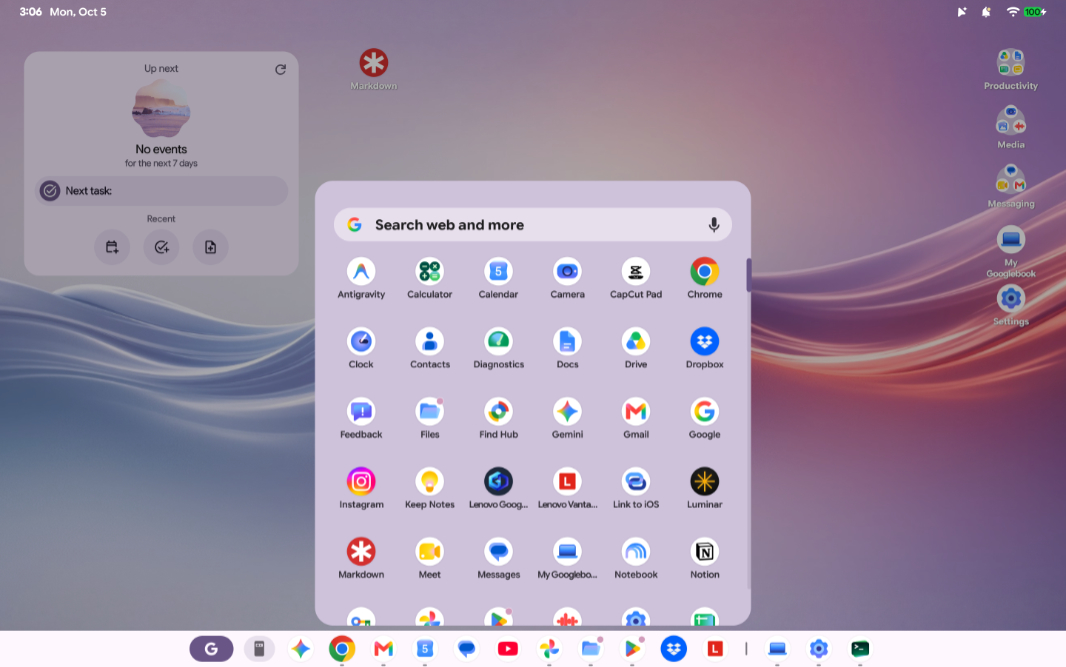
The Lenovo Googlebook 15 I purchased is powered by the new Googlebook OS, an iPadOS-like offshoot of Android that’s customized for the unique needs of this new desktop computing platform.
Well. New-ish, I guess. Googlebook OS is also the successor to Chrome OS, with a very similar desktop experience and the full desktop version of the Chrome web browser. Like Chrome OS, Googlebook OS is built on a lightweight Linux variant, and it also runs on both x86-64–which is more common in Windows laptops–and Arm64 processor architectures.
Setup is quick and easy, assuming you have a modern Android phone to work from. I’m using a Pixel 11 Pro XL currently, so I used that to sign in and get the Googlebook up and running. You can also transfer data and/or apps from the phone to the laptop but I’ve put that off for now. I wanted to just get in there and see what was happening.
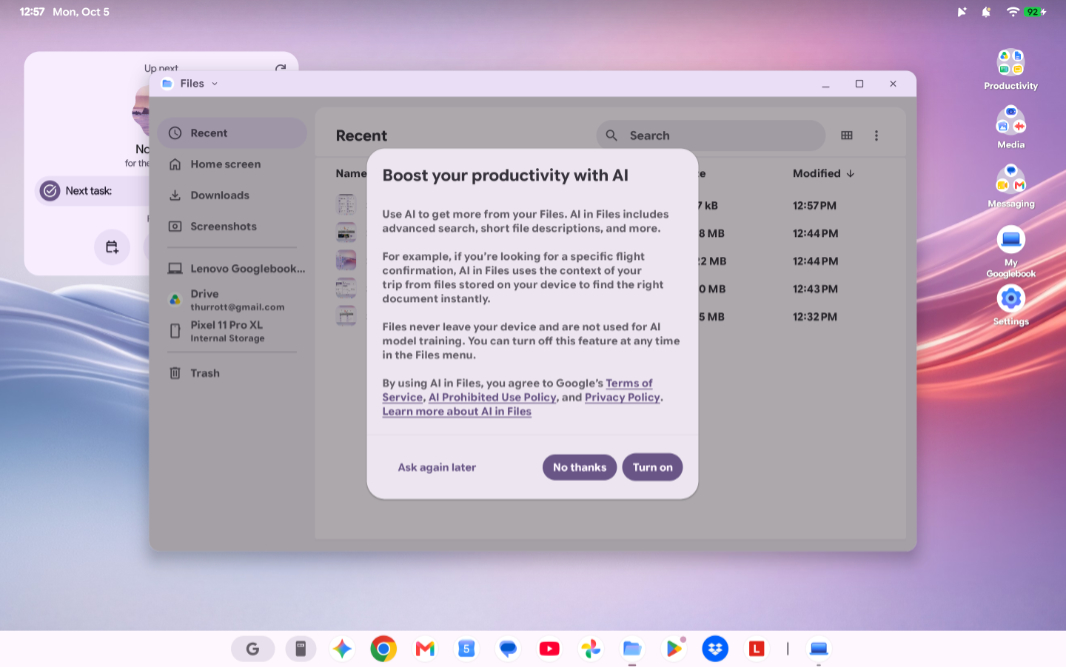
Immediately, it’s clear that Googlebook owners will suffer from one major issue with Chromebooks: Web apps and Android apps are both first-class choices, there are many examples of apps in both versions, and it’s never clear which to choose. (Add in the Linux compatibility and we have a third option, confusing matters even further.) Plus, Google has already admitted that some Android apps won’t run well on Intel-based Googlebook laptops like this one. So we’ll see how that goes.
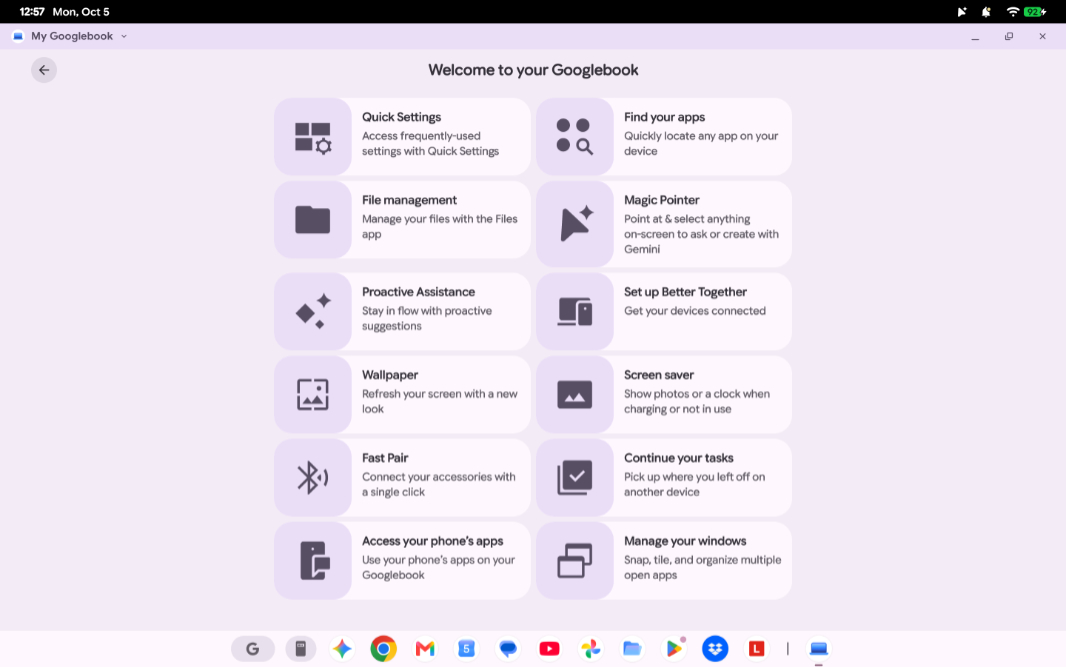
At a high level, the basic desktop-based interface is familiar whether you’re coming from Windows, Chrome OS, or, less likely, an Android 17 or Samsung-base phone that offers a desktop UI. There’s a taskbar-like interface. There’s a Start-like menu. Apps open in floating windows and can be resized, maximized, and minimized. And while it’s early, I feel like the window resizing bit is more desktop-like than was the case with Chrome OS, meaning more precise and more like one expects on Windows or the Mac. There are snap-like controls and keyboard shortcuts. Etc.
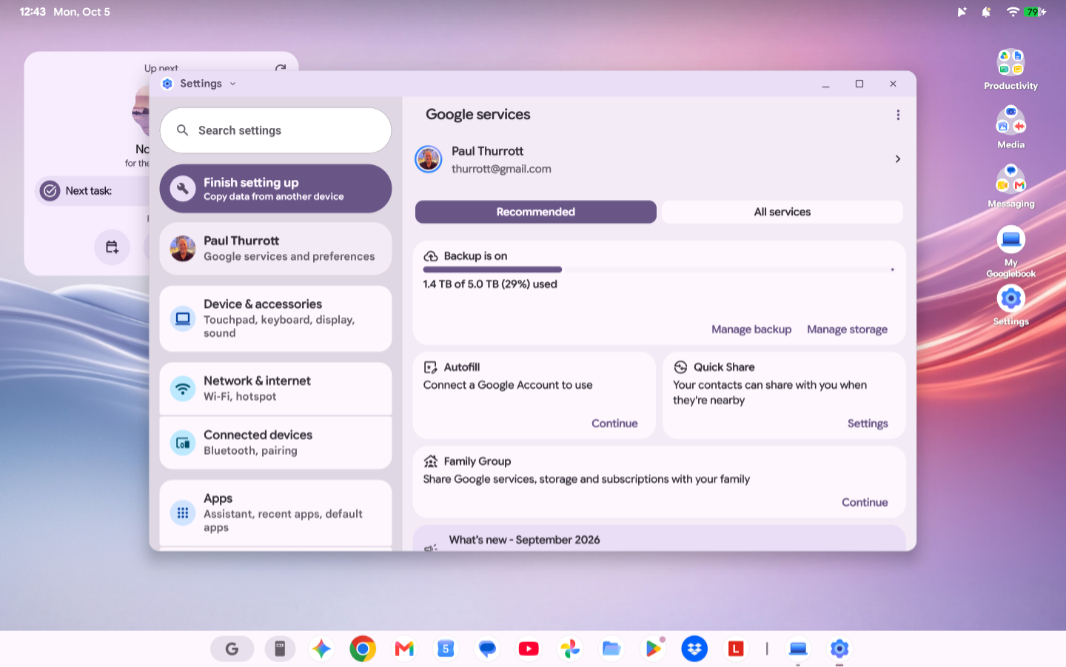
But there are differences, too, and some are subtle but notable. Where Chrome OS placed Quick Settings and associated status interfaces in its version of the Taskbar, similar to Windows, Googlebook OS works more like Android in this way, with those interfaces in the upper-right of the display (and a date/time display in the upper-left). It’s unclear to me as I write this which of these makes more sense, but I’m mostly OK with it. The date/time in the upper-right is just weird, though, and unlike any other desktop or mobile platform, including Android on phones and tablets.
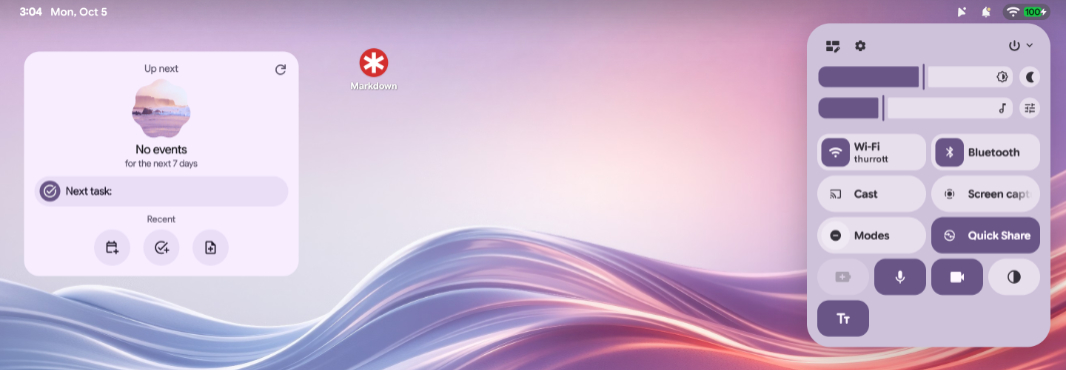
Some of the changes are less subtle. These are the differentiators, the things that set Googlebooks apart from their predecessors and competitors. Key among them, of course, is AI. And … I don’t know.
Google claims that Gemini AI is so infused in Googlebook OS that it’s transformed Android from being an OS into Googlebook OS being an “Intelligence System.” I am not immune to marketing, but this I reject. Not only is “OS” part of the name of this system, but there isn’t any inherent AI-ness here that couldn’t be added to Chrome OS or stock Android. Gemini, like Internet Explorer in the dark days of Windows antitrust, is integrated into the platform, for sure. But this is not a new kind of platform with AI at its center.
None of this diminishes the capabilities Google is coming to market with here, though the strong Copilot+ PC vibes are difficult to ignore, as is the failure of that platform to resonate with both actual and potential customers.
On that note, the marquee feature in Googlebook today is Magic Cursor, and this is nothing more or less than Google’s response to Click to Do in Copilot+ PCs. Both let you find out more about what you see on-screen but using slightly different interactions. You launch Click to Do by holding down the Windows key and then clicking on-screen, but Magic Cursor is a bit more whimsical; here, you just shake the mouse cursor when it’s over something on-screen you want to learn more about or do something with. (You can also type G + g.)
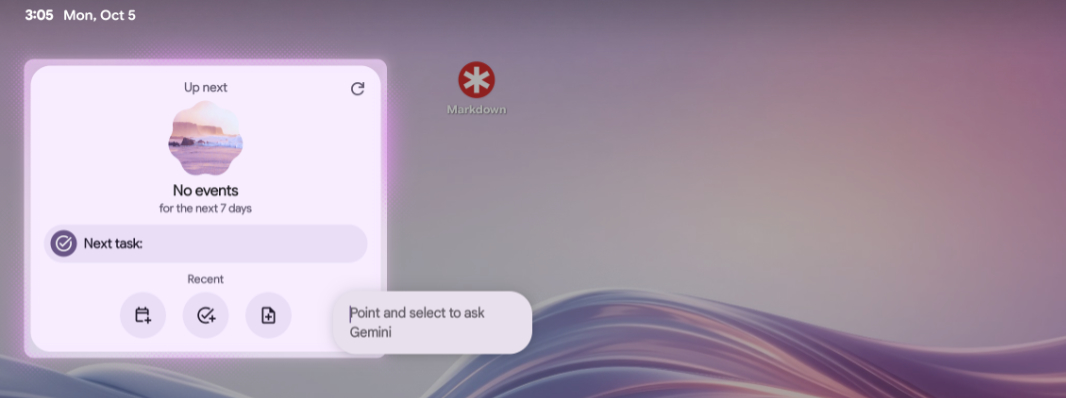
I recently wrote about UX expert Scott Jenson and his ideas about how desktop computing platform makers could be more innovative. During the talk I reference in that article, Jenson–who led mobile UX at Google for several years–discusses some interfaces that factor into Googlebook. Key among them is a Google AI Pointer research project that comes up almost 20 minutes into the talk that led directly to the Magic Cursor feature in Googlebook OS.
On this, he is not entirely complimentary because he sees this as a way to “sneak AI in” what is otherwise a classic desktop environment rather than a complete rethinking of that interface. My take on this is that transitions require interim steps and both Click to Do and Magic Cursor are attempts at just that: We’ve learned (cough, Windows 8) that users reject entirely new and different interfaces when they don’t at least respect the past and our collective muscle memory.
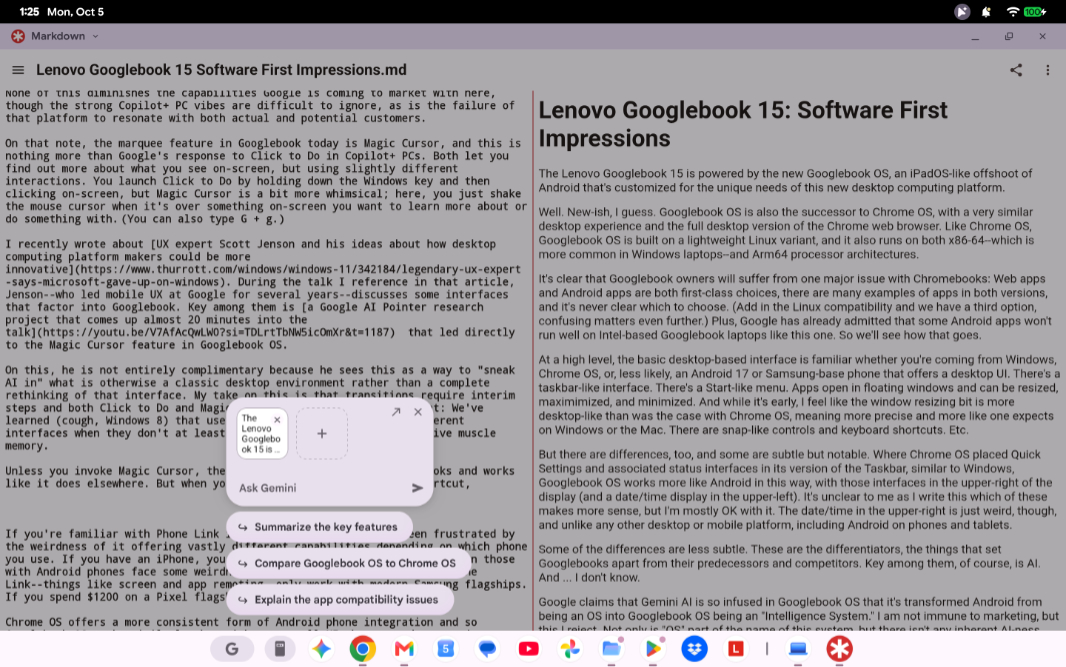
Unless you invoke Magic Cursor, the mouse cursor in Googlebook OS looks and works like it does elsewhere. But when you shake the mouse or use that shortcut, a set of small Gemini windows appears next to the cursor so you can ask the AI about the text and/or images nearby. In AI parlance, the context is what you see on screen, but you can also optionally select multiple on-screen objects or select from dynamic options (basically pre-built prompts) like “Summarize the key features,” “Describe this scene,” and more.
Googlebooks also surface more subtle AI help via a feature called Proactive Assistance than seems to pop up infrequently. This is clearly a platform feature, but it appears that apps need to support it natively, too. I need more time with this one to figure out the circumstances in which this help appears. But you can see it in context menus when you right-click items in compatible apps like Messages and Screenshots, plus something called Desktop System Intelligence.
Whether AI is a platform-defining capability is unclear, but Google is also targeting Android phone fans with this initial launch wave and there are several phone integration features of note.
If you’re familiar with Phone Link in Windows 11, you may have been frustrated by the weirdness of it offering vastly different capabilities depending on which phone you use. If you have an iPhone, you get the most basic experience. But even those with Android phones face some weirdness, as the very best features in Phone Link–things like screen and app remoting–only work with modern Samsung flagships. If you spend $1200 on a Pixel flagship, like I did, you’re out of luck.
Chrome OS offers a more consistent form of Android phone integration and so Googlebook OS works similarly but with some small UI changes and some major functional updates. (You can also link a Googlebook to an iPhone for more limited functionality, but I will look at that later.) Long-time Microsoft fans and followers will either be delighted or saddened that Google now calls this phone/Googlebook integration “Better Together.” But it makes sense. You can continue tasks you start on one device on the other, though the more common flow there is starting on a phone and continuing on Googlebook. You can view an All apps view of your phone directly from the taskbar using its own pop-up menu and then run any of them virtually in a floating and resizable window. And then you can use other Android-to-Android features, like Quick Share.
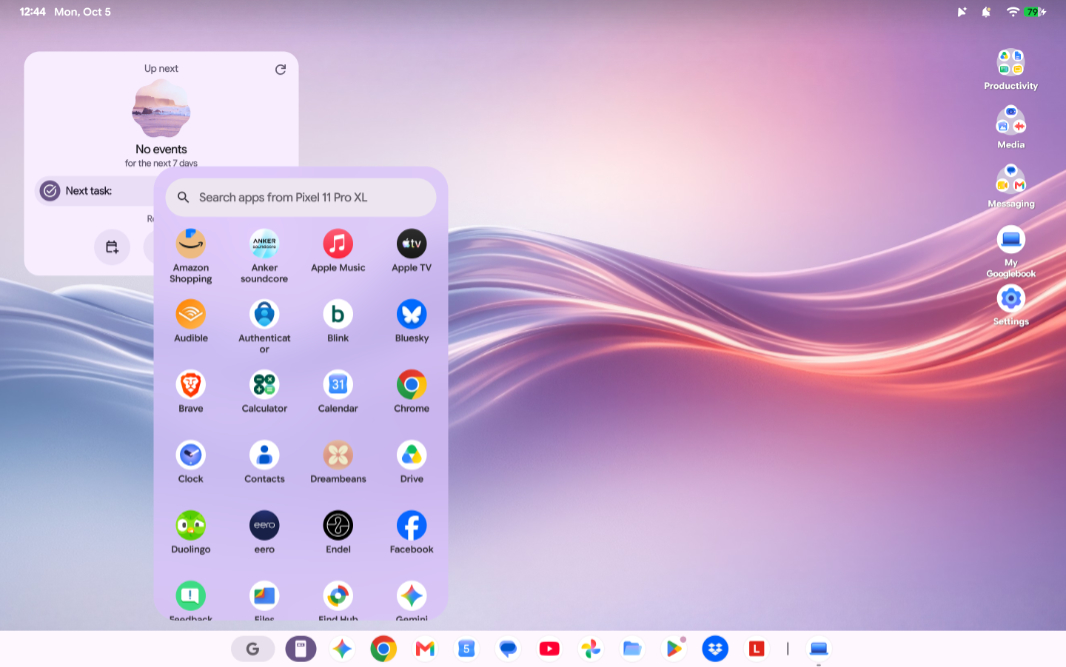
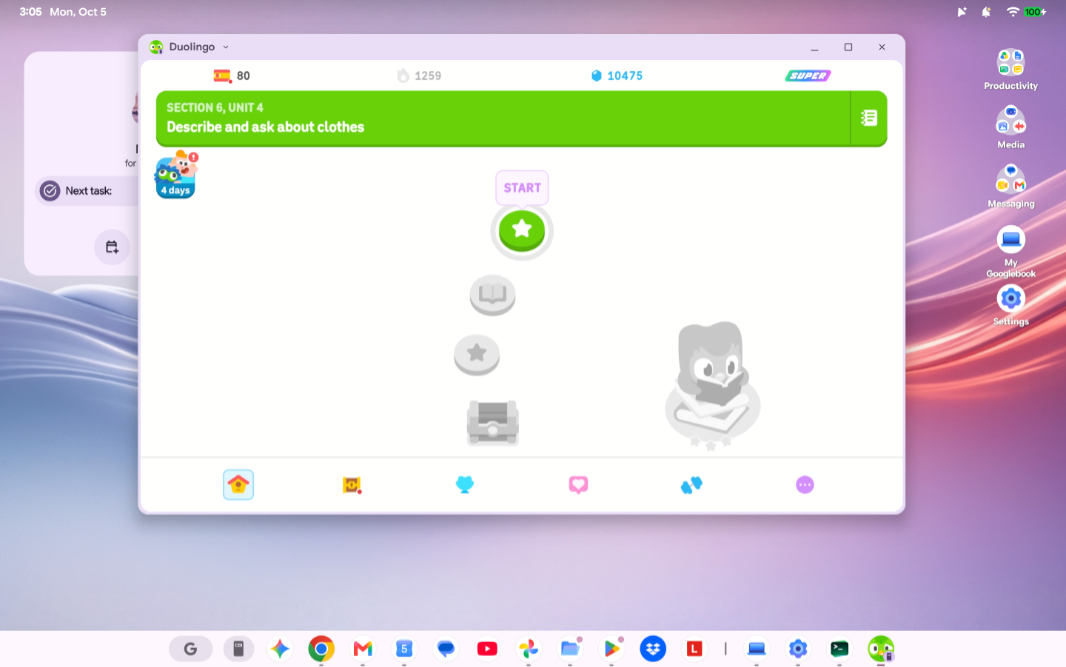
Of these, the ability to run your phone apps virtually is arguably the most interesting. But it’s held back a bit by a limitation I wasn’t expecting: You can only run–stream/cast–one phone-based app at a time. If you open another one, it opens in the app window you were already using. So you can’t, say, have an app like Duolingo running off your phone in a phone-shaped window and then an app like Apple Music next to it in a larger desktop-like window. Unless you install one of them directly on the Googlebook, that is. Perhaps this is a stopgap for now, since most apps should run fine directly on the laptop, but you could use this for those phone-based apps that don’t.
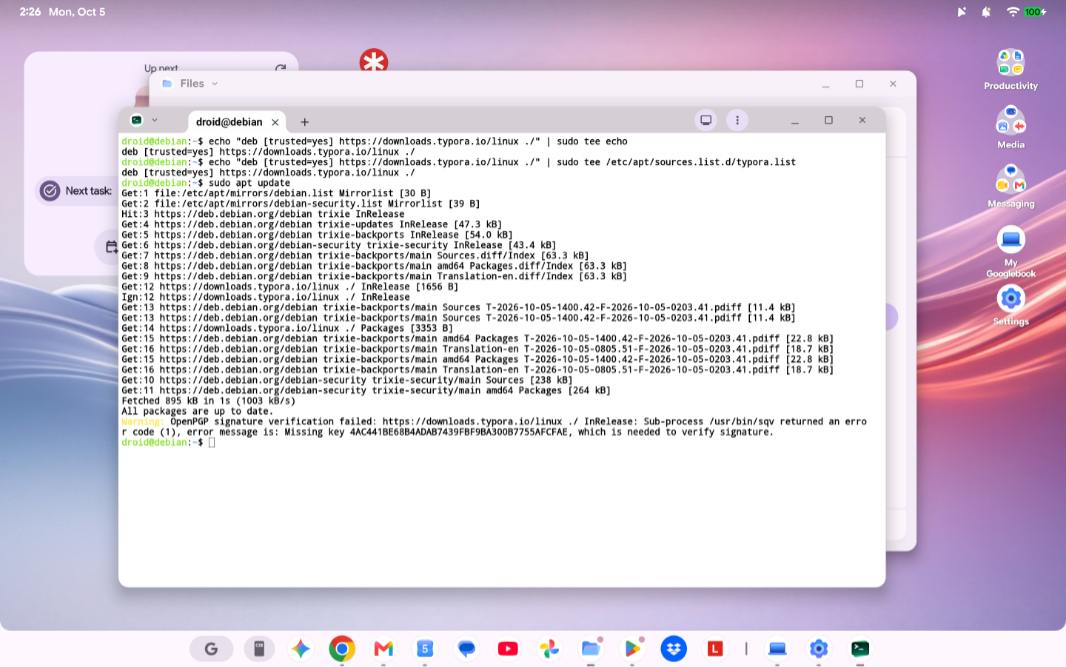
There’s a pre-installed Terminal app, unlike on Chrome OS, but when you run it the first time, you’re prompted to install the Linux subsystem it requires, as on Chrome OS. This isn’t all that onerous, it’s a quick 621 MB download, and given my mixed history installing the Linux version of Typora on Chromebooks this way, I had to give it a shot. It seemed to work, meaning there were no errors. But there’s no Typora entry in the launcher (Start) as is the case in Chrome OS. I can see a typora entry in the /bin folder, but I can’t get it to run. This feels familiar, so I’ll look into this more soon.
High level, Googlebook OS is a curiosity. It’s familiar thanks to Chrome OS and so it feels like a continuation of that and less the major leap forward that iPadOS 26 was for the iPad. But part of that is just that it had fewer improvements to make. The basics were already there in Chrome OS and Googlebook is simply an evolution.
Still. There’s a lot to digest here, so I’ll have more soon.