Paul’s Pixel 10 Diaries: Camera Coach
- Paul Thurrott
- Aug 31, 2025
-
0
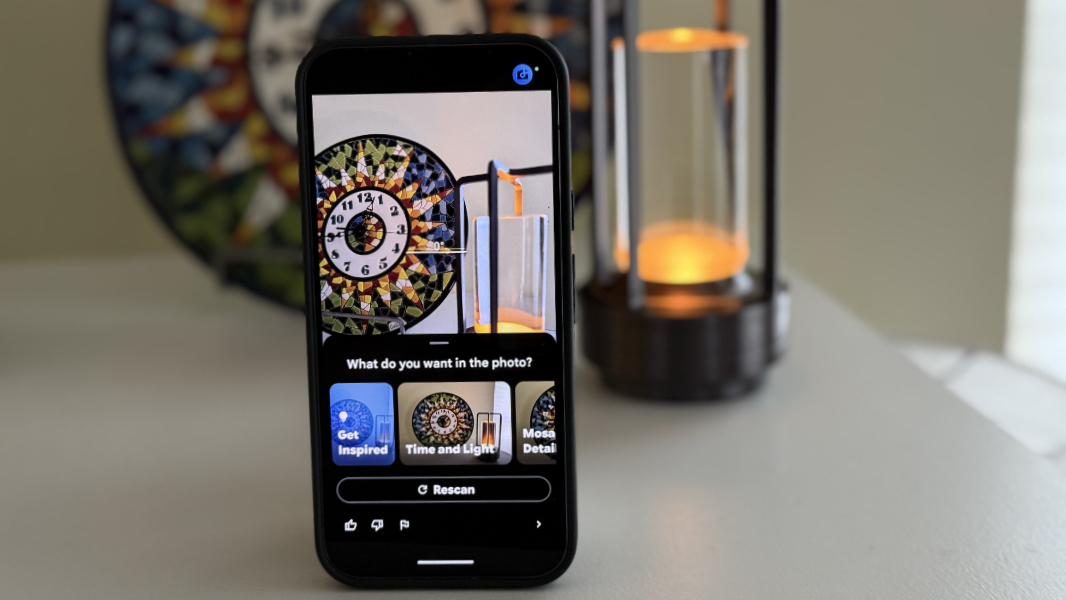
Camera Coach is experimental and in preview, with all the usual caveats and qualifiers. And Google points out that because it’s a cloud AI-based feature, each photo you process using Camera Coach is sent to it and then deleted after processing is complete.
That may be off-putting to some, given how often AI is in the news these days. But buying a Pixel phone, especially a Pixel 10 series phone, is an almost explicit decision to buy into Google’s AI capabilities. And that is perhaps especially true of the Pixel Camera app and its computational photography functionality. This is why many people buy a Pixel in the first place.
So I enabled it, guessing in advance that I would want to quickly disable it later. But it doesn’t come on every time you open the Camera app, fortunately. Instead, you tap an on-screen button so that Google can evaluate the scene and give you suggestions.

In my initial and somewhat uninspired first test, I pointed the viewfinder at the iPad sitting next to me on the couch and tapped the Camera Coach button. The app emitted a light tone and a blue animation indicated it was doing something. Then, it gave me a few thumbnail-based options, none of which made much sense to me: Get Inspired, Tablet on Couch, Rest and Relaxation, and Gallery Wall Vignette. Each thumbnail displayed the image it would work with, so in the last case, it was some pictures on the wall in the room, not the iPad.

The Get Inspired choice works as a sort of rescan feature, so tapping that gave me four new thumbnail-based options. So I chose one that was close to the original Tablet on Touch choice. This started a multi-step wizard that provided helpful hints, one per step, for better framing the photo. Things like Change phone orientation to landscape, Move closer to the tablet, and so on.
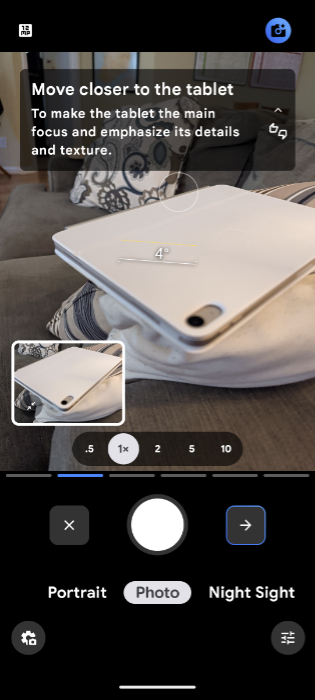
Interesting. These tips are clearly photo-specific and personalized for the subject. And there were several tips even for this simple composition, each with a detailed explanation. This should prove quite useful for those who don’t consider themselves to be good photographers.
Curious how this might change with different scenes and subjects, I went outside, pointed the camera up the street and tried Camera Coach again. As expected, it gave me multiple scene-specific options. And when I chose one called “Foliage in the Foreground,” the resulting hints included using Portrait mode, which feels like solid advice.
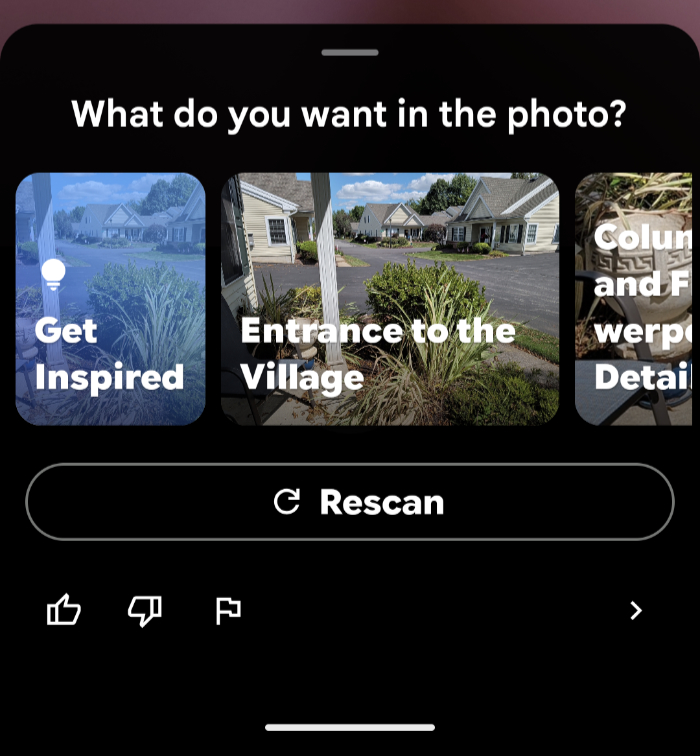
I also notice on this go-round that the hints are actionable (or can be). In the above example, Camera Coach highlighted the Portrait mode toggle in the Camera app in blue so I could find it and act on the advice it had given me. As I tried this with other scenes, I saw that this type of thing is fairly common.
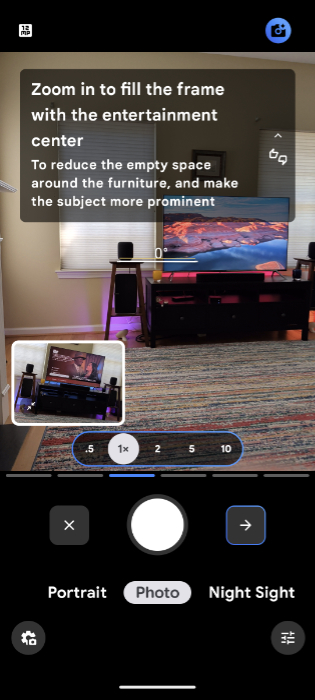
This is good functionality. Though I was initially inclined to ignore this feature personally, as I feel like I know my way around the camera, I can see that even I might be able to learn new concepts and Pixel Camera app features as the need arises. And so I will keep an open mind and see how this develops over time.
If you do get a Pixel 10 phone, I strongly recommend checking this feature out, especially if you’re not confident in your photographic capabilities. But even if you are, get over it and try Camera Coach anyway.