Apple iPad Pro M5 13-Inch Review
- Paul Thurrott
- Jul 02, 2026
-
12
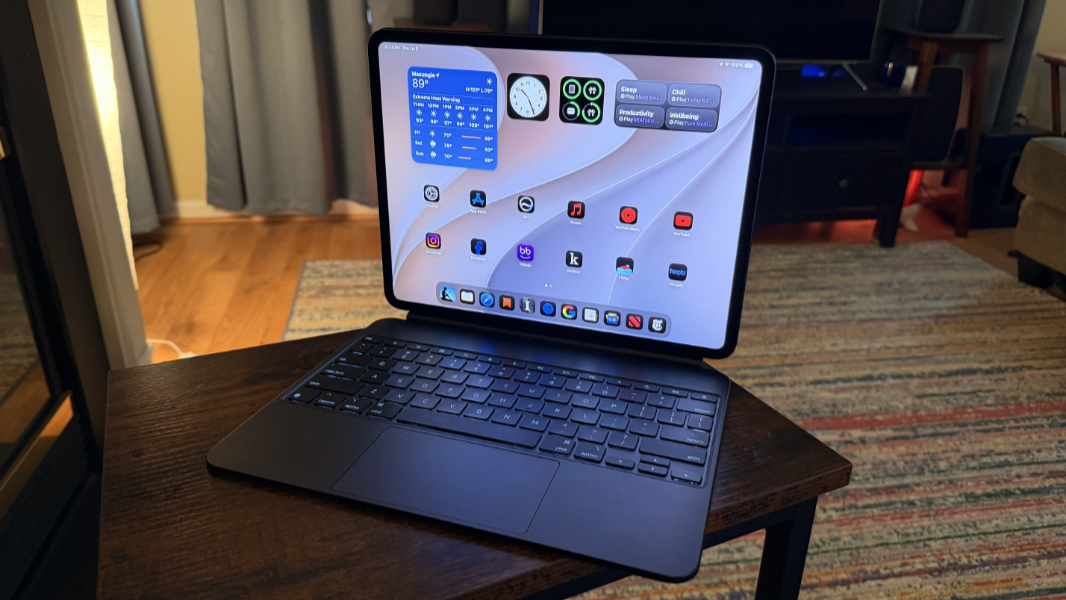
The 13-inch iPad Pro M5 is the world’s best tablet, but it’s almost as compelling as a laptop replacement. That it can be both and handle each use case so effortlessly is, of course, what makes this device so special.
That said, I am reviewing the iPad Pro specifically as a laptop replacement and I am not weighing in on the keyboardless tablet experience. There’s no need. I’ve used too many iPads to count, dating back to the original version I purchased on day one, and it should be obvious to anyone that when it comes to tablets, there is the iPad and then there is nothing else.
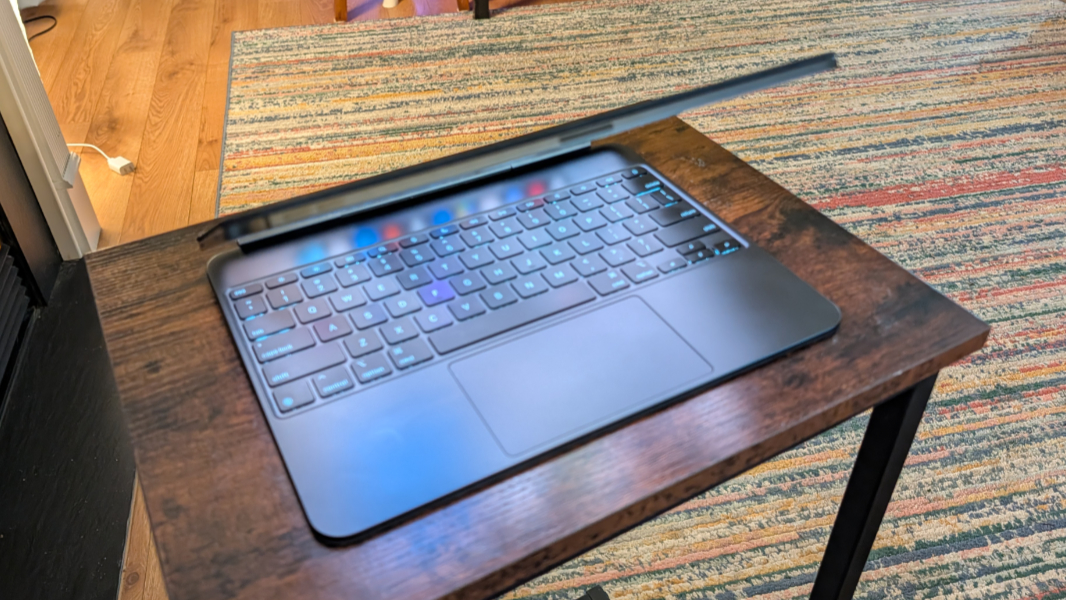
But I’ve also established that any full-sized (non-Mini) iPad might also be considered a perfect laptop when combined with an Apple Magic Keyboard or some third-party equivalent. The questions here, then, are twofold: Does a 13-inch iPad Pro M5 somehow elevate that experience and, if so, which audiences would benefit most?
Design
We were flying to Nashville in June, and it was my first experience bringing the iPad Pro out on the road. After settling into our seats, I opened the device, propping it up on my knees and using the Magic Keyboard as a sort of base so I could read, as I had been doing since last year with an 11-inch iPad Air and its Magic Keyboard. No one had ever commented on this, but when the flight attendant got to my row, she told me I’d have to put the iPad away or take it off the keyboard during takeoff. I guess it’s just a bit too big.
It was decision time. I don’t want to scratch or dent the iPad, and I didn’t bring a separate cover. But I did want to read, and it was only for take-off. So I did the unthinkable and pulled the iPad off the Magic Keyboard, stowing the latter in the seat-back pocket. And I held the iPad Pro in my hands, wondering anew at the sheer elegance of this thing.
The 13-inch iPad Pro is just 0.20 inches (5.1 mm) thick, and it weighs just 1.28 pounds. It’s large, of course, to accommodate the display, and you can feel the weight, though the vibe is a premium quality density and not just heft. It’s rather incredible. And though I’ve used the device at least two or three times per day since I first got it in late May, this was perhaps just the second time I’d held it without the keyboard.
I can’t imagine that many people spin a $1900 tablet around in their hands without at least using a cover or case. But it was tempting. There’s something incredible about the sheer thinness of it, the elegance of this giant sheet of glass. It looks like other modern iPads, but slimmer. There are two color choices, Silver and Space Black, and though I know that anodized aluminum like this can scratch or chip, I couldn’t help myself and went with black, in part so I could match it with a black Magic Keyboard. Which I hoped would spare it from any visual indignities even though the iPad’s thin sides are always exposed. So far, so good: Unlike with my current iPhone, a 17 Pro Max, the exterior remains flawless.
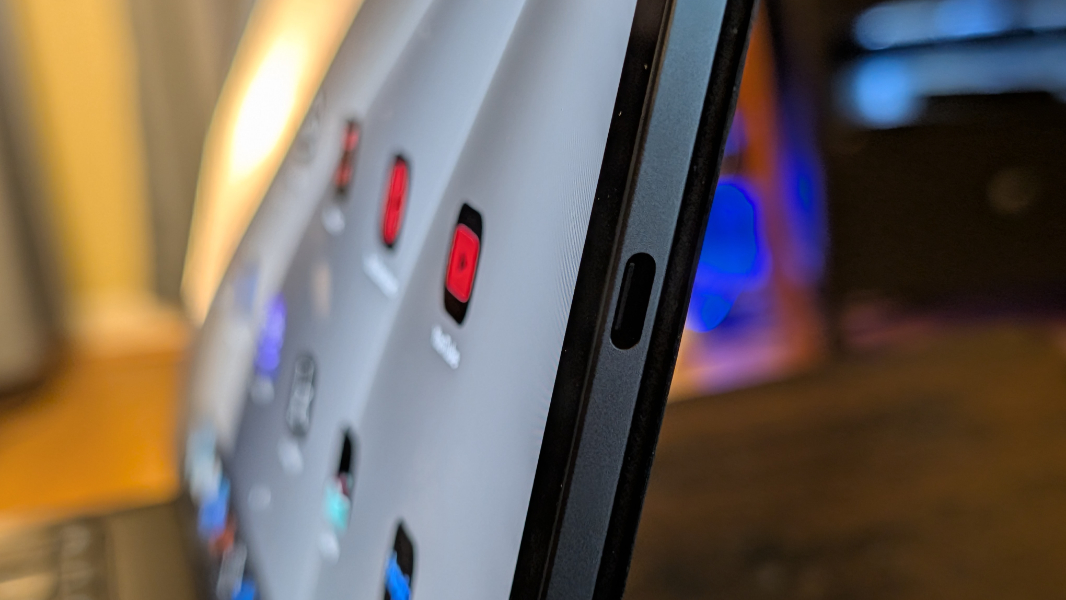
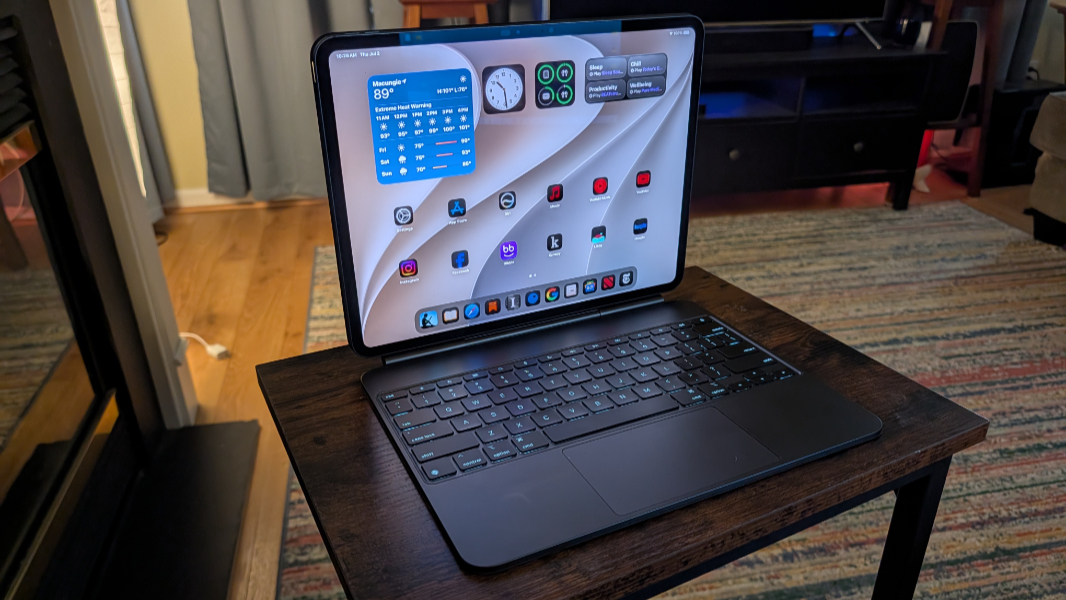
In any event, the design aesthetics of the iPad are well understood and the iPad Pro is the most impressive in the product family. Connected to a Magic Keyboard, it looks and works like a premium laptop with a nice floating screen that can tilt back arbitrarily through a small range. It works well when used normally as a laptop.
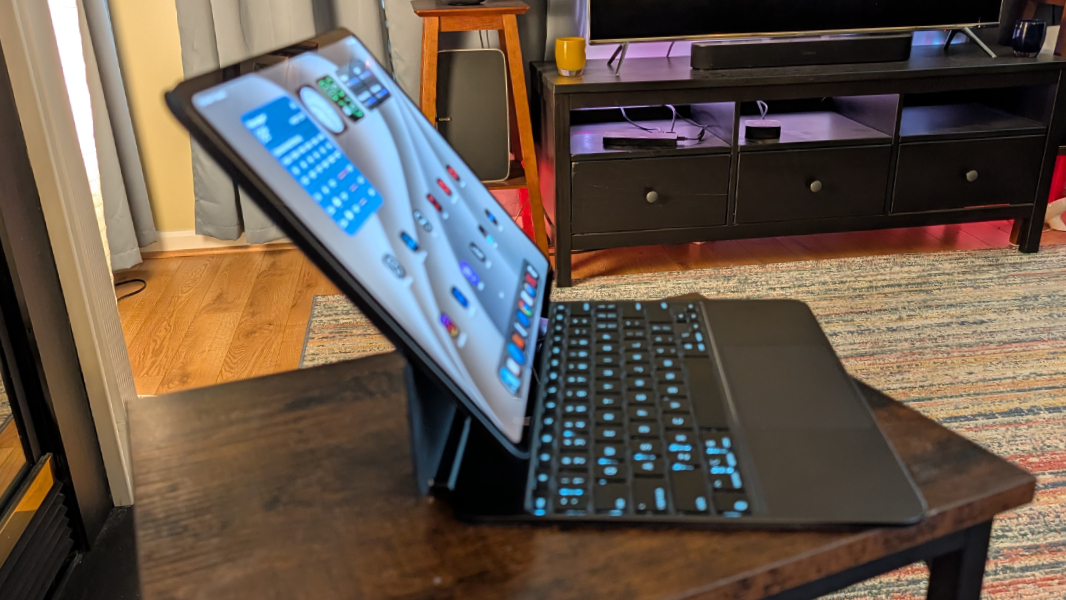
By nature, this combination is top-heavy, but I like that Apple isn’t relying on you just using a desk or other surface to balance it. It’s more lappable than a Surface Pro, for example, because the base of the keyboard is more solid and better connected to the iPad. And it never topples over.
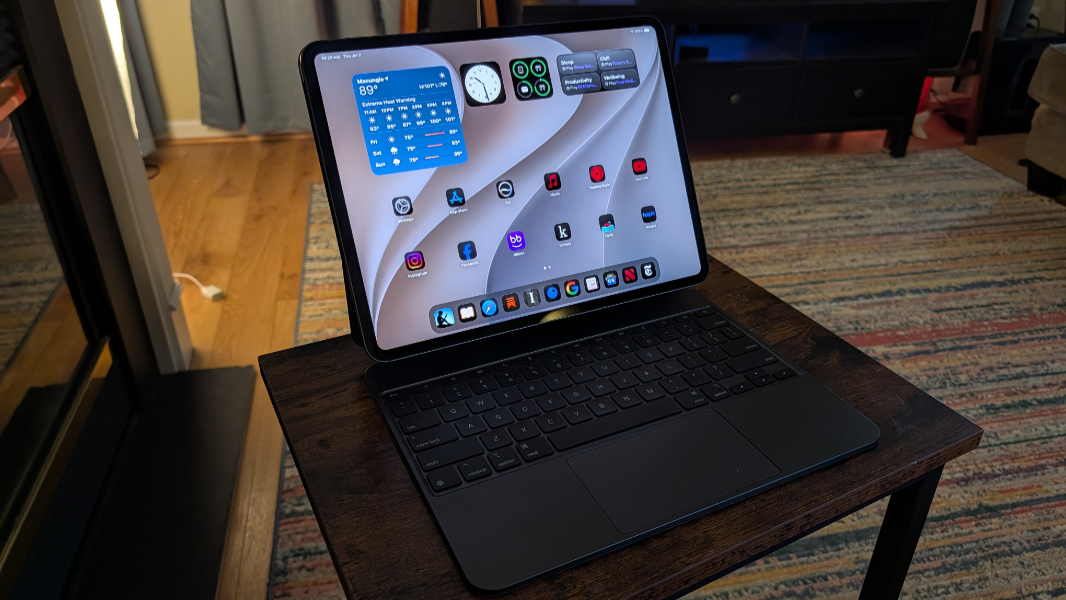
Display
The iPad Pro display is nearly flawless. It’s a 13-inch tandem-OLED panel with a 4:3 aspect ratio, a 2752 x 2064 resolution at 264 PPI, and a variable refresh rate that dynamically adjusts between 10 and 120 Hz. This is what Apple calls an Ultra Retina XDR display with ProMotion. Because Apple needs its own names for things.
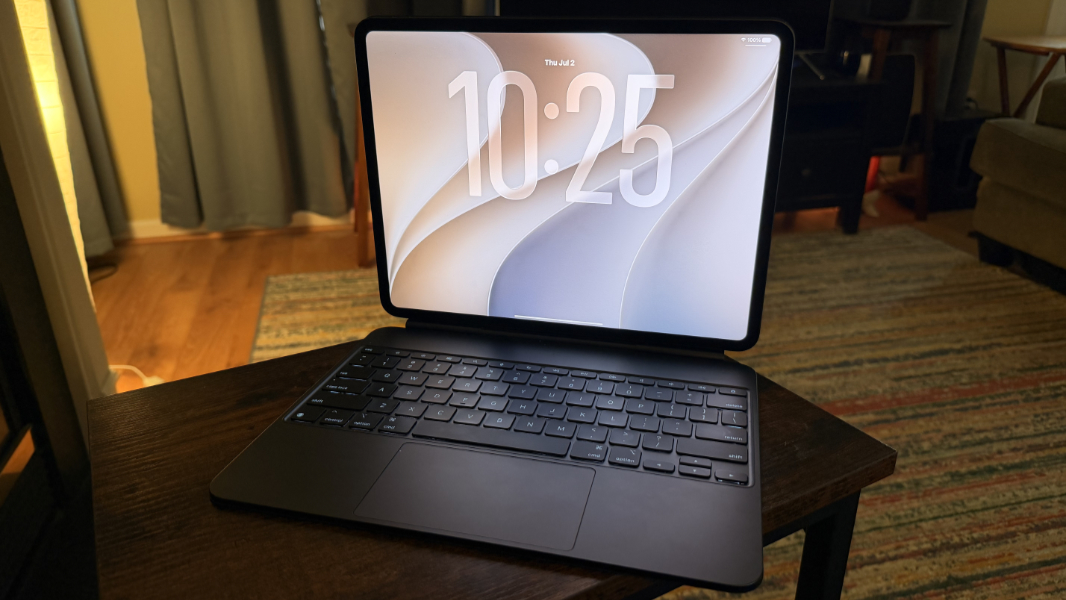
The display does everything right. It supports the P3 color gamut and Apple’s terrific True Tone. It’s coated in fingerprint resistant and anti-reflective coatings, though neither is perfect. And it gets crazy bright, with 1000 nits of brightness for SDR and HDR content, plus a peak brightness of 1600 nits for HDR. It can also get quite dim, all the way down to 1 nit, so it’s as good as a large traditional display can be in those darkened environments.
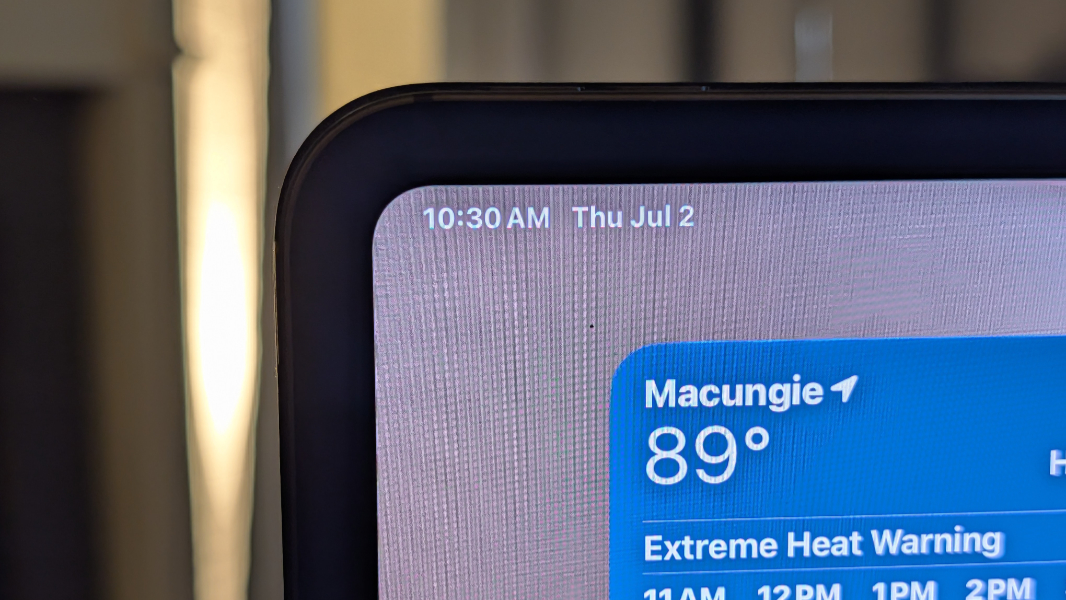
As with other iPads, the display matches the corner curves of the device itself, and it’s a nice look. The bezels are not large, per se, but I’m surprised Apple hasn’t gone smaller here. It’s not clear if there would be a usability issue or if this design is tied to all the electronic guts and battery inside.
Internal components
The iPad Pro M5 sits at the apex of iPad performance with a 9- or 10-core CPU depending on configuration, a 10-core GPU, and a 16-core Neural Engine (NPU) that supports neural acceleration, hardware-accelerated ray tracing, and hardware accelerated video playback of all the modern formats.
There’s also 12 or 16 GB of unified RAM depending on the configuration, with 153 GB/s of memory bandwidth, which is on par with the Snapdragon X2 Plus and Elite, but below the 228 GB/s memory bandwidth delivered by the X2 Elite Extreme. And you can configure an iPad Pro with 256 GB, 512 GB, 1 TB, or 2 TB of storage.
The configuration I purchased includes the 10-core CPU because I wanted to get 1 TB of storage, so it has 16 GB of RAM, similar to what we see with premium Windows laptops and MacBooks. I can’t say that I’ve ever noticed a benefit from that headroom, whether in my typical usage, which is mostly reading, or when I turn to the iPad to write–in iA Writer, which is excellent on the iPad–edit photos, or engage in other traditional productivity tasks.
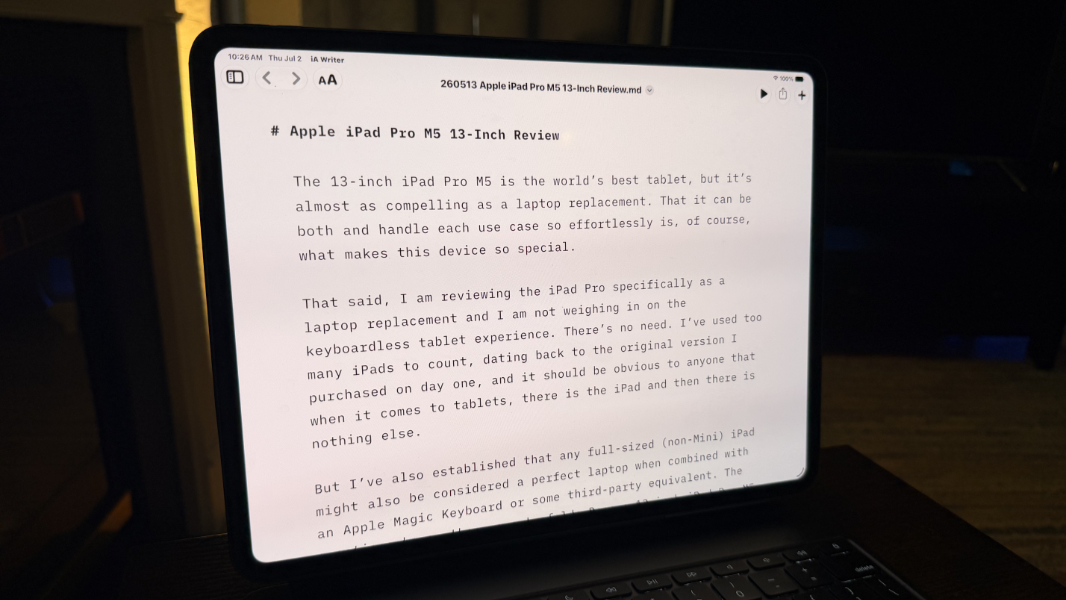
This combination of processing power and fast RAM and storage is most beneficial for more advanced creator tasks, like video editing, which I’ve only experimented with so far, and perhaps for AAA games, though that selection is light. But the iPad Pro would be an incredible developer device if Apple would just take the next step and open up the platform further. This could include delivering a desktop version of Safari, which would give us Visual Studio Code and other editors, and bringing Xcode to this device.
But I didn’t go into this looking for more RAM. The extra GPU core and RAM are just a byproduct of the 1 TB configuration I ordered. And that was deliberate: Over the years, I’ve vacillated between whatever base storage amount and a step upgrade with each iPad (as I have with each iPhone). This was mostly about apps and having a bit of storage for downloaded content, like Netflix movies and TV shows, for those offline moments. But I had never really used an iPad as that singular device that I work from, syncing documents and other files from whatever cloud services as I do on PCs.
This is still a bit of a struggle thanks to almost 15 years of habit building. But something interesting happens when you don’t have to worry about storage. This device can contain all my work-related documents and other files, whatever number of music playlists and other music, audiobooks, and videos, all ready for offline use. And in my case, as I write this, I’m still barely using a third of the storage.
I’ve never noticed any heat, but then I never really touch the thing. The iPad Pro of course runs silently, so there must be some CPU throttling under load, or there would be if hitting that limit were only possible. Perhaps video editing would get you there, or even high-end gaming. But not in my experience. The only limits I’d expect here would be tied more to software limitations than the hardware, which feels endlessly capable.
Connectivity
Connectivity couldn’t be better, with Wi-Fi 7 and Bluetooth 6 and optional 5G/gigabit LTE cellular if you want that. I stuck with a Wi-Fi-only configuration and it’s been seamless all around. Plus, you benefit from the Apple ecosystem by connecting a single device to some new Wi-Fi and then having the configuration appear magically on your other devices. This was nice during our stay at a vacation rental in Nashville.
Ports and expansion
The iPad Pro M5 provides a single Thunderbolt 4/USB4 Type-C port for charging and expansion. As with other iPads, it’s on the middle bottom of the device when it’s held in a portrait orientation. So as with other iPads, this port is awkwardly located on the middle right of the display when it’s used in landscape orientation with a Magic Keyboard, as I use it.
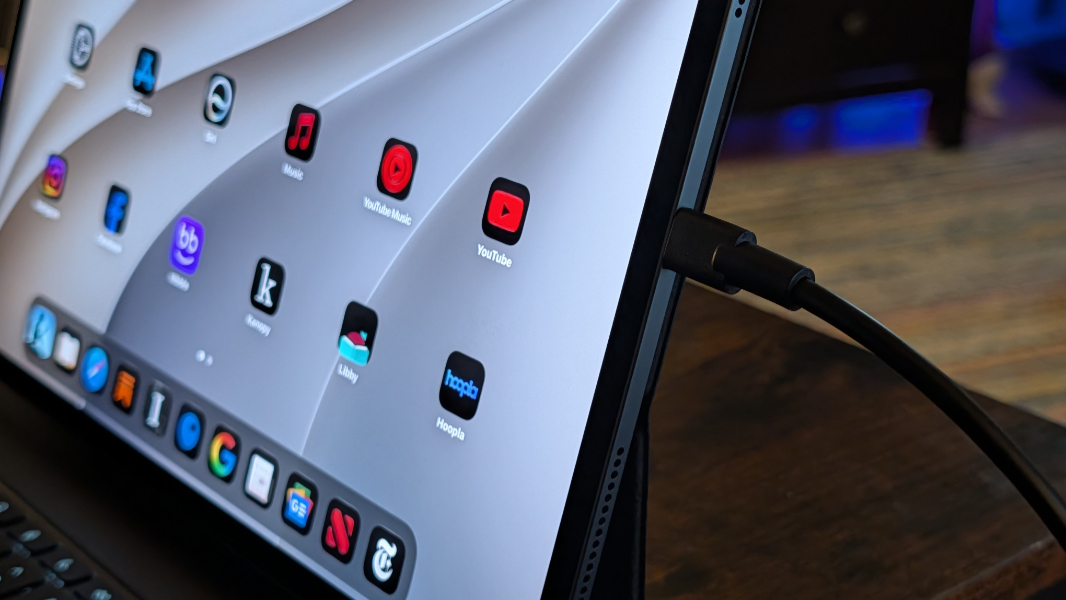
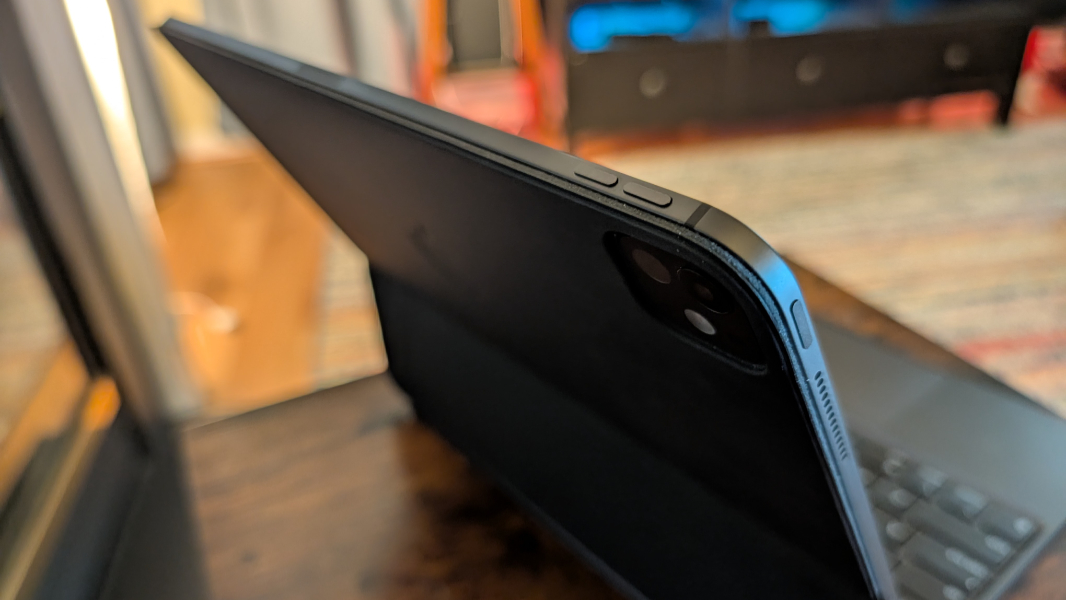
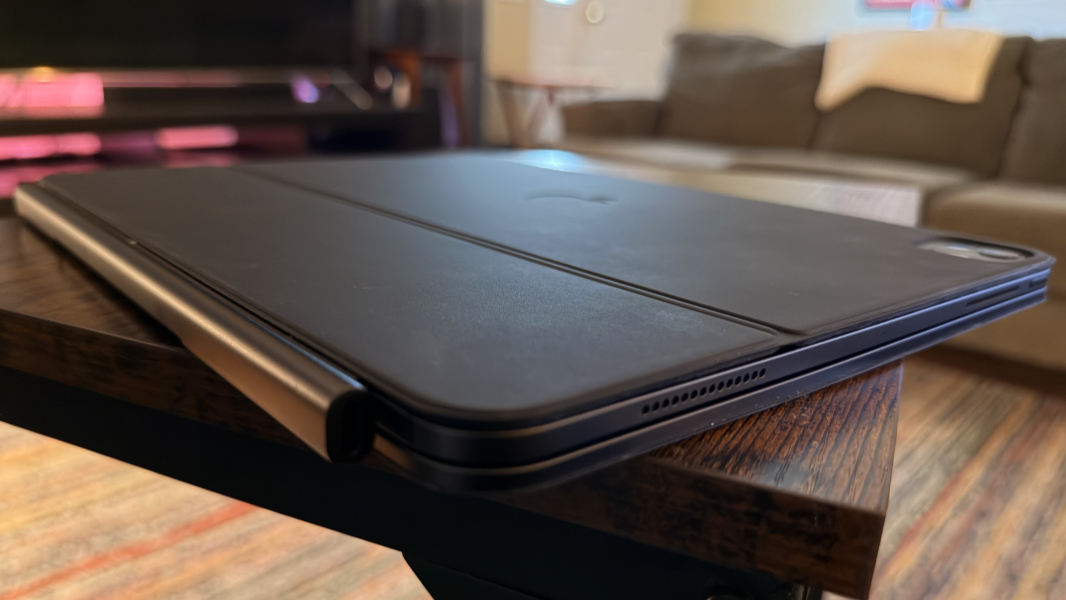
Technically, there’s a second connector, the Smart Connector on the rear of the iPad that’s used for latency-free connectivity with the Magic Keyboard and similar third-party peripherals. The Magic Keyboard does provide its own USB-C port, also awkwardly located, in this case on the left side of the barrel-shaped hinge at its rear, but it’s only good for power passthrough to the iPad and can’t be used for connecting to docks, hubs, or whatever other peripherals.
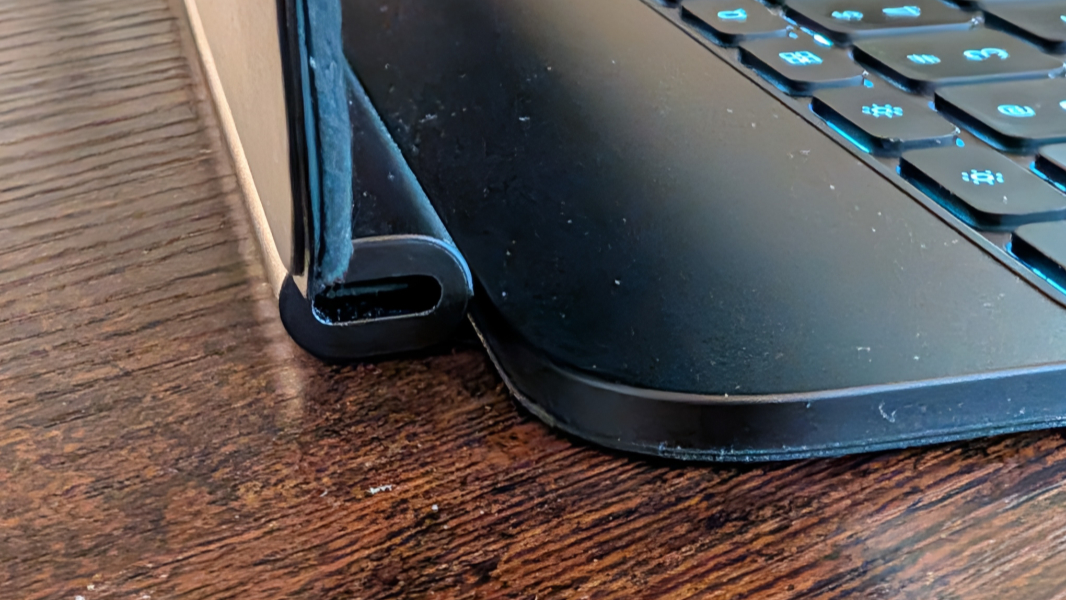
This is a bit off when you think about it. With a PC or Mac, you can dock the device at a desk and hang whatever peripherals off the dock. With the iPad, you can do the same, but only through the USB-C port on the device. If you want to use the Magic Keyboard only at the desk, you can’t use it as the passthrough to the dock. It’s not a big deal, but you will always have some USB cable hanging off the USB-C port on the iPad if you use it with other devices.
Audio and video
The iPad Pro provides four speakers, two on the left and two on the right in landscape orientation, so you get Dolby Atmos spatial audio capabilities with compatible content and an excellent stereo experience otherwise.
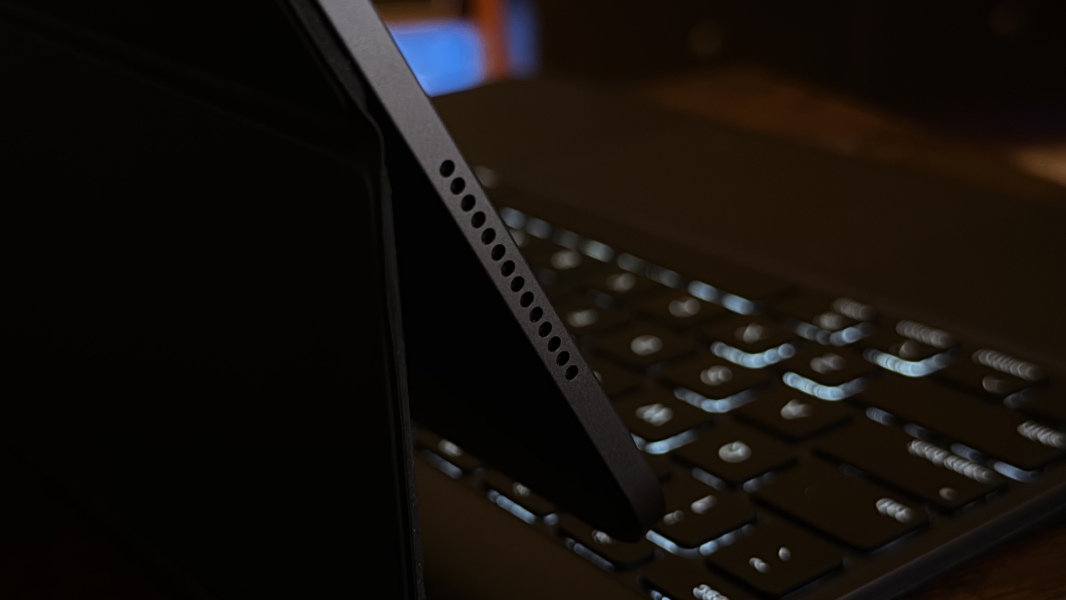
The capabilities here are impressive, with Apple Lossless, FLAC, Dolby Digital, Dolby Digital Plus, and Dolby Atmos support in addition to the audio basics. And the Dolby Vision-capable display delivers epic HDR10/10+ colors to complete the experience when watching video. The only minor downside for video is that the iPad’s display rarely matches the aspect ratio of content, so there will be a lot of wasted screen. But that’s not unique to iPad.
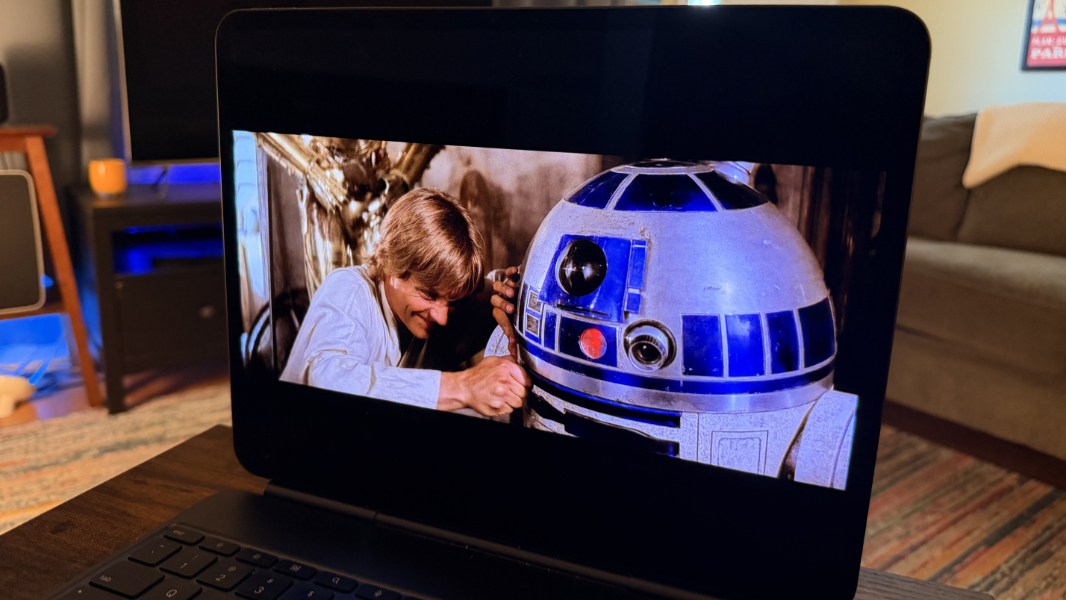
What is unique to this device is the lack of something you get from laptops with bottom-firing speakers, which benefit from sound bouncing off the surface they’re sitting on. That’s how many Dolby Atmos-compatible speaker systems work their magic, including soundbars. But it’s not possible with the iPad Pro, as the speakers are all suspended in the air and firing into the emptiness at their sides.
It’s not a huge problem. The sound quality is excellent, though only some content truly hits that positional Dolby Atmos experience. The stereo separation is obvious and the speakers provide room-filling loud without even a hint of distortion at 100 percent volume. But there’s a certain lack of deep bass that I do notice. And for the first time I recall, it caused me to see what I could do to improve the EQ. Nothing, as it turns out: The default setting sounds best.
Hybrid work
The iPad Pro is a solid hybrid work device in so many ways, and I routinely use it for online meetings via Zoom, Google Meet, and other services.
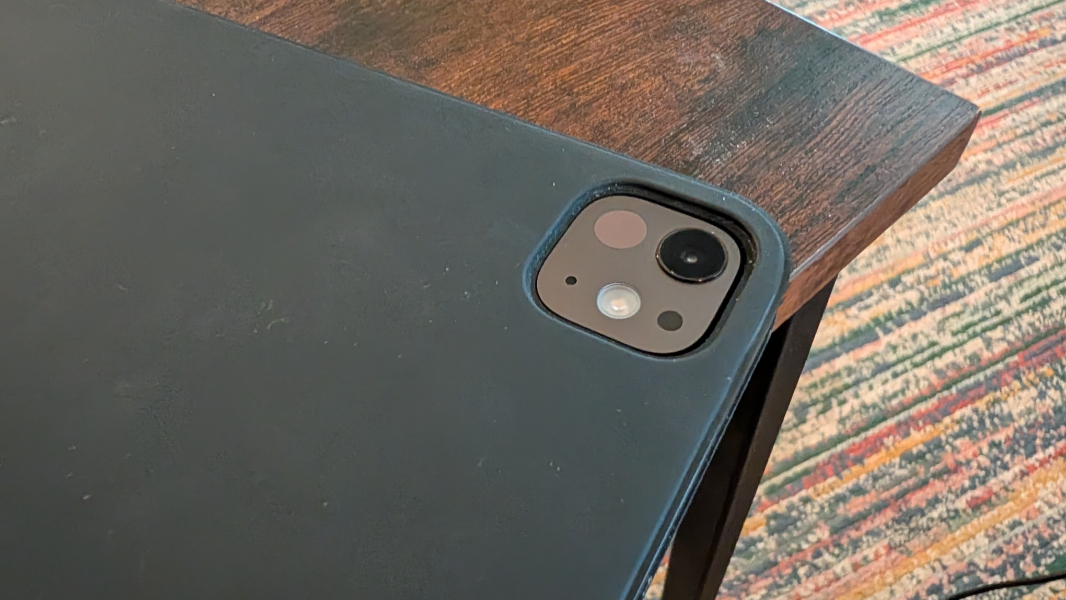
The front-facing camera is a 12 MP ultra-wide lens that outclasses any laptop webcam I’ve ever used, at least on paper, though it’s limited to Full HD (1080p) for video, bringing it back down to earth quality-wise. It’s centered for landscape use and supports Center Stage (Apple’s term for keeping the subject centered on-screen if you move around a bit), portrait mode, and other advanced features I’ll never need. (Ditto for the rear camera, which has just a single lens despite looking like a multi-lens iPhone setup.)
Apple describes the microphones as a studio-quality four-mic array, and it works well enough, though I can’t claim the quality is any better than that on a typical premium laptop. I tested this with Voice Memos, which let me compare the recordings with past recordings on previous Apple devices. And while each is a bit different, I don’t see any major improvements here. It works fine.
Of course, what sets the iPad apart is its versatility. It’s a hybrid device that switches between consumption activities and work, and the full-screen defaults for most apps provide a sense of focus that I like.
Keyboard and touchpad
The 11-inch iPad Air I used previously was just small enough that the keyboard on its Magic Keyboard wasn’t quite full-sized, which was problematic for my large hands. And that keyboard lacked backlighting of any kind, a crazy omission in such a premium product, and one I missed regularly.
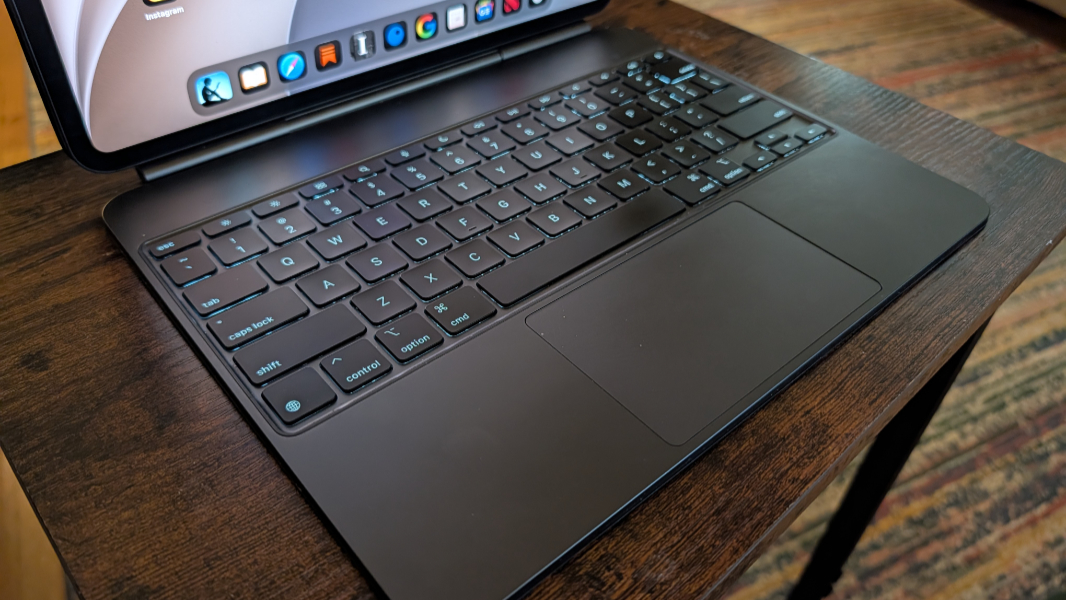
The 13-inch iPad Pro solves both problems. The Magic Keyboard is full-sized and has excellent automatic backlighting, and both of these improvements transform the experience from something I’d only use occasionally into something I could, and often do, use every day.
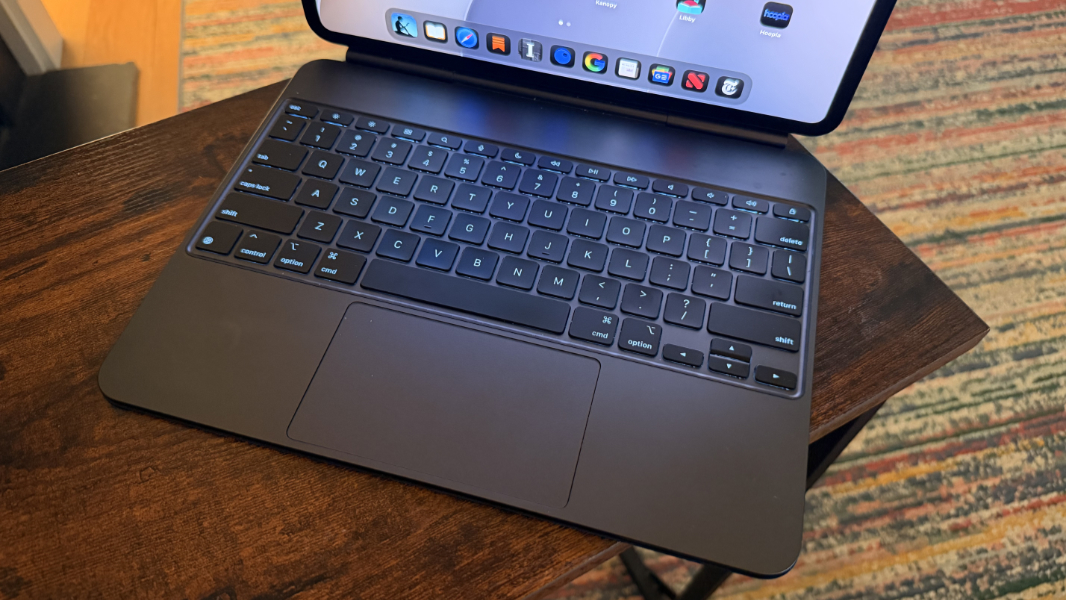
The typing experience is quite good, though the keys on the Magic Keyboard sit flat on–and closer to–whatever surface it’s on, and you can feel the resistance with each key press. I am a heavy typist, so this should bother me. But it does not. I have worked for hours at a time on this keyboard, and it’s always worked well.
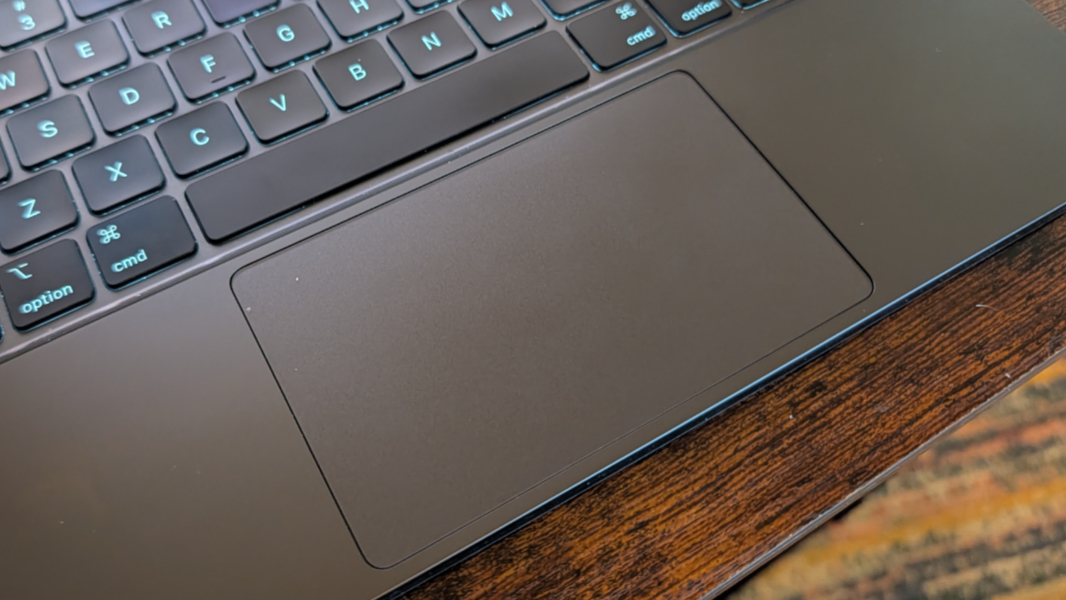
The touchpad on the Magic Keyboard is delightfully small for this era, a necessity of the iPad size and form factor. But it’s just about flawless. Unlike most PC touchpads, it’s accurate and responsive, even for multi-finger gestures. Which is perhaps more important with an iPad than with a Mac or PC, especially if you want to use the device like a laptop.
Thanks to the Magic Keyboard, I rarely touch the screen, though I will sometimes use that while reading, as the scrolling motion feels pretty natural. But this works well with the touchpad in all apps, and with the keyboard in most apps too.
Security
The iPad Pro is unique among iPads in offering Face ID, one of my favorite iPhone features. Other iPads now rely on an awkward power button-based Touch ID experience or a relatively more tedious PIN. But the iPad Pro works like a Snapdragon X-based laptop: I tap a key on the keyboard and the iPad springs to life and signs me in with Face ID immediately. It has never not worked, not even in the dark, though iPadOS does have that annoying occasional PIN requirement. Which is easier to enter on a real keyboard, of course.
Sustainability
Efficiency and portability
From a usability perspective, the iPad Pro’s battery life is the only thing holding it back when using it with a Magic Keyboard. If I use this device like I did with previous iPads, reading in the morning and at night for the most part, it can go two or maybe three days on a charge. But if I use it like a laptop with the Magic Keyboard for writing and my other normal work, it has to be charged every day. This is far worse battery life than I see with the MacBook Air or any Snapdragon X/X2-based laptop.
Part of the issue is the form factor: Thanks to its incredibly thin profile, the 13-inch iPad Pro has a small 39 watt-hour battery, which is about two-thirds the size of the battery in a typical premium thin-and-light laptop (like the ThinkPad X1 Carbon). Perhaps this should have been obvious going in, but I am so used to Apple devices exceeding expectations that I just didn’t see it coming. One adapts.
In the good news department, the iPad Pro charges very quickly. Apple ships a white 20-watt USB-C charger in the box–and, go figure, a black USB-C cable color-matched to the iPad–in the box, and I don’t believe I’ve ever used them. Connected to a normal 65-watt laptop power adapter, I can get a 50 percent charge in 20 to 30 minutes, and I don’t think it’s ever needed an hour to fully charge.
Instant-on performance and reliability is literal perfection, and because the iPad Pro has Face ID, I can sit down in front of the device, tap the spacebar on the keyboard and get right to work. It has never once not worked immediately.
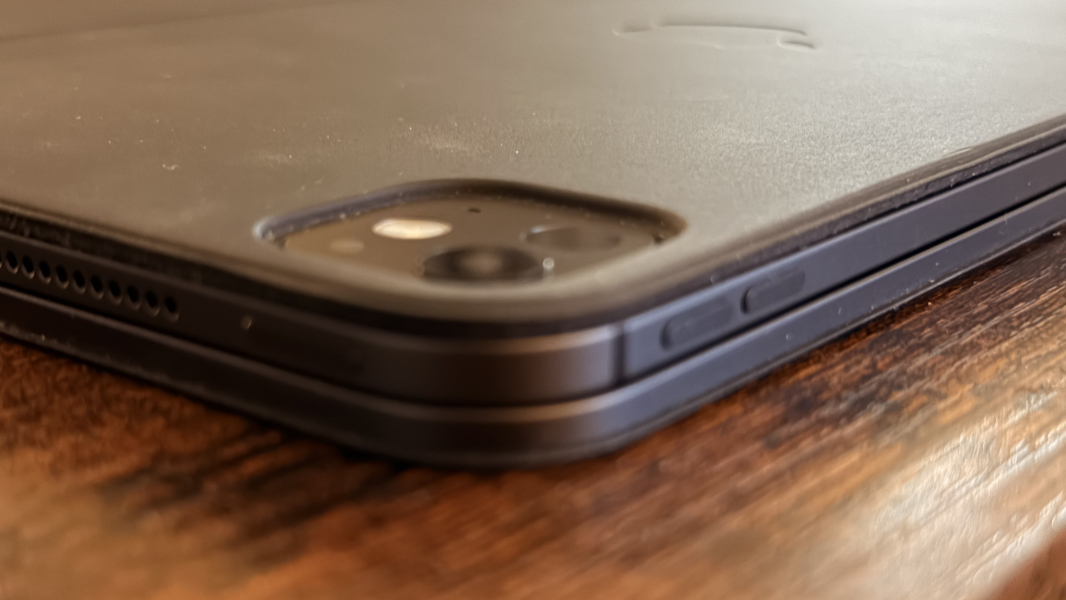
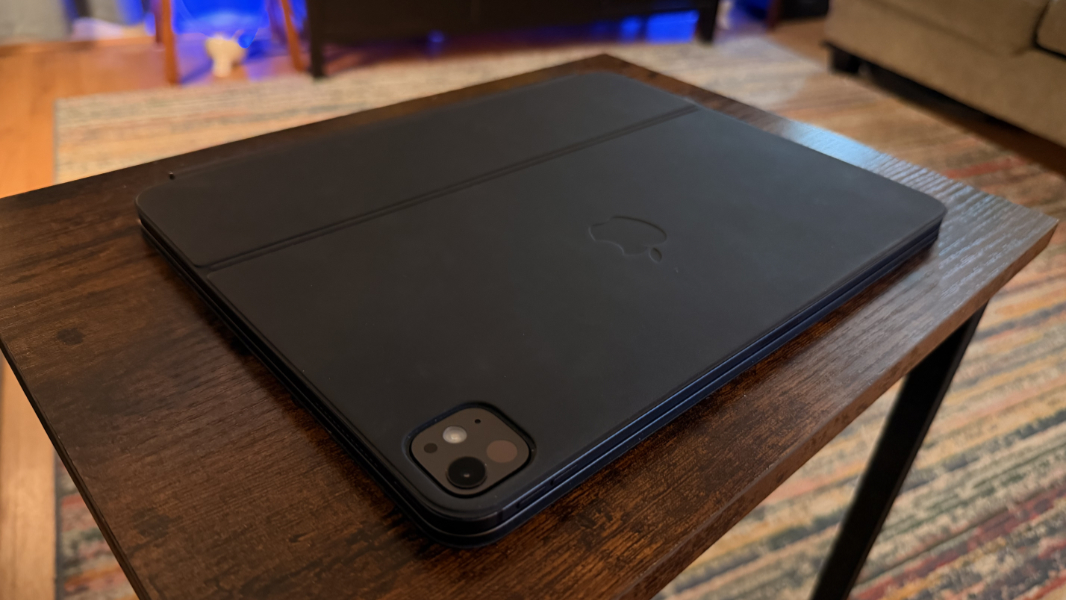
The iPad Pro is large for a tablet at 11.09 x 8.48 x 0.20 inches, but incredibly thin, and it weighs just 1.28 pounds. But that’s just the tablet: The Magic Keyboard adds 1.47 pounds and roughly doubles the thickness, so it’s still well under 3 pounds. That’s great, but the folio-like form factor when closed also carries well. Bringing just this one device on any trip would be rather incredible.
Software
The iPad Pro M5 came with iPadOS 26, of course, and I’ve been using the iPadOS 27 betas since WWDC 2026 in early June, though that doesn’t offer any notable improvements to the laptop productivity experience. This touch-first platform takes a bit of getting used to if you’re coming from a PC or Mac. But the Dock provides a reasonable Taskbar replacement, and I’ve come to rely on Spotlight Search (Cmd + Space) to find and launch apps, as I do with Start Search in Windows.
When you first set up the iPad, you have to choose between three usage modes–Full screen apps, Windowed apps, and Stage Manager–though you can switch at any time later. With my previous iPad, I eventually reverted to Full screen apps, but I’ve left it on Windows apps for this device. Which doesn’t amount to much, frankly: Though the 13-inch display is big for a tablet, it’s small for a laptop, and there are few times when using two apps side-by-side even makes sense. I find myself using most apps in full-screen most of the time.
Apple bundles an astonishing number of apps with the iPad, as they do with the iPhone and Mac, and while far too many of them are superfluous, few could be described as crapware. But I still had to spend a lot of time removing most of them from the home screens and, in some cases, uninstalling them. But the customization capabilities are nice, and Apple’s widgets work better than those on Android, so I’ve been experimenting with different home screen layouts. I’m not sure why: Spotlight Search makes more sense when all the apps are full-screen.
Switching from a traditional laptop to an iPad with a Magic Keyboard doesn’t just require you to adapt, it forces you to put up with small inconsistencies tied to developers not optimizing their apps for touchpads and mouse pointers. Apps assume touch, which makes sense, and keyboard/mouse support varies. For example, the Gmail app on iPadOS doesn’t let you send a message by typing Cmd + Enter until you think to look in settings to discover a keyboard shortcuts option that’s disabled by default. But after enabling that, it still doesn’t fully support the keyboard; I can’t tap Tab to switch from the subject line to the message body in an email message, for example.
These issues are small but they happen throughout the day in different ways in different apps. All you can do is get used to it and adapt. And wait for developers to continue updating apps to make these things less frequent. It’s not a deal-breaker, and even the Mac, a full-featured desktop platform, has similar issues compared to Windows.
Pricing and configurations
Unfortunately, the iPad Pro recently got more expensive along with most of Apple’s other products, thanks to the ongoing component crisis. When I was shopping for a 13-inch iPad Pro M5 in late May, prices started at $1299 for the base 256 GB configuration, and the 1 TB model I purchased was $1899. Today, a base 13-inch iPad Pro M5 is $1499, and the 1 TB configuration is $2099. So it’s $200 more across the board. Tt least the price of the Magic Keyboard hasn’t changed: It’s still $349.
$1650 and up is a lot to pay for a laptop-like experience, even with the versatility of its hybrid use cases. But given the mind shift this crisis requires, it’s important to put this in perspective: Premium PC and Mac laptops are similarly more expensive than before, too. A 13-inch MacBook Air with 16 GB of RAM and the base 512 GB of storage is $1299, but I feel like the 24 GB/1 TB configuration is perhaps more equivalent, and that costs $1799. The ASUS Zenbook A16 I just reviewed costs $2199, though it was $1699 at Best Buy on sale. None of these are perfect comparisons, but you get the idea.
In any event, you can get an 11-inch iPad Pro M5 for $1199 and up, and the 11- and 13-inch versions both support 256 GB, 512 GB, 1 TB, and 2 TB configurations, standard and nano-texture glass options (on the 1 and 2 TB configurations only), and Wi-Fi only and Wi-Fi/cellular choices. You could spend as much as $2899 on a 13-inch iPad Pro, and that’s before an Apple Pencil ($79) or a Magic Keyboard ($349). So, yeah. Over $3300. That’s the range.
Recommendations and conclusions
The iPad Pro M5 with Magic Keyboard is perhaps the ultimate portable productivity solution. You get all the advantages of an iPad, the undisputed apex of tablets, and a full-featured productivity experience with excellent apps, cloud storage integration with local sync, and all the benefits of the Apple ecosystem in an incredibly thin, light, and versatile form factor.
Hybrid products like this inevitably fall short in some ways, and for the iPad Pro, the shortcomings are mostly tied to its touch-centric design and individual app needs and familiarity. Those who can’t even stomach a Windows 11 on Arm laptop because it doesn’t support some random printer from the 1990s or an esoteric app that few others need would find this quite unsatisfying. But for mainstream, normal users, this is a compelling way forward, one that leaves the complexity of desktop platforms behind and embraces a simpler, saner way to get real work done.
Objectively speaking, there are only two notable issues with the iPad Pro. It’s insanely expensive, putting it out of reach for many of those mainstream, normal users who would otherwise benefit from this device. And the battery life is less than I had hoped for; it’s probably similar to that of a MacBook Neo, but it falls short of what I see with a MacBook Air and any Snapdragon X/X2 laptop. You can always choose a less expensive iPad, of course, or just spread out the payments over time, since you will use this device for several years. And most people work near a power receptacle, and the iPad Pro does charge quickly.
Sometimes you get what you pay for. But the iPad Pro exceeds that value. It’s expensive, yes, horribly expensive. But this is the future I’ve wanted for a long time, a simple, powerful device that just works. I can’t recommend it highly enough.
At-a-glance
Pros
✔️ Incredible performance
✔️ Gorgeous, responsive display
✔️ Versatile form factor, incredible hybrid capabilities
✔️ Fully capable laptop-like productivity experiences
✔️ Excellent connectivity
✔️ Seamless Apple ecosystem integration
✔️ Face ID and the full-sized and backlit keyboard put it over the top
Cons
❌ Silly expensive
❌ Battery life is middling