Lenovo ThinkPad X9 14 Aura Edition Review
- Paul Thurrott
- Mar 25, 2025
-
10
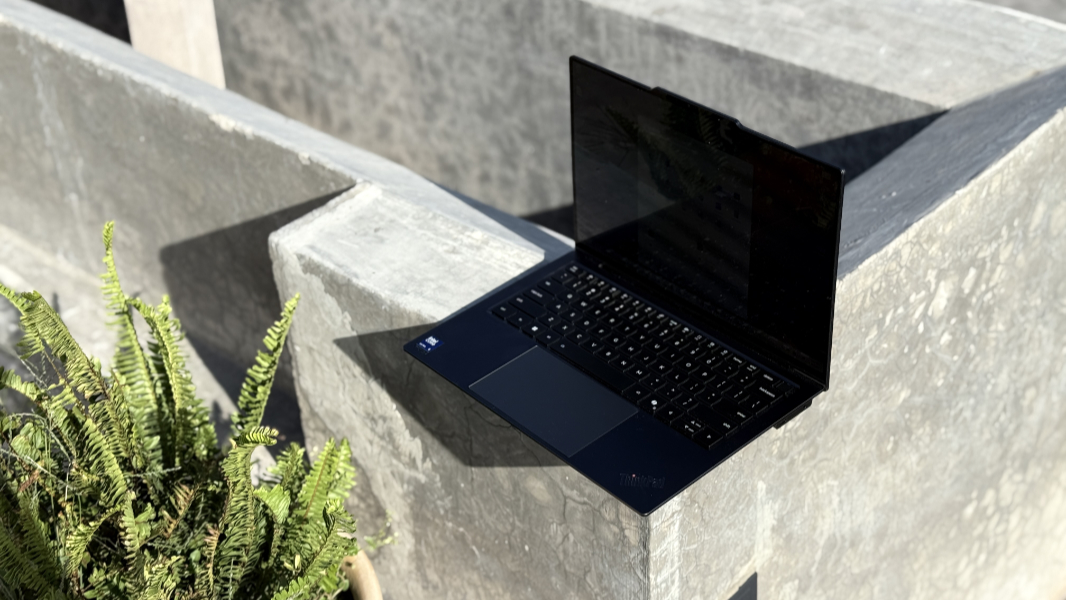
The ThinkPad X9 14 Aura Edition is in many ways the anti-ThinkPad, but this is by design and well-intentioned: Lenovo has been playing to the choir for a long time, and the X9’s radical departure from ThinkPad design norms may attract new customers. The trick is doing so without alienating fans.
This isn’t the first time in recent years that Lenovo’s tried this. You may recall the ThinkPad Z-series from a few years back, which was more of a half-step away from tradition that featured the TrackPad nubbin but not the dedicated buttons, plus AMD processors with much better performance, but also much higher power requirements. But with the X9 series–there are 14 and 15.3-inch models–Lenovo is trying a different tack.
Design
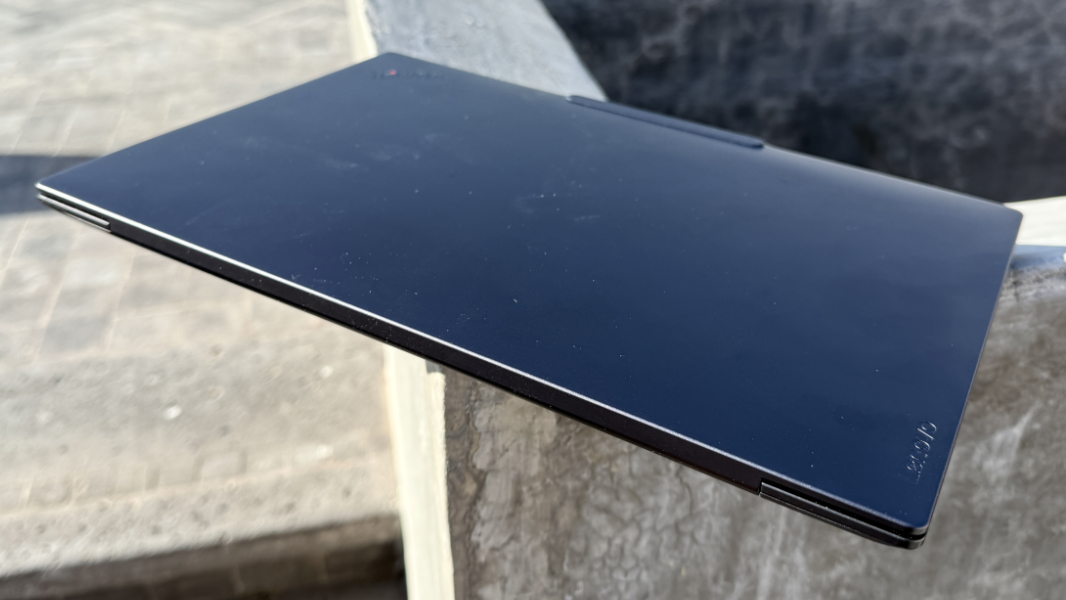
The ThinkPad X9 is Lenovo’s strongest case yet for rethinking what makes a ThinkPad, well, a ThinkPad. It tosses aside iconic but out-of-date ThinkPad design elements like the TrackPoint dual pointing system. It steps past the scalloped keys that Lenovo uses in other ThinkPads, replacing them with an island-style keyboard with soft, flat, square keys. And it dispenses with the matte black hybrid chassis used by countless ThinkPads before it: The ThinkPad X9 is made from recycled aluminum, and it is decidedly gray.
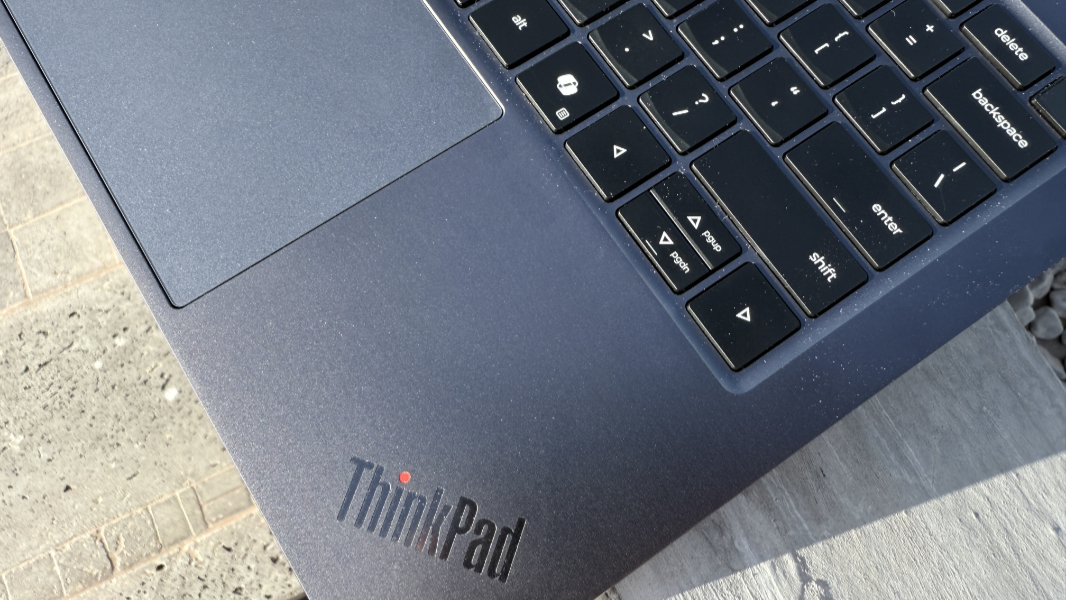
Aluminum … like a Yoga, purists may complain. That’s fair to some degree, but it’s more likely that the MacBook Air was the bigger inspiration here. Plus, certain ThinkPad traits are so central to the experience that they’ve quietly become limiting factors as well. A rethinking–to some degree–feels healthy to me.
Granted, the X9 still screams ThinkPad. It has angled ThinkPad logos on the wrist rest and outer display lid, like other ThinkPads. And the latter even features a circular red light as the dot in the “i” in the brand. Which, come to think of it, is annoying and needs to go, too: I can’t tell you how many times I’ve gotten out of bed in a dark room to flip over a ThinkPad so I could hide that distractingly bright red light.
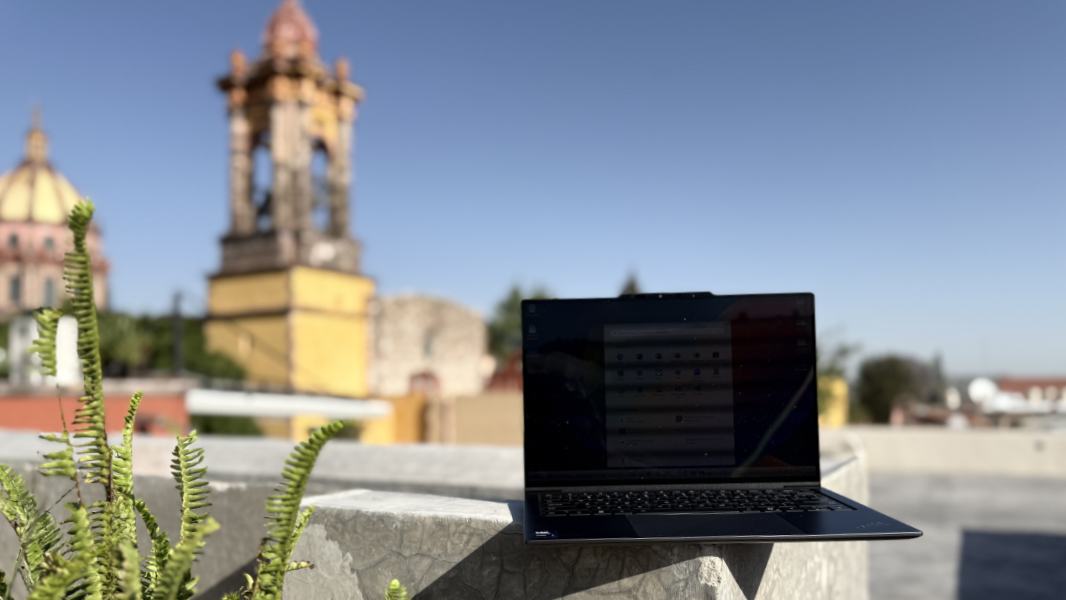
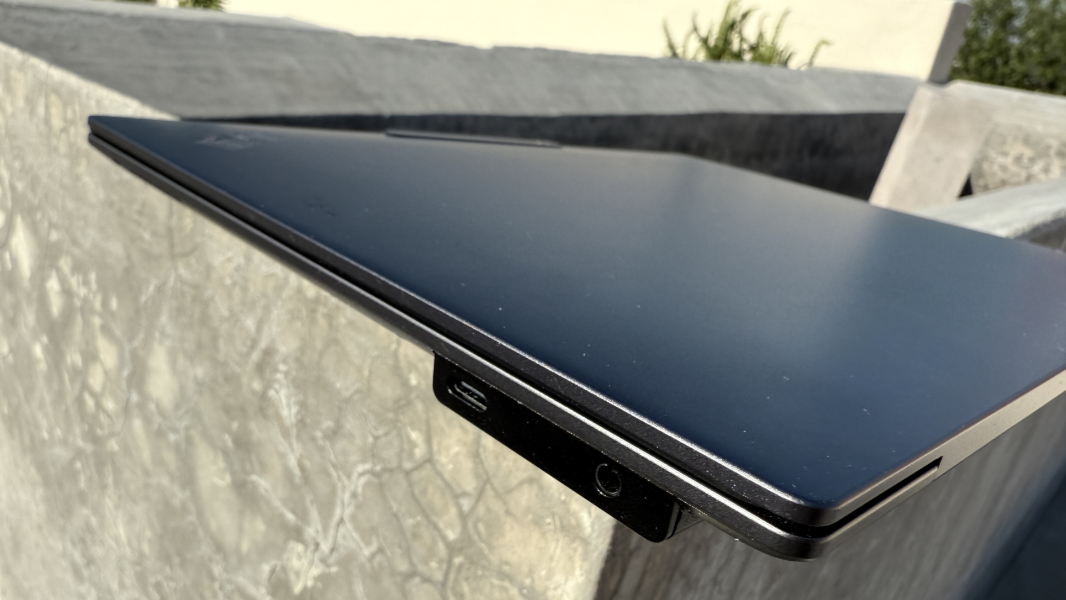
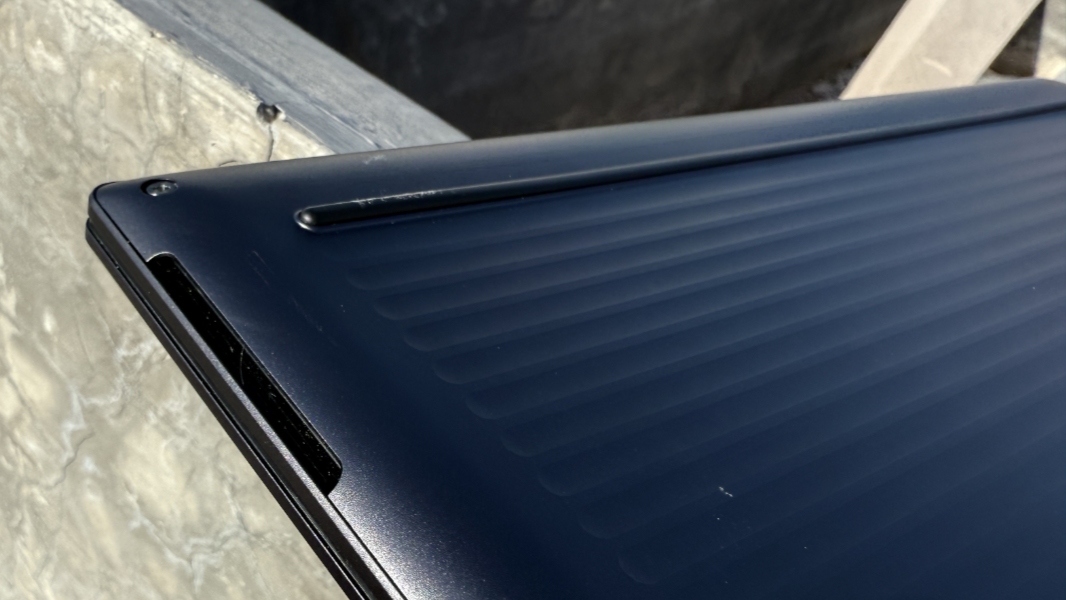
With its light weight, tiny display bezels, large haptic touchpad, and premium build quality, the X9 looks and feels modern. But there is one oddity to this design: To achieve its svelte frame, Lenovo built a squared-off “engine hub” bar at the laptop’s bottom-rear.
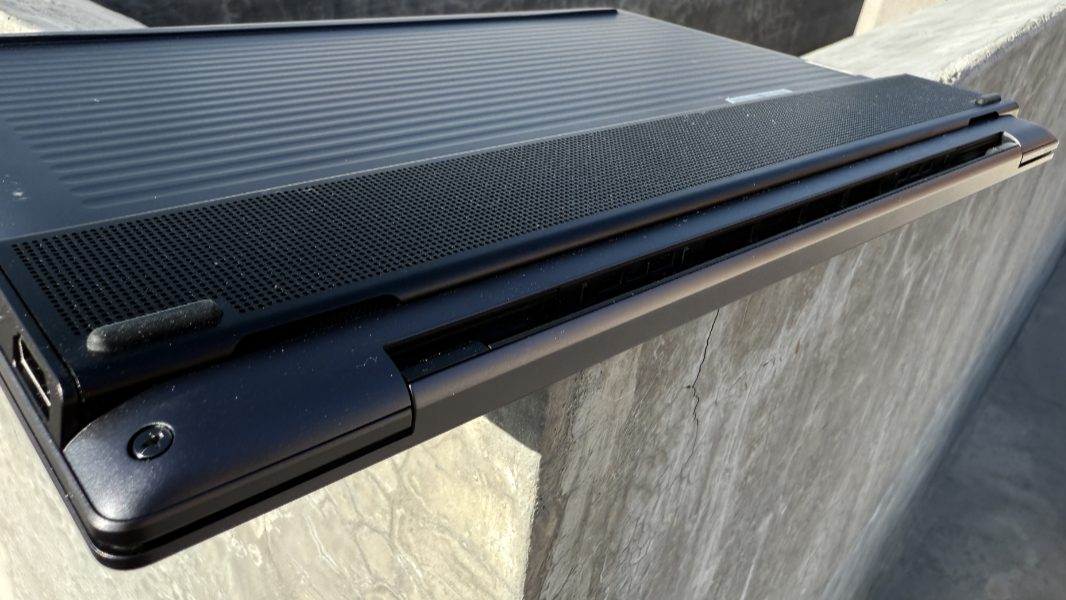
This bar houses its few expansion ports on both sides, but also the laptop’s cooling system and the rear two bottom “feet.” It provides just enough thickness where it’s needed. And it slightly elevates the rear of the laptop, which we can just pretend improves ergonomics somehow too. (It certainly doesn’t harm ergonomics in any way.)
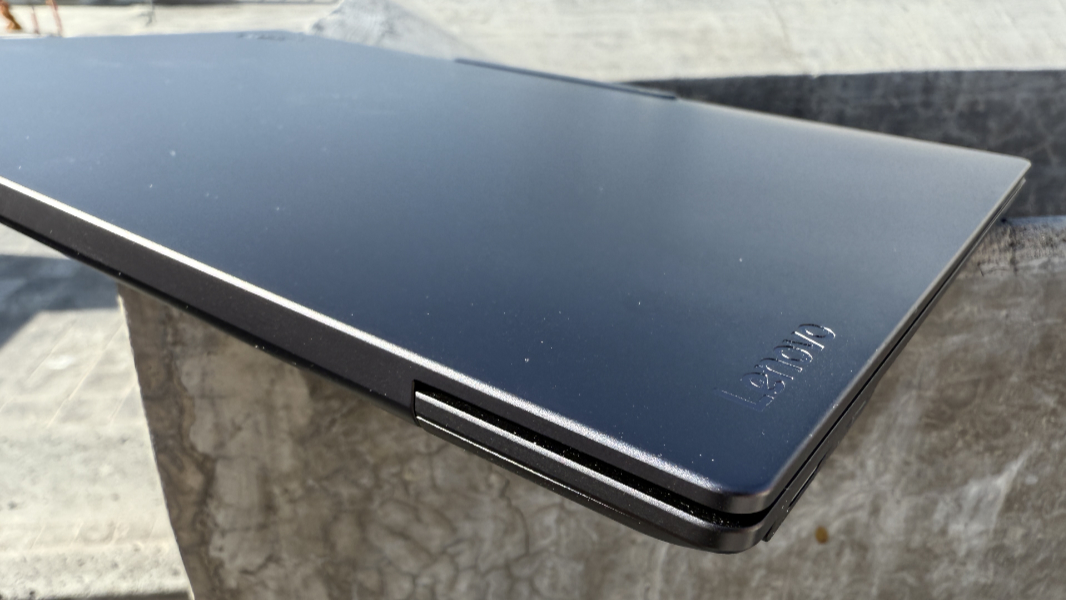
I don’t find any of this problematic. Indeed, I like the look, and I like how the X9 is somehow different from every ThinkPad I’ve ever used, but also not necessarily lesser from a functionality perspective. It’s just different. A little bit Yoga, yes, but also a little bit MacBook. It’s not wild in any way, indeed, it’s all rather conservative. And that may be enough to convince ThinkPad lifers to give it a chance. That and the PC’s adherence to the same MIL-STD 810H certifications delivered by the rest of the ThinkPad lineup: This should be a durable device.
Display
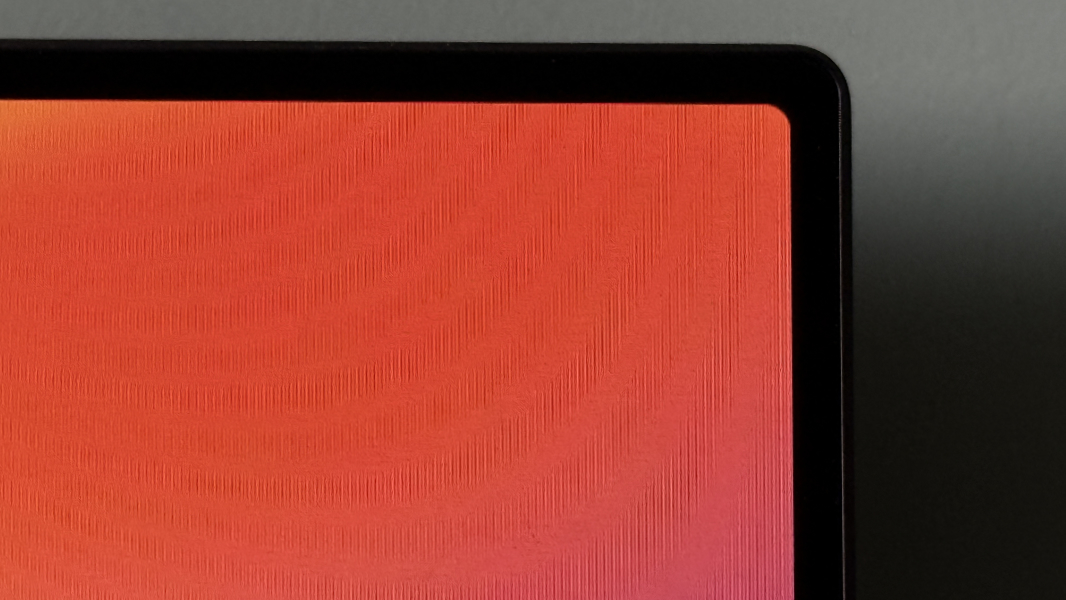
Lenovo provides ThinkPad X9 buyers with two 14-inch 16:10 display choices: A Full HD+ (1920 x 1200) non-touch OLED panel with a 60 Hz refresh rate, anti-glare coating, HDR 500 True Black and low blue light capabilities, and 100 percent DCI-P3 color gamut coverage that throws off 400 nits of light. But the review came with the upgrade, a 2.8K (2880 x 1800) OLED touch panel with a 120 Hz dynamic refresh rate, anti-reflection/anti-glare, HDR 600 True Black, and low blue light capabilities and 500 nits of brightness.
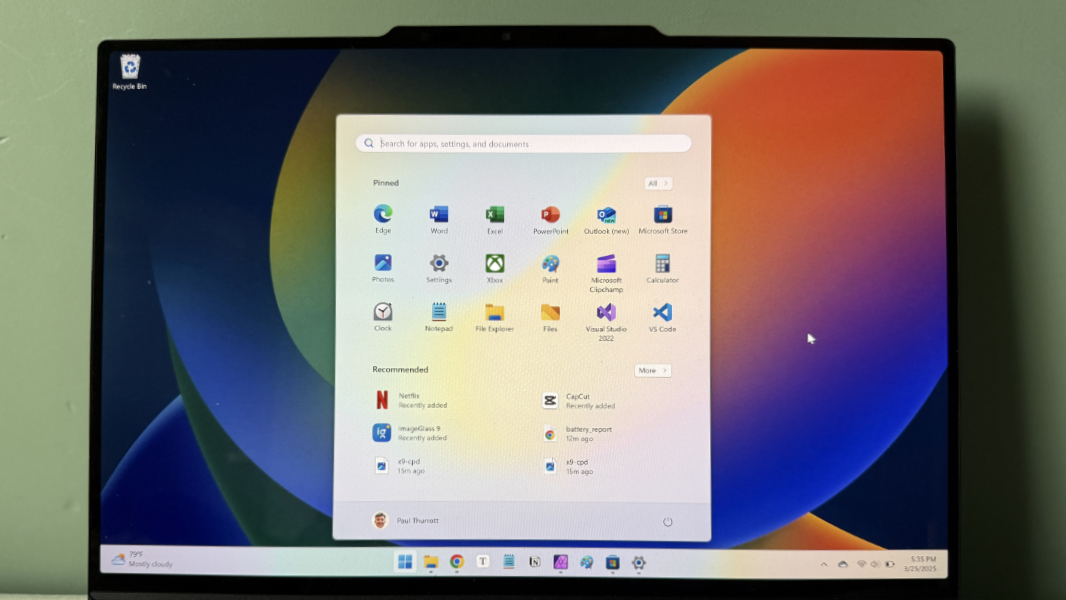
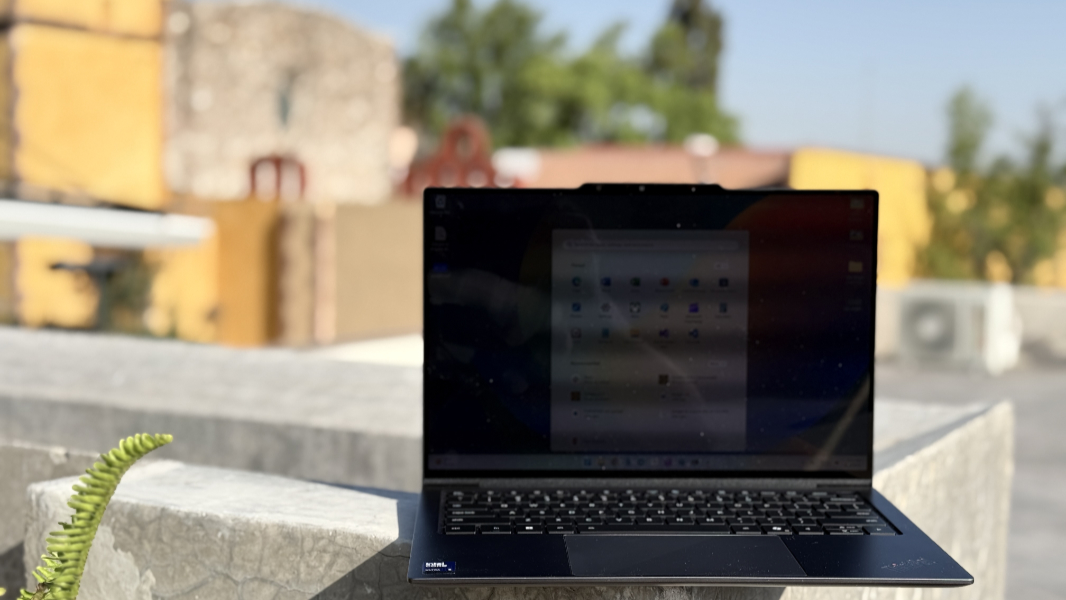
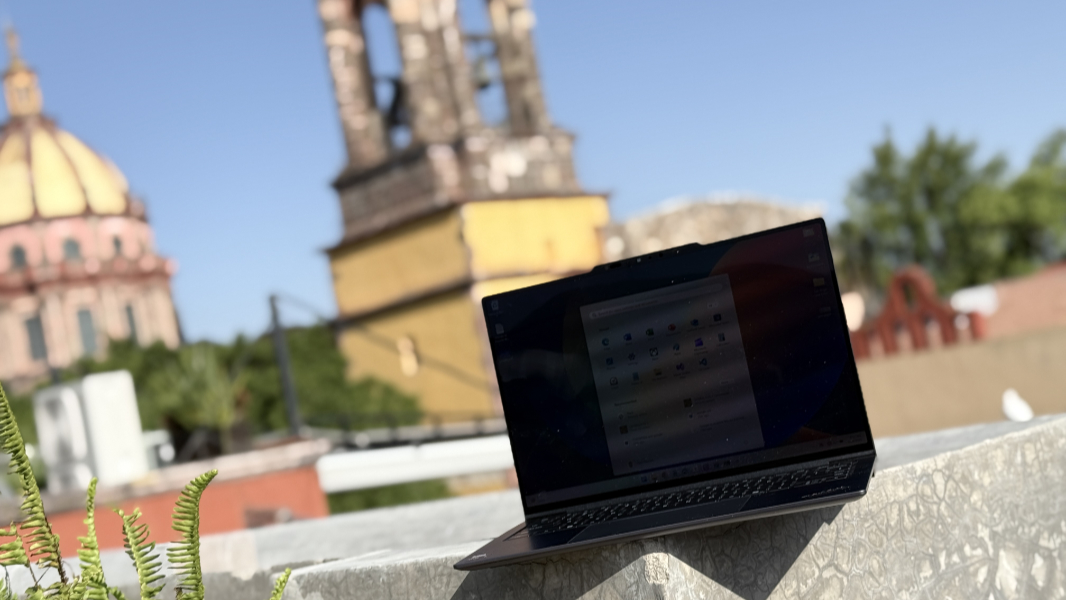
There’s no doubt that the upgraded panel impacts battery life, but I’d choose it every time regardless. It’s crisp, clear, bright, and colorful, with nice contrast. And you can use the bundled Dolby Settings app to crank up the vibrancy even more if you’d like. I did not: I spent most of my time with this laptop working, not playing games or watching videos. (Granted, it’s no match for the bright Mexico sunshine seen in most of these photos.)
The display supports Windows 11’s adaptive color capabilities, which I always experiment with but then disable because it’s a bit off, and too pink. HDR, of course, both generally and with video content. And you can configure the refresh rate as desired, though I just left it the dynamic setting, which optimizes this feature on the fly.
Lenovo also allows you to configure OLED power settings in its Vantage app, selecting dimming the Taskbar, background, and/or display after whatever time to prolong battery life somewhat. I didn’t discover this feature until late in the review process, but I found the effect annoying when I experimented with it.
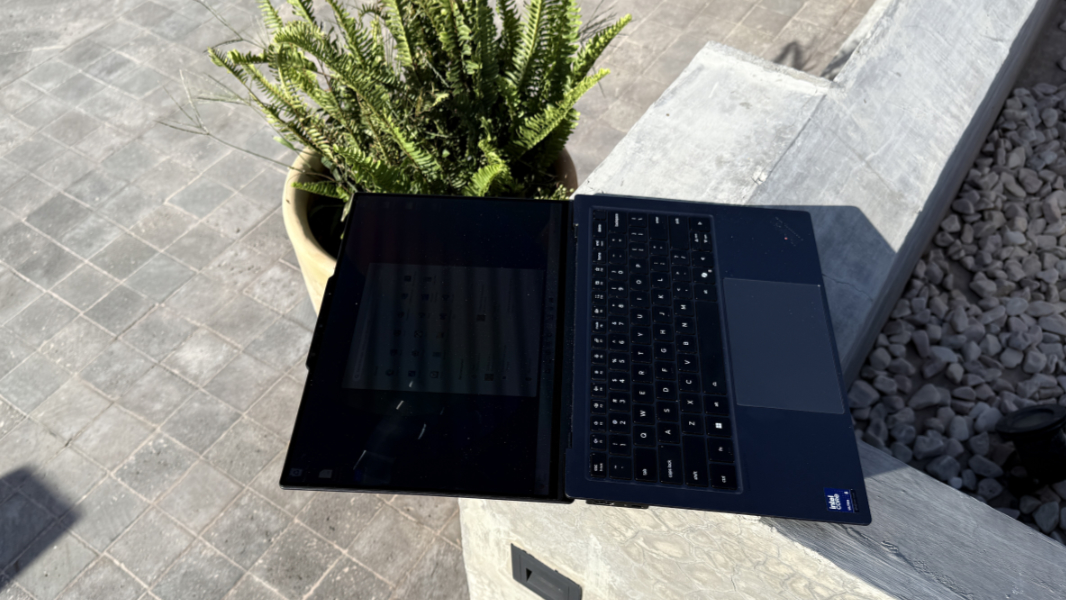
The screen bezels are quite small, and consistent on the top and sides. And the display can lay flat, which is an often overlooked nicety.
Internal components
If the ThinkPad X9 has a problem, and it does, it’s that Lenovo’s most premium ThinkPads are locked into Intel. And as a thin and light premium laptop, there’s only one current Intel product–the Core Ultra Series 2 “Lunar Lake” chipset, a one-off, orphaned design with integrated RAM whose design Intel will never duplicate–that Lenovo could choose. And not just choose, but go all-in with an explicit display of propping up the struggling chipmaker through a partnership that brings Aura Edition branding, and mostly superfluous new software features, to the X9.
I’ve had mixed results with Lunar Lake-based laptops, but until I received the X9 for review, I had seen evidence that Intel and its PC maker partners had solved the early problems with these chips through a series of firmware updates and software improvements. Yes, AMD’s Zen 5-based chips provide better performance, efficiency, and reliability–and much better battery life–but Lunar Lake was at least in the mix. Intel had, to some degree, redeemed itself.
And then this laptop arrived. When I went through my normal Windows Package Manager (winget)-based process of bulk installing all the apps I use, I put the laptop aside so I could keep working on a different PC. And over time, I noticed that the script I always use had concluded, and that the X9, though unplugged from power, had remained powered on with its display on fully. And then over even more time, I could see that this thing wasn’t sleeping, or even dimming its display. At all.
So I took a look. And what I saw brought back horrible memories of the initial batch of Lunar Lake-based laptops, which needed to be configured to use the “Best Performance” power profile when on battery to achieve acceptable levels of performance. But in this case, it was even less ideal: The Power mode was indeed set to “Best Performance” when on battery or plugged in, but the screen, sleep, and hibernate options were all inexplicably set to Off. This laptop would simply stay on until it died, unless I reconfigured it. Which I did.
Indeed, throwing caution to the wind, I configured the X9 the way I’d configure any modern x64 laptop: I changed the power mode to “Balanced” on battery power, and I set the screen and sleep timeouts to my usuals. With that done, the X9 would dim its display and then fall asleep on schedule, which is good. Its power-on reliability was less than stellar, as noted below. And its day-to-day performance was … OK. Better when plugged in, when it was running under “Best performance” mode.
My guess is that multiple factors contribute to this. And though my power management choices play a role, all those issues are tied directly to the lackluster Intel Core Ultra 5 226V processor. This is a low-end part with 4 E-cores, 4 P-cores, 7-core Arc 130V graphics, and 16 GB of integrated and non-upgradeable LPDDR5x-8533 RAM. (You can upgrade to 32 GB at purchase time, at which point the name of the processor, but none of its other attributes, changes to 228V.) There’s also a choice of 256 GB, 512 GB, 1 TB, or 2 TB of PCIe Gen4 TLC Opal SSD storage, which is always terrific; the review unit is configured with just 512 GB.
I was initially concerned that this laptop wasn’t powerful enough to run Call of Duty: Black Ops 6 acceptably. But given how much I’ve tested this over the past 6 months, I went for it. In the end, it was acceptable: I lowered the resolution to 1920 x 1200 and set the graphics quality to Basic, which honestly looks fine. And I saw a reasonable 45-52 FPS consistently, with no glitches or stutters. That says a lot about the state of modern laptop chips these days, and in a positive way. But the game’s install size–a brutal 269 GB on disk–was more problematic, given the laptop’s relatively small 512 GB SSD.

With more, um, traditional workloads, things were mostly fine, even on battery power. But I noticed the shortcomings of using the processor in Balanced mode when things got busy. For example, when loading dozens of photos for this review into Affinity Photo or running two instances of Visual Studio 2022 side-by-side. In each case, I feel like more RAM would have at least partially solved the problem.
Connectivity
Thanks to its Lunar Lake innards, the ThinkPad X9 supports modern and future-proof Wi-Fi 7 and Bluetooth 5.4 connectivity. But there is no cellular data option.
Ports and expansion
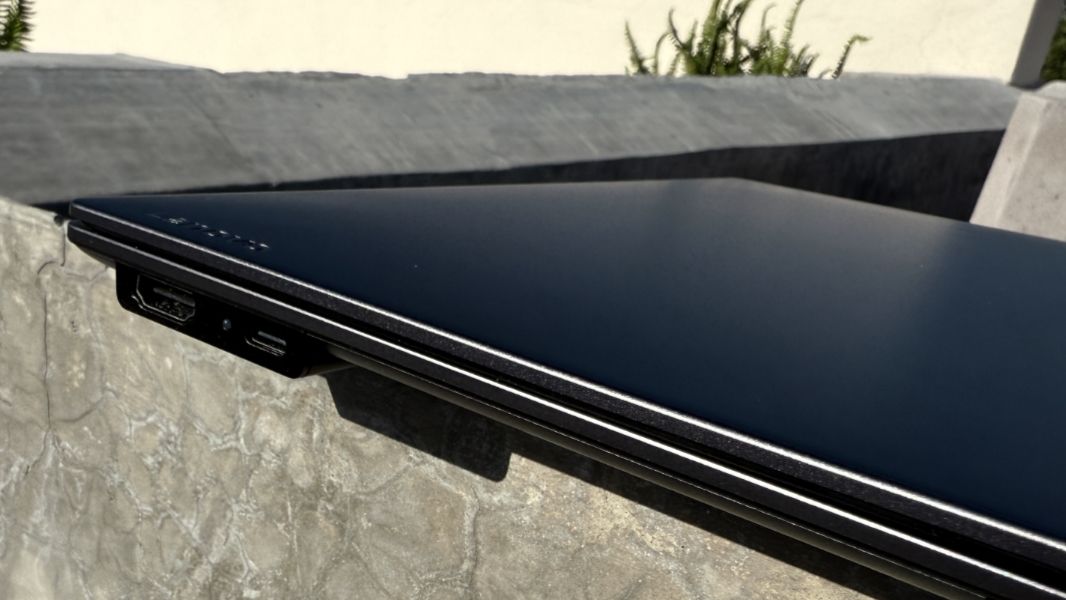
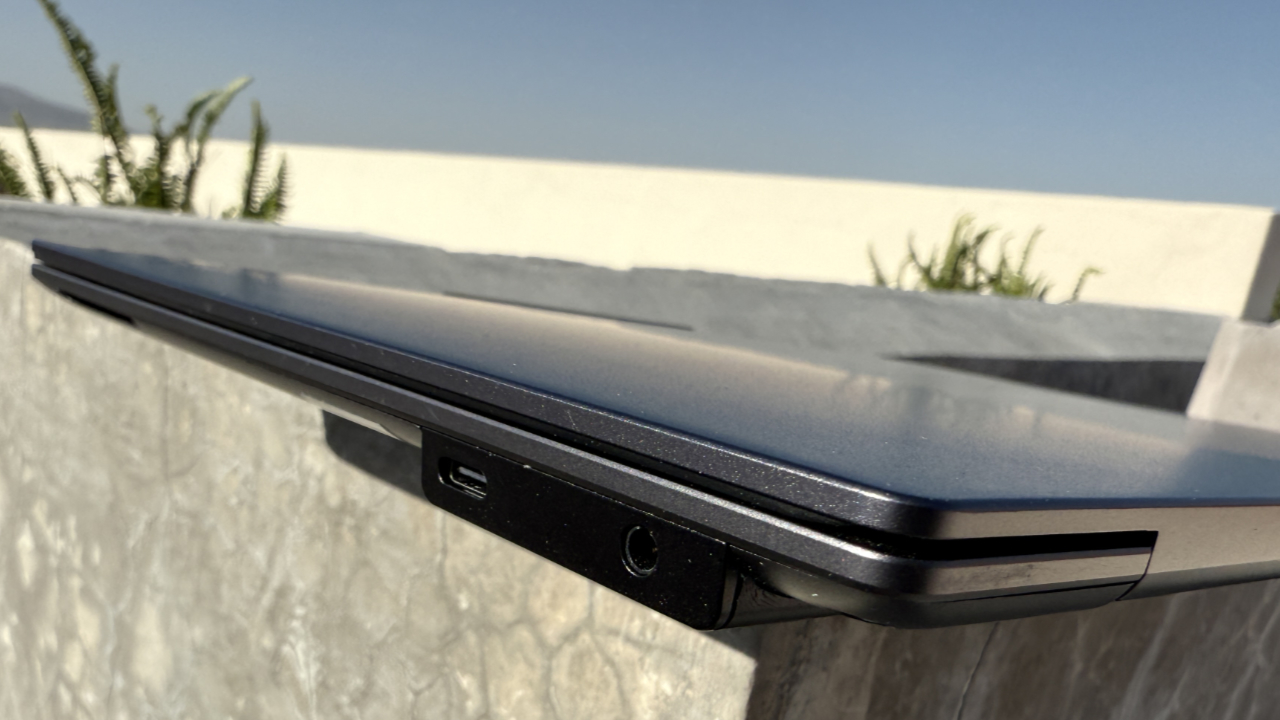
Despite the X9’s “engine hub,” Lenovo went minimalist with the expansion ports, and with one curious omission: There’s no full-sized USB-A port to be had, so you may need a dongle, USB-C hub, or dock if you still use this type of peripheral, as I do.
On the left, you’ll find a full-sized HDMI 2.1 video-port and Thunderbolt 4/USB4 Type-C port.
And on the right, you’ll find a second Thunderbolt 4/USB4 Type-C port, plus a combo microphone/headphone jack.
Audio and video
With its high-resolution Dolby Vision display and Dolby Atmos spatial audio capabilities, the ThinkPad X9 offers a nice multimedia experience. The audio is driven through a pair of downward-firing stereo speakers located towards the front of the laptop, which limits the spatial experience, and necessitates a hard, flat surface for the best possible sound.
It’s quite good. Music, like Shakira’s Estoy Aqui, is bright, clear, and loud, with excellent stereo separation and no distortion at all, even at 100 percent volume. And properly encoded video content, like the Dolby Atmos-based Godzilla: Minus One and 6 Underground movies I watched portions of on Netflix, are visual and audible treats, albeit without that sense of three-dimensional depth.
As always, I configured Dolby Atmos to auto-adapt to the content type using the bundled Dolby Settings app.
Hybrid work
The base ThinkPad X9 ships with a pedestrian 1080p webcam in its communications bar (“reverse notch”), but if you upgrade to the 2.8K display, you get an excellent 8 MP camera that’s among the best built-in laptops webcams I’ve ever seen. It can record video up to 1440p and take still images at 4K (3840 x 2160), it supports video HDR, and it works well in any lighting condition.
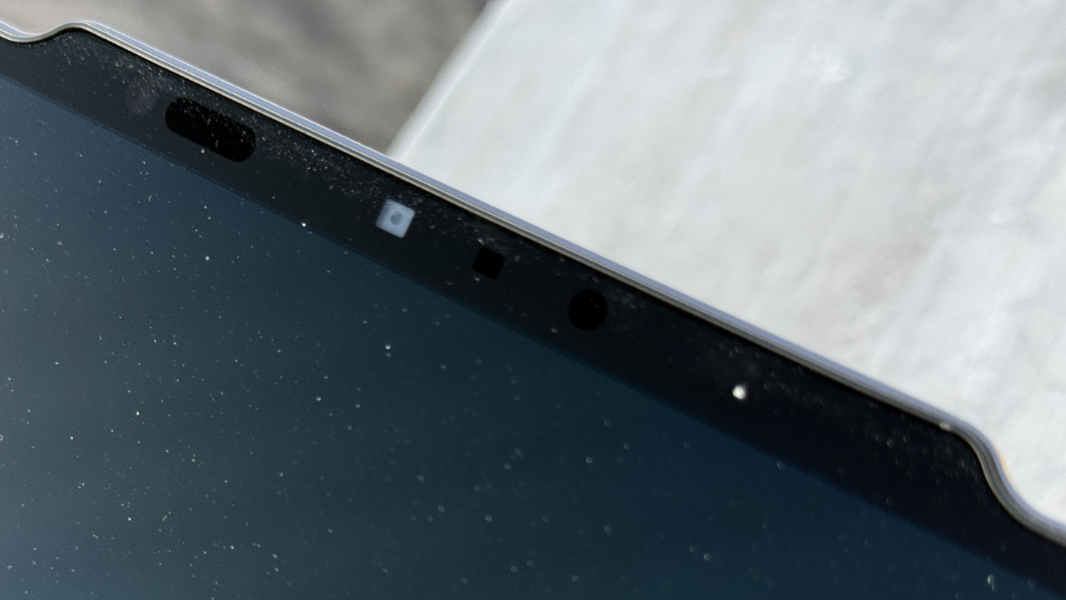
This photo was taken in a very dark room, for example, darker than is obvious from the shot itself.

With either camera, you also get Windows Studio Effects, of course, thanks to the processor’s beefy NPU. And if you want to futz around with the image quality even more, you can download Lenovo View from the Microsoft Store.
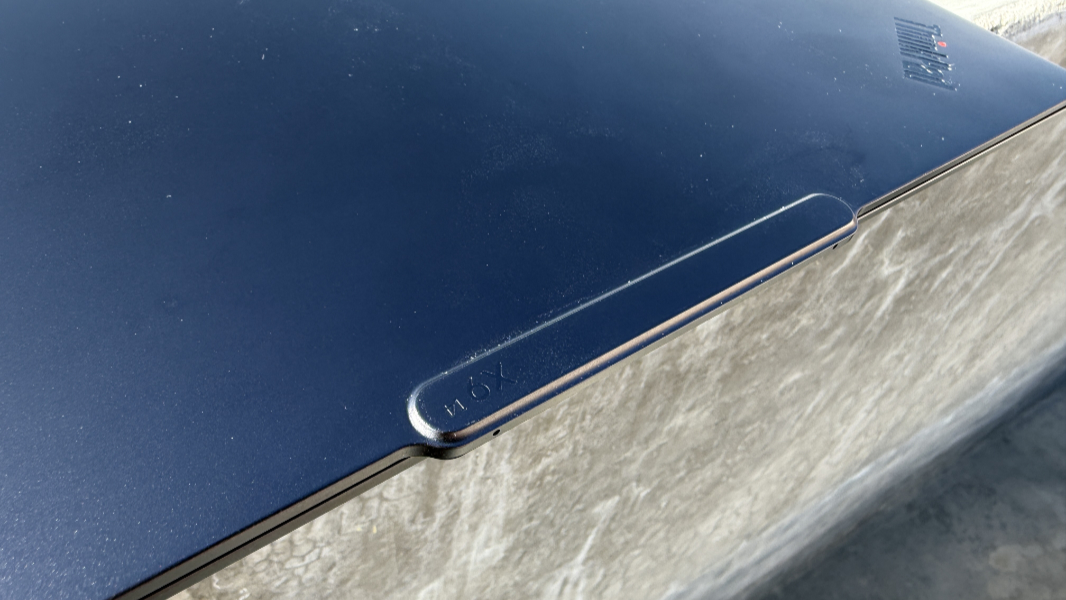
Predictably, the built-in dual-array microphones are nothing special, as is common these days. And you have to do some work to take advantage of the unique Lenovo features, not that it mattered much in my case. Speaker noise-cancelling is enabled by default, but microphone noise-cancelling can’t be configured until you manually give it permission in the Windows Setting app.
Keyboard and touchpad
It was controversial in ThinkPad circles when Lenovo switched from the old-school but beloved ThinkPad keyboard to a more modern design with lower-profile, scalloped keys with short key throws. And if it weren’t limited to just the X9, perhaps for now, it might be even more controversial that Lenovo has gone in yet another direction with this keyboard.
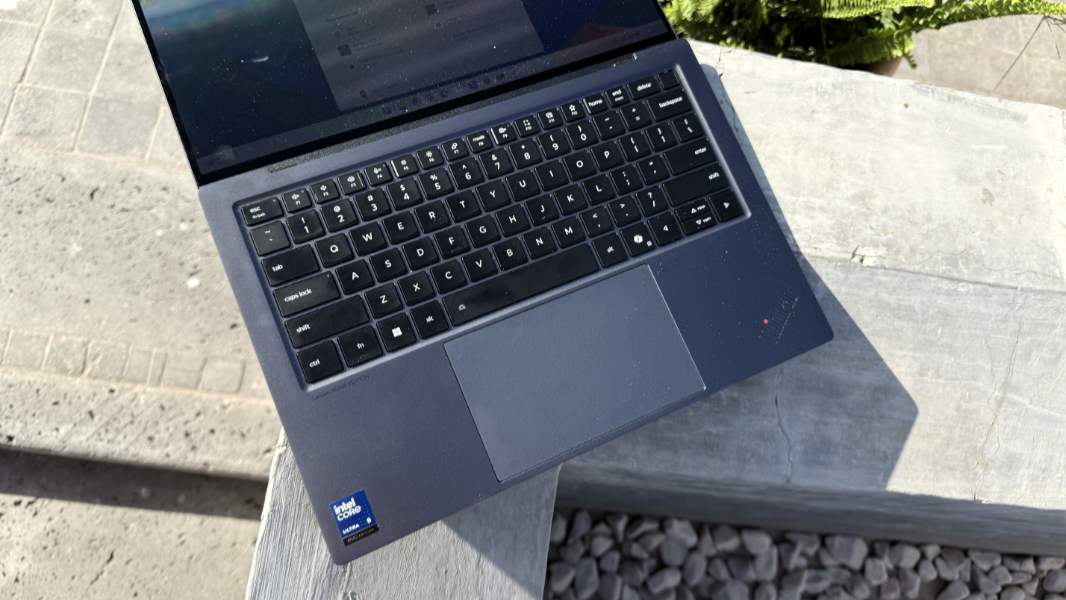
It shouldn’t be. This new keyboard is terrific and more like the keyboards I see on the MacBook Air, Surface Laptop, and HP’s premium commercial laptops. It’s a standard island-style keyboard with square black keys, short 1.33 mm key throws, and a soft, almost rubber-like surface that’s comfortable on the fingertips. It’s nicely quiet, and I’m a heavy-handed typist, so that’s ideal. And it features two levels of backlighting, but also an automatic mode, which I love.
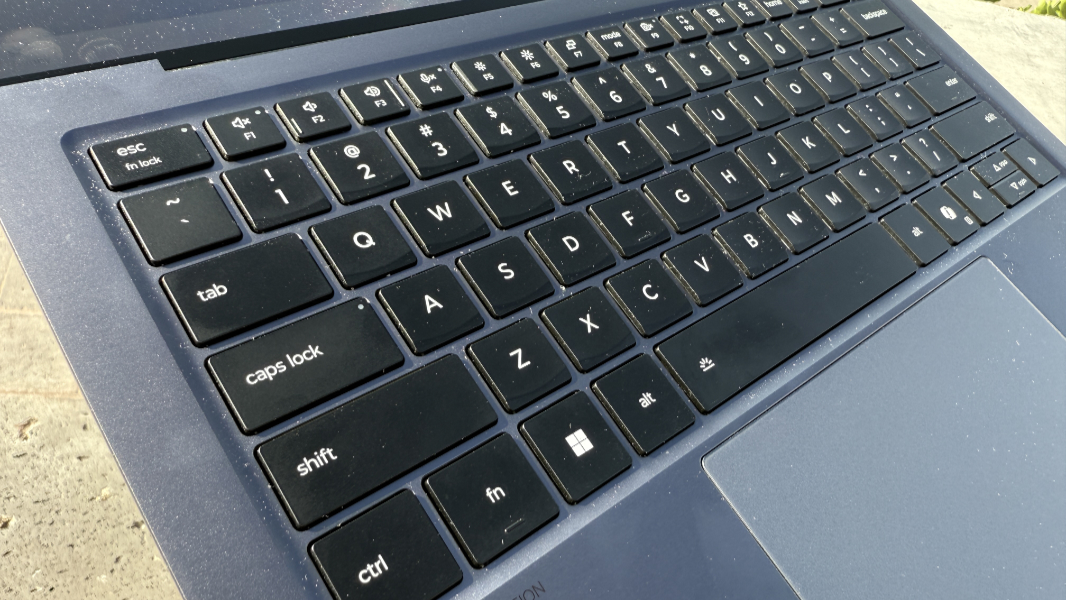
Oddly, the key throws feel a bit longer than they are, but that might be tied to the rubber-like material. And it’s certain to please old-school ThinkPad fans who might otherwise be suspicious of anything new. Indeed, I pretty much love all of it. This is an excellent laptop keyboard.
The Ctrl and Fn keys are in the correct locations, but ThinkPad diehards can reverse them in software using the bundled Lenovo Vantage app. You can also use this app to reverse the default behavior of the function key row (between the special functions default and the old F1-F12 keys), make the Fn key sticky, configure the backlighting (to Auto, like God intended), configure the user-defined key (F12), and toggle the F4-based mute key between the default microphone and all recording devices, all very useful.
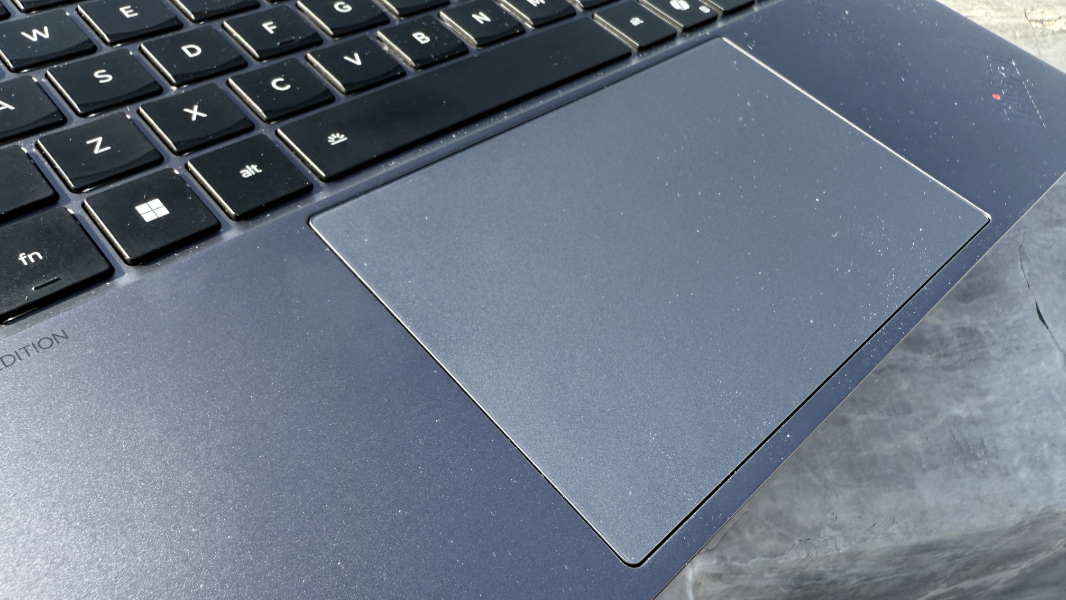
The touchpad is quite large, a glass haptic unit with variable intensity haptic feedback that I found to be accurate and error-free after I disabled three- and four-finger gestures. Very nice.
Security
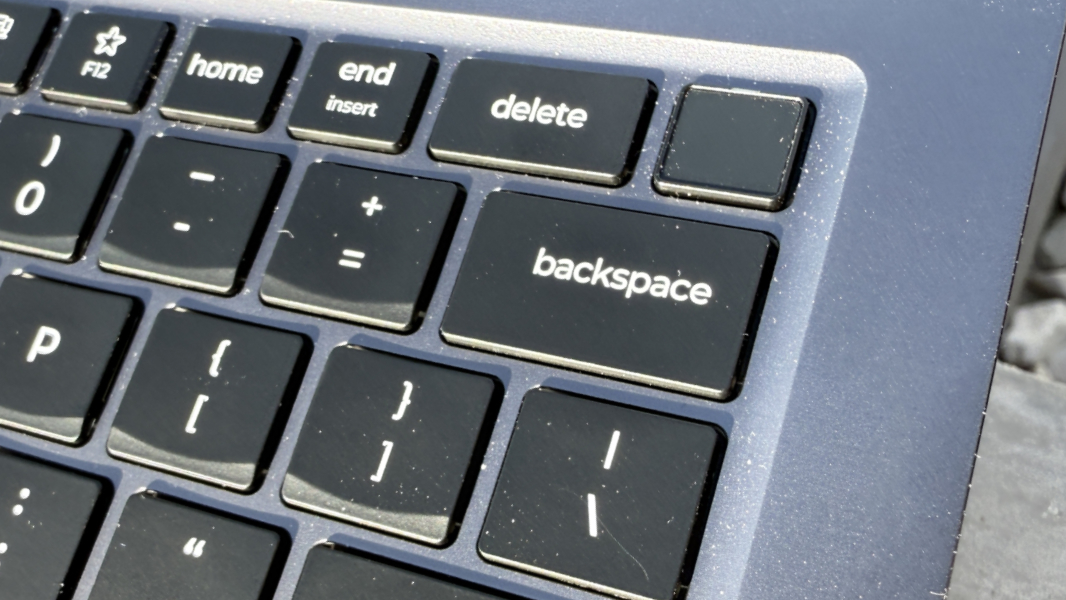
The ThinkPad X9 is a Copilot+ PC, so it offers the best-possible security in Windows laptops, with a Microsoft Pluton security chipset and Windows Hello Enhanced Sign-in Security (ESS). Lenovo piled it on as well, with Windows Hello ESS-compatible facial and fingerprint recognition–the latter is integrated into the power button/key–and electronic webcam privacy e-shutter and microphone muting via dedicated keyboard keys. (The Lenovo website mentions a Kensington nano security slot as well, but it’s not present.)
Less obviously, the X9 also supports presence sensing, so you can optionally configure it to turn off the display when you leave and/or look away, and wake it up when you approach. This is all native on Windows, but the Lenovo Vantage app also has an interface for configuring how quickly adaptive dimming, as the PC maker calls this, engages. That app also provides access to Lenovo’s WiFi Security feature, which tries to differentiate safe Wi-Fi networks from unsafe ones, though this feature is disabled by default.
Sustainability
The X9 checks all the boxes from a sustainability perspective, with gobs of recycled materials and an easy-open, user-serviceable case.
It’s made from 50 percent recycled aluminum in the top cover, bottom cover, and keyboard frame; 90 percent post-consumer recycled content (PCC) plastic in the speaker enclosure, 100 percent recycled cobalt in the battery cell, 90 percent PCC recycled plastic in the battery enclosure, 90 percent PCC recycled plastic in the power adaptor, 85 percent PCC recycled plastic in the keycaps, 60 percent PCC plastic in the antenna, and 30 percent recycled REE (Rare Earth) materials in the speaker magnet, and it’s Forest Stewardship Council certified plastic-free with bamboo and sugarcane packaging. Whew.
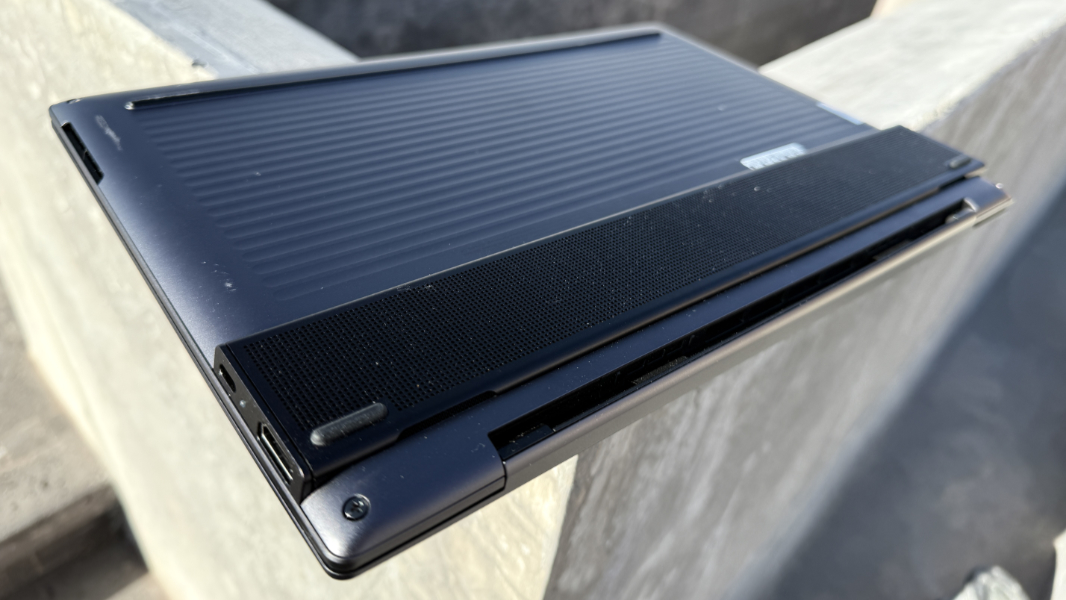
Lenovo designed the X9 to be user serviceable. The bottom cover can be easily removed–after disabling Fast Start and the battery in the firmware–using four captive Philips head screws. And then components like the M.2 SSD drive and battery are readily accessible.
Efficiency and portability
Portability is a mixed bag. Physically, the ThinkPad X9 is impressively thin at 12.28 x 8.35 x .51 inches and light, at just 2.74 pounds. And it seems even thinner thanks to its beveled sides and the “engine hub” being the only truly thick point. It will slip into any bag easily and is light enough that you’d barely notice it was there. I was able to travel with it, a four-hour luxury bus ride to and from San Miguel de Allende, and it was a terrific travel companion.
Efficiency, instant-on performance, and reliability were only average, however. Instant-on works fine throughout the day, but unlike with other Copilot+ PCs, it goes into a hibernation-like state overnight, preventing it from coming on immediately the following morning. There’s a Smart Standby feature in the Lenovo Vantage app that tries to schedule this behavior based on usage, but I never experienced a meaningful difference during the testing period.
The bigger issue, sadly, was battery life. I saw 6 hours of real-world battery life over almost a month of daily use, 30 to 40 percent below the average for current-gen AMD-based laptops and a bit over half the uptime I get with Arm-based Snapdragon X laptops. This is in keeping with other Lunar Lake-based laptops.
Software
Lenovo treats its ThinkPad customers right by delivering a crapware-free software preload, the X9 delivers on this promise. It comes with Windows 11 Home or Pro, and then a small list of mostly hardware-related utilities that includes Dolby Settings for the display and speakers, three Intel utilities (Intel Connectivity Performance Suite, Intel Graphics Command Center, and Intel Unison), Lenovo Commercial Vantage, Lenovo Pen Settings, Lenovo Smart Noise Cancellation Settings, and Synaptics Fingerprint Reader Preboot Manager, plus a link to the online PDF-based user guide.
But it also comes with the Aura Edition utilities that Lenovo co-engineered with Intel. This is my third Aura Edition laptop in for review, and I described the suite of apps one gets with these machines in my Lenovo Yoga Slim 7i 15 Aura Edition Review last November. But the short version is that two of the three apps–Smart Care and Smart Modes–are uninteresting, while the third, Smart Share, could be of great interest.
Actually, none of these are really apps per se. Smart Care is an AI-assisted “support experience” in the Vantage app. Smart Modes is a set of five system configurations with specific goals–Shield, Attention, Collaboration, Wellness, and Power–that are accessible via a dedicated Mode/F8 function key. And Smart Share is a fun front-end to the Intel Unison phone companion app that launches when you tap the phone against the PC or tap the F11 function key. I kind of went through the motions on these features, but little has changed, and I found myself ignoring them for most of the review period.
Pricing and configurations
Lenovo laptops are perpetually on sale, it seems, so the prices described here were correct at the time I wrote this review. And those prices, go figure, are quite reasonable.
A base model ThinkPad X9 14 with an Intel Core Ultra 5 226V processor, 16 GB of RAM, 256 GB of storage, and a Full HD+ (1920 x 1200) OLED non-touch display costs just north of $1200. Configured like the review unit, with 512 GB of storage and the 2.8K (2880 x 1800) OLED touch display (plus an 8 GB webcam that’s included with the display upgrade), each of which adds $100 to the price, and you’re looking at about $1450. But you’d be crazy not to upgrade to the Core Ultra 5 228V processor, which comes bundled with 32 GB of RAM for just $20 more. A fully decked-out X9 with a Core Ultra 7 268V processor (+$360), 2 TB of SSD storage (+$370), Windows 11 Pro (+$60), is just under $2000, which is expensive, but likely overkill for most.
Recommendations and conclusions
The Lenovo ThinkPad X9 14 is a nicely designed, thin and light laptop for small businesses and individuals. It’s only held back by its Intel Core Ultra “Lunar Lake” processor and the middling battery life and average performance it provides (in the latter case, while on battery). Other than that, Lenovo ran the rack on delivering a modern ThinkPad. The X9 features a gorgeous OLED display, excellent typing and pointing experiences, and strong, seamless security. Expansion ports are minimal but modern, and the connectivity and 8 MP webcam you get with the display upgrade are both top-notch. I would love to see Snapdragon X or AMD Zen 5 renditions of this product, but even with Lunar Lake, it’s a nice step-up all around. And unless you really need more than 6 hours of battery life, I can recommend it for day-to-day productivity work.
At-a-glance
Pros
- Thin, light, and modern form factor
- 2.8K OLED display upgrade is bright, colorful, and wonderful
- Excellent keyboard and touchpad
- Modern connectivity and security features
- 8 MP webcam is one of the best in-box units I’ve used
- Clean software image, aside from the Aura Edition utilities
Cons
- Average performance
- Unexceptional battery life