Windows 11 Has a Microsoft Store CLI Now
- Paul Thurrott
- Feb 11, 2026
-
24
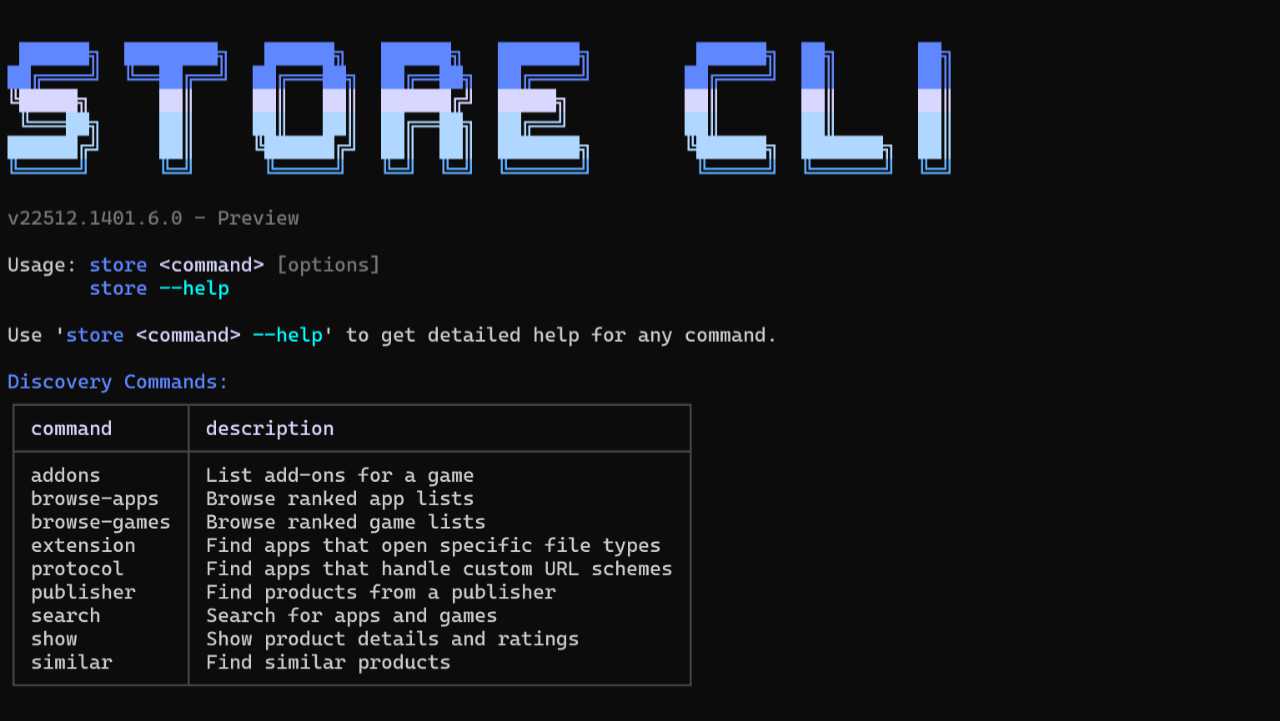
Microsoft today announced a new command line interface (CLI) for the Microsoft Store in Windows 11 called the Store CLI.
“A new command-line interface for the Microsoft Store brings app discovery, installation and update management directly to your terminal,” Microsoft vice president Giorgio Sardo explains. “This enables developers and users with a new way to discover and install Store apps, without needing the GUI.”
It’s unclear why Windows 11 needs yet another way to find and install Store apps, given that you can already do this with the Windows Package Manager (winget). But you can access the Store CLI by opening a Terminal window and typing store. And it provides key capabilities:
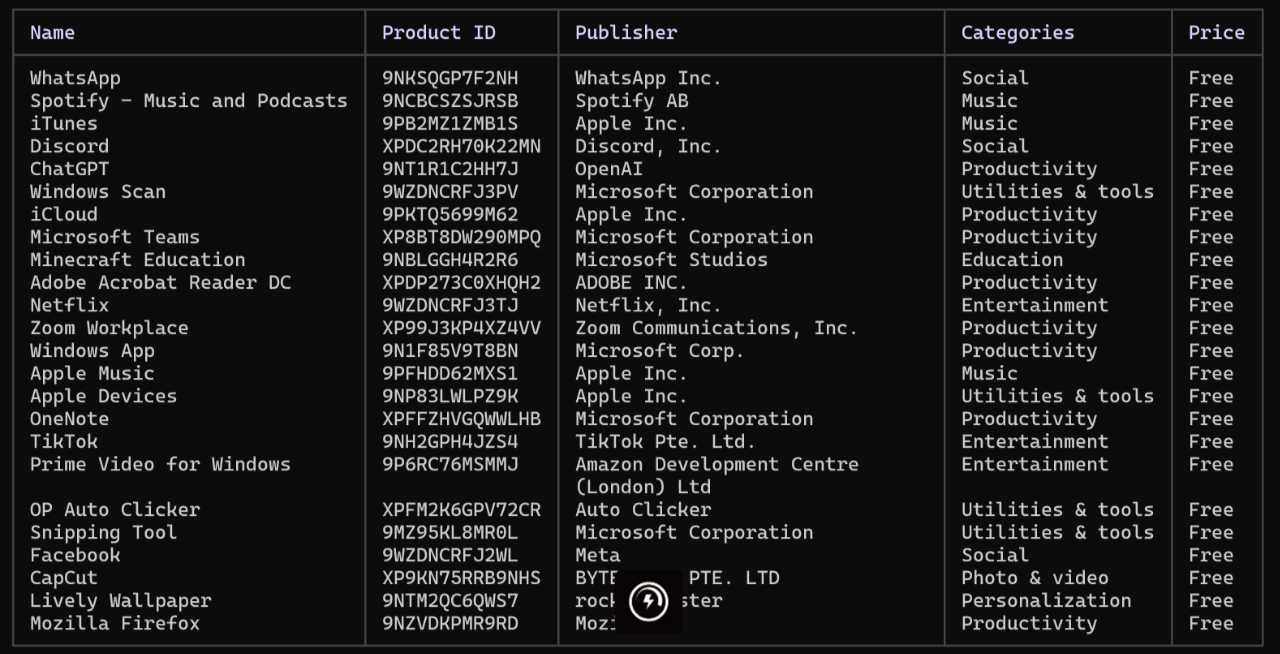
Browse for apps in the Microsoft Store. This is the only truly new bit of functionality. You can use the store browse-apps command to browse apps in the Store. For example, store browse-apps top-free will display a list of the top free apps in the Store right now.
Search for apps in the Microsoft Store. You can use store search to find apps in the Store with filters for market, language, and type. For example, you might use store search brave to see whether the Brave web browser is available to install from the Store. (It is.)
Install apps from the Microsoft Store. You can use store install to install an app from the Store. For example, store install XP8C9QZMS2PC1T will install Brave (as it will with winget).
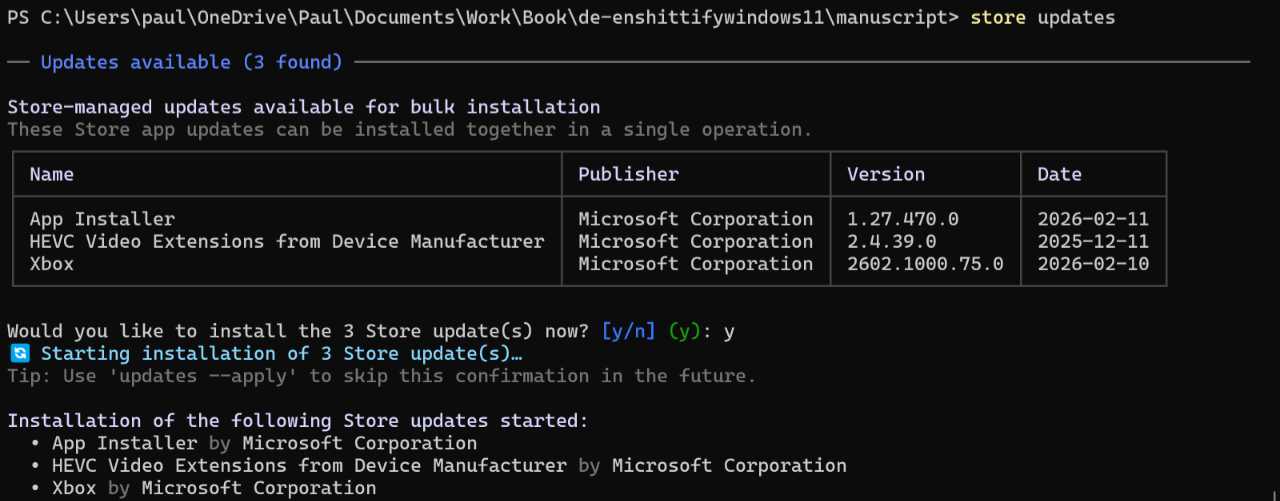
Update apps you installed from the Store. You can use store update to install a specific app (for example, store update XP8C9QZMS2PC1T to update Brave). To update all apps, you can use store updates.
This is rather curious. It’s unclear why Microsoft didn’t simply update winget to support the few unique features in the Store CLI.