Microsoft Documents How Windows Backup Will Help You Migrate to a New PC
- Paul Thurrott
- Jul 21, 2025
-
6
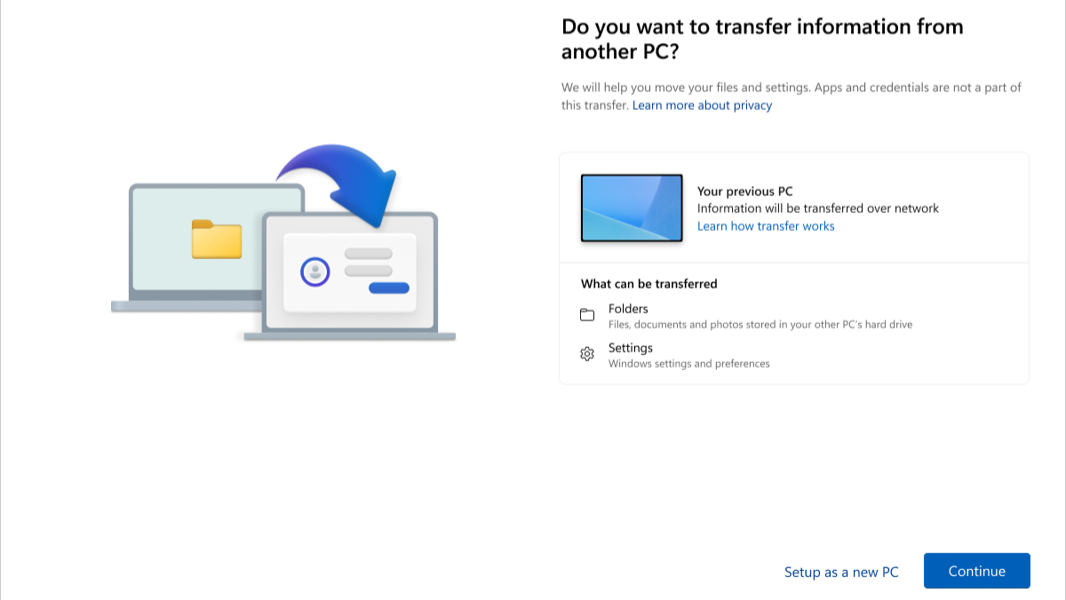
Microsoft has been talking about adding a “Transfer information to a new PC” feature to Windows Backup in Windows 10 and 11 for months. Then, it finally added part of the experience to Windows 11 in the most recent Patch Tuesday updates. And while we’re still waiting on the full experience, a new Microsoft Support document explains for the first time how this will work and what it will look like.
“Are you planning to upgrade to a new PC?” the Microsoft Support document asks, rhetorically. “This guide will walk you through a functionality that automatically copies your files, settings, and preferences from your previous PC to your new one.”
Today, we have a Windows Backup app that lets us back up our documents (really sync, through OneDrive Folder backup), some apps (mostly Store apps), some settings (related to Accessibility, personalization, language, and more), and some Wi-Fi and other credentials (through your Microsoft account). Then, when you set up a new PC, you are prompted to restore from this backup during Windows Setup.
But Windows Backup is getting a big update that will add a new “Transfer information to a new PC” in addition to the old “Back up this PC” option. Part of this was implemented in the recent Patch Tuesday, as noted, but part of it is still missing in action.
According to Microsoft Support, this process only works for those who sign in with a Microsoft account, and it oddly will not support Windows 11 on Arm. Basically, you connect both PCs to the same Wi-Fi network, open Windows Backup on the old PC and select “Transfer information to a new PC,” select the destination PC when prompted, enter a one-time code on the new PC as prompted, and then select what to transfer.
“Transfer information to a new PC” supports transferring the following information:
- All files. Your documents, photos, videos, and other files saved across folders or drives are transferred to your new PC, Microsoft says.
- Settings and preferences. This includes your wallpaper, themes, and other personalization settings.
But it doesn’t transfer the following:
- System and OS files in Program Files, Program Data, Temp, and so on.
- OneDrive files.
- Applications installed on the old PC.
- Saved Passwords and sign-in credentials.
- Data on drives that encrypted with BitLocker. That seems ludicrous, but Microsoft says you have to decrypt those drives before starting the transfer.