Hands-On: The New Windows Insider Program and Windows Update
- Paul Thurrott
- Apr 24, 2026
-
5
2026 is a make or break year for Windows 11 quality, and Microsoft just delivered the first improvements, with two caveats: They’re only available for now in pre-release form through the Windows Insider Program and, as I’ve pointed out in the past, we’ve seen other improvements like the not-so-subtle de-enshittification of OneDrive Folder Backup that pre-date Pavan Davuluri’s “pain points” pledges.
But whatever. Improvements are improvements, and even at this early stage, it’s clear these are meaningful and positive changes. Broadly speaking, there are three available today if you don’t mind enrolling a PC in the Windows Insider Program:
- A Feature flags interface in Windows Insider Program settings that lets you toggle on new features immediately
- The new Windows Insider Program experience to access the new Experimental and Beta channels
- The ability to pause Windows Update basically indefinitely using a calendar interface.
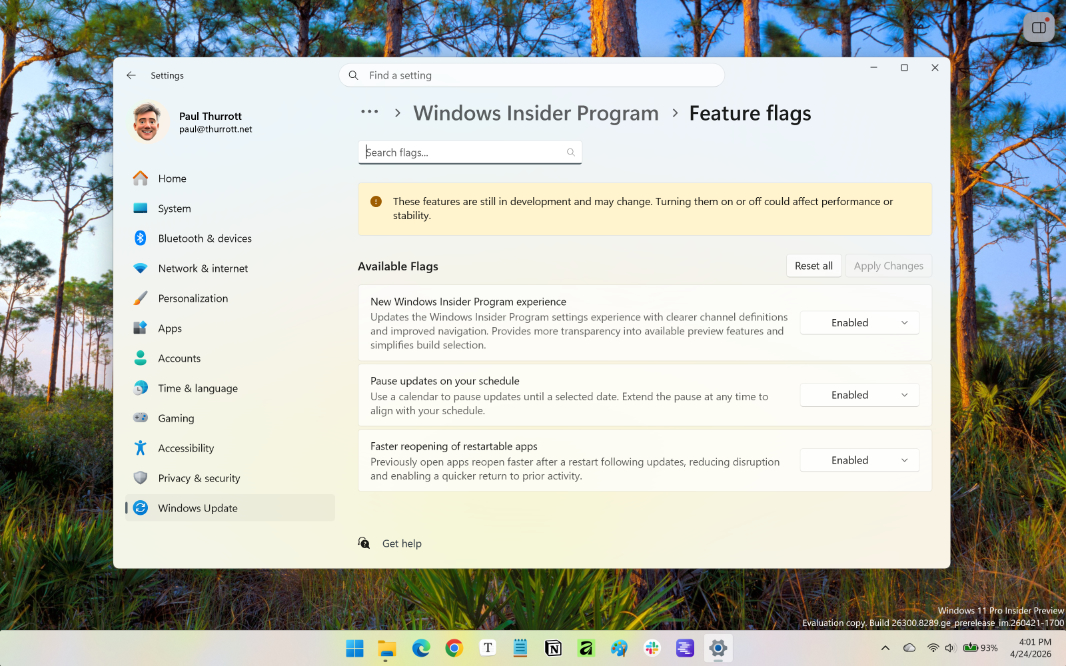
To get started, you must have a PC enrolled in the Windows Insider Program. I have a few, but I started with a daily use laptop that’s in the Dev channel. After installing today’s new build and rebooting, I opened the Settings app and navigated to Windows Update, which looked identical to before. So I navigated into the Windows Insider Program interface and found the first change noted above, a new Feature flags interface. Opening that, I found the following.
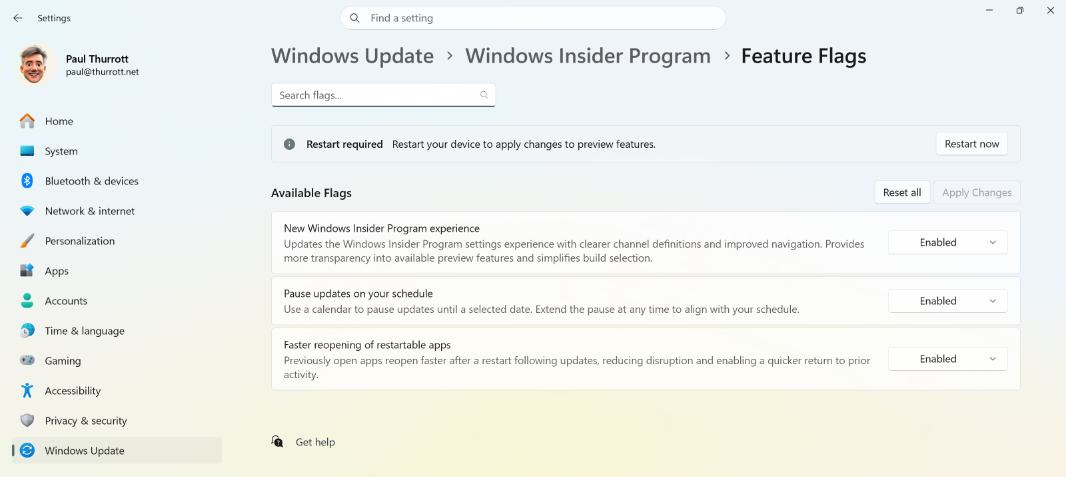
As you can see, there are three available flags. Each was initially set to “No Override,” meaning that Windows 11 will use the default behavior. But you can each, individually, to “Disabled” or “Enabled.” I set all three to Enabled and then was prompted to restart the PC with a “Restart now” button. I did so.
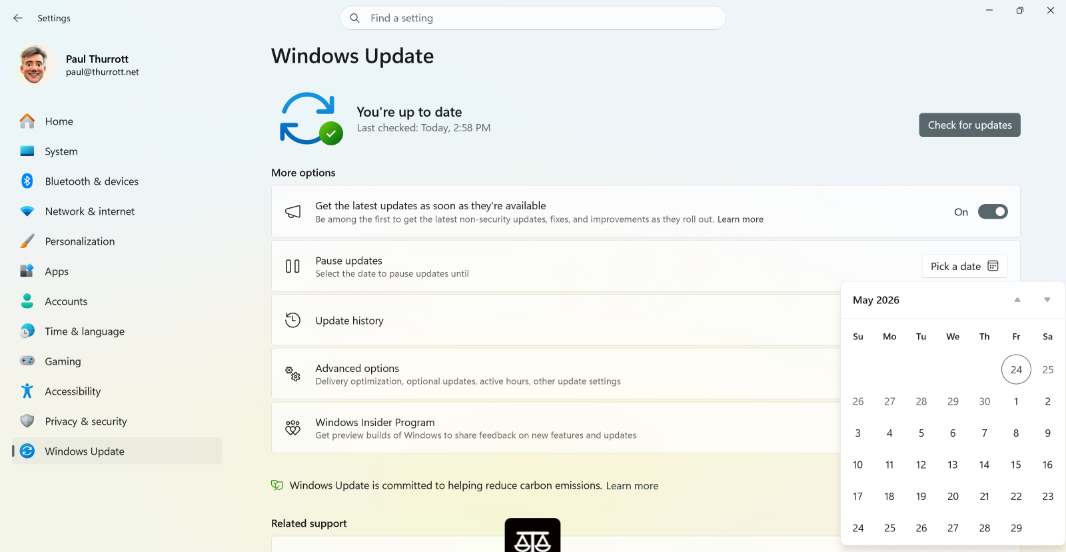
After rebooting, I returned to Windows Update. There, I could see the second change, a new “Pick a date” button next to Pause updates replacing the old drop-down that offered five one-week increments. When clicked, it displays a calendar control as seen here.
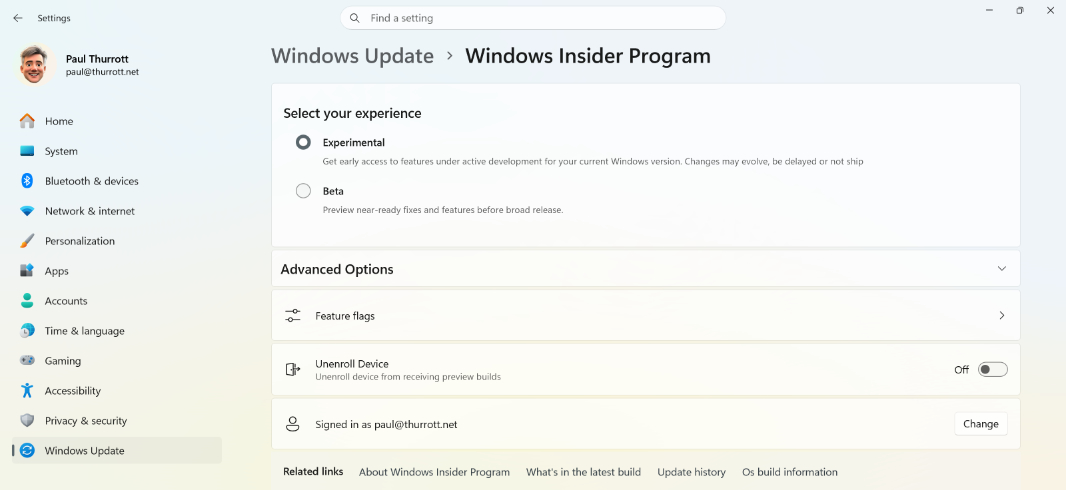
After that, I navigated into the Windows Insider Program settings interface. Here, I could now select between two “experiences,” the Experimental channel and the Beta channel. I stuck with Experimental, which replaces Dev. And you can see another new feature that Davuluri promised here, an “Unenroll Device” option that lets you go back to stable at any time.
From what I can tell, the rest of Windows Update settings and its sub-settings are basically as before. You can still “Get the latest updates as soon as they’re available,” for example. But in the future, there will be an “Available updates” interface as new updates appear. And there is that third feature flag, for “Faster reopening of restartable apps.” I enabled it, of course, but there was nothing running when I manually rebooted, and the idea is that you sit down in front of your PC after an update that perhaps happened overnight and it is as close to it was before as possible. Like a lot of this stuff, we’ll need some time to see how well that works.
Looking back on the original Davuluri promises, you can see how these changes map to some specific annnouncements back in March. He said that the Windows Insider Program would be more transparent, with clearer channel definitions and easier access to new features, and that’s in the new builds/channels. And he said that Windows Update would be more predictable, let you restart or shut down without installing updates, and pause updates for longer when needed. That, too, in there.
One thing I’m particularly happy about is that one of the vague promises Davuluri made in March that I called out in Trust But Verify ⭐️ turned out to be a best case scenario. He said that Microsoft would let users pause updates “for longer,” but without specifying the new time frame. “Will it be six weeks? Two months?” I wrote. “No idea.” But now we know and it’s good news: It’s basically indefinite.
“You can choose a specific day of the month you want to pause until, up to 35 days, enabling you to plan around expected travel, conferences, exams, or even just busy weeks,” Microsoft explains. “When 35 days just isn’t long enough, we are also enabling you to extend the pause end date as many times as you need. This means you can now re-pause for up to 35 days at a time, with no limits on how many times you can reset the pause end date.”
So there you go: Some good news for a change. Here’s to more of this type of thing in the near future and what we all hope will be a positive year for Windows 11.