Brave Brings Email Aliases to Its Web Browser
- Paul Thurrott
- Aug 28, 2026
-
2
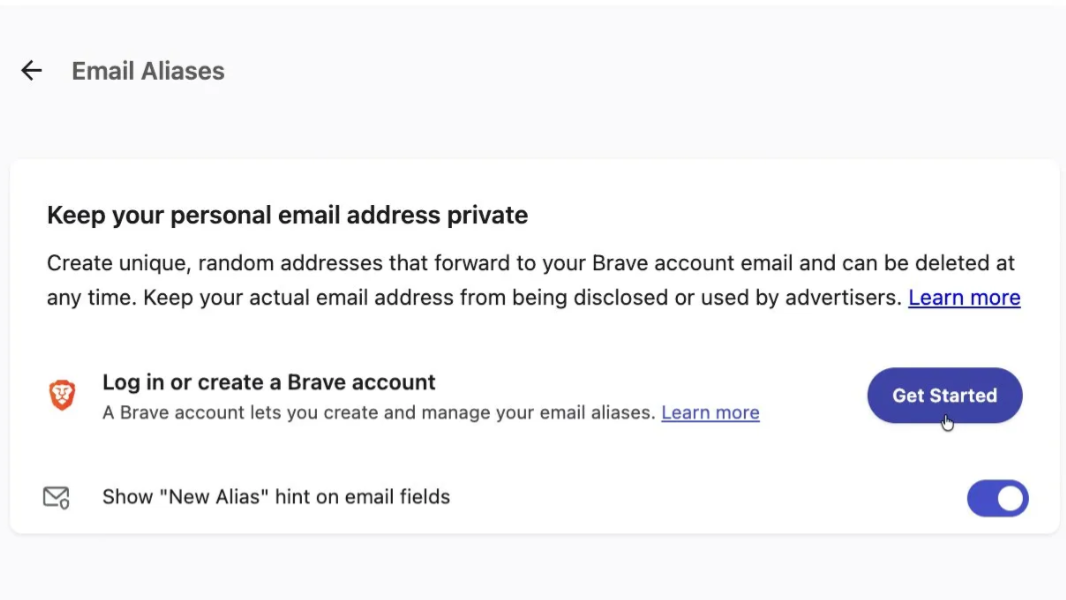
Brave now offers email aliases so you can sign up for online services without providing your personal email. But it requires you to create a Brave account, which is also new, with its own email address and password.
“Email Aliases can keep your email free of spam, and help you protect your privacy by generating unique email addresses that forward to your primary email inbox,” Brave vice president of privacy and security Shivan Kaul Sahib writes. “While Brave offers best-in-class protections against third-party trackers, your data can still be shared using techniques like server-side matching. We built Email Aliases to plug this privacy hole.”
Brave’s new email aliases feature is integrated into the browser and helps you generate privacy-protecting email addresses when you encounter a website sign-up form. This keeps your real email address hidden from the sites, preventing cross-site tracking and reducing or eliminating spam since you can deactivate an alias at any time and create a new one. It complements the way that Brave partitions cookies, caches, and network state in the browser by extending those protections beyond the browser.
To use email aliases, however, you need a Brave account with its own email address and password. Which is a bit odd, since Brave achieves settings sync across PCs and mobile devices without requiring an account. (Some Brave features and services, like Brave VPN, do require a Brave Premium account that is, wait for it, separate from this new Brave account.) But Brave notes that its accounts use OPAQUE, a recently standardized cryptographic protocol, so your password is never sent to Brave’s servers.
Email aliases are available in Brave 1.94 (the latest version) and newer on desktop, but there’s no user interface to find it (at least that I can see). Instead, you can navigate to brave://settings/email-aliases and sign in or create a Brave account. Then, when you encounter a web form with an email address field, Brave will prompt you to create a new email alias. (If that doesn’t appear, you can right-click the field and choose “New Email Alias” in the context menu.) You can also manage your email aliases in Brave by navigating to Brave settings > Autofill and passwords > Email Aliases.
For the initial release, Brave users can create up to five email aliases for free. The company is working to bring the feature to mobile versions of its web browser and it will offer a premium version of the service in the future.