Google Chrome 130 Arrives with Performance Personalization
- Paul Thurrott
- Oct 30, 2024
-
1
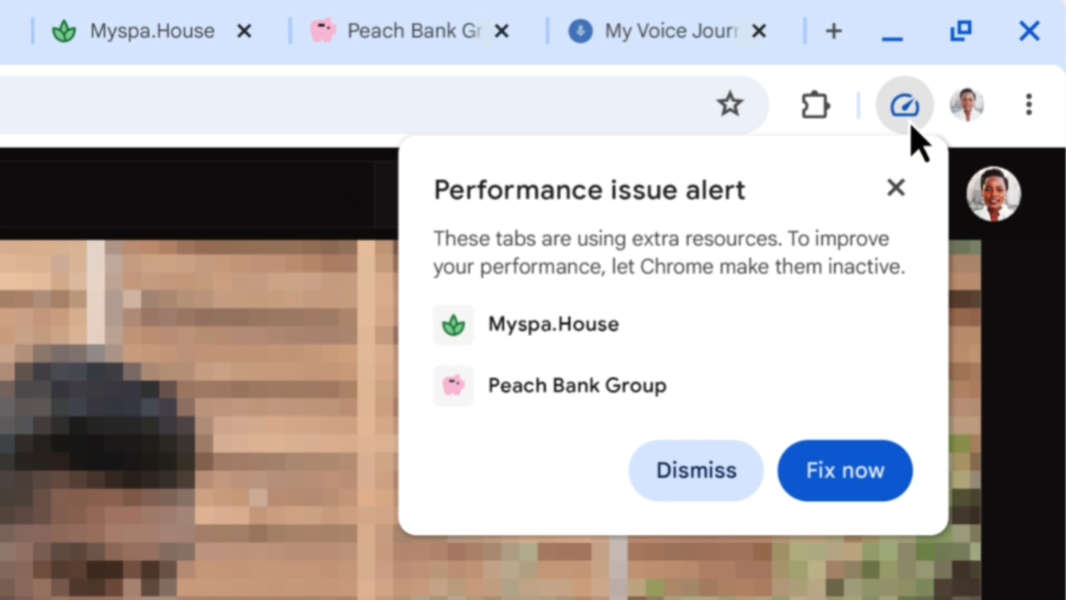
The latest version of Chrome is here, and Google is letting users personalize how the web browser handles performance and memory usage.
“Chrome is committed to providing a fast and reliable browsing experience,” Google’s Kayce Hawkins writes. “That’s why we’re always working on new performance features to help you get the most out of your browser. There are several new and updated features that give you even more control over how Chrome uses resources on your desktop.”
First up is a new Performance Detection tool that appears in the Chrome toolbar and proactively provides potential solutions to performance issues it detects when you visit websites via Performance issue alerts. If a site is running slowly, Chrome may prompt you to “Fix now” and will make the appropriate changes to how the browser is configured for that site (perhaps by making other, unused tabs inactive to free up resources). You can disable this feature if you prefer to manage performance manually.
Google has also added new Moderate, Balanced and Maximum modes to Chrome’s Memory Saver feature. “Moderate mode deactivates tabs based on your system’s needs,” Hawkins explains. “Balanced mode considers both your browsing habits and system needs. And Maximum mode deactivates tabs after you stop using them more quickly than the other two modes.” You can configure this feature in Chrome settings.
Chrome 130 also lets you specify which websites should remain active at all times, so you can get live updates or the best performance. And you can toggle whether Chrome displays visual indicators for inactive tabs and memory usage when you mouse-over tabs. You can learn more on the Google Support website.