Lenovo ThinkBook Plus Gen 5 Hybrid First Impressions
- Paul Thurrott
- Sep 14, 2024
-
12
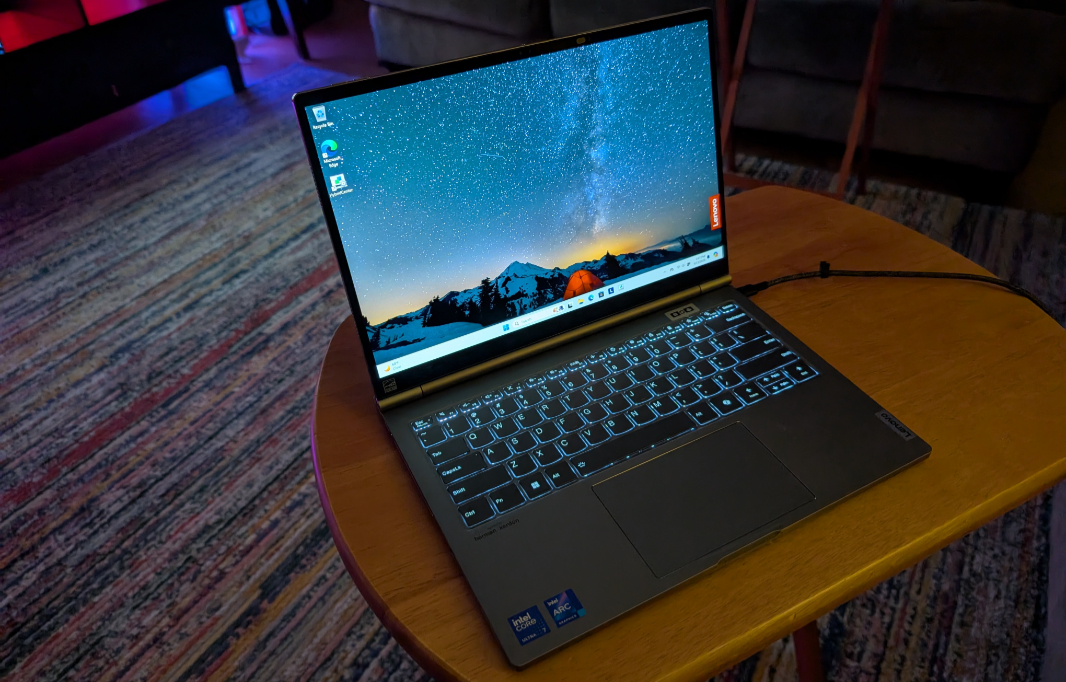
The dream of a single personal computing device that can replace two other devices without compromises remains just that, a dream. But the industry keeps trying. There are folding smartphones and now folding PCs in various configurations, though only the former seems to have found any footing with consumers.
In the PC space, two related form factors come close, the 2-in-1 tablet PC form factor popularized by Surface Pro and the convertible laptop, with the HP Spectre x360 being perhaps the most well-known. But each requires compromise: Surface Pro isn’t lappable like a real laptop, and convertible PCs are chunky and heavy in tablet use.
Among PC makers, Lenovo is perhaps the most experimental, the most willing to stick its credibility on the line by shipping products that seem almost doomed to failure from the outset. And in recent years, for whatever reason, these curious experiments are almost always branded as ThinkBooks, Lenovo’s hardware lineup for small businesses. The first and second generation ThinkBook Plus laptops put an e-ink display on the outside of the display lid, while the third generation version put a second color display right on the wrist rest, where it could be used in a variety of unique ways.
These experiments were, in the end, failures. But now Lenovo is back with the fifth-generation ThinkBook Plus, which it’s marketing as a hybrid station and tablet. And what was weird and wacky before has now transitioned into something that could be quite interesting, actually. This experiment might have legs.
As the company explained to me, the ThinkBook Gen 5 Hybrid Station & Tablet is a unique transforming device that can be used as a traditional clamshell Windows 11 laptop whose display is a detachable Android tablet. That alone is interesting, but there’s more. Customers can switch between Windows 11 and Android while the display is attached to the keyboard bottom, so it’s technically an Android laptop as well. But they can also access the Android environment and Windows simultaneously, while using Windows.

And they can separate the display and base, connect the latter to a larger desktop display and access the detached display as a second external display; this latter mode is where the Station bit comes from, and Lenovo even provides an optional Universal Easel Stand to make the Android tablet’s use as a secondary display more comfortable.

And yikes. That is a lot of stuff.
Literally: The ThinkBook Plus Gen 5 arrived in a large, heavy box that contained two other boxes, one for the Android tablet/display and the easel stand, and one for the computer keyboard base and its 100-watt power supply. It’s a lot to deal with, and there’s some learning involved so you can figure out how it all goes together and then comes apart. And how you switch between the different modes, of course.

I started with the basics by connected the tablet/display to the base. This thing goes on and comes off only when the tablet/display is upright–plus or minus 5 degrees from a 90-degree angle, compared to the base–and from what I can tell, there are no buttons or latches to deal with. You just place it on top of the base, guided by the posts and connector. And in reverse, you just grab the thing securely and yank it off while holding down the base with one hand.

To power it up in Windows PC mode, you press the power button while its in this traditional clamshell form factor. The PC is pretty straightforward with an Intel Core Ultra 7 155H processor, 32 GB of RAM, and a 1 TB M.2 PCIe Gen 4 SSD. There are two Thunderbolt 4/USB4 Type-C ports, one on each side, a headphone/microphone jack, and Wi-Fi 6E and Bluetooth 5.3 for connectivity. By itself, the base weighs about 2.14 pounds.

But that’s only half of it.
The tablet/screen provides a 14-inch 2.8K (2880 x 1800) OLED panel with Dolby Vision and multitouch capabilities. It’s powered by a Qualcomm Snapdragon 8+ Gen 1 Mobile Processor, 12 GB of RAM, and 256 GB of UFX 3.1 solid-state storage. It has its own power button, a dedicated USB 3 Type-C port (on the bottom, and so inaccessible when docked), and its own Wi-Fi 6E and Bluetooth 5.3 connectivity. It also has its own battery, a 38.7 watt-hour unit, and its own speakers, four of them (with two more in the base/station). There’s Dolby Atmos all around as well. This part of the package weighs about 1.73 pounds.

Aside from the obvious–it’s a powerful Android tablet, too, of course–the tablet/screen also has three cameras. One is user facing and works normally as a webcam, with Full-HD resolution and Windows Hello facial recognition capabilities. And the other two are on the outside of the tablet/screen–“world facing,” as the industry likes to say–with one a 13 MP wide lens with autofocus and the other a 5 MP ultra-wide lens with a flash. Yes, they’re all available from Windows, too, and the front-facing camera can take advantage of Windows Studio Effects.

As with a convertible PC, you could just use this like a heavy laptop–the two pieces together weigh roughly 4 pounds–and I suspect that I would do just that most of the time. But the appeal here is its hybrid use cases. The mythical one device that can do it all.

I’ve not experimented with each form factor yet. But I obviously had to see what this thing was like as a standalone tablet. There are two ways to do that: You can tap a dedicated programmable key in the function row and use Android in this laptop form factor, which I found useful for signing in to Google and getting it configured. Or you can detached the tablet/screen and use it as a standalone tablet.

Both work well. The tablet runs Lenovo’s lightly skinned Android 13 and it feels powerful and fast, and the OLED display is, of course, gorgeous. Apps can be run full-screen or windowed (when they are resizable), and there’s a handy “…” menu in the center top of each window with a Snap-like set of options for full screen, floating window, and side-by-side split screen views.

The only letdown is the 16:10 aspect ratio. This is ideal for landscape use in the PC mode. But it’s not great for a tablet in portrait orientation.
Lenovo also includes a Hybrid Center app in Windows so you can switch between the various usage modes. And that includes the Hybrid System mode in which the Android environment appears in a window inside of Windows, alongside your other apps.

There’s also file sharing between the two environments, though there’s a laborious process for pairing the two over Bluetooth. Once it’s set up, you can use a HybridFolder folder in each to bridge the divide, or just access the entire Android file system directly from File Explorer as if it were an attached device (which, actually, it is). It seems to work well enough.
There’s so much more, but I’ve only just gotten started. I assume you have questions. I do as well. But I can at least answer the most obvious one up-front. Yes, it’s expensive. Really expensive. Like $3500 expensive. And that will certainly help to curtail the excitement a bit. But still … this all rather impressive. And different and weird. And I’m not sure what to think yet.
More soon. But in the meantime, here are a few more photos.


