Hands-On: Apple Magic Keyboard for iPad Air 11-Inch (M3)
- Paul Thurrott
- Jul 04, 2025
-
16
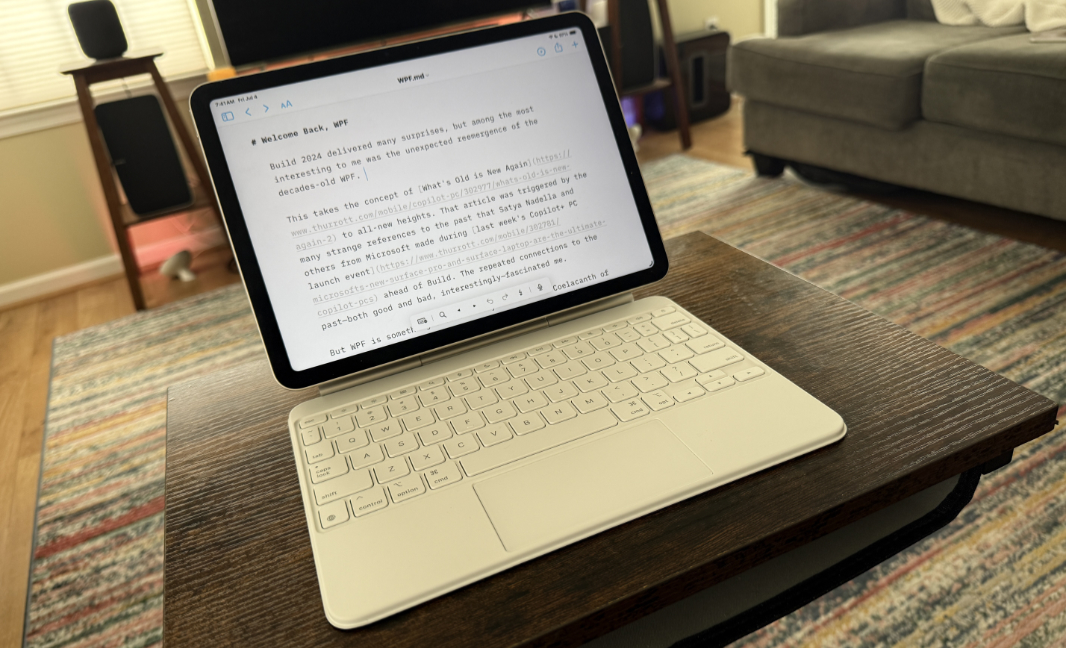
After experimenting with Bluetooth-based standalone keyboards and cases for my iPad, it became obvious that latency was an issue, especially with the touchpad on the keyboard case. Despite some reservations about the price, I finally decided to get the real deal, an Apple Magic Keyboard, to see the iPadOS 26 changes in their best—or, at least, intended—form.
I know.
The curse of a hybrid device
It’s better than I expected, though one keyboard cover I tested previously did have a feature I really wanted that’s missing here: The ability to use the iPad in portrait mode, which I feel would be ideal for writing. But that’s one trade-off here: The Magic Keyboard connects to the iPad via its Smart Connector, which is solid and latency-free.
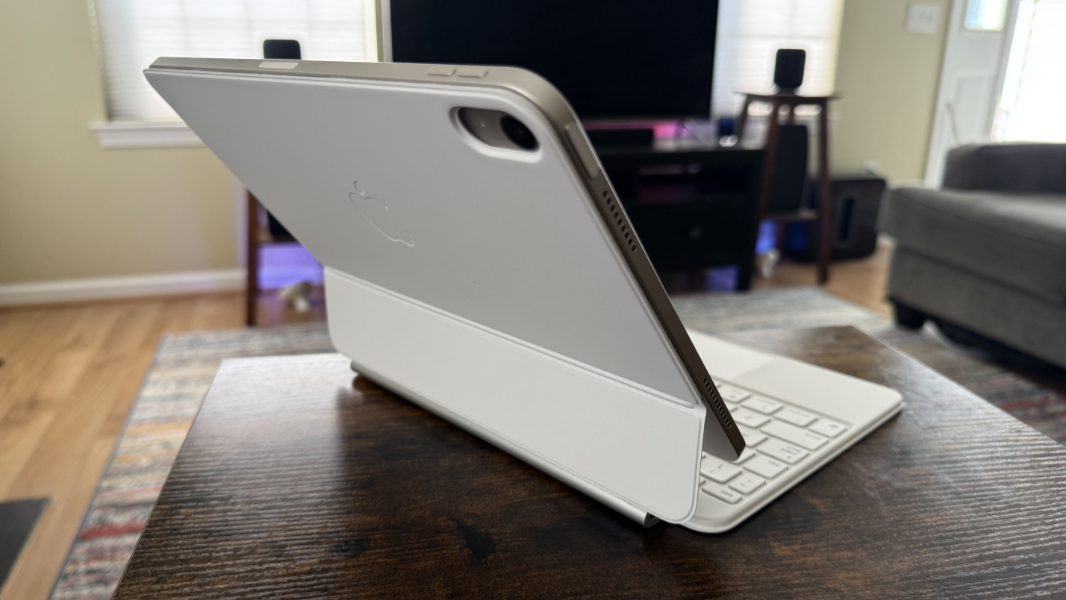
There are other tradeoffs, of course. I mostly use my iPad for reading, which means I mostly use it in portrait mode. With a cover that I can’t really use with the Magic Keyboard. Indeed, I usually enable the rotation lock so that the display doesn’t just start rotating if I move around a bit. So my choice here is to just leave the iPad on the Magic Keyboard and deal with landscape mode, which is not ideal. Or keep the cover handy so I can keep it a bit safer when I am reading, which is also not ideal. (More on the landscape reading experience below.)
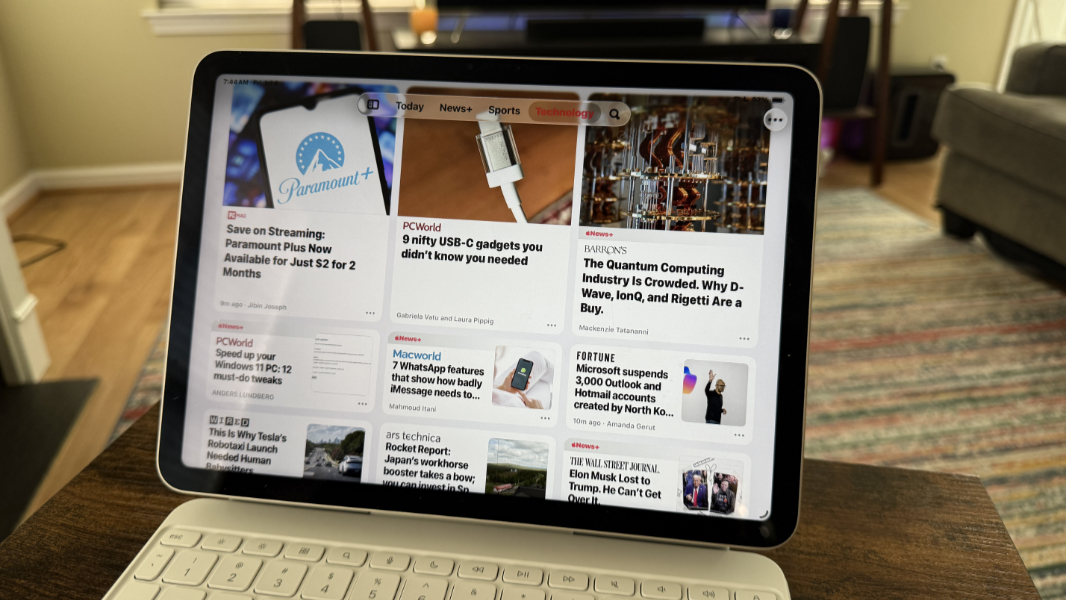
I suppose that’s the problem with hybrid devices like the iPad, especially now that iPadOS 26 is turning it into a reasonable productivity computer. It’s going to be optimized for one thing, not two things. So anyone who wants this to be both a consumption tablet and a work laptop will be compromising somewhere. Those that cannot can continue to follow my right tool for the job observations and simply use two devices.
Setup and configuration
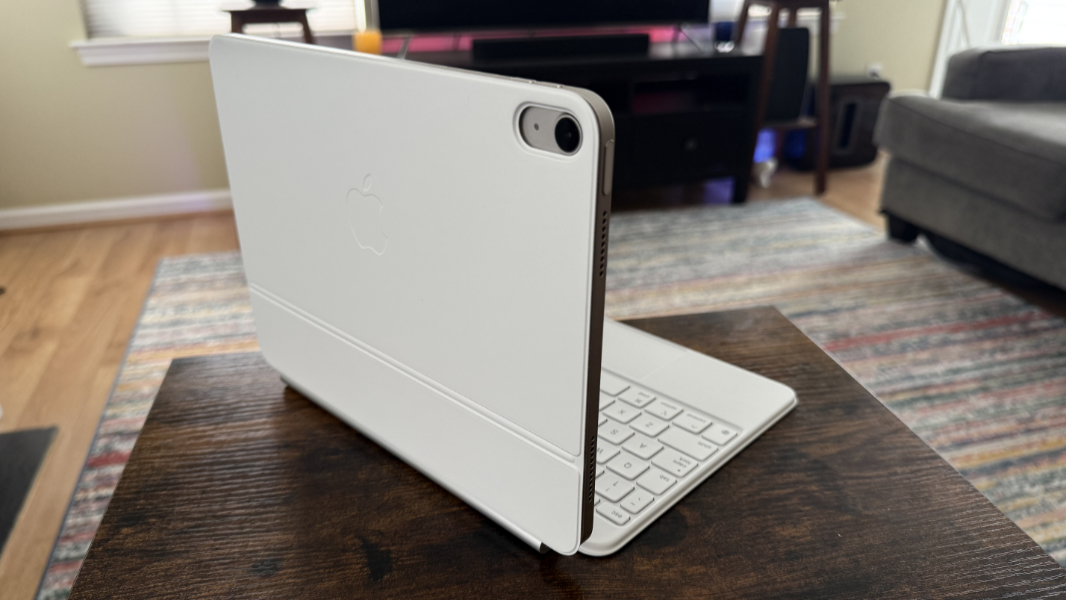
Setup couldn’t be easier: You just place the iPad up on the upright back area–I’m not sure what to even call it–and it latches on immediately and securely using magnets. There’s nothing to install, though it’s worth looking at the new options for the hardware keyboard and touchpad it settings. For example, I disabled the Caps Lock key, as I do in Windows.
What’s missing is a way to configure touchpad sensitivity or palm rejection: Just in typing this one article, I repeatedly found myself overtyping text elsewhere because my hand inadvertently tapped the touchpad ever so lightly, sending the mouse cursor flying off into another part of the document. This is incredibly annoying, and it happens repeatedly. And I’ve been adjusting the positions of my hands to try to compensate, with mixed results.
Granted, I have the smaller 11-inch iPad Air M3, so the keyboard isn’t full-sized, and that likely contributes to the problem. I feel like a 13-inch iPad Air or Pro would be better for productivity work, and I assume (hope) the Magic Keyboards for those models is literally full-sized. But you go to war with the army you have, as they say.
What’s there, what’s missing
The Magic Keyboard for the iPad Air M3 is mostly full-featured, but there is one curious omission: There is no keyboard backlighting at all. Given the price, and the hard reality that previous versions of this keyboard had this feature, as does the newest version for the iPad Pro, that’s disappointing. It was also unexpected: I kept looking for a way to enable or configure backlighting before I finally figured out it’s not available.
Aside from that, the Magic Keyboard provides familiar, Mac-like keyboard and touchpad experiences. The keyboard has a top row of function keys for features like screen brightness, volume, App Expose, and so. And it has all the normal Mac special keys, like Cmd, Option, and Control.
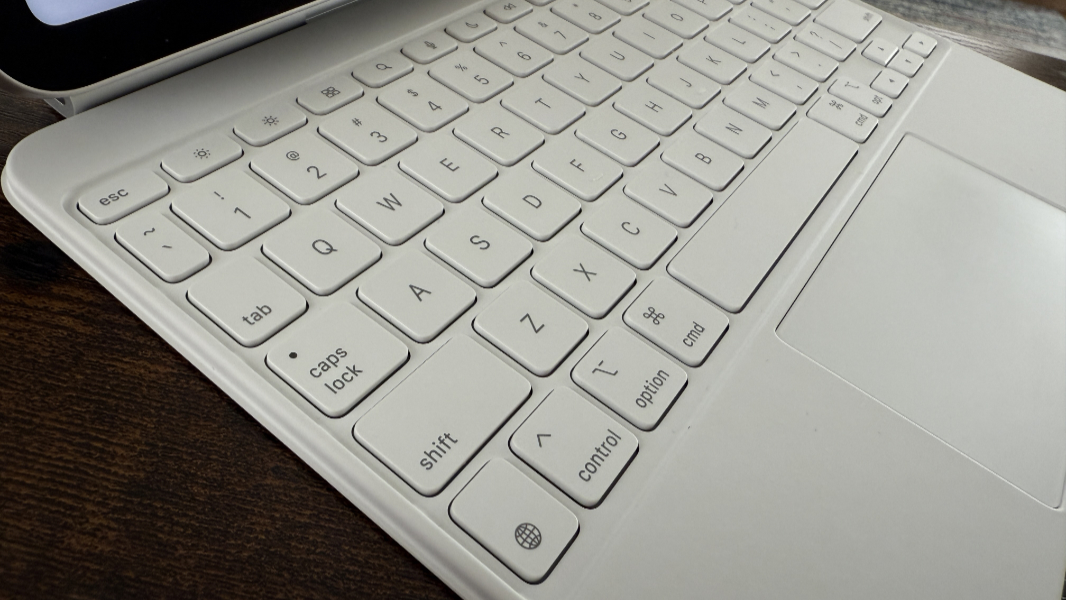
The touchpad supports Mac-like navigational gestures, and they work quite well, embarrassingly better than the similar functions in most Windows-based laptops. This, I was curious about, given how one normally interacts with the iPad via touch. Would there be weird functional gaps that required me to reach up and touch the screen to get something done?
So far, that hasn’t been an issue. Between the familiar touchpad gestures and the computer-like mouse cursor in the iPadOS 26 beta, everything mostly works normally. The one exception is an iPadOS 26 issue I assume is tied to me enabling the multiple window support: The old ways of switching between apps–a three-finger sideways swipe on the touchpad, or an onscreen finger swipe at the bottom of the display–no longer work. This is OK, as you can just type Cmd + Tab to do that. But it is a curiosity (and not tied to the Magic Keyboard).
If you need to switch to an app that’s not in the most recents list, you can just three finger swipe up to access a longer list of previously used apps, or keep going to get back to the home screen. It doesn’t take long to get used to this.
Physicality
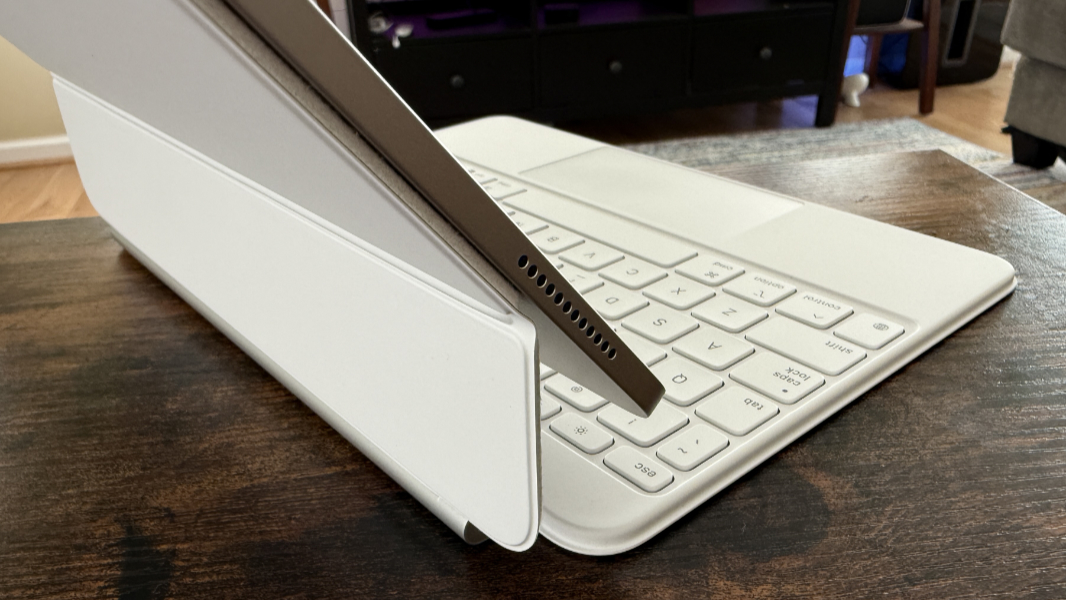
The Magic Keyboard has a single USB-C port located on the left side of its barrel-style hinge. I believe it can only be used for pass-through charging of the iPad. The keyboard itself doesn’t charge or have its own battery. If you need peripherals, the USB-C port on the bottom (right, in landscape model) is available. That could get awkward, but at least it’s there.
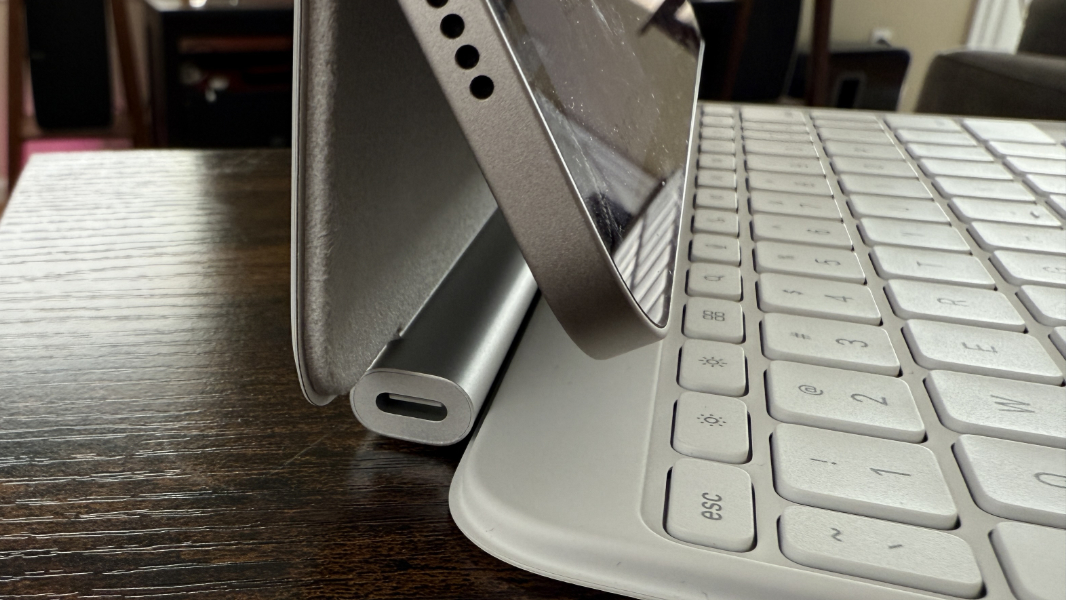
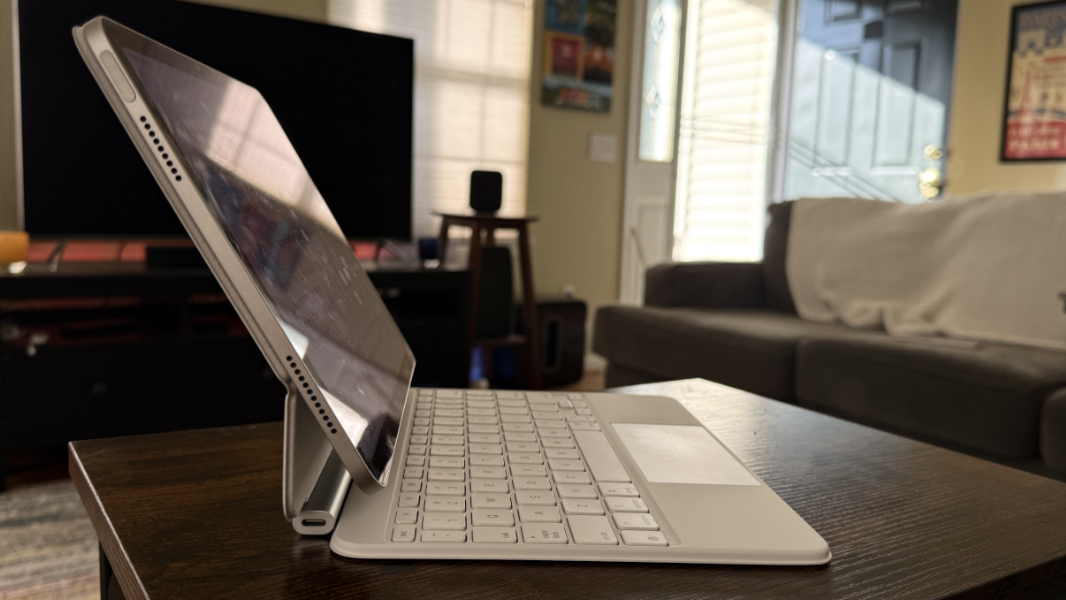
The cantilever design of the Magic Keyboard gives you a minimal range of angles you can use to position the display. But this seems to work well, with a nice stiffness when changing the viewing angle and no wobble in use. That’s impressive in this case, since I’m a very heavy typist.
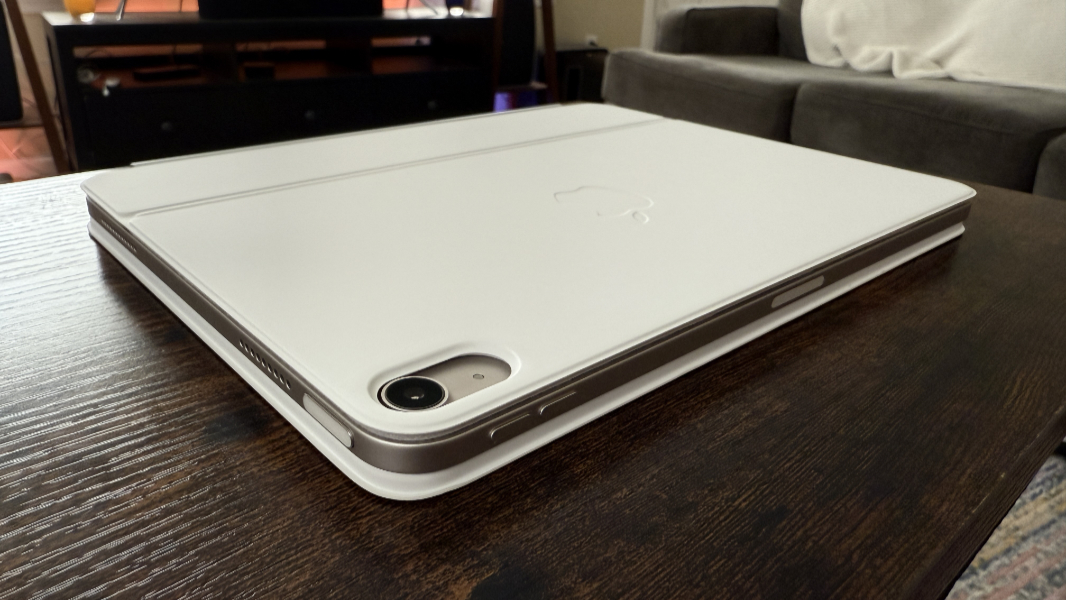
When you close the iPad and Magic Keyboard, it’s obviously thicker and heavier than when using just the iPad with a case or cover. But I feel one would get used to that, and it’s not terrible. It’s actually pretty amazing how thin it is, really, given the functionality.
The productivity experience
I’ve used Apple Pages, iA Writer (a Markdown editor), and Microsoft Word to see whether any had a particular advantage. But given my preference for Markdown, and my love of iA Writer, that quickly emerged as the clear winner. I started this article in Pages but switched it over to iA Writer midstream and very much prefer it. The version for the iPad is terrific, just like the Mac original. And I prefer it to the somewhat lackluster Windows version.
Of course, using an iPad like a laptop isn’t just about typing. And in thinking about my workflow for an article like this, I tried to figure out whether I could do it all on the iPad. Full disclosure: I didn’t try to edit images on the iPad, which is obviously possible and maybe even ideal, I just don’t know. It’s something I’ll need to explore later.
What I did do was have my Synology Drive client installed on the iPad. I also have Google Drive and OneDrive, which are probably more common choices. And of course many Apple users will stick with iCloud, which I also have available. By default, iA Writer will save documents to iCloud, which makes sense. But you don’t have to use iCloud.
To test this, I used the Files app, where Google Drive, OneDrive, and Synology Drive are all available in addition to local storage and iCloud I found the file for this article in iCloud, copied it to the Clipboard, navigated into my Synology Drive, and then pasted it into my To-do folder where it belongs. Then I double-click it and it opened … in some built-in file viewer. But Files now supports default apps for file types, and you can also just right-click to Open with.
So that’s fine, and Files works a lot more like a Windows or Mac file management app, as I would refer. You can add folders to the navigation pane, as I do in Windows. And you can use the native app for any of those services and others to sync a folder locally, as I also do in Windows. So I did that with the To-do folder.
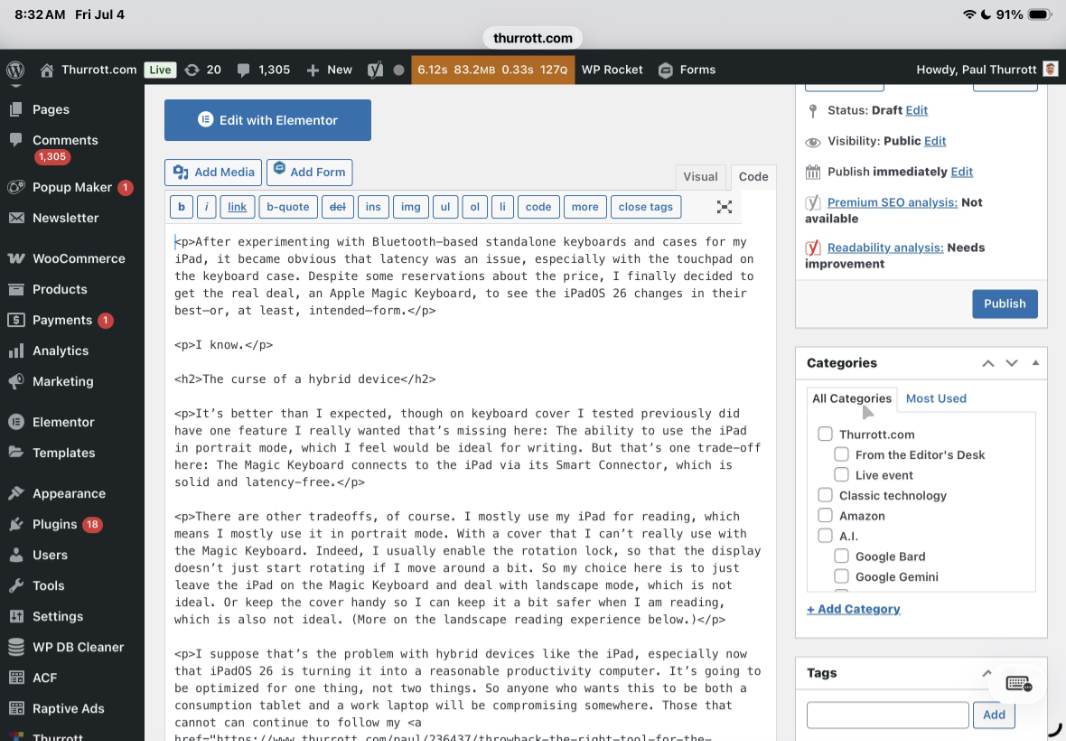
To get this article from iA Writer into the WordPress back-end I use here at Thurrott.com, I did the same thing I do on Windows: Copy the body of the article to the Clipboard (in iA Writer, I do this as HTML, in Typora, I use a different, more elegant method), open Safari, create a new article in WordPress, and then paste into the editor in Code (as opposed to Visual) mode. As expected, given my experience with iA Writer on Windows and Mac, the resulting HTML is perfectly clean and exactly what I want.
So switching back to the more typical Visual view is likewise exactly correct. (With Typora, I can just paste into Visual view and never deal with the Code view.)
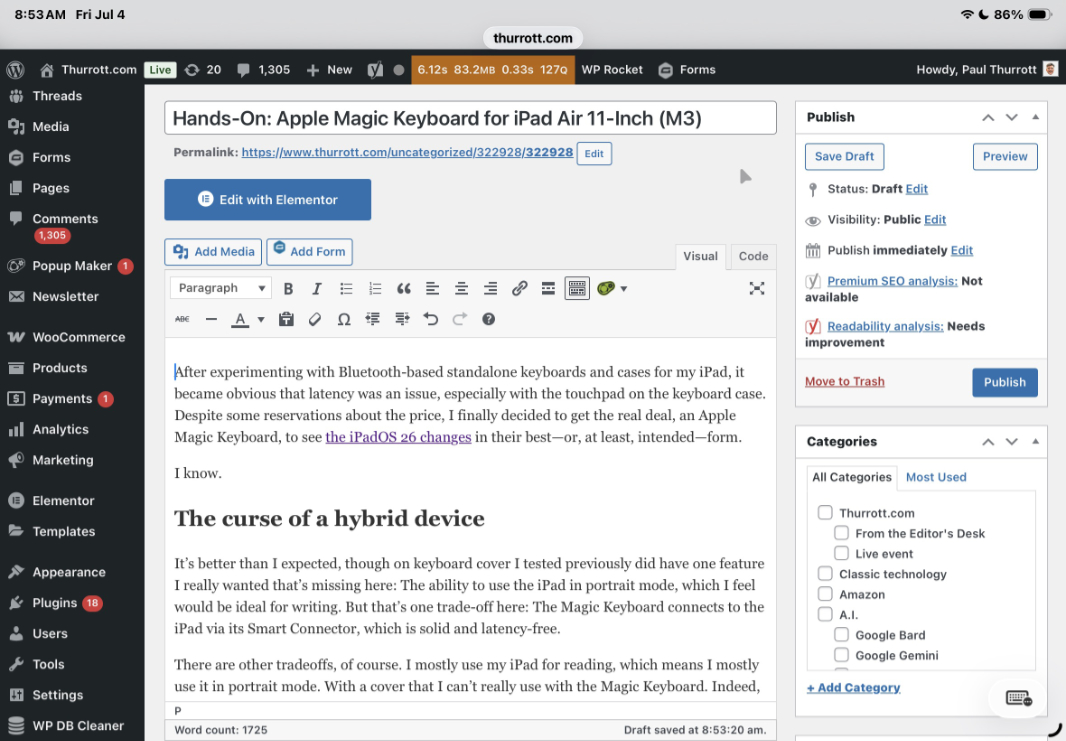
And that was pretty much the end of the iPad’s work on this article: I took screenshots on the iPad and some photos with my phone, but I did the image editing work in Windows. So I saved the article in WordPress in Safari, but didn’t publish it. Then, I opened the article in WordPress on my PC using Edge and inserted the photos and screenshots so I could publish it from there.
Moving forward
Aside from the maddening touchpad-related typing errors, which are frequent and difficult for me to avoid, this is a surprisingly strong showing for Apple. A larger iPad would be better for me personally, but many people would be fine with this size device, and it’s certainly more portable. It’s not clear what the impact is on battery life, however. I’ll find out.
I’m not poised to move entirely to the iPad for writing, but it’s immediately clear and obvious that many could and now will, thanks to the advances in iPadOS 26. And I probably could too, though I would need a bigger device and would have to figure out an image editing workflow. There’s no rush on any of that, I still prefer a traditional laptop. (And I prefer Windows, God help me.) But this is real, it’s finally real. And the end-to-end combination of hardware and software here, via iPadOS 26, the iPad, and this Magic Keyboard, is a compelling combination.