HP EliteBook X G1i 14 Review
- Paul Thurrott
- Sep 08, 2025
-
2
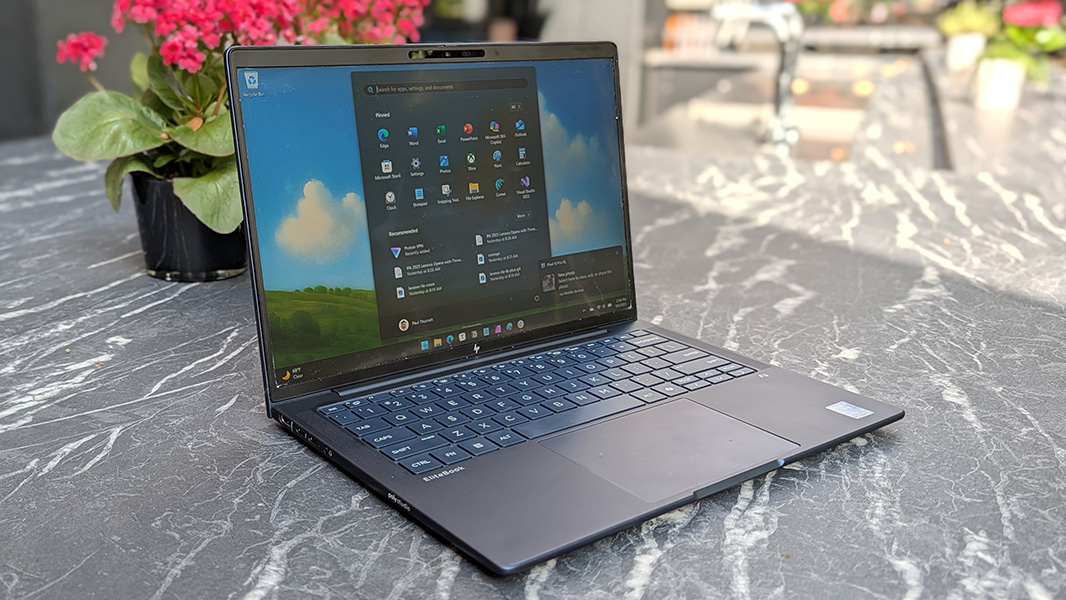
The EliteBook X G1i is an Intel-powered version of the EliteBook X G1a that I reviewed earlier this year, and while it is mostly identical to that laptop, there are some key differences as well.
In the plus column, it’s thinner and lighter. But HP also undermined the experience with some terrible keyboard design mistakes. And the battery life and performance fall short of those provided by its AMD sibling.
Note: In posting this review, I experienced additional reliability issues, including the browser window going blank twice. The PC also warned me about using a low-power charger … with two different HP chargers, one 65 watts and one 100 watts. This, combined with the experiences I describe below, makes me wonder if there isn’t just something wrong with the review unit specifically. As noted, much of what I describe here is unique in an unwelcome way.
Design
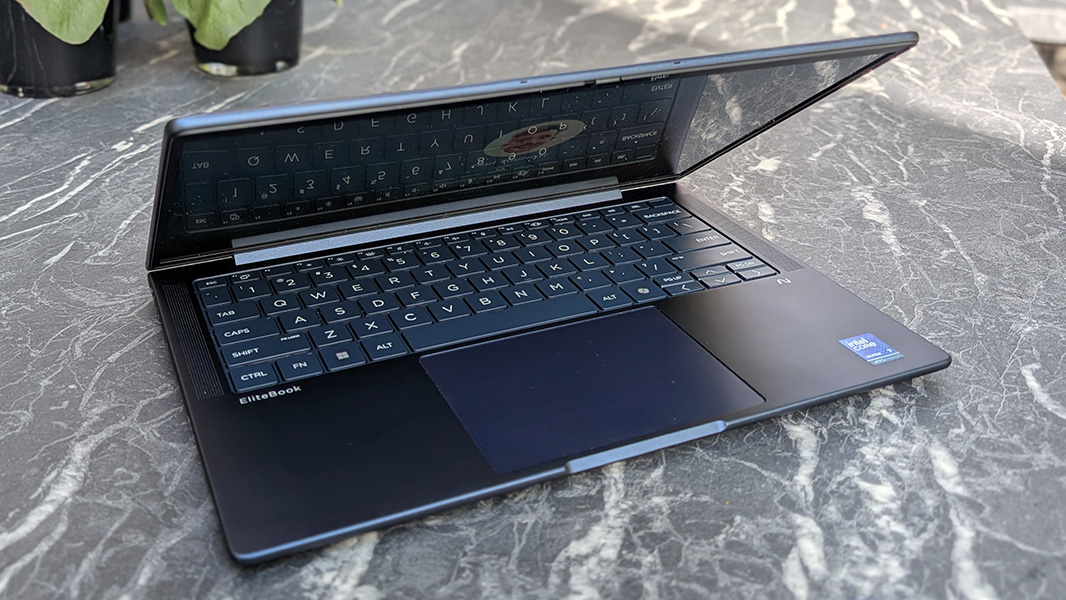
Like its AMD-powered brethren, the EliteBook G1i 14 is a handsome business-class laptop with a minimalist design. But I love its Dragonfly-like atmospheric blue color and its thinner and lighter form factor. It’s understated and classy, and yet it doesn’t look like any of the other business-class laptops I always see when traveling.
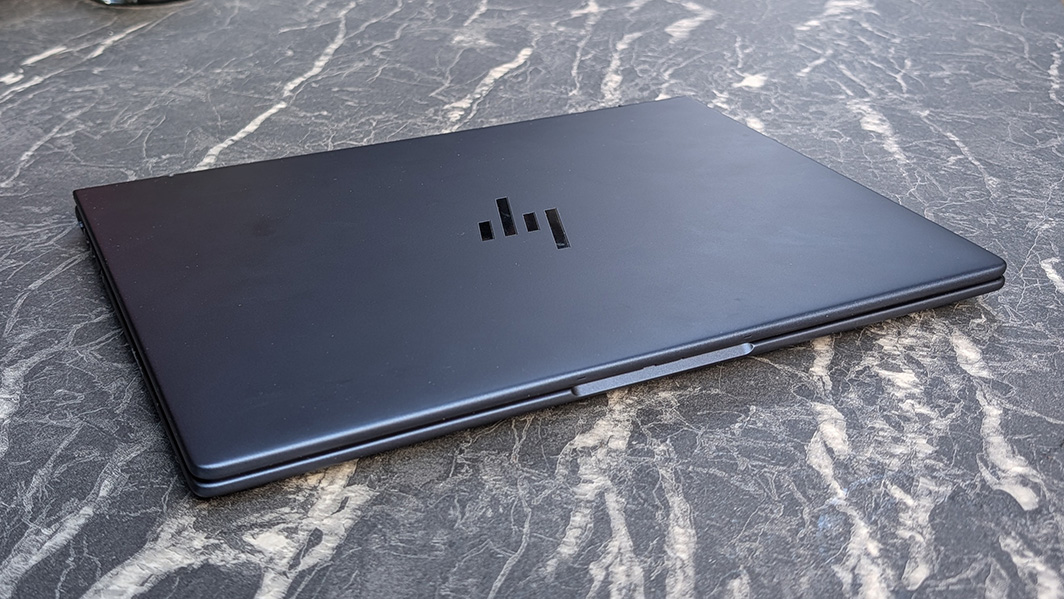
Depending on the lighting—and, come to think of it, the angle you’re at when viewing the laptop—the EliteBook’s island-style keyboard and large touchpad either match the color of the body or are noticeably lighter.
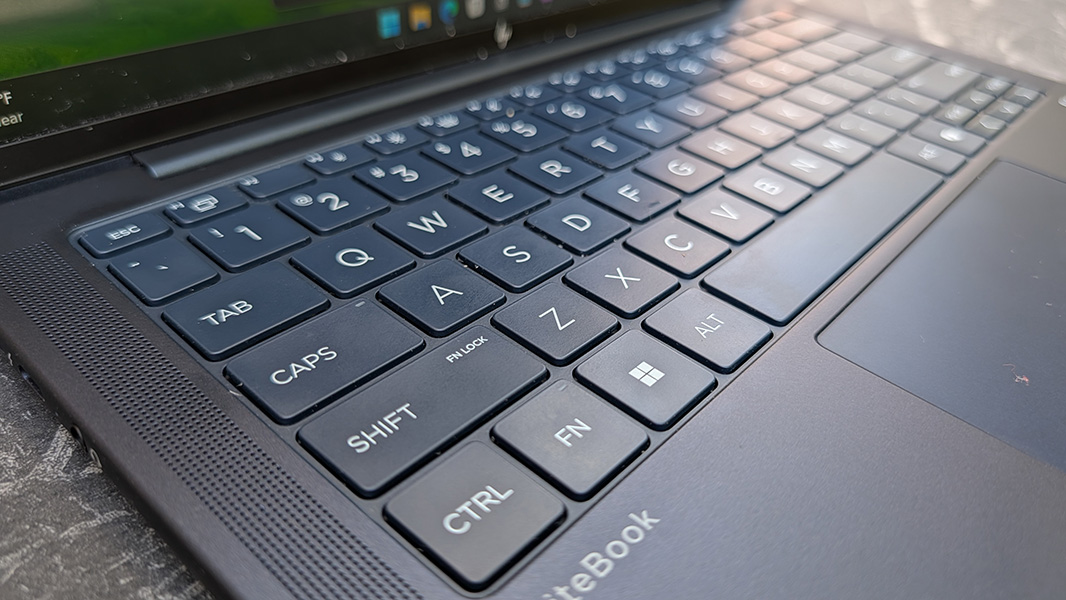
As with the AMD rendition, every corner on the EliteBook G1i—well, except for the display corners—is curved. This gives it a nice, soft look and feel, as the curved edges feel comfortable on the wrists. There’s also a pleasant, magnesium-like feel to its upper surfaces.
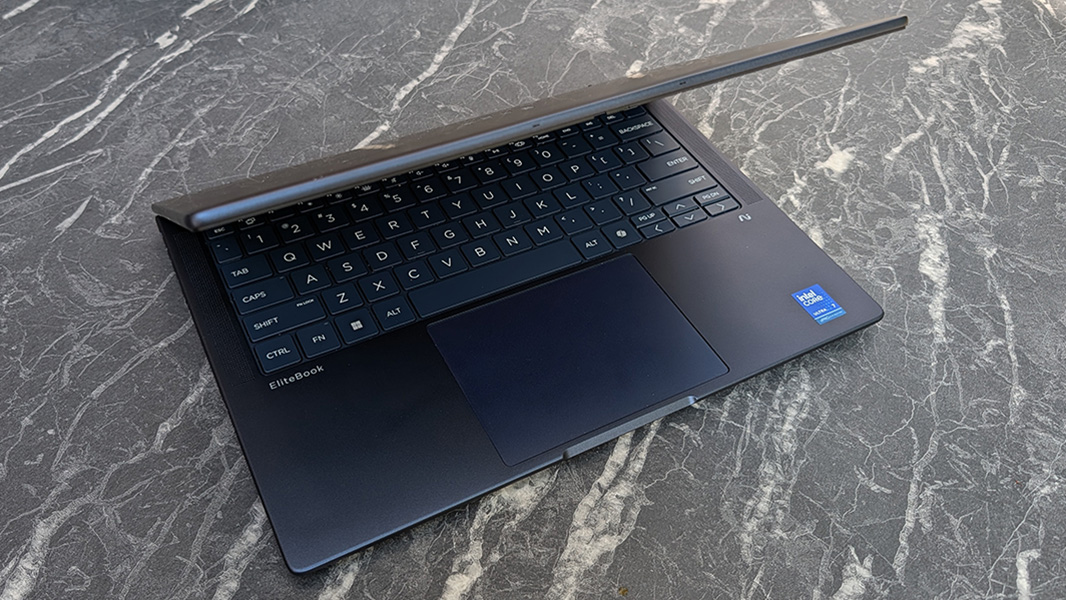
The logos on this laptop are subtle, not in-your-face, and there is only a single Intel sticker, on the right wrist rest. None would be even better.
Display
The EliteBook X G1i can be configured with a 14-inch Full HD+ (1920 x 1200) IPS panel, or a 2.8K (2880 x 1800) OLED panel, though the latter option requires you to upgrade the base 3-cell 55 wHr battery to a beefier 6-cell 68 wHr unit. Oddly, there are 6 Full HD+ panel choices, though the differences between each are subtle.
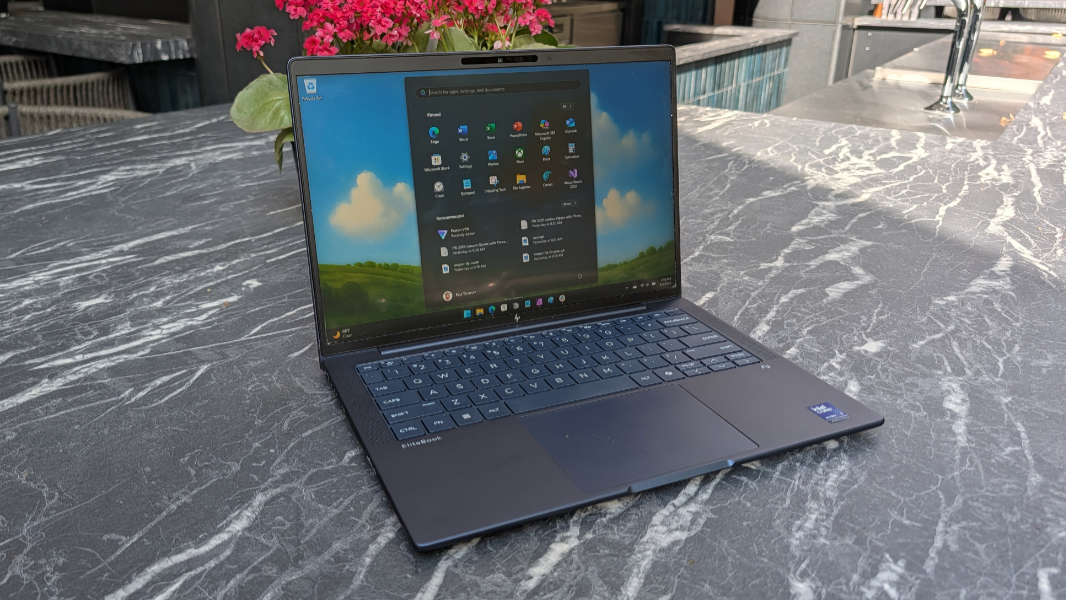
The review unit shipped with a Full HD+ low-power IPS panel with touch, an anti-glare coating, and 100 percent coverage of the sRGB color gamut. It’s a pretty standard display these days, with a 60 Hz refresh rate and basic HDR support, and it outputs 400 nits of brightness. That’s plenty bright for indoor use, but the bigger deal to me is the anti-glare. A lot of the laptops I’ve used recently have glossy OLED displays, and I very much prefer matte-type displays for productivity work.
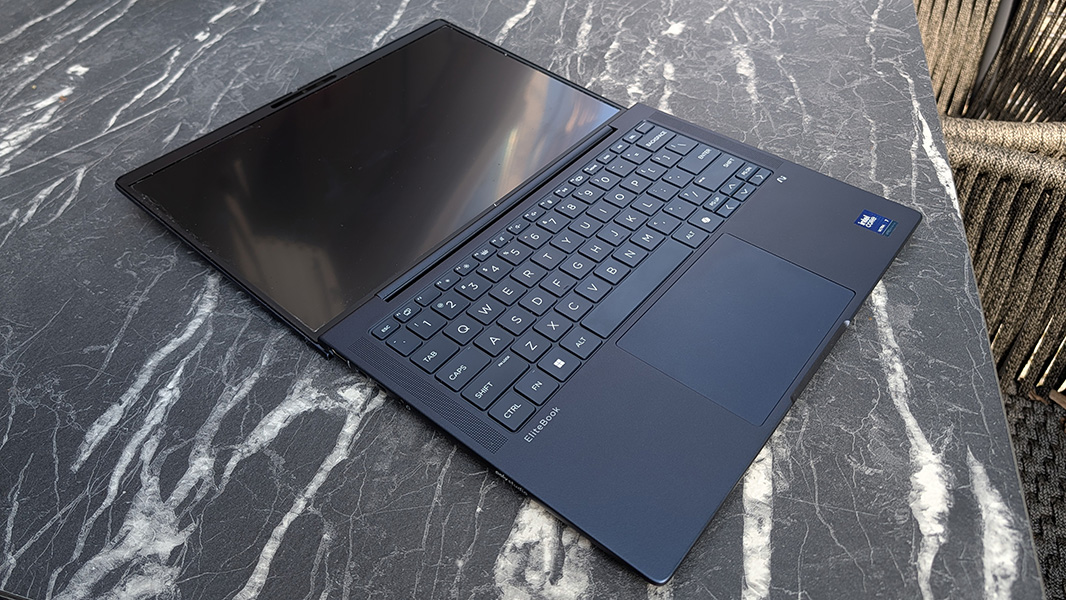
The display panel lies nearly flat if needed, which can be useful. And the bezels are small on the left and right sides, and very much like what we see on basically all modern premium laptops.
Internal components
This is where things start to get squirrely. The “i” in this laptop’s name tells us that this is an Intel-based laptop, and given its thin and light form factor, that means it will be an Intel Core Ultra Series 2 processor of the “Lunar Lake” variety. I’ve used enough of these products this past year that I’m developing a bad case of PTSD: I want them to work well, and sometimes they do. But just as often, they do not. And the EliteBook X G1i was one of the most frustrating examples of this phenomenon I’ve experienced to date.
The review unit shipped with an Intel Core Ultra 7 268V processor, 32 GB LPDDR5x-8533 integrated (and non-upgradeable) RAM, and 512 GB of PCIe Gen4 NVMe TLC SSD storage. But you could configure this laptop with in various processor/RAM combinations—Intel Core Ultra 5 226V/16 GB and probably others—and with 256 GB, 1 TB, or even 2 TB of storage. Assuming you can figure out HP’s website, which I cannot. Perhaps it’s tied to the phase of the moon.
In a callback to the dark early days of “Lunar Lake,” performance is only acceptable when you use the laptop in “Best Performance” power mode, and then not always. In its default configuration—“Balanced” when on battery power—this laptop is unusable if you stress it too much with several tabs in Edge and just a handful of other running apps. But even on power, I could get this thing to slow to a crawl that was so frustrating I wanted to scream out loud. OK, I did. Many, many times.
How this is possible in late 2025 is unclear. But the only time I ever experienced worse performance with a computer is when I installed Windows 3.0 on my wife’s IBM PS/1 in the early 1990s. That experience was admittedly worse: When I clicked on a menu, I had to sit and slowly watch it draw in real time. And to be fair to the EliteBook, sometimes it was fine.
By the time we flew home from Berlin, for example, I had moved to “Best performance” and used it for several hours on battery in a cramped coach seat and it performed admirably, with no unusual slowdowns or other issues. But I had struggled with it for over three weeks before I made that change so I could try various other possible solutions, like a well-hidden Smart sense feature in the HP (previously myHP) app that did just about jack s#!t to fix the problems.
Sorry if I’m coming off a little strong here. But this kind of issue is unacceptable in any premium laptop, business class or not. And that’s especially true when you consider how expensive this thing is as discussed later in the review. Oddly, and this I cannot explain, making this change did not seem to impact battery life dramatically.
Since Call of Duty: Black Ops 6 is my go-to these days on performance, I can tell you that the EliteBook X G1i is a reasonable entry–level experience. With the graphics settings on low, I was seeing 30-40 FPS in multiplayer. Yes, on power. Always on power.
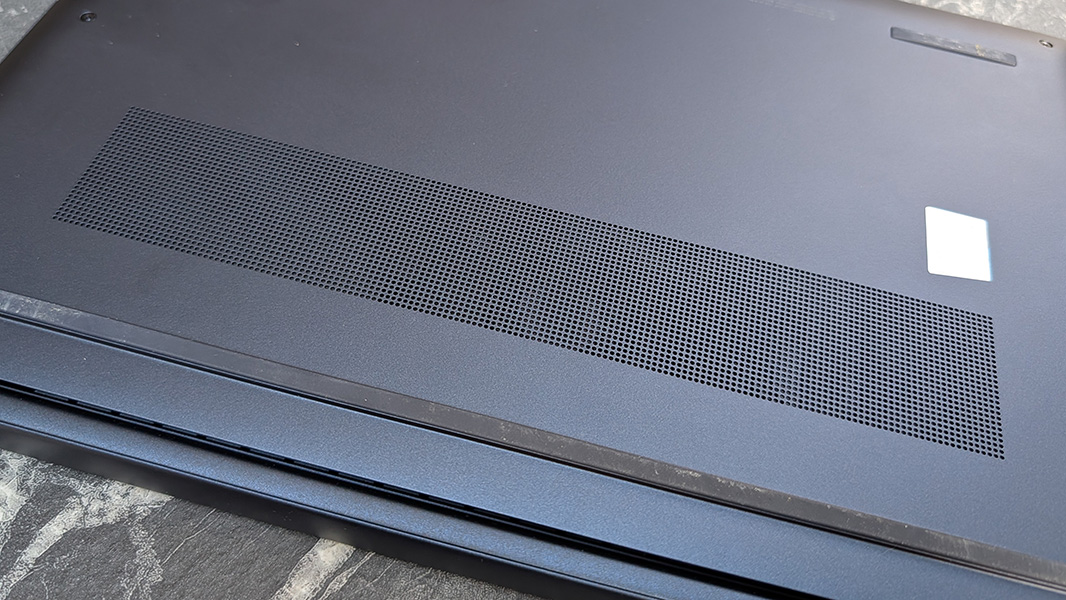
The noise and heat paralleled the performance experience and, as I recently came to understand, would often presage a nosedive in performance. For example, I was lying on the bed in the hotel room in Berlin the other day, working on the EliteBook—yes, with a hard cover book beneath it to assure adequate ventilation—when the fans suddenly roared to life. “Here we go,” I said out loud. And sure enough, the performance fell through the floor and I moved to the other laptop I had brought.
Aside from that and game playing, which I assume most business travelers aren’t doing, noise and heat were never an issue.
Connectivity
Connectivity is modern, with Wi-Fi 7 and Bluetooth 5.4, and there is optional 5G cellular data functionality with both nano-SIM and eSIM capabilities.
Ports and expansion
As a business-class laptop, the EliteBook X provides a good mix and modern and legacy ports. But HP also placed at least one USB-C port on each side of the laptop. That’s a big plus.
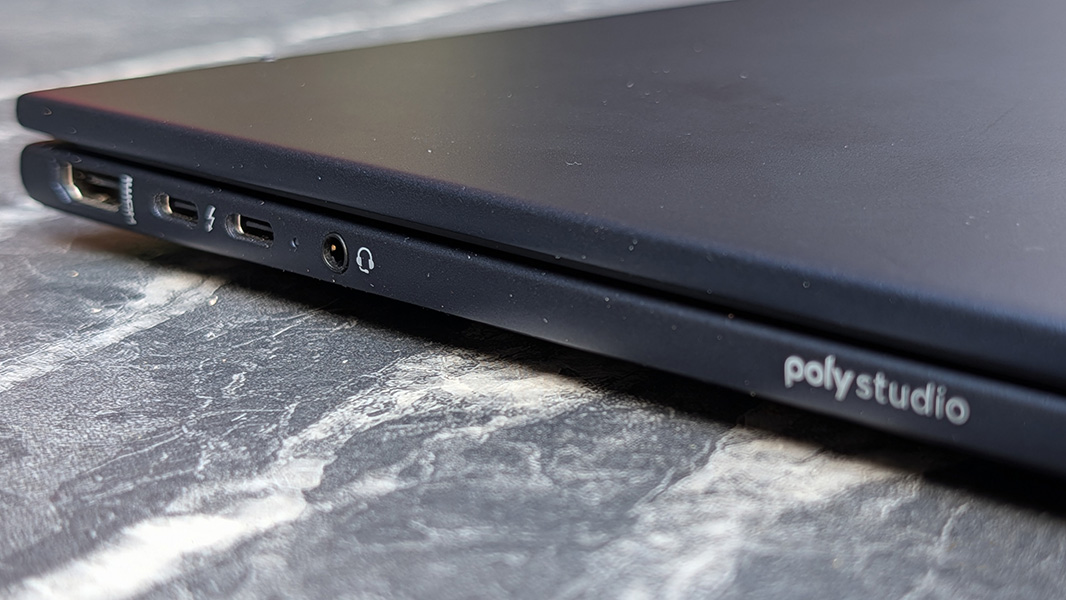
On the left, you will find a full-sized HDMI 2.1 video-out port, two 40 Gbps Thunderbolt 4/USB4 Type-C ports with USB Power Delivery, DisplayPort 2.1 and HP Sleep and Charge, and a combo headphone/microphone jack.
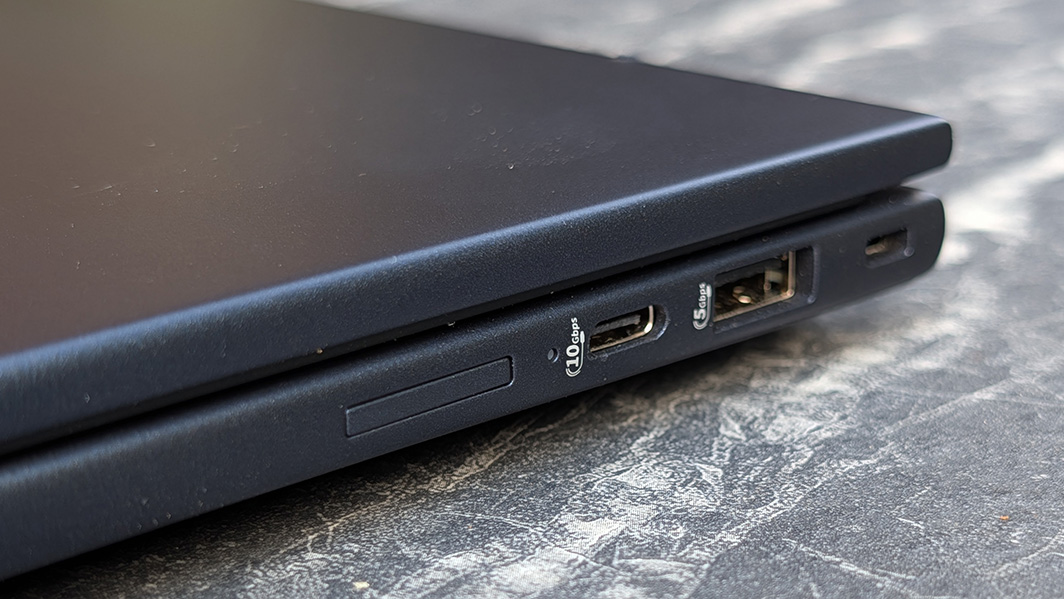
The right side has a 5 Gbps USB Type-A port and a 10 Gbps USB Type-C port (with Power Delivery and DisplayPort 1.4), plus a nano-SIM card slot (if configured) and a nano security lock slot.
Audio and video
Given the prominent speaker grills on either side of the keyboard and the absence of Dolby Atmos spatial audio capabilities, I assumed that the EliteBook X G1i shipped with a fairly standard and unimpressive set of stereo speakers.
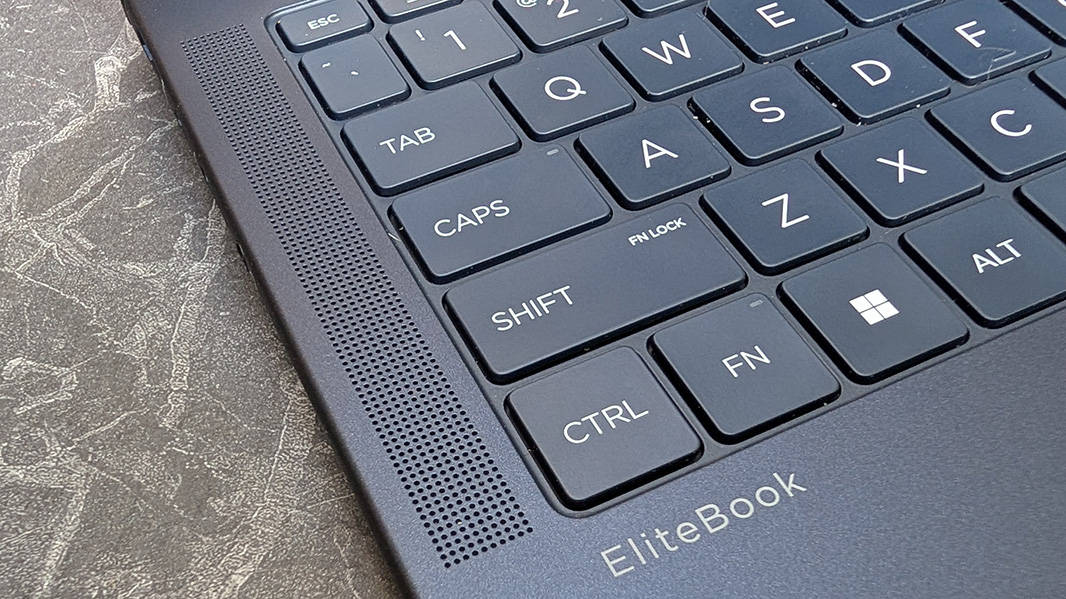
But HP surprised me by delivering quad speakers in this thin and light business-class laptop. So there are downward-firing speakers in the front, under the wrist rests, in addition to those upward-firing speakers. And each has its own amplifier.
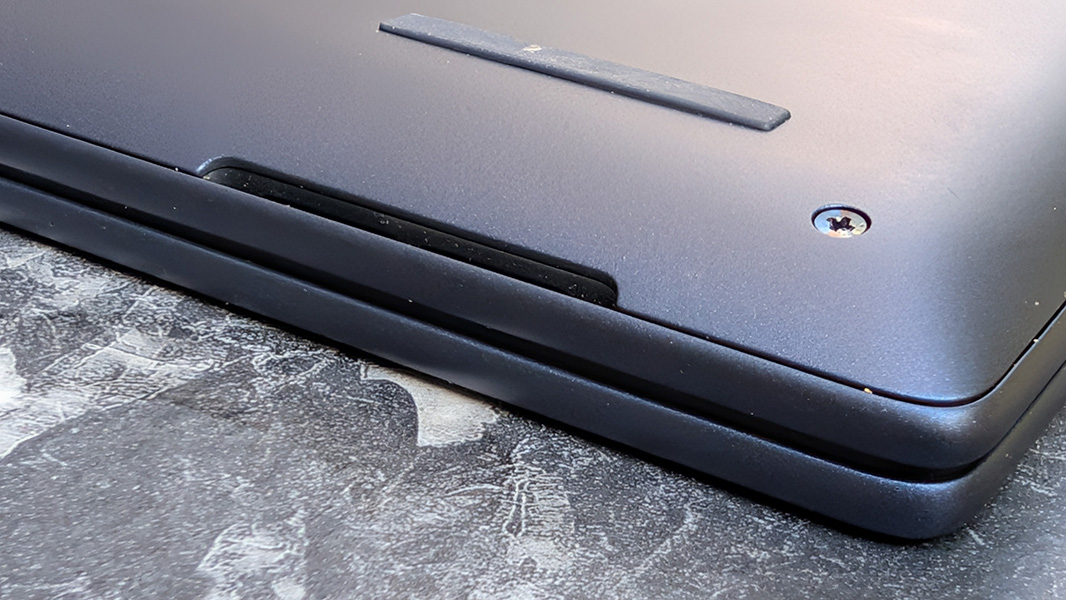
So, there’s no spatial audio—and it’s never been clear what “Audio by Poly Studio” even means—but this laptop gets loud, and it does so without any distortion. It’s just straight up stereo to my ears. But it sounds quite good, whether it’s video, music, or videogame content. As always, it works best when the laptop is used on a hard surface. Which I make a point to do.

Hybrid work
Like other makers of premium PCs, HP has settled into a nice rhythm when it comes to the webcam and microphone setups on its business products. In this case, that means a familiar 5 MP webcam with a manual privacy shutter on the top display bezel and dual-array microphones.
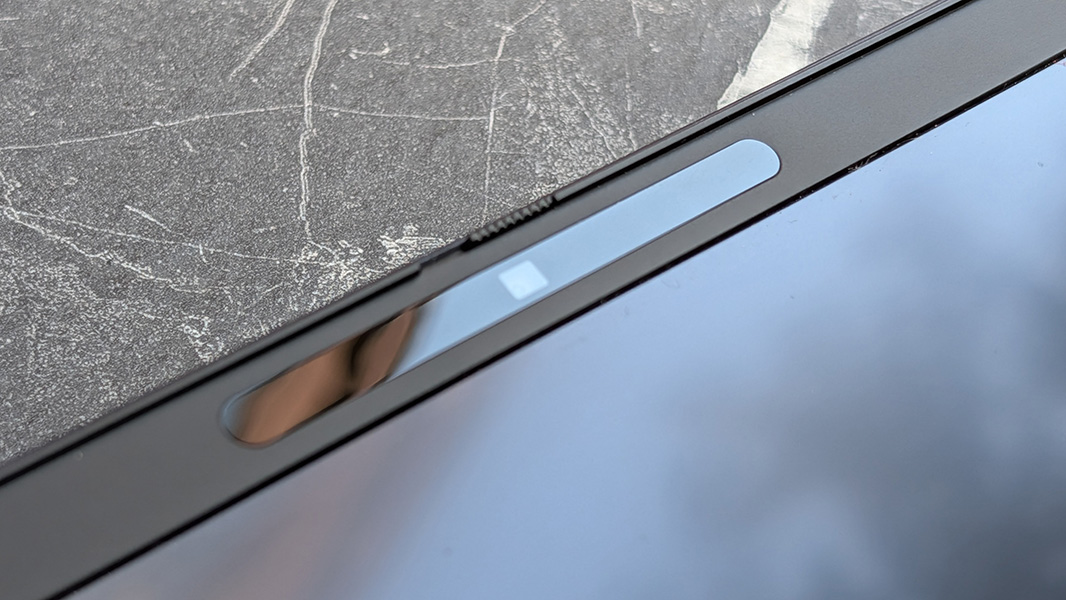
The webcam is capable of 1080p and 1440p video at 60 FPS or 4K at 30 FPS. And it supports basic Windows Studio Effects like automatic framing, eye contact, and standard and portrait blur. But HP provides better controls, too.
There’s an app called Poly Lens preinstalled on the laptop, but it doesn’t appear to do anything, literally, with whatever hardware is in the laptop. Poly Camera Pro, also bundled, is far more successful and one of the best webcam utilities I’ve ever seen. It also handles microphone configuration, but there’s little for it to do with the built-in mics.
Keyboard and touchpad
HP makes some of the very best laptop keyboards available today, and because it has the same layout as that on the EliteBook X G1a, which I mostly loved, I came into this with high hopes. But there are so many issues with this keyboard that using it was almost as frustrating as the performance issues.
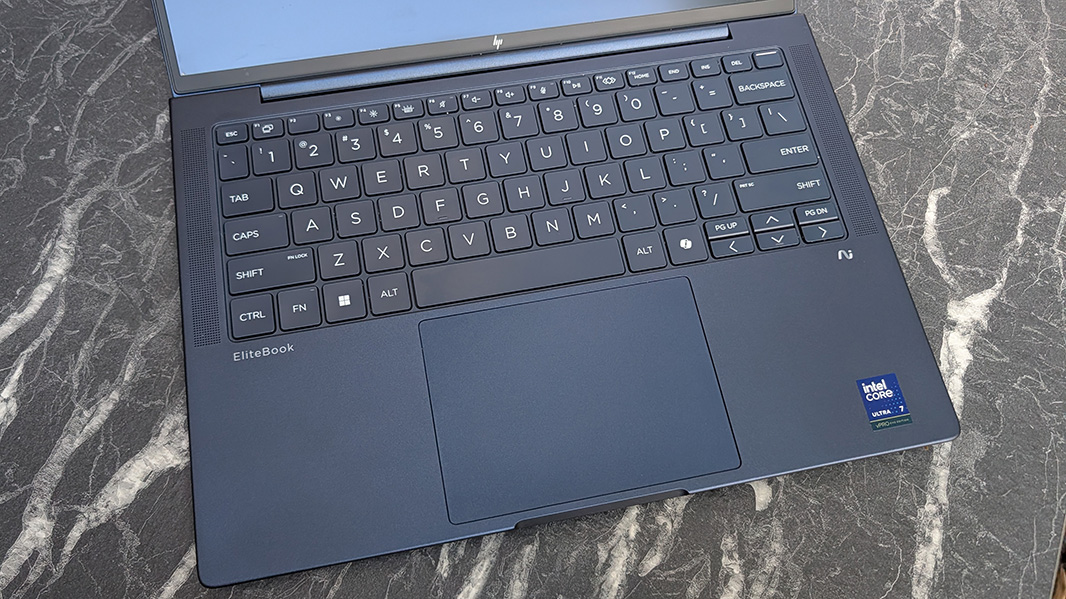
As it did with its AMD-based sibling, HP wedged tiny PgUp and PgDn keys into the inverted T of the arrow keys in the lower-right of the keyboard, a regular source of frustration. I have big hands and, yes, I’m a messy typist, but there’s no excuse for this. I access those arrow keys all the time, which I know with certainty because when I do so on this laptop, the document I’m working on will suddenly scroll up or down a page because I inadvertently tapped one of those little chiclet-sized disasters. While writing this review, I did this at least five times in just the past 30 minutes. This is a terrible design.
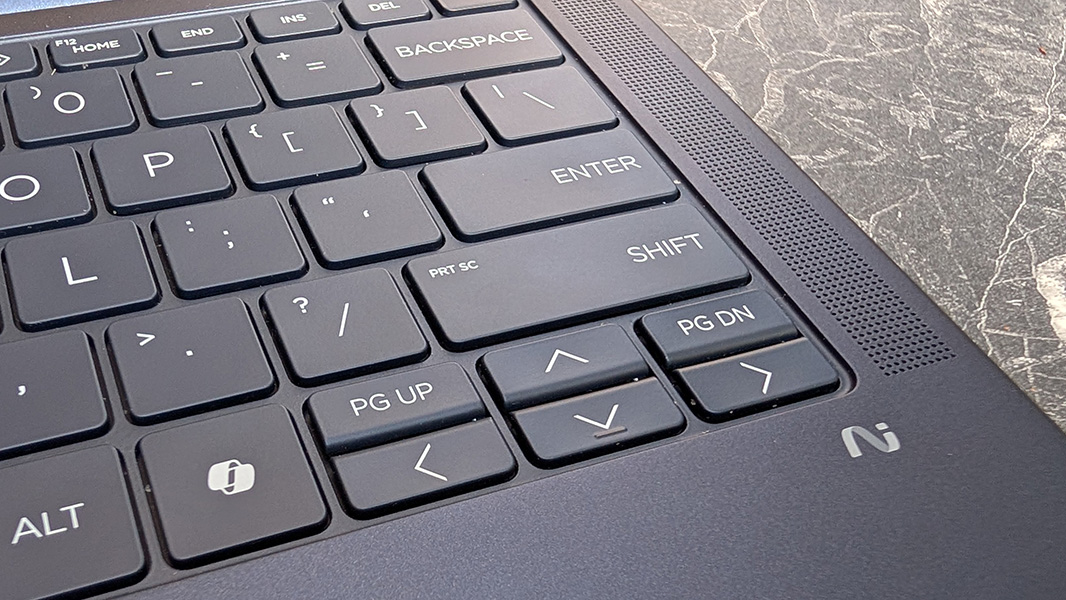
As bad, as I rely on these keyboard shortcuts, the arrow keys don’t support Function-key based shortcuts. So typing Fn + Left arrow doesn’t work as Home, Fn + Right arrow doesn’t work as End, and so on. Instead, HP has placed dedicated Home and End keys in the top row of the keyboard. The presence of those keys isn’t offensive, but taking away the Function key alternatives is offensive and unacceptable.
The problem, in case it’s not obvious, is that we’ve been down this road before with HP. One year ago, I reviewed this laptop’s predecessor, the HP EliteBook 1040 G11, and it had the same maddening keyboard issues. Keyboard issues that were so serious I wrote an entire article about them. But when HP released the EliteBook X G1a, it fixed the Function key shortcut problems. So I chalked it all up to mistakes made and lessons learned. Except here we are again, reliving the nightmare. HP has an AMD-powered version of this laptop with a superior keyboard design, and now it has an Intel-powered version with a keyboard so terrible that I often wanted to hurl it at the wall.
This is a shame because the keyboard is otherwise terrific. It’s full-sized, spill-resistant, backlit with two light levels (but no auto mode), and has terrific key feel and perfect key throws. I love typing on this keyboard. Or, I would if it weren’t for the issues noted above and the stupid Copilot key that no rational human being would ever want on a keyboard. That, at least, we can blame on Microsoft.
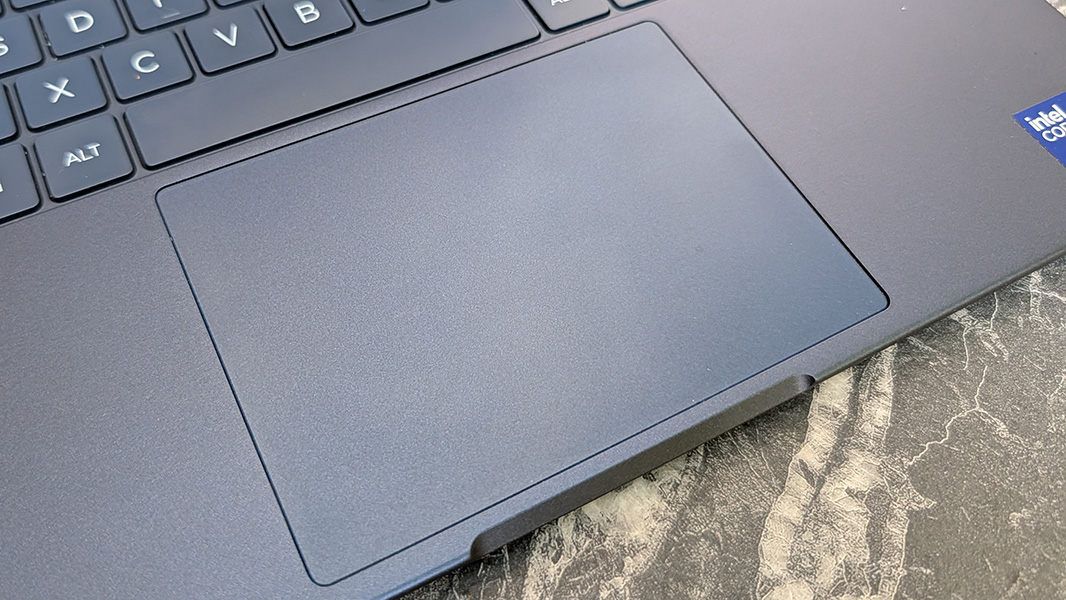
The touchpad is quite large but it was consistently accurate once I turned off the three-finger gesture that otherwise would launch me into Task view, a common issue with Windows PC touchpads. It has a solid “thunk”-like quality that I like.
Security
The EliteBook X G1i is a Copilot+ PC, so you get the best-possible security capabilities, with Windows Hello Enhanced Sign-In Security (ESS) and all the other advantages of that platform.
HP provides both facial and fingerprint recognition, the latter of which is built into the power button in the upper right of the keyboard, the desired configuration. Facial recognition was frustratingly unreliable, which I attribute to the “Lunar Lake” innards, but the fingerprint reader was always fast and reliable.
HP also gave the EliteBook presence sensing capabilities so that the PC can come to life when you walk up to it and turn off the display and lock the PC when you walk away. I suspect many will appreciate this functionality, but I always disable it.
Sustainability
Like most premium laptops these days, the EliteBook X G1i is made as responsibly as possible, with 40 percent post-consumer recycled plastic (50 percent in the fan enclosure), 30 percent ocean-bound plastic, and 65 percent recycled metal. 100 percent of the packaging is paper-based and made from recycled or certified sustainable sources, HP says.
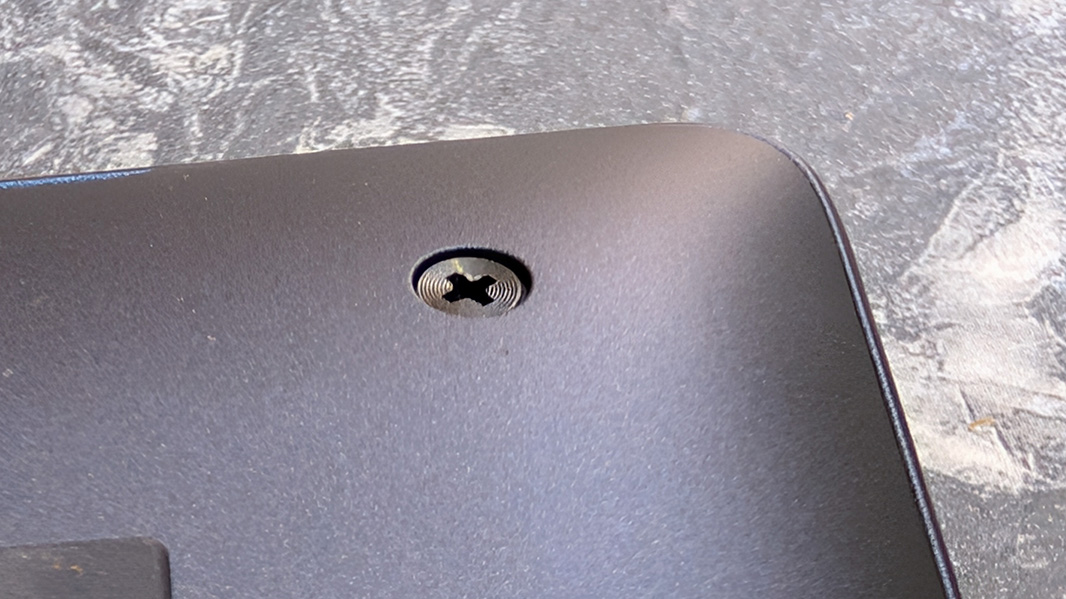
Also familiar, the bottom of the EliteBook is held on by just four exposed and captured Philips screws, though you’ll need a thin plastic pry tool to separate one edge from the top. From there, HP allows customers to self-service replace the battery, the wireless M.2 module, and the SSD M.2/2280 module. Other parts require a qualified technician. And the RAM is non-removable and non-replaceable because it’s integrated into the processor.
Efficiency and portability
In my experience over the past year, laptops with Intel “Lunar Lake” processors have consistently delivered less battery life than similar laptops with AMD “Zen 5” processors with the added advantage of not performing as well either. And that was the case here. I averaged just under 7 hours of uptime on a charge in real-world usage. That’s not horrible, honestly. But it’s well under the 9.25 hours I got with the AMD version of this laptop. And there’s a bit of subterfuge here, too: The review unit came with the beefier 6-cell 68 wHr battery. I don’t even want to know what battery life the 3-cell base battery would deliver.
That said, the EliteBook G1i is about a half pound lighter than the G1a at 3.09 pounds. And at 2.36 x 8.66 x 0.41 inches at its thinnest and 0.58 at its thickest, it’s thinner, too. If the battery life is sufficient for your needs, those will both matter quite a bit in day-to-day use, especially when you’re in-transit. (Configured with a 3-cell battery, it’s even lighter, and well under 3 pounds.)
HP shipped this laptop with a 65-watt USB-C power supply, which isn’t unusual. But this one was a bit smaller than usual and, in a first, the USB cable isn’t hard-wired into the power brick. So there are three separate parts—the cable, the brick, and the power cable—and I really appreciate that change. Also, I could get to a 50 percent charge in a little over 30 minutes, which isn’t bad.
Instant-on reliability and efficiency were poor in the way that’s true of almost every “Lunar Lake”-based laptop I’ve reviewed. There’s no reason to beat this to death, but these laptops are like a roulette wheel of experiences every time you open the lid. Sometimes it came right on. Sometimes it went through a mini-boot process. Sometimes the camera sprung to life, recognized me, and authenticated quickly with Windows Hello. More often it did not, forcing me to type a PIN, so Windows 11 could tbe berate me with a notification explaining what I could do to fix this issue.
I know what I can do, Microsoft. I can use an AMD Zen 5- or, better yet, Snapdragon-based laptop instead. That’s the fix.
Software
As a business-class laptop, the EliteBook X G1i correctly ships with little in the way of crapware but a curious number of utilities. You can configure it with Windows 11 Home or Pro, oddly, and then HP adds the HP app (half utility, half ads), the HP AI Assistant, HP Documentation, HP Hardware Diagnostics, HP Privacy Settings, HP Support Assistant, HP System Information, Poly Camera Pro, Poly Lens Desktop, and HP Wolf Security. And then there are four Intel utilities in case “Lunar Lake” wasn’t punishment enough. Most of this is avoidable in day-to-day use, but I make a point of uninstalling HP Wolf Security as it’s too much for any individual user.
Pricing and configurations
The EliteBook X G1i can be costly, even given its premium, business-class credentials. That said, the review configuration–with 32 GB of RAM, 512 GB of storage, and the Full HD+ display–is available at Costco for just $1400. That’s a tremendous value, assuming you aren’t bothered by my performance and keyboard complaints. And Costco is an ideal place to buy an expensive item like this.
But prepare yourself for sticker shock if you visit the HP website. There, you will find that the company also sells a line of EliteBook X Flip G1 convertible laptops that are basically the next generation version of what used to be called an EliteBook x360. But hold onto your hats, folks: There, an EliteBook X G1i configured with an Intel Core Ultra 7 258V/32 GB of RAM, 1 TB of storage, and the Full HD+ touch display panel is listed at $4669.00 at the time of this writing. Yes, I’m serious.
Also serious, I can’t find a “configure your own” version of this laptop, though HP lists several similar models instead, some with confusingly similar names like EliteBook Ultra G1i 14. Good luck.
Recommendations and conclusions
At $1400, I can make a case for the HP EliteBook X G1i 14, especially if you’re a light multitasker. But at $4000 or more, all I can do is laugh, shake my head, and point you to superior AMD- and Snapdragon X-based designs from HP or Lenovo. This pricing doesn’t make sense, but then neither do the keyboard and performance issues. It’s a shame, as this is a well-made, premium laptop in a handsome Dragonfly-like blue color that could and should be a no-brainer for anyone outfitting a corporate fleet. If you’re a Costco customer, it’s worth considering. But otherwise, this one is a miss.
At-a-glance
Pros
✔️ Thin, light, and handsome form factor
✔️ Full suite of Windows Hello ESS authentication features
✔️ Solid connectivity with USB-C ports on each side
✔️ Cellular data option
Cons
❌ Maddening performance issues in the default configuration
❌ Maddening keyboard issues undermine the entire experience
❌ Typical “Lunar Lake” reliability issues
❌ Pricing is all over the map