Lenovo ThinkCentre neo 50q QC: A Quick Follow-Up
- Paul Thurrott
- Oct 16, 2025
-
2
The Lenovo ThinkCentre neo 50q QC is a cool small form factor (SFF) computer based on a Snapdragon X processor. But as I discovered when I unboxed the PC, it only has a single USB-C port, and that port doesn’t supply DisplayPort capabilities. And that means the only video-out options are HDMI and DisplayPort, each via their own dedicated ports on the rear. This would be fine if I were in Pennsylvania, but here in Mexico I only have a single non-USB-C display. And my wife is using that.
Failed problem solving, part one
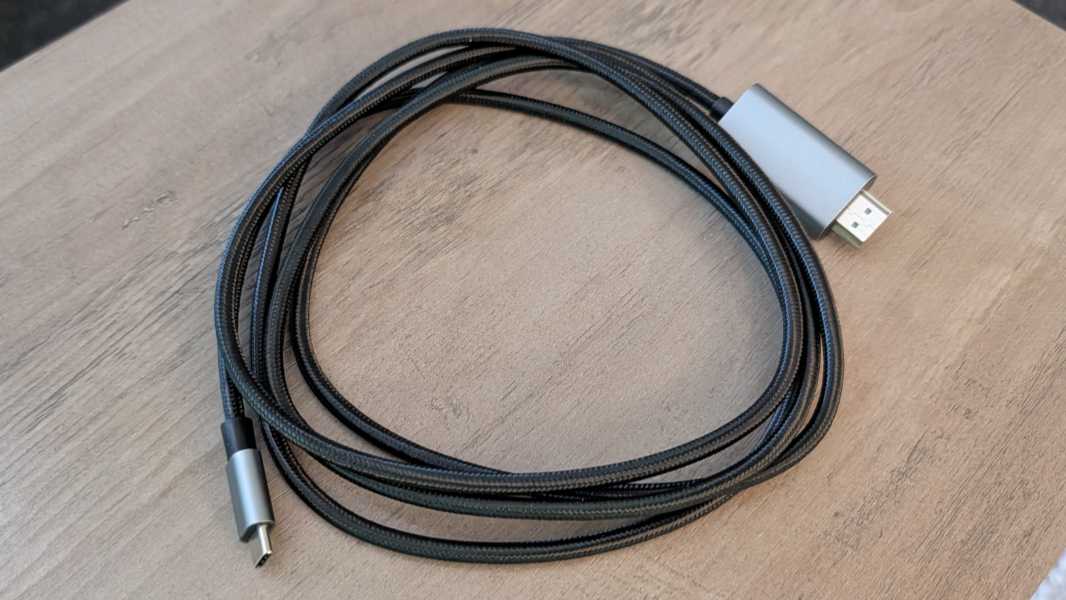
To solve this problem, I ordered a USB-C to HDMI cable from Amazon Mexico, which arrived that same day. Unfortunately, this did not work, either. Apparently, it’s a one-way cable designed for the opposite scenario, where you have a PC with a USB-C port and want to connect that it a desktop display with an HDMI port. Terrific.
With that defeat fresh in my mind, I decided to borrow my wife’s display for a bit and at least get the PC set up. Then, I could spend more time researching dongles and cables and buy one that will actually work. Or maybe even just get a second desktop display for Mexico. Fortunately, she had a lengthy call and could be away from her normal setup for an hour or so, so I dove in.
Second attempt
Obviously, the desktop display was always going to work, but Lenovo had configured the PC with a user account, and I wanted to see a normal first-boot experience. So I used that account only to run Reset this PC, knowing I was adding precious minutes, perhaps many minutes, to the clock. But there was nothing to be done.
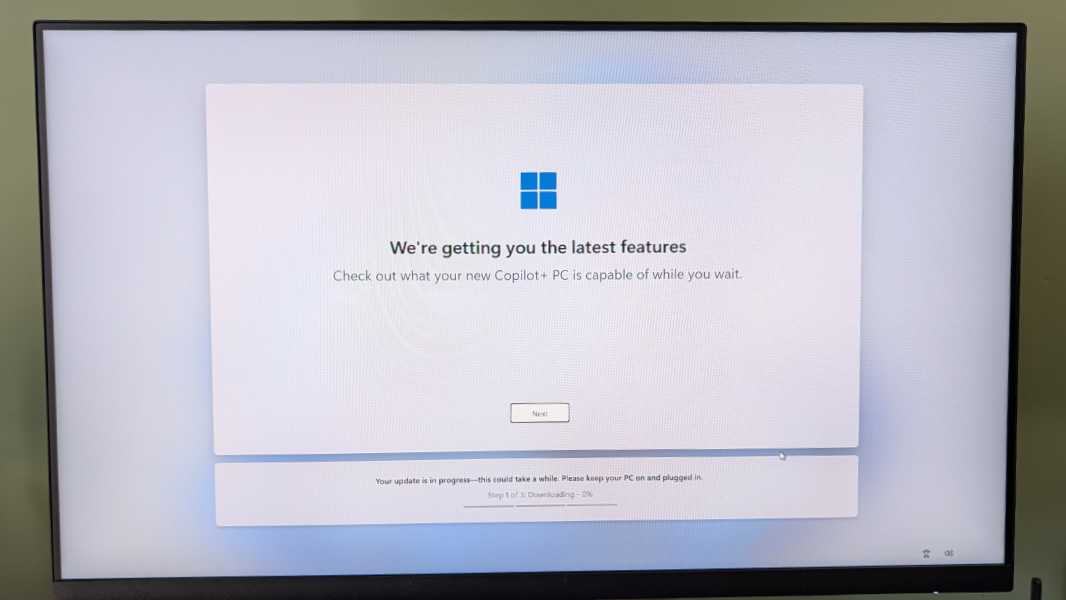
The reset took about 15 minutes, which isn’t bad, so I began stepping through the Windows 11 Out of Box Experience (OOBE), which wasn’t in any way unusual. I signed into my Wi-Fi network and signed into Windows 11 with my Microsoft account (MSA). And then I ran into the next time-wasting snag: That extra step in Setup that’s common to Copilot+ PCs in which it seems to download a huge feature update over a long period of time. In this case, another 20 minutes of downtime.
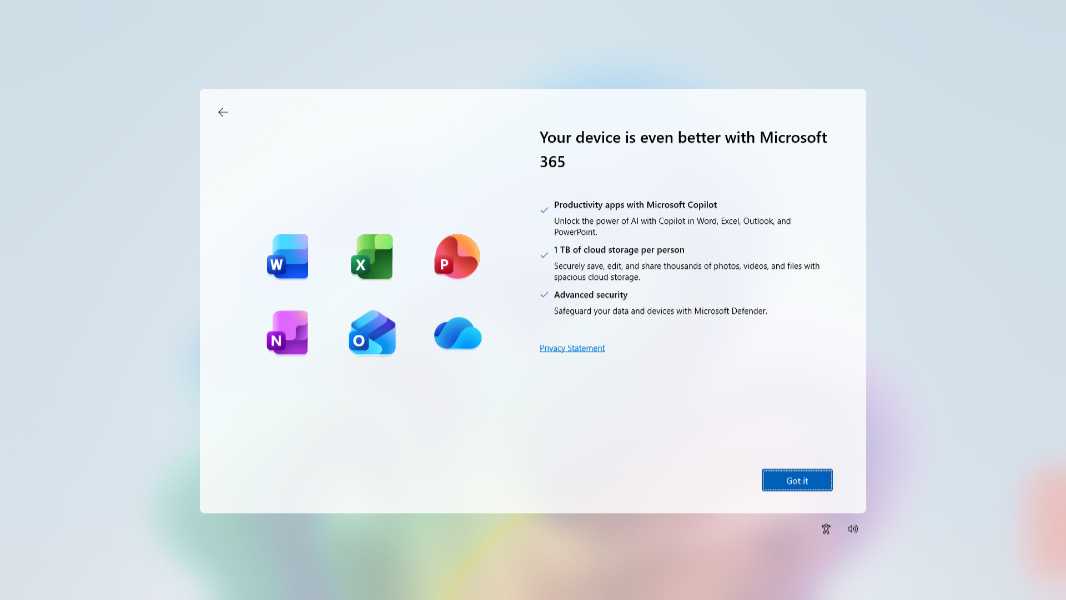
But that finally finished and I completed the rest of the OOBE, again with no surprises or unusual screens.
Software experience
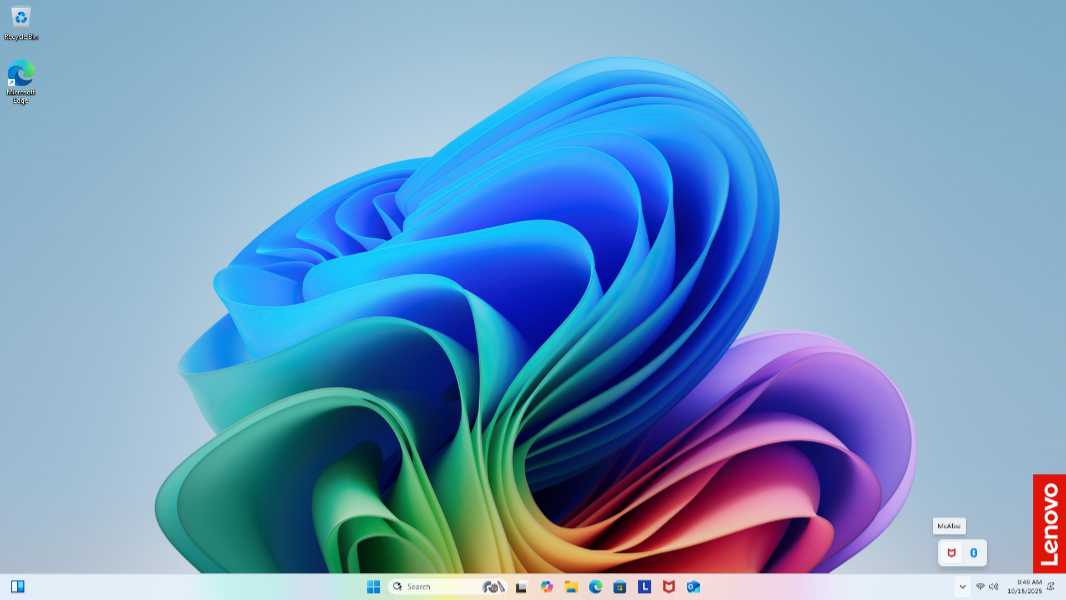
With the OOBE done, I booted into the Desktop with one of the more minimalist Start menus I’ve seen. Which can’t be what Lenovo intended. But whatever.
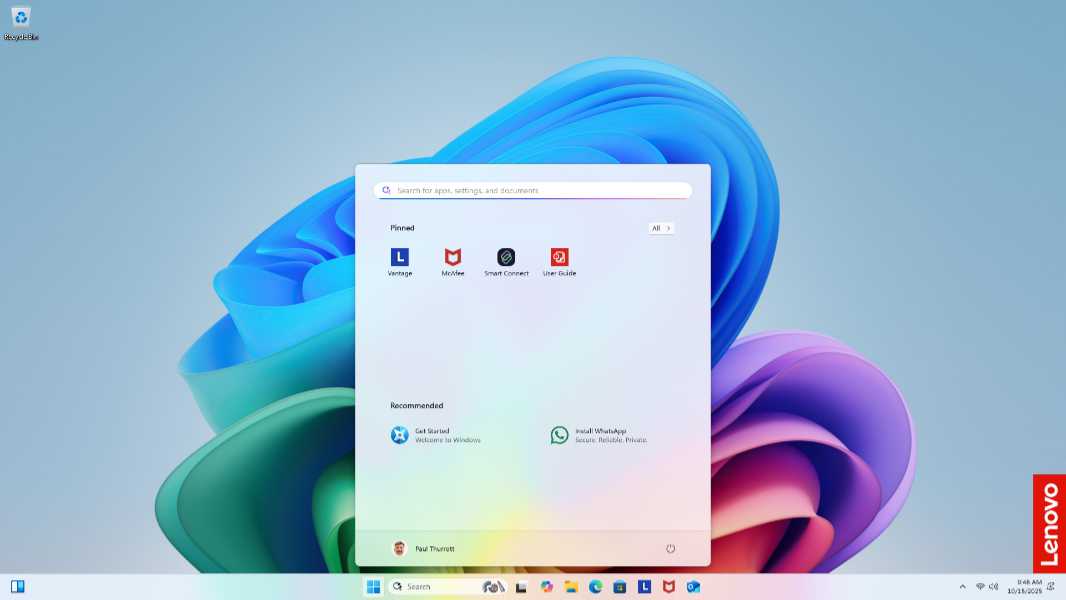
The ThinkCentre neo 50q QC doesn’t come with a lot of extraneous apps. There’s one overt bit of crapware in the form of McAfee. And then a few Lenovo utilities, including Lenovo Vantage, Smart Connect, and User Guide (really just a link to web-based documentation). So it’s pretty clean. Or it was once I removed McAfee. And installed all the app updates and Windows Updates.
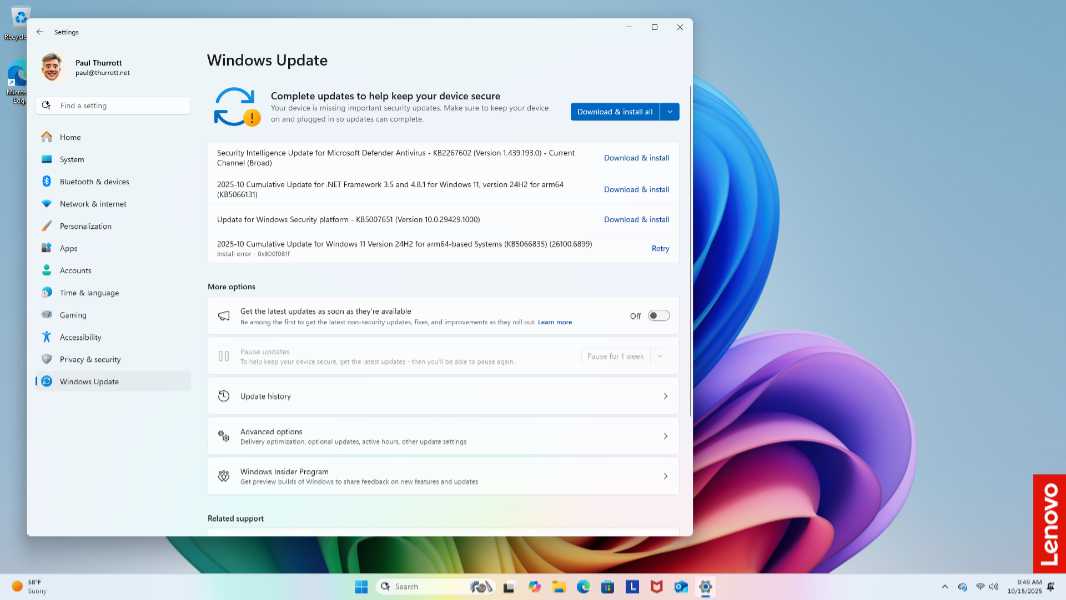
One of the oddities here is that the neo 50q is a Copilot+ PC, but it lacks any form of Windows Hello ESS-compatible biometric authentication method. And because of the nature of this platform, you can’t (yet) add on externally without first flipping a switch in Settings that drops the ESS down to traditional Windows Hello functionality. I don’t have such a peripheral, but the user experience should be identical if you do. (And Microsoft is working to support external fingerprint readers that are Windows Hello ESS compatible.) For now, it works normally with a PIN.
And that’s about it. The neo 50q is a pretty standard PC, and it’s just like the Snapdragon X-based Copilot+ PCs I’ve reviewed other than the form factor (and lack of Windows Hello ESS biometric authentication). In fact, its specifications are nearly identical to those in the HP OmniBook 5 16 I just reviewed.
Looking ahead, I’d like to use this for podcasts and when I’m working at the kitchen table that constitutes my home office setup here. But that will require a cable that actually works with portable USB displays or, God help me, a normal desktop display. I’ll start shopping around for one or the other today.
More soon.