HP EliteBook 6 G1q Review
- Paul Thurrott
- Nov 15, 2025
-
4
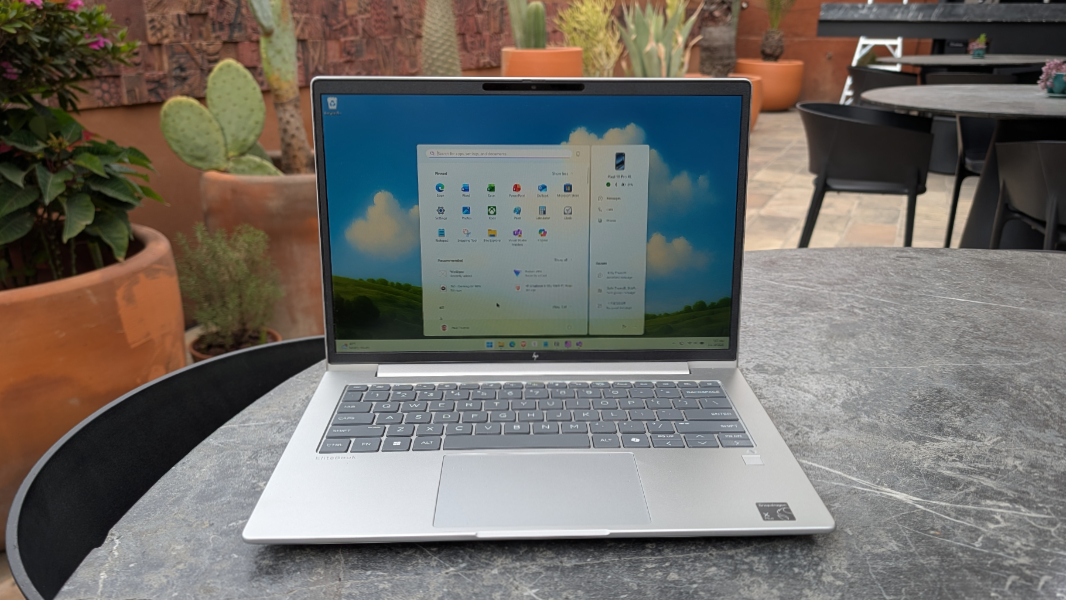
The HP EliteBook 6 G1q is powered by Snapdragon X and X Plus processors, but it delivers an incredible experience across the board, especially when configured correctly: The review unit arrived with a few missing features that maybe shouldn’t be optional at this price point. If there’s a downside, it’s the price: The EliteBook 6 can be overly expensive when configured to my liking.
Since HP is still overhauling its various PC lines with new branding, it’s perhaps worth pointing out that the EliteBook 6 series of which this is part used to be branded as the EliteBook 600 series. I don’t believe I’ve ever reviewed such a PC—most of my EliteBook reviews were in the old 1000 and 800 series—but there are 13-, 14-, and 16-inch EliteBook 6 series laptops now. And there are Intel and AMD processor choices across the board, though the Qualcomm Snapdragon X and X Plus options are only available in the 14-inch form factor that I am reviewing here.
Design
For the most part, the EliteBook 6 delivers the familiar EliteBook look and feel we know from the higher-end 8 and X series laptops.
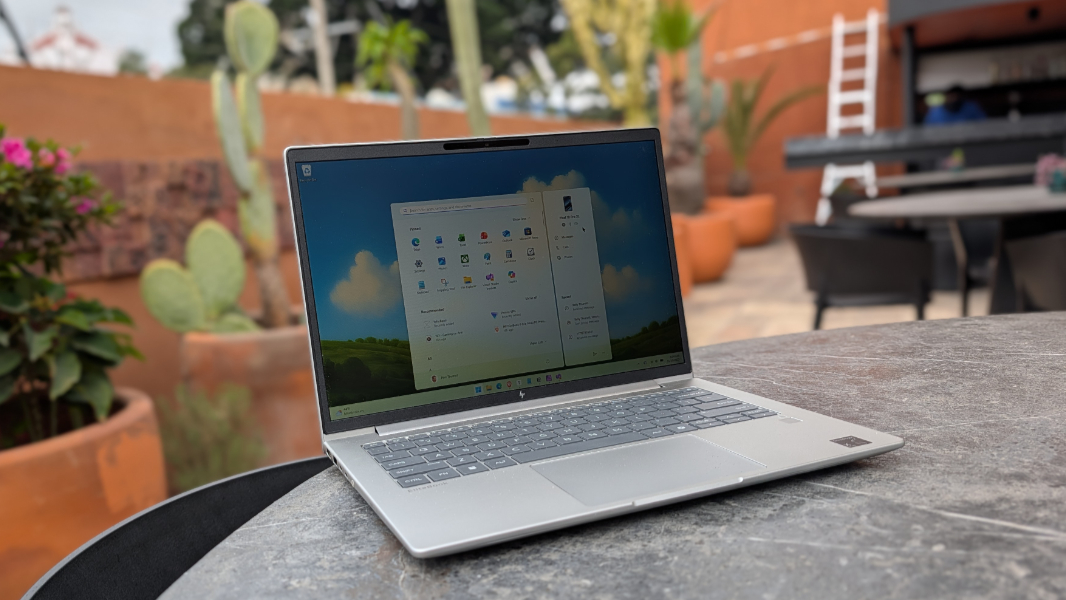
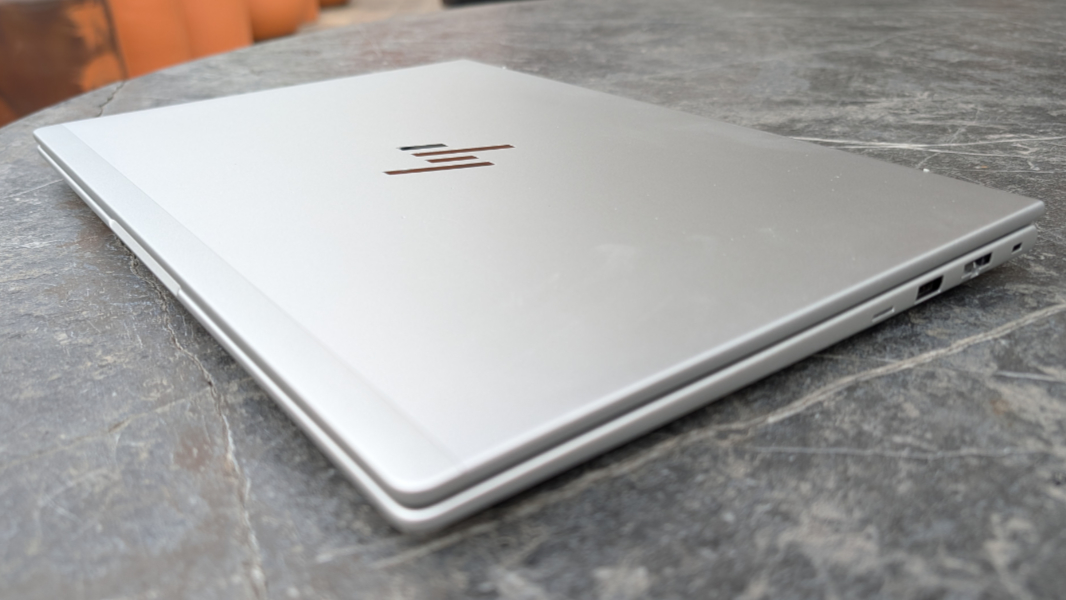
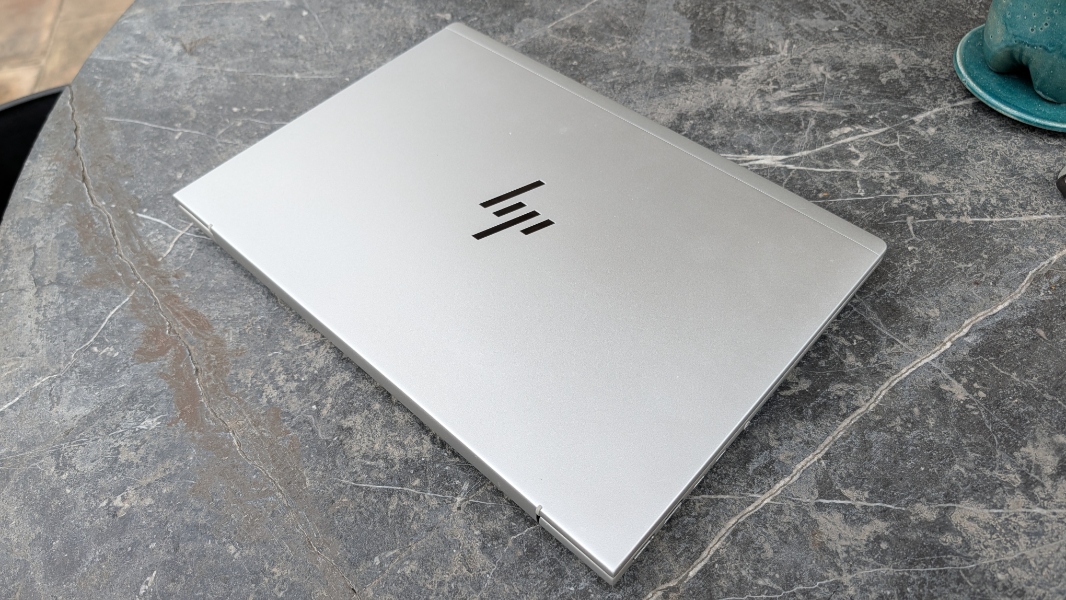
There’s a solid aluminum body, a surprisingly robust set of expansion ports, and premium, subtle HP branding all around.
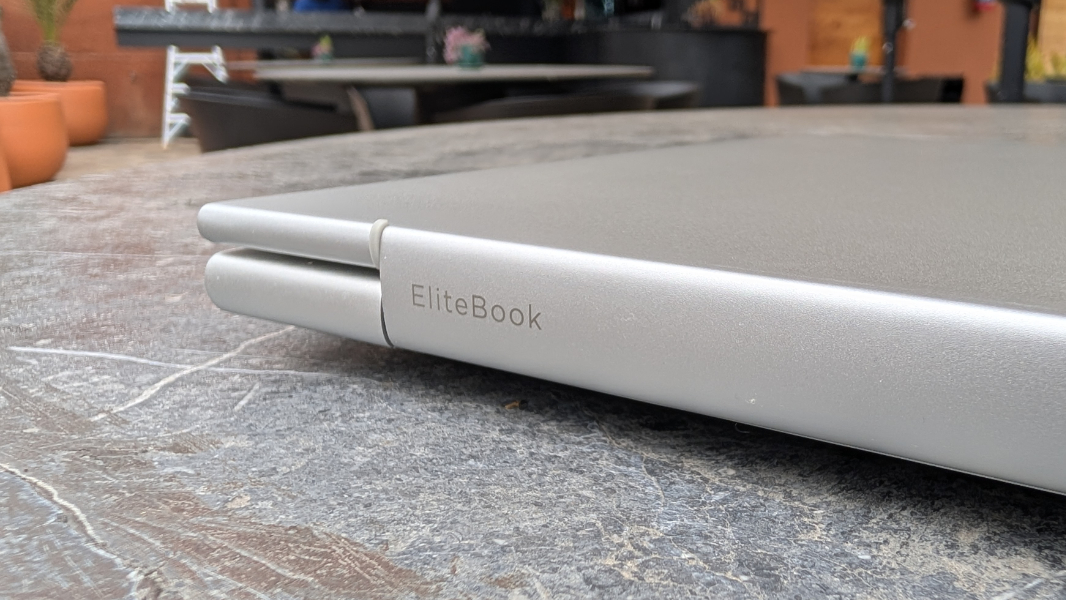
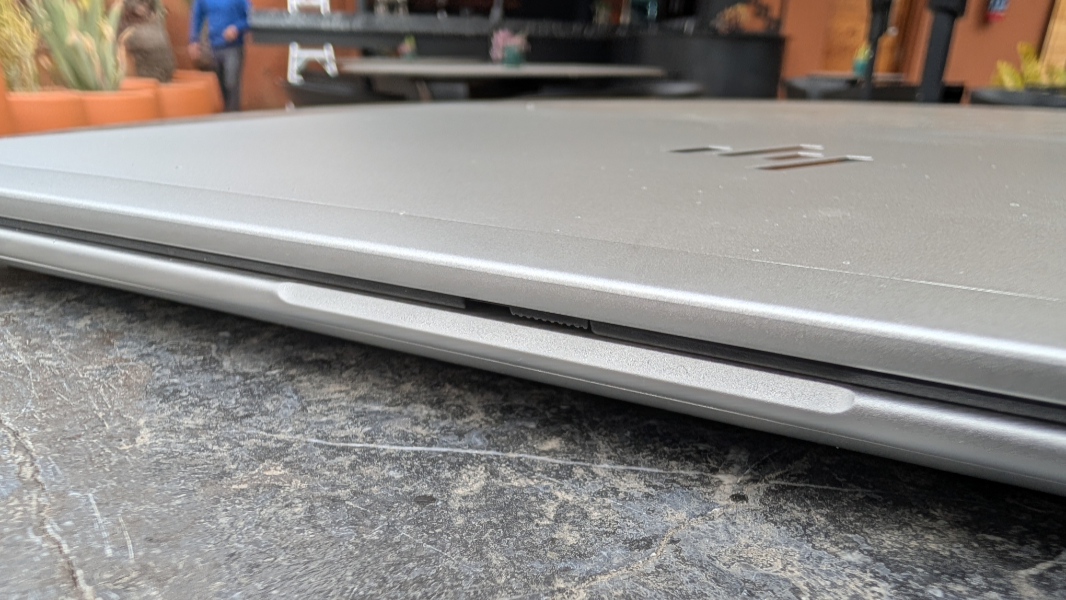
Given the pricing, one would expect premium build quality, and HP certain delivers on that. The EliteBook 6 is rugged, having passed 19 MIL-STD 810H durability tests. And while it’s a bit heavy for its size, as explained later in the review, even that imparts a sense of quality.
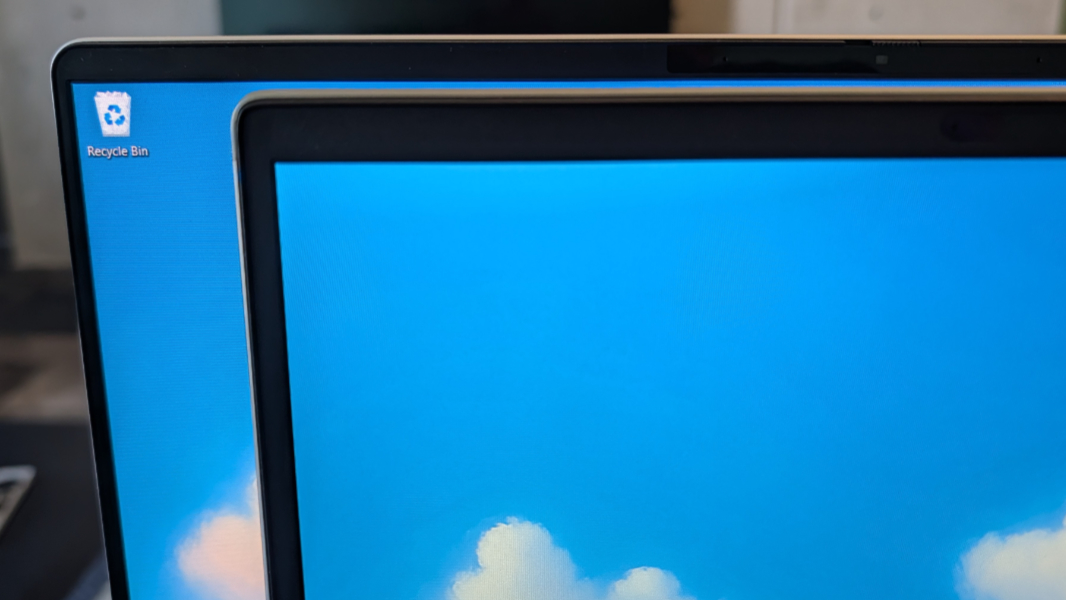
I’m less excited by the surprisingly large and overtly plastic bezel that surrounds the display. Maybe the smaller display panel exaggerates this effect, but the bezels just look chunky to my eyes. I almost can’t stop noticing this, and it’s odd to me that my much less expensive OmniBook 5 has much thinner and more elegant-looking bezels.
Display
HP offers several display choices to potential EliteBook 6 customers, perhaps too many. Each is a 14-inch panel with a 16:10 aspect ratio, of course, and all but one offer a Full HD+ (1920 x 1200) resolution that seems like a good fit for this laptop size.
There are touch and non-touch Full HD+ IPS panels that emit 300 nits of brightness, touch and non-touch low-power Full HD+ IPS panels that also emit 300 nits of brightness, a Full HD+ low-power non-touch IPS panel that emits 400 nits of brightness, a Full HD+ non-touch IPS panel with Sure View 5 privacy capabilities that emits 800 nits of brightness, and then finally a WQXGA (2560 x 1600) non-touch LCD panel with 100 percent DCI-P3 and Adobe color gamut coverage that emits 400 nits of brightness.
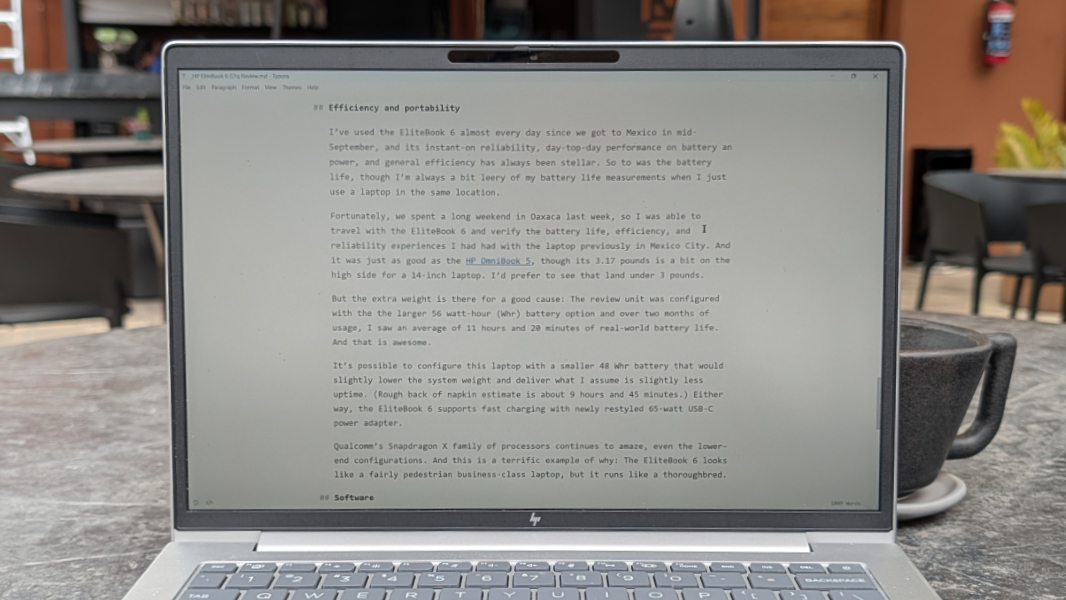
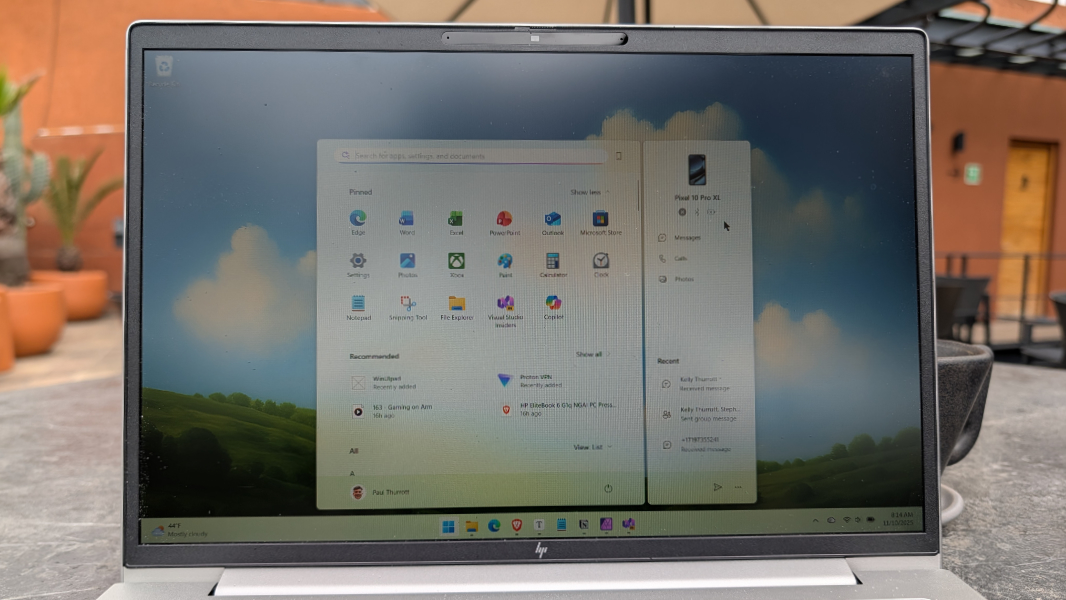
The review unit came with the 400 nits non-touch Full HD+ panel, and it worked well for the traditional productivity tasks that users of this PC would expect to perform. Whether it’s bright enough to use outdoors will depend on where you are, but it was up to the challenge on the overcast Mexican day when I took most of the photos that accompany this review.
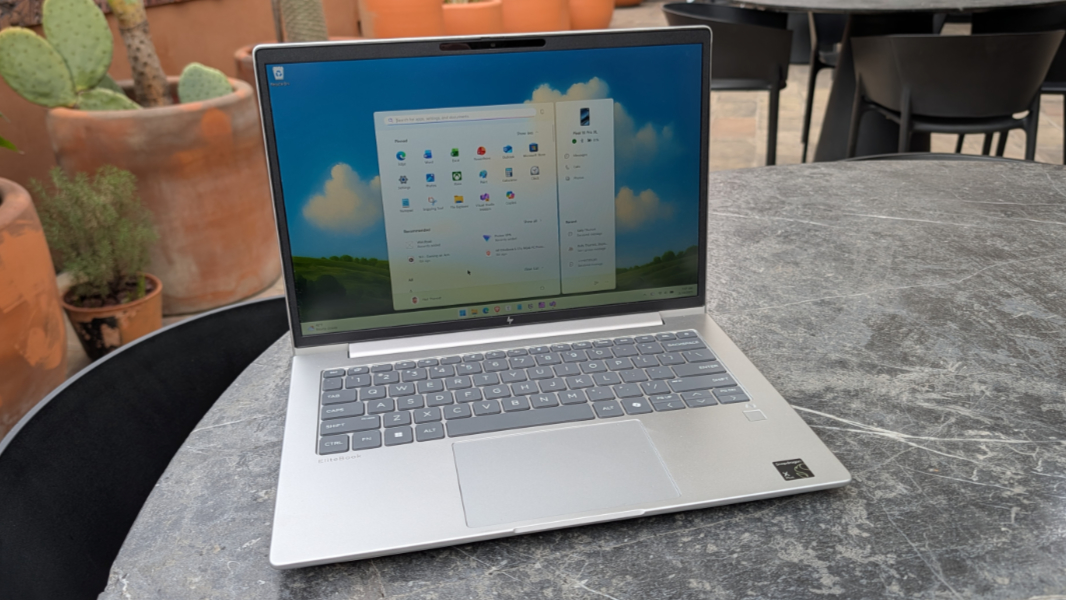
I prefer larger displays, but 14-inches is an ideal Goldilocks size for most people that helps keep the weight down and the battery life up. And I like that we’ve stepped back from the multitouch cliff, as I also prefer non-touch displays like the one HP provided.
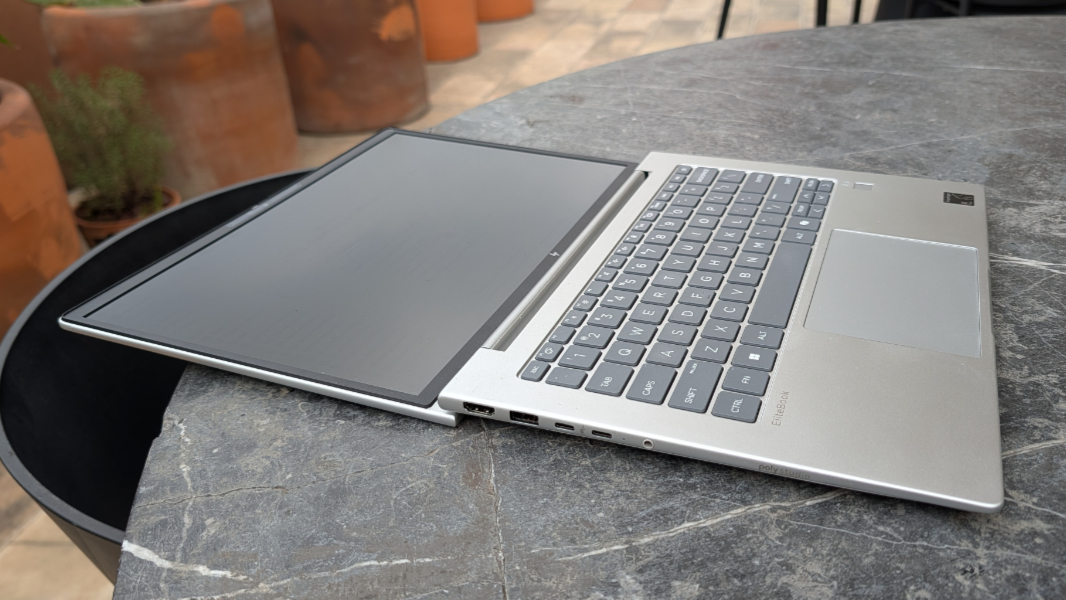
The matte, antiglare coating HP included was—wait for it—a nice touch too, as I often get reflections on-screen here in Mexico. I like that the display lays flat as well.
Internal components
We haven’t seen too many new business-class laptops this year with Qualcomm Snapdragon X processors, but the 14-inch EliteBook 6 is a nice exception. Like the wonderful HP OmniBook 5 I reviewed back in October, this laptop provides a choice of Snapdragon X X1-26-100 and Snapdragon X Plus X1P-42-100 processors which, to be clear, are the two lowest-end PC processors that Qualcomm makes. But unlike that more consumer-oriented laptop, the EliteBook can be had with up to 64 GB of RAM, which is impressive. And you can configure it with 256 GB, 512 GB, or 1 TB of PCIe NVMe SSD storage.
In many ways, the EliteBook 6 series is the business-class version of the OmniBook 5 series, so it shouldn’t surprise anyone that this mighty mite performed quite nicely with the 32 GB of RAM and 512 GB of storage that HP provided with the review unit. As with the display, this is a perfect setup for traditional productivity work whether you’re on battery or tethered to power. That’s one of the key Snapdragon X strengths: It always performs reliably well.
Indeed, the extra RAM in the EliteBook 6—my OmniBook came with just 16 GB—emboldened me to try some more advanced workflows. This included multiple instances of Visual Studio 2026 running side-by-side with all my normal apps, which worked well. And even some mid-level gaming.
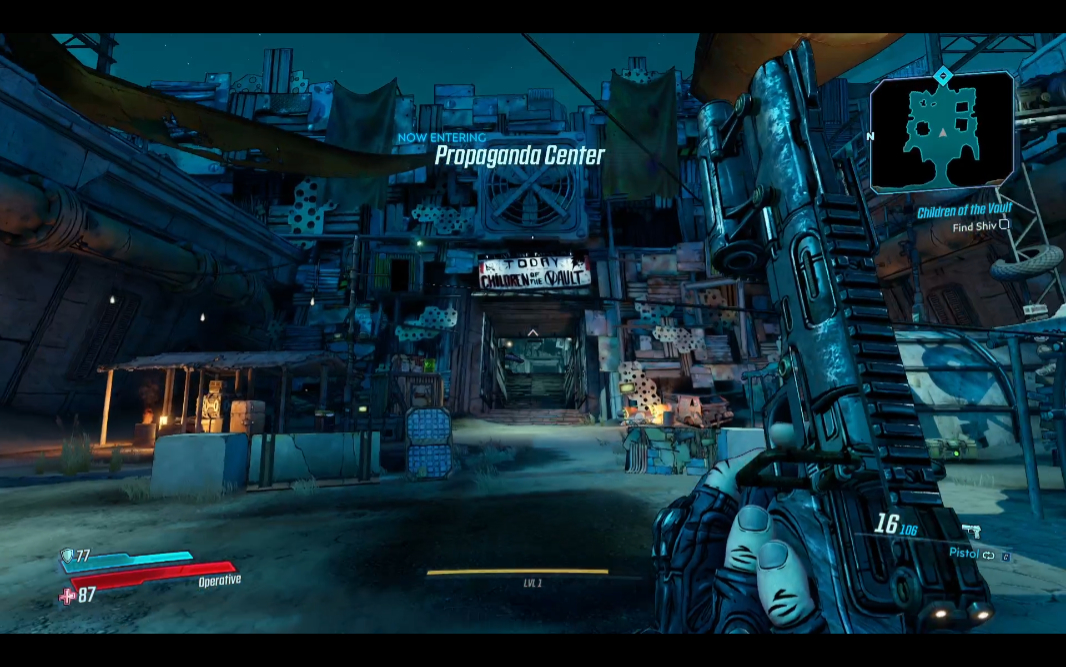
While no one will ever confuse the EliteBook 6 with a gaming laptop, I needed to record an episode of Hands-On Windows about how or whether gaming has changed over the past year with Windows 11 on Arm. I stuck with mostly older games, of course, but Heretic + Hexen, Black Mesa (the Half-Life 2 remake), and Borderlands 3 (bove) all ran fine, and the latter two were installed from my Steam collection. It’s coming along, basically.
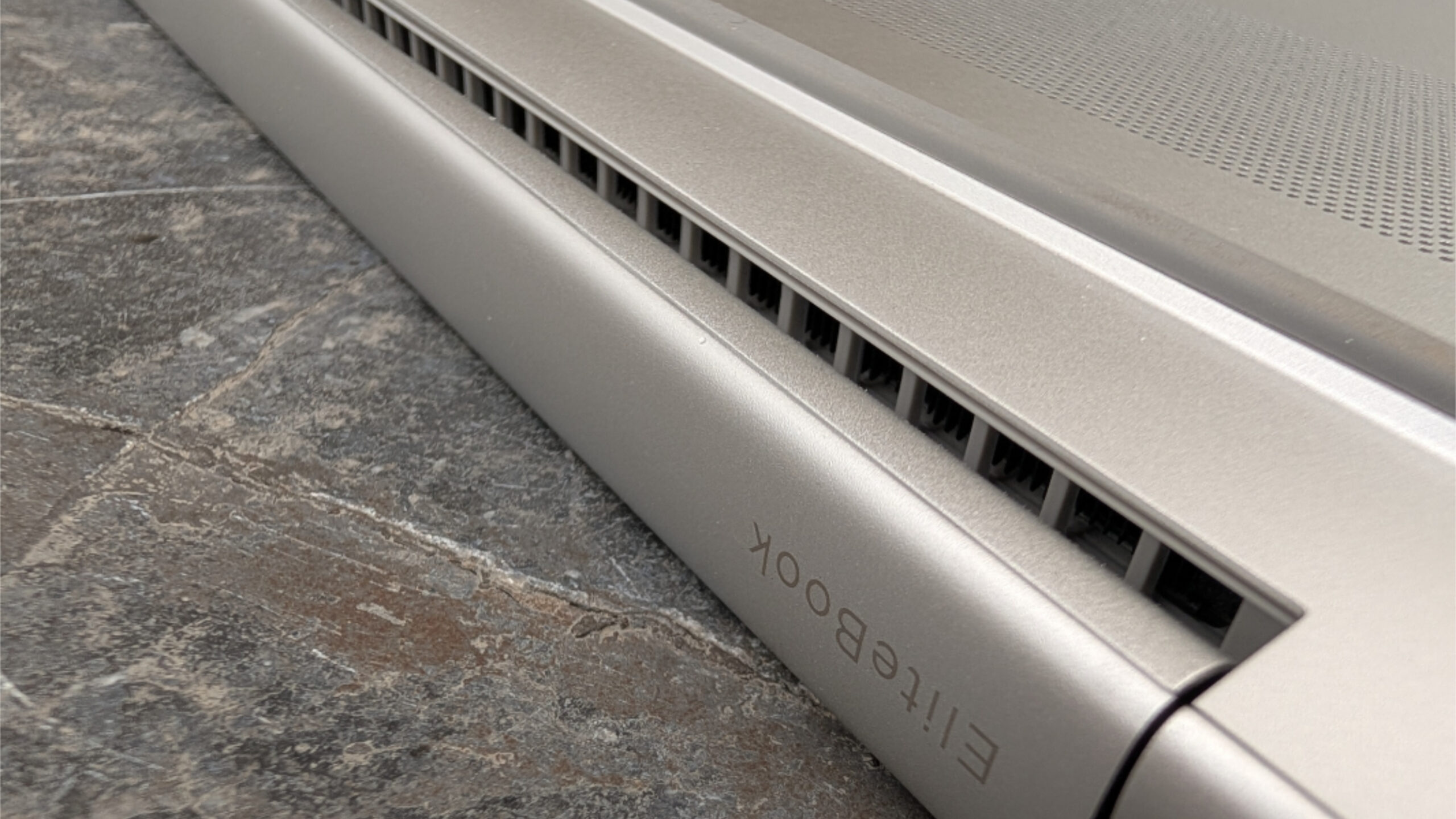
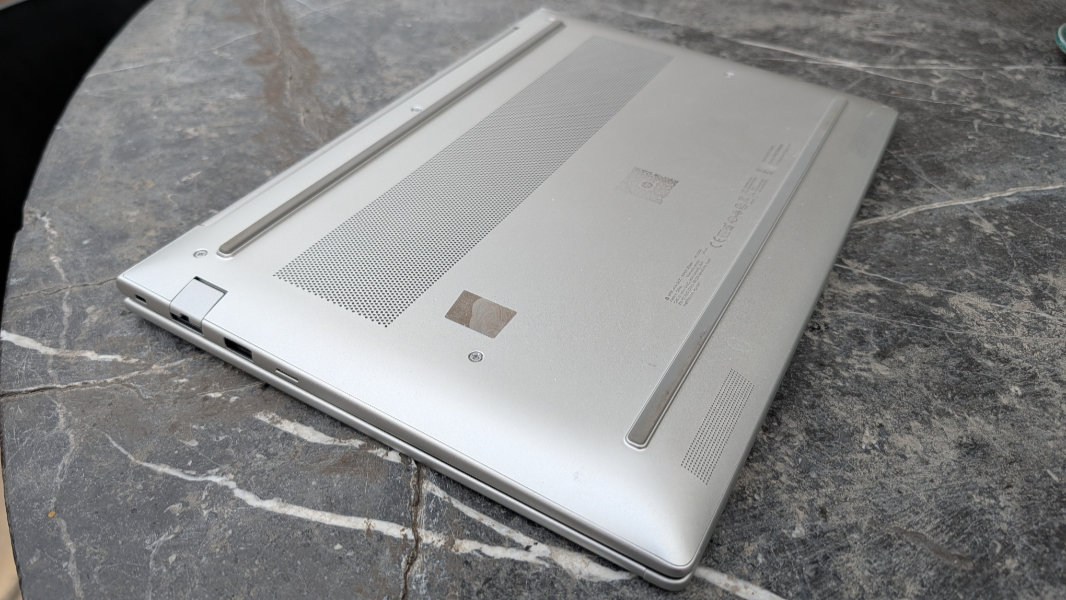
Heat and fan noise were never an issue, as the EliteBook 6 runs cool and quiet on battery or when attached to power. But there is an air intake on the bottom of the laptop to funnel air through the system as needed, plus a large exhaust on the back of the keyboard deck, below the display, the blow hot air out the back.
Connectivity
Depending on the configuration, the EliteBook 6 will come with Qualcomm FastConnect 6900 Wi-Fi 6E and Bluetooth 5.3 or FastConnect 7800 Wi-Fi 7 and Bluetooth 5.4.
A Qualcomm X72 5G modem is optional. And thanks to the bundled HP Go service, which works globally, costs $19 per month and up, and switches automatically between three carriers (in the U.S.) for the best possible signal, this is an astonishingly strong offering for those who need it. HP Go also provides zero-touch deployment for managed environments, remote management, and usage control.
The review unit came with the 5G modem and HP Go. But I was unfortunately barely able to use it: I configured HP Go using the HP app before we flew to Mexico, but I then I couldn’t get it working here.
Ports and expansion
The EliteBook 6 delivers a solid selection of modern and legacy ports, though all the USB-C ports are on one side.
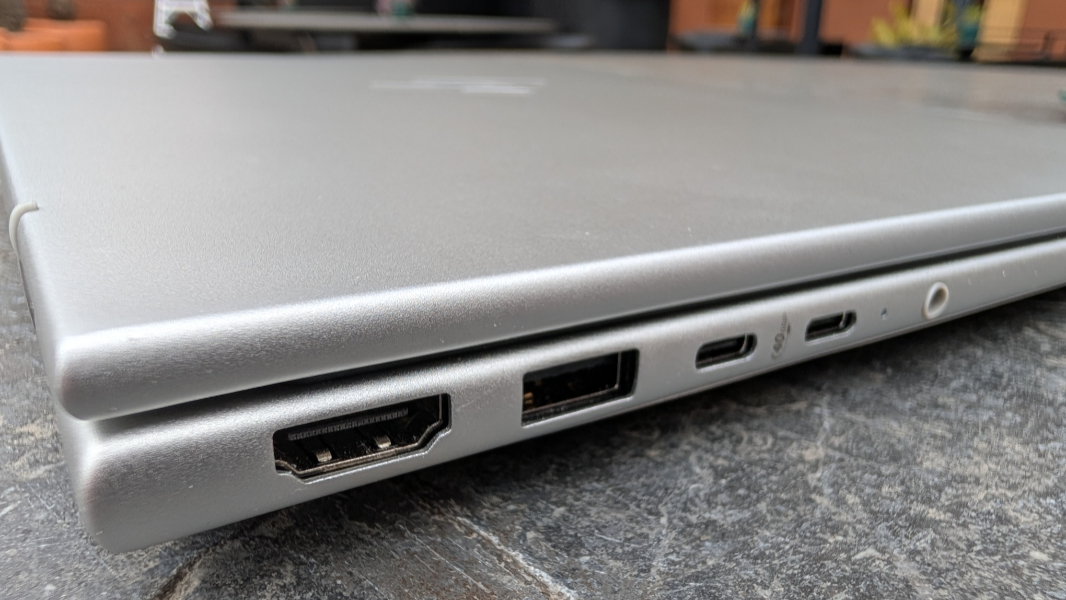
On the left, you’ll find a full-sized HDMI video-out port, a 5 Gbps USB 3.2 Gen 1 Type-A port, two 40 Gbps USB4 Type-C ports (with USB Power Delivery and DisplayPort 1.4 capabilities), and a 3.5-mm combo headphone/microphone jack.
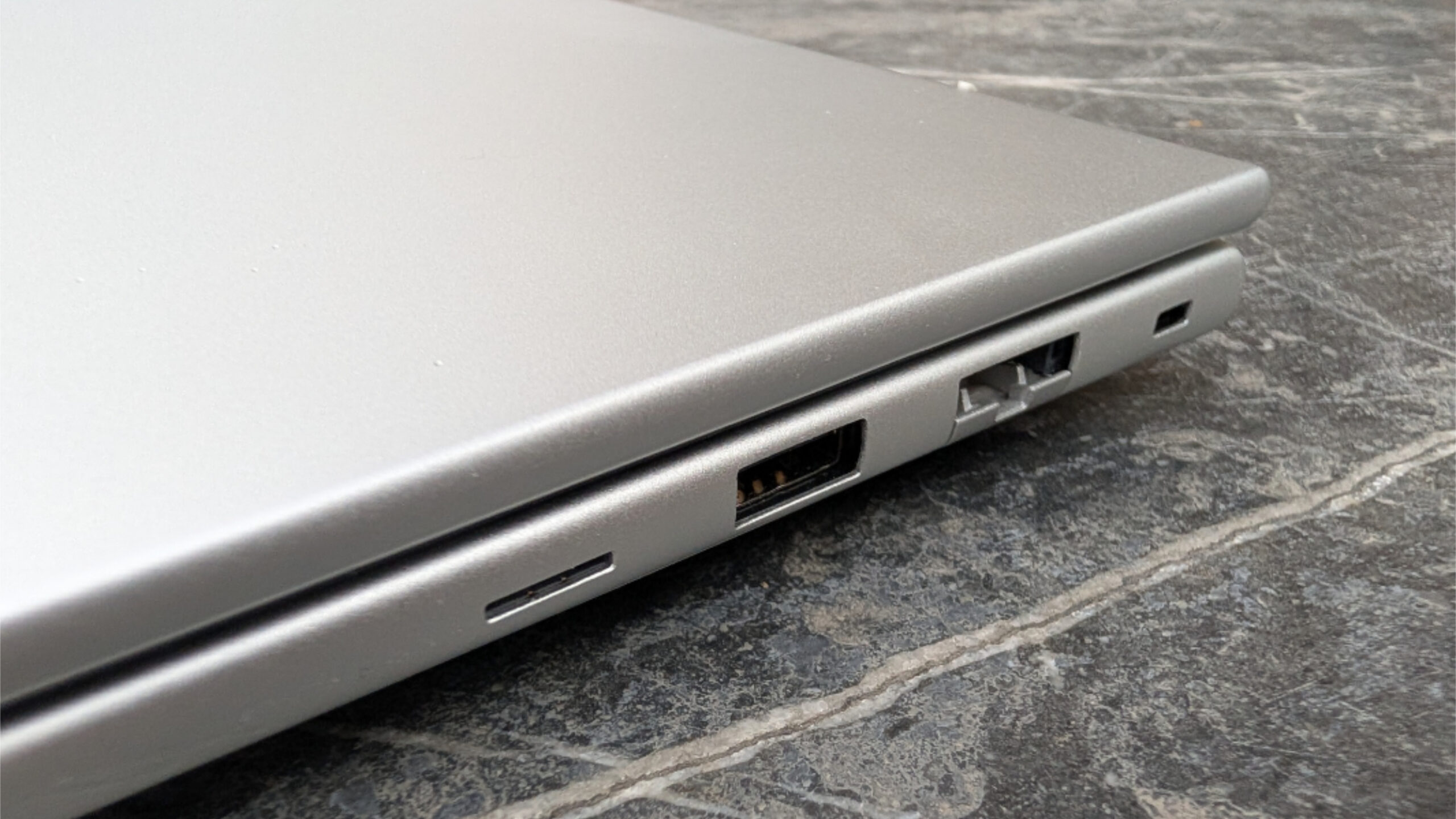
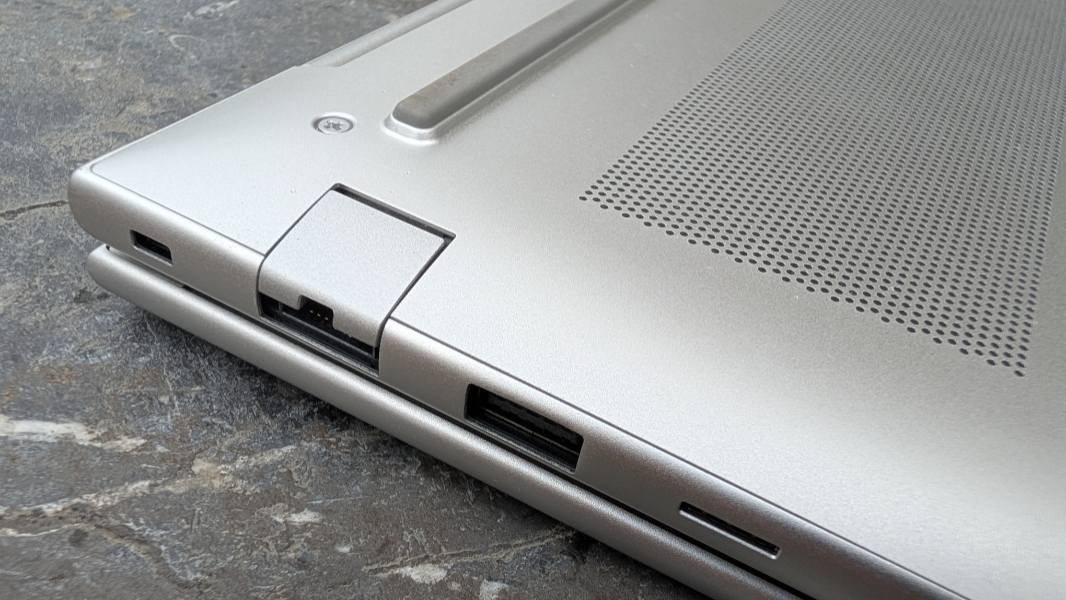
On the left, HP provides a drop-jaw Ethernet port, a second 5 Gbps USB 3.2 Gen 1 port, and a Kensington nano lock slot. If configured with the 5G option, you’ll also find a nano-SIM card slot.
Audio and video
The EliteBook 6 is designed for work, not play, so its multimedia capabilities are pretty basic. There are stereo speakers hidden inside the laptop with no obvious exterior grills, and the sound appears to just rise out of the keyboard and through the bottom air intake. The sound doesn’t get overly loud, but it also doesn’t distort at all, even at 100 percent volume. It’s a reasonable stereo experience.

Hybrid work
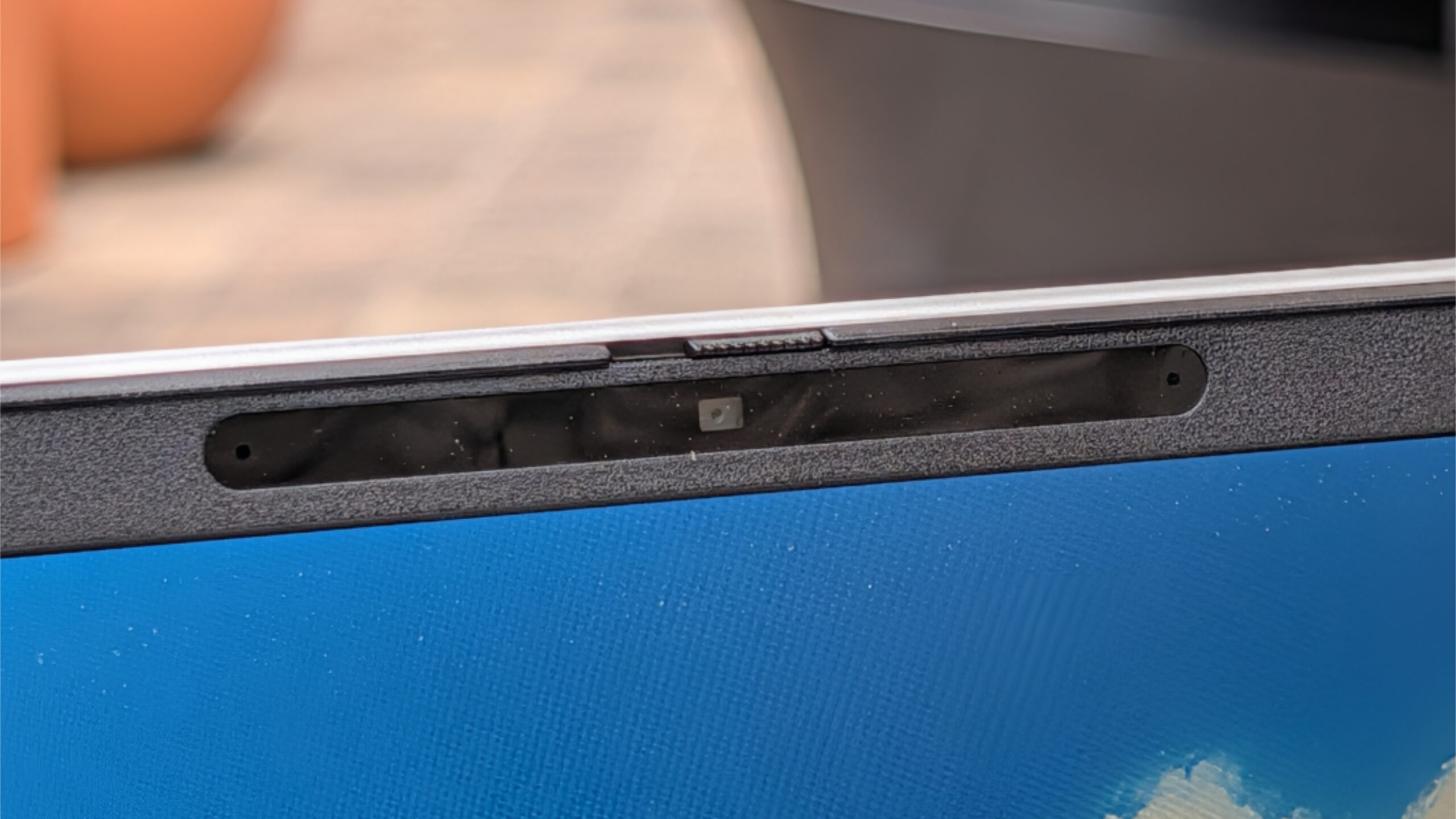
HP delivers a solid hybrid work experience as one would expect. There’s a 5 MP webcam with optional Windows Hello facial recognition that’s not present in the review configuration and a standard dual array microphone. And both are serviceable: The webcam is a little dull and soft by default, but HP’s amazing Poly Camera Pro software suite can help with that, and it now features some new functionality like Magic Background, multi-camera support, presenter overlay, and more. It’s worth spending time in Poly Camera Pro to optimize the webcam image. But you’ll want an external microphone for better quality audio.
Keyboard and touchpad
For the most part, the EliteBook 6 keyboard is excellent. It’s full-sized with good response and lightly textured keycaps, and it isn’t overly loud, even with my heavy-handed typing style.
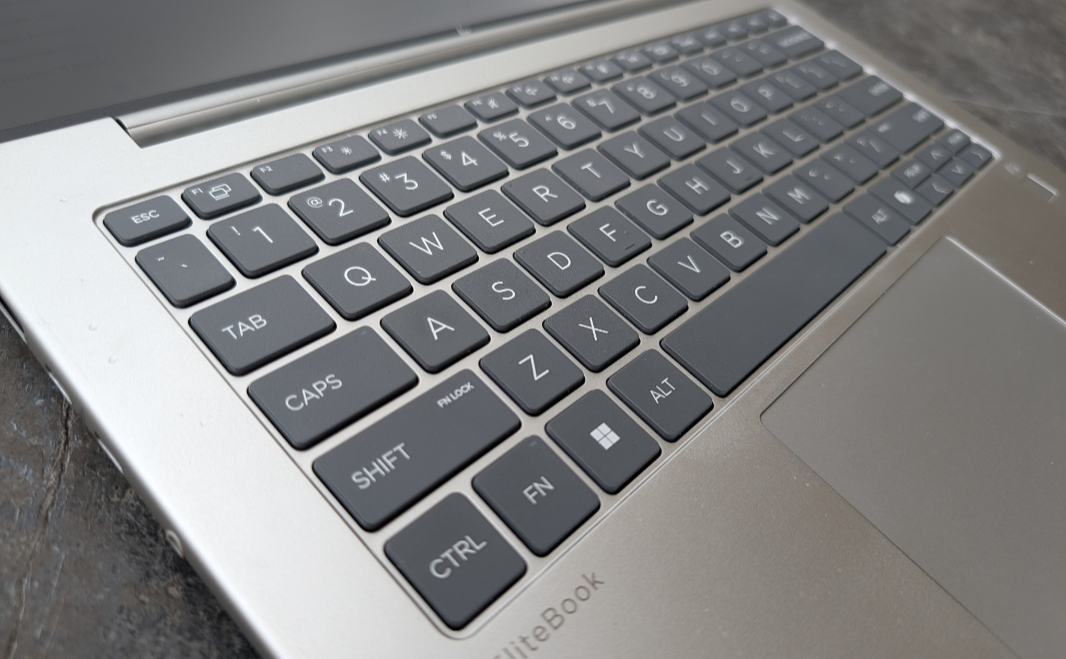
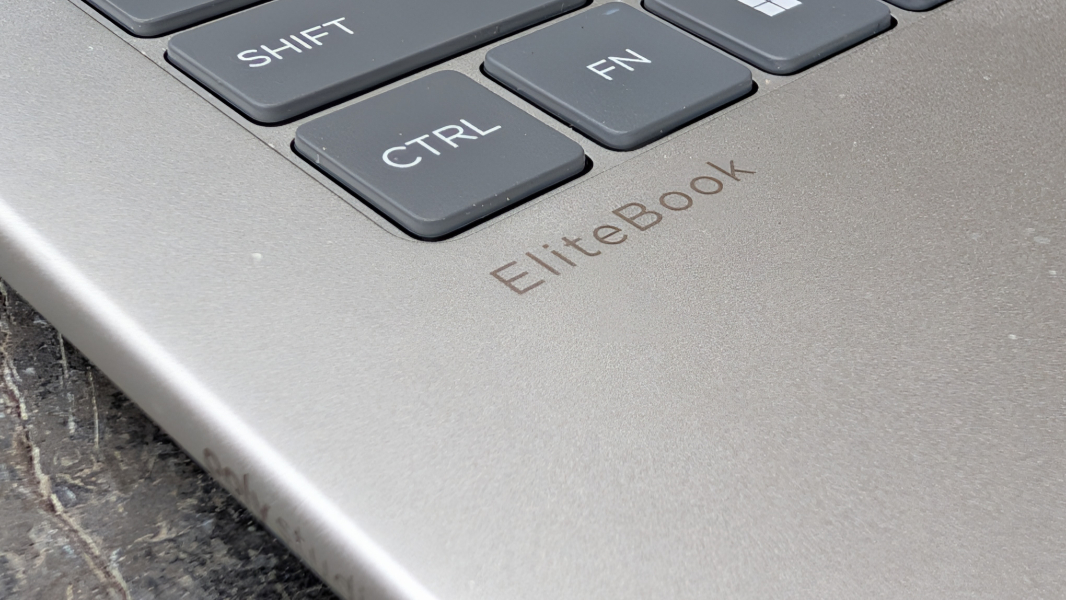
But backlighting is apparently an added-cost extra that’s not present in the review unit and I miss it dearly. Worse, HP makes the same mistakes with this keyboard that it makes on and off with other laptop keyboards: The function (Fn) key shortcuts for Home (Fn + Left arrow) and End (Fn + Right arrow) don’t work, and I’m growing impatient with this nonsense. Yes, there are dedicated Home and End keys at the right of the function row, but touch typists like me expect normal Windows keyboard shortcuts to just work, and it slows me down every single day when they don’t.
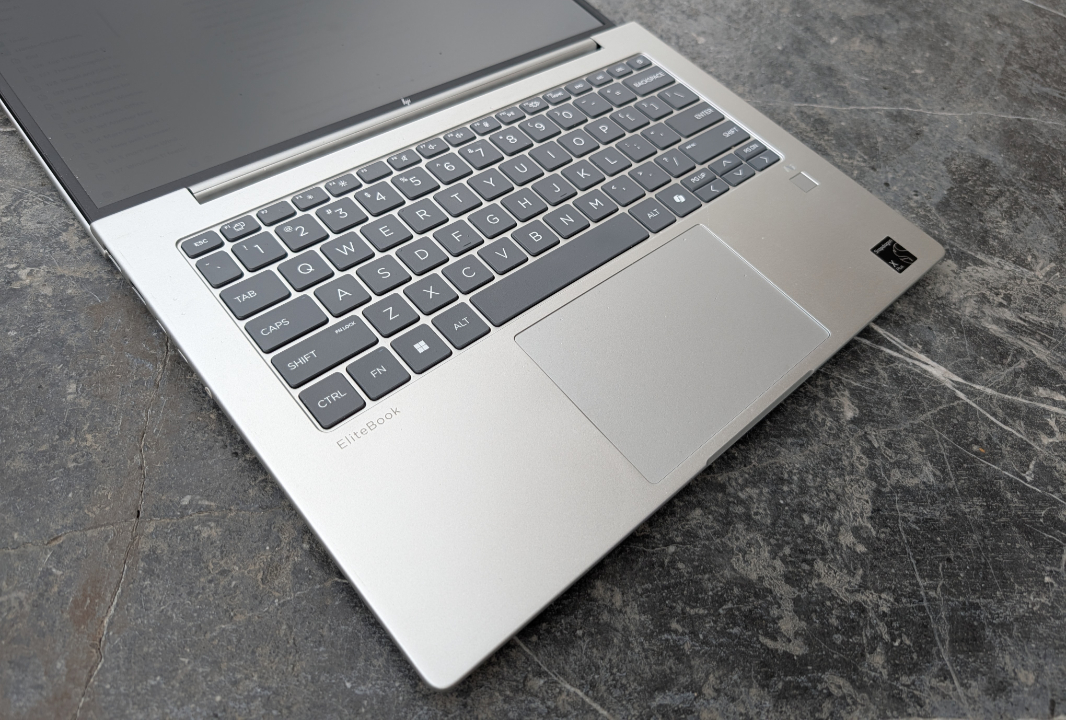
Thanks to this nonsensical mistake, the lower right of the keyboard is a hornet’s nest of mistakes waiting to happen. There’s the pointless Copilot key that most keyboards are now sullied with, triggering this horrible app throughout the day. And the too-small PgUp and PgDn keys in among the arrow keys. Between these three issues, I spend a lot of time either hitting the wrong key and being forced to correct myself or tapping function key shortcuts that don’t do anything. Grr.
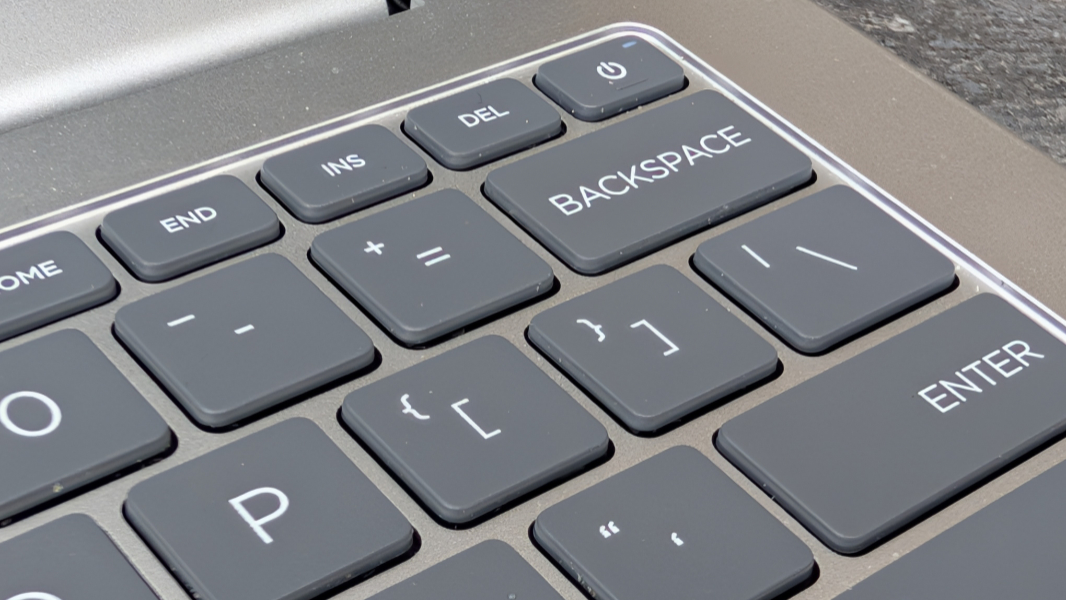
If this type of thing isn’t a problem for you, then you’ll enjoy the keyboard otherwise. There’s a a power button masquerading as a key in the upper right, a dead F2 key that would toggle Sure View if that feature were available in the review unit, a programmable key, and the Ctrl and Fn keys are, of course, in the correct places. It’s mostly very good. Until, for me, it isn’t.
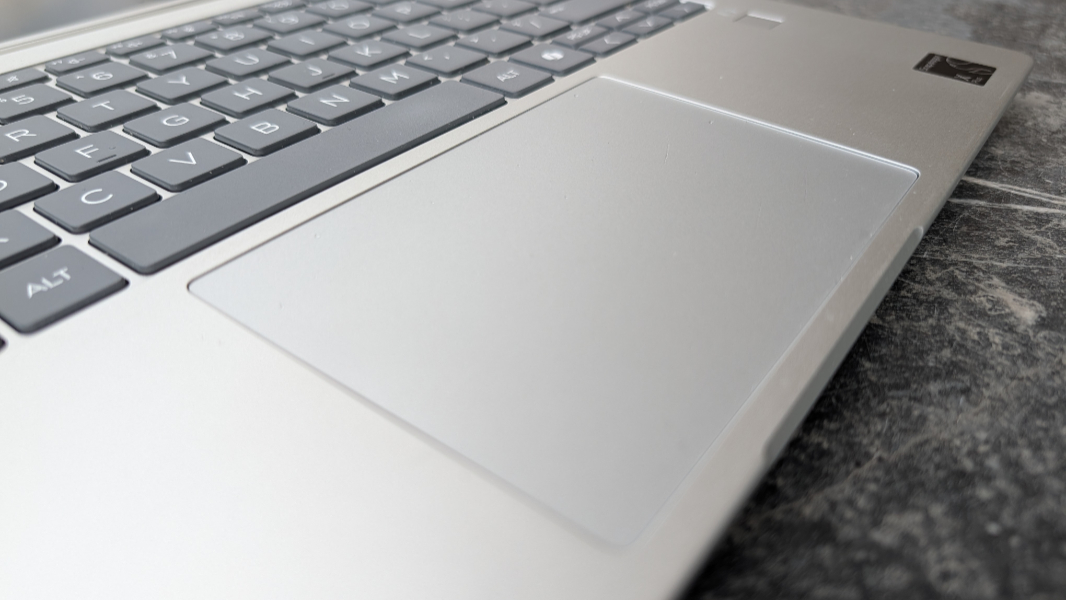
The touchpad is terrific, at least. It’s not overly big, and it is accurate enough that I never needed to disable three-finger gestures, something I often have to do with other laptops.
Security
As a Copilot+ PC, the EliteBook 6 is among a growing cadre of ultra-secure computers powered by Microsoft’s Secured-core PC technologies, which include the Pluton security processor and Windows Hello Enhanced Sign-in Security (ESS), plus all the recent security enhancements to Windows 11. And HP builds on this foundation with hardware and software enhancements of its own.
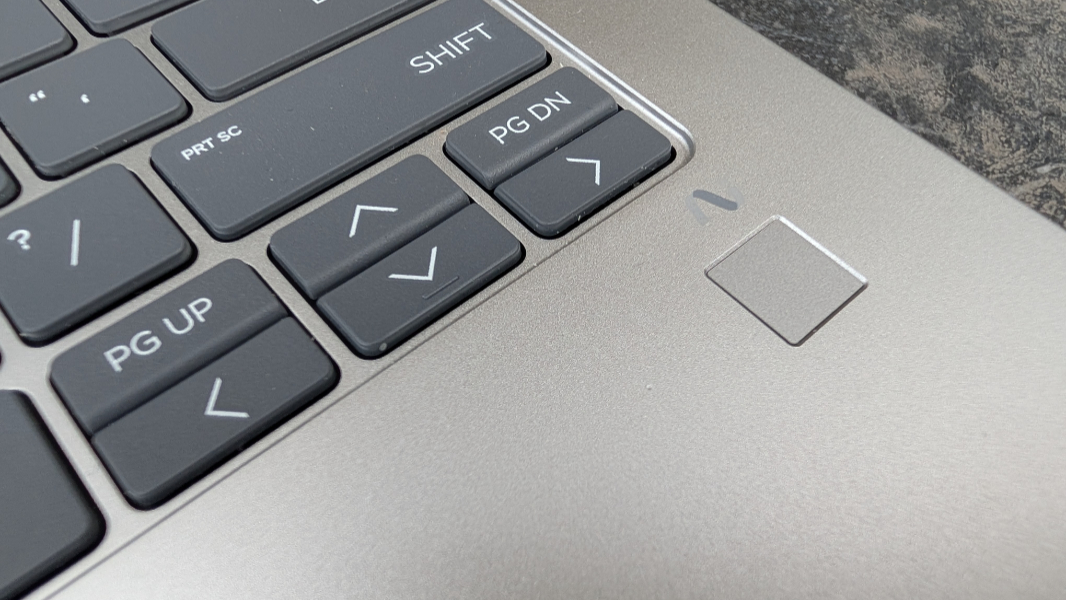
All EliteBook 6 models include a Windows Hello ESS-compatible fingerprint reader that takes up space in the wrist rest, a rather old fashioned look. But a Windows Hello ESS-compatible webcam is optional, and the review unit did not include this feature.
HP includes its extensive Wolf Security suite with all EliteBooks, but I uninstall this since it’s not necessary for personal use. There’s also HP Sure Click and Sure Sense for real-time protection against online threats. And, if you configure this option, HP Sure View 5, which now uses a new AI-enhanced ISP+ webcam sensor to notify you when there is an onlooker behind you looking at the screen. In this case, it will automatically activate the Sure View privacy protections, blanking the display to the onlooker, and it will automatically turn off when the onlooker is gone. The review unit did not include Sure View.
Sustainability
The EliteBook 6 is made with at least 50 percent recycled aluminum in the covers, 50 percent post-consumer recycled plastic in the key caps, 20 percent ocean-bound plastic in the speakers, 20 percent recycled glass in the display, and the outer box packaging is 100 percent sustainably sourced and recyclable.
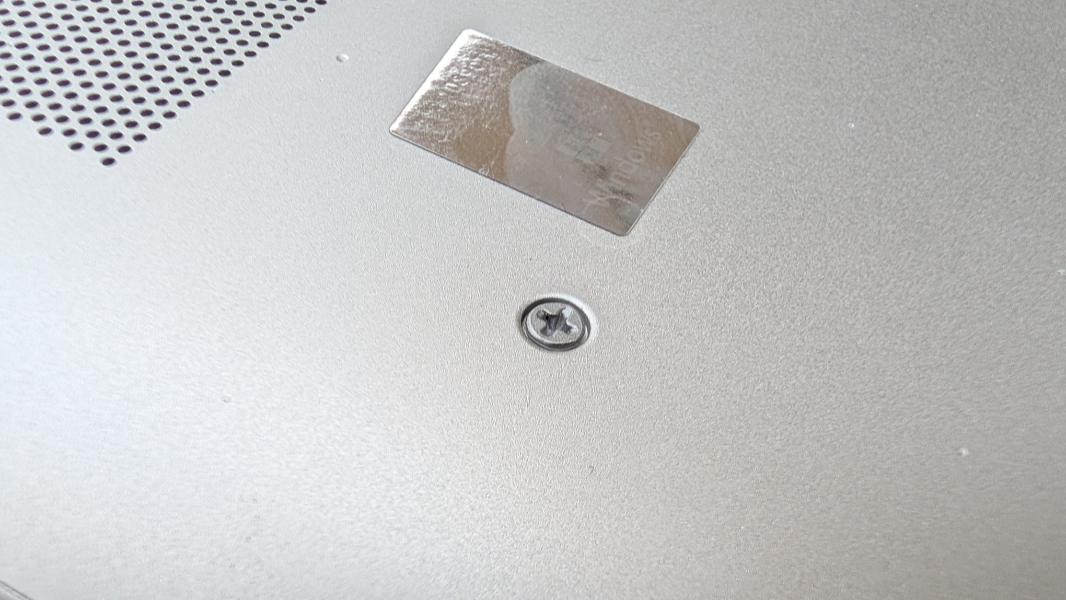
As with the HP OmniBook 5 I recently upgraded, the EliteBook 6 is easily user serviceable. The battery is held in place without screws to prevent any punctures if you’re mucking around in there, and the M.2-based SSD is customer upgradeable. The RAM, sadly, is soldered, so get what you need at purchase time.
Efficiency and portability
I’ve used the EliteBook 6 almost every day since we got to Mexico in mid-September, and its instant-on reliability, day-to-day performance on battery an power, and general efficiency have always been stellar. So too was the battery life, though I’m always a bit leery of my battery life measurements when I just use a laptop in the same location.
Fortunately, we spent a long weekend in Oaxaca last week, so I was able to travel with the EliteBook 6 and verify the battery life, efficiency, and reliability experiences I had had with the laptop previously in our apartment in Mexico City. And it was just as good as the HP OmniBook 5, though its 3.17 pounds is a bit on the high side for a 14-inch laptop. I’d prefer to see that land under 3 pounds.
But the extra weight is there for a good cause: The review unit was configured with the a larger 56 watt-hour (Whr) battery option. And over two months of usage, I saw an average of almost exactly 11 hours of real-world battery life. And that is awesome.
It’s possible to configure this laptop with a smaller 48 Whr battery that would slightly lower the system weight and deliver what I assume is slightly less uptime. (Rough back of napkin estimate is about 9 hours and 45 minutes or so.) Either way, the EliteBook 6 supports fast charging with newly restyled 65-watt USB-C power adapter.
Qualcomm’s Snapdragon X family of processors continues to amaze, even the lower-end configurations. And this is a terrific example of why: The EliteBook 6 looks like a fairly pedestrian business-class laptop, but it runs like a thoroughbred.
Software
As a business-class PC, the EliteBook 6 ships with Windows 11 Pro by default and HP doesn’t overburden it with too many superfluous utilities. That said, I don’t see the need for HP AI Companion, yet another AI research assistant can work with on-device and cloud-based AI. And as noted, I remove Wolf Security because I don’t need its centrally managed security capabilities. But there’s nothing truly offensive here, as one should expect of a premium, expensive product like this.
Pricing and configurations
The EliteBook 6 starts at about $1160 for a configuration with the entry-level Snapdragon X X1-26-100 processor, 16 GB of RAM, a 256 GB SSD, and the base Full HD+ IPS display. But the price quickly escalates as you add upgrades. Maybe too quickly.
The review unit, with its Snapdragon X Plus X1-42-100 processor, 32 GB of RAM, 512 GB SSD, Qualcomm X72 5G modem and HP Go, and a slightly brighter display panel, retails for about $1699.
You could spend as much as $3600 (!) on a high-end Snapdragon X Plus-based EliteBook 6, which doesn’t make any sense at all. But in looking at this now, I see that there are also Snapdragon X Elite-based configuration possibilities. Choosing this more powerful chip will raise the price even further, of course, from another $36 to $375.
It’s not worth going in that direction. An HP EliteBook 6 with a Snapdragon X Elite X1E-78-100 processor, 32 GB of RAM, 1 TB of storage, and the 400 nit Full HD+ display is over $3000. Since the Snapdragon X and X Plus are terrific and cost a lot less, I don’t recommend this configuration. But configured as I would prefer, with a Snapdragon X Plus X1P-42-100 processor, 32 GB of RAM, 1 TB of storage, and the 400 nit display, we’re still looking at over $2600.
To be clear, most EliteBook 6 customers are businesses buying in bulk at considerable discounts. But if you’re an individual interested in this PC, I recommend looking out for the regular sales we see at HP.com or shopping the very similar but much less expensive OmniBook 5 line: A 14-inch OmniBook 5 with the specs noted above (and with a 2.2K display) is just $900 as I write this. Now we’re talking.
Recommendations and conclusions
The HP EliteBook 6 G1q is a wolf in sheep’s clothing. This is a pedestrian looking business-class laptop that no one would look at twice and yet it delivers incredible performance, reliability, efficiency, and battery life. Its utility and usability are off the charts. And HP serves its business customers well with a selection of expansion ports that’s unusual these days, all the hybrid work functionality anyone could want, and the optional 5G with HP Go service. I’d personally love to see a 16-inch version, but this is the most popular form factor and I suspect the the Snapdragon X goodness is going to change some minds in the corporate boardroom.
That said, the EliteBook 6 can get stupid expensive, and I will never understand why HP can’t deliver the same, consistent keyboard configuration across its products. If you’re a touch typist, a few obvious mistakes in the keyboard will be frustrating.
At-a-glance
Pros
✔️ Snapdragon X delivers superior performance, reliability, efficiency, and battery life
✔️ Optional 5G cellular data with HP Go
✔️ Solid expansion capabilities, including an Ethernet port
Cons
❌ Too expensive for individuals to purchase
❌ Avoidable, error-prone keyboard configuration
❌ Keyboard backlighting and Windows Hello facial recognition are optional features