Tip: Upscale Your Old Photos For Free
- Paul Thurrott
- Nov 09, 2026
-
4
Many people, myself included, have some number of low resolution and low quality photo scans and other images. But thanks to AI advances in recent years, it’s now possible to upscale those images to higher resolutions and quality so that they fit in better in our photo collections alongside the photos we take with modern smartphones.
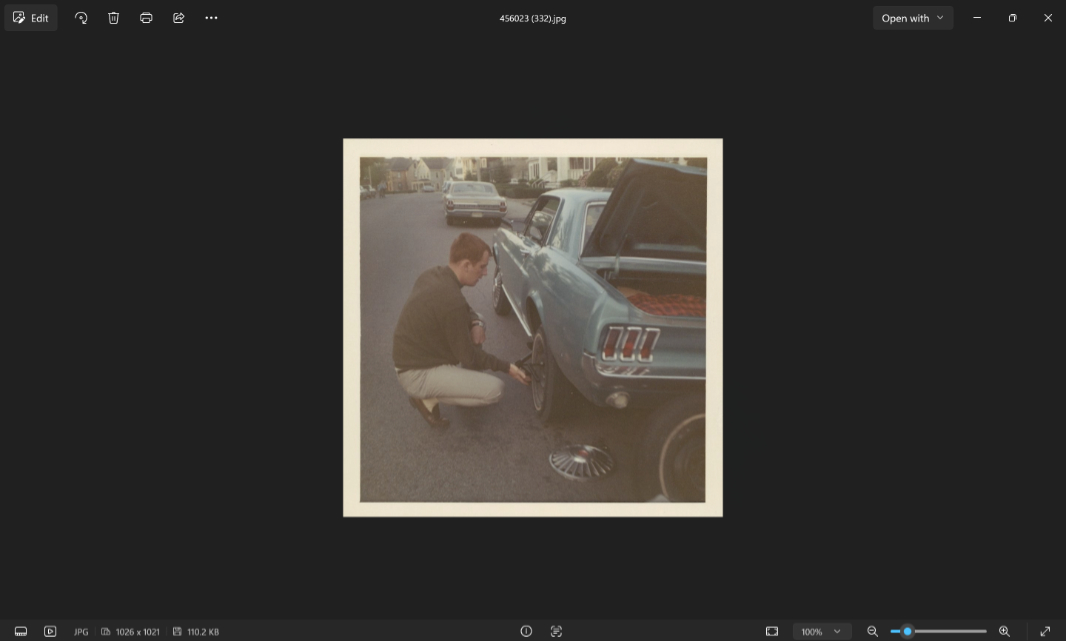
Consider this photo of my father fixing a flat tire on his Mustang in the late 1960s. This is a scan of a Polaroid photo with a resolution of 1026 x 1021, which isn’t all that bad. But it could be better.
If you have a Copilot+ PC, there’s a very good Super resolution feature that upscales images using a local AI model. You can choose a scale factor from 2x to 8x, the upscaling happens pretty quickly to very quickly depending on the scale you choose, and the results are good. At 3x, that photo of my dad is upscaled to 3078 x 3063, for example, though I can’t say I see any improvements in quality.
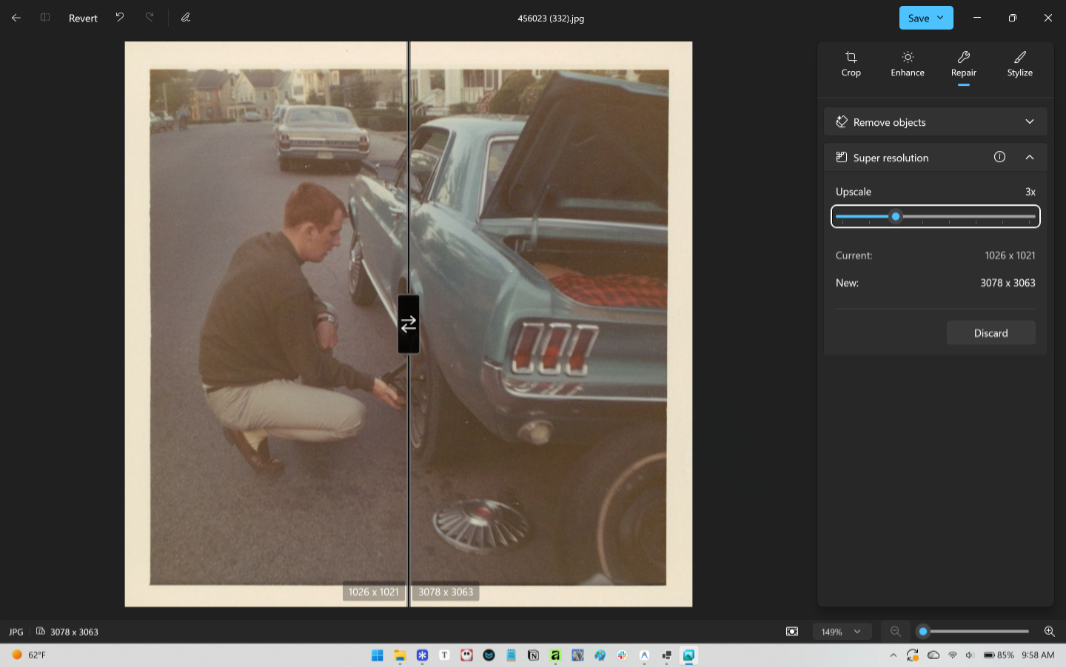
If there’s an issue with Super resolution in the Photos app, it’s that it only works manually, one photo at a time. In this case, I have over 550 scanned photos that my dad sent me at some point, and manually upscaling each would be tedious. What’s needed for this kind of thing is a way to bulk upscale photos, ideally for free.
Upscayl appears to be that solution.
Upscayl is a free and open source AI image upscaler that’s available for Windows, Mac, and Linux. It supports 4x and 16x upscaling, works offline with support for a choice of several AI models, and has some useful customization options. As important, it can batch upscale a folder of photos in a single pass (or in two passes if you need 16x upscaling).
If there’s a downside to Upscayl, it’s that the native app requires a Vulkan-compatible GPU. But if your PC isn’t compatible, you can use Upscayl Cloud instead. That service isn’t free, however, so you’ll need to pay for a one-time purchase or a subscription. If that’s the case, it may be worth looking for a different free subscription.
After experimenting with individual photos, I used Upscayl to upscale 569 photos in a single pass, including that photo of my dad, on an RTX Spark computer last night. That was using the default Upscayl model at 4x, and it took perhaps 45 minutes. But I’m going to experiment with some of the other models that offer improved detail, sharpness, and textures. (It also outputs to PNG by default, and I will change that to JPG for the next pass.)
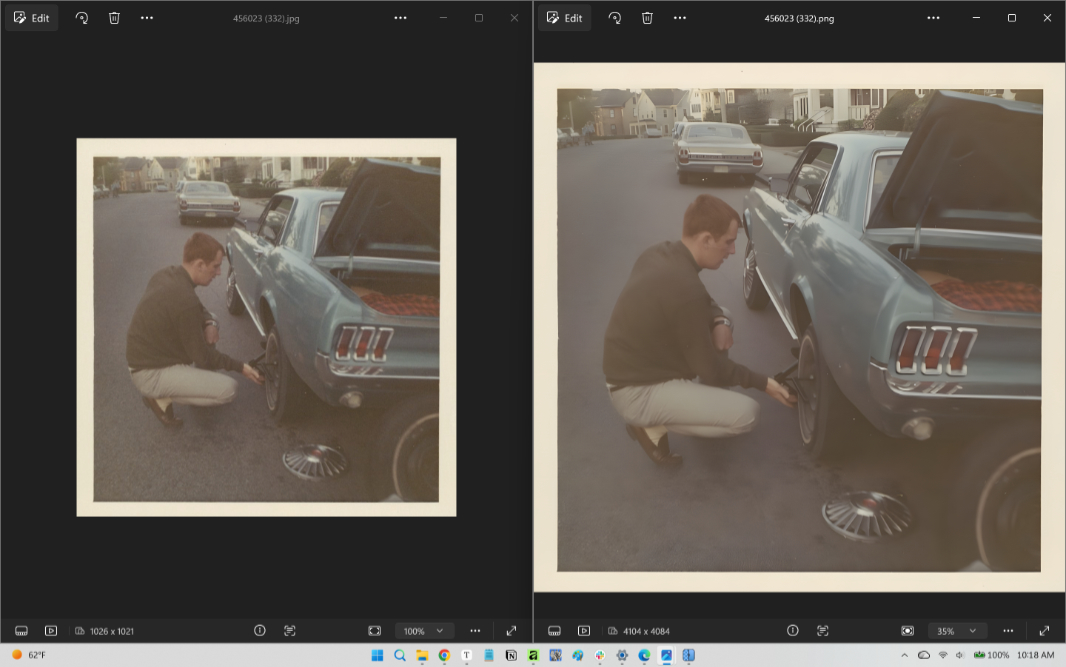
It seems to work very well, though experimentation is needed: Using the default model, some of the objects in the upscaled version of that photo of my dad–and in other photos–are perhaps overly sharpened, like the chrome around the brake lights. But when I tried the app’s Remacri model, which is for “natural” images, the results were more like what I see in the Photos app with Super resolution.
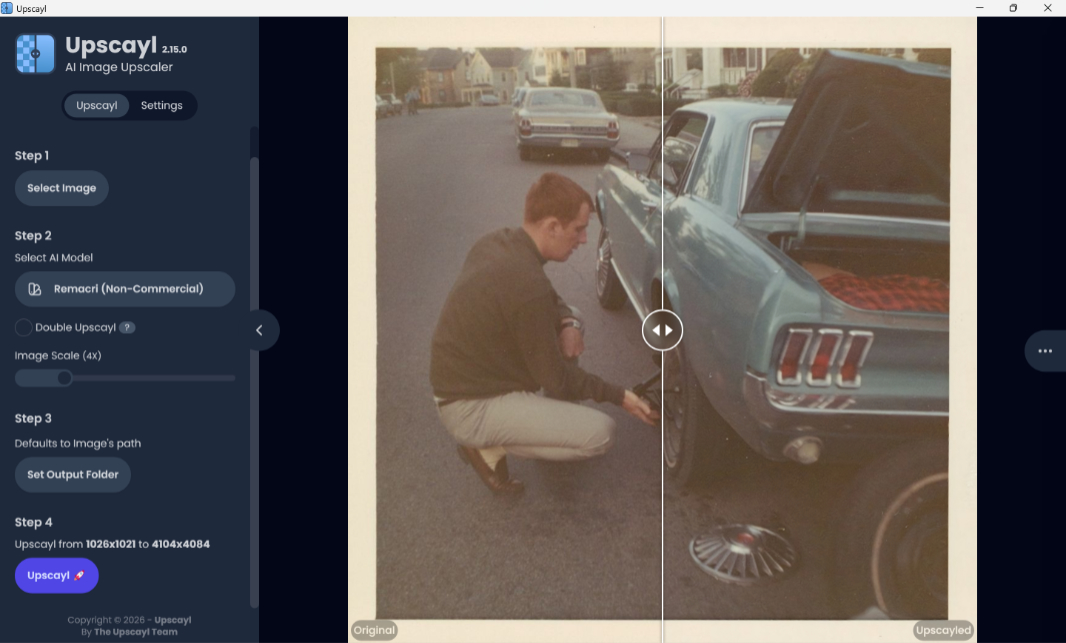
I also tried a few individual photos on a Snapdragon X2-based laptop, and that works fine, too, but is much slower than on the RTX Spark, which has a very powerful GPU.
Anyway, I recommend giving it a shot. This was a nice find over the weekend and I think it’s going to transform my older scans into far better images.
You can learn more on the Upscayl website and its GitHub project page.