We Need to Discuss Windows Backup (Premium)
- Paul Thurrott
- Oct 02, 2023
-
12
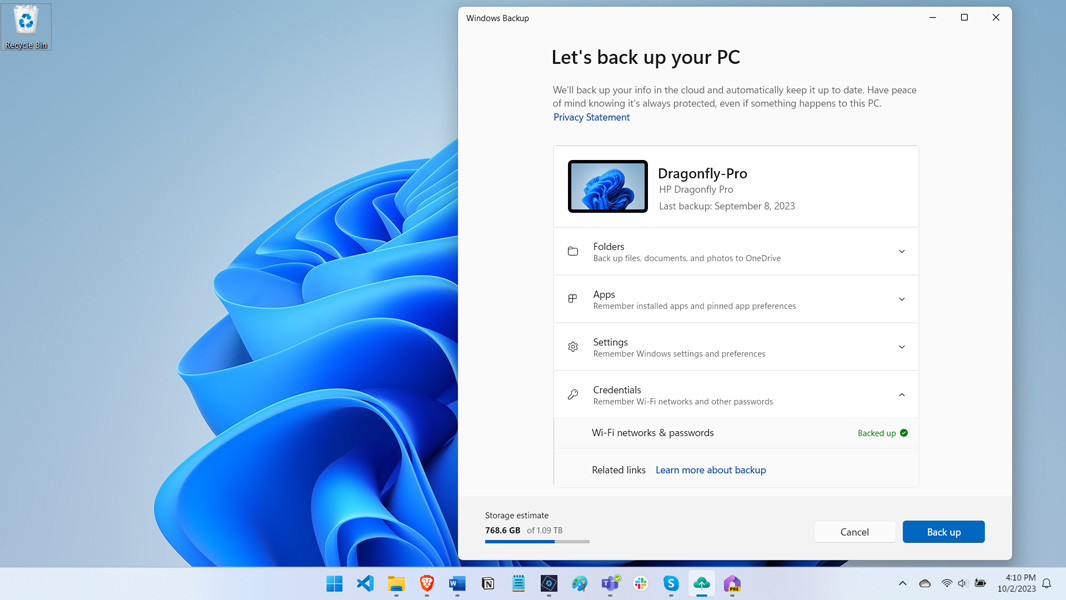
I’ve written a lot about backup and sync this past year and so I was interested to see Microsoft releasing a new Windows Backup app. Perhaps it’s time to put this thing in perspective by understanding what it is that Microsoft is trying to achieve and, spoiler alert, where it still falls short. And then we can move onto what it should become. And I have big ideas for that.
This will require a bit of context. Fortunately, I have lots of content I can reference.
In Roll Your Own Windows Time Machine (Premium), I briefly discussed how the world has changed since we used to connect a USB hard drive to our PCs and create system image backups that we could use to fully restore those PCs back to some point in time. The problems with these systems are many, among them that you don’t get a truly clean install of the operating system when you restore a system image backup, and you lose out on the resulting performance improvements. The backup could contain malware, the wrong versions of files, and other issues. And this type of backup predates our modern and mobile world: If you aren’t in the same physical location as the backup, you can’t use it.
I then laid out my three-part method for achieving the best of a system image backup while avoiding the major downsides of such a system. And while I wish this system had a pithy name of some kind, it’s explained easily enough: You can use Reset this PC or the Windows 11 install media to clean install Windows, OneDrive to sync your documents and other important files, and Windows Package Manager (winget) to bulk install all of the applications you need. (And, optionally, a third-party app called WingetUI to keep those apps up to date going forward.) What you achieve here is the restore part of the backup/restore cycle, across your OS, data, and apps.
Implicit to this system, by the way, is that you’re going to sign into Windows using a Microsoft account (MSA) or, less likely but just as good, a Microsoft Work or School account, one that is based on Entra ID (what used to be called Azure Active Directory, or AAD). (I will just write this as MSA now to simplify the discussion.) There are numerous advantages to using an MSA sign-in, but for the purposes of this discussion, the key advantages are Windows settings sync, automatic sign-in with the Microsoft Store and all Store apps, and automatic sign-in to OneDrive with its file system integration functionality.
And when I think about all of these tools—and God help me, I think about them a lot—I see the makings of an even better backup/restore system than the one I outlined in that Windows Time Machine article. After all, with the exception of that one optional third-party tool, everything in my backup/restore system comes free with Windows (or is available for free as a download, as with the Windows install media). And that one exception is something Microsoft should add to Windows: Winget is great, but command line tools are intimidating to most users and thus a non-starter. Surely, Microsoft could easily make a GUI front-end to Winget that would automate its app installing magic by syncing your app list to your MSA and then giving you the option to bulk install it all on first run after a clean install. And then keep the web-installed apps up to date, which is what the Microsoft Store already does automatically for those apps.
Surely. But it has not. Not yet. And so my method survives as the best (for now) alternative to the monolithic backup/restore solutions of the past. It’s location-independent because you can restore a PC from anywhere, including if needed from a hotel room on a trip. It’s fast and efficient, even without the automation niceties that Microsoft could very easily add. And it’s proven: I’ve used this system with dozens of the review PCs that come into my home every year, and it’s never failed me.
But Microsoft has made a few steps forward toward this future I imagine. Some of which arrived over the past few years. And some of which are coming in Windows 11 version 23H2. Sadly, these improvements often arrive in the form of double-edged swords, where Microsoft giveth but Microsoft also taketh away.
Let’s start with some of the foundational work that Microsoft has already done, using two important examples, MSA and OneDrive.
On the MSA front, Microsoft has steadily gotten more aggressive in pushing users away from traditional local accounts and towards MSAs, so much so that the community is now worrying about the day that local accounts will disappear. I don’t honestly see that—I think the worst-case scenario is that you have to sign in with an MSA but can then create a local account, sign into that, and remove the MSA—and while it’s easy to see something nefarious here, using an MSA is clearly the best solution for most users because of the 2FA and passkey-based security advantages, convenience, and integration with services like OneDrive.
With OneDrive, Microsoft fixed the integration mistakes created by the Windows 8 team, re-added the file system integration and renamed it to Files on Demand in Windows 10, and then added a feature it calls Folder Backup (among other useful new features like the ability to access cloud-based file versions directly from the Windows shell). Unfortunately, it has also rammed OneDrive “backup” on its users in ever-more aggressive ways. In Windows 11, Microsoft may or may not sync three key user account folders between OneDrive and the local file system, and it may or may not give you the option to turn this off during Setup. (It’s literally random with Windows 11 Pro, while Windows 11 Home users get it automatically.) It added “backup” hints to the Start menu recently, and pop-ups scolding you when you try to save Office files to non-OneDrive folders. And in 23H2 it’s adding these annoying hints in more places, including File Explorer. When it comes to your safety—and its desire for you to use and pay for more of its cloud storage—Microsoft has become the definition of a nanny state.
I don’t like the forced MSA and OneDrive nagging but I will at least acknowledge the advantages of using both services fully, and not just for mainstream, non-technical users (which is most of them). And will point out that much of the resentment and pushback is from old-school technical users who are just used to doing things a particular way without having really thought through the advantages of changing.
More to the point, Microsoft is modernizing Windows and it is looking to mobile and the web for inspiration. This makes sense: The web was a wake-up call for Microsoft in the late 1990s as was mobile in 2007 when Apple released the first iPhone. And while the company initially overreacted to both—resulting in two major antitrust cases in the wake of the former and the enduring setback that was Windows 8 in the latter—cooler, more pragmatic heads have since prevailed. And while I hear the grumbling out there from you old-school, technical users, I will just ask for your patience and understanding. Because some of the ideas that Microsoft is adopting from web and mobile make sense. Like a more modern approach to backup and sync.
A lot of this has to do with the inherent nature of these two platform types, their lack of legacy traditions, and their having arisen in more modern ages. By comparison, that system image backup I discussed early on is a great example of something that made sense in the pre-web and pre-mobile eras but makes much less sense today. And of course there are half-steps between these eras. You could back up your PC to a network-attached storage (NAS) device or the cloud, for example, though restore could be problematic in either case for location/speed reasons.
But it’s 2023. And we have much better technology, and much better bandwidth, now than we did when Windows XP was still an ongoing concern. And while Microsoft isn’t taking the Reset this PC, OneDrive, and Winget advances it introduced over the past decade and bringing it all together into a single, cohesive, and modern backup/restore solution this year, it will soon take a few baby steps forward. And these steps hint, I think, at the future I do imagine and want. Both are arriving in Windows 11 version 23H2 but thanks to a dubious strategy they are both also available now, if you want them, in the preview version of the Windows 11 Fall Update in 22H2. (The stable version goes live next Tuesday.)
The first is well-hidden and non-obvious. Windows 11 version 23H2 includes a developer-oriented feature called Dev Home that, like Copilot, is shipping to the public in preview form. And that name should give you pause, as it literally screams “developer,” an area that, like command lines, is intimidating to mainstream users. Fair enough. But Dev Home includes a machine configuration functionality that is very much the first peek at an in-house Microsoft graphical front-end to Winget. It’s there for developers today, of course, where you literally use it to set up a developer environment with the apps you need. But there is nothing about this tool that restricts it to developers. Winget, after all, is about application installation and management, not developer application installation and management.
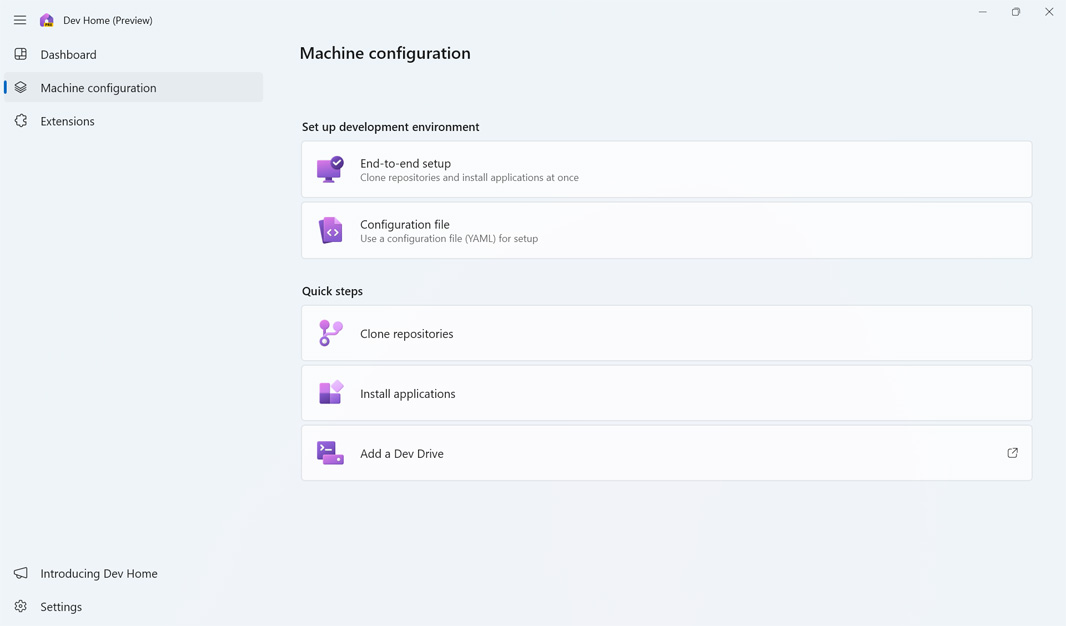
And that means that anyone can use Dev Home—which, while somewhat intimidating, is still not as intimidating as a command line interface—to bulk install the apps they need and use every day. In fact, it works just like the Winstall web app I recommended in In Roll Your Own Windows Time Machine (Premium), where you search for each app you want, add them to a list, and then bulk install them all at once.
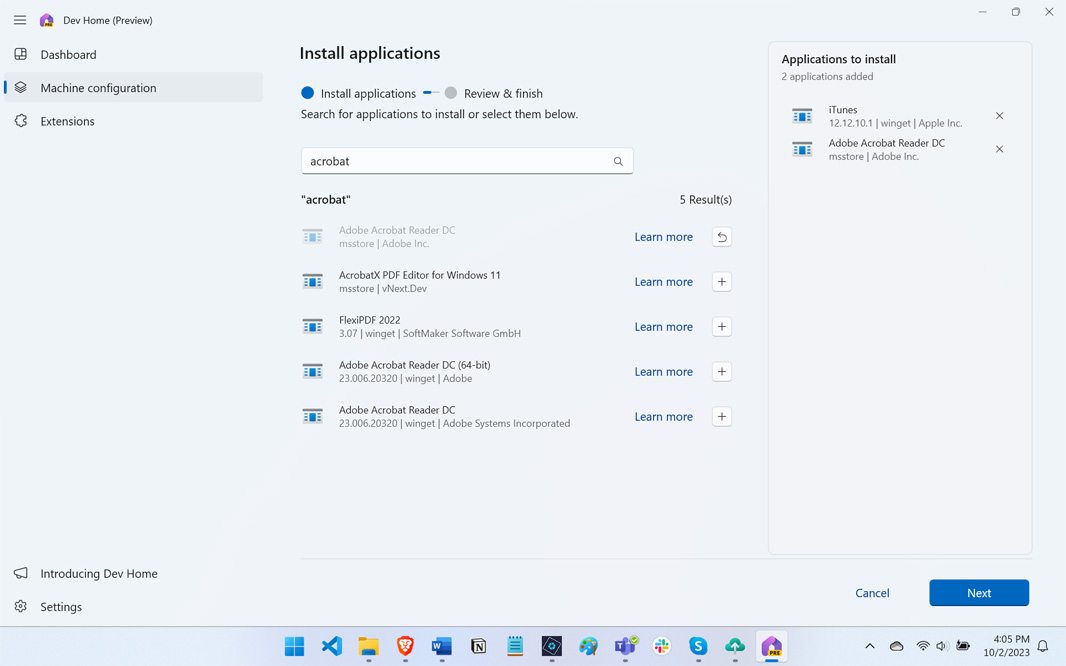
But there is a crucial piece missing: Where Winstall lets you create an install script that you can use to automate your bulk app installs from the command line, Dev Home does nothing similar. Yet. But it does support the notion of using Winget configuration files (in YAML format, which I assume stands for yet another XML-based text format) to do this. You just have to create those files manually first, a feature that will surely come to Dev Home in the future.
Interestingly, Dev Home also takes the next step in app management by supporting a PowerShell-based Desired State Configuration (DSC) Resource module that automates the configuration of those apps you’re installing. As with the YAML-based configuration files, this functionality is currently aimed at managed businesses and their IT staffs. But again, it’s not hard to imagine Microsoft putting a pretty front-end on this and giving it to consumers as part of a better app backup/restore and management solution. (Along with the WingetUI-based ability to keep apps up to date, no matter their source.)
The other new feature is on the other end of the spectrum in that it is clearly aimed at consumers and is the lightest piece of software I’ve ever seen. It’s called Windows Backup, and anyone excited by that name because it’s identical to the old-school system image backup tool will have their hopes immediately dashed when they open it for the first time. And then there will be confusion. But stick with me for a moment. Yes, the new Windows Backup is mostly pointless. And yes, it barely does anything. But it’s still an interesting and modern approach to the problems we’re discussing and, if improved correctly, could also turn into that modern backup/restore solution we all want.
So what the heck is this thing?
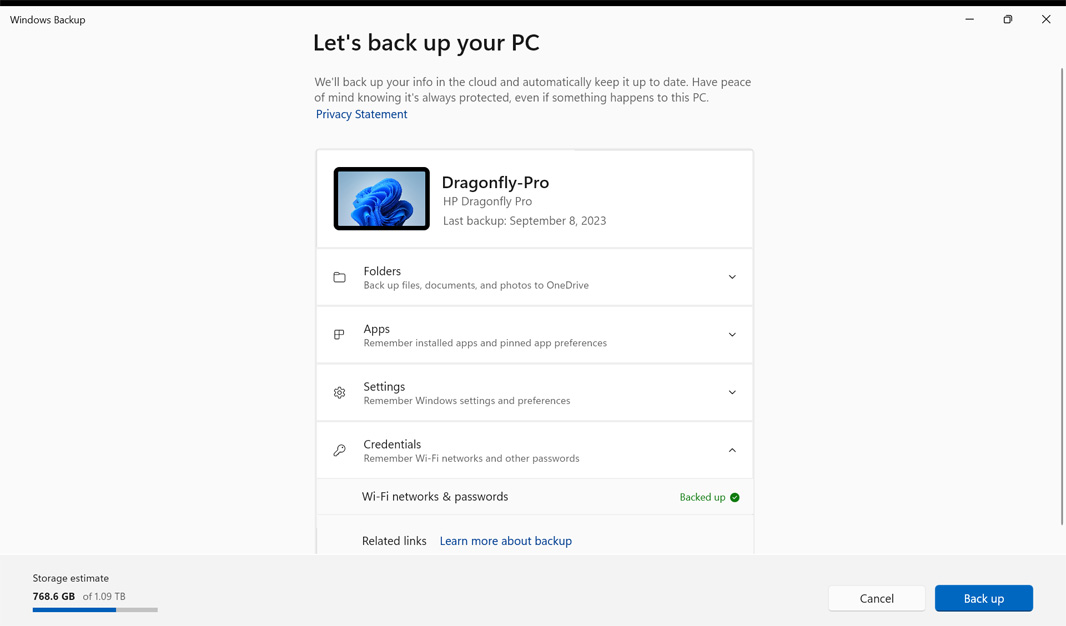
Windows Backup is a front-end to a set of sync—not backup—functionality, all of which already existed in Windows. It requires an MSA of course. And while it highlights four top-level items it can back up (really, sync) to the cloud, it is perhaps amusing and notable that you cannot configure most of those items in the app. (You likewise can’t make a “backup” or restore of some subset of those four items.) They are:
Folders. You can “backup files, documents, and photos to OneDrive,” it notes, and here is the one exception to my note above about configuring directly from the app. Because you can toggle OneDrive folder backup for the Desktop, Documents, and Pictures folders. Oddly, you can also backup the Music and Videos folders to OneDrive too, at least on some PCs. But you have to do that from the OneDrive app. For some reason. (And there’s no link here to open that UI, which is dumb.)
Apps. This most deceptive of options lets you “remember installed apps and pinned app preferences,” which is a combination of two Windows features: Settings sync and Reset this PC’s now deprecated “Restore this PC” functionality. The former is automatic, and the latter was achieved previous to the Windows Backup app by choosing to restore from a PC backup (go figure) during Setup. (This feature is over two years old.) Yet another feature Microsoft is cramming down our throats, because now you really have to hunt and peck for the option that gives you the clean install option. And “apps” here only means Microsoft Store apps, as always: You cannot restore any apps or settings for apps installed from the web. And there is nothing you can configure here. You get it all, so it’s not even all or nothing.
Settings. Windows has long automatically backed up an undocumented subset of system settings—related to accessibility, language preferences, personalization, and, even more vaguely, “other Windows settings”—to your MSA. And this UI does not expand on our understanding of that or let us customize this backup in any way. (Which is too bad: Maybe you want to go back to the default settings broadly or in one category.)
Credentials. Your MSA automatically stores and backs up your “Wi-Fi and other passwords,” it’s why you connect automatically to known Wi-Fi networks when using a new PC. And so this entry is pointless: It’s automatic and you can’t configure it.
Given how useless most of this seems at first glance, what is the point of this app? Why even bother with it?
From what I can tell, it achieves two things. First, it informs users in a single, easily understood app what items are being backed up for them to their MSA, and what they can restore should they get a new computer or choose to Reset this one. And second, it has a big and obvious “Back up” button that almost does absolutely nothing but will make users feel good if they’re about to restore. (The one exception is the OneDrive choices: Because you can enable OneDrive folder backup in this app, clicking “Back up” will make that configuration change on the PC.)
I noted above that the restore portion of this process occurs in Setup, but I should be clearer about what that means. In part because it occurs only in Setup: You cannot use the Windows Backup app or any other UI in Windows to restore a PC. You can only do so from Setup (though to be fair, one way to kick off Setup is to run Reset this PC).
And by Setup, I mean the Out of Box Experience (OOBE) phase of the Windows Setup routine, which on Windows 11 is comprised of low-resolution graphics with pastel colors and lots of advertising for other Microsoft services. After you sign in with your MSA, the OOBE asks you whether you would like to restore from a backup or, with a bit of digging (“More options” > “Set up as a new PC”), just do what I will continue to call a clean install. Clear-cut, right?
Nope. If you choose the clean install option, all that stuff you synced to your MSA will still be synced to the PC, including your system settings and credentials, and Windows 11 will or will not force-backup some folders to OneDrive (again, this forced in Windows 11 Home and random in Pro). The only thing you won’t get is those Microsoft Store apps reinstalled (along with their pinned preferences). That’s it.
But that’s also telling, perhaps. Microsoft is trying to put the notion of app restore in front of average users, most of whom probably never think about backup and restore generally, let alone the need for apps. And I am wondering now whether the Windows Backup app and the Dev Home machine configuration/install applications functionality aren’t pointing to a unified future. What if—he says, dramatically—a future Windows Backup integrated with both Winget and the Store and offered a more complete app restore feature that also included app configuration (from the DSC Resource module) and continuous updating (a la WingetUI)?
What if indeed.
This would solve a lot of problems and would be a more consumer-friendly version of the three-part backup/restore system. But it’s also not enough. This new system—granted, a system of my imagination only—could still be so much better. And the key there, I think, is to make it more granular so that you can control what gets backed up and what gets restored (separately), while making your backups centrally manageable in the cloud via an interface in OneDrive. I have over two years of these backups dating back to August 21 but I have no idea “where” they are or how I might delete the older ones.
Am I letting my imagination run away with me? After all, it’s far more likely that Microsoft will let the Windows Backup app languish and will improve Dev Home but not bring those features to mainstream IT pros let alone consumers. Fair enough.
But as I developed and honed my three-part backup/restore system, I kept coming back to the same ideas over and over again. Microsoft has the Store, and it lets you easily access your app library and install apps. Microsoft has Winget, and it uses two default app repositories, the Store and its own (for web installs). Winget can update apps but only manually, and you can bulk-install apps with a script. Windows has Reset this PC, and while it used to do Refresh this PC too, that part of things was subsumed into the Setup-based PC restore feature years ago. OneDrive solves all the document issues around backup, resiliency, and even versioning. The missing pieces, ultimately, are small and easily solved. The wrapper to this whole thing would be a single, simple app.
That app could be Windows Backup. Not today, in 2023. But someday.

Gain unlimited access to Premium articles.
With technology shaping our everyday lives, how could we not dig deeper?
Thurrott Premium delivers an honest and thorough perspective about the technologies we use and rely on everyday. Discover deeper content as a Premium member.