Tip: Use the Classic File Explorer in Windows 11
- Paul Thurrott
- Jun 17, 2024
-
12
Back in April, I wrote a tip documenting two methods by which you could replace the unreliable new File Explorer in Windows 11 with the classic version. But the more permanent of those methods required using a third-party utility, which some may not trust. And so, inspired by a post on Deskmodder, I created two Registry files to enable, and disable, the classic File Explorer in Windows 11. This way, you can see exactly which changes are being made to your PC, and you can easily reverse the change if you like.
The first Registry file enables the classic File Explorer. To create it, start a new document in Notepad and paste in the following text:
[HKEY_CURRENT_USER\Software\Classes\CLSID\{2aa9162e-c906-4dd9-ad0b-3d24a8eef5a0}]
@=”CLSID_ItemsViewAdapter”
[HKEY_CURRENT_USER\Software\Classes\CLSID\{2aa9162e-c906-4dd9-ad0b-3d24a8eef5a0}\InProcServer32]
@=”C:\\Windows\\System32\\Windows.UI.FileExplorer.dll_”
“ThreadingModel”=”Apartment”
[HKEY_CURRENT_USER\Software\Classes\CLSID\{6480100b-5a83-4d1e-9f69-8ae5a88e9a33}]
@=”File Explorer Xaml Island View Adapter”
[HKEY_CURRENT_USER\Software\Classes\CLSID\{6480100b-5a83-4d1e-9f69-8ae5a88e9a33}\InProcServer32]
@=”C:\\Windows\\System32\\Windows.UI.FileExplorer.dll_”
“ThreadingModel”=”Apartment”
[HKEY_CURRENT_USER\Software\Microsoft\Internet Explorer\Toolbar\ShellBrowser]
“ITBar7Layout”=hex:13,00,00,00,00,00,00,00,00,00,00,00,20,00,00,00,10,00,01,00,\
00,00,00,00,01,00,00,00,01,07,00,00,5e,01,00,00,00,00,00,00,00,00,00,00,00,\
00,00,00,00,00,00,00,00,00,00,00,00,00,00,00,00,00,00,00,00,00,00,00,00,00,\
00,00,00,00,00,00,00,00,00,00,00,00,00,00,00,00,00,00,00,00,00,00,00,00,00,\
00,00,00,00,00,00,00,00,00,00,00,00,00,00,00,00,00,00,00,00,00,00,00,00,00,\
00,00,00,00,00,00,00,00,00,00,00,00,00,00,00,00,00,00,00,00,00,00,00,00,00,\
00,00,00,00,00,00,00,00,00,00,00,00,00,00,00,00,00,00,00,00,00,00,00,00,00,\
00,00,00,00,00,00,00,00,00,00,00,00,00,00,00,00,00,00,00,00,00,00,00,00,00,\
00,00,00,00,00,00,00,00,00,00,00,00,00,00,00,00,00,00,00,00,00,00,00,00,00,\
00,00,00,00,00,00,00,00,00,00,00,00,00,00,00,00,00,00,00,00,00,00,00,00,00,\
00,00,00,00,00,00,00,00,00,00,00,00,00,00,00,00,00,00,00,00,00,00,00,00,00,\
00,00,00,00,00,00,00,00,00,00,00,00,00,00,00,00,00,00,00,00,00,00,00,00,00,\
00,00,00,00,00,00,00,00,00,00,00,00,00,00,00,00,00,00,00,00,00,00,00,00,00,\
00,00,00,00,00,00,00,00,00,00,00,00,00,00,00,00,00,00,00,00,00,00,00,00,00,\
00,00,00,00,00,00,00,00,00,00,00,00,00,00,00,00,00,00,00,00,00,00,00,00,00,\
00,00,00,00,00,00,00,00,00,00,00,00,00,00,00,00,00,00,00,00,00,00,00,00,00,\
00,00,00,00,00,00,00,00,00,00,00,00,00,00,00,00,00,00,00,00,00,00,00,00,00,\
00,00,00,00,00,00,00,00,00,00,00,00,00,00,00,00,00,00,00,00,00,00,00,00,00,\
00,00,00,00,00,00,00,00,00,00,00,00,00,00,00,00,00,00,00,00,00,00,00,00,00,\
00,00,00,00,00,00,00,00,00,00,00,00,00,00,00,00,00,00,00,00,00,00,00,00,00,\
00,00,00,00,00,00,00,00,00,00,00,00,00,00,00,00,00,00,00,00,00,00,00,00,00,\
00,00,00,00,00,00,00,00,00,00,00,00,00,00,00,00,00,00,00,00,00,00,00,00,00,\
00,00,00,00,00,00,00,00,00,00,00,00,00,00,00,00,00,00,00,00,00,00,00
Then, save the document using a filename of your choice and using a .reg file extension (like Enable classic File Explorer.reg). But be sure to change the “Save as type” from “Text documents (*.txt) to “All files.”
Next, create another new document using Notepad and paste in the following text:
Windows Registry Editor Version 5.00
[-HKEY_CURRENT_USER\Software\Classes\CLSID\{2aa9162e-c906-4dd9-ad0b-3d24a8eef5a0}]
[-HKEY_CURRENT_USER\Software\Classes\CLSID\{6480100b-5a83-4d1e-9f69-8ae5a88e9a33}]
Again, save it with whatever filename and the .reg file extension (Disable classic File Explorer.reg, perhaps). As before, be sure to change the “Save as type” from “Text documents (*.txt) to “All files.”
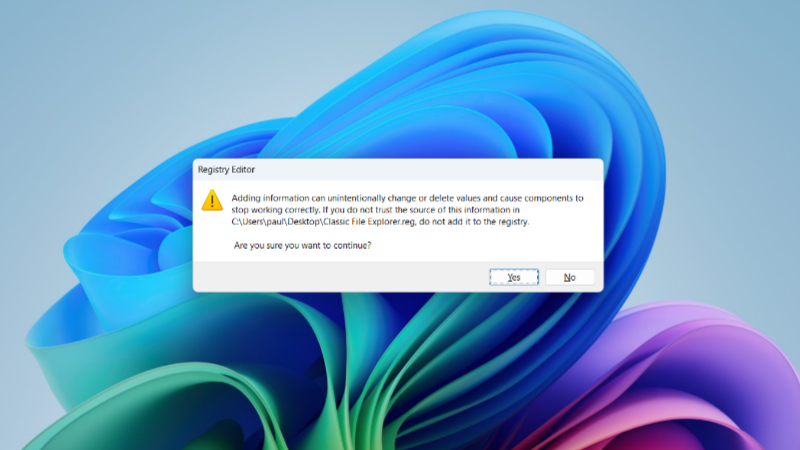
When that’s done, you can add the first Registry file to the Registry: Just double-click it, approve the UAC prompt, and then click “Yes” when you see this dialog box:
You will need to sign out before you can access the classic File Explorer. Do so, and when you get back to the Windows desktop and open File Explorer, a familiar site will greet you.
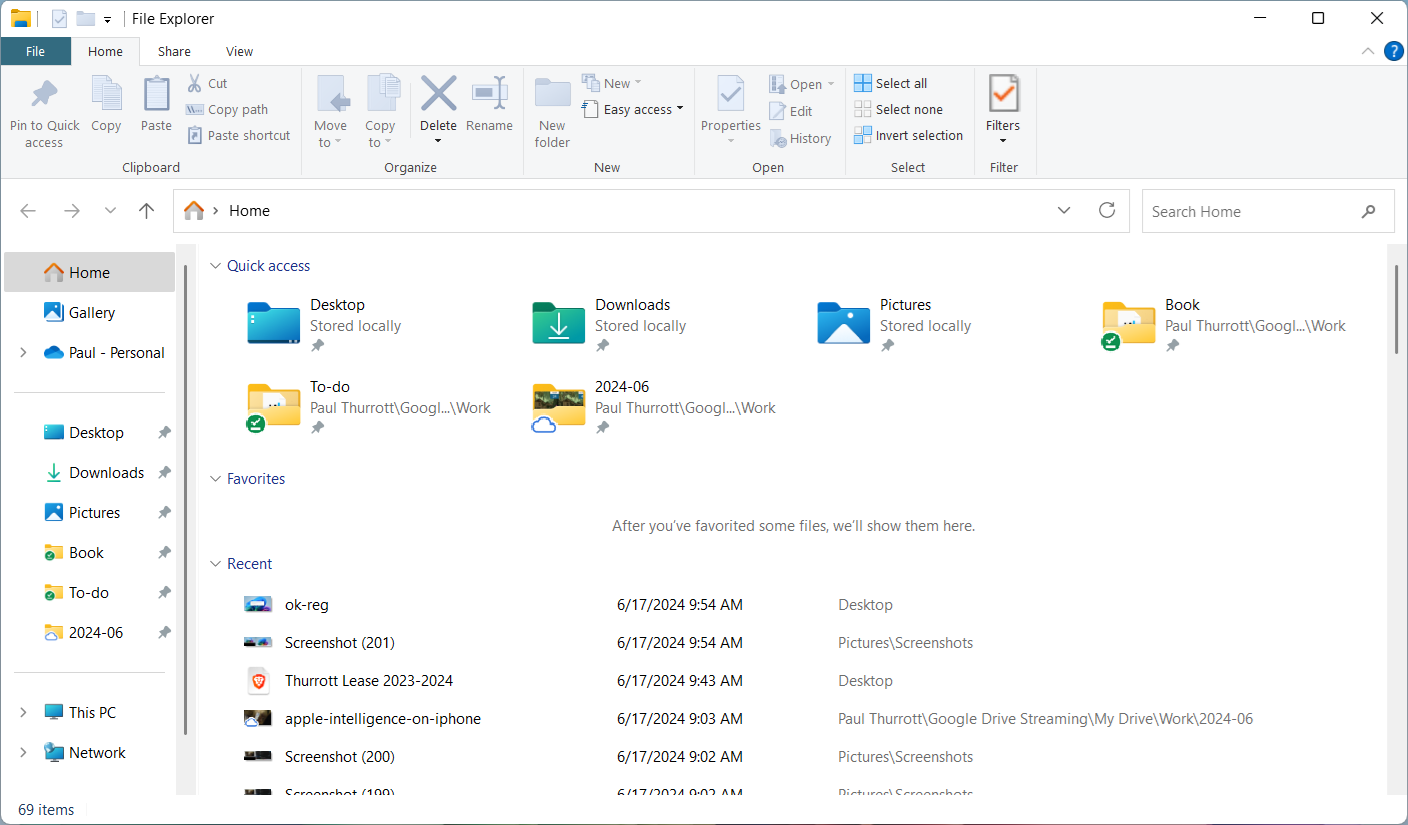
I usually run it with the ribbon minimized for a cleaner look. Indeed, it’s cleaner than the new Windows 11 File Explorer, too.
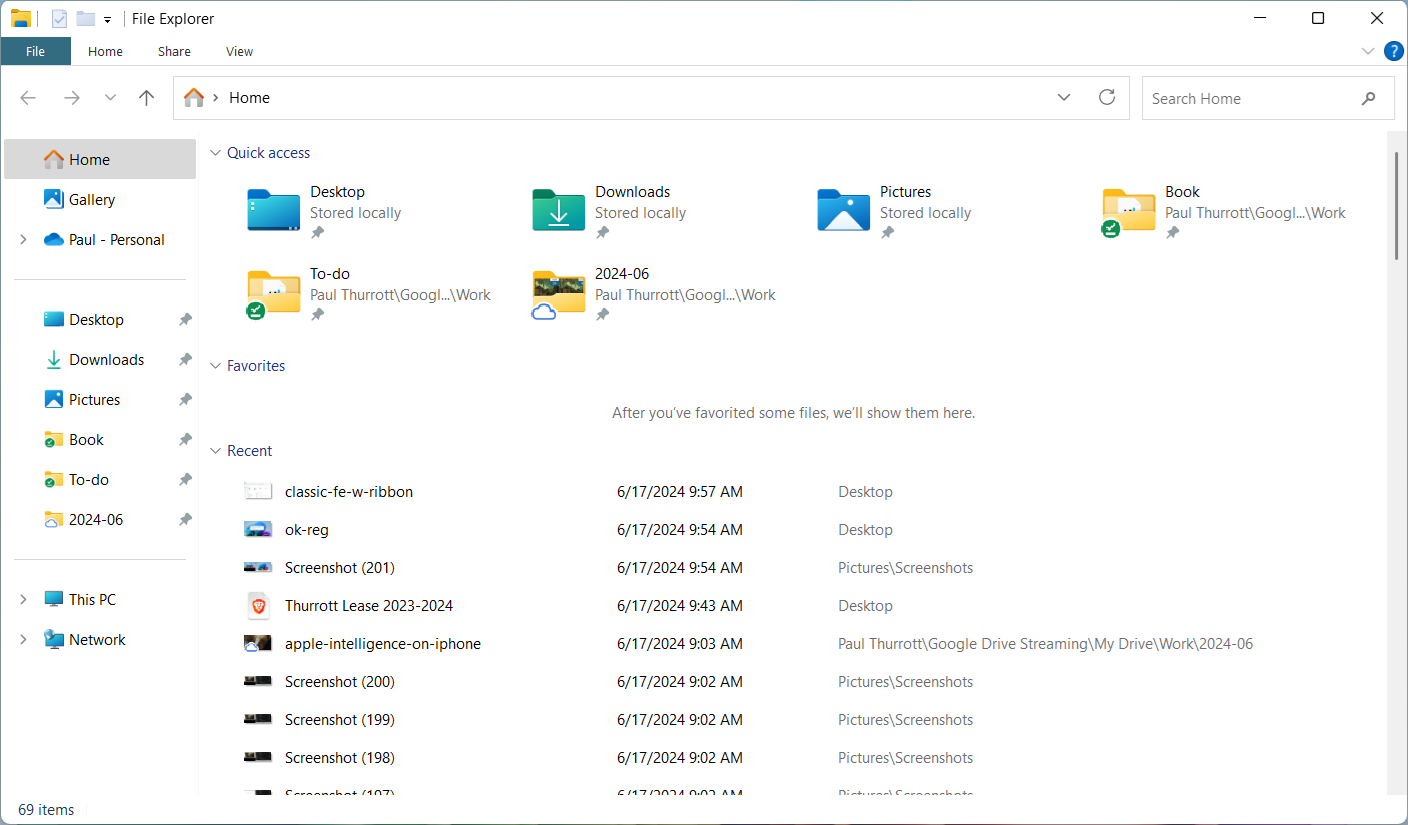
Is it faster or more reliable? I can’t tell for sure yet, though I’ve been using the classic File Explorer for the past week. It’s definitely reliable enough for daily use, but I’ve not tried any of the big file copies that cause issues with the new File Explorer.
If you do experience issues or just don’t like the classic File Explorer, you can use the second Registry file to put everything back the way it was before. As with the first file, you will need to sign out and sign back in for the changes to take place.
Good luck!