Microsoft Issues Repair Tool for PCs Impacted by CrowdStrike Outage
- Paul Thurrott
- Jul 21, 2024
-
1
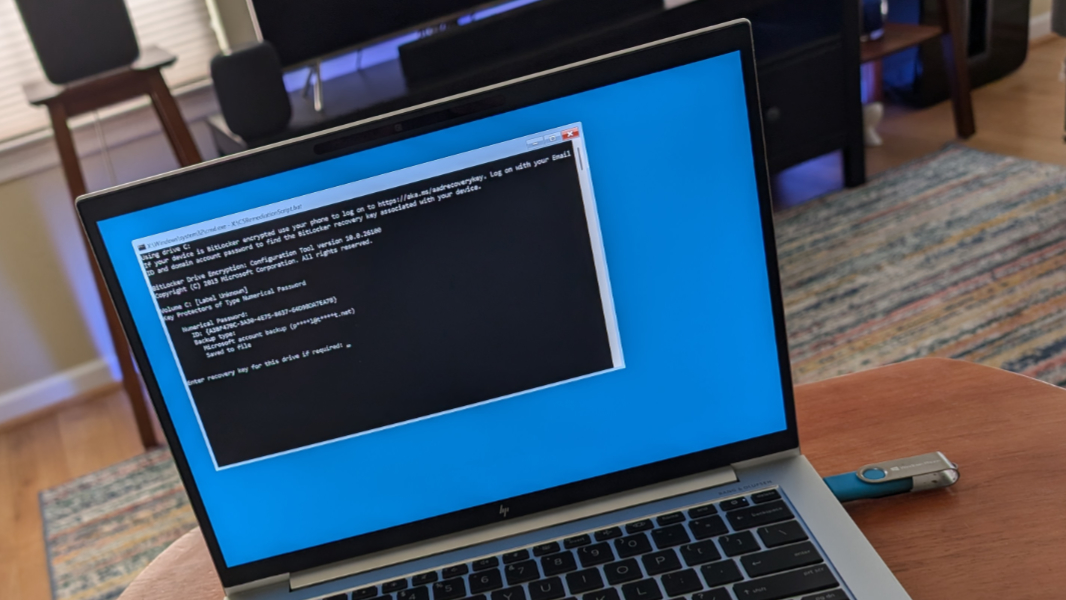
Microsoft last night issued a software download that creates a USB-based repair tool to address issues caused by the recent CrowdStrike outage. This tool should provide a simpler solution than the existing multistep workarounds.
“We have released a USB tool to help IT Admins expedite the repair process,” a Microsoft Community Hub post explains. “The signed Microsoft Recovery Tool can be found in the Microsoft Download Center.”
You can find that download here if you need to get started immediately.
To create the repair tool, you need a 64-bit Windows 10/11 client PC, at least 8 GB of free storage space, administrator privileges, a USB flash drive with at least 1 GB of storage space, and the BitLocker Recovery Key for the PC you’re trying to repair. You can find your BitLocker Recovery Keys at the Microsoft account website if you’re a consumer who signs in to Windows with a Microsoft account (MSA); Microsoft has instructions for finding this information.
To make the repair tool, download the 24 KB ZIP file and extract it. Then, open a PowerShell command line with elevated (administrator) privileges. Navigate to the extracted folder and issue the following command:
.\MsftRecoveryToolForCS.ps1

If you receive an error message noting that the PowerShell script “cannot be loaded because running scripts is disabled on this system,” you should follow the instructions at the link provided. Or, just type the following at the PowerShell prompt and tap “y” (for “yes”) when prompted:
Set-ExecutionPolicy -ExecutionPolicy RemoteSigned

Now, re-run the PowerShell script as noted above. Tap “r” (for “run once”) and “y” and Enter twice as prompted (for the Windows ADK licensing agreement and Windows Kits privacy, respectively).
The script will install the Windows Assessment and Deployment Kit (Windows ADK), a tool used by IT admins to customize Windows deployment images. This will take several minutes, but when it’s done, you’ll be asked to agree to the Windows ADK license again. Tap “y” and then Enter, and it will install the Windows Pre-installation Environment (Windows PE or WinPE) add-on, an optional component that’s used to repair PCs and is required for this tool.
After a minute or so, the script will prompt you to add drivers to the WinPE image. Microsoft recommends tapping “n” (for “no”) here, followed by Enter. And then the script will save the changes to the WinPE image it creates in a new working directory in C:\Program Files (x86).
Then, it will prompt you to enter the drive letter of the USB flash drive you’re using. Insert it now if you didn’t already, and then use File Explorer to discover its drive letter. (This process will delete everything on the drive, so make sure there’s nothing on there you wish to save.) At the command line prompt, type the letter (“d” or similar) and then tap Enter.

The script will format the drive (using the FAT32 file system), report its success, and it will then copy the contents of the repair tool to it. This, too, could take a few minutes, depending on the speed of the drive. (The C:\Program Files (x86)\Windows Kits folder is just under 5 GB in size, but the repair drive you’re creating is only 393 MB in size.)

Finally, the script will report its success, noting that “You can now boot from the USB key.”

From here, you can remove the repair drive from this PC and use it to boot the impacted computer. How you do so will vary by PC—each PC maker has different ways to interrupt the boot process—but when you configure the system to boot from the USB drive, the command line-based repair tool will run and prompt you for that BitLocker Recovery Key. It’s a 48-digit numeric key, so have fun with that.
Once you successfully enter the key, Microsoft says that the script will then run the CrowdStrike-recommended script that will resolve the issue. On the PC I used to test this, that didn’t happen, but it wasn’t impacted by the outage and doesn’t include the expected CrowdStrike Falcon files that need to be fixed.
From there, you reboot the PC and, if all goes well, you’re back up and running normally.
Good luck!