Patch Tuesday Arrives with New Features for Windows 11
- Paul Thurrott
- Sep 09, 2025
-
0
It’s Patch Tuesday, and those on Windows 11 can look forward to a long list of new features. You know, once Microsoft gets around to delivering them on your PC, as most of them are being rolled out gradually.
Cumulative update KB5065426 is available for PCs running Windows 11 version 23H2. And cumulative update KB5065426 is available now for PCs running Windows 11 version 24H2. Both builds include numerous new features that were first previewed two weeks ago.
Key new features include:
Recall improvements (Copilot+ PCs only). Recall provides a new homepage experience with shortcuts for your recent activity, most-used apps, and most-visited websites. There are new controls for filtering the apps and websites that Recall shouldn’t record, plus a new navigation bar on the left with links to Home, Timeline, Feedback, and Settings.
Click to Do improvements (Copilot+ PCs only). Click to Do now provides an interactive tutorial when you first launch it, and you can access it later by navigating to More options (“…”) > Start tutorial.
Agent in Settings (Copilot+ PCs only). Previously available on Snapdragon X-based Copilot+ PCs, the new Agent in Settings is now available to those with AMD- and Intel-based Copilot+ PCs too. But it’s still limited to English, which must be configured as your primary display language.
Search improvements. When you initiate Search from the Taskbar item, a new grid view is used for image results so you can more easily find what you’re looking for. The Search window will now display a status pane if Windows 11 is still indexing your search locations. And search results will clearly differentiate between local and cloud-stored files.
Larger clock option in Notification center. As was the case in Windows 10, you can now enable a larger clock with settings in the Date and Calendar window that appears when you display the Notification center. (To do so, open Settings, navigate to Time & language > Date & time, and enable the option “Show time in the Notification Center.”)
System dialog improvements. System dialogs now appear modally over the rest of the Desktop, which is dimmed to give emphasis to the dialog.
Lock screen widgets improvements. You can now add, remove, and rearrange Lock screen widgets. And these widgets now support a new small sizing option.
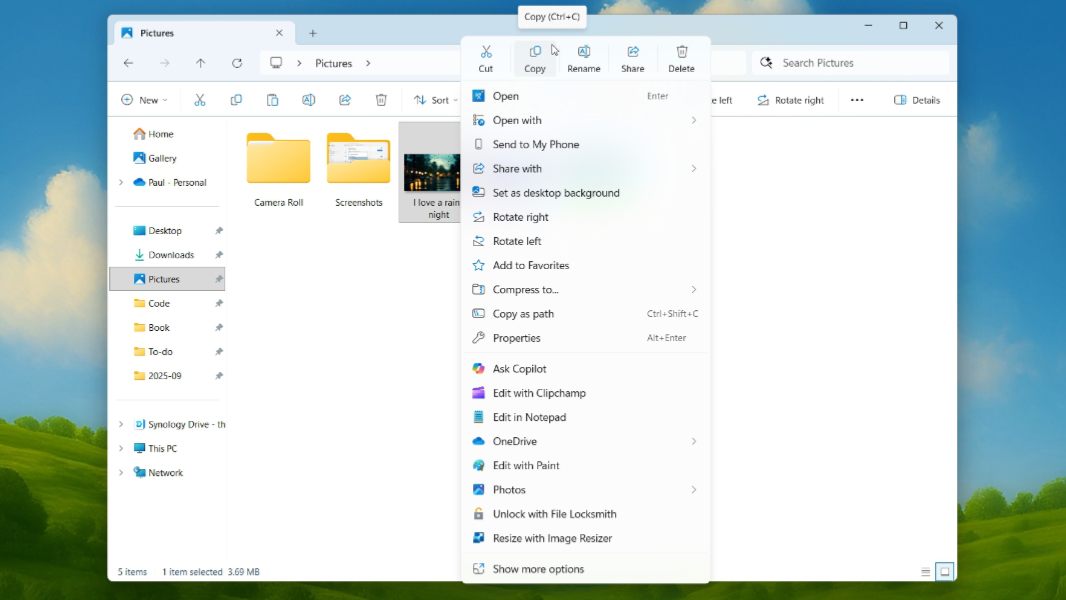
File Explorer improvements. Microsoft has made minor visual changes to the context menu that appears when you right-click in File Explorer.
Windows Hello improvements. The Windows Hello user experience is completely redesigned with more modern visuals. It’s nicer looking but, truth be told, slower and more tedious to use now. But it does let you switch between available authentication options such as passkeys or connected devices.
Generative AI privacy and security settings. A new page in the Settings app, found at Privacy & security > Text and Image Generation, displays which third-party apps have recently used generative AI models built into Windows. You can also manage which apps can use these features, and then disable those you don’t want.
Widgets improvements. You can now configure multiple dashboards in the Widgets board, and there’s a new navigation bar on the left for switching between the widget dashboards and other views like the Discover feed, which is “more organized, personalized, and engaging.”
Task Manager improvements. Task Manager has been updated to more accurately display CPU usage across all views. The Details view now has an optional CPU Utility column, as per the Processes view.
Fixes. As you might imagine, these builds also deliver multiple security and bug fixes across ReFS, the Chinese (Simplified) Input Method Editor (IME), Arm64 performance, and more.
Yes, you will need to reboot as usual.