Microsoft Brings New Copilot+ PC Features to Release Preview Insiders
- Laurent Giret
- May 19, 2025
-
0
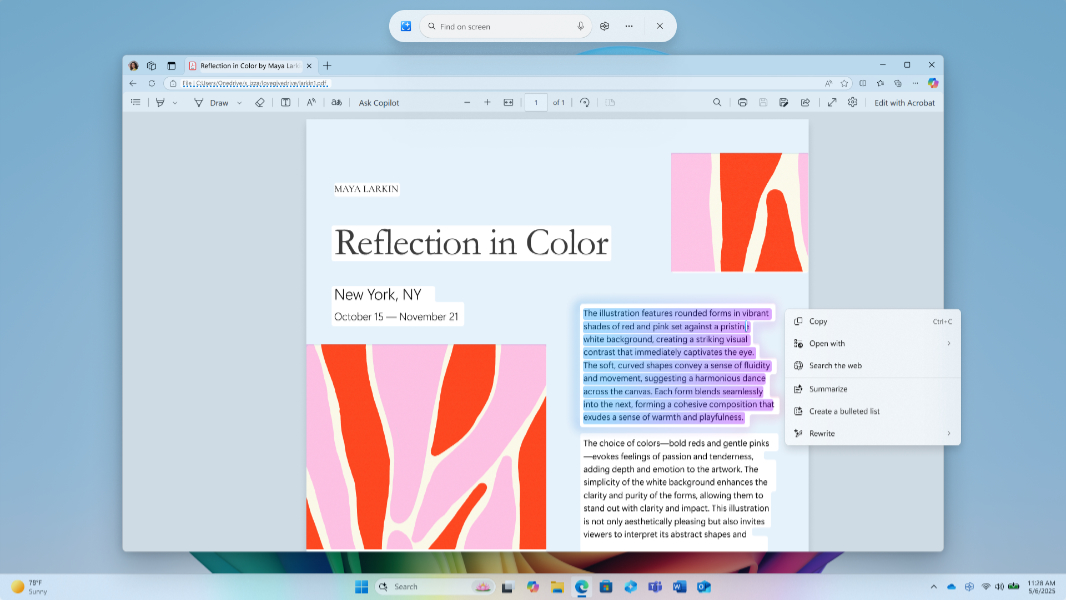
Microsoft has released today the Windows 11 24H2 build 26100.4188 to Insiders on the Release Preview Channel. This build brings various improvements for Click To Do, Narrator, and the AI-powered Windows Search on Copilot+ PCs. There are also other new features that were previously introduced on other channels, such as the cross-device resume notifications that were first introduced on the Beta Channel last year.
Here are the main new features included in today’s build 26100.4188:
New text actions for Click to Do: Users on AMD and Intel-powered Copilot+ PCs will see new options to Summarize, Create a bulleted list, or Rewrite highlighted text. A new Ask Copilot option is also available when highlighting text or an image. Moreover, Click to Do can now perform intelligent text actions in Spanish and French.
Image descriptions in Narrator: On Copilot+ PCs, Narrator can now provide detailed descriptions of images, charts, and graphs for blind and low-vision users.
Windows Search improvements: On Copilot+ PCs, Insiders can now type a setting they’re looking for in the Windows search box on the taskbar without needing to remember the exact setting name. EU users can also find cloud photos using Windows Search on the taskbar.
Click to Do shortcut for pen users: Insiders who have a PC with a pen and inking capabilities can configure the shortcut button to open Click to Do with a single-click, double-click, or a press-and-hold gesture. It’s also possible to add Click to Do as one of the four apps in the pen menu on your PC.
Copilot keyboard shortcut: You can now open Copilot on Windows by pressing Win + C. Holding the keyboard combination for two seconds will also initiate a voice conversation with the assistant. Alt + Spacebar is another keyboard combination to launch this press-to-talk experience.
Cross-device resume notifications: Insiders will now see a notification asking them if they want to pick up where they left off editing a OneDrive file that they last viewed on their phone before unlocking their PC.
Energy saver controls for IT admins: New group policies and MDM configurations allow IT admins to manage Energy saver settings and extend battery life by limiting background activity and dimming the screen.
HDR and Dolby Vision controls: A new option lets users stream HDR video even when HDR is turned off. On PCs with Dolby Vision, a new toggle also lets Insiders turn Dolby Vision on or off independently of HDR.
New FAQs section in Settings: This new section available under Settings > System > About helps users find answers to commonly asked questions about their PC and Windows 11, including system setup, performance, and compatibility.
Mouse settings: These settings are now easier to access under Settings > Accessibility > Mouse and Mouse pointer and touch. There are also updated icons for Mouse pointer speed and Enhance mouse pointer precision, plus new options for customizing the mouse indicator, pointer trails, and hover activation time.
All of these new features will start rolling out gradually to Insiders on the Release Preview Channel. They should also become available for non-Insiders later this month with this month’s optional update for Windows 11 version 24H2.