Lenovo Legion Go 2 First Impressions
- Paul Thurrott
- Oct 04, 2025
-
6

My early experiences with the Legion Go 2 suggest that a Windows 11-powered gaming handle makes sense. But some issues are immediately obvious as well.
Lenovo released the first Legion Go gaming handheld two years ago as a Windows 11-based alternative to the Steam Deck and Nintendo Switch. That Windows might have some obvious advantages and disadvantages compared to those systems is probably obvious to anyone. But this form factor has enough traction that Microsoft has worked to improve the gaming interfaces in Windows 11 so that they make sense in a full-screen mode and support controller navigation.
Deeper work was done for the ROG Xbox Ally gaming handhelds that ship this month, as they include a customized Windows 11 OS that behaves more like an Xbox console than a PC by default. Or at least as much as is possible. That experience will come to other Windows 11-based gaming handhelds in early 2026. Key among them the Legion Go 2, which Lenovo announced last month at IFA and will ship to customers in less than two weeks.
Lenovo was nice enough to loan me a Legion Go 2 to review, but it arrived late enough in the day yesterday that all I had time to do was sign in with my Microsoft account and start Call of Duty: Black Ops 6 downloading. And so this morning, I did a bit more customization, played a single round of Call of Duty multiplayer, and started downloading several other games. And I have a few early impressions.
First and most obviously, this is a PC with an integrated display in a small but thick form factor and integrated but detachable controller halves that runs stock Windows 11. That’s good and bad, I guess, but the screen supports touch, which makes interacting with the PIN entry box on the sign-in screen and other tiny UIs on this screen a little easier. The right controller half also has a tiny touchpad below the D-stick so you can use the mouse cursor more naturally.
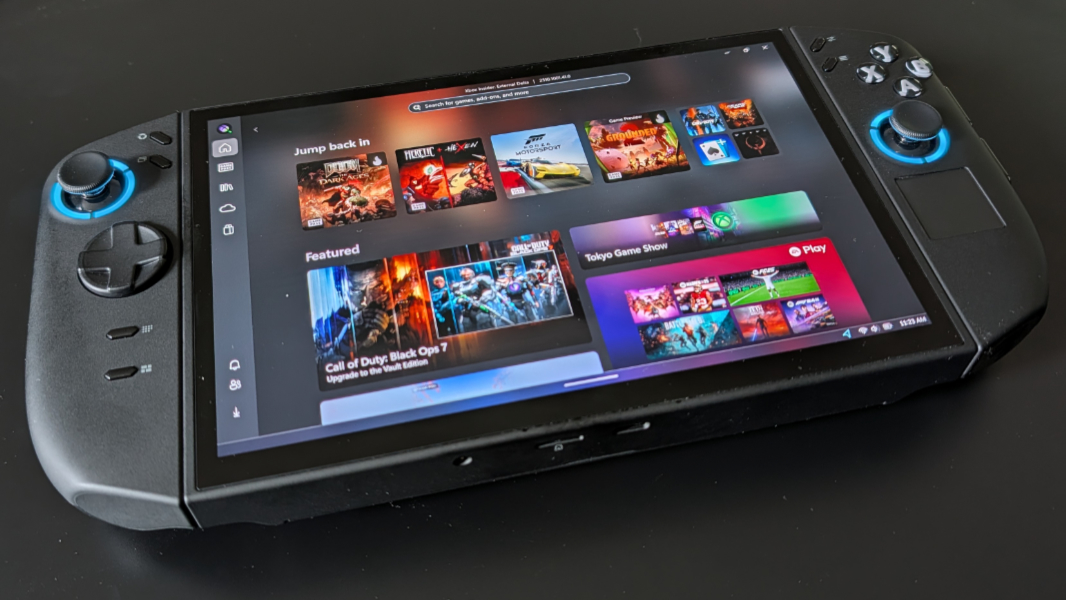
Tied for first and most obviously, this gaming handheld emits a loud and steady fan noise that might undermine the experience for some. It comes on when you turn on the PC, and it never turns off, at least it hasn’t yet, until you turn it off again. Granted, I’ve been going through initial configuration and downloading games, and these activities always fire up the CPU and thus trigger whatever cooling capabilities. But this is a gaming handheld, so you will primarily use it to play games. And that fan will be roaring the whole time.
I’ve not used other gaming handhelds, and my experience with the Switch is limited, though I’ve almost pulled the trigger on that purchase more times than I can count. The issue for me is probably manifold, but it boils down to the size of the screen and my eyesight, and to the types of games I play. Which is to say mostly Call of Duty and then games that are much like Call of Duty. So the Switch might be an unlikely candidate as a device I would use frequently, as good as it appears to be.
Tied to this, I’ve written a lot about the ability of modern mainstream laptops, at this point those based on Intel Core Ultra Series 2 (“Lunar Lake”) or AMD Ryzen AI 300 series (Zen 5), to play even AAA games well using their more impressive integrated graphics. And I’ve used Call of Duty: Black Ops 6 this past year as a rough benchmark for the graphics capabilities of the laptops I’ve reviewed. So it makes sense to at least look at that on the Legion Go 2.
Which, I will again note, is a PC. It’s “just” a PC, albeit one in a unique-ish form factor and with an integrated controller, a touchpad, a few unique buttons (but not, notably, an Xbox button), and no keyboard. The other thing separating it from mainstream Windows laptops is the processor. As with the ASUS ROG Xbox Ally gaming handhelds, the Legion Go 2 offers a choice between two AMD Ryzen Z2 series processors. These processors are designed for gaming handhelds and their unique power management and use case needs, not for laptops or other PCs.
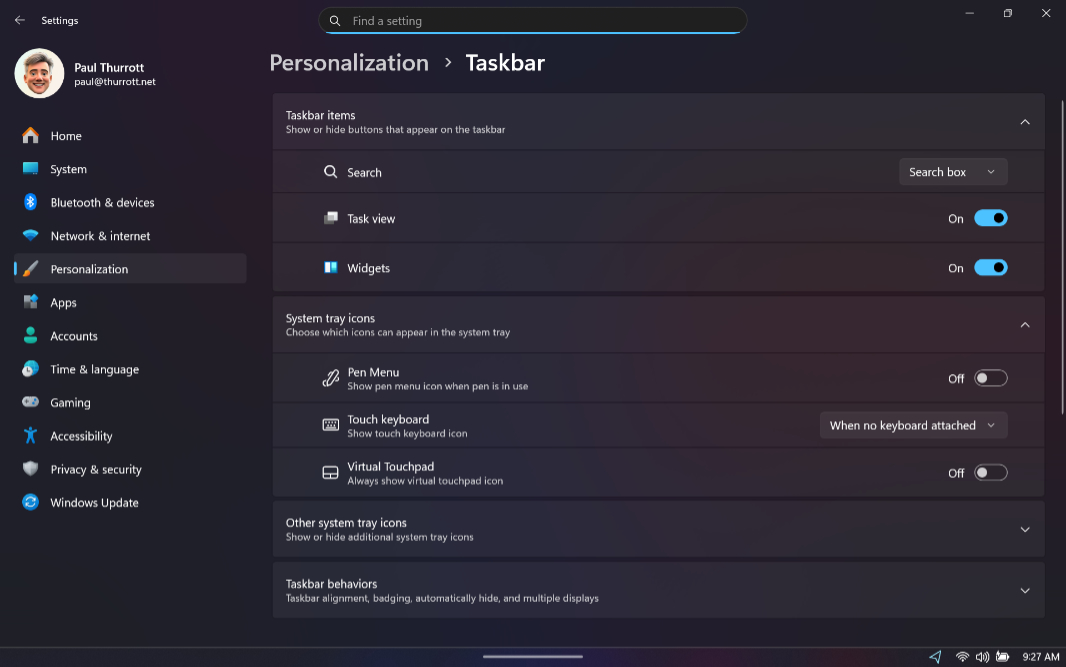
A quick aside. As I write these words, the Legion Go 2 is sitting next to me on a table, downloading games, I think, though the screen is off. It’s hissing away, loudly and consistently. It’s never gotten quieter, let alone silent, except when it’s turned off.
Anyway. The Legion Go 2 will come with an AMD Ryzen Z2 or Ryzen Z2 Extreme processor, depending on the configuration, 16 or 32 GB of LPDDR5X RAM (which is slightly faster with 32 GB of RAM), and up to 2 TB of SSD storage. Given the size of modern AAA games like Call of Duty and Microsoft Flight Simulator, the more storage the better, and I was happy to see that the review configuration includes the Z2 Extreme processor, 32 GB of RAM, and 2 TB of storage. Also, the integrated Radeon 890M graphics appears to have 16 GB of dedicated storage, which is a good sign.
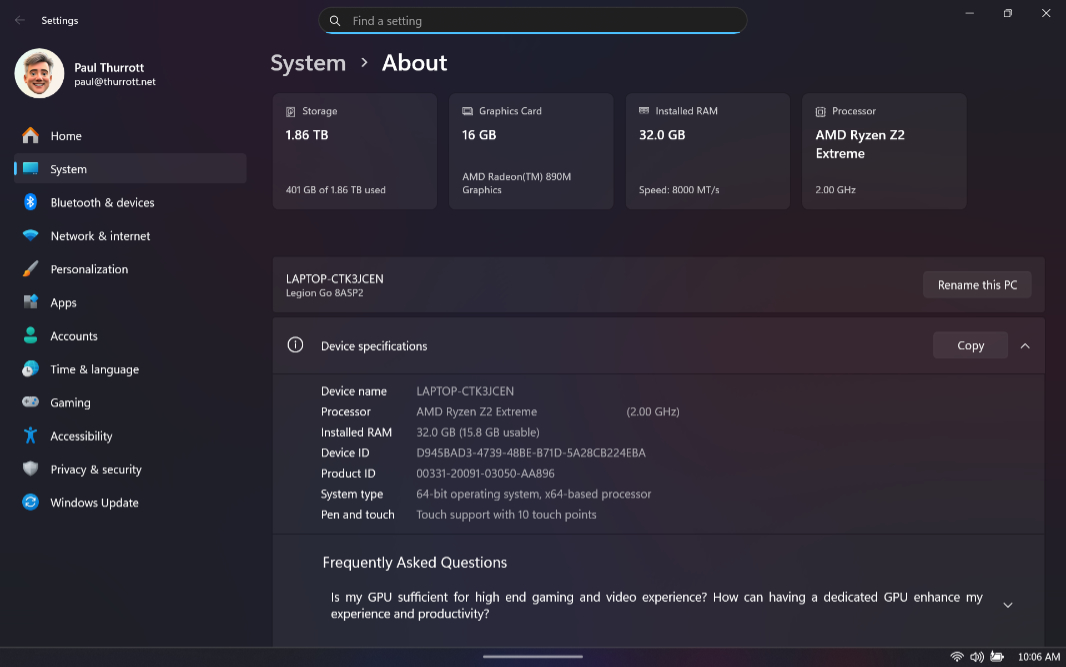
Beyond that, you’re looking at a 4-cell 74 watt-hour battery, stereo 2-watt speakers with Nahimic Audio (which I had never heard of) on the top, two 40 Gbps USB4 Type-C ports (one on top, one on the bottom), a microSD card reader (on the bottom), and a headphone/microphone combo port (also on the bottom). It has Wi-Fi 6E and Bluetooth 5.3 for connectivity.
The 8.8-inch Full HD+ (1920 x 1200) OLED multi-touch display is pretty to look at, but small to my middle-aged eyes, which are used to playing games these days on 16-inch laptops. This display has a 16:10 aspect ratio and a dynamic 144 Hz refresh rate, it is VESA True Black 1000 certified, and it emits 500 nits of brightness.
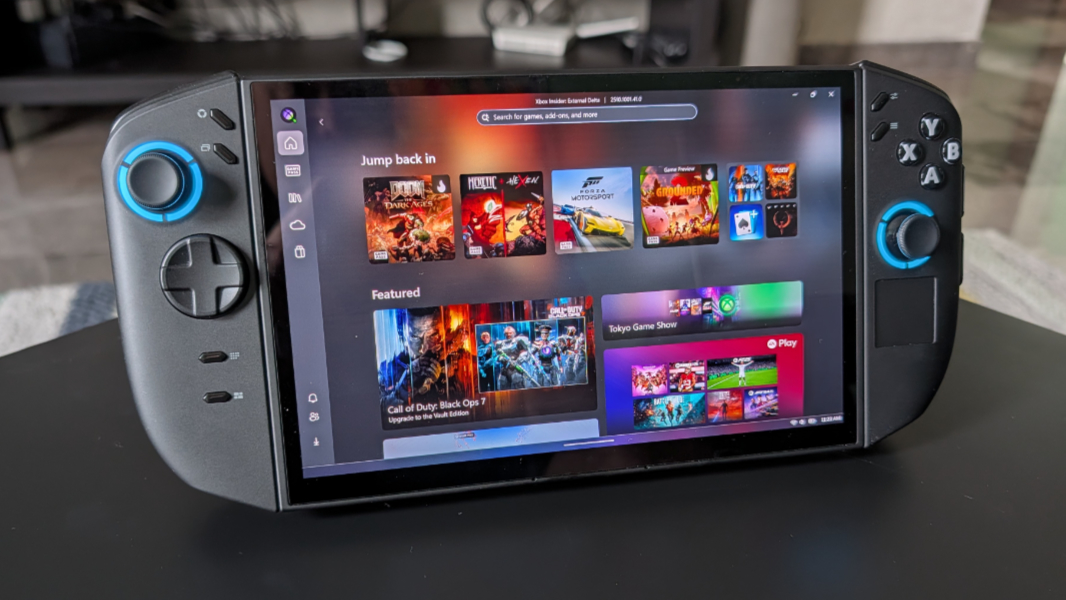
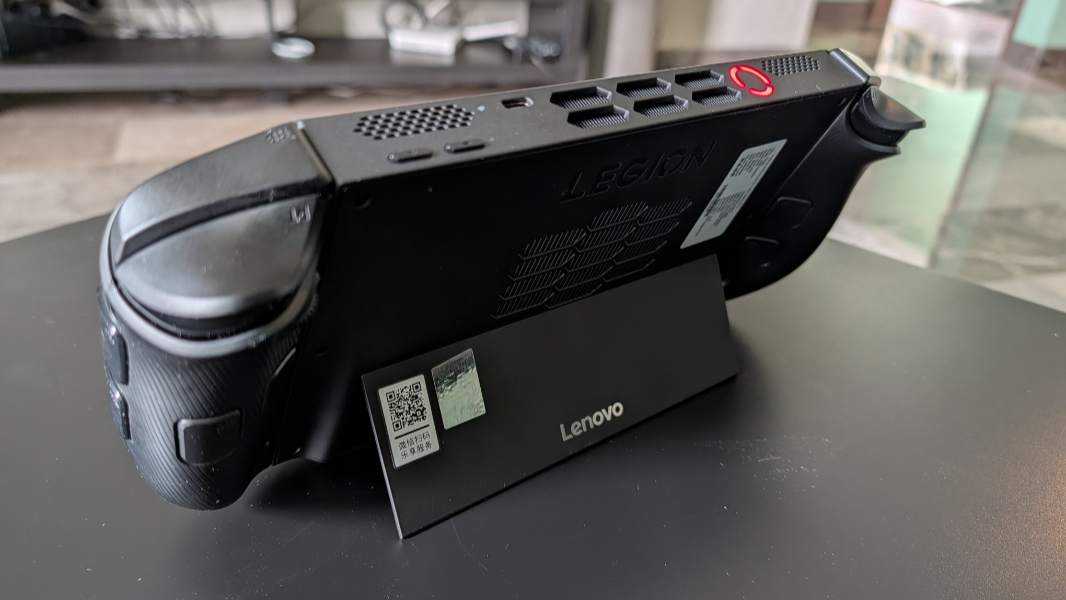
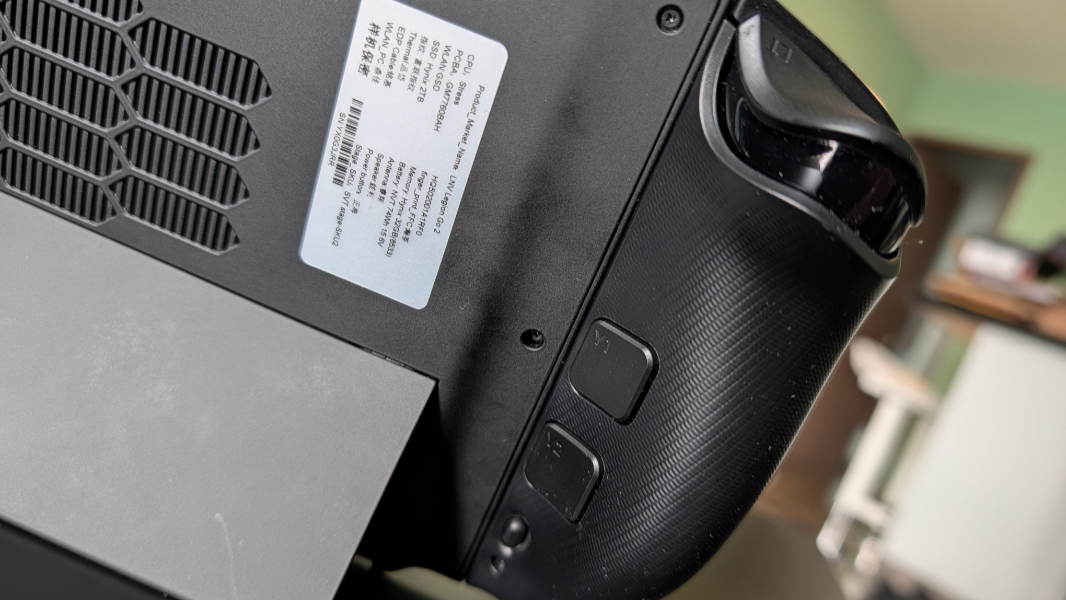
The device itself is chunky, with a large vent on the top that resembles those found on beefy desktop PC-based graphics cards, and there’s an even larger air intake vent on the back. Aside from the aforementioned vent, speakers, and USB-C port, there’s a large power button with a red light circling it and Volume up and Volume down buttons on the top.
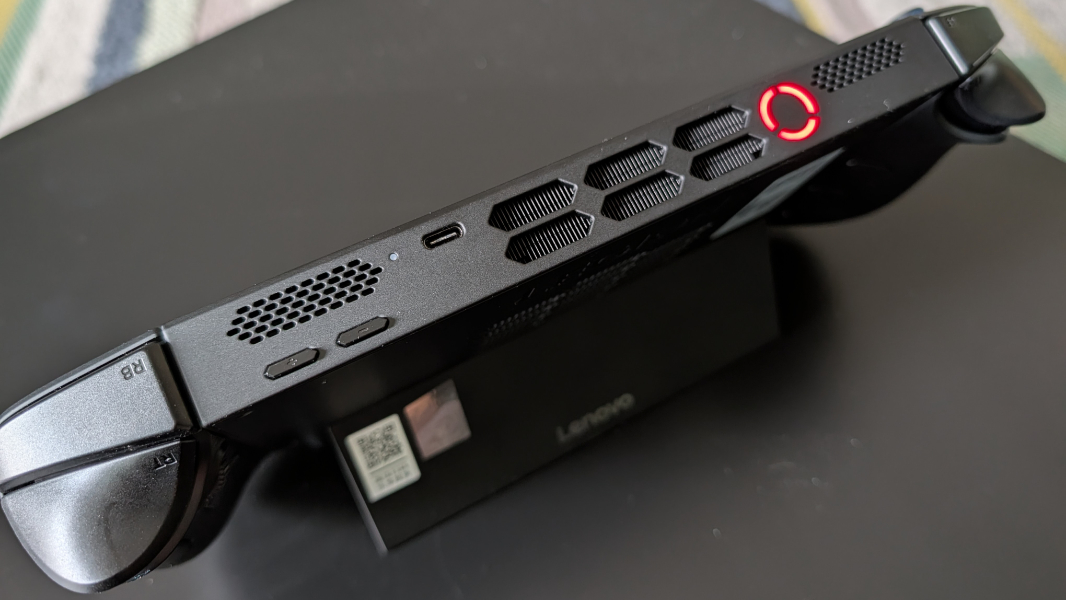
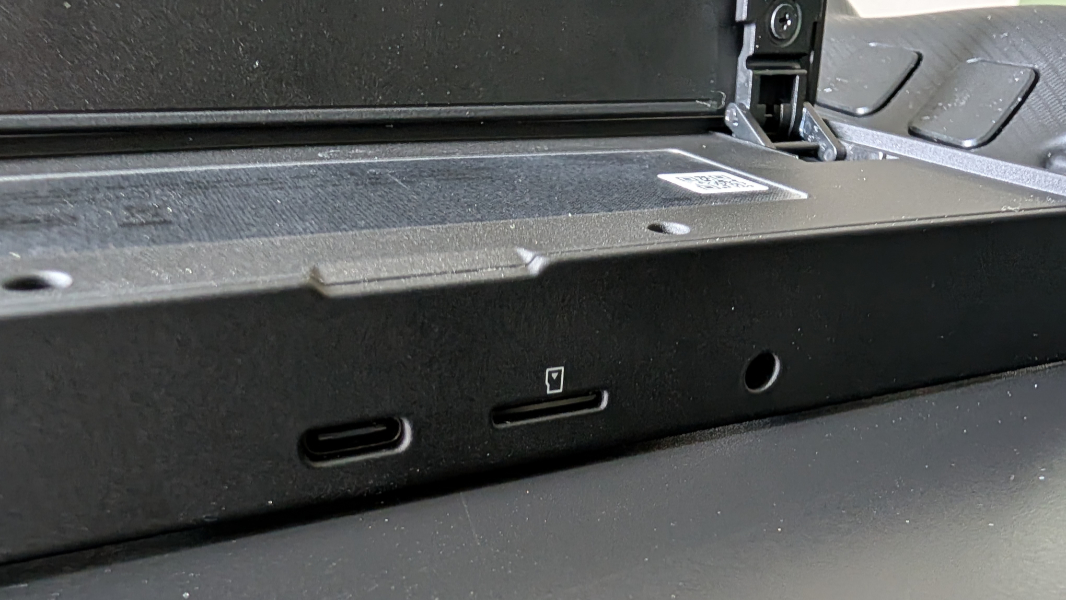
The bottom is empty save for the USB-C port, microSD card slot, and headphone/microphone combo port. And the rear has a nice built-in kickstand in addition to the air intake vent.
The controller is … interesting.
There are two halves, one on the left and one on the right in what is now a standard gaming handheld configuration. These half controllers are removable, though if there’s anything more awkward than using them while attached to the PC, it’s using them when detached. And there are a lot of little buttons and other controls on each, some immediately familiar and some less so.
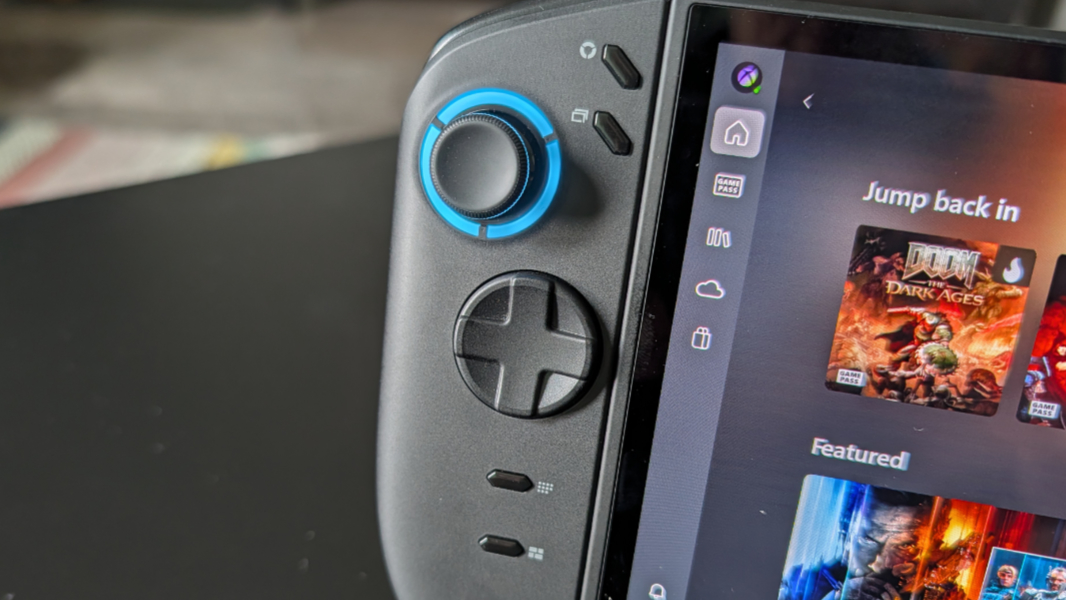
The left controller half has an Xbox-style D-stick (what Lenovo calls a Hall Effect Joystick) circled by a blue light ring and a D-pad (which Lenovo correctly calls a D-pad), and then four very small and much less obvious buttons on its front. Above and to the right of the D-stick are the Lenovo Space button (which opens a gaming front-end app) and the View button (like the Xbox controller button). And below the D-pad are the Desktop button (like tapping Windows key + D to toggle the Desktop) and the Page button, which brings up Alt + Tab (which works with the controller).
The left controller half also provides Xbox-style Left bumper and Left trigger controls in the expected locations on the top. And then less familiar and hard to reach Y1 and Y2 buttons, plus a release button to detach the controller. And then it gets even more complex, because you can press and hold the Lenovo Space button and Left Bumper at the same time to display a full-page screen that shows you what all the buttons and controls do. So that’s useful once you know it exists.
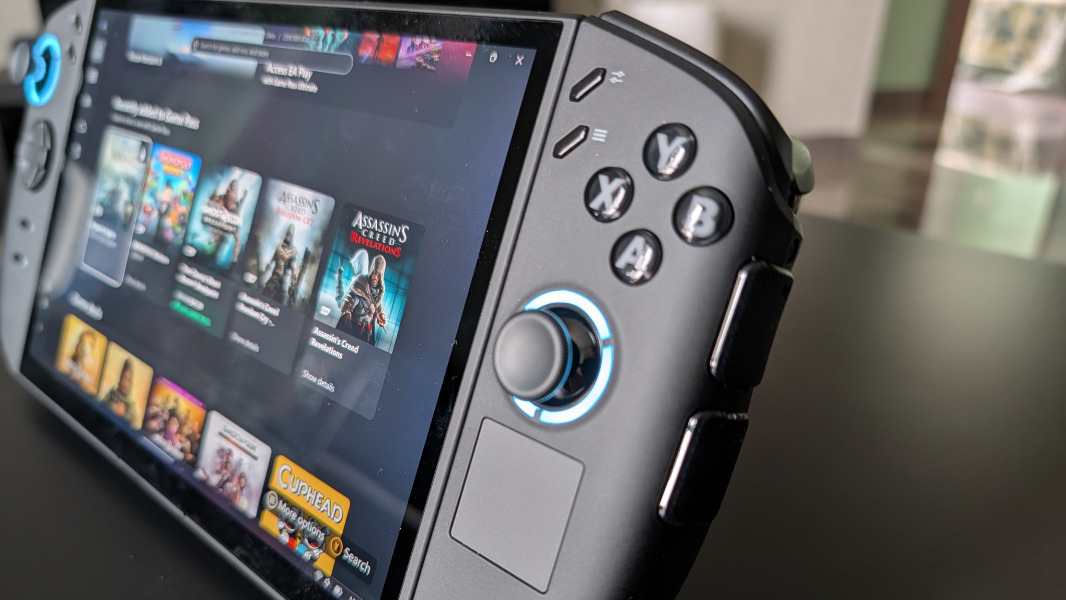
The right controller half has even more controls, go figure. On the front, there are two more Lenovo-specific buttons at the top, for Quick settings (a useful and proprietary display of settings specific to this PC) and Menu (as per an Xbox controller), Xbox-style Y, X, A, and B buttons and D-stick (again surrounded by a blue ring of light), and then a small square touchpad.
The complexity lies elsewhere. On the top, there are Right bumper and Right trigger controls, of course. On the back, there is a mouse wheel (!), Y3 and M3 buttons (which are side to side not top to bottom like the similar buttons on the left controller half), and a release button.
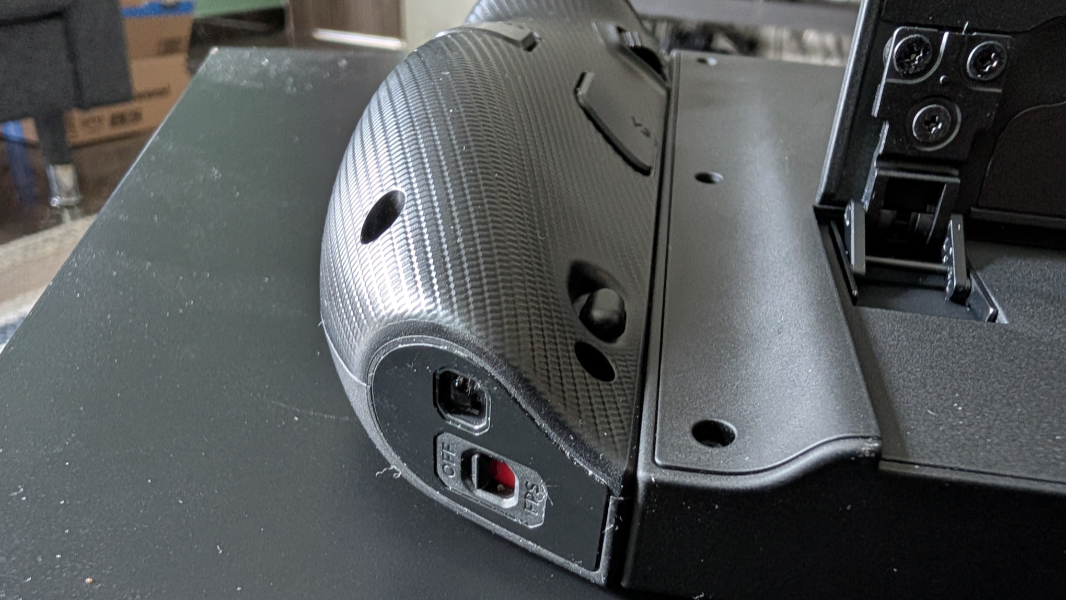
On the bottom (!) there is a game mode button (for switching between FPS and the normal play mode, more on this below) and a mouse sensor. And on the side—for the love of God—-are M1 and M2 buttons. In case it’s not obvious, the “M” in those names suggests these are for mouse/touchpad-type interactions, though I assume one could map them to any functions in just about any game.
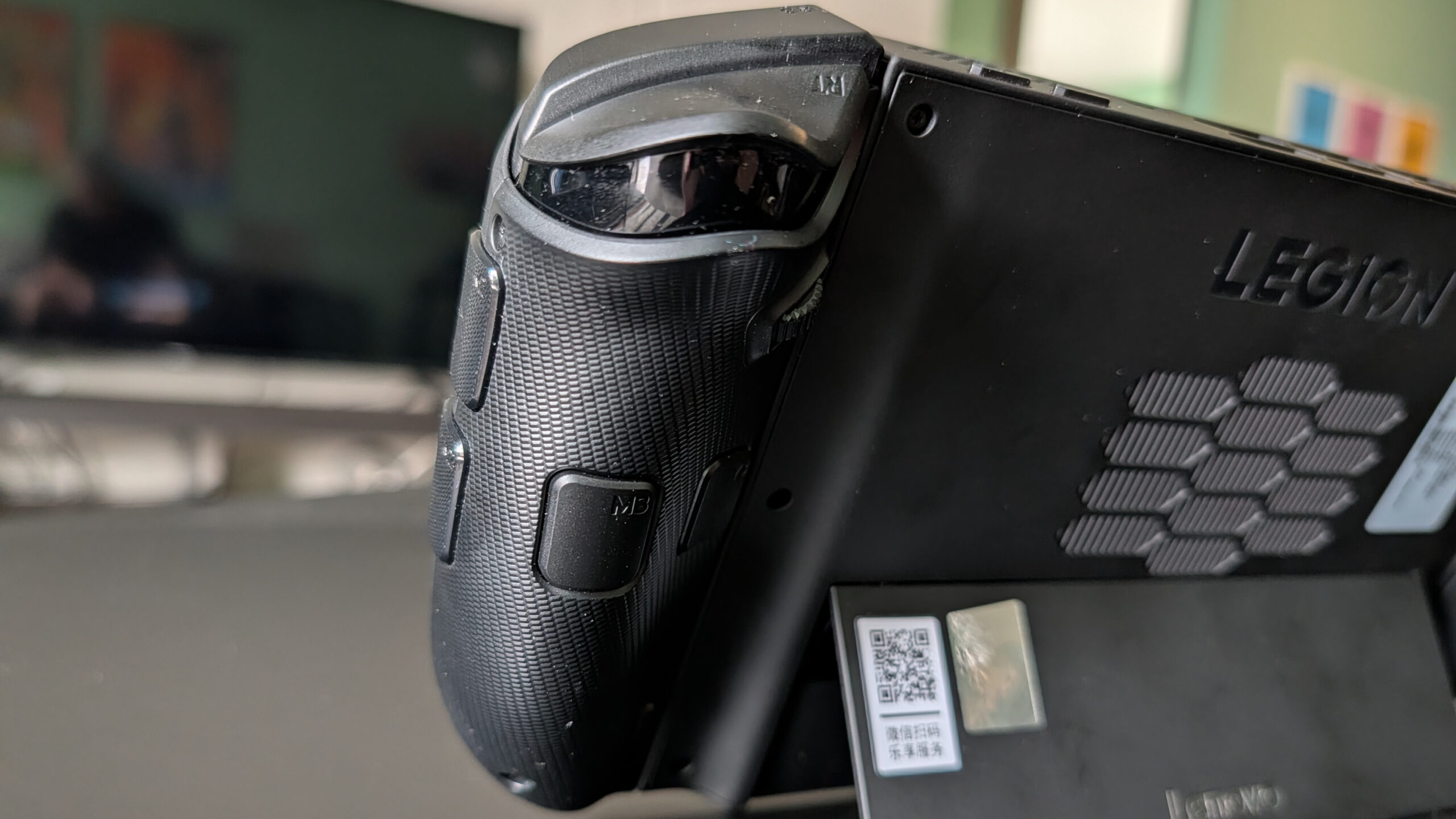
There’s a lot going on here, obviously. And yet there are also buttons I expect from my decades of Xbox controller usage that are missing, like the Xbox button and Share button, the latter of which is used to take screenshots and in-game gameplay videos. It’s possible that these functions are available somehow, but I just got the thing and haven’t yet figured that out.
My one multiplayer match in Call of Duty: Black Ops 6 was telling. Graphics quality was mostly set to Medium or High across the board, it ran at native resolution, and it looked and played wonderfully, with no lag issues at all. The screen is a bit small for me, obviously, I literally had to put on some reader glasses and get right up on the display so I could see distant snipers in what seemed like a one-pixel representation. I will need to get used to the controllers as well, of course, though my recent experience with (the simpler) Backbone Pro will help.
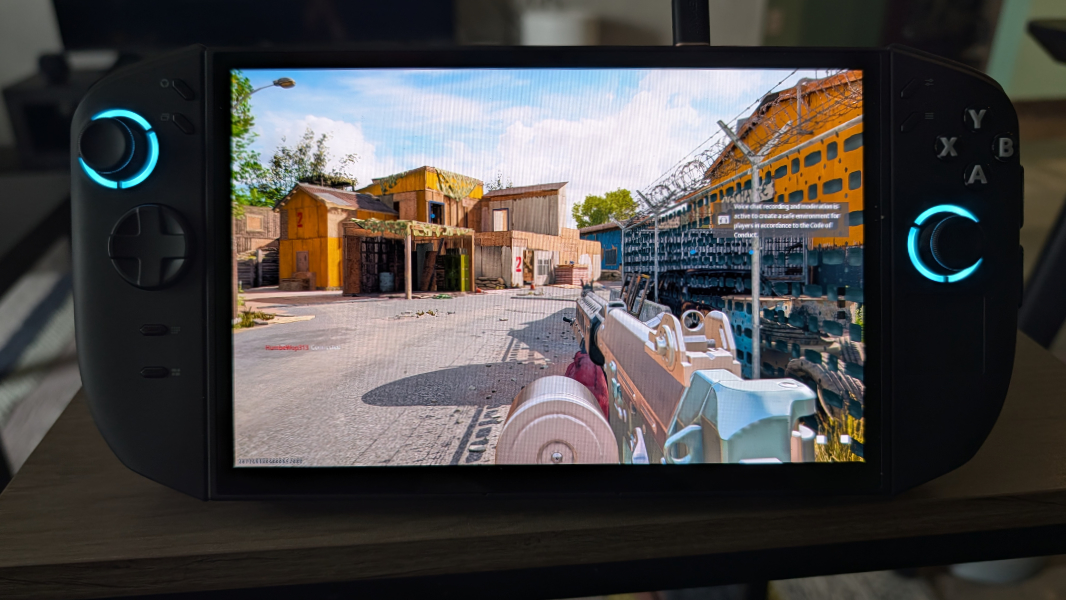
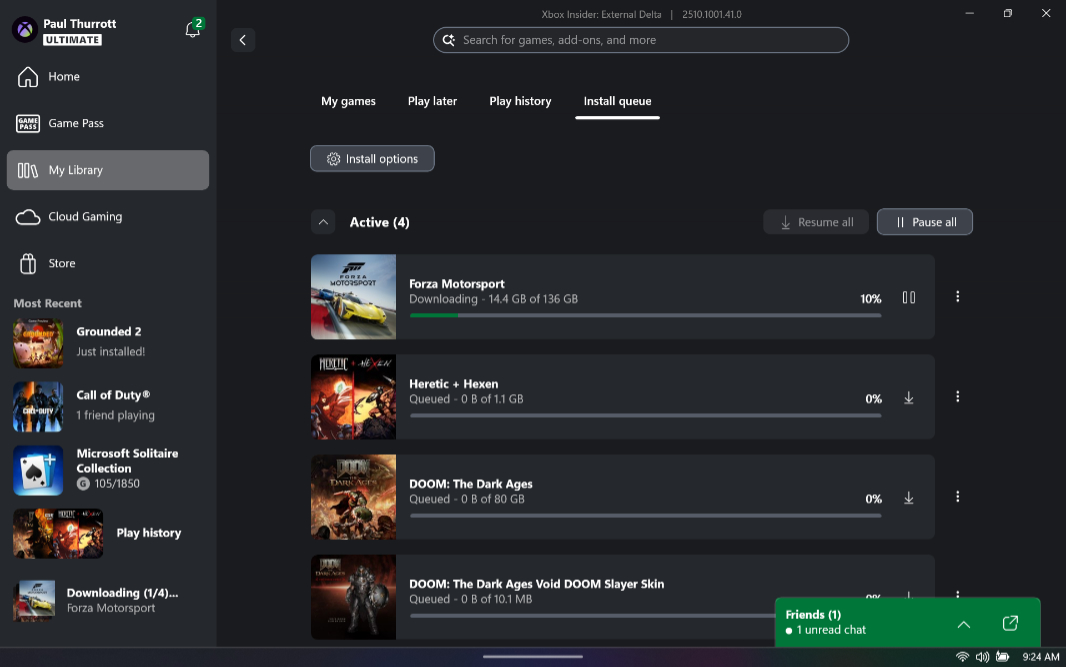
With that done, I installed several other games, including Doom: The Dark Ages, Forza Motorsport, Grounded 2, and *Heretic + Hexen through the Xbox app and I will, of course, install some Steam and Epic Games Store titles soon too. I configured the Game Bar and Xbox app to work in Compact mode to get the experience a little closer to the Xbox Ally gaming handheld experience.
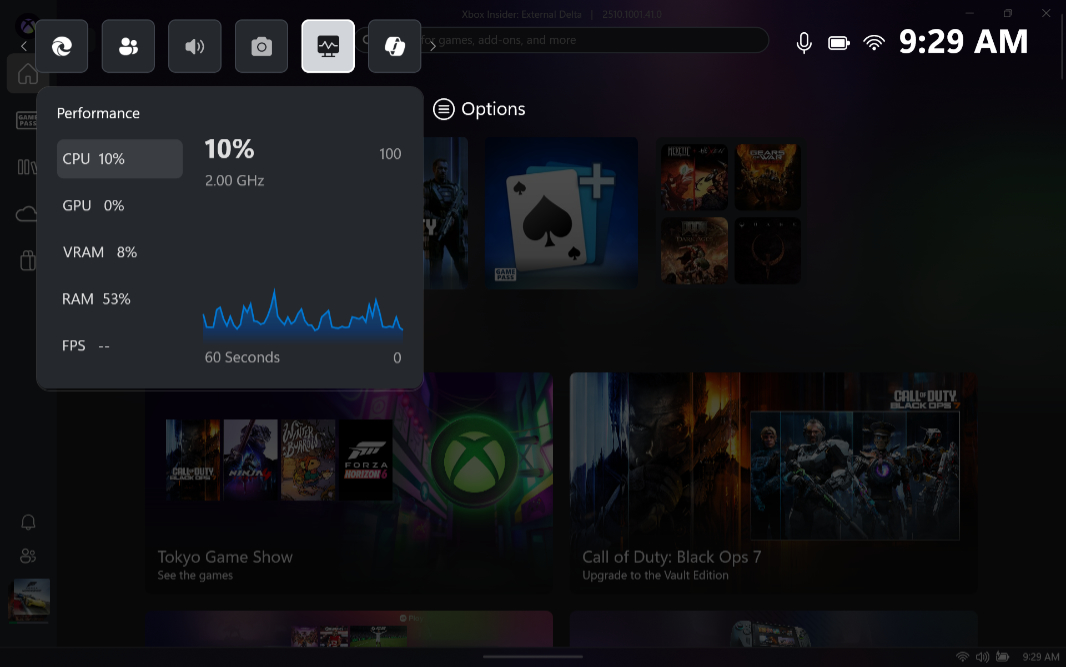
And I will treat this PC as a standalone gaming device and not a traditional productivity PC. So I won’t install most apps or sync documents and other files. I am curious about using this with an external display, though, and possibly an Xbox controller.
Speaking of which, you detach the controllers by pressing and holding their respective release buttons and then sliding down. If you do this before powering on the Legion Go 2, you can then power on each controller by holding its top-most front button down for about three seconds.
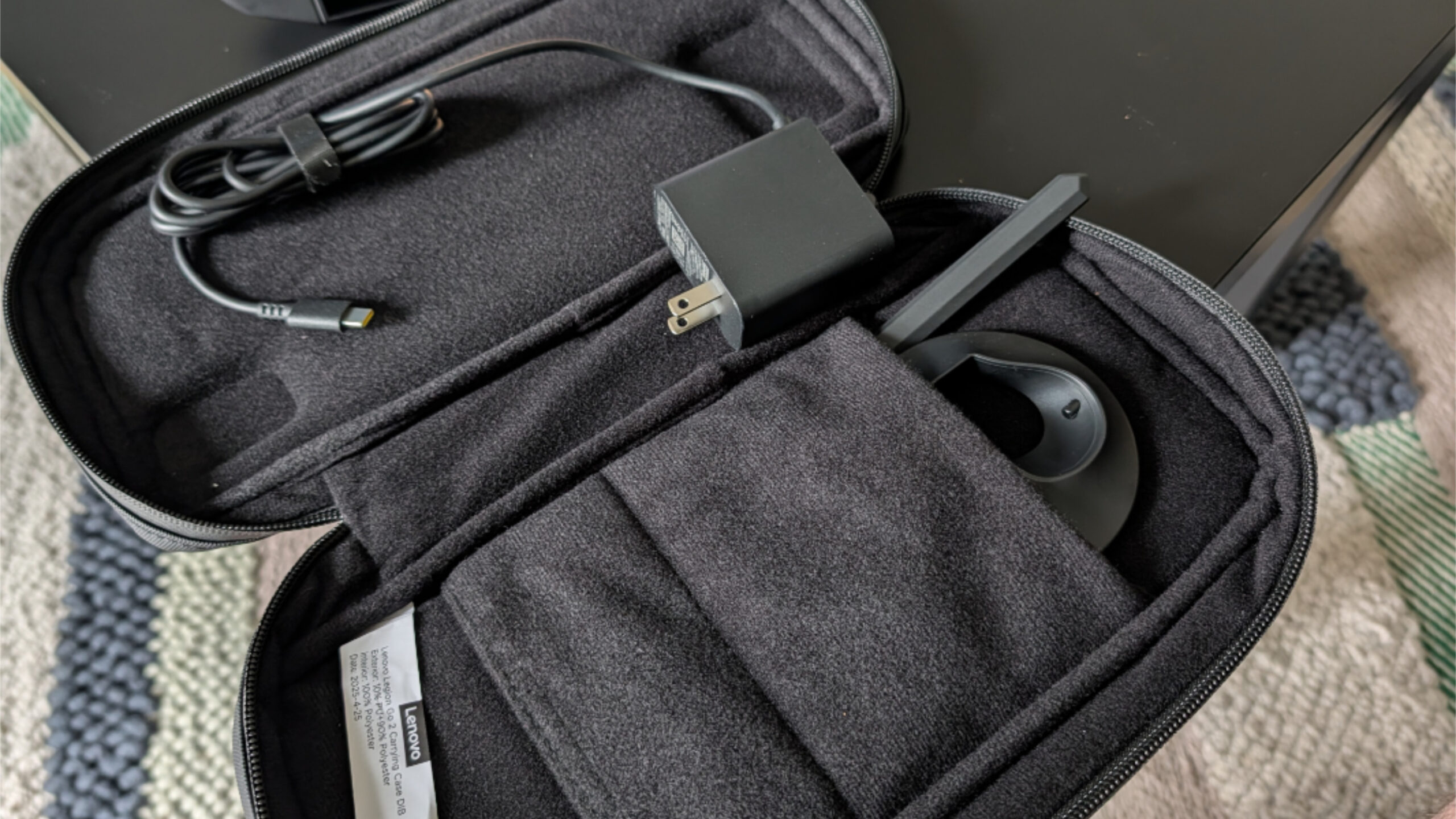
It’s unclear to me how I would play games with the controller halves separated from the PC. They don’t connect to each other, for example, and holding each in a hand is pretty awkward. But this is where the FPS switch comes in, apparently. If you want to play a shooter like Call of Duty in a more traditional way (I just use a controller, so this won’t apply to me), you can separate the controllers, flip the FPS switch to on, and then put the right controller in a supplied plastic controller base where it can be locked in and used like a vertical mouse. You can even remove the D-stick to make it more comfortable and cover up the controller’s pins with an (also supplied) plastic doohickey. Then you supply your own keyboard, I guess.
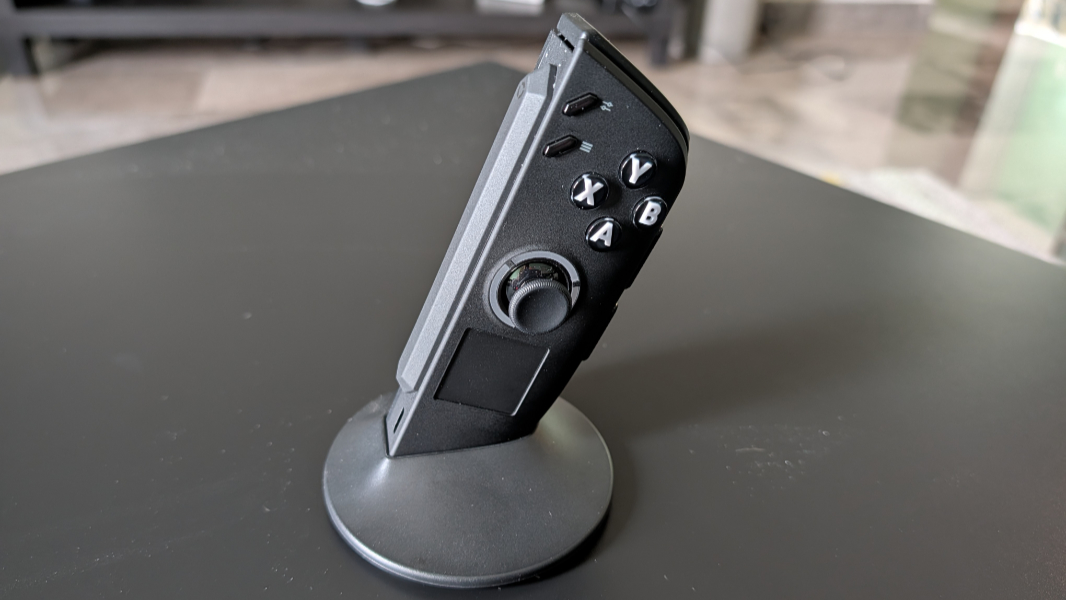
In addition to the PC ad controllers, and the plastic controller base and pin cover doohickey, Lenovo supplies a small 65-watt USB charger and a quality carry case in the box, the latter of which is particularly nice.
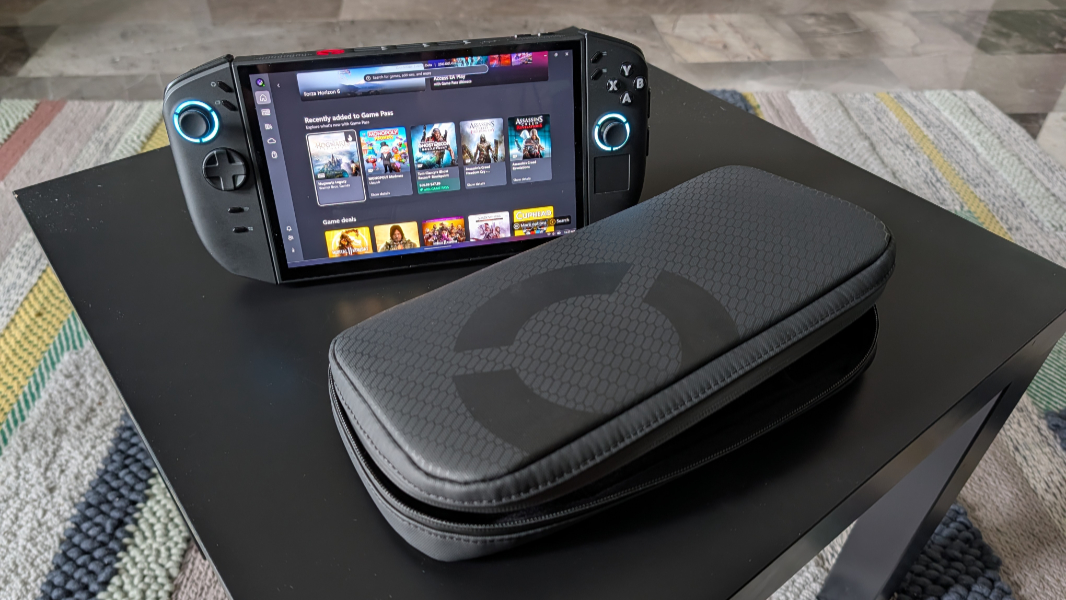
Some fans howled when Xbox announced that the ROG Xbox Ally gaming handhelds were priced at $599 and $999. But the Lenovo Legion Go 2 is even more expensive, at $1099 for the configuration I am reviewing. But it offers a bigger screen, more RAM, and double the storage of the $999 Xbox Ally. So it’s a good value, in the context of this type of device. And it will be even better when the Xbox Ally experience arrives in 2026.
More soon. I guess I’ve got some gaming to do.