Tip: The Remote Desktop Workaround
- Paul Thurrott
- May 12, 2024
-
7
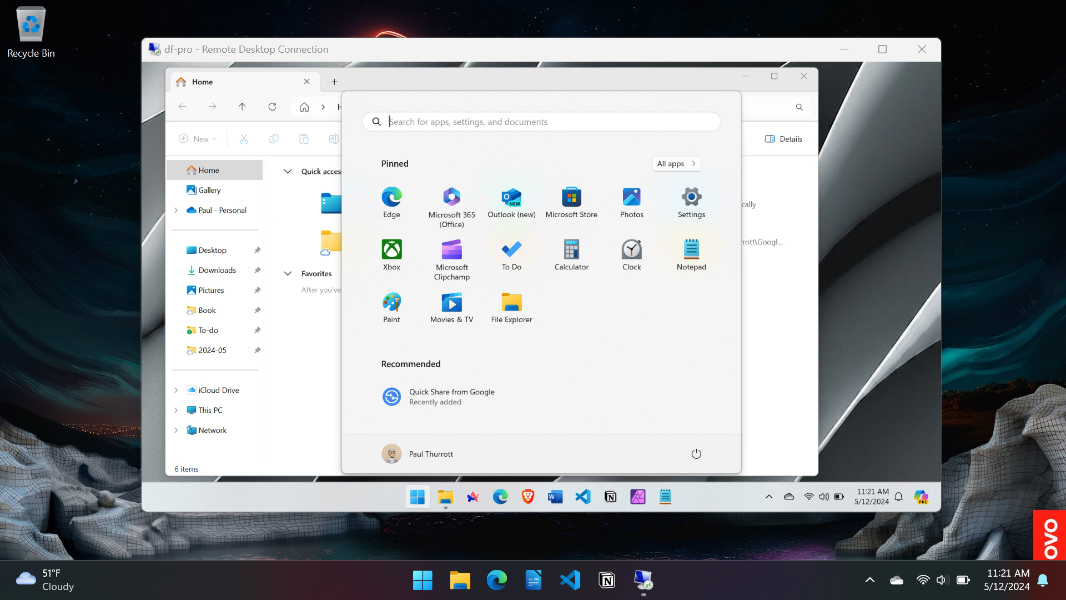
In the most recent episode of Hands-On Windows, I take a look at Windows 10, inspired in part by my decision, back in March, to bring up this system on a physical PC and keep it up-to-date as we march forward to its October 2025 end-of-support.
I like recording Hands-On Windows quite a bit, but it’s also the source of a lot of stress because I routinely run into weird technical issues, many related to my need to create the screen recordings you see in the show. Without belaboring the point, I use OBS Studio for that recording, and thanks to years of use across multiple PCs, I’ve gotten pretty good at configuring it correctly for the needs of the show. And I knew that recording directly on the aging PC on which I had installed Windows 10 was perhaps not a great idea.
I also knew that I could work around that by using some kind of remote desktop solution. There are third-party apps for this, of course, but I would need to research them, experiment, and figure out if any met my needs. There’s also a Quick Assist app in Windows 11 that lets you remotely take control of another PC for troubleshooting purposes, and I did use this in a previous episode of Hands-On Windows, so it was a potential fallback.
What I really wanted to use was Remote Desktop, a feature that debuted in Windows XP and still lurks in modern Windows, yet another legacy strata that Microsoft hasn’t updated in ages and that most users don’t even know exists. Like the legacy network-based file sharing features that still exist in Windows, it was created at a time in which local account sign-ins were the only real option for individuals. And so using this feature with a Microsoft account (MSA) sign-in is difficult because it doesn’t just work normally. Some workaround is required.
This reality delayed the Windows 10 episode by three weeks, but that also gave me time to discover a viable workaround. It’s not quite as convoluted as the legacy file share workaround I previously documented, but it’s in the same ballpark. And I’ve been meaning to write this up since I discovered it, and perhaps add it to the Windows 11 Field Guide too. I kept getting distracted by more pressing matters, as always, but a recent forum post triggered the reminder I needed. And so here we are.
Remote Desktop works as it has for decades: The PC you will use to access another PC remotely, which we’ll call PC A, can be any SKU/product edition (Home, Pro, whatever) of a supported Windows version (10 or 11). But the PC you will remotely access, called PC B here, must be Windows Pro or higher. (I’m also assuming a lot here, but it boils down to you having never configured any related settings to be different from their defaults.)
Remote Desktop access is disabled by default. So the first step is to enable it on PC B: Open the Settings app, navigate to System > Remote Desktop, and enable the option “Remote Desktop.”

In the old days, before most of us signed in to Windows using an MSA, that would be the end of it: You would then run Remote Desktop on PC A, type in the name of the PC you wished to connect to, provide the user name and password as prompted, and you were in. But that doesn’t work today with an MSA sign-in. Instead, you get an error, “The logon attempt failed.”

You fix this using a workaround on PC B: In the Settings app, navigate to Accounts > Sign-in options and locate the option “For improved security, only allow Windows Hello sign-in for Microsoft accounts on this device (Recommended).” It’s enabled by default.

Uncheck this option. Then, close Settings and sign out of Windows. Normally, you sign in using some form of Windows Hello—a PIN, facial recognition, or fingerprint recognition—but this one time, you must sign in using your password. So click “Sign-in options” on the Sign-in screen and then click the “Password” icon. Then, enter your password and tap Enter.

Once you’ve completed this one-time password-based sign-in, Remote Desktop will work. So return to PC A, run Remote Desktop again and connect to PC B. Enter your credentials (MSA user name/password) as prompted. And this time, voila, it works. The PC A desktop appears normally in a full-screen Remote Desktop experience.

With this out of the way, you can sign in to PC B normally, using a PIN or whatever Windows Hello method. And you can (and probably should) re-enable that “For improved security, only allow Windows Hello sign-in for Microsoft accounts on this device (Recommended)” option: Remote Desktop will still work. If this was a one-time need, remember to disable the option “Remote Desktop” in System > Remote Desktop in the Settings app too.
Why does this work?
Honestly, I have no idea: I came across this method after quite a while using Google Search. But it’s clearly tied to this new MSA sign-in infrastructure that most of us now use. And I can’t imagine Microsoft will ever go to the effort of updating Remote Desktop, given the age of the tool and its relative infrequency of use.
Anyway, this seems to work properly and that was the goal. So I was able to successfully record that episode of Hands-On Windows and get on with my life. I will update the book sometime soon as well.