Apps Basics (23H2)
- Paul Thurrott
- Nov 23, 2023
-
0
Windows 11 lets you run a wide array of apps–sometimes still called applications—which are standalone software programs that perform specific tasks. Some of these apps are included with Windows 11, but most are acquired elsewhere, typically from the web or from the Microsoft Store.
Get the know the types of apps that can run on Windows 11
For the most part, it’s not important to understand the low-level differences between the different types of apps that Windows 11 supports. But here is a quick and high-level overview of the most common app types you will encounter.
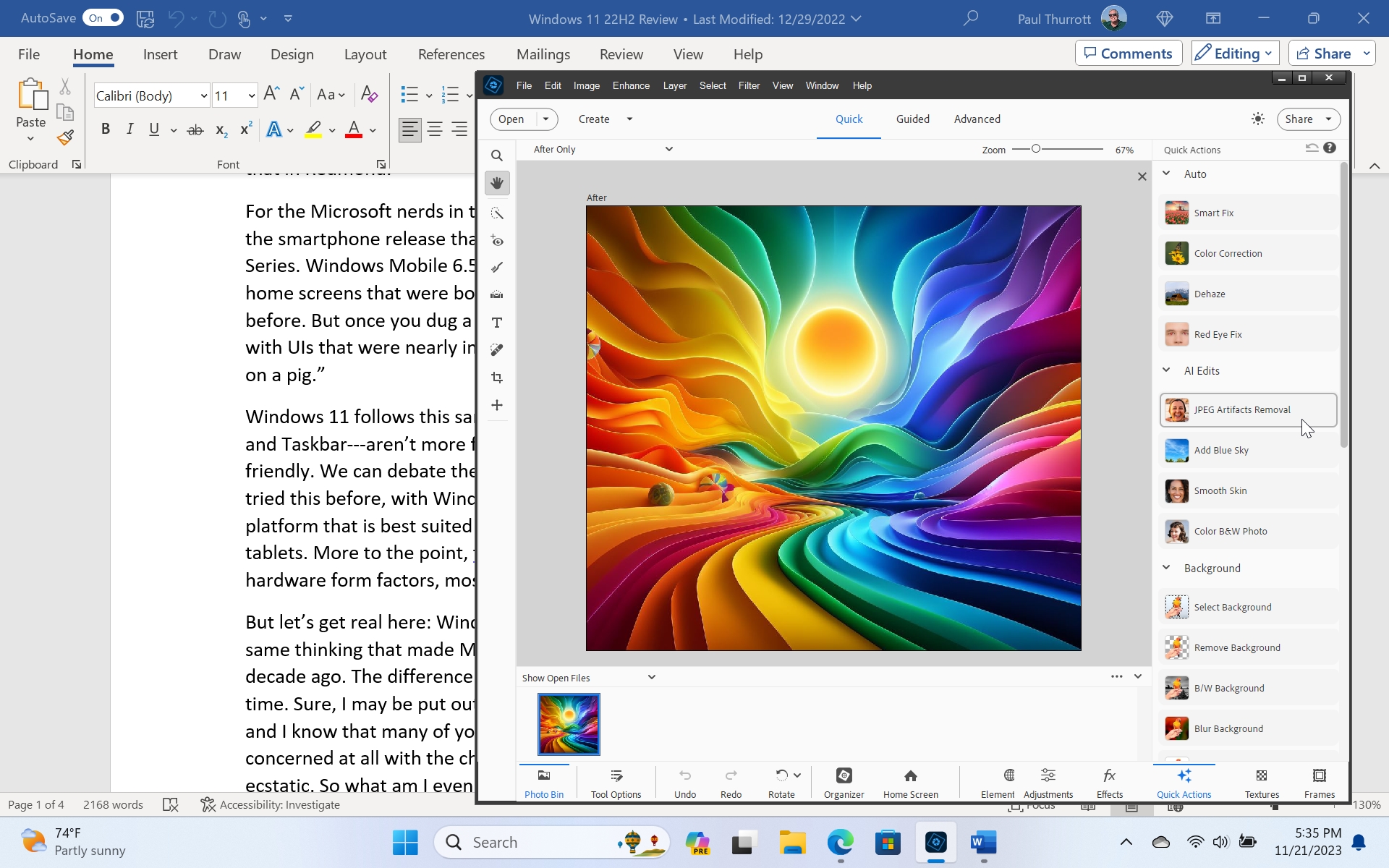
Desktop apps. This app type uses technology that dates back to the 1990s, but it is also the most powerful type of app because it can integrate with the system at a deeper level than Store, web, or Android apps. Desktop apps are typically dense with commands and they include their own internal mechanism for downloading and installing updates. Typical examples include Microsoft Word and Excel, Google Chrome, and Adobe Photoshop.
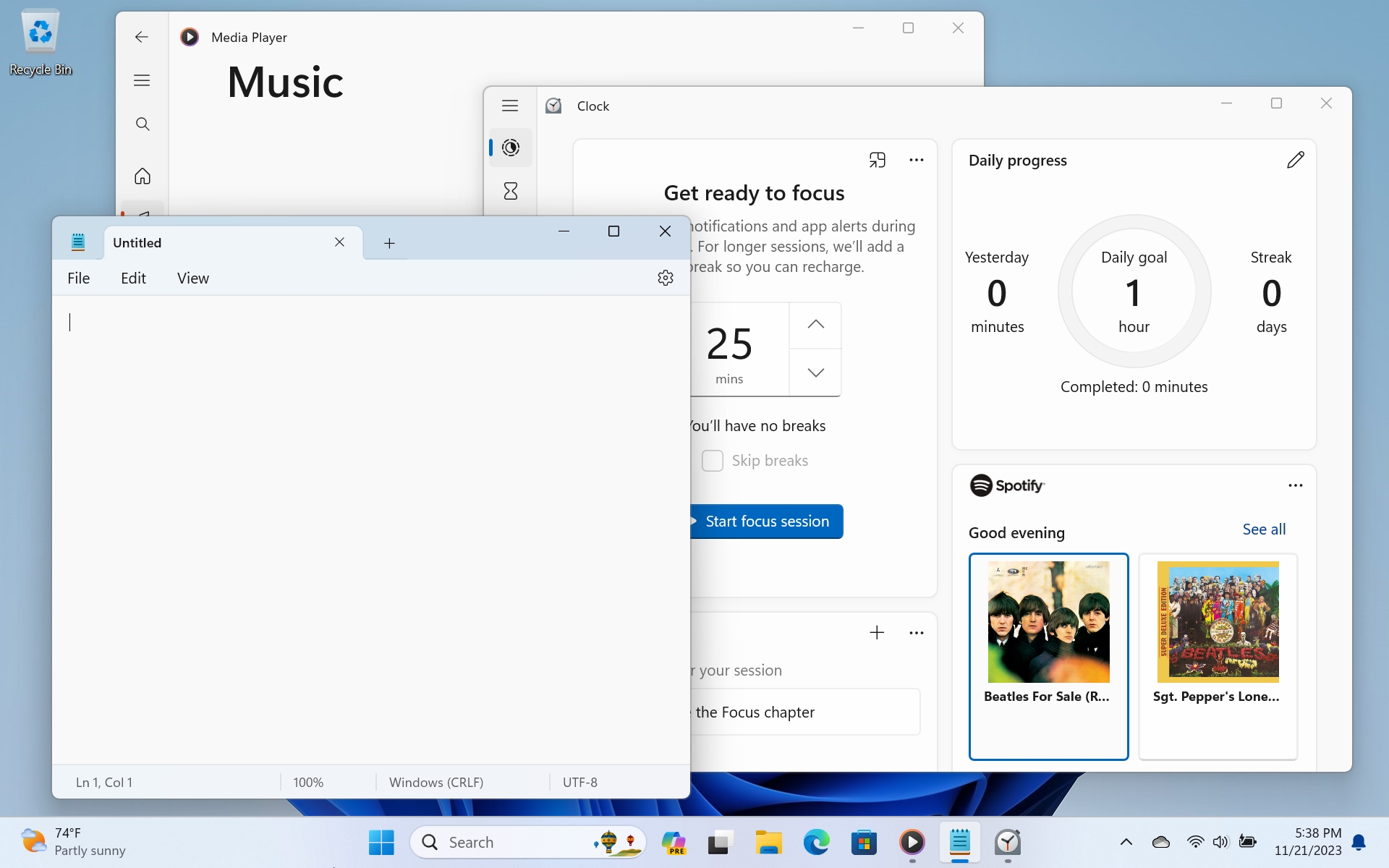
Mobile apps. For over a decade, Microsoft has given developers a variety of mobile app platforms that let them create mobile apps, similar to those found on smartphones and tablets, which are simpler and less powerful than Desktop apps, but also more modern and efficient. Many of the apps that come with Windows 11 use this mobile apps platform or related technology, including Clock, Media Player, Photos, and others. And some classic Desktop apps, like File Explorer Notepad, have been visually updated, or “modernized” using it as well.
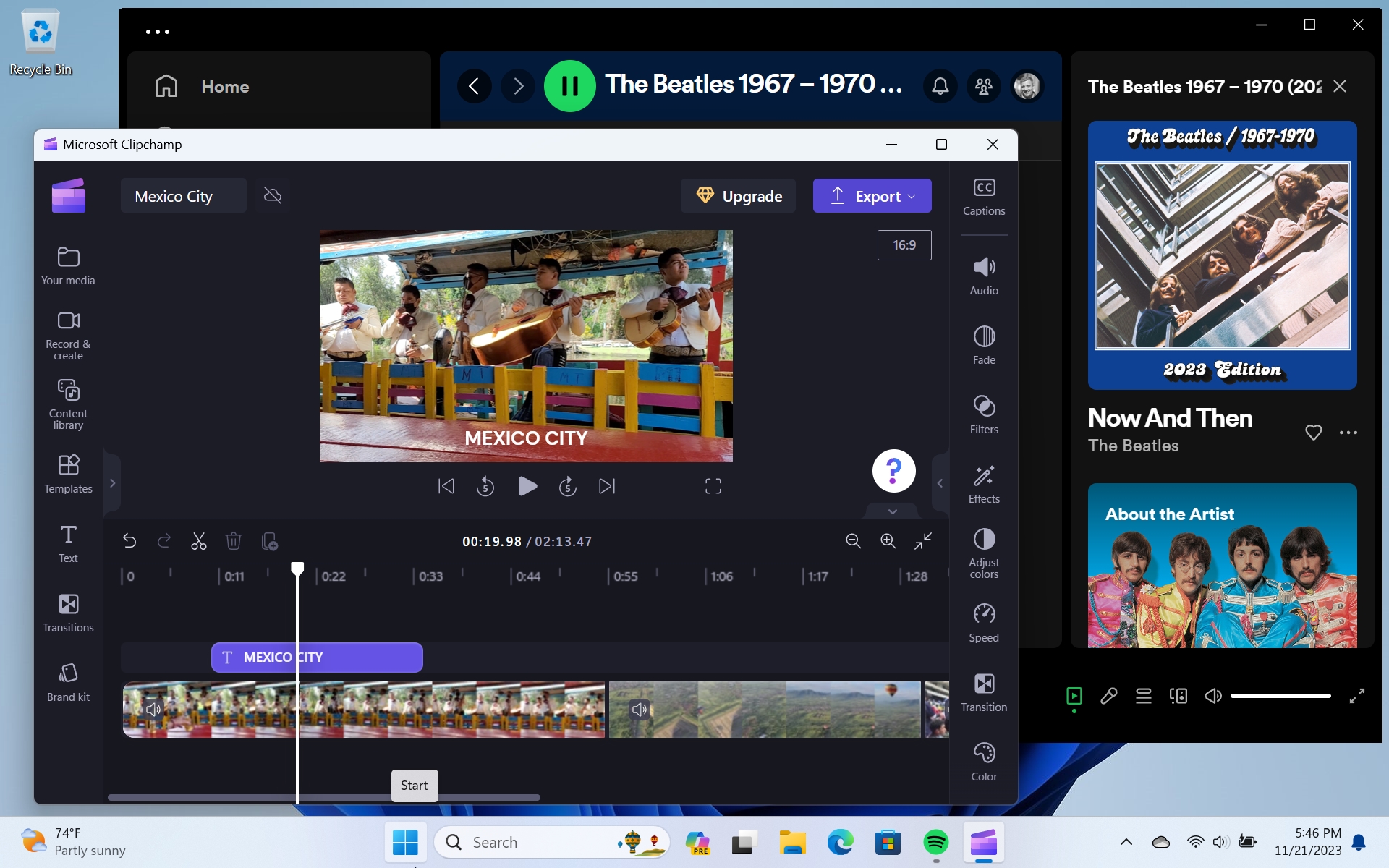
Web apps. Using modern web technologies, it’s possible to create web apps that are installed and run on your PC like other apps. Web apps can be quite sophisticated and though they are by nature cross-platform, they can also utilize native Windows 11 features like notifications, storage, and more. Web apps can be acquired on the web, as described in Microsoft Edge and Web Apps, or through the Microsoft Store, and they are updated automatically either way. Clipchamp (a video editor included with Windows 11) and Spotify are web apps.
Store apps. This isn’t so much a type of app as it is a description of where one acquires such apps, via the Microsoft Store, an app that is included with Windows 11 and works much like the App Store on an iPhone or iPad, or Google Play Store on Android. Many Store apps are modern mobile apps, but some are specially packaged Desktop and web apps. Regardless of how the apps were made, there are benefits common to all apps acquired from the Store, even if they’re also available on the web. For example, paid apps like Adobe Photoshop Elements can be installed on as many PCs as you own when purchased from the Store, whereas the version you buy at retail can only be installed on two PCs.
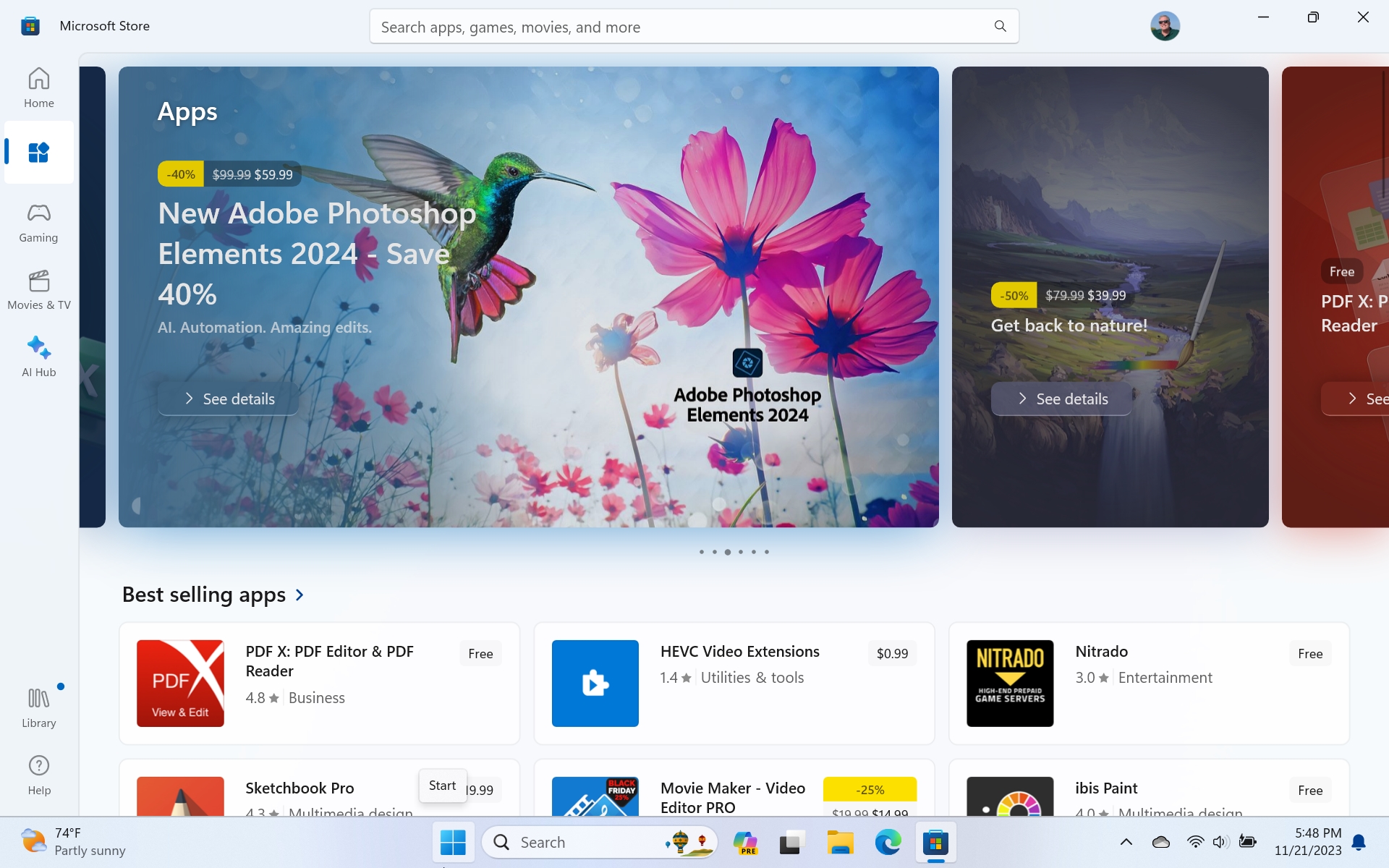
A> You can learn more about the Microsoft Store in the Microsoft Store chapter.
Command line apps. Windows 11 includes a Terminal app that can run command-line apps in several different environments, including the MS-DOS-style Command Prompt and the .NET-based PowerShell. Each of these topics–Terminal, Command Prompt, and PowerShell–is covered in its own chapter.
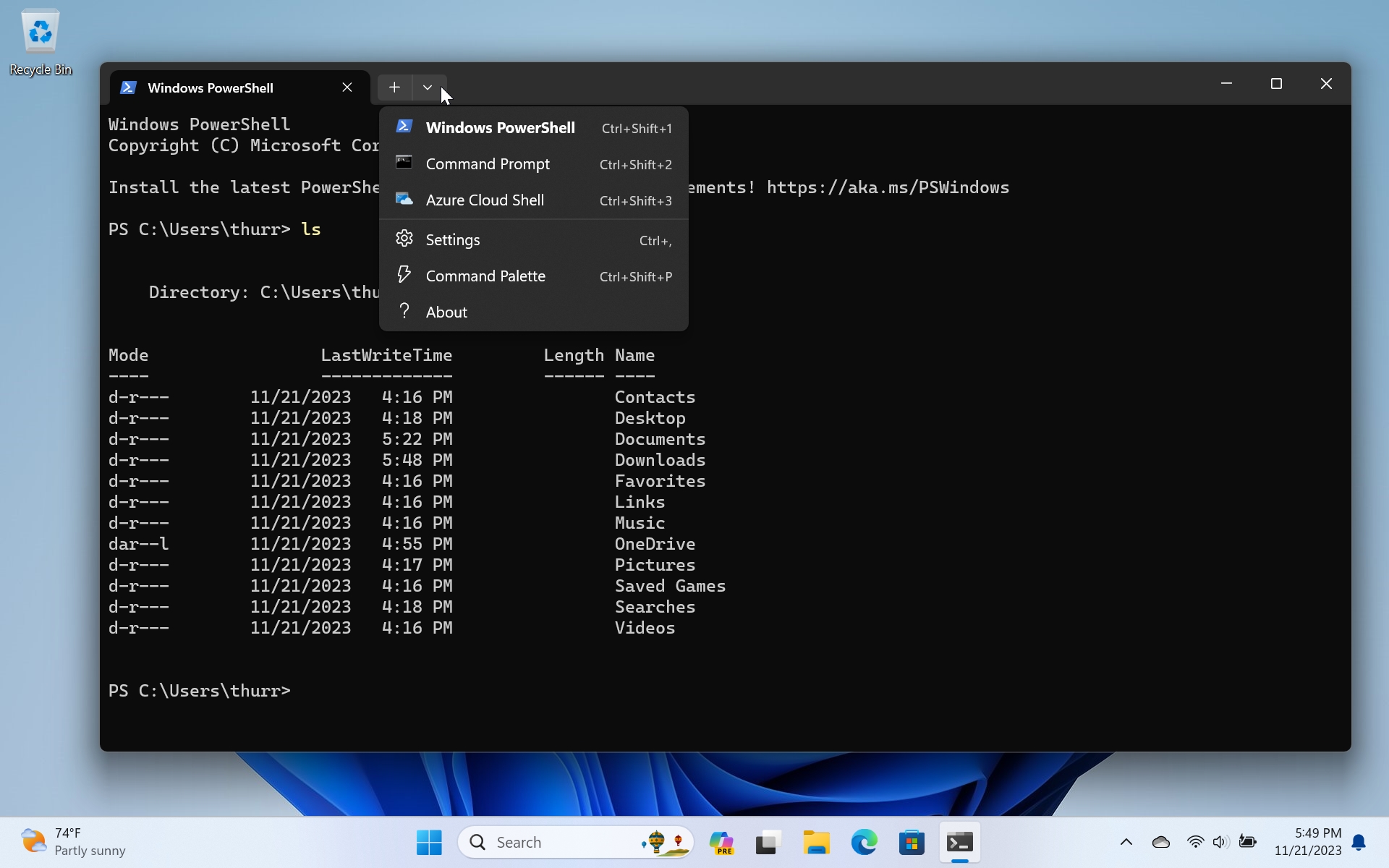
Linux apps. Thanks to a technology called the Windows Subsystem for Linux, or WSL, it’s possible to install one or more Linux distributions in Windows 11 and then install and run Linux command line and graphical apps. This environment targets developers specifically, but anyone can use it to learn the ins and outs of this interesting open source operating system. We take a look at WSL in the Linux chapter.
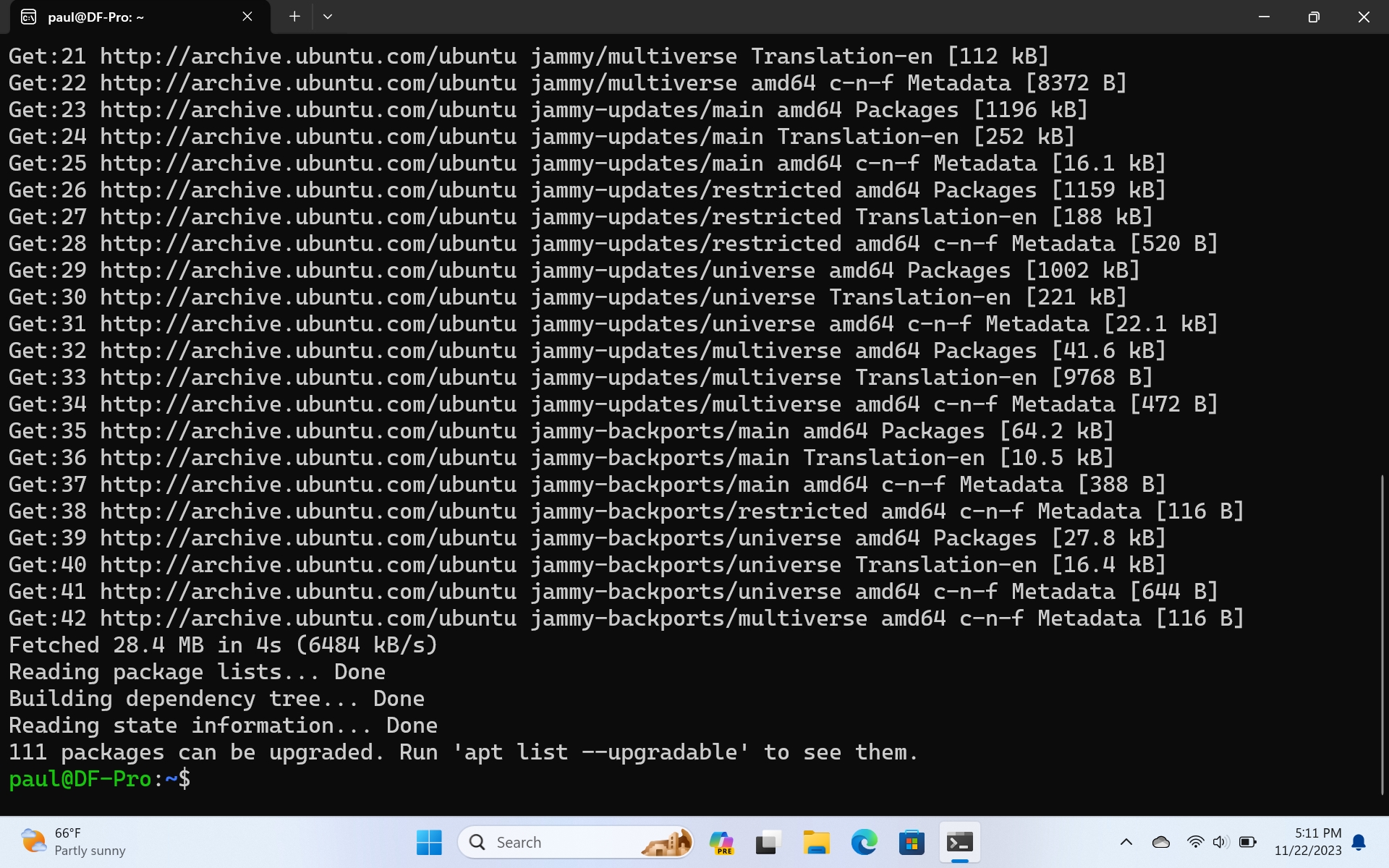

Android apps. Thanks to a technology called the Windows Subsystem for Android, or WSA, Windows 11 can also run Android mobile apps. For now, distribution is restricted to a subset of the apps available in the Amazon Appstore for Android, including apps like Audible, Kindle, TikTok, The Wall Street Journal, and many games. WSA and Android apps are discussed further in Android Apps.
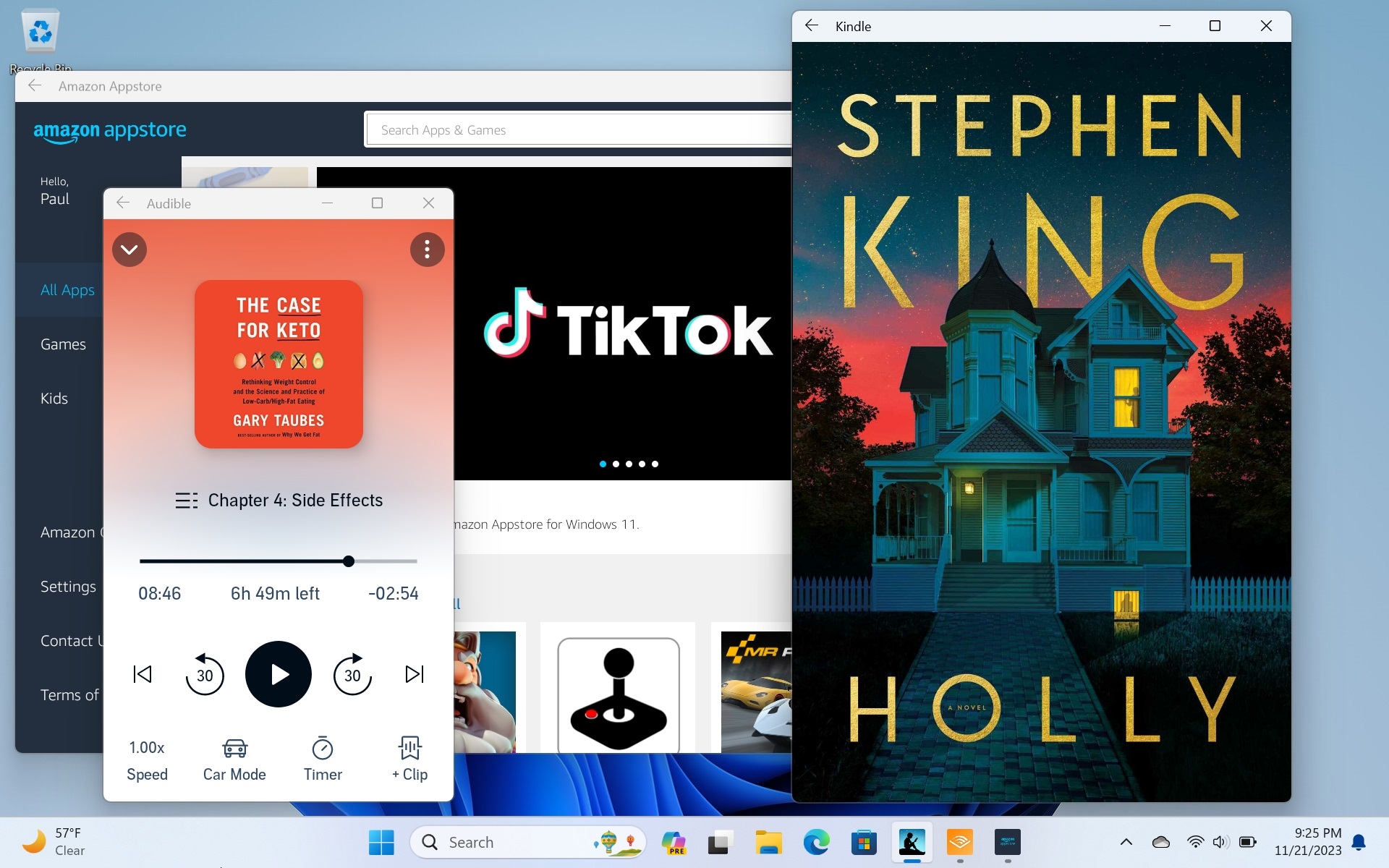
Configure where you can get apps
By default, Windows 11 allows you to install apps from anywhere, but you can optionally configure the system to prefer apps from the Microsoft Store or, even more aggressively, to only allow you to install apps from the Microsoft Store and not from the web.
Where did it go?
This functionality was previously known as “S mode,” and it was designed to give Windows better performance and security by preventing users from installing potentially poorly-written apps from the web. However, customers rebelled at this limitation, and so now it’s just an optional feature. It’s also less restrictive, since you can toggle it differently at any time. With S mode, once you turned it off, it was always off.
To configure this feature, open the Settings app and navigate to Apps > Advanced app settings.
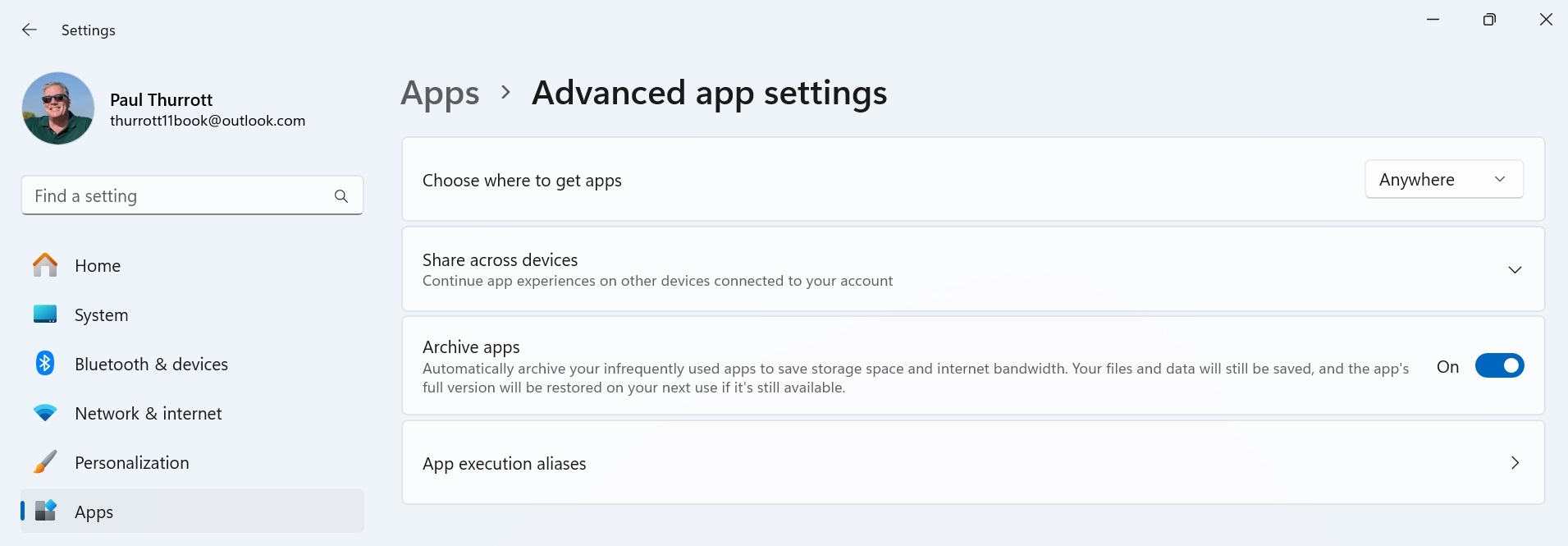
The first option here, “Choose where to get apps,” is set to “Anywhere” by default. But you can change this to “Anywhere, but let me know if there’s a compatible app in the Microsoft Store,” “Anywhere, but warn me before installing an app that’s not from the Microsoft Store,” or “The Microsoft Store only (Recommended).”
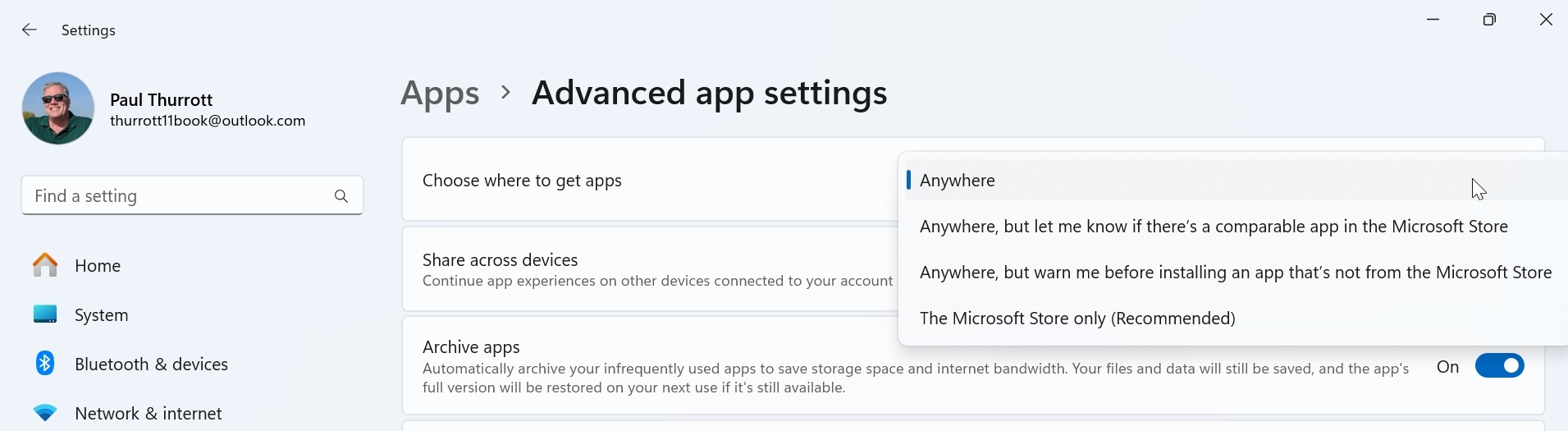
Because the selection of apps in the Microsoft Store is unlikely to meet your needs, we don’t recommend changing this to that last option. But there’s no reason not to consider either of the middle two options if you want to have the best experience.
Uninstall an app
Windows 11 users can install apps from a variety of sources, including the web, the Microsoft Store, and so on. But the system provides a reasonably consistent experience for uninstalling these apps, regardless of their source.
To easiest way to uninstall most apps is to find it in the Start menu–in Pinned, the All Apps list, or wherever–right-click it, and then select “Uninstall” from the context menu that appears.
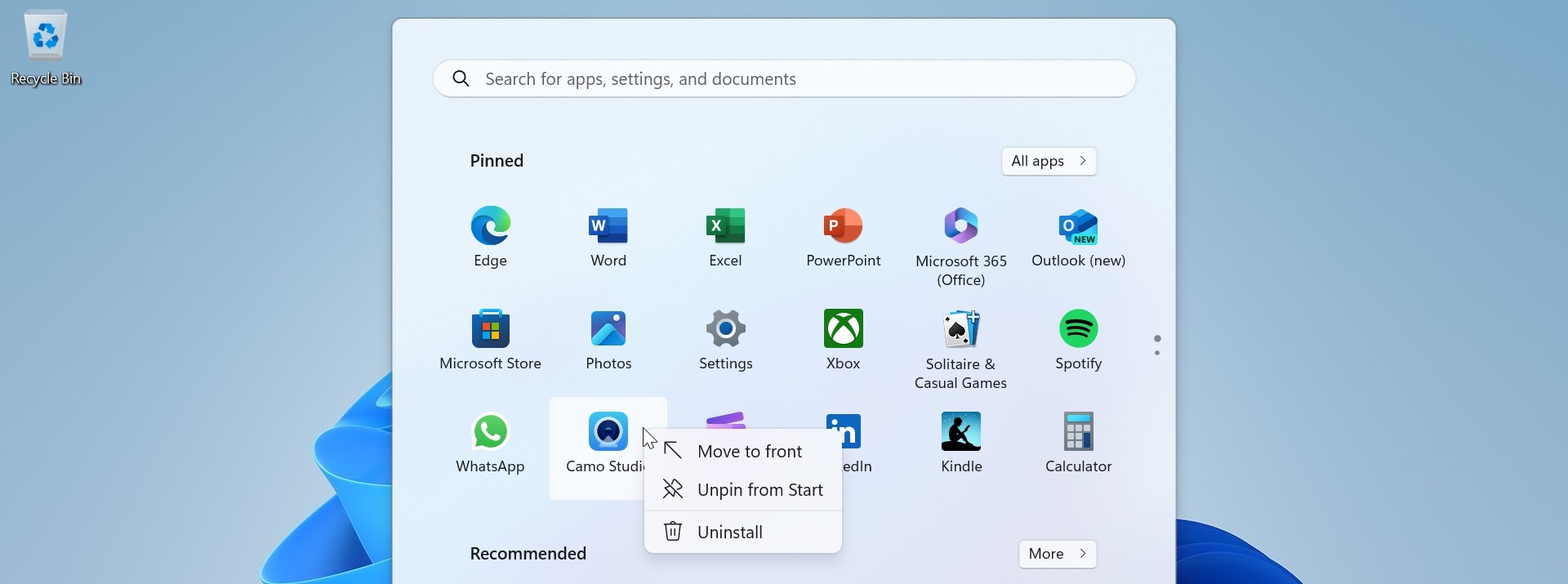
What happens next depends on the type of app you are uninstalling.
If it’s a Desktop app, the Settings app will appear and navigate to Apps > Installed apps. So it’s on you to find the app in the list, select its “See more” (“…”) link, and choose “Uninstall.” After a quick prompt to make sure that’s what you want, Windows will run the app’s uninstall routine, which can vary by app.
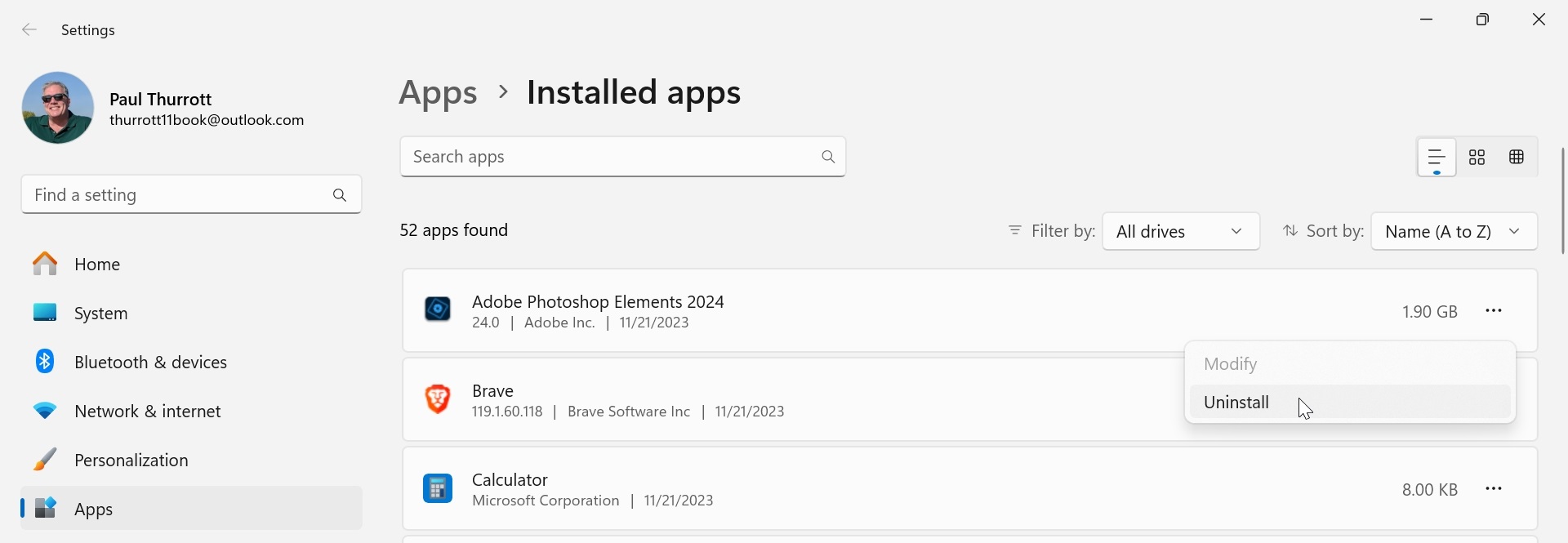
You can also use this interface to uninstall any other type of app.
If it is a web app that you installed with Microsoft Edge or a Microsoft Store app, you will be prompted to make sure you wish to uninstall the app and, when you approve the request, it will happen very quickly.
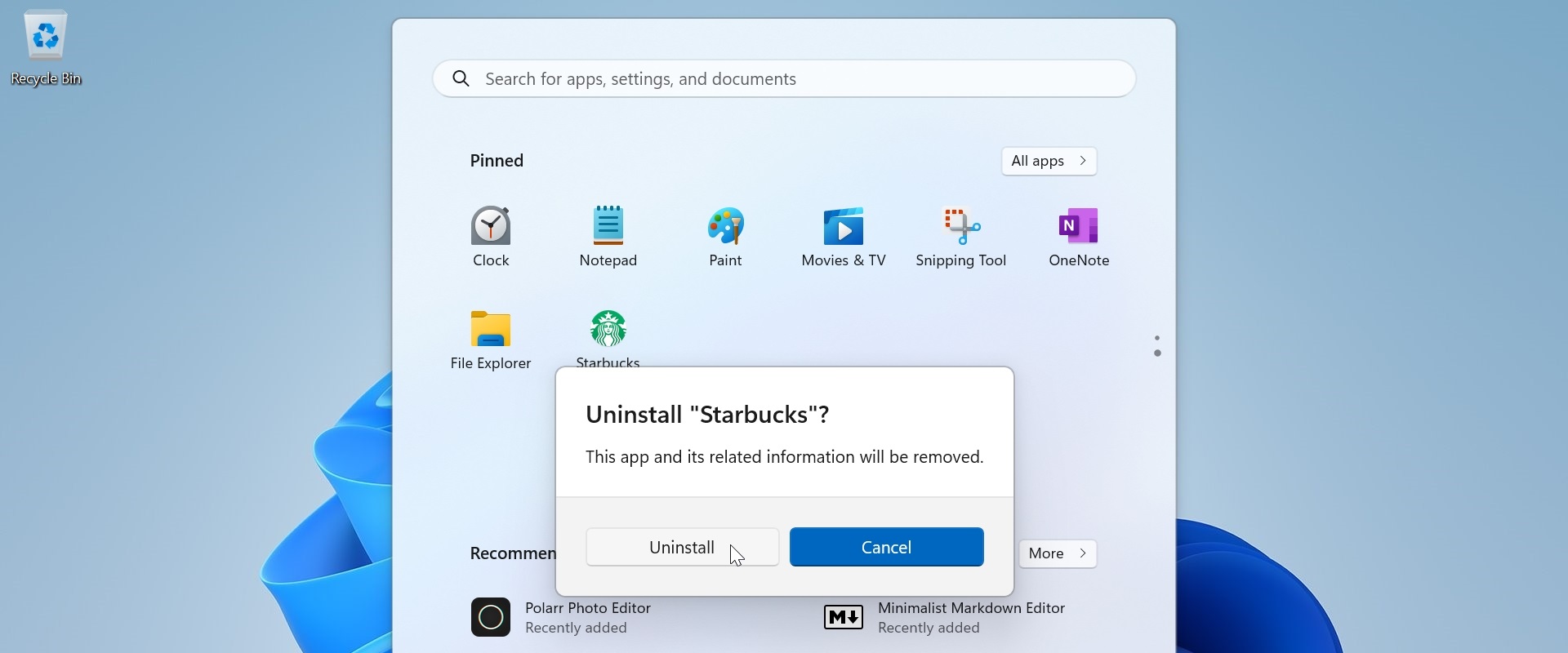
You can also uninstall web apps from within Microsoft Edge. This is described in Microsoft Edge and Web Apps.
Don’t see an “Uninstall” option in the pop-up menu? Some of the Store apps that come with Windows 11 cannot be uninstalled normally. And some of the “apps” you see in Start are just stubs, special shortcuts for promotional apps that will install when you click them: If you don’t see an “Uninstall” option but do see “Unpin from Start,” that will remove the stub from your system.
Configure default apps
Windows 11 lets you determine which apps to use by default when opening specific file types and web browser link types. For example, you may wish to use Notepad to open text files (with a .txt file extension), or Google Chrome to open web links (via the HTTP and HTTPS protocols).
Unfortunately, this system can be a bit overwhelming. The configuration interface that Microsoft provides for this in the Settings app can be tedious to navigate and use. And Windows 11 will prompt you to choose a new default app for certain file types after you install a new app that can open them.
Configure an app to open a specific file or link type
Windows 11 provides a Default apps interface in the Settings app so you can configure which apps to use when opening specific file types or link types. You can find this interface by navigating to Apps > Default apps.
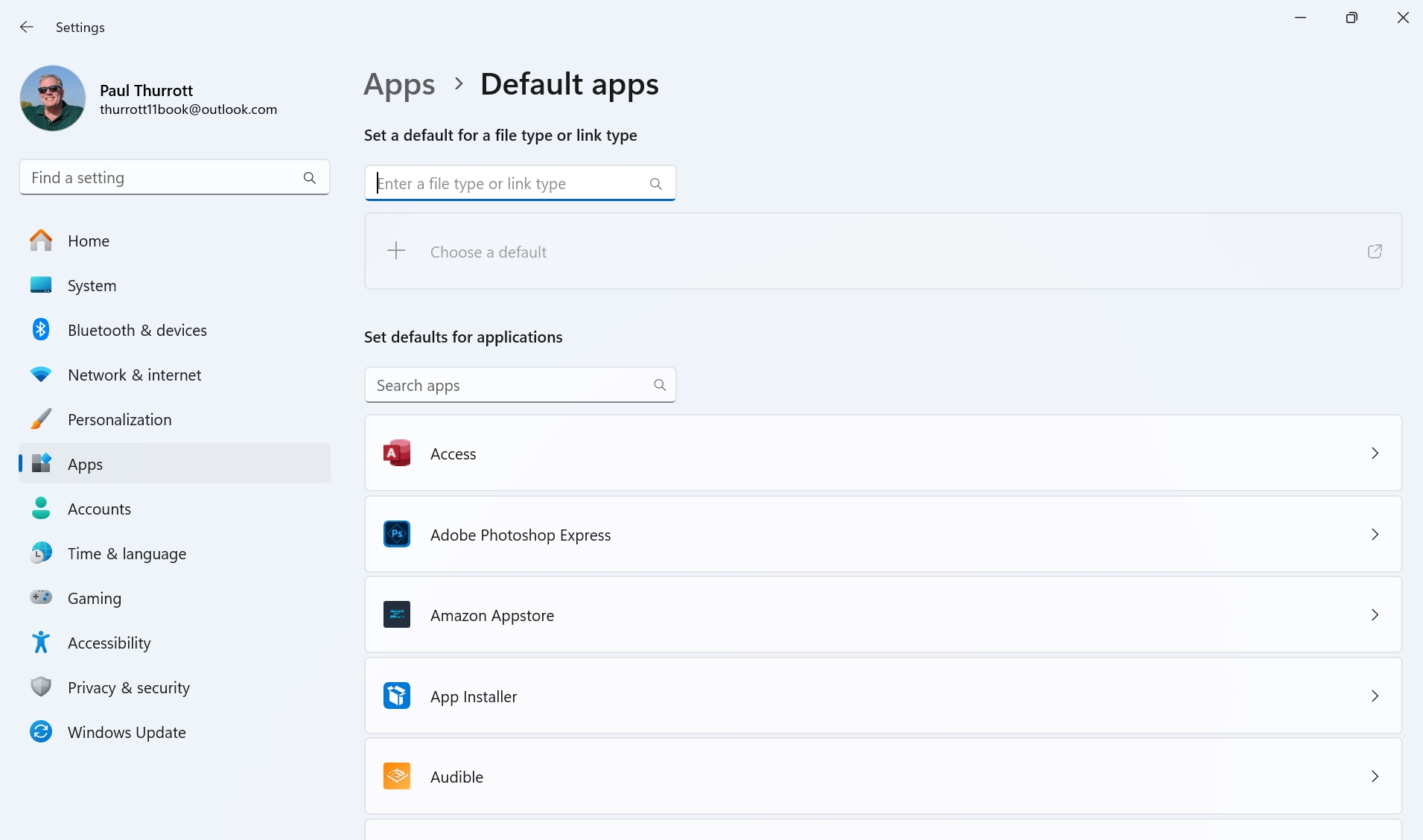
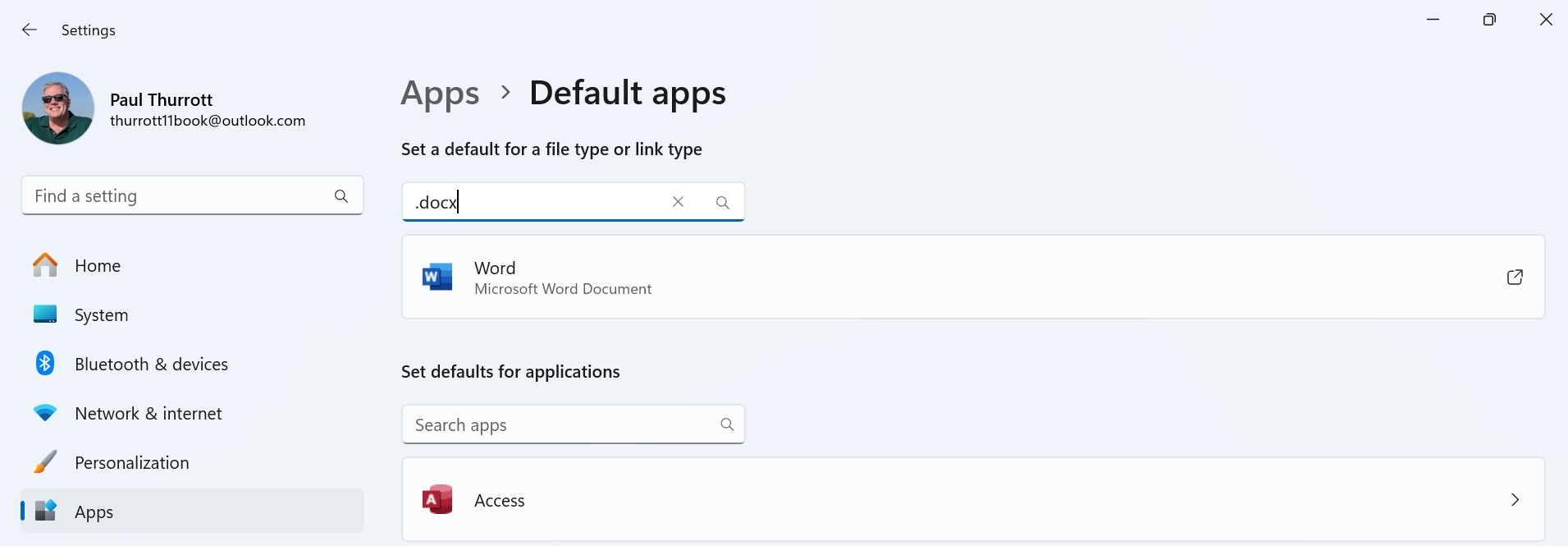
To change the app used to open a file type or link type, search for that item in the box under “Set a default for a file type or link type.” For example, if you wish to change the app that’s used to open a Microsoft Word document file (.docx), you would search for docx and choose that term from the search results. When you do so, the configured default app will appear under the search box.
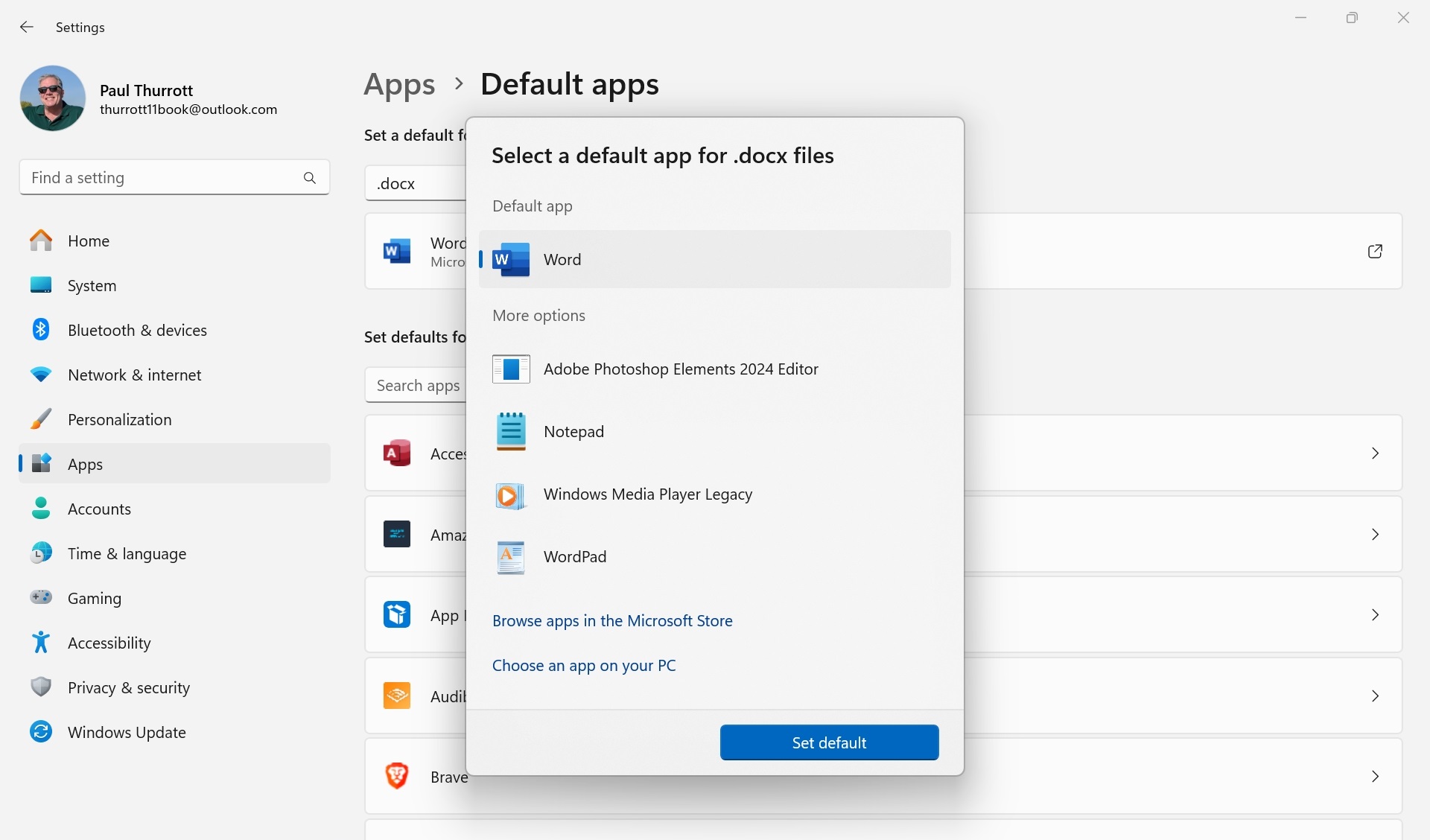
Click it to display the “Select a default app for files” window and select a different app.
You can also approach this association from the opposite direction by finding the app you wish to use first.
To do so, use the search box under “Set defaults for applications” or scroll down the list of apps–they are listed alphabetically–until you find the one you want. Then, click your selection to view that app’s “Set default types or link types” page.
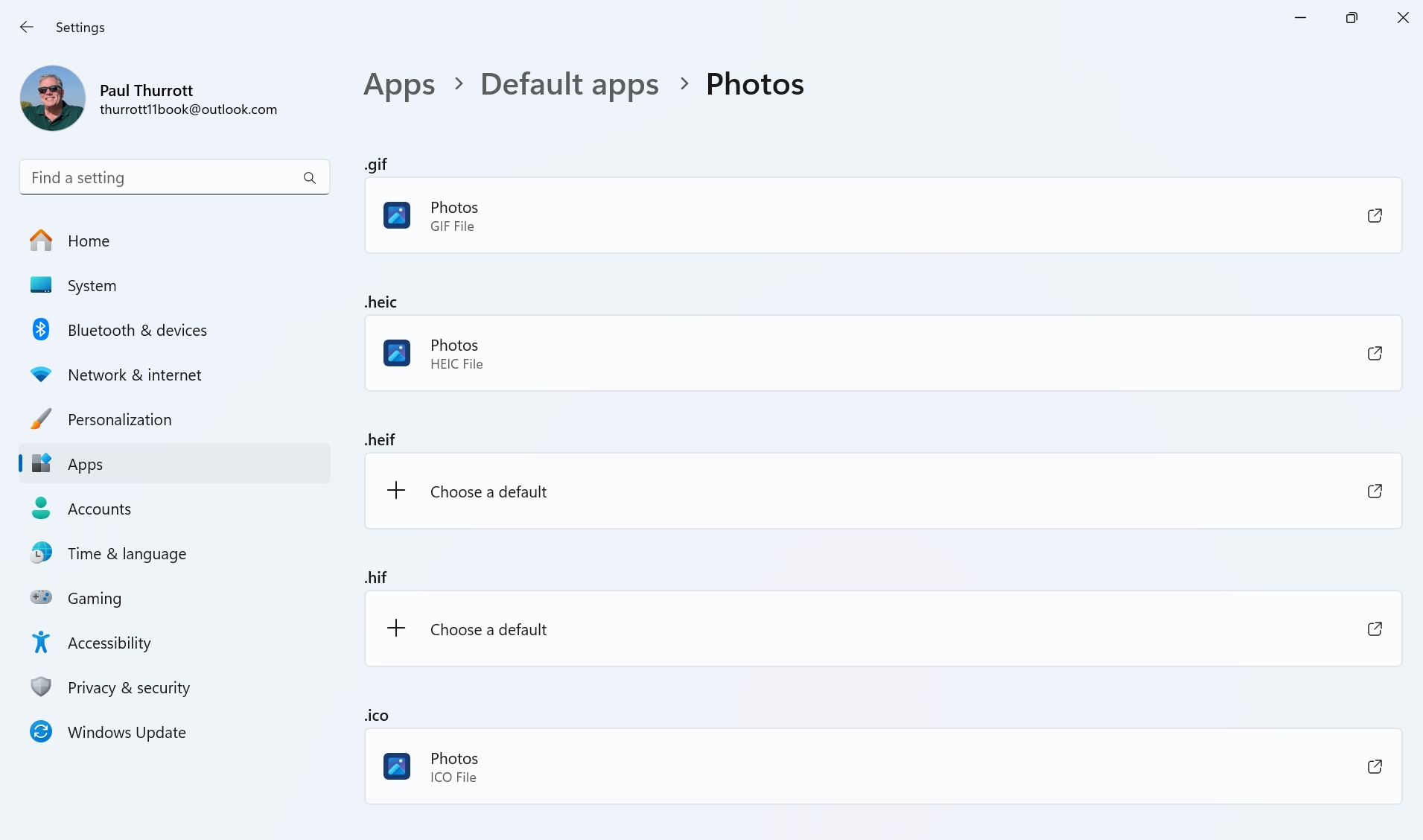
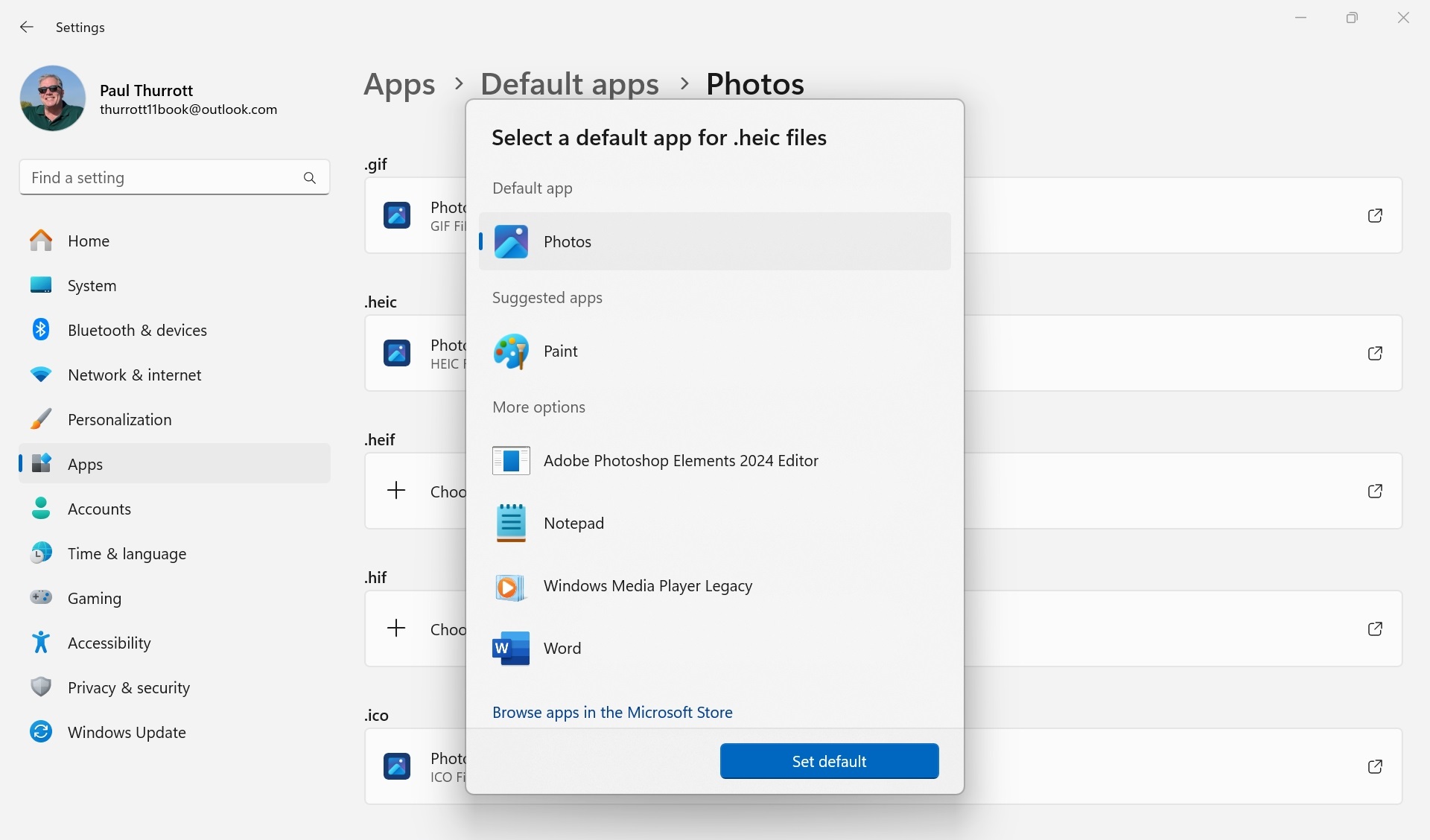
Here, you can click any file type or link type you wish to associate with that app and use the “Select a default app for files” window to choose the app you prefer.
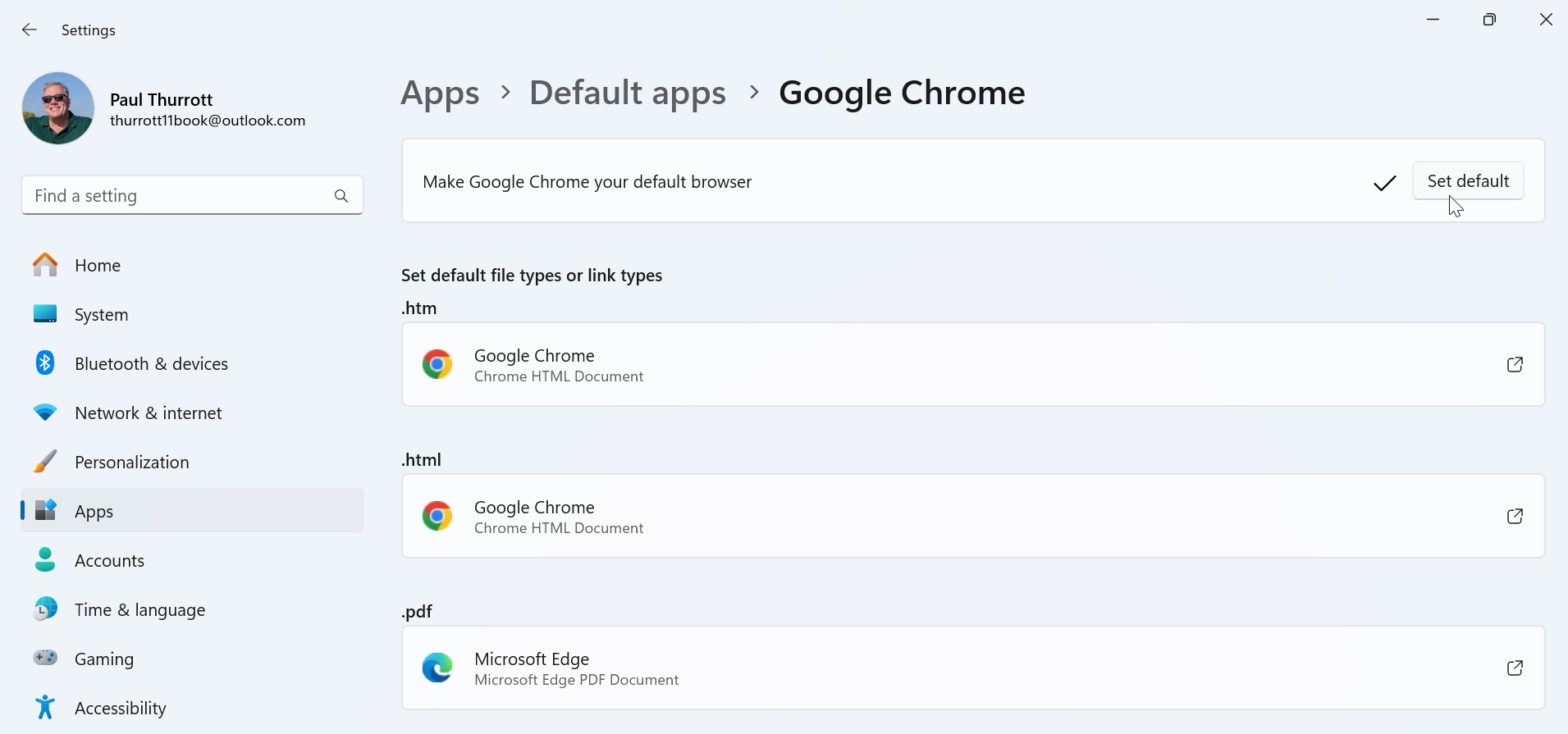
Web browsers like Microsoft Edge, Google Chrome, and Mozilla Firefox streamline this process a bit by including a “Make web browser name your default browser” option at the top of their “Set default types or link types” page. If you click the “Set default” button next to this option, the .htm and .html file types and the HTTP (URL: HyperText Transfer Protocol) and HTTPS (URL: HyperText Transfer Protocol with Privacy) link types will all be associated with that browser.
Unless you live in the European Economic Area (EEA), there is nothing you can do to prevent Windows 11 from opening Microsoft Edge to accomplish certain actions, even when you’ve configured another browser as the default. For example, if you click a story in Widgets or a link in Search, Microsoft Edge will always open.
Configure a default app for a specific file type on the fly
In addition to using the formal Default apps interface in the Settings app, you can also configure which app to use for specific file types at any time directly from File Explorer or the Desktop. To do so, right-click a file of a specific type and choose “Open with” and then “Choose another app” from the context menu that appears. The “Select a default app for files” window will appear and list the compatible apps it’s found on your PC.
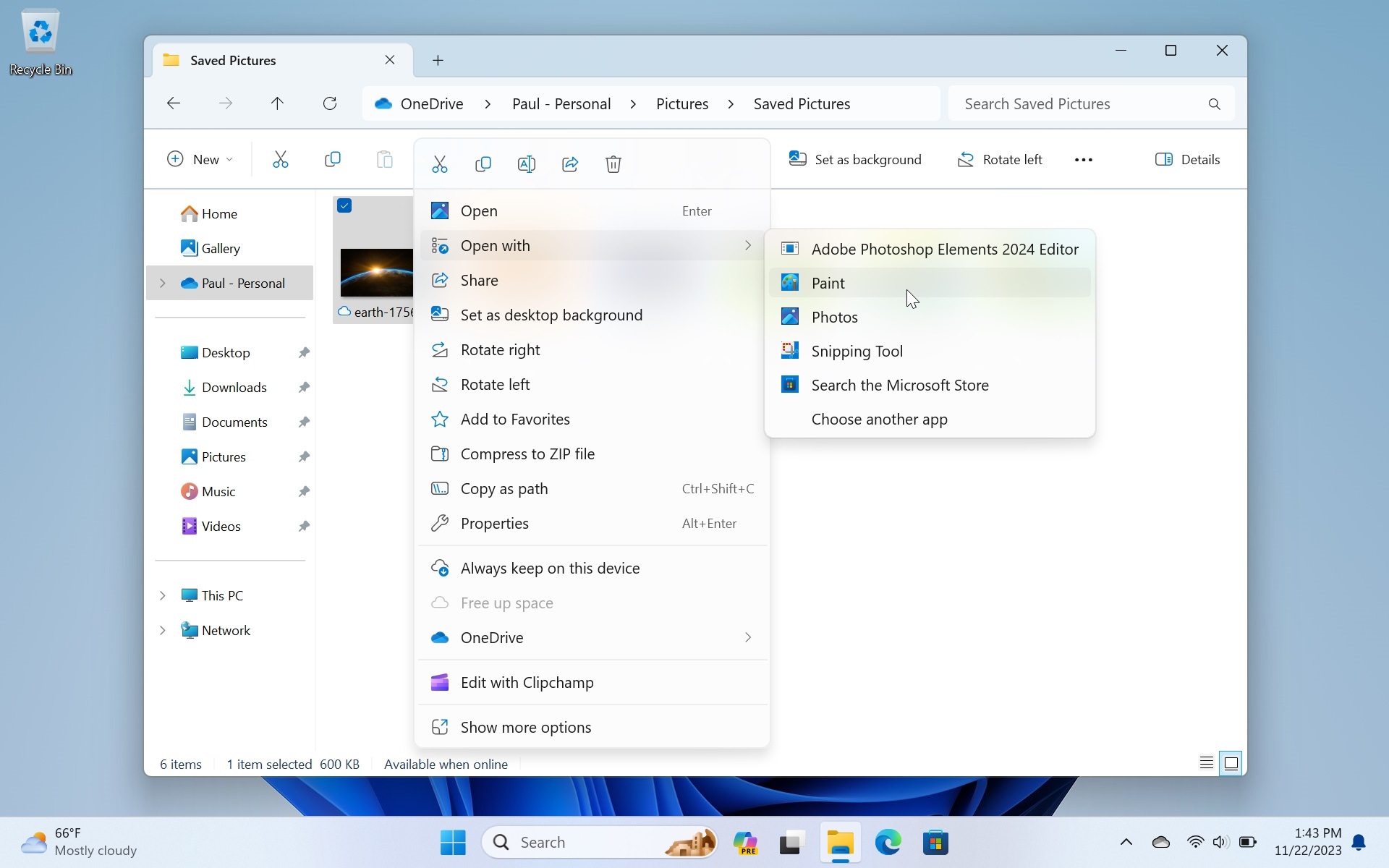
From here, select the new default app you wish to use with this file type and click “Always.” If you don’t see the app you want in the list but know it’s installed, click the “Choose an app on your PC” link to find it. (The “Browse apps in the Microsoft Store” link is largely aspirational on Microsoft’s part, but that’s one way to find new apps that can open specific file types.)
You can also use this method to open a file of a specific type with a different app just this one time: Just select the app from the list and click “Just once.”
Oddly, Windows 11 will display the “Select a default app for files” window automatically after you’ve installed a new app and then try to open a file with which it is compatible, giving you the option to change the default association at that time. For example, if you install an image viewer application and then double-click a bitmap (.bmp) or JPEG (.jpg) file in File Explorer to open it, the “Select a default app for files” window will appear and recommend that app, which is denoted by a “New” tag.
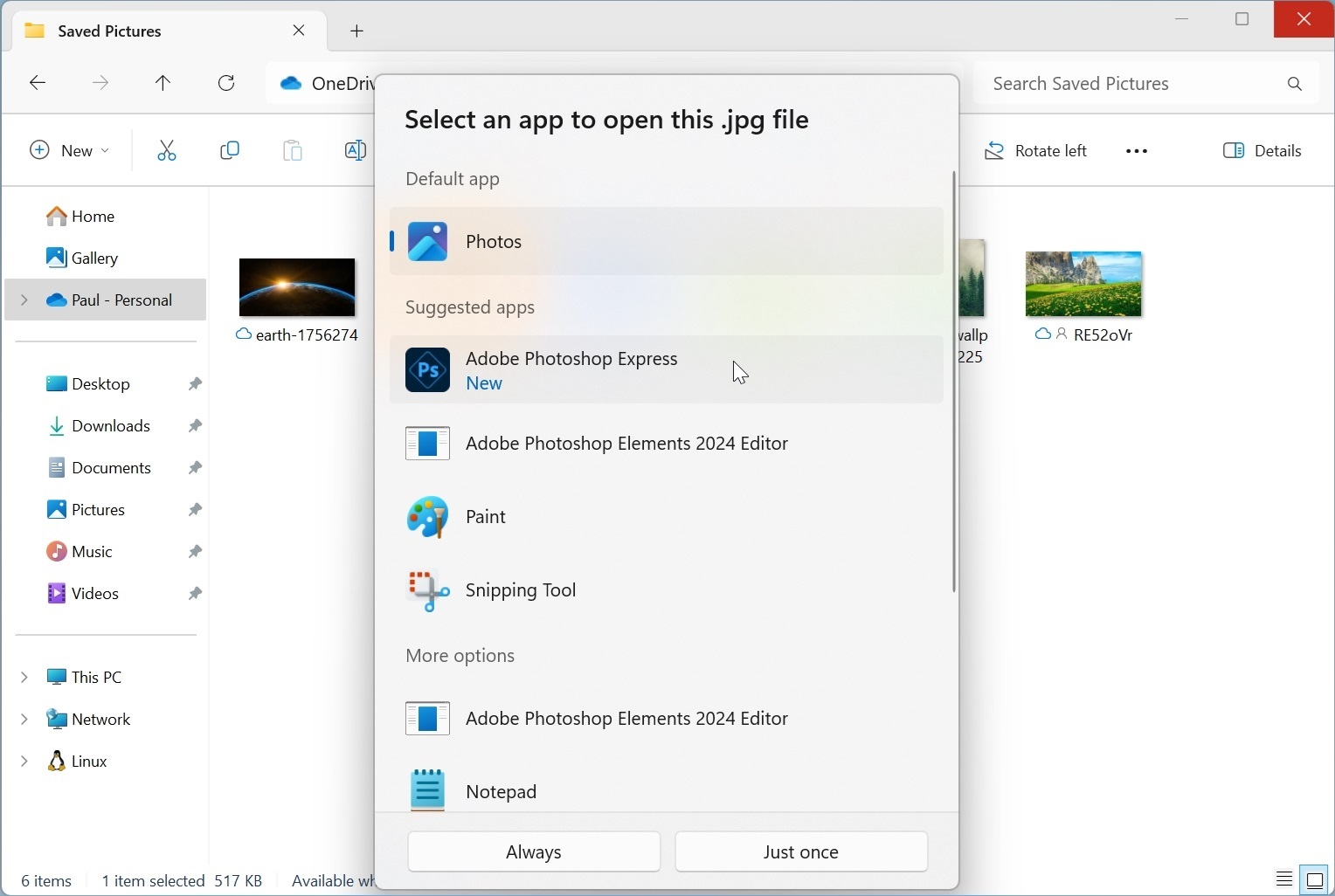
You can then choose accordingly, of course.
Configure where apps are located
Apps are installed on your C: drive alongside Windows by default, and in specific folders, some of which are hidden. But if your PC has multiple drives or partitions, you can change the default location for app installs and, in many cases, move Store apps to a new location.
Determine where new app installs are located
To determine where apps are installed by default, open the Settings app and navigate to System > Storage. Then, expand “Advanced storage settings” and click “Where new content is saved.” A new page appears in Settings.
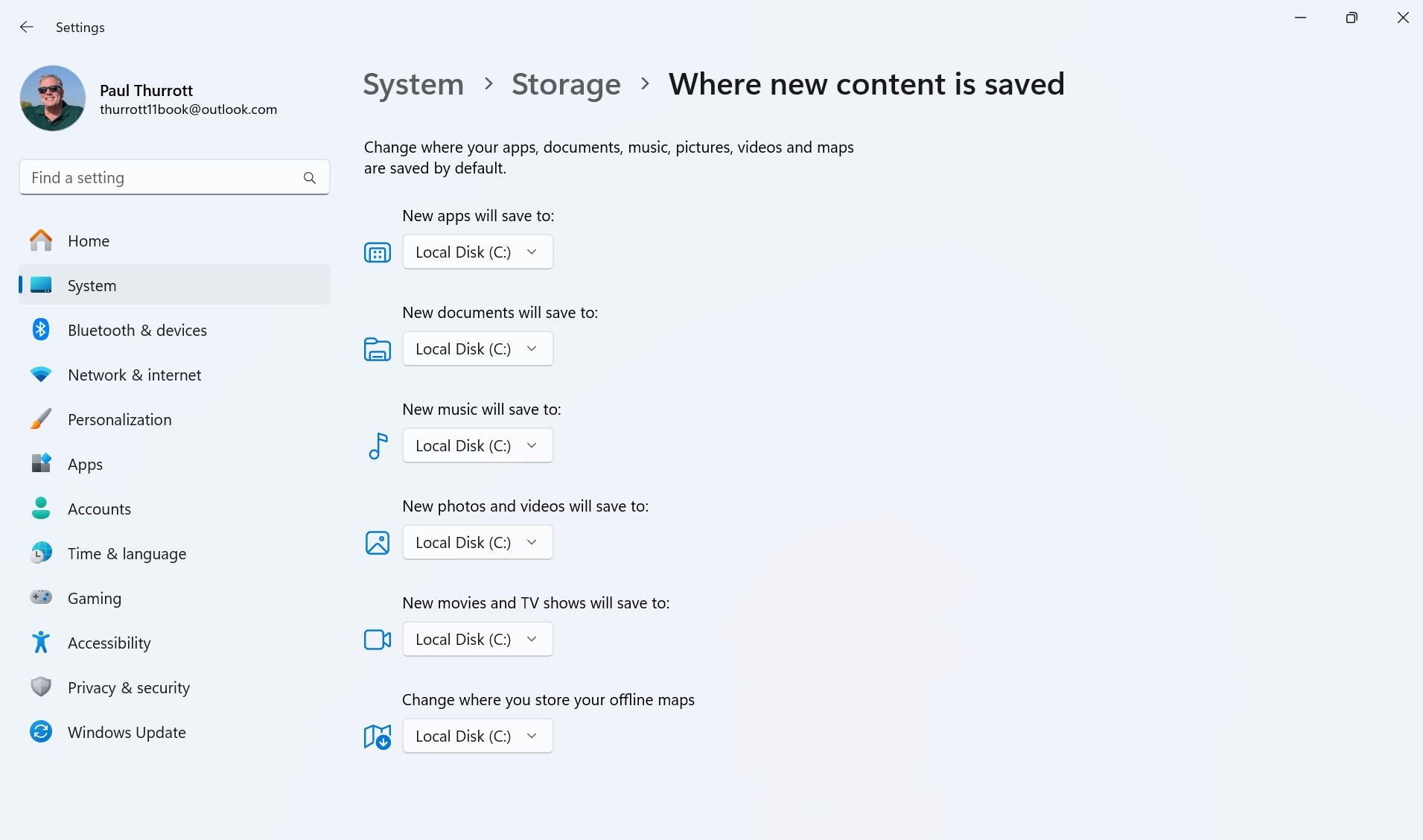
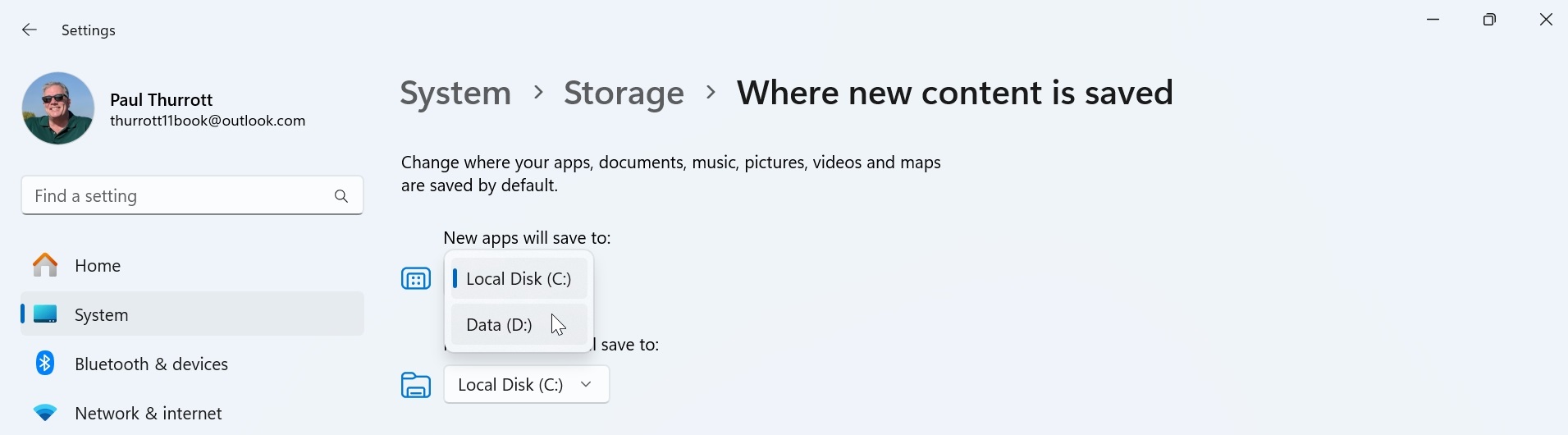
To change the location for new app installs to another drive, click the drop-down under “New apps will save to:” and select the new location.
Move an existing app to a new location
You can also move many Store apps to a different drive. This is helpful if you are running out of space on a drive, or have installed a new drive for this purpose.
To do so, open the Settings app and navigate to Apps > Installed apps.
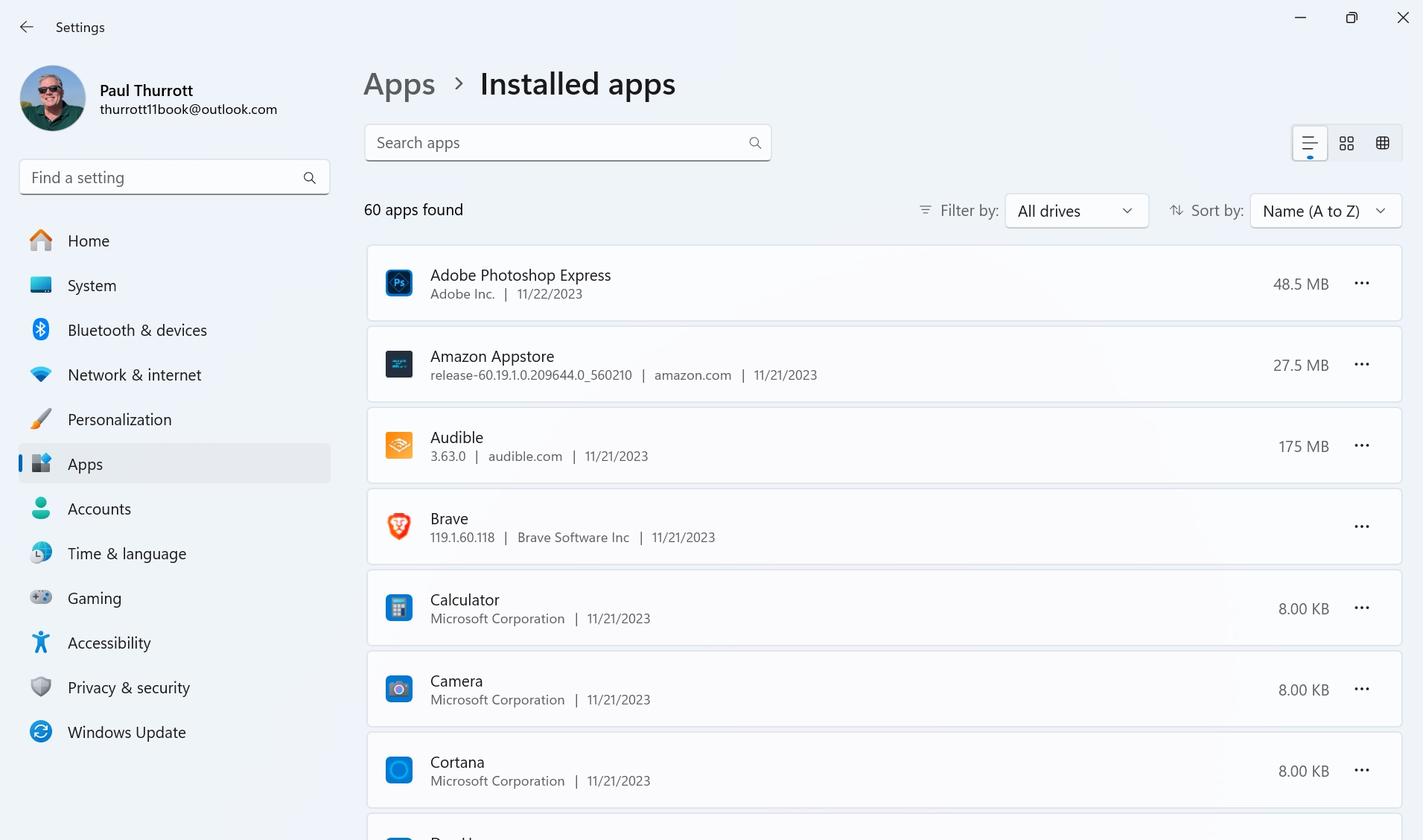
Then, select the More options (“…”) link next to the app you wish to move and choose “Move.”

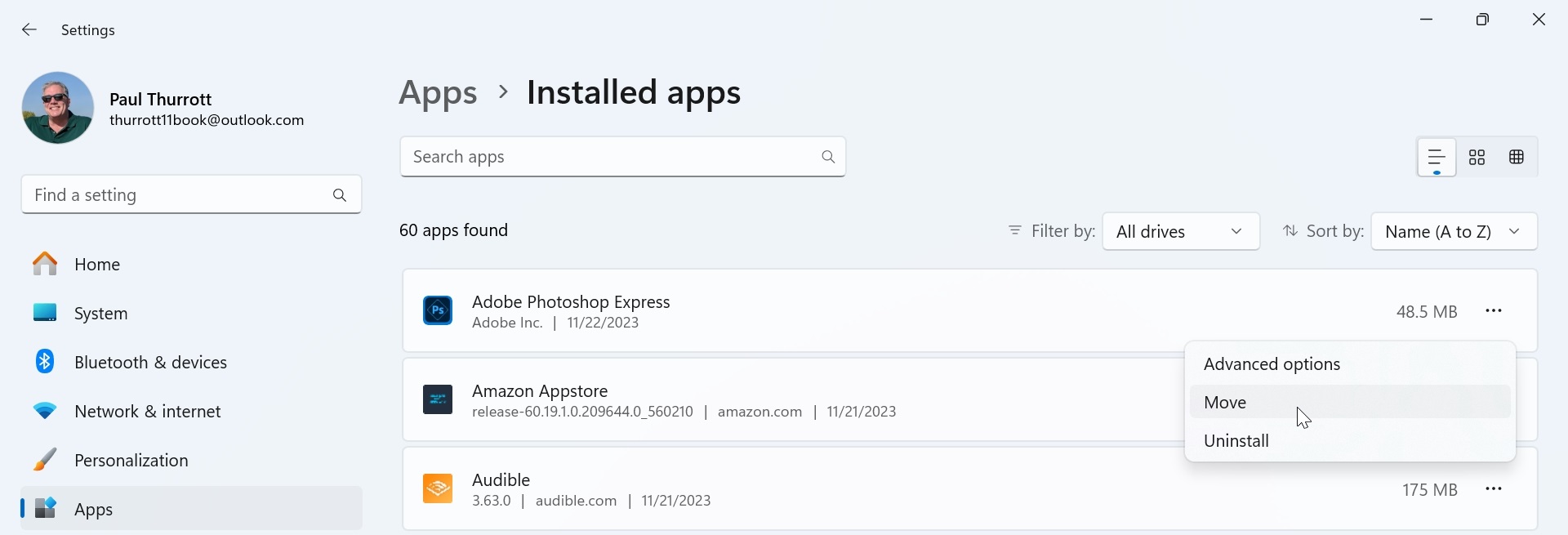
If this option is not available, then it’s not possible to move that app. Most Desktop apps and some Store cannot be moved, for example.
When you do so, you are prompted to select the drive to which you’d like to move the app install. Select accordingly and then click “Move.”
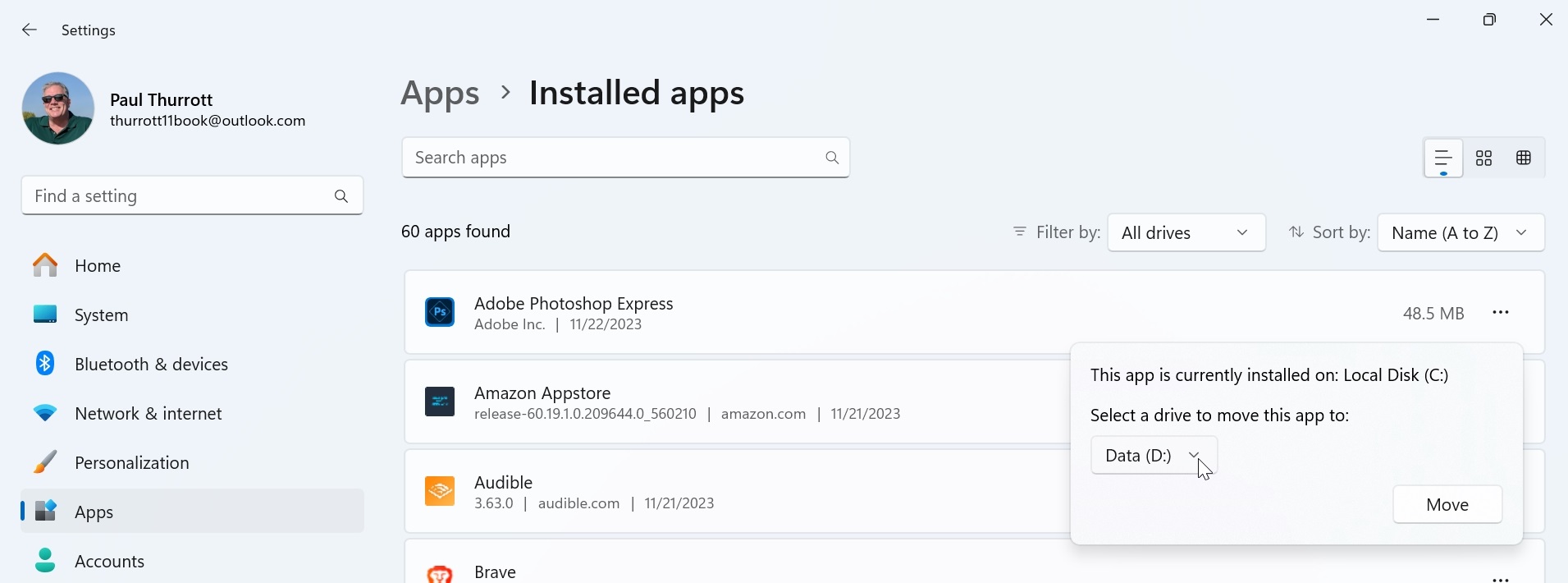
If you are running low on disk space on C: and wish to move some big apps to free up space, you can sort the list of apps displayed here by size. To do so, select the “Sort by” drop-down at the top right of the list and choose “Size (Large to small).”
Determine which apps are allowed to start when you sign in
Windows 11 offers multiple ways to configure which apps start when you turn on or wake up your PC and sign in, but the friendliest and most modern interface can be found in the Settings app by navigating to Apps > Startup.
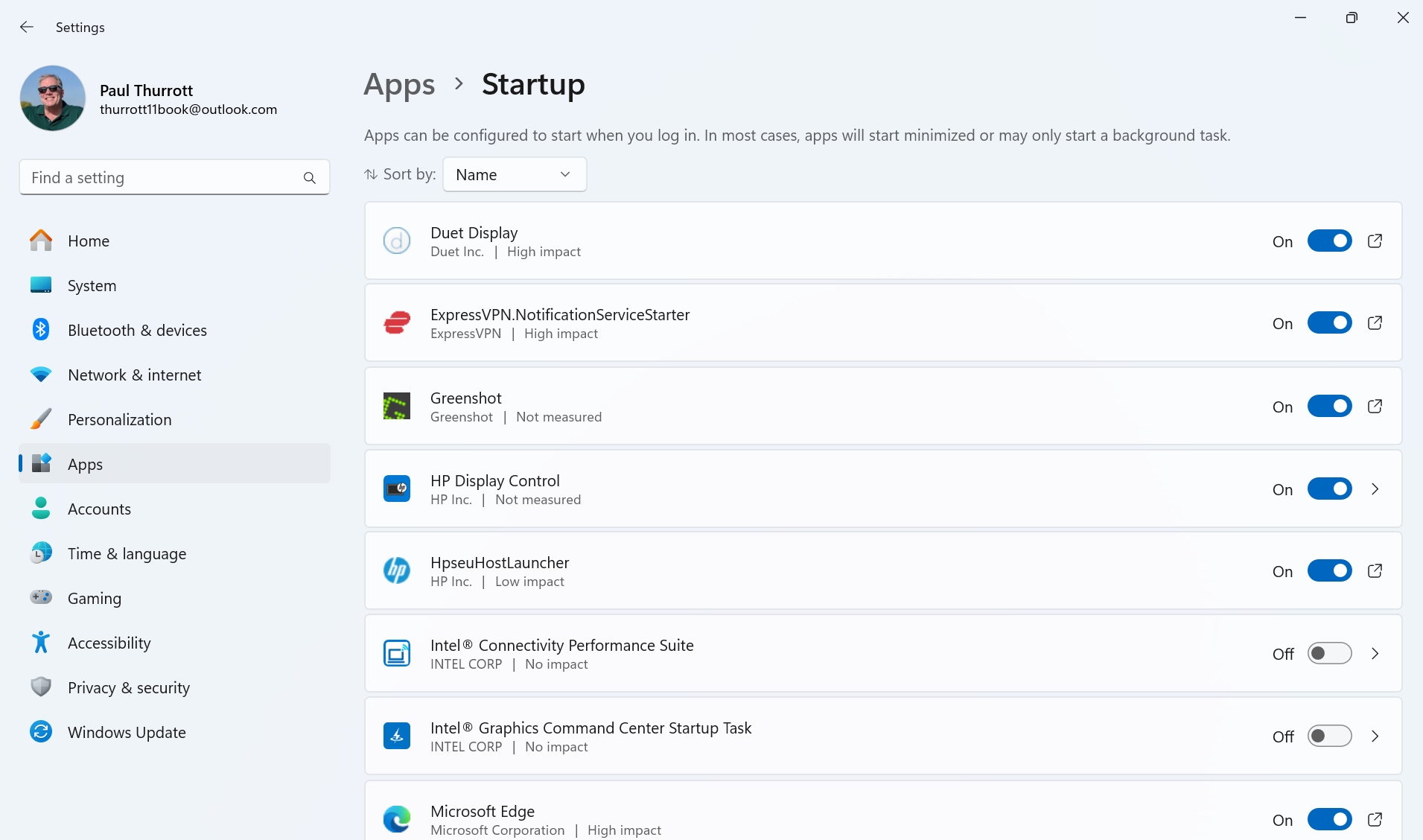
You can also manage this behavior using the Startup apps view in Task Manager. We discuss that interface in the Task Manager chapter.
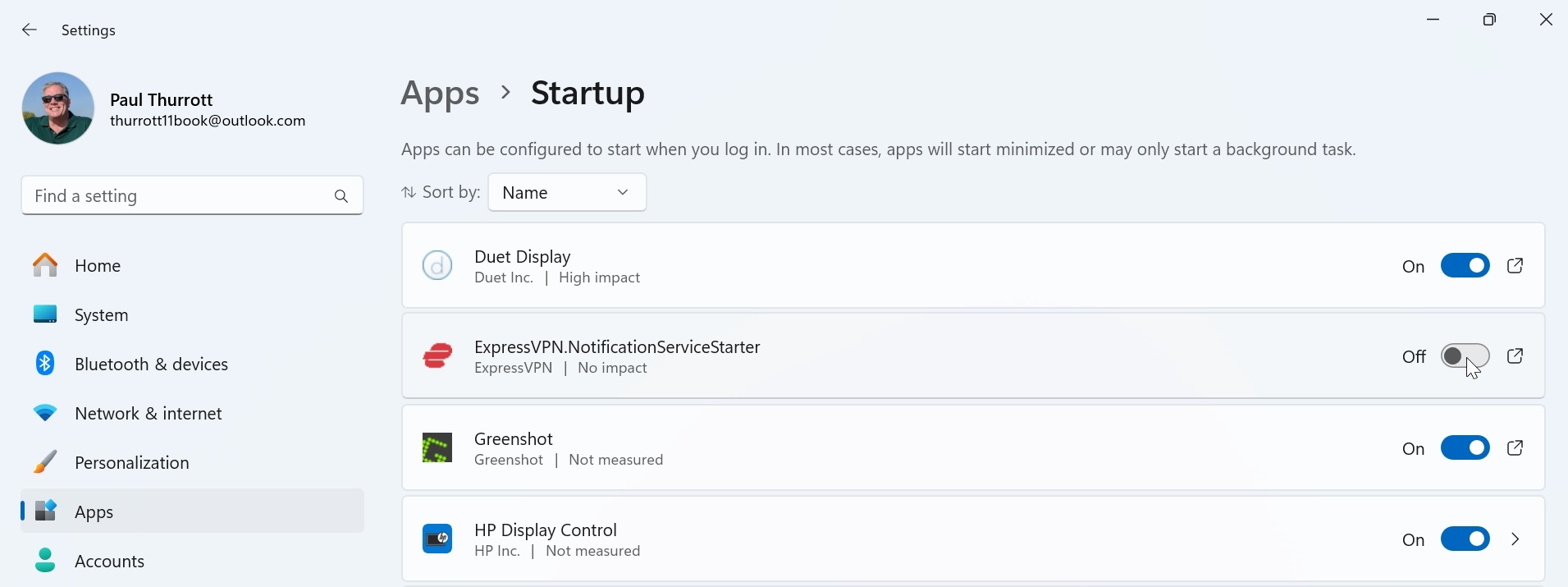
To prevent an app from running at startup, change its On/Off slider to “Off.”
Consider which apps you might disable from auto-starting
Deciding which startup apps to disable can be daunting, especially if you’re not familiar with some of them or how Windows works. But you can make it easier on yourself, and get a better picture of exactly which apps are auto-starting, by sorting the startup apps list differently.
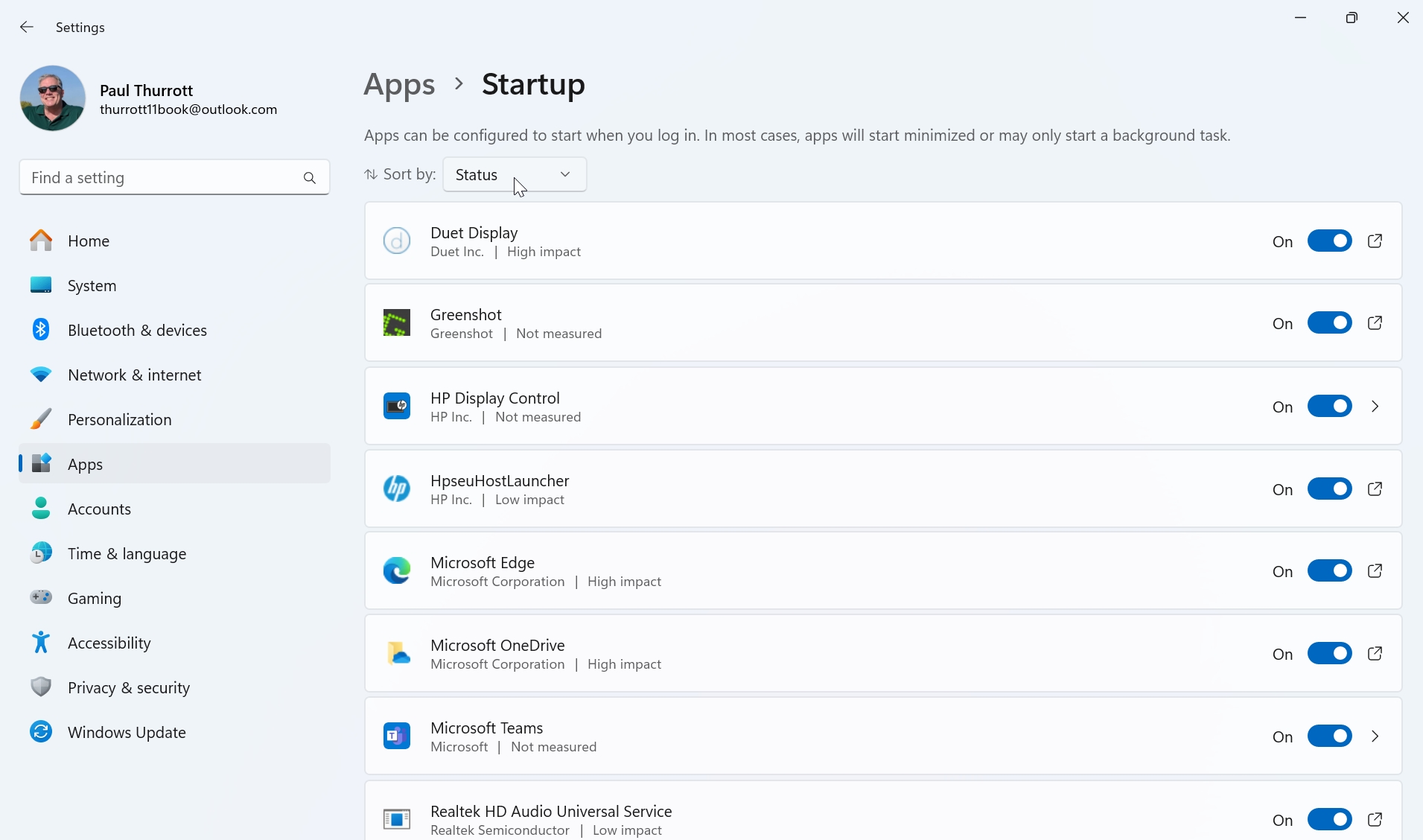
By default, this list is listed alphabetically, and so you will see a mix of apps that auto-start and those that do not. But you can also sort it by Status. When you do so, all the apps that are enabled to auto-start are placed together at the top of the list, while all of the apps that can be enabled to do so but are not are placed together at the bottom.
To sort by Status, click the “Sort by” drop-down control and choose “Status.”
Some startup apps are desirable–if you use OneDrive, for example, it makes sense for it to run when you sign in–but others are less so. The problem, of course, is that it’s not always obvious whether some startup apps are useful or even necessary. So let’s consider a few common startup apps and app types.
Microsoft Teams (free). In a default Windows 11 configuration, the system configures Microsoft Teams (the free consumer version) to auto-start at sign in, something most users won’t notice because it stays hidden and doesn’t even open a minimized app window. (You can see that it auto-started by opening the Taskbar notification area overflow flyout, where you will see its telltale purple and white icon.) Few people ever use this app, so this is an obvious app to disable.
Microsoft Edge. Microsoft Edge is also configured to run at startup, and like Teams, it does so in the background without opening a window. If you use Edge, this is useful because the app window will launch faster when you open it. But if you use Google Chrome, Mozilla Firefox, or another app as your default browser, there’s no reason for Edge to run in the background, so you should prevent it from starting up automatically.
Apps that auto-start after you run them once. Some apps–like Spotify and the Xbox app–silently configure themselves to run at startup after you open them for the first time. If this isn’t what you want, you can easily prevent that from happening here.
Device driver apps and services. You will often see apps related to device drivers, like those for your PC’s speakers, in the Startup list. These can be difficult to resolve. In some cases, this type of app may literally be necessary for audio to work–look for the word service in its name and leave it alone if found–but some are just audio-related utilities that may or may not be useful. If you’re unsure, Google (or Bing) it.
The Startup settings page also lets you sort the list by Startup impact, so that those that task the PC’s microprocessor and disk the most at startup are listed at the top.
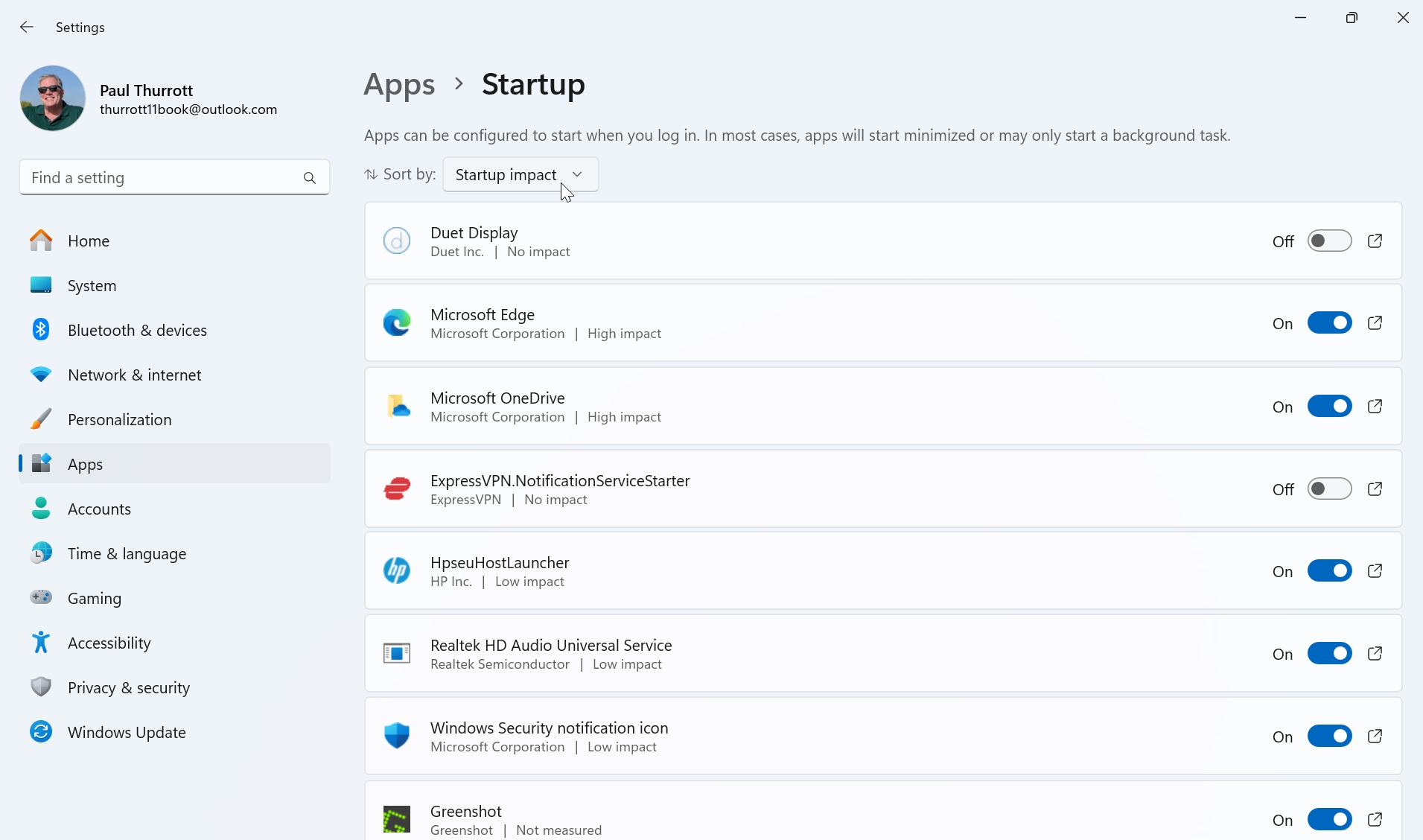
This may seem like an ideal way to choose apps to disable at startup. But be careful: Some of the apps with the biggest impact, like Microsoft Edge and OneDrive, should be allowed to auto-start if you use them regularly.
Configure an app to run at startup
The Startup page in Settings is useful for preventing an app from auto-starting, but it doesn’t offer a way to arbitrarily configure any app to auto-start. If you want to auto-start an app that isn’t on the list, there’s no way to add it there.
But that doesn’t mean you can’t auto-start any app at sign in. Some apps offer their own interfaces for doing so–this will vary by app, of course, so you may need to do some spelunking in its menus and settings interface–but Windows 11 offers a secret way to auto-start any app. All you have to do is copy a shortcut for that app to your Startup folder.
Of course, that requires you to know how to create an app shortcut and know where the Startup folder is located, and neither is obvious. So let’s step through this process using Notepad as an example.
To create an app shortcut, you need to find the app executable (typically an “EXE” file, meaning a file with a .exe extension) in your PC’s file system, and many of them are in hidden folders which makes doing so difficult. It’s possible to do this with some apps in Start—if you right-click an app and see an “Open file location” option, you’re good—but not others. Fortunately, Windows 11 provides a virtual view of all of the apps on your PC which makes this much easier.
To find it, open the Run app–search for run in Start–and type the following command:
shell:appsfolder
You can also type WINKEY + R to open the Run app.
When you tap ENTER, a File Explorer window opens displaying your apps.
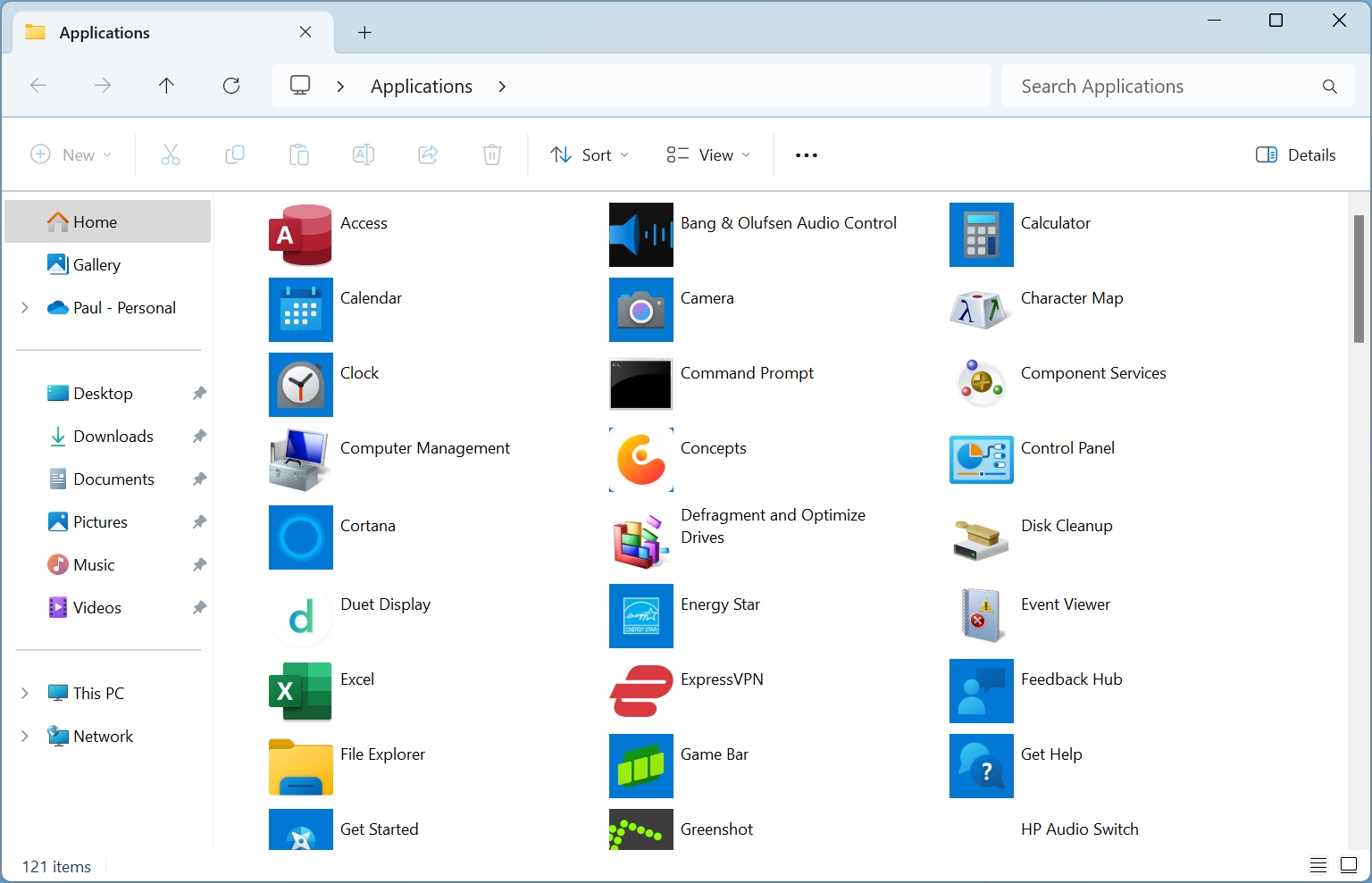

Next, browse through the list of apps or use the search box to find the app you want. Then, right-click it and choose “Create shortcut” from the context menu that appears. Windows will tell you that it can’t create a shortcut here and offers to create one on the Desktop instead.
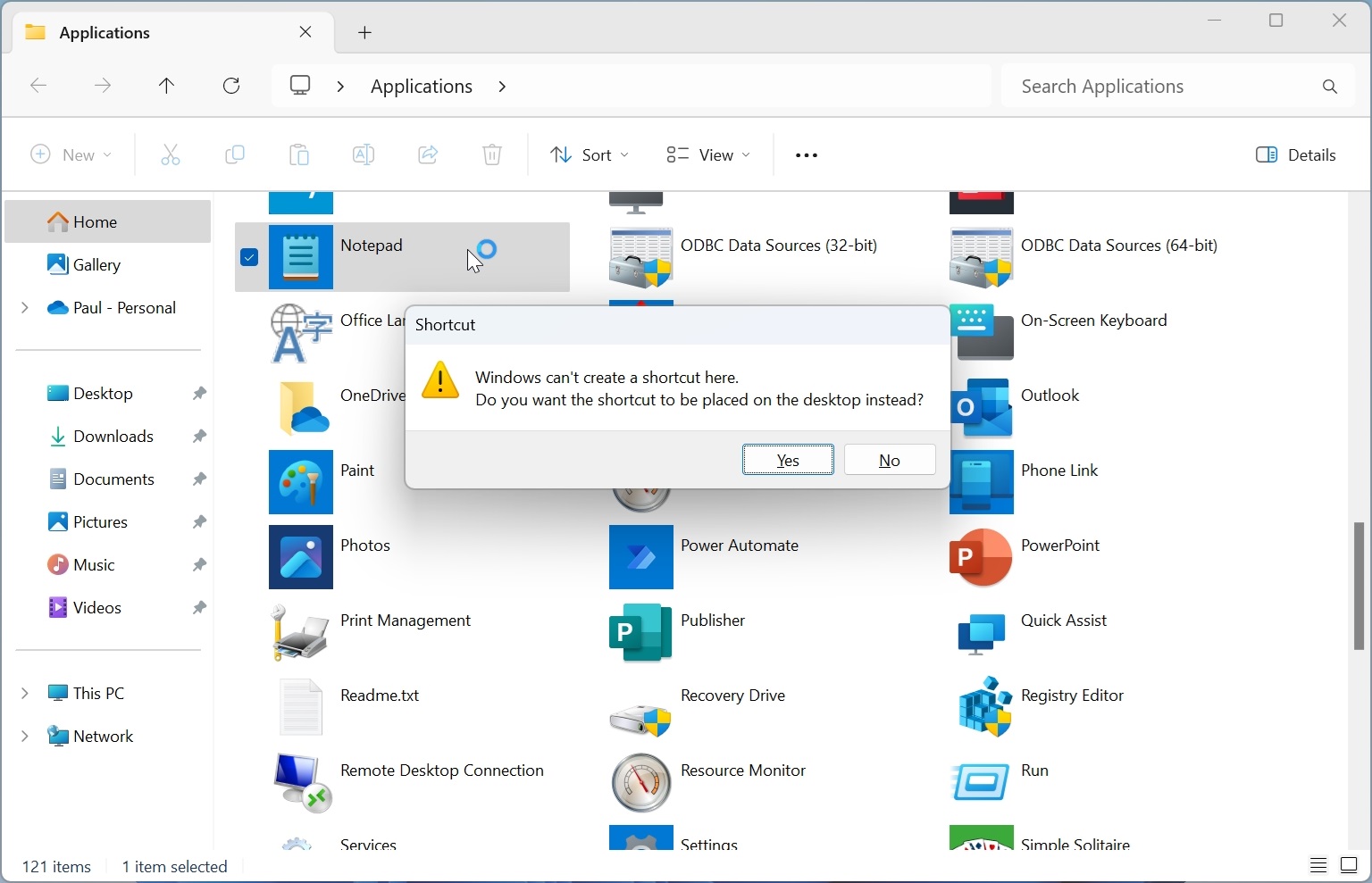
Click “Yes.” A shortcut named “Notepad – Shortcut” is placed on your Desktop. (You can close the File Explorer window.)
Now, open the Run app again and type the following command:
shell:startup
When you tap ENTER, File Explorer opens and displays the hidden Startup folder.
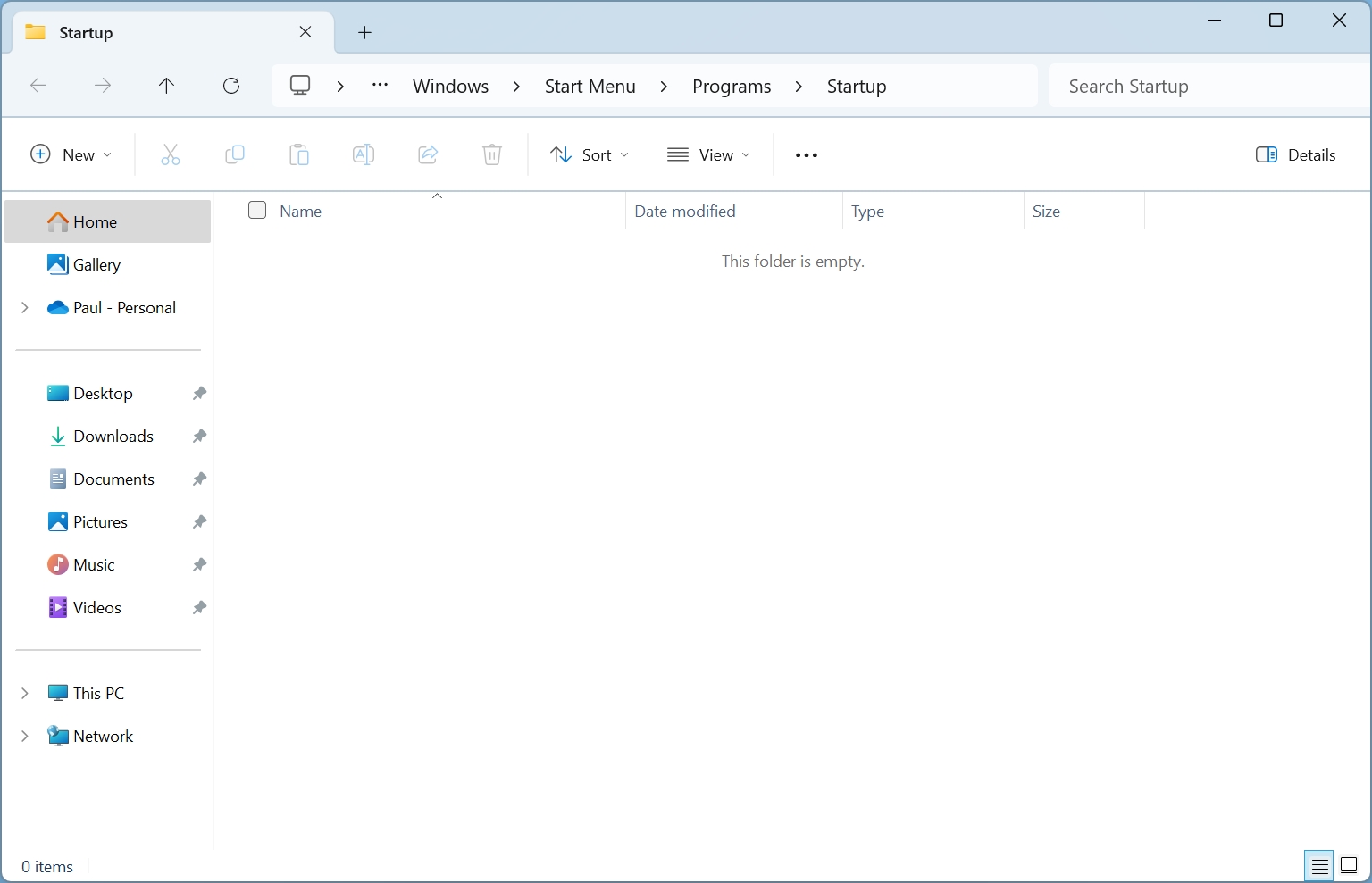
Unlike the Applications view, Startup is a real folder: It’s located in C:\Users\your-user-name\AppData\Roaming\Microsoft\Windows\Start Menu\Programs\Startup by default.
Now, move the app shortcut you created into the Startup folder.
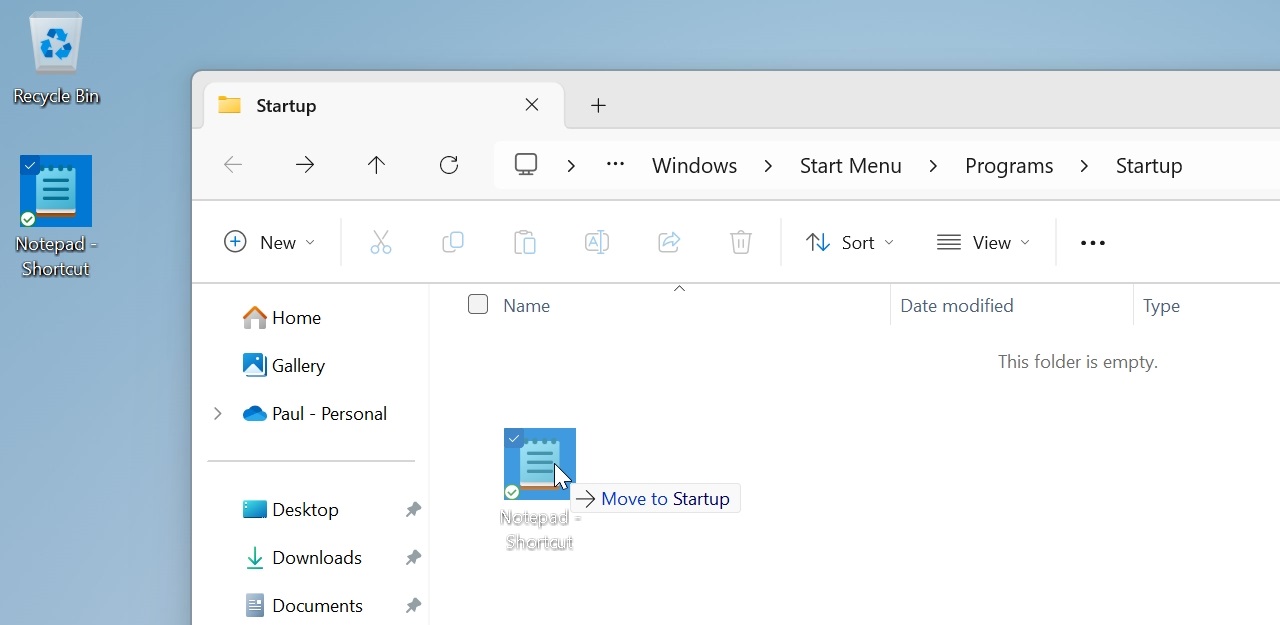
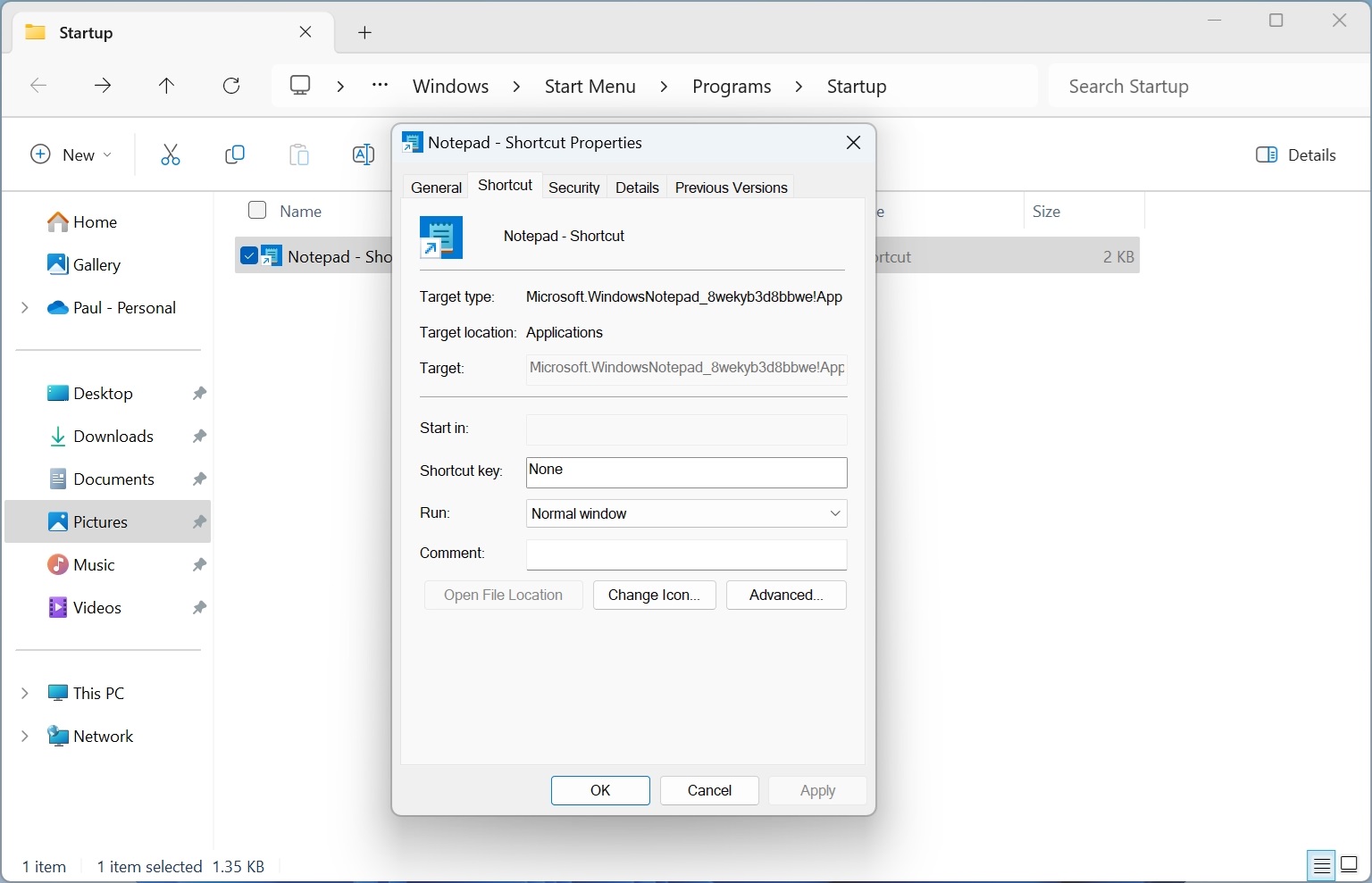
You can also configure how the app runs at startup. By default, it is configured to run normally, meaning you will see its app window open when you sign in. But you can also configure it to run using a minimized or maximized window. To do so, right-click the shortcut, choose “Properties” to display its properties sheet, and then click the “Run” drop-down in the Shortcut tab to make your choice.
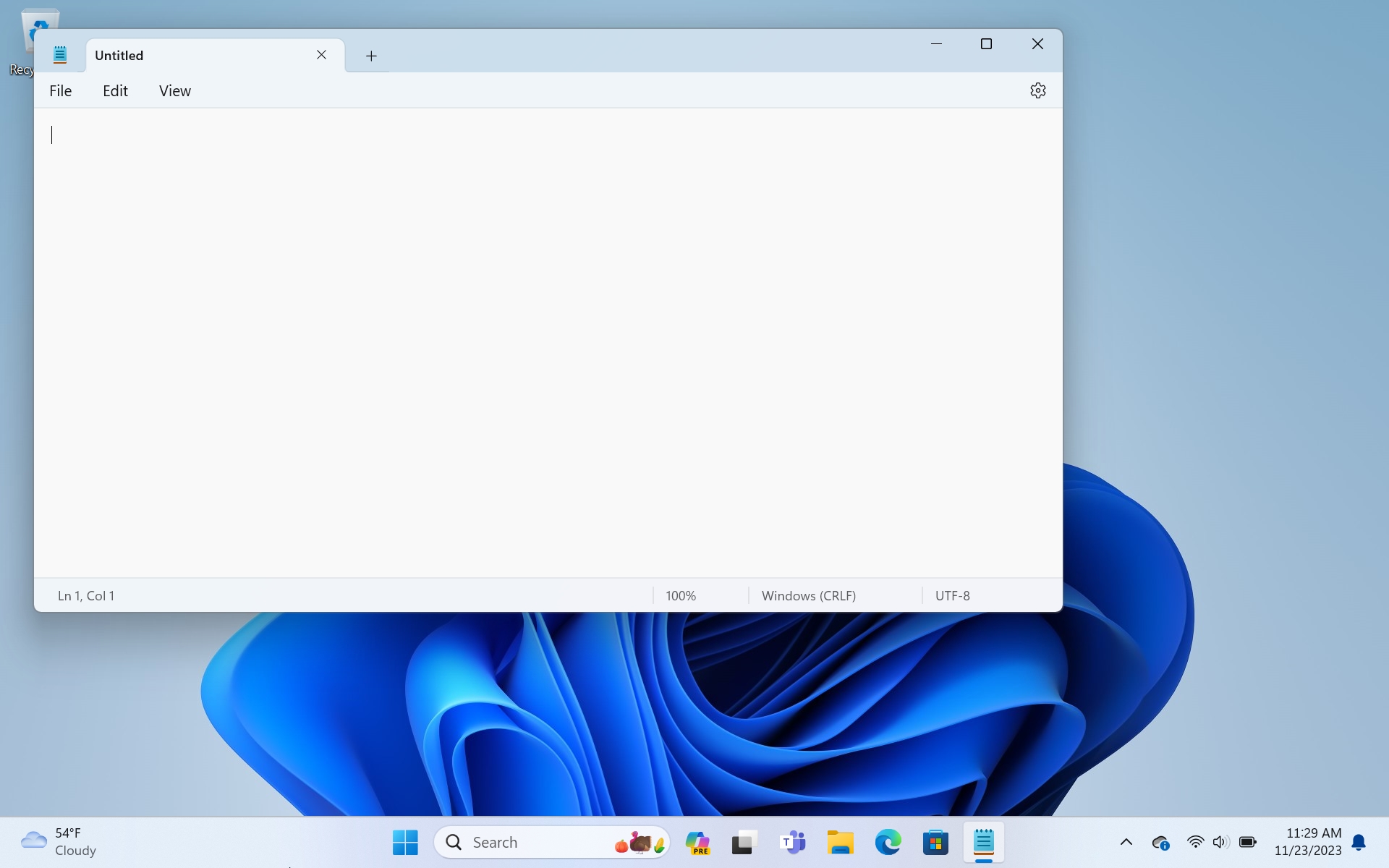
To see the results of your work, reboot the PC. The app will now run when you sign in.
If you wish to prevent the app from auto-starting later, just open the Startup folder again and delete the shortcut: Apps that auto-start this way cannot be configured in Apps > Startup in Settings (or in the Startup apps view in Task Manager).

Gain unlimited access to Premium articles.
With technology shaping our everyday lives, how could we not dig deeper?
Thurrott Premium delivers an honest and thorough perspective about the technologies we use and rely on everyday. Discover deeper content as a Premium member.