Device Encryption (24H2)
- Paul Thurrott
- Nov 12, 2024
-
0
Windows 11 includes a full-disk encryption feature called Device encryption that protects the data on your system drive. Device encryption uses Microsoft BitLocker technologies, and it’s enabled automatically the first time you sign in to Windows 11 using a Microsoft account (or Microsoft Work or school account).
Technically speaking, Device encryption does not encrypt your entire system disk, which is divided into different logical volumes or partitions. Instead, it encrypts the C: drive, which is the volume that contains Windows and other system files. (This drive is often referred to as the system disk.) Any other volumes on this disk will not be encrypted (nor visible normally while using Windows 11).
If you sign in to Windows 11 with a local account, Device encryption will be enabled automatically but not activated (or, fully enabled). If you are using Windows 11 Home, you can only activate Device encryption by signing in to Windows (at least once) with a Microsoft account.
With Windows 11 Pro, you can use the BitLocker control panel, described later in this chapter, to activate Device encryption.
For the most part, Device encryption is seamless and not something you will notice. But it is important to understand that any files that you copy or move to an encrypted disk are encrypted during the copy/move process. Likewise, any files that you copy or move from an encrypted disk are decrypted during that process as well. Decrypted files can be read or used by anyone, on any PC.
When enabled, Device encryption also provides some additional functionality to the system disk on which Windows is installed. For example, when the PC boots, it will examine the integrity of the system to ensure that nothing suspicious has happened to the PC’s firmware or startup files. If an issue is found, you’ll be prompted to provide the recovery key, which was saved to your Microsoft account (or Work and school account) in the form of a very lengthy text-based password. (This is discussed below.)
Manage device encryption
Device encryption doesn’t offer much in the way of management: This feature is enabled for you automatically when you sign in to Windows 11 using a Microsoft account. However, you can ensure that device encryption is enabled and even disable this feature–which we do not recommend–using the Settings app.
To do so, open Settings (WINKEY + I) and navigate to Privacy & security > Device encryption.
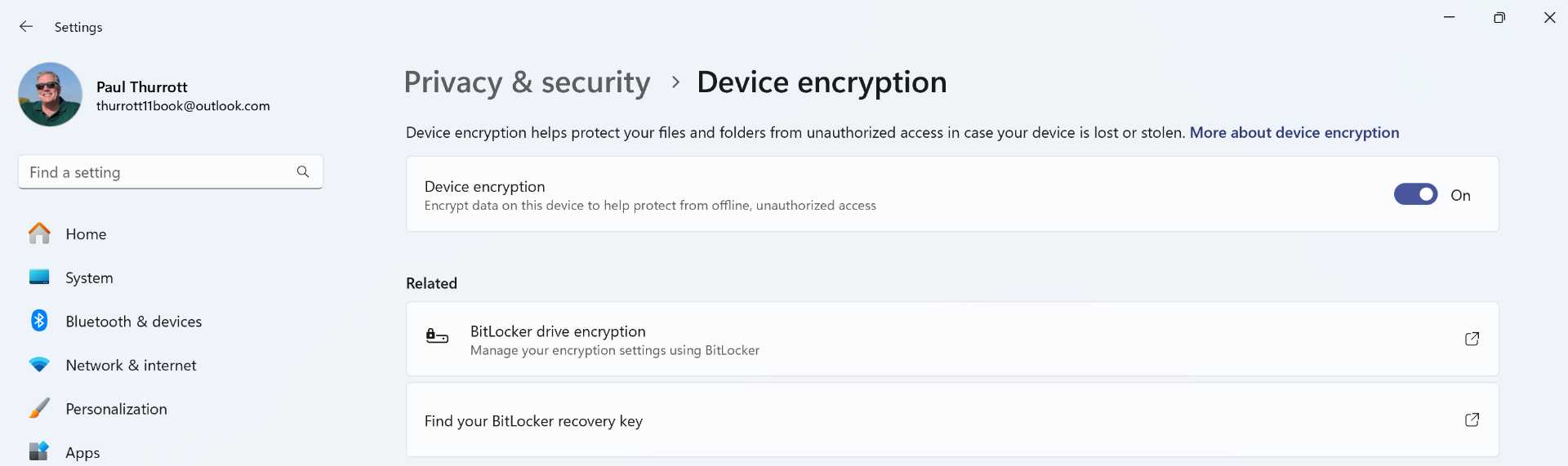
If you just signed in to Windows 11 for the first time, you may see an “Encryption is in progress” message at the top of this Settings page. That message will disappear when Windows 11 finishes encrypting the system disk.
Here, you will find a toggle for device encryption and links to “BitLocker drive encryption” and “Find your BitLocker recovery key,” the latter of which launches your default web browser and displays an informational website.
If you are using Windows 11 Pro, the “BitLocker drive encryption” link will open the BitLocker Drive Encryption control panel as discussed in the next section. But if you are using Windows 11 Home, the Microsoft Store app will launch and amusingly try to sell you a $99 upgrade to Windows 11 Pro.
The only actionable option here is “Device encryption.” If you toggle that to “Off,” Windows 11 will decrypt the system drive, which could leave the files it contains open to being compromised and stolen.
To be clear, do not disable Device encryption.
However, if you are using Windows 11 Home, device encryption might be disabled, even if you have signed in with a Microsoft account. And that’s because this version of device encryption also requires a hardware feature called Modern Standby that isn’t required by BitLocker drive encryption in Windows 11 Pro. This feature allows Windows 11 to process background tasks when it is otherwise asleep, saving battery life, but it needs to decrypt and encrypt files as it works.
If you don’t see a Device encryption option in Settings on Windows 11, this is likely the issue.
Because Modern Standby-compatible hardware is a requirement to install and use Windows 11, this should never happen to you. But if you installed Windows 11 on unsupported hardware, as described in Upgrade to Windows 11 on Unsupported Hardware, it’s possible you will run into this problem: Modern Standby requires an enabled Trusted Platform Module (TPM) 2.0 chip and Unified Extensible Firmware Interface (UEFI) firmware. So make sure you meet the requirements and that TPM 2.0 is enabled in your PC’s firmware.
Manage Device encryption
If you have Windows 11 Pro, you can use the BitLocker Drive Encryption control panel, a legacy system management interface from previous Windows versions, to manage Device encryption and access a few additional features.
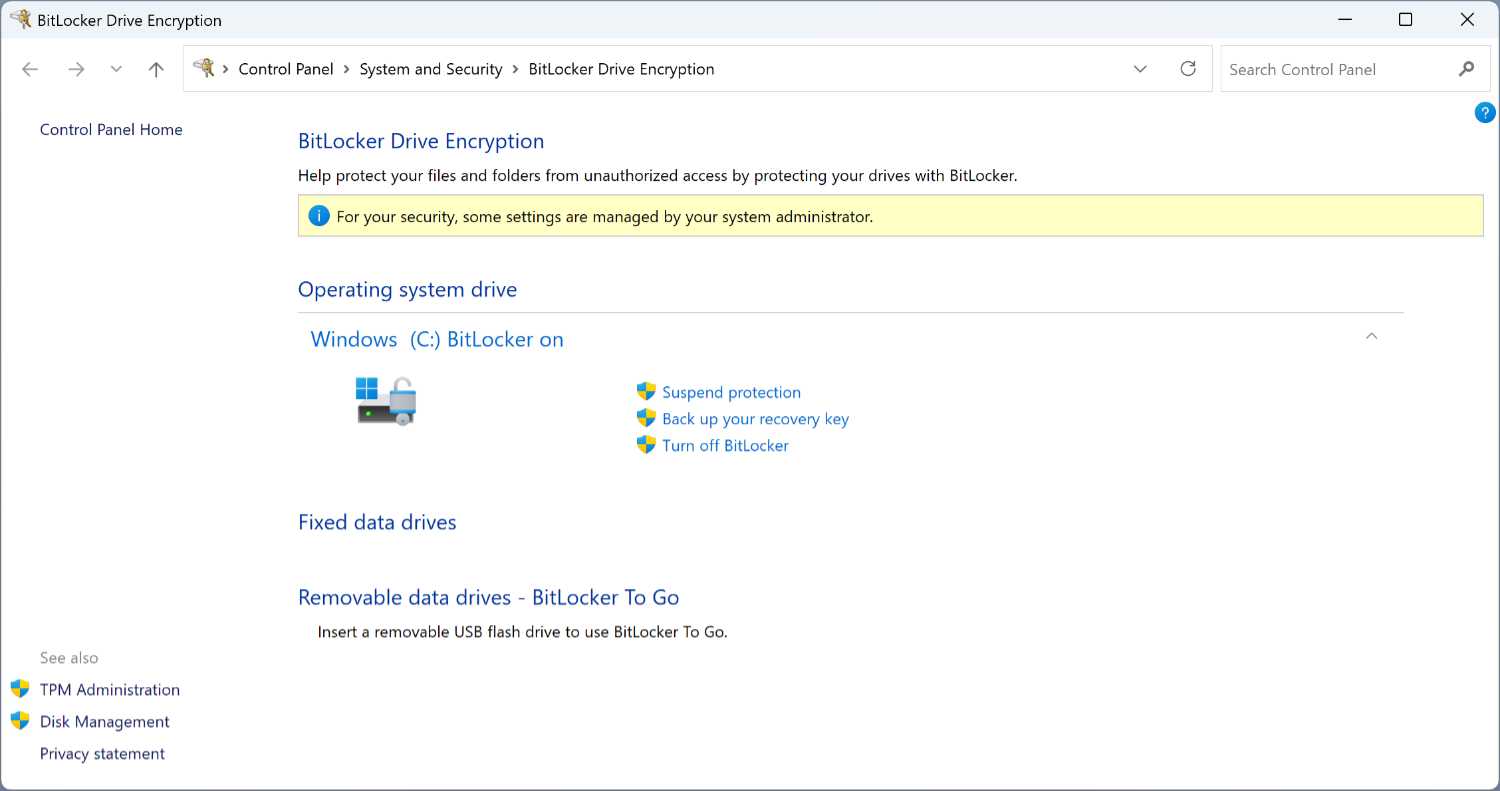
From here, you can manage any encrypted fixed and removable drives or encrypt any non-encrypted fixed and removable drives.
Note that because the BitLocker Drive Encryption control panel predates Windows 11, it refers to Device encryption as “BitLocker.” The two are one and the same, but we will refer to this feature using its correct name, Device encryption.
You can perform the following actions to a Device encryption-encrypted fixed disk like your system disk:
Suspend protection. In rare cases–such as when your PC requires a firmware update–you may need to temporarily disable full-disk encryption. This link lets you do so.
Back up your recovery key. This link displays the page of the BitLocker Drive Encryption wizard, described in more detail below, that lets you back up your Device encryption recovery key to your Microsoft account, a local file, or a printout.
Turn off BitLocker. If you wish to disable Device encryption entirely, this option is for you. Removing encryption can be time-consuming, but you can at least continue using the PC while this process occurs.
If you turn off Device encryption, the “Device encryption” option in Settings > Privacy & security > Device encryption will be switched to “Off” and the contents of that drive will no longer be protected.
If Device encryption is not enabled on this disk, you will see only one option, “Turn on BitLocker.”
Encrypt internal storage
You can use BitLocker to encrypt any internal storage device–called a fixed disk–that is attached inside your PC.
You can also encrypt removable disks, like USB flash drive and hard drives. This is covered in the section Encrypt removable storage below.
To encrypt a fixed disk, select the “Turn on BitLocker” link next to the appropriate disk under “Fixed data drives” (or, if it’s your system disk, under “Operating system drive”).
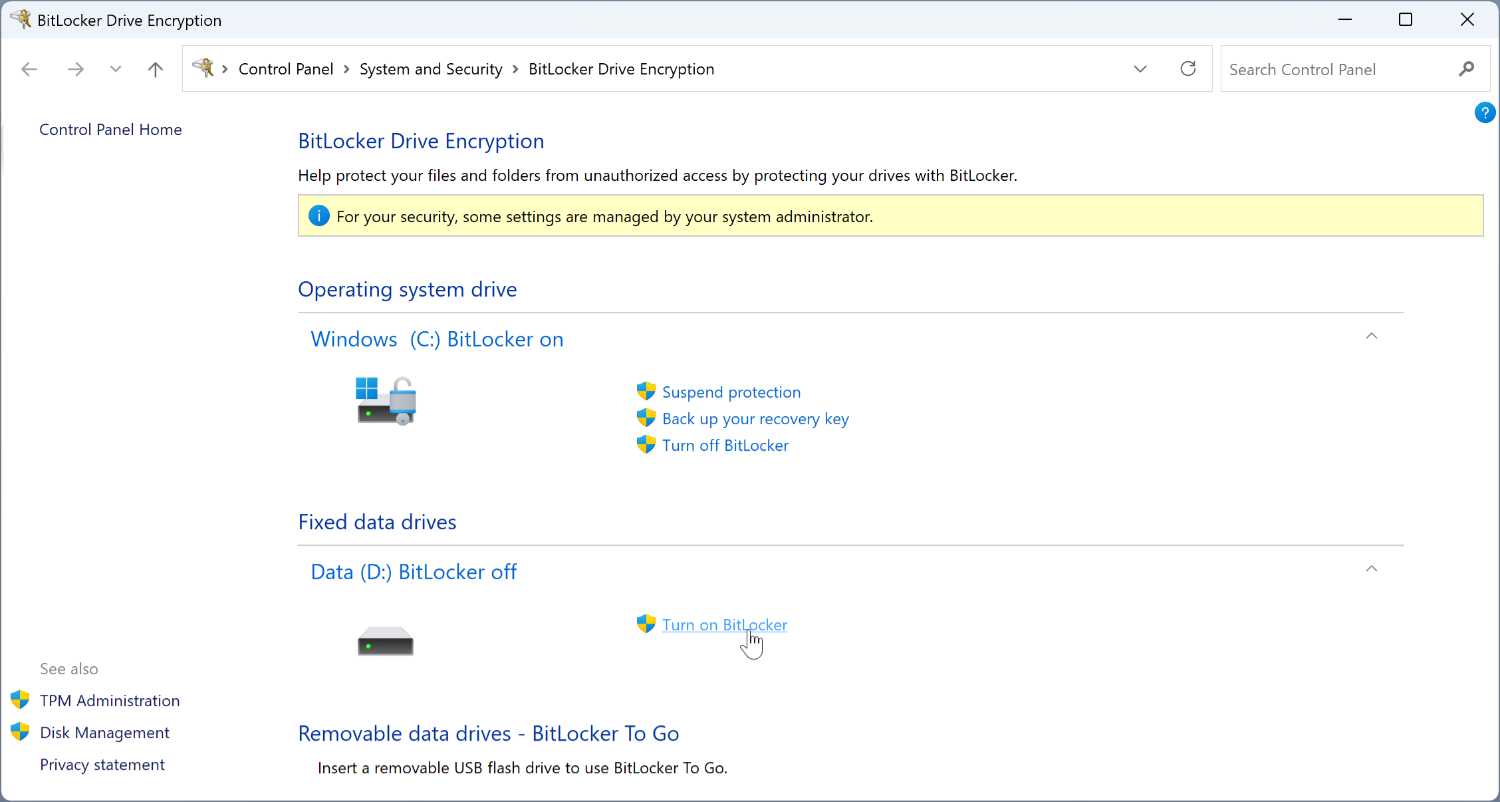
When you do so, the BitLocker Drive Encryption wizard starts and progresses through the following steps:
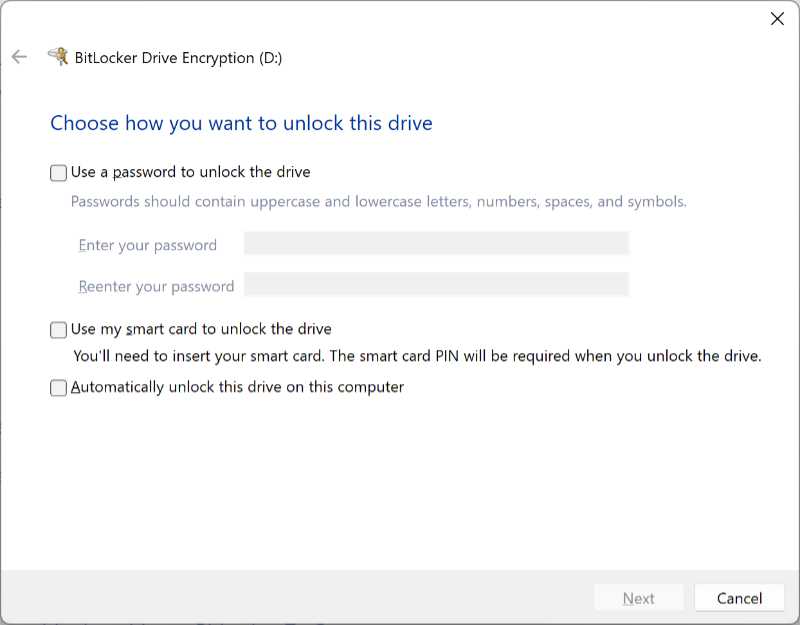
Choose how you want to unlock this drive. Here, you can choose between using a password or smart card, or you can choose to automatically unlock this drive on this computer. The third option is the most typical choice for an internal drive, and will give you the most seamless experience.
How do you want to back up your recovery key? Next, the wizard will prompt you to back up the recovery key for the disk. This key can be used to unlock the drive if you try to access it from another computer, or if you try to reset the PC. Refer to the section Use the Device encryption recovery key for information about finding this recovery key later if you need it.
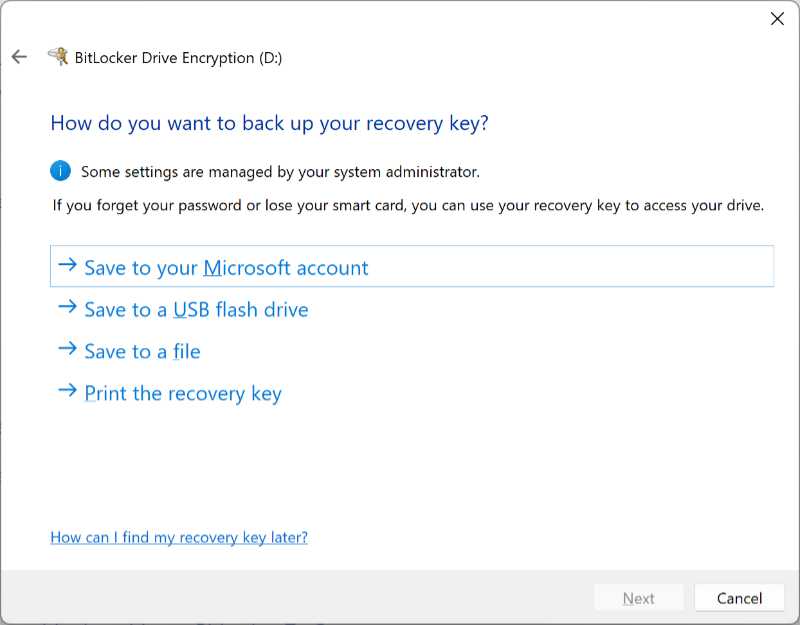
We strongly recommend saving the key to your Microsoft account, but you can use any or all of these options to back up the key. It’s not a bad idea to save this key in at least two places.
Choose how much of your drive to encrypt. If this is a new disk, the default choice–“Encrypt used disk space only”–is fine, as there won’t be any private data hiding in unused parts of the disk. But if you are encrypting a disk you’ve been using for a while, the second option–“Encrypt entire drive”–is the safer, albeit slower, choice.
You can continue using your PC while Windows encrypts the disk, so there’s no good reason not to choose the second option with a previously used disk.
Choose which encryption mode to use. Windows 11 provides an improved encryption scheme that is incompatible with older versions of Windows, including the initial shipping version of Windows 10 (version 1507, from 2015). But this isn’t an issue anymore, since those older Windows versions are no longer supported. Choose the default “New encryption mode” option.
Are you ready to encrypt this drive? This is the moment of truth. If you’re ready to encrypt the drive, you may need to shut down all of your other applications now, as the PC will need to reboot first if you’re encrypting a system disk. Click “Start encrypting” when you’re ready.
If this is a system disk, be sure to select the “Run BitLocker system check” option before proceeding. Doing so will ensure that Windows can read the recovery and encryption keys properly before encrypting the drive.
You can sign in and continue working normally while the disk is encrypting. Note that this process can take quite some time, especially for larger, already-used disks.
Encrypt removable storage
You can encrypt a removable storage device–like a USB flash drive or hard drive–using a Windows feature called BitLocker To Go.
Encrypted removable storage works with any supported Windows version, including Windows 11 Home. But you can only encrypt these disks using Windows 11 Pro.
To do so, insert the removable storage device into a USB port in your PC and then open the BitLocker Drive Encryption control panel. The device will appear under “Removable data drives – BitLocker To Go.”
You may have to expand the view of the drive using the caret over at its right before you can see it fully.
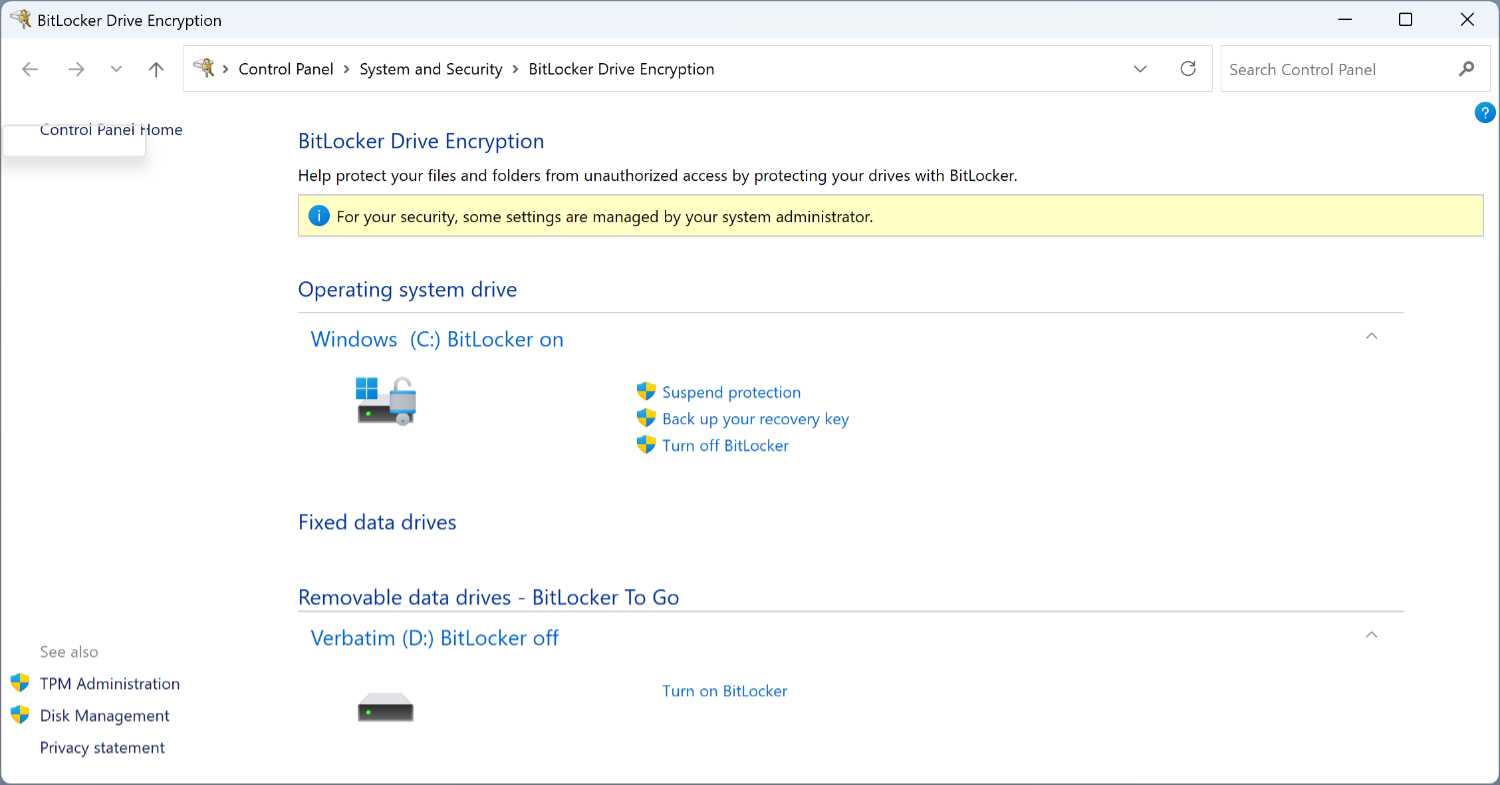

Now, select the “Turn on BitLocker” link next to the appropriate disk under Removable data drives – BitLocker To Go. (You may need to click the caret at the right to expand the view first.)
The BitLocker Drive Encryption wizard starts and progresses through the following steps:
Choose how you want to unlock this drive. Here, you must choose a method to unlock the disk. This can be a password–the typical method for most individuals–or a smart card, which is used in corporate environments and controlled by policy. Select “Use a password to unlock the drive” and then supply the same password twice in the provided fields.
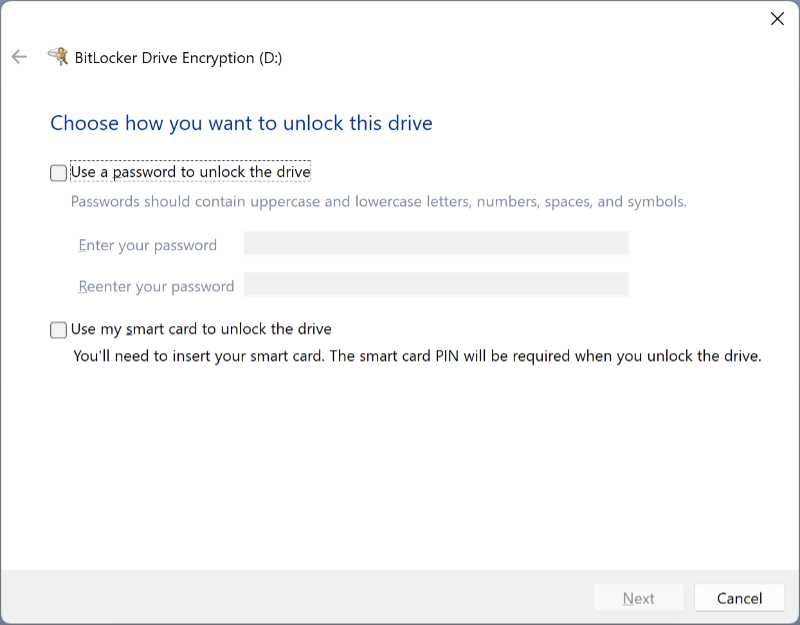
Though Microsoft recommends that the password you use here contains some combination of uppercase and lowercase letters, numbers, spaces, and symbols, the only requirement is that it be at least 8 characters long.
How do you want to back up your recovery key? Next, the wizard will prompt you to back up the recovery key for the disk. This key can be used to unlock the drive if you try to use it with another computer. Refer to the section Use the Device encryption recovery key for information about finding this recovery key later if you need it.
Do not lose this key. The safest place to back it up is to your Microsoft account. Assuming, of course, that you’ve secured that account with two-step authentication. Which you have.
Please refer to the Secure Your Microsoft Account to make sure this account is properly secured.
You can back up the recovery key using any or all of the options provided by the wizard. You won’t continue to the next step until you choose “Next.”
Choose how much of your drive to encrypt. If this is a new disk, the default choice–“Encrypt used disk space only”–is fine, as there won’t be any private data hiding in unused portions of the disk. But if you are encrypting a disk you’ve used before, the second option–“Encrypt entire drive”–is safer, albeit slower.
Choose which encryption mode to use. Windows now provides an improved encryption scheme that is incompatible with older versions of Windows, including the initial shipping version of Windows 10 (version 1507, from 2015). Since that version of Windows is no longer supported, choose “New encryption mode (best for fixed drives on this device)” here.
It’s unclear why Microsoft even offers the “Compatible mode” option anymore, let alone recommends it for removable storage. But it’s clear that the company hasn’t looked at this interface in years.
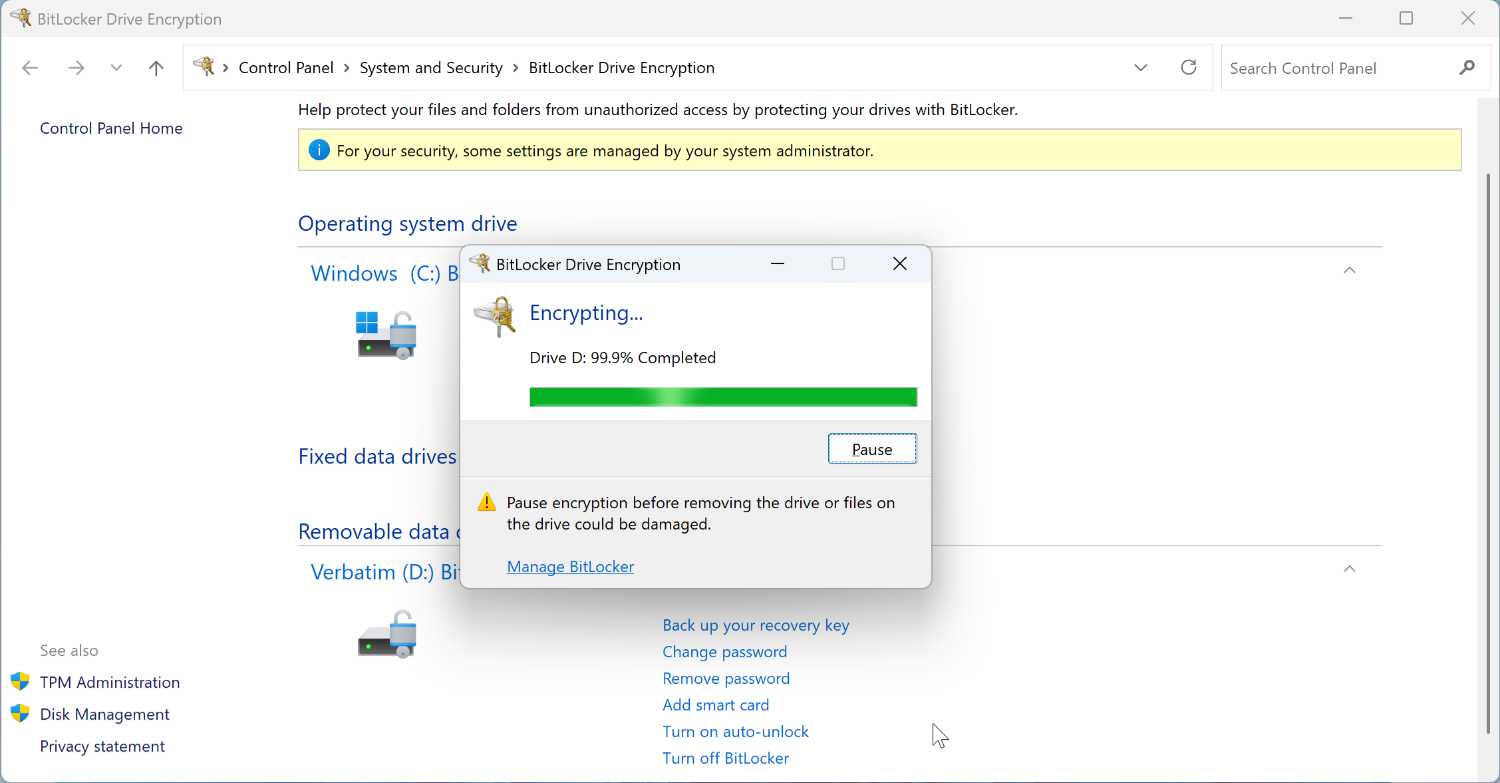
Are you ready to encrypt this drive? Once you’re ready to encrypt the drive, click “Start encrypting.” You can continue using your PC while the disk encrypts.
Use a Device encryption-protected removable disk
You can use a Device encryption-protected removable disk with any edition of Windows 11. Doing so is just like using a normal, unencrypted disk, with one difference: You have to provide its password first.
To see this, insert a encrypted removable disk (or access an encrypted fixed disk for the first time). Windows will display a notification screen informing you that this disk is encrypted.

Select this prompt to enter the password and access the disk normally.
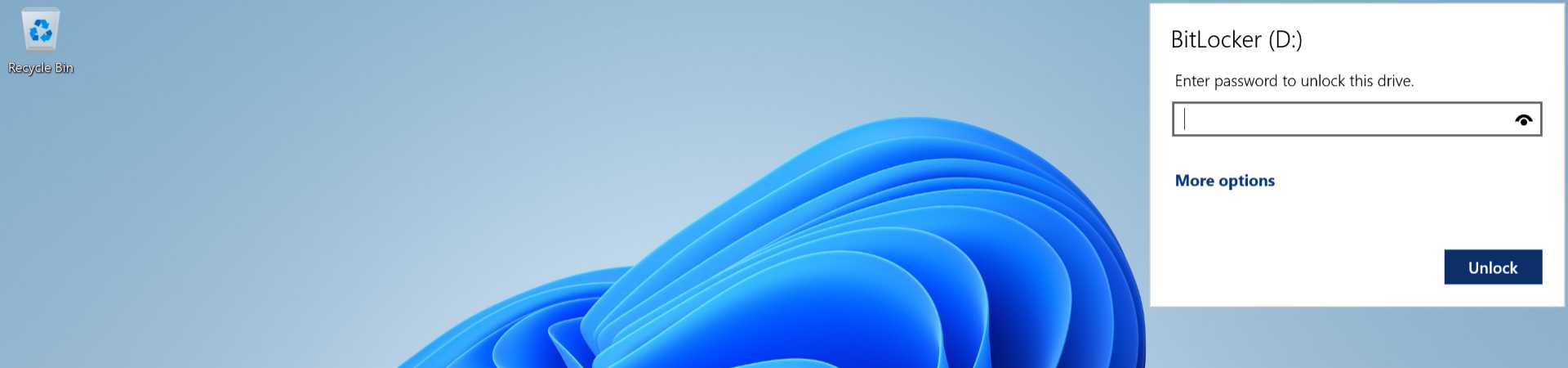
If you expand the “More options” link in the password prompt, you will see an option to automatically unlock the disk when it’s used on this PC. As long as you’re signing in with a Microsoft account, this option is safe to enable and makes dealing with encrypted removable storage devices a lot more seamless.
If you don’t respond to the notification quickly enough, you will need to unlock it with File Explorer. Just open the drive as you would normally and the password prompt will appear.
Once you enter the password, the removable disk will behave normally, and you can use it just like any other disk.
Manage an encrypted removable disk
Once you have inserted an encrypted removable disk in your PC, you can perform various encryption management tasks if you’re using Windows 11 Pro.
BitLocker To Go disk management requires Windows 11 Pro or better.
You do so with the BitLocker Drive Encryption control panel, where you will now see new options next to your encrypted removable disk.
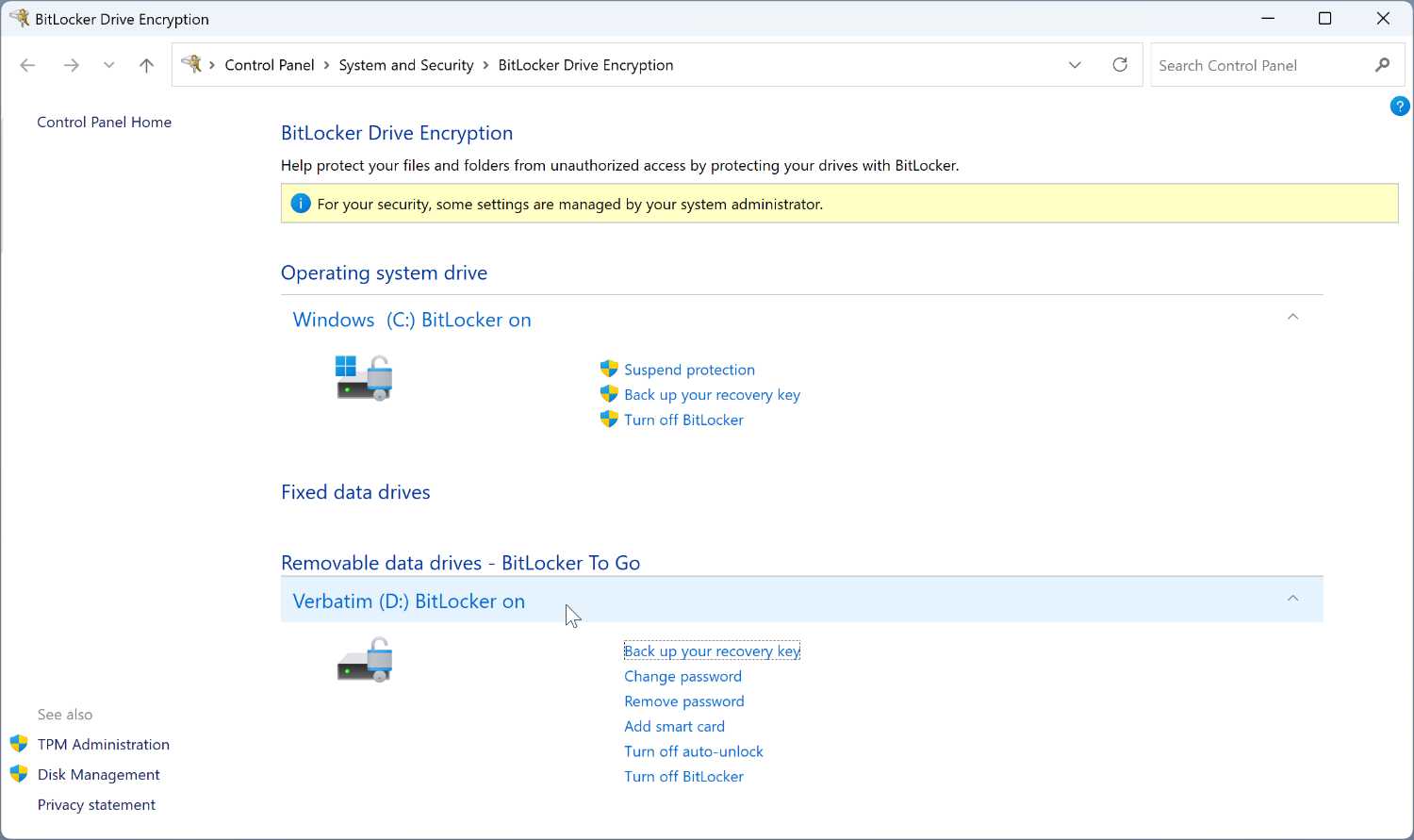
These options include:
Back up your recovery key. This link displays the page of the BitLocker Drive Encryption wizard that lets you back up your BitLocker recovery key to your Microsoft account, local file, or printout.
Change password. This option lets you change the password used to enable access to the encrypted removable disk.
Remove password. If you have enabled smart card-based authentication for this removable drive, you can optionally remove the password, which is redundant and potentially less secure.
Add smart card. Corporate environments often provide smart cards to their employees as a more secure way to access resources like encrypted disks. This type of thing is very uncommon with individuals, however, and can usually be ignored.
Turn on/off auto-unlock. If you would prefer not to enter a password every time you insert this removable disk on this PC, you can disable that requirement using this option.
Turn off BitLocker. If you wish to disable encryption entirely, this option will let you do so. Removing encryption can be time-consuming, but you can continue using the PC while this process occurs.
Use the BitLocker recovery key
Every disk that is protected with Device encryption has an associated recovery key, a 40-digit alphanumeric string of characters that is saved to your Microsoft account automatically if you sign in to Windows with that account.
Otherwise, you were asked to save the recovery key to a Microsoft account, file, or printout.
Windows 11 creates this key automatically when it first encrypts the system drive, and if you later encrypt other disks, you are prompted to create a recovery key for each at that time.
Indeed, you must create a recovery key for each disk you encrypt. As noted earlier, we strongly recommend that you save your BitLocker recovery keys to the OneDrive associated with your Microsoft account, as it can be accessed from any PC or mobile device for which you have secure access.
To access your recovery keys in OneDrive, open a web browser and navigate to
account.microsoft.com/devices/recoverykey with any web browser.
After signing in, you’ll be presented with the list of keys that are associated with your Microsoft account. Annoyingly, they are presented in no particular order and this list cannot be sorted by date, PC name, or other criteria.
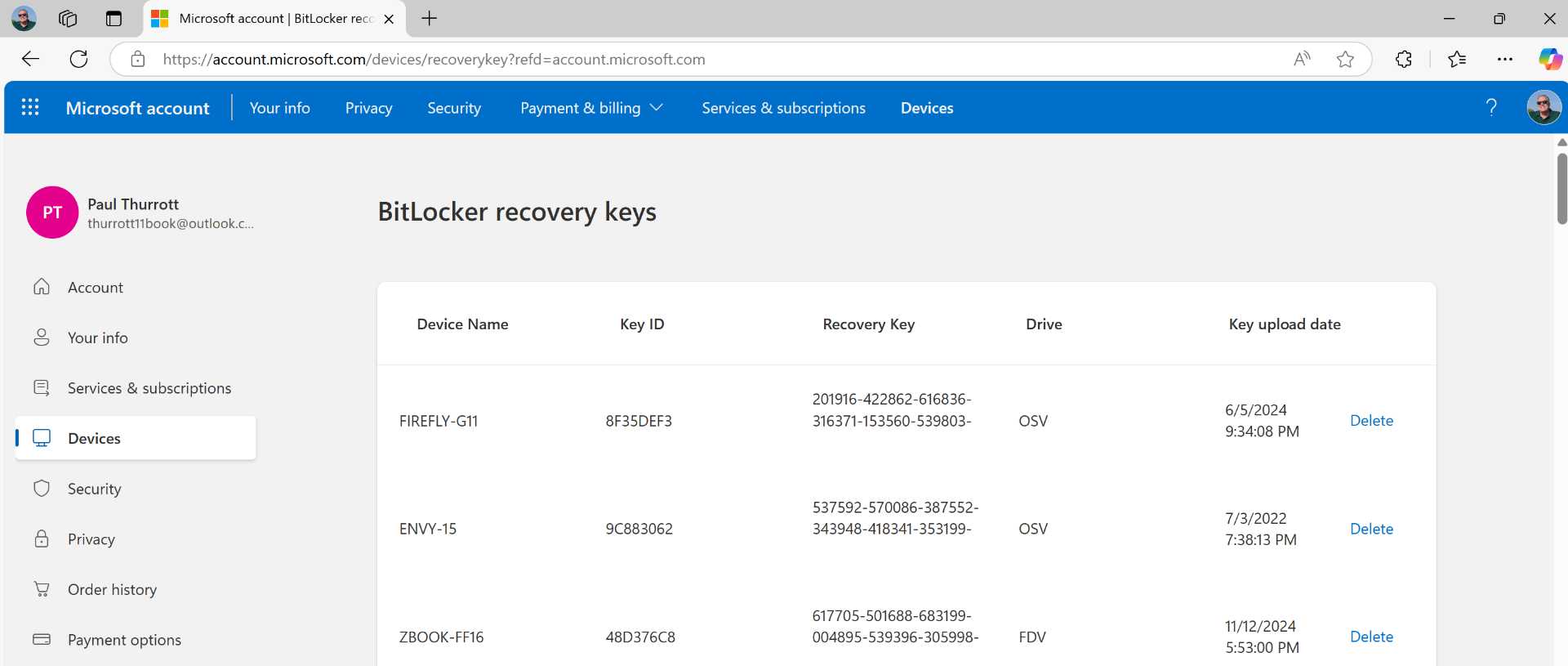
You can now use the appropriate recovery key to access an encrypted disk for which you’ve forgotten the password. You can also use this key if you created a recovery key for the system disk and the PC won’t boot because BitLocker discovered a potential issue.
If you sign in to Windows 11 (Pro) with a Microsoft Work or school account, you can find your recovery keys on the My Account website. Once you’ve signed in and authenticated, navigate to the Devices page. There, you will see each of the PCs and smartphones you’ve used with your account. You can expand the view for any PC to view its associated Device encryption (BitLocker) key(s).

Gain unlimited access to Premium articles.
With technology shaping our everyday lives, how could we not dig deeper?
Thurrott Premium delivers an honest and thorough perspective about the technologies we use and rely on everyday. Discover deeper content as a Premium member.