Set Up Microsoft Edge Correctly
- Paul Thurrott
- Oct 27, 2022
-
2
Note: There is a newer version of this chapter available. –Paul
Set Up Microsoft Edge Correctly
Microsoft Edge is a modern and capable web browser, and anyone familiar with Google Chrome should find it a familiar experience. But Microsoft also uses Edge as a vehicle to push its advertising and web services, and its claims about privacy and tracking protection often fall short. So if you’re going to use Microsoft Edge as your go-to web browser each day, it’s important that you configure it properly, to avoid Microsoft’s pushy attempts to lock you into its corporate strategies, and to protect your privacy and security.
You should review this chapter before you run Microsoft Edge for the first time. But if you’re already using Edge, no worries: we explain how you can make any necessary or recommended configuration changes after the fact as well.
Initial set up
The first time you launch Microsoft Edge, it displays a full-screen experience that steps you through configuring the browser. It is very important that you pay attention here, because some of the language is confusing and Microsoft will try to push you into adopting first-party services you may not want.
So let’s run through each step.
Welcome to Microsoft Edge, the best performing browser on Windows
In this first screen, Microsoft is asking you whether you wish to sync Edge settings with your Microsoft account.
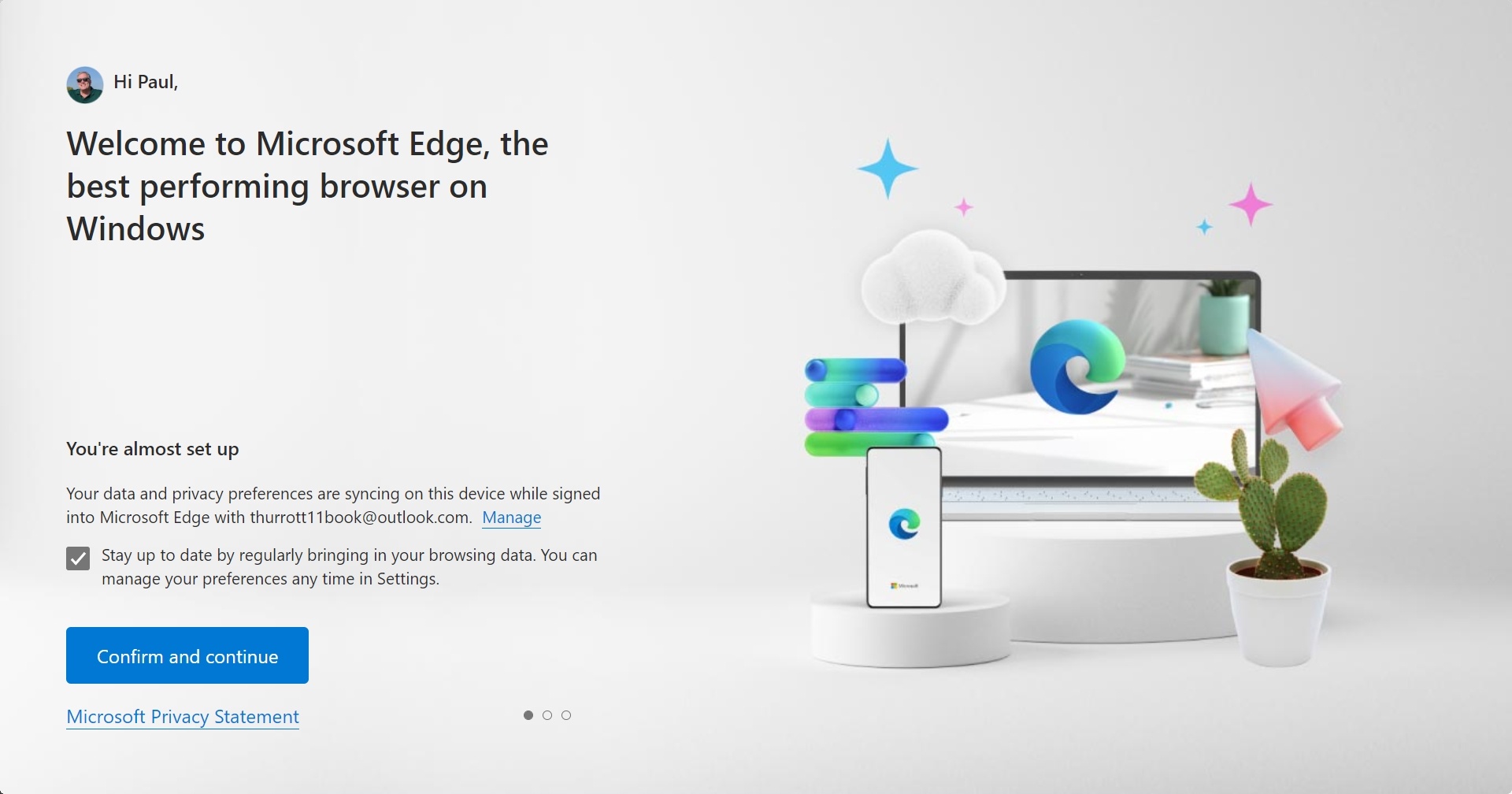
You almost certainly do: if you click the “Manage” link, you will see which browser settings that Microsoft will apply to this instance of Microsoft Edge and then keep in sync going forward.
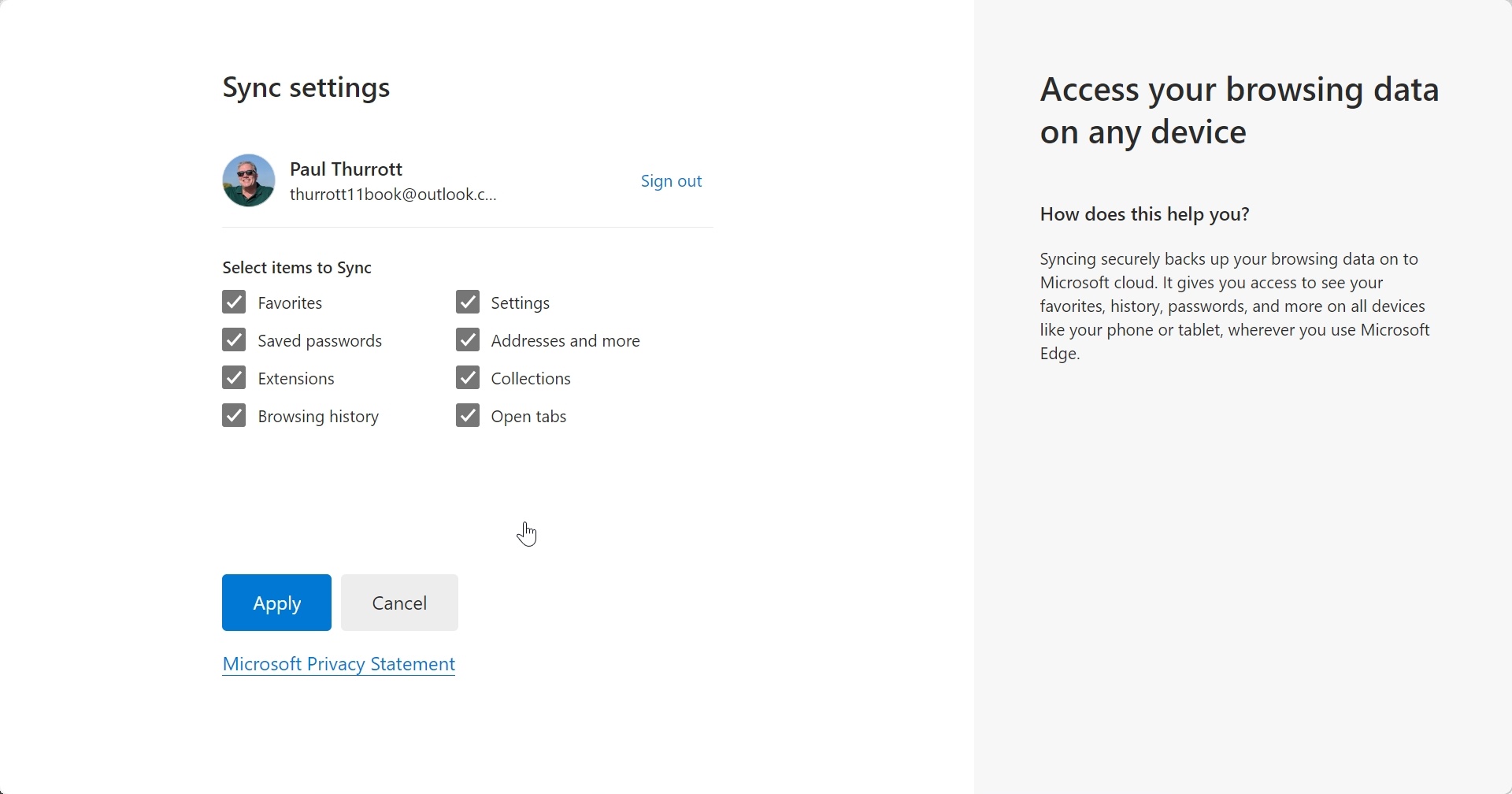
You can use this screen to omit certain settings from syncing if you like. But most are best served by leaving this as it is: you will probably want all of your browser data on each PC (and, potentially, mobile device) you use.
You can always change which data that Microsoft Edge syncs later. To do so, open Edge settings (Settings and more > Settings) and navigate to Profiles > Sync. There, you will see the same list of browser settings, and can toggle any or all of them off.
We can help you import your browsing data from Google
In this rather insidious screen, Microsoft is attempting to facilitate your switch from Google Chrome, by far the most popular web browser, to Microsoft Edge. And they would like to do so without letting you first install Chrome, after which importing browsing data in either direction is rather straightforward. Instead, Microsoft Edge will prompt you to sign into your Google account so that it can import the data that way.
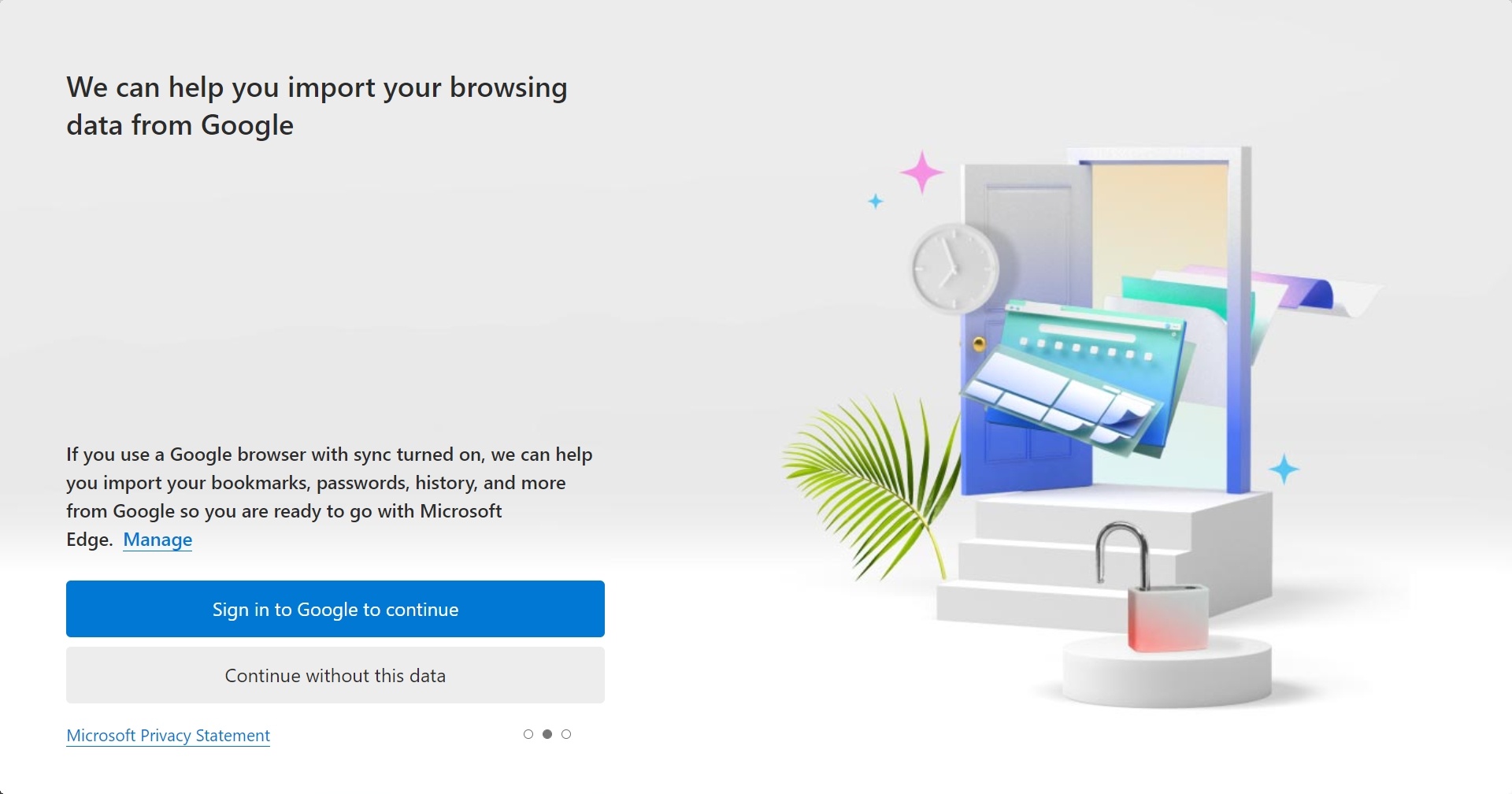
You can determine which browser data is imported by clicking the “Manage” link.
Should you import your Chrome browsing data now? That depends. If you are currently a Chrome user but wish to switch to Edge now, sure. But in the far more likely event that you will use Edge to install Chrome and then never run Edge again, you can simply skip this step. And if you’re not sure which browser you’ll want to use but are open to at least trying Edge, you can always import that data later.
To import your browsing data from Chrome or other web browsers later, open Edge settings and navigate to Profile > Import browser data. This interface supports multiple browsers and even third-party password managers.
Let’s make the web work for you
This screen, which should be titled, “Let’s make the web work for Microsoft,” is designed to increase your usage of Microsoft online services and put your eyeballs in front of Microsoft advertising. And while some of the settings changes presented here might be beneficial, agreeing to this offer will compromise your privacy and result in Microsoft tracking you online so it can show you more relevant ads.
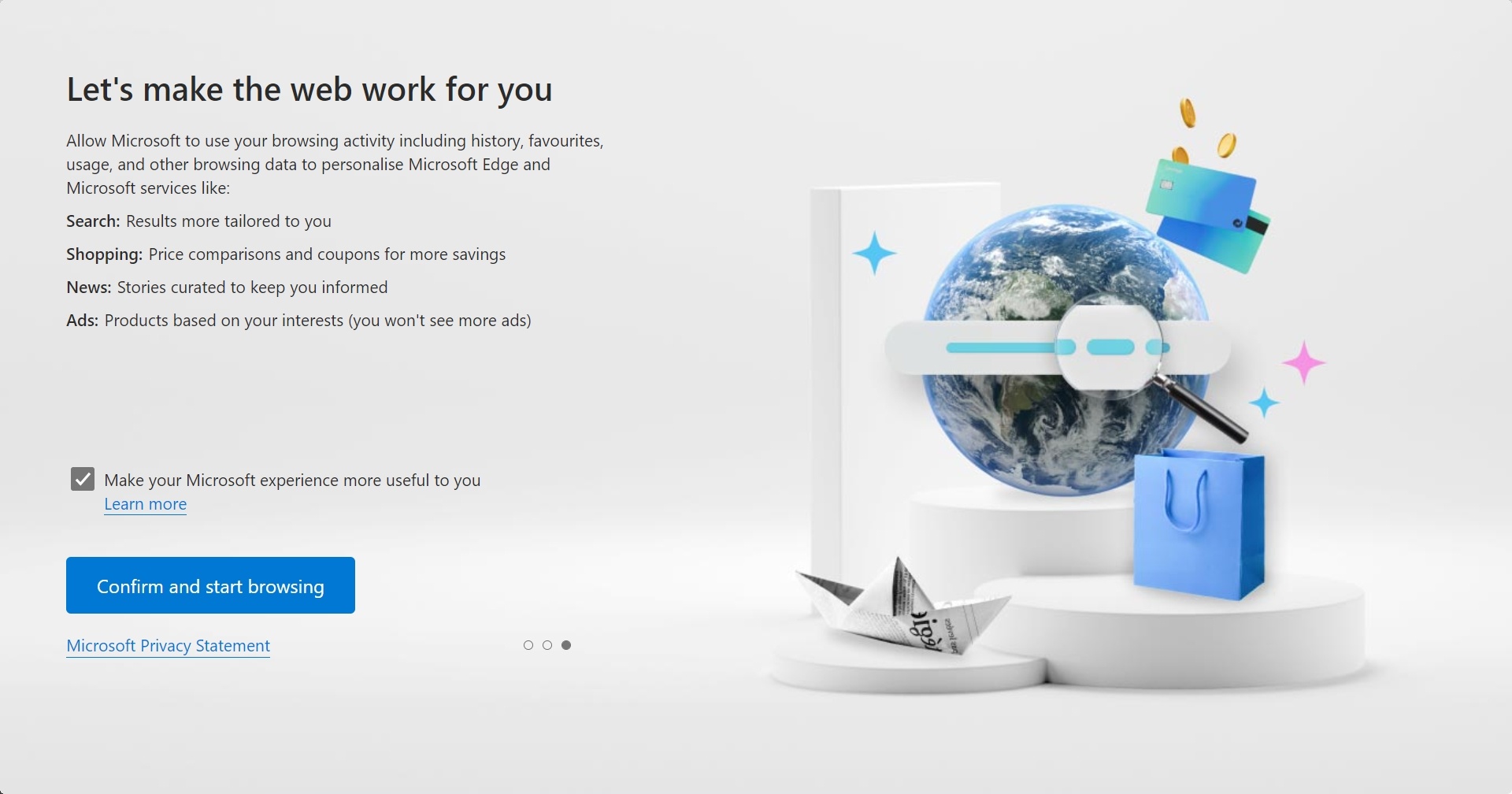
Put simply, we strongly recommend unchecking “Make your Microsoft experience more useful to you” before continuing.
That said, you can configure Microsoft Edge to use any or all of these suggested changes later if you wish. To do so, open Microsoft Edge settings and type advertising in the search box on the left. A single relevant result will appear.
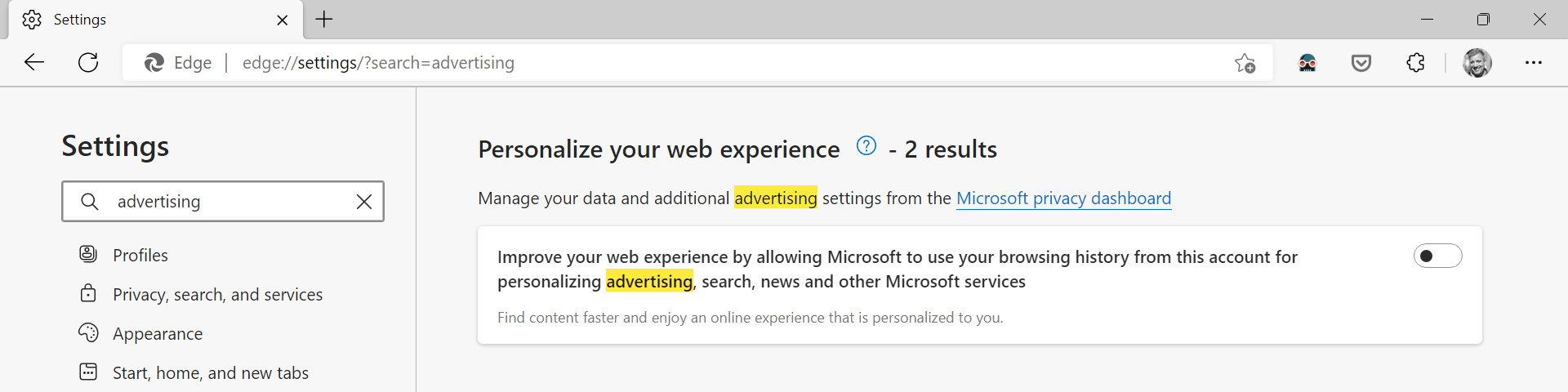
Click the item titled “Improve your web experience by allowing Microsoft to use your browsing history from this account for personalizing advertising, search, news and other Microsoft services” to enable it.
But seriously, don’t do that.
Express yourself by customizing Microsoft Edge with themes
Like Windows 11 itself, Microsoft Edge lets you customize it with a choice themes, light and dark modes (“overall appearance”), and, unique to the browser, tab bar layouts.
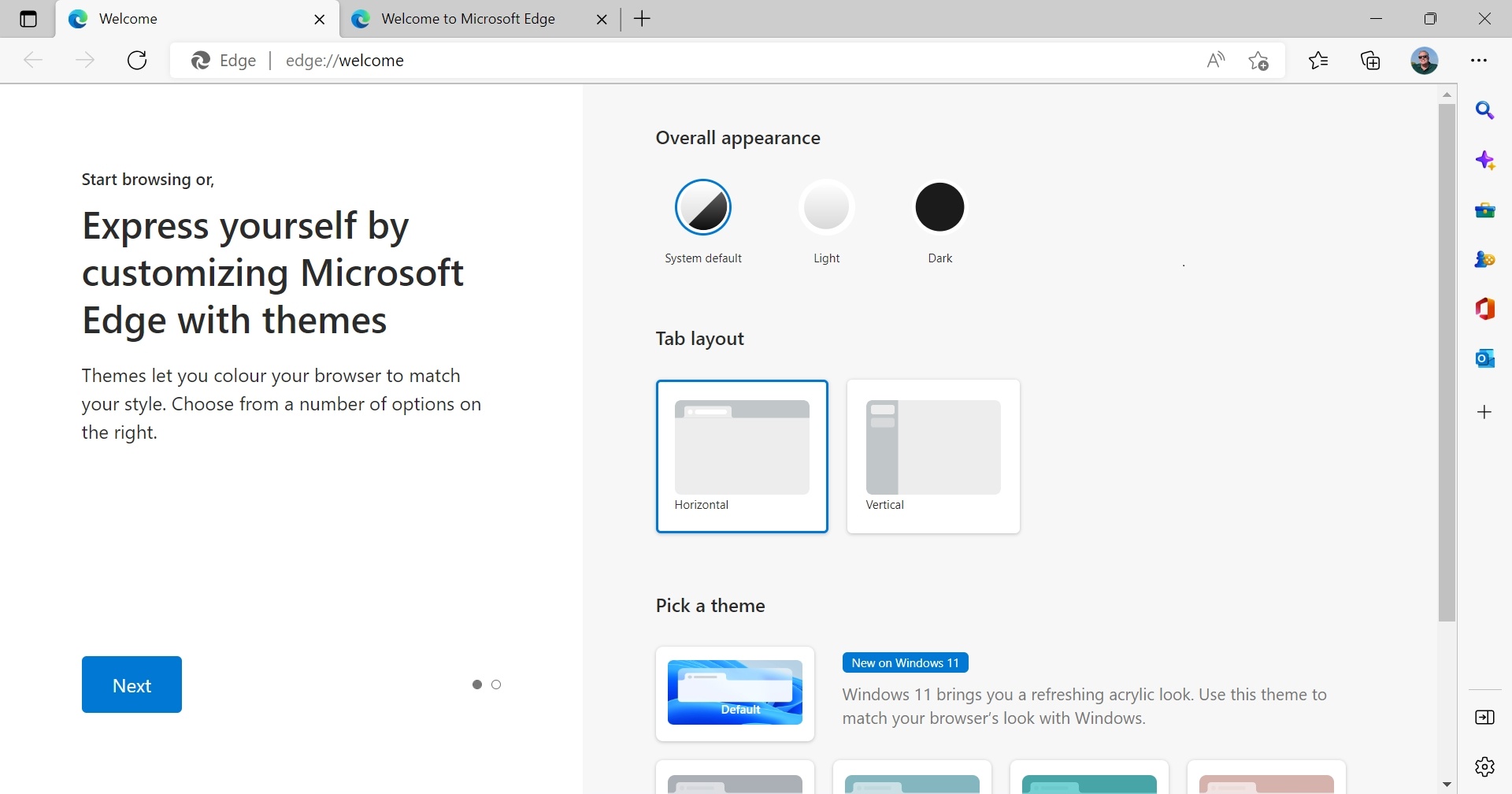
This is all pretty straightforward, but you can change these settings later at any time in Edge settings by navigating to Appearance.
Get to the sites you love right from your Windows taskbar
Like other modern web browsers, Microsoft Edge lets you pin web apps and websites to the Taskbar, alongside your pinned apps, and access them as if they were native apps, instead of in a browser tab. And this page provides a way to pin several sponsored web apps/websites to the Taskbar.
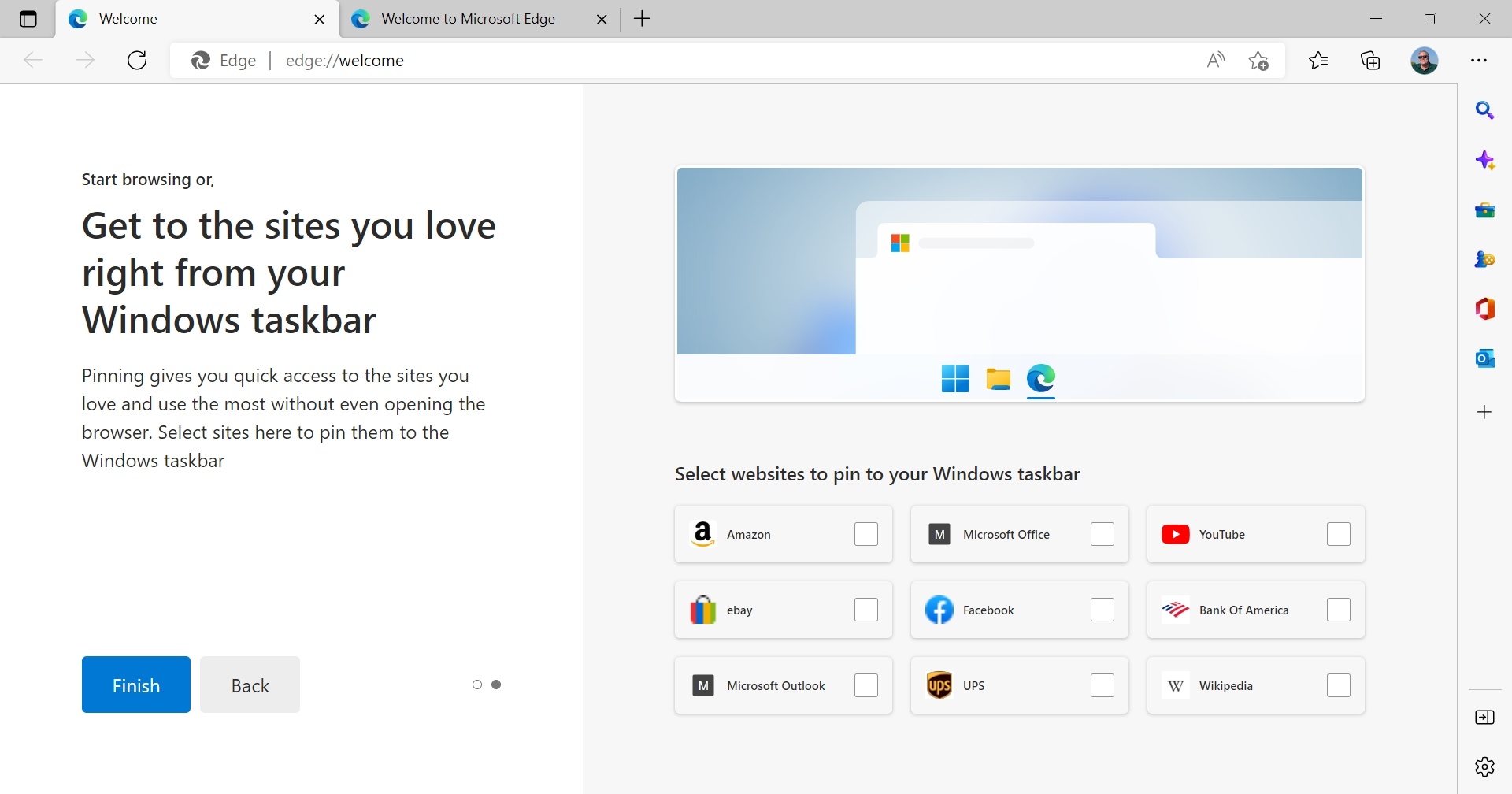
You can, of course, pin any web app or website to the Windows 11 Taskbar at any time. We discuss this functionality in the Microsoft Edge and Web Apps chapter.
New tab page and Welcome to Microsoft Edge
Now, you are finally presented with the Microsoft Edge new tab page, plus a “Welcome to Microsoft Edge” tab that describes recently added new features.
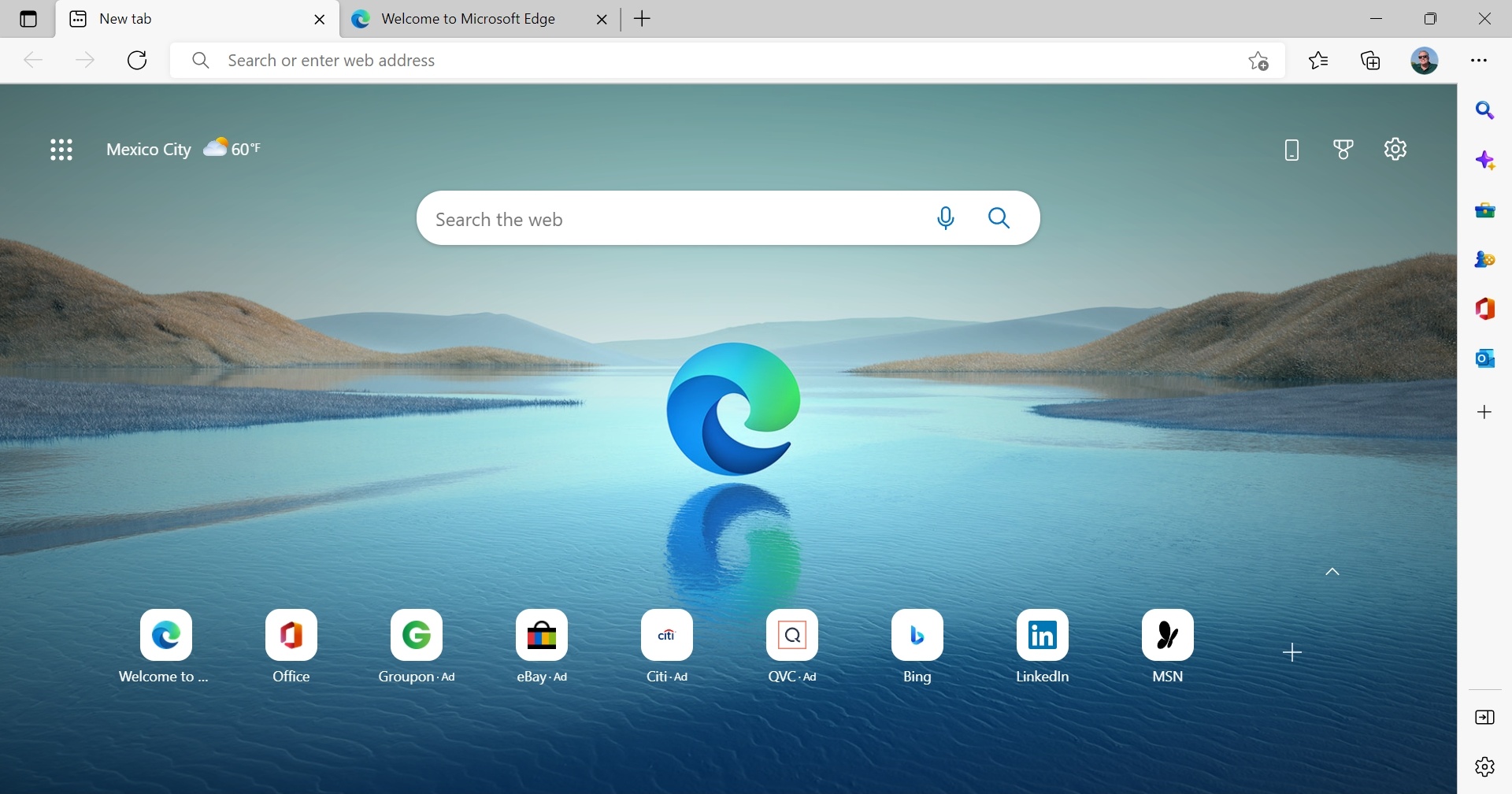
The new tab page is heavily customizable and it’s likely that you will want to make at least some changes. We discuss this functionality in the next section.
Configure the New tab page and Home
Like other web browsers, Microsoft Edge uses a New tab page as its default Home view, which is what you see when Edge starts. But its default New tab page is quite busy, with many onscreen elements vying for your attention. Fortunately, you can customize Microsoft’s New tab page to your liking, configure the Home view differently, or even use an extension that provides its own New tab page.
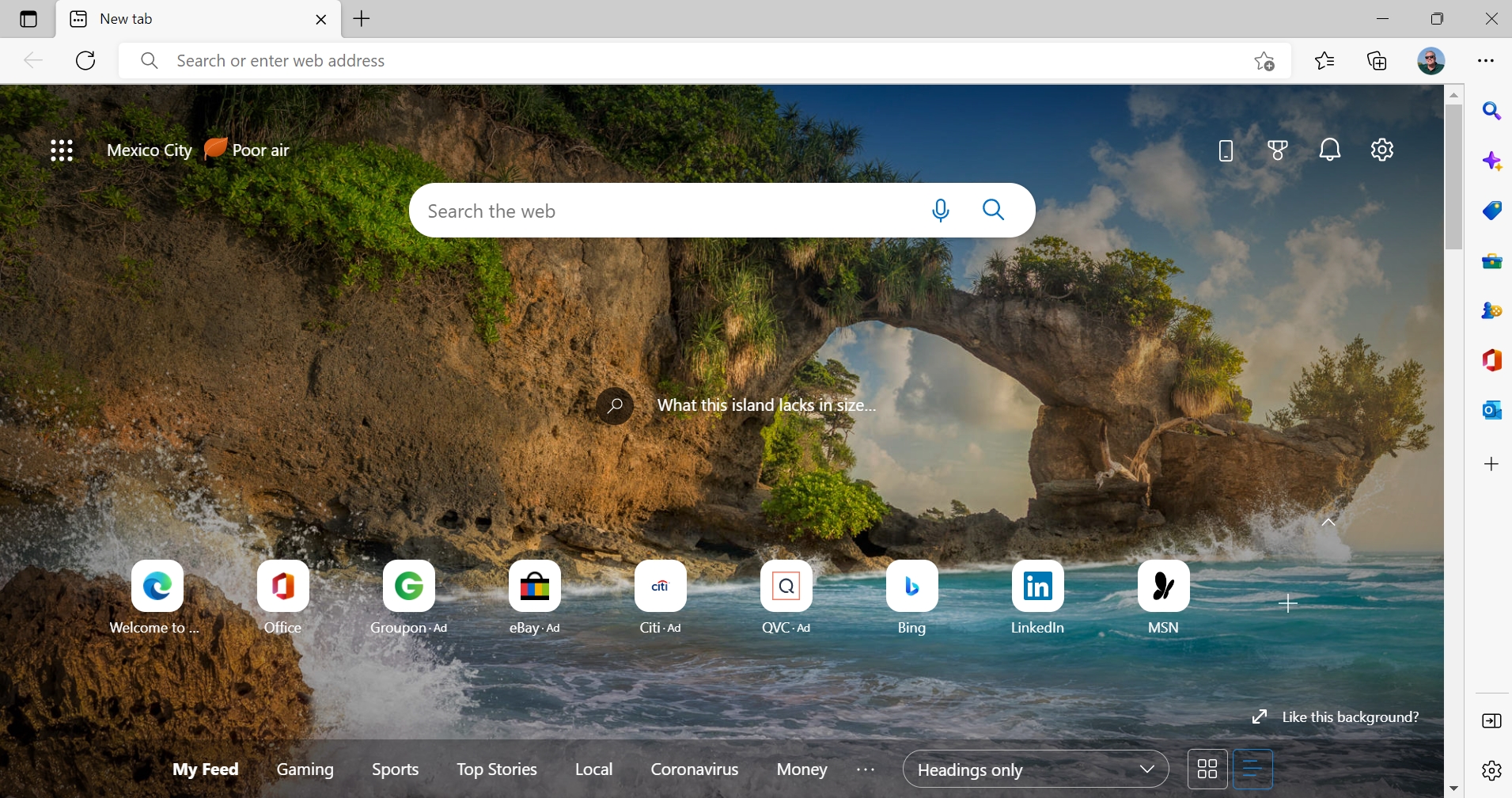
Customize the New tab page
To start customizing the New tab page, click the Page settings icon in its upper-right (it resembles a gear). In the Page settings pane that appears, you can customize the following options:
Layout. Microsoft offers three curated layouts for the New tab page—Focused, Inspirational, and Informational—and each customizes the other options in this pane accordingly, plus a Custom option. For example, the Focused layout removes the Bing image of the day background photo, which is often quite beautiful, so you can focus on this page’s other distractions.
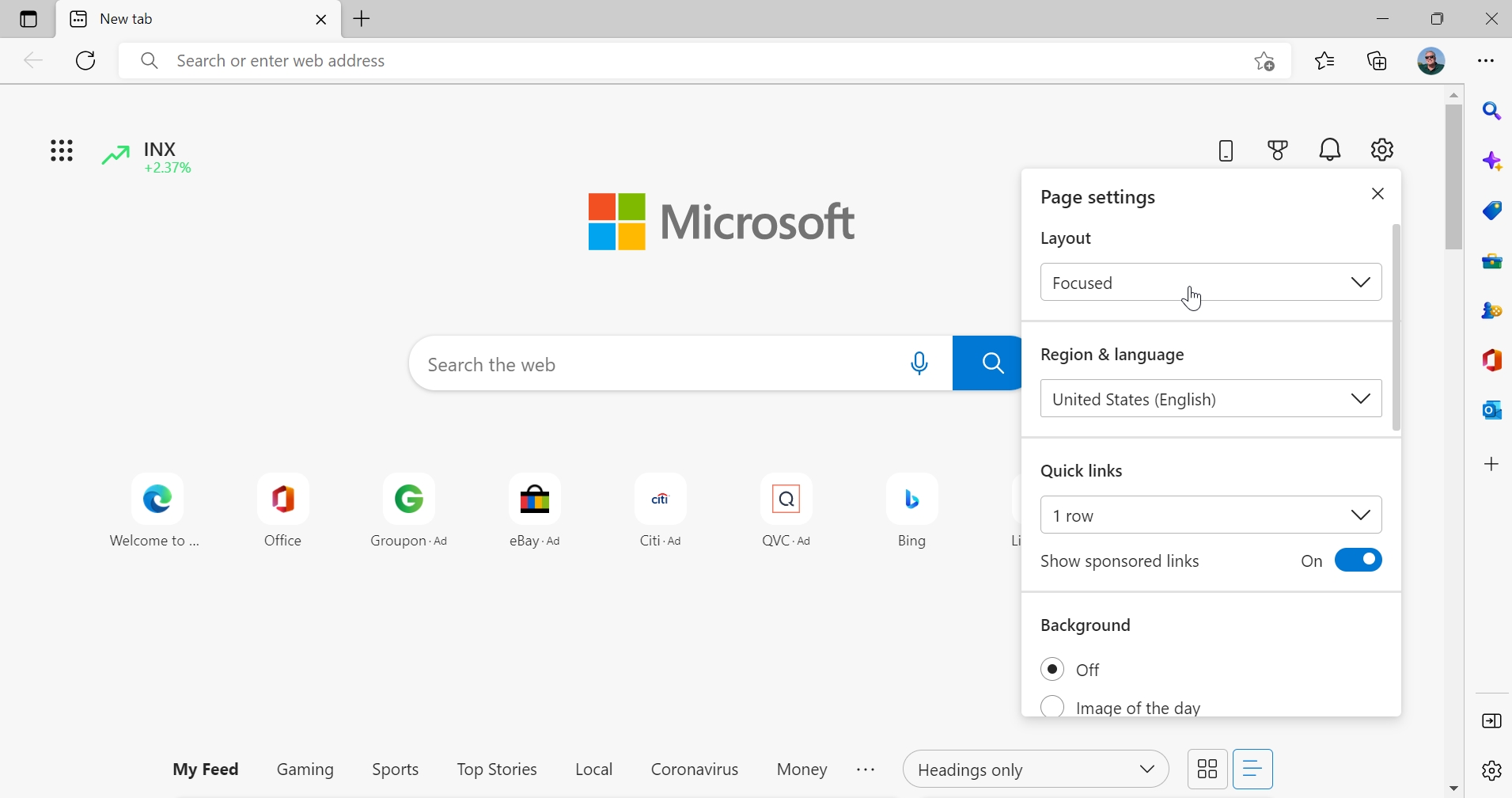
We recommend choosing Custom and fine-tuning the options below to your liking.
Region & language. This will default to the region and language used by Windows 11, but you can change to a long list of other possibilities if desired.
Quick links. By default, Microsoft Edge displays a single row of Quick link icons, which are shortcuts to websites and pages. There are three types of Quick links icons—those provided by Microsoft, Sponsored links (which are third-party sites that paid Microsoft to be promoted here), and Quick links that you add yourself because you find those sites useful. You can configure the Edge New tab page to display two rows of Quick link icons, if needed, and use the “Show sponsored links” option to disable the display of sponsored links, which we recommend.

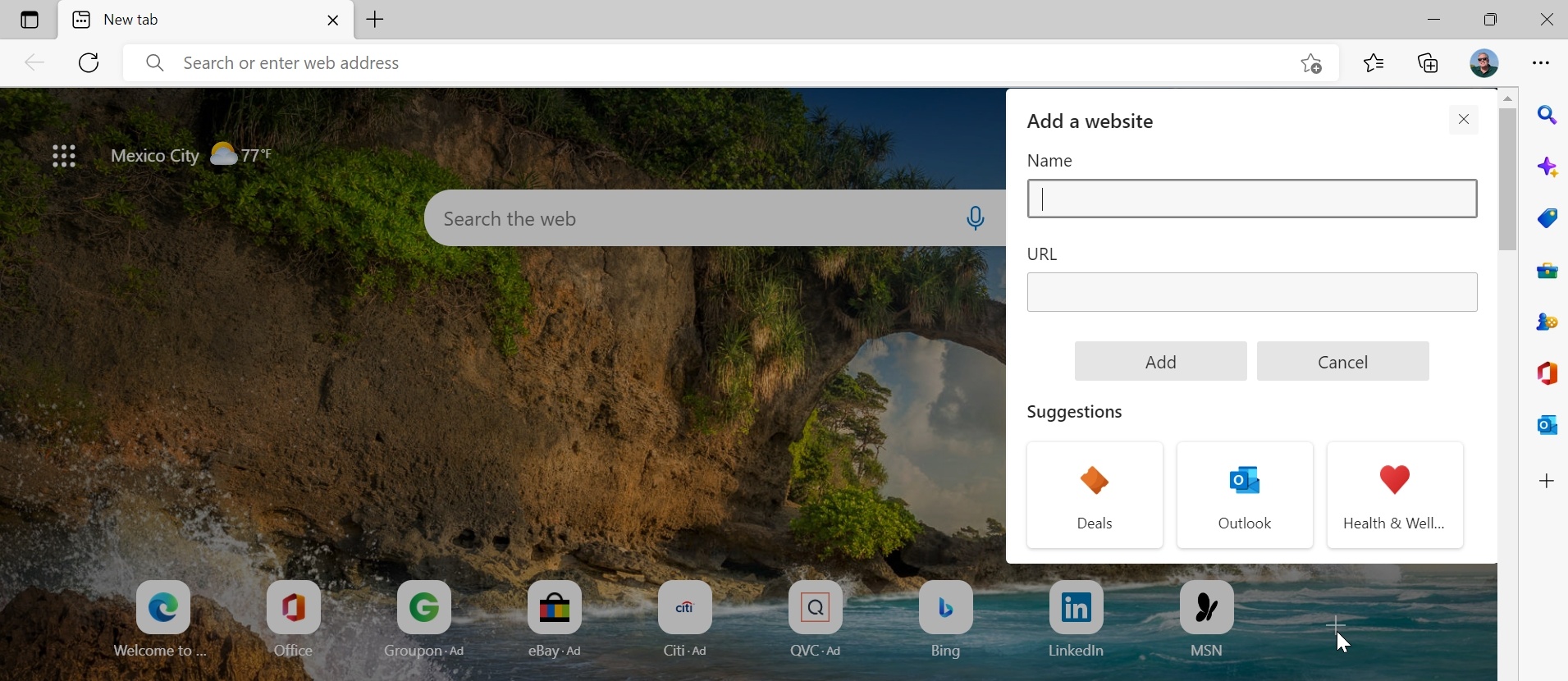
To add a Quick link, display the New tab page and click the “Add a site” (“+) button to the right of the Quick links icons. You can give it a custom name, which is nice.
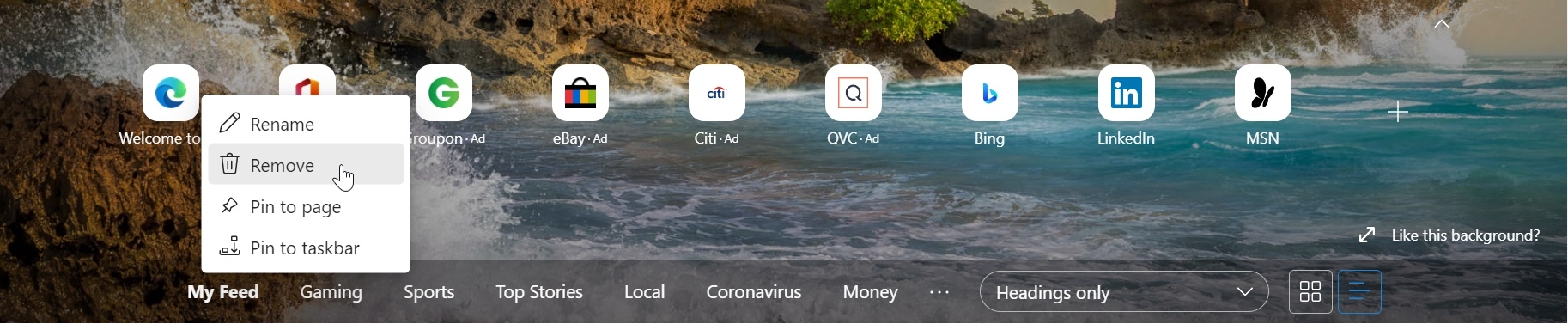
To remove a Quick link, including one provided by Microsoft or a third party, display the New tab page, mouse over the Quick link, select the “More Options” link (“…”) that appears, and choose “Remove.”
Background. By default, the Edge New tab page displays a beautiful Bing image of the day for the background. But you can configure the background with no image, the Bing image or video of the day, your own image, or an image supplied by a custom theme.
Show greeting. When you first open Edge, the New tab display will briefly display a greeting—like “Good afternoon, Paul”—in its upper-left, before displaying a revolving set of the weather forecast, air quality (AQI), and stock information there. You can disable the greeting, but not the other information.
Office sidebar. Even if you are a heavy user of Microsoft Office on the web, it is unlikely that you need the Office sidebar, which appears on the left side of the New tab page when enabled. That’s because you can access Office on the web using the App launcher icon in the upper left of the page (to the left of the weather/AQI/stocks display) at any time. Or you can use the Microsoft Office and Outlook views in the Edge sidebar if you leave that enabled.
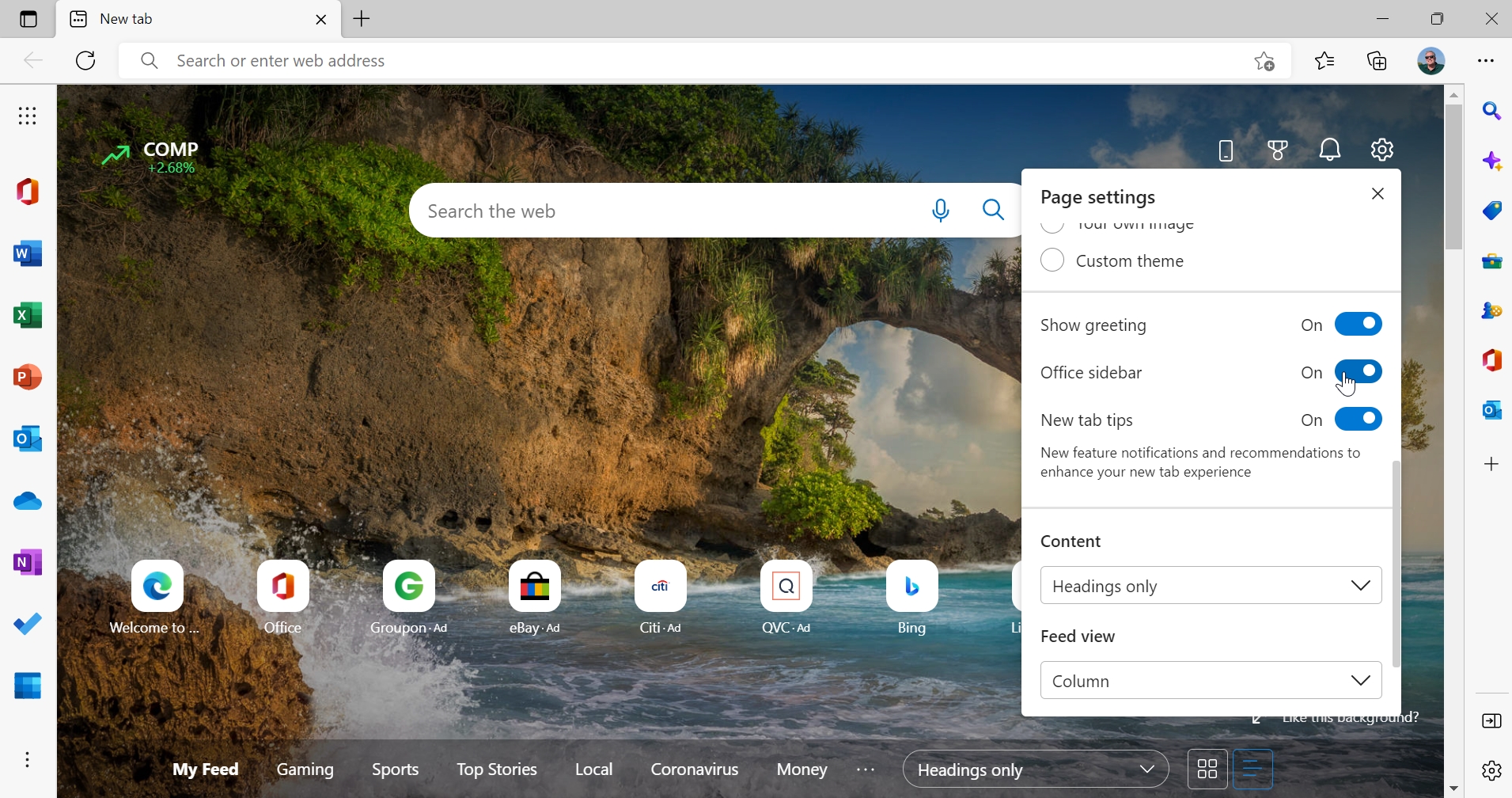
New tab tips. By default, Edge will occasionally display new feature notifications and recommendations related to the New tab page. You can disable this feature.
And should. It is highly unlikely you will welcome Microsoft’s promotional notifications.
Content. Like the widget board in Windows 11’s Widgets interface, the Microsoft Edge New tab page displays an advertising-laden feed of news and other web-based stories from Microsoft’s MSN service. You can configure this feed to display as a headings bar at the bottom of the page, with the contents visible, with the contents partially visible, or, best of all, you can turn it off. If you do leave the content feed enabled, you can scroll down from the New tab page to read more and more stories.
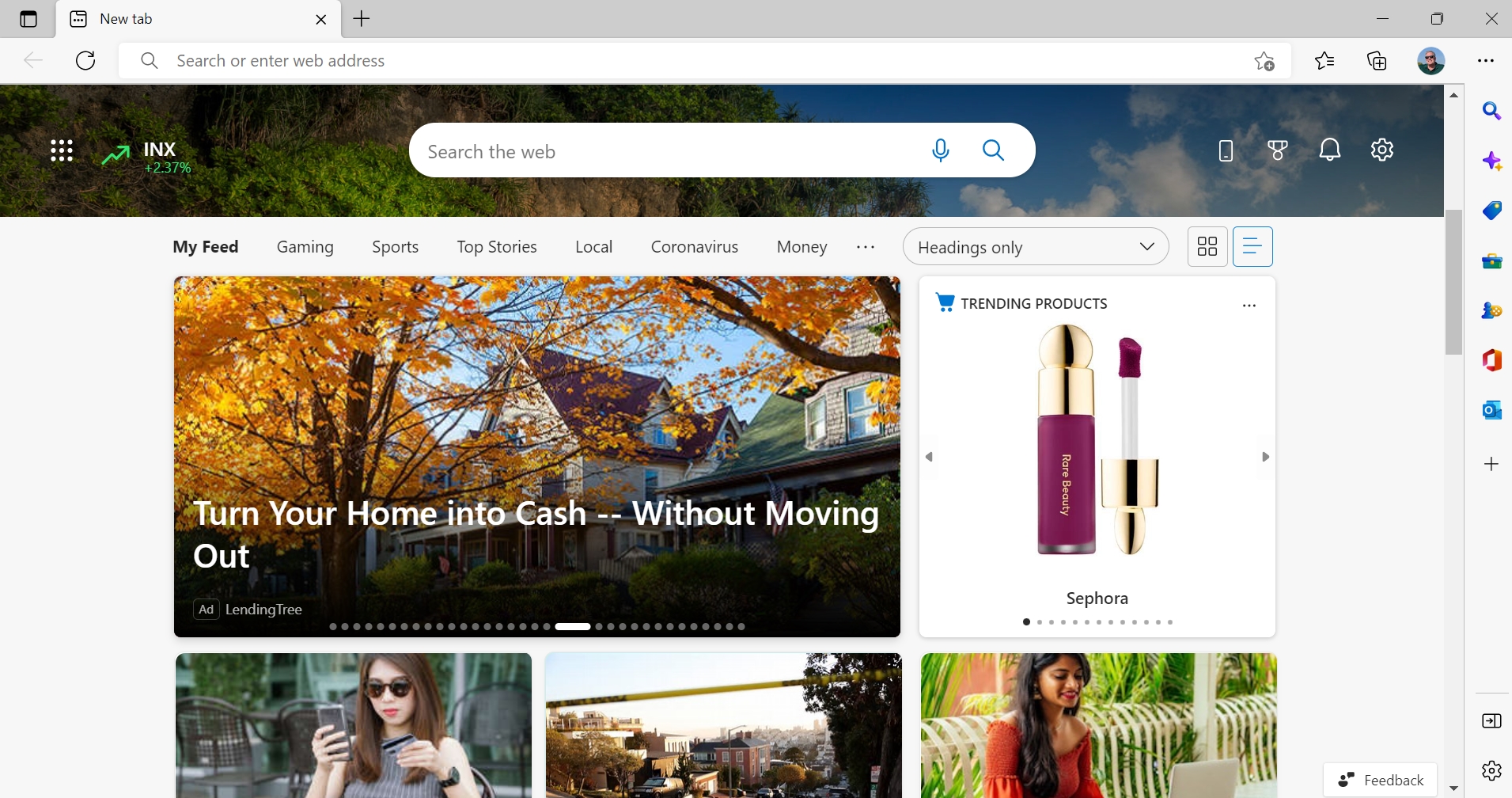
Feed view. The content feed can display in a grid or columnar layout, your choice.
Feeling overwhelmed? There’s more. In addition to the options available in Page settings, there are two other New tab page options to consider, assuming you intend to keep using this interface.
First, can also configure how or if the New tab page displays news notifications. To do so, click the Notifications icon in the upper right of this page (it resembles a bell) and then choose Settings in the Notifications pane that appears. This displays the Notification settings interface for the content feed.
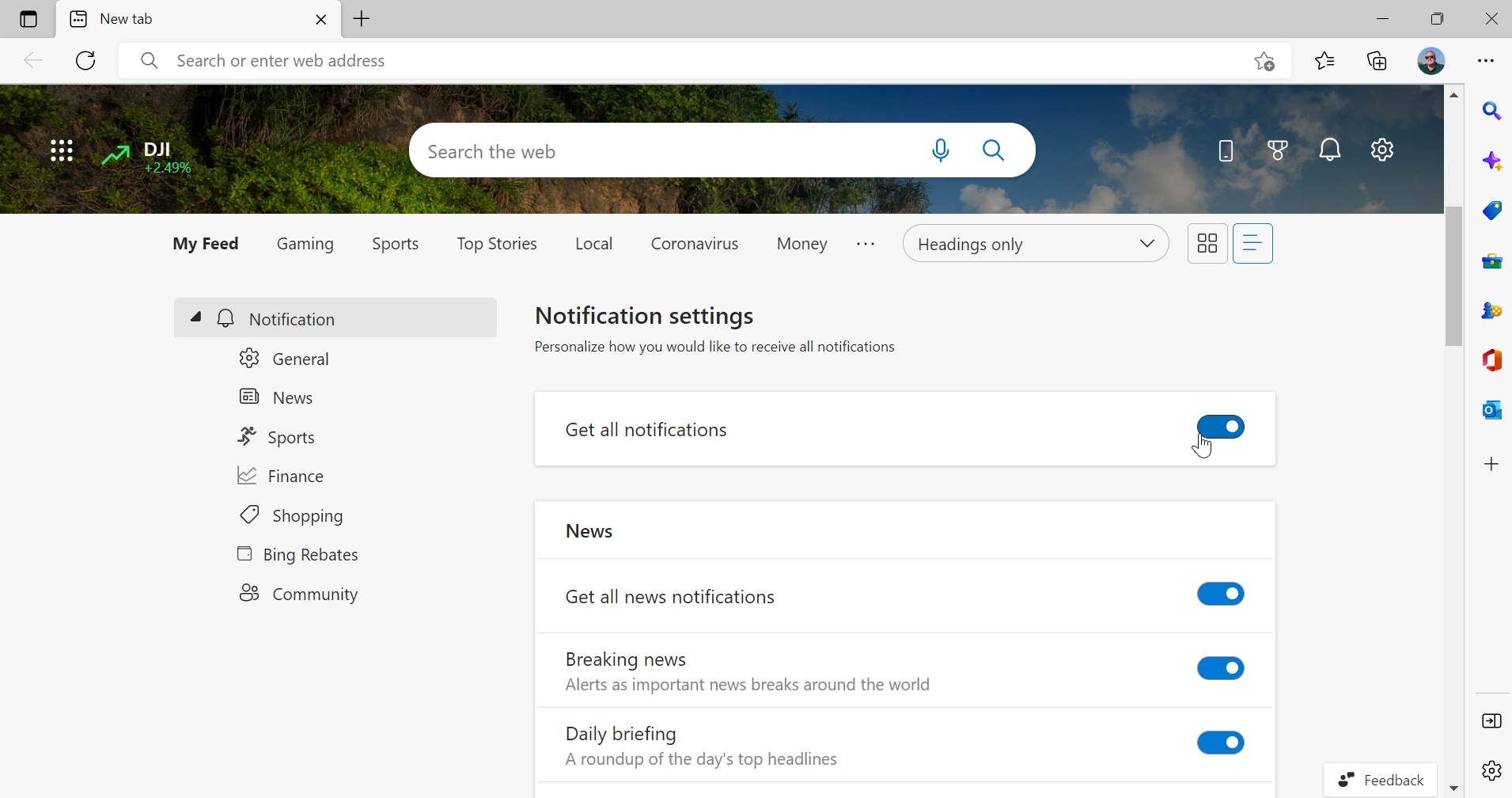
Notifications—and the Notifications icon—are not available if you’ve hidden the content feed.
Here, you can configure which notification types you will see across MSN’s news, sports, and finance sections, plus Shopping and Bing Rebates (both discussed in the Shopping with Microsoft Edge chapter), and the MSN community. There’s also a handy toggle for “Get all notifications,” which you can set to Off.
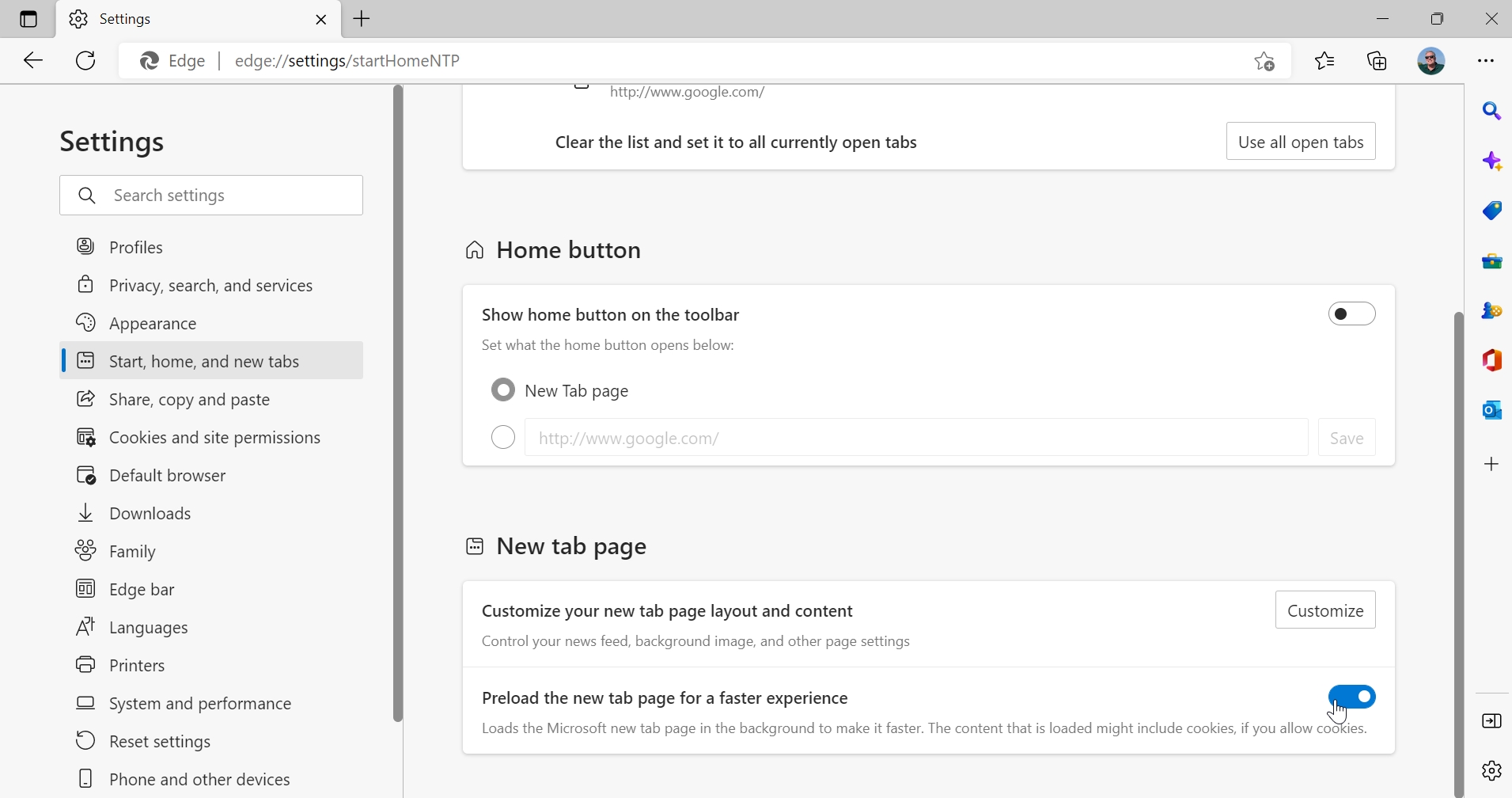
Second, you can configure whether the New tab page preloads in the background while you’re using the browser. This option is set to “On” by default, and when configured that way will load the New tab page—especially its monster content feed—more quickly. But it does so at the expense of RAM: leaving this enabled will consume more system resources.
To configure this option, open Microsoft Edge settings by navigating to Settings and more (“…”, the item at the far right of the Edge toolbar) > Settings > Start, home, and new tabs. Then, scroll down to the “New tab page” section. You’ll see an option titled “Preload the new tab page for a faster experience.”
Configure a different Home view
You don’t have to use the New tab page as your Home view in Microsoft Edge. Instead, you configure a different Home view. Available choices include:
- Tabs from the previous session. This is the ideal choice for many users: now, when you open up Edge again it will reopen whichever tabs you were using the last time you were using Edge.
- One or more custom web pages. You can configure Edge to open one or more web pages of your choosing.
To make this change, open Microsoft Edge settings by navigating to Settings and more (“…”, the item at the far right of the Edge toolbar) > Settings > Start, home, and new tabs. You’ll see the available choices in the “When Edge starts” section at the top.
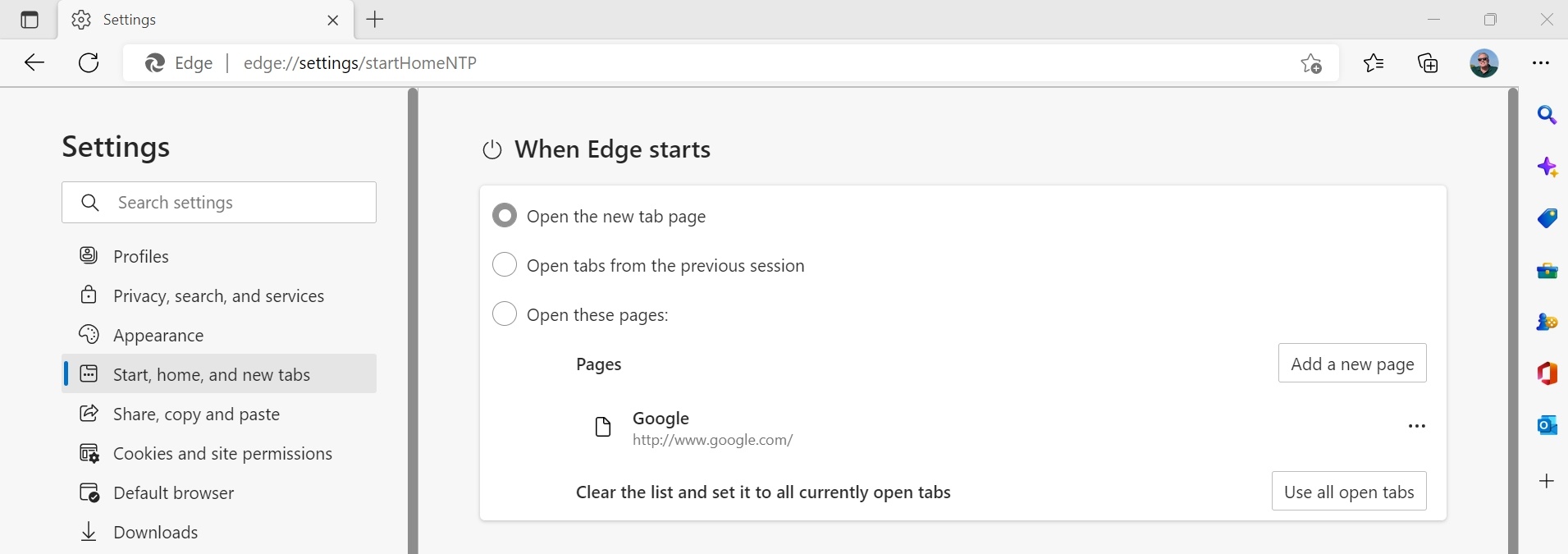
If you want to use two or more custom tabs, you can configure that more easily by loading the web pages you want into tabs, visiting this interface, and clicking the “Use all open tabs” button next to “Clear the list and set it to all currently open tabs.”
Use an extension to replace the New tab page
If you find Microsoft’s New tab page unacceptable—as we do—and would like to use a different New page as the default Home view in Edge, you should consider trying an extension like Momentum, which offers a clean, ad- and distraction-free New tab experience. You can find other similar options with your favorite web search engine.
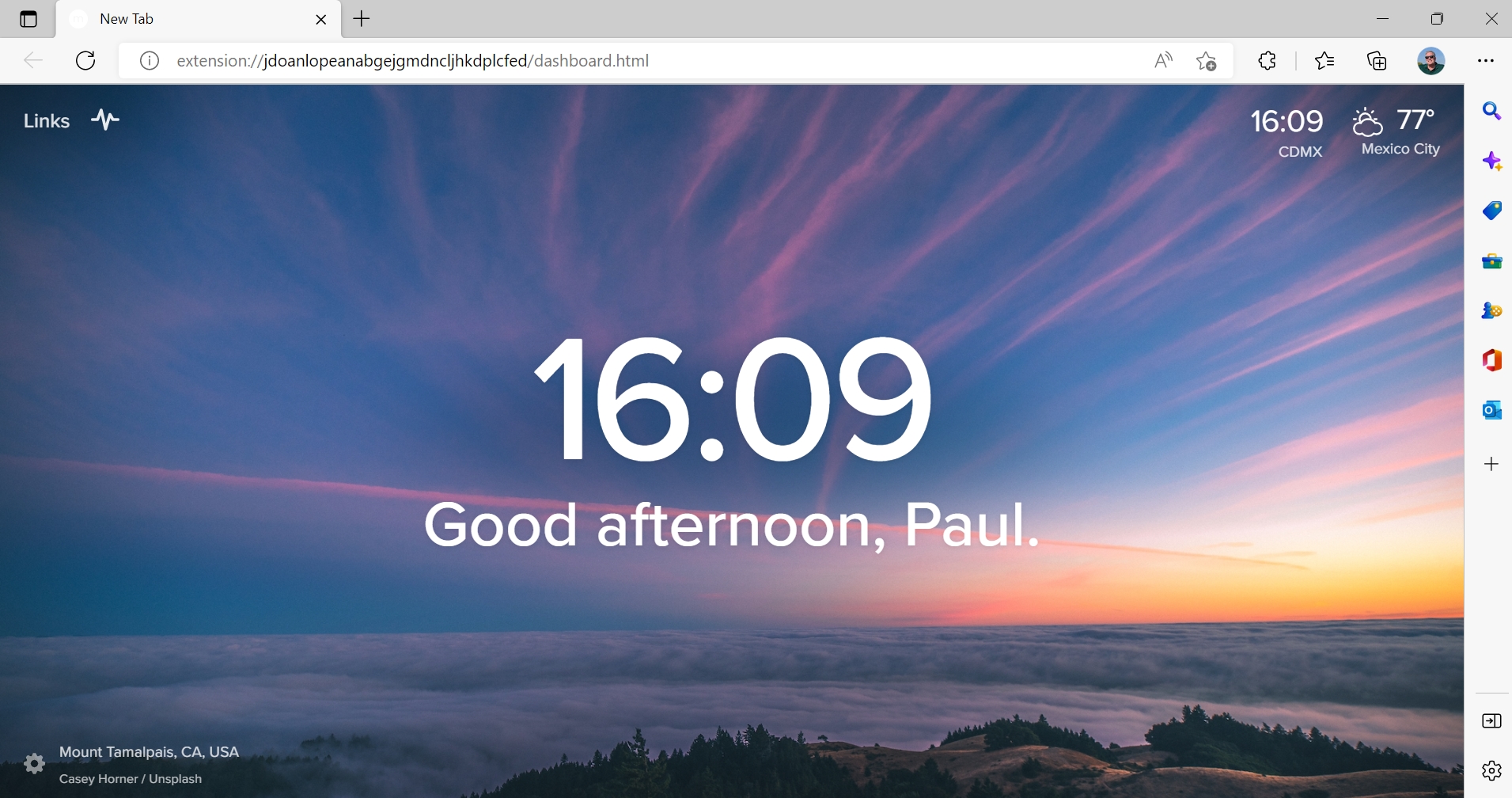
We discuss extensions briefly in the Extensions section in the next chapter.
Protect yourself online with privacy extensions
Microsoft rightfully promotes the well-designed security features it builds into its Edge browser, but its privacy promises fall flat: no matter how you configure Microsoft Edge, it cannot fully protect you from the trackers that companies like Google and Meta—and, yes, Microsoft—use to monitor your online activities and then sell them to advertisers that will target you using your own personal data.
Yes, using Microsoft Edge is safer than using Google Chrome, a product that is even more insidious and effective at undermining your privacy. And yes, you can and should examine Tracker blocking and Edge’s other built-in tools in Edge settings > Privacy, search, and services.
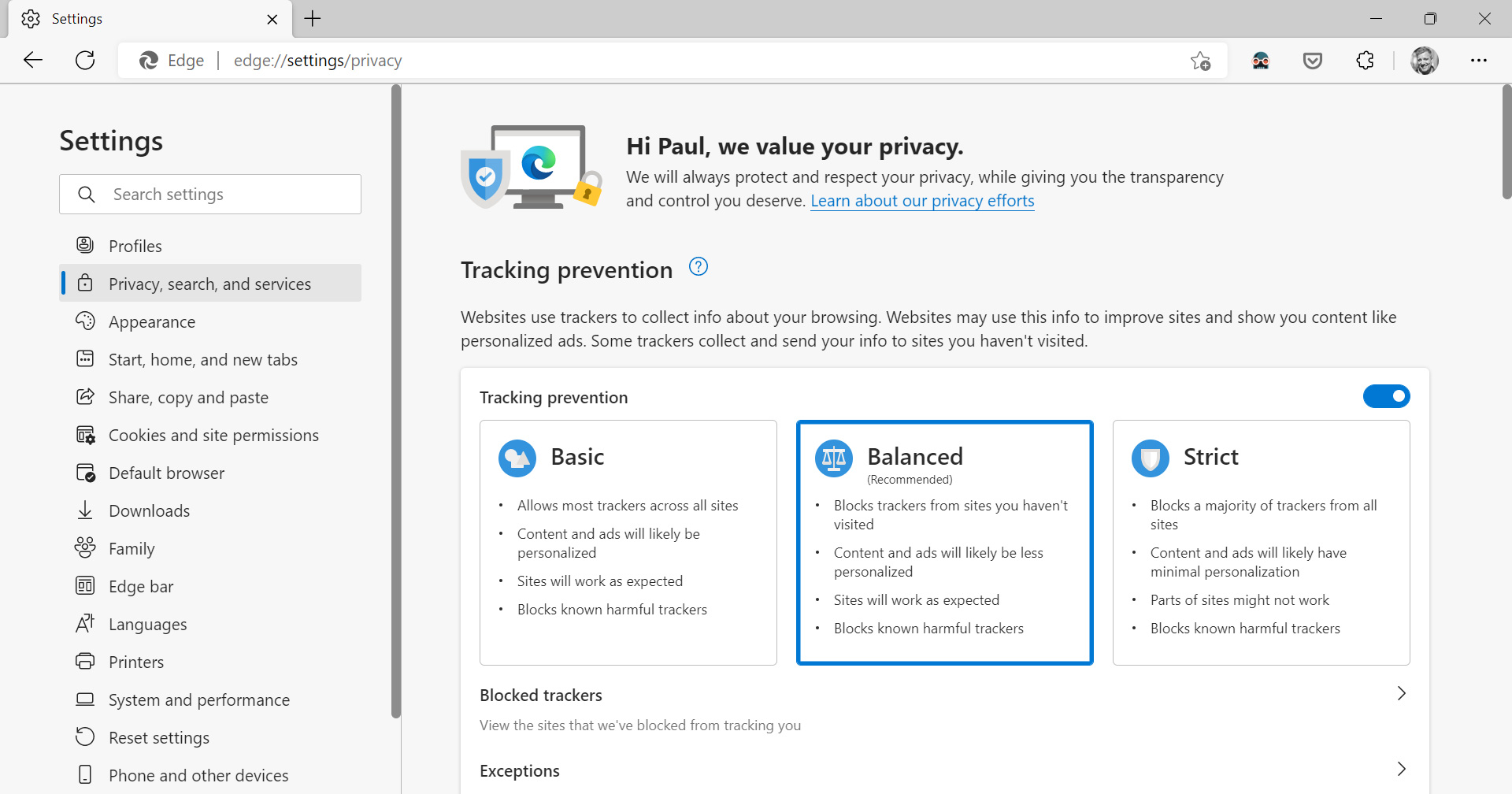
But no matter how you configure Edge, those built-in privacy features are not enough. Instead, you should turn to the privacy-focused browser extensions that can really protect you. There are three primary categories: Tracking blockers, ad blockers, and virtual private networks (VPNs).
Tracking blockers are perhaps the most important because they prevent advertisers from collecting your personal data as you browse the web. But ad blockers also offer some level of tracking protection because they prevent the ads that hide trackers from loading in the first place. And VPNs, while not strictly necessary for most users, offer another layer of protection by hiding your online activities from websites and even from your Internet Service Provider (ISP).
Tracking blockers
You should consider installing one or even two of these extensions.
Privacy Badger. This very effective tracking blocker discovers and blocks trackers based on behavior, and it automatically blocks trackers that do not respect the Do Not Track and Global Privacy Control signals.
Ghostery. This useful extension blocks trackers, anonymizes your activities, and blocks ads.
uBlock Origin. This thin and light anti-tracker uses a collection of respected and up-to-date filters to keep bad actors at bay.
Ad blocker: Adblock Plus
Adblock Plus is the recognized leader in ad blocking and one of the most popular extensions in the world. In addition to blocking ads, it blocks pop-ups, YouTube ads, and so-called “malvertisements.”
VPN: ExpressVPN
ExpressVPN prevents websites from discovering your IP address and location. This service isn’t free, however: you need an ExpressVPN subscription, which costs $8.32 to $12.95 per month depending on which plan you choose. We don’t use ExpressVPN every day, but it is especially useful when traveling or if you need to connect to an untrustworthy Wi-Fi network.
You can learn a bit more about extensions in the next chapter.
Configure Edge performance and efficiency
By default, Microsoft Edge runs in the background when you boot into Windows 11 to improve its start-up performance, and it integrates with Windows 11 in ways that other web browsers do not to improve its performance and efficiency as much as possible. But you should examine the relevant settings, whether you intend to use Edge regularly or not.
Startup boost and other performance features
By default, Microsoft Edge uses a feature called Startup boost to ensure that it opens and runs as quickly as possible on first launch. But you may wish to disable this feature, in particular if you won’t be using Edge regularly.
To examine this and other performance-related Edge features, open Edge settings and navigate to System and performance.
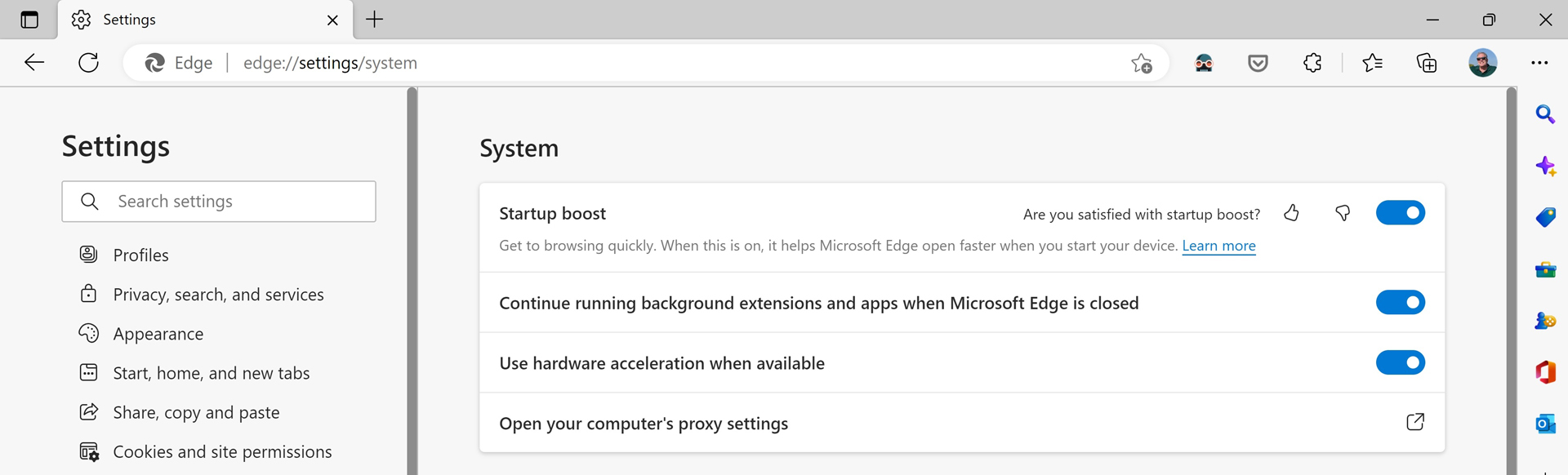
The most important option here is “Startup boost.” If you will not be using Edge regularly, turn this to “Off.”
Efficiency mode and Sleeping tabs
Microsoft’s telemetry data shows that most Windows users spend most of their time using a web browser and, as a result, browsers have become far more capable. The downside, of course, is that these applications also take up ever more microprocessor cycles and RAM than ever before as well, leading to decreased performance and poorer battery life.
To combat this problem, Microsoft has created two related Edge features.
The first, called Efficiency mode, integrates with a Windows 11 power management feature of the same name to extend battery life by dramatically reducing the application’s microprocessor usage.
The second, Sleeping tabs, puts browser tabs to sleep after five minutes of inactivity, reducing microprocessor and memory usage significantly, while improving battery life. Tabs that are asleep are visually faded to differentiate them from non-sleeping tabs.

Of course, these features come with specific performance-related trade-offs as well. Sleeping tabs, for example, take an extra second or so to wake up when selected. And some websites don’t work well—or at all—if Sleeping tabs is enabled.
To achieve a sense of balance, Efficiency mode is configured by default to come on only when a PC is unplugged from power and on low battery. And Sleeping tabs works, while enabled by default, works differently depending on whether Efficiency mode is enabled. If it is, inactive tabs go to sleep after just 5 minutes. But you can configure how many minutes (or hours) of inactivity are required before tabs are put to sleep when Efficiency mode is disabled.
You can configure Efficiency mode and Sleeping tabs in Edge settings: navigate to System and performance and then scroll down to the “Optimize Performance” section.
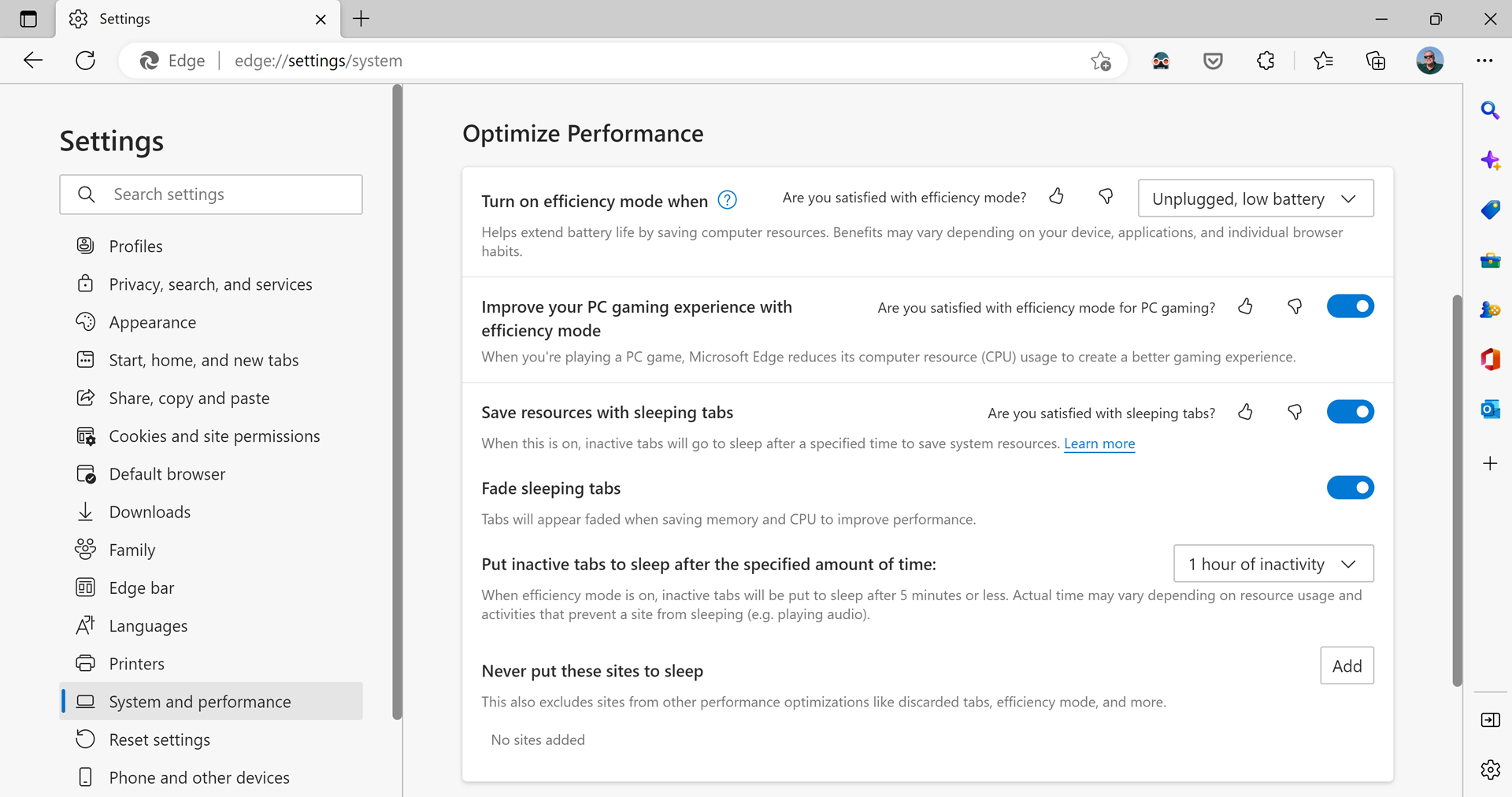
Here, you will find the following options:
Turn on efficiency mode when. This option determines when—or if—Efficiency mode is enabled. The default is “Unplugged, low battery,” but you can change it to “Unplugged,” “Always,” or “Never.”
Improve your PC gaming experience with efficiency mode. When you’re playing a game on your PC, Edge will by default go into Efficiency mode automatically to free up microprocessor resources.
Save resources with sleeping tabs. Enabled by default, this feature determines whether inactive tabs will go to sleep after the time specified below.
Fade sleeping tabs. Also enabled by default, this option determines whether sleeping tabs are visually faded to differentiate them from non-sleeping tabs.
Put inactive tabs to sleep after the specified amount of time: This option determines the length of the period of inactivity before tabs will go to sleep when Sleeping tabs is enabled. The default is “1 hour of inactivity,” but you can set it to a range of values ranging from “30 seconds of inactivity” to “12 hours of inactivity.”
Never put these sites to sleep. Using heuristics, Microsoft tries to determine which websites may not work properly or at all with Efficiency mode and Sleeping tabs, and it adds those sites to this blocklist to ensure that they work normally. You can also manually add any sites you wish to this list using the “Add” button.
So. What should you do?
This will vary according to your usage patterns and how comfortable you are trying to out-think Microsoft’s best attempts to balance performance and battery life. But we have a bit of common-sense advice.
If you are a PC gamer, do not mess with the Efficiency mode options in Edge: you want the browser to take up as few microprocessor resources as possible.
If you use only a few tabs at a time, there is no reason to leave Sleeping tabs enabled.
If you find yourself often switching to a sleeping tab and find them too slow to wake up, you should consider changing the “Put inactive tabs to sleep after the specified amount of time” option to a longer interval. Or disabling Sleeping tabs entirely.
What do we do? We see no reason to mess with the Efficiency mode settings, but we do disable Sleeping tabs, as we value the performance of the Edge user interface over microprocessor or RAM usage.

Gain unlimited access to Premium articles.
With technology shaping our everyday lives, how could we not dig deeper?
Thurrott Premium delivers an honest and thorough perspective about the technologies we use and rely on everyday. Discover deeper content as a Premium member.